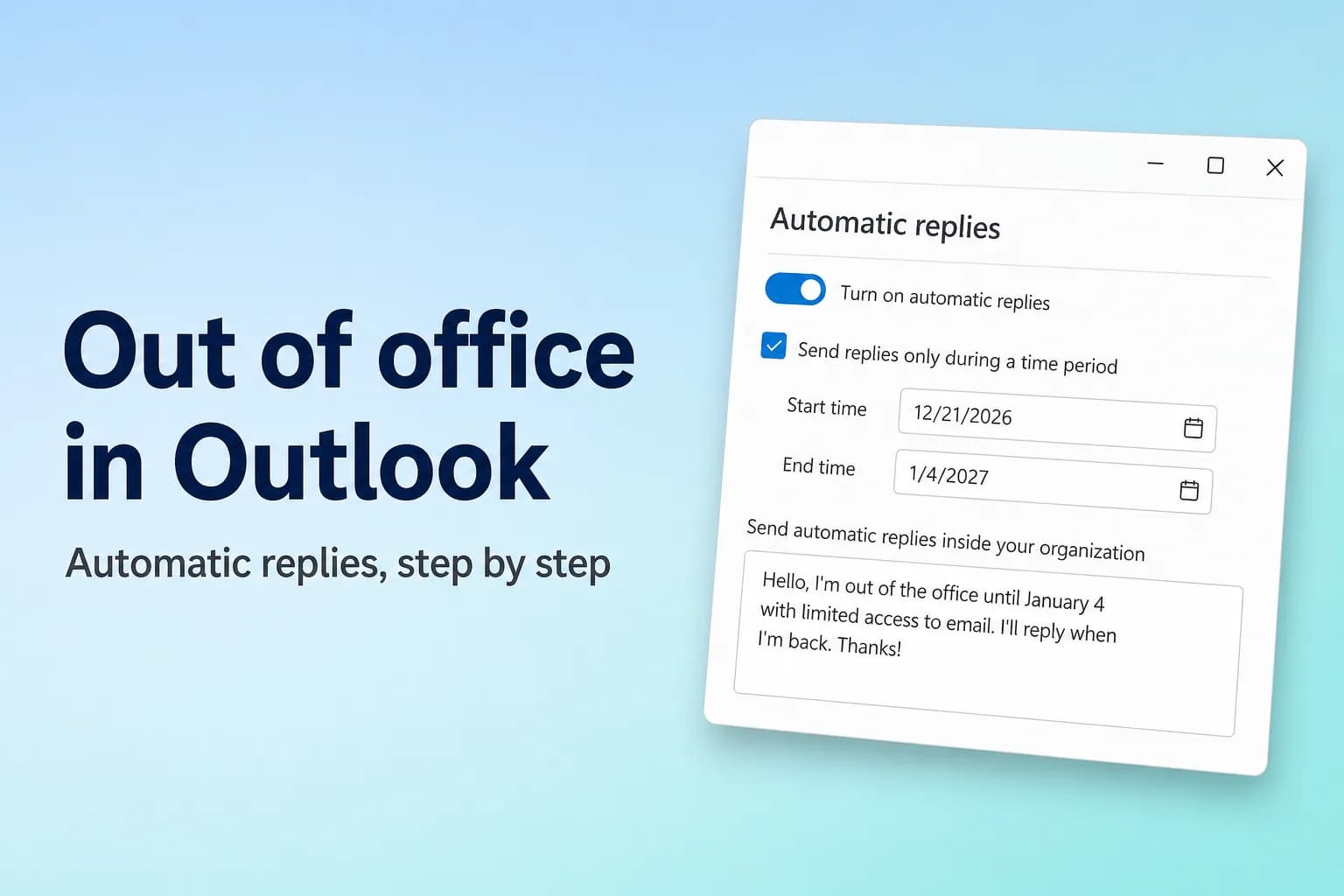
To set out of office in new Outlook or Outlook on the web, go to Settings → Accounts → Automatic replies, switch the toggle on, type your message and click Save. In classic Outlook for Windows, it's File → Automatic Replies. Add a start and end date and Outlook turns the replies off by itself when you're back.
The main catch is the type of account. Automatic replies are built into Microsoft 365 work or school accounts, Exchange and Outlook.com. If you've added a Gmail, Yahoo or other POP/IMAP account to Outlook, the option isn't there, and you need a rule that only works while Outlook stays open on your computer.
| Your Outlook | Where to find it | Schedule dates? |
|---|---|---|
| New Outlook for Windows | Settings → Accounts → Automatic replies | Yes |
| Outlook on the web / Outlook.com | Settings → Accounts → Automatic replies | Yes |
| Classic Outlook for Windows | File → Automatic Replies | Yes |
| Outlook for Mac | Tools → Automatic Replies | Yes |
| Outlook for iPhone and Android | Settings → your account → Automatic Replies | Yes |
| Gmail, Yahoo or other IMAP/POP account in classic Outlook | A rule with a reply template | No, and Outlook must stay running |
Set out of office in new Outlook and Outlook on the web
New Outlook for Windows, Outlook on the web (outlook.office.com) and Outlook.com use the same settings page:
- Click Settings (the gear icon at the top right). In new Outlook you can also go to the View tab and select View settings.
- Go to Accounts → Automatic replies. (Some layouts label the first item Account.)
- Switch on the automatic replies toggle.
- Tick Send replies only during a time period and pick a Start time and End time. Skip this and the replies stay on until you turn them off.
- Optionally tick the calendar options, if your account shows them:
- Block my calendar for this period adds an event so people can see you're away.
- Automatically decline new invitations for events that occur during this period.
- Decline and cancel my meetings during this period, useful for a long absence.
- Type your message in the box. You can format it and add links.
- With a work or school account, decide on outside senders. Tick Send replies outside your organization to reply to people at other companies, and tick Send replies only to contacts to limit that to people in your contacts list.
- Click Save.
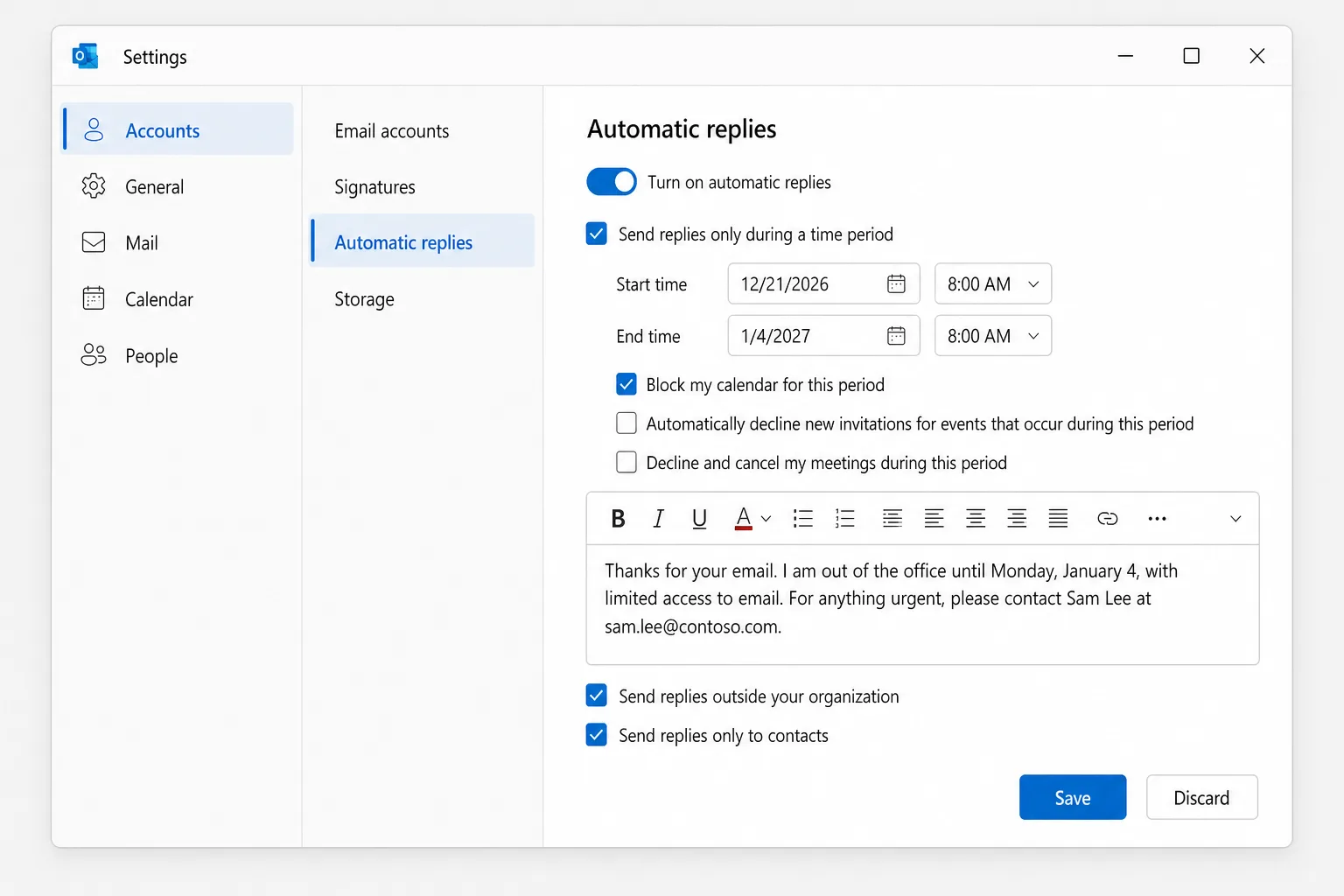
Microsoft recommends the contacts-only option for outside senders. Otherwise newsletters, sales emails and some spam get your message too.
Set out of office in classic Outlook for Windows
- Click File. If you see an Automatic Replies button on the Info page, your account supports it. (If you don't, skip to the next section.)
- Select Automatic Replies.
- Choose Send automatic replies.
- Tick Only send during this time range and set the Start time and End time.
- On the Inside My Organization tab, type the message for your colleagues.
- On the Outside My Organization tab, tick Auto-reply to people outside my organization, choose My Contacts only or Anyone outside my organization, and type the message for outside senders.
- Click OK.
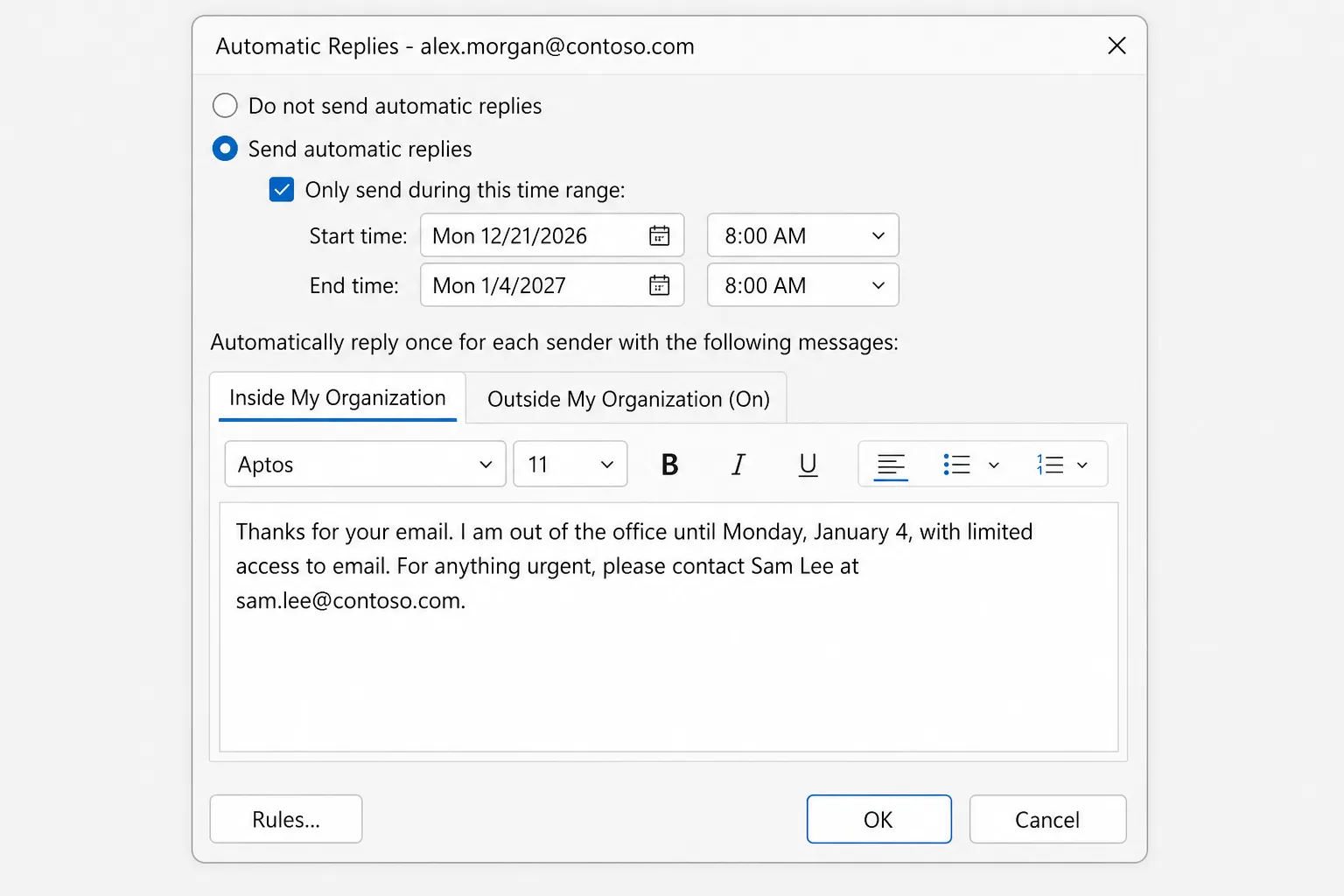
While replies are on, a bar under the ribbon reminds you, with a Turn off button.
No Automatic Replies button? Use a rule (Gmail, Yahoo, IMAP and POP)
Classic Outlook can still reply for these accounts, but Outlook itself does the replying, so your computer must stay on with Outlook open the whole time you're away.
First, save your message as a template:
- Create a new email, type a subject (for example "Out of office") and your message.
- Go to File → Save As, choose Outlook Template (*.oft) in Save as type, and click Save.
Then create the rule:
- Go to File → Manage Rules & Alerts → New Rule.
- Under Start from a blank rule, select Apply rule on messages I receive and click Next.
- Leave the conditions empty, click Next, and click Yes to apply the rule to every message.
- Tick reply using a specific template, then click a specific template in the lower box.
- In Look In, choose User Templates in File System, select your template and click Open, then Next.
- Add exceptions if you want, then click Next.
- Name the rule "Out of office" and click Finish.
The rule has no end date, so turn it off yourself when you return (File → Manage Rules & Alerts, untick the rule). It also replies only once to each sender per Outlook session, until you close and reopen Outlook.
For a Gmail account, Gmail's own Vacation responder (Settings → See all settings → General) is more reliable, because it runs on Google's servers.
Set out of office in Outlook for Mac
- In Mail, open the Tools menu and select Automatic Replies.
- Pick your account if you have more than one, and turn on Send Automatic Replies (in some versions it's a checkbox named Send automatic replies for account).
- Type your message for people inside your organization.
- To schedule it, turn on the time period option and choose the start and end dates and times.
- If your organization allows it, tick the option for people outside your organization, choose Send only to my contacts or send to everyone, and type the external message.
- Close the window (or click OK in older versions) to save.
Set out of office on your phone (iPhone and Android)
Forgot before you left? The Outlook app can do it for Microsoft 365, Exchange and Outlook.com accounts:
- Tap your profile picture or account icon at the top left, then the Settings gear.
- Tap the account, then Automatic Replies, and turn it on.
- Choose Reply to everyone or Reply only to my organization. With everyone, you can turn on Use different messages for outside senders.
- Turn on Reply during a time period and set the start and end times.
- Type your message and save it (the checkmark on iPhone).
Out of office in Teams
With a work or school account, you can also set it in Microsoft Teams: select your profile picture, then Set status message → Schedule out of office. It's the same setting, so Teams turns on your Outlook automatic replies with the same message and dates.
Out of office message templates you can copy
Keep it short: when you're back and who can help now. Replace the parts in brackets.
Short and simple
Thanks for your email. I'm out of the office until [Monday, January 4] with limited access to email. I'll reply when I'm back.
With a backup contact
Thank you for your message. I'm away until [date] and won't be checking email. For anything urgent, please contact [Name] at [email] or [phone]. Otherwise, I'll get back to you after I return.
Holiday closure
Thanks for reaching out. Our office is closed from [date] to [date] for the holidays. We'll respond to your message when we reopen on [date]. For urgent support, please email [address]. Happy holidays!
Extended leave
Thank you for your email. I'm on leave until [month/date] and won't have access to email. While I'm away, [Name] ([email]) is covering [projects or accounts]. Please contact them directly so your request isn't delayed.
Keep travel details out of the external message, and ask your backup contact before you name them.
How to turn off out of office in Outlook
If you set an end time, Outlook stops automatically. To stop early:
- New Outlook and Outlook on the web: Settings → Accounts → Automatic replies, switch the toggle off and click Save.
- Classic Outlook: click Turn off in the bar under the ribbon, or go to File → Automatic Replies → Do not send automatic replies.
- Mac: Tools → Automatic Replies, turn off Send Automatic Replies.
- Mobile: Settings → your account → Automatic Replies, turn it off.
- Rule-based replies: untick the rule in File → Manage Rules & Alerts.
Why your out of office isn't working
- Each person only gets it once. Automatic replies go out once to each sender while they're on, not to every message. If you test from the same address twice, the second email gets nothing. Test from a different account.
- Outside senders aren't included. If Send replies outside your organization (or the Outside My Organization tab) isn't ticked and filled in, people at other companies get nothing. Some organizations also block automatic replies to outside addresses entirely, which only your IT admin can change.
- You chose contacts only. Senders who aren't in your contacts don't get the outside message.
- The time period hasn't started or has ended. Check the dates, including AM and PM.
- The incoming email went to Junk. Messages filtered as spam generally don't get an automatic reply.
- It's a POP or IMAP account. There's no built-in automatic reply, so you need the rule, and the rule only works while Outlook is open on a computer that's on and online.
- Mail isn't arriving at all. No incoming email means no replies. See Outlook not receiving emails.
Frequently Asked Questions
Do automatic replies work when my computer is off? Yes, for Microsoft 365, Exchange and Outlook.com accounts, because the server sends them. You can even set them from any browser at outlook.office.com or outlook.com. Only the rule-based method for POP and IMAP accounts needs Outlook running.
How often does Outlook send the out of office reply to the same person? Once per sender for the period your automatic replies are on. Rule-based replies in classic Outlook go once per sender each time you start Outlook.
Can I set different messages for colleagues and outside contacts? Yes. Classic Outlook has separate Inside My Organization and Outside My Organization tabs, and new Outlook, Mac and mobile let you add an outside message when you enable replies to outside senders.
Why can't I find Automatic Replies in Outlook? Your account is probably Gmail, Yahoo, or another POP/IMAP account, which doesn't support it. Use a rule in classic Outlook, or the vacation responder in your email provider's own settings.
Can I set out of office for someone else? Only if you have access to their mailbox. An IT admin can set it from the Microsoft 365 admin center, and a delegate with full access can open the other mailbox and change its automatic replies.
Get back to a clean inbox faster
Your automatic reply buys you time, but the emails still pile up. CoreGPT for Outlook drafts a short, polite reply to each message from a one-line instruction, so your first morning back is spent catching up instead of typing the same answers over and over. It works inside Outlook and it's free to start.
 CoreGPT
Priya Shah
Re: Q4 launch timeline
Can we confirm the dates…
Marco Rossi
Contract renewal
Attached is the updated…
Support
Ticket #4821 resolved
Your request has been…
Emma Clark
Lunch on Thursday?
Are you free around…
Re: Q4 launch timeline
Priya Shah
Marketing needs final copy by Oct 28 if we keep the Nov 3 launch. Can engineering confirm the release candidate is on track?
Daniel Kim
RC is on track for Oct 30. QA needs two extra days for the payments flow, so Nov 3 is tight but possible.
Priya Shah
If QA slips, should we move the launch to Nov 5 instead?
Hi Priya, agreed. If QA needs the extra days, let’s move the launch to Nov 5 and keep Oct 28 for final copy. Thanks!
Try it: CoreGPT for Outlook
Related reading: