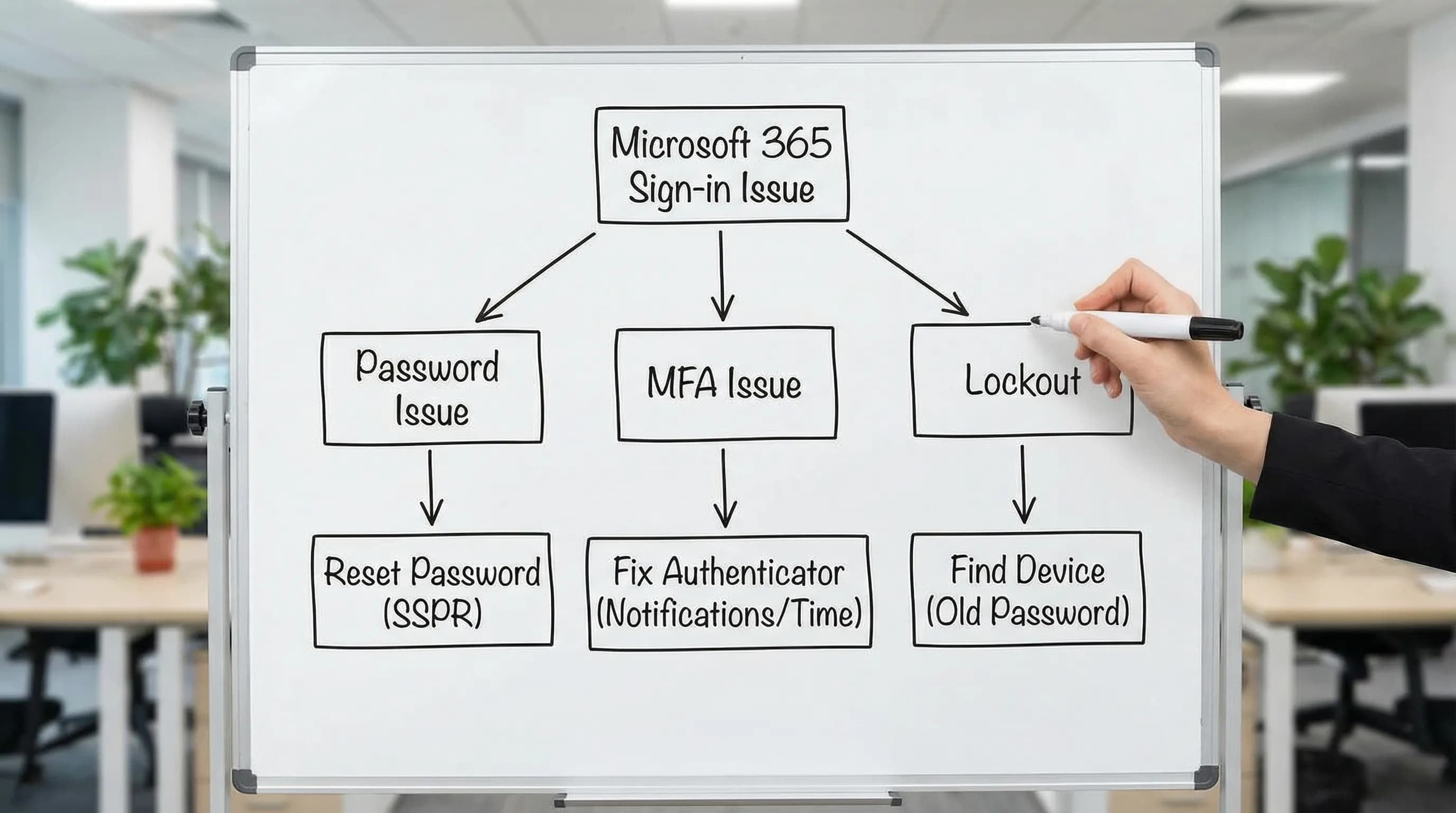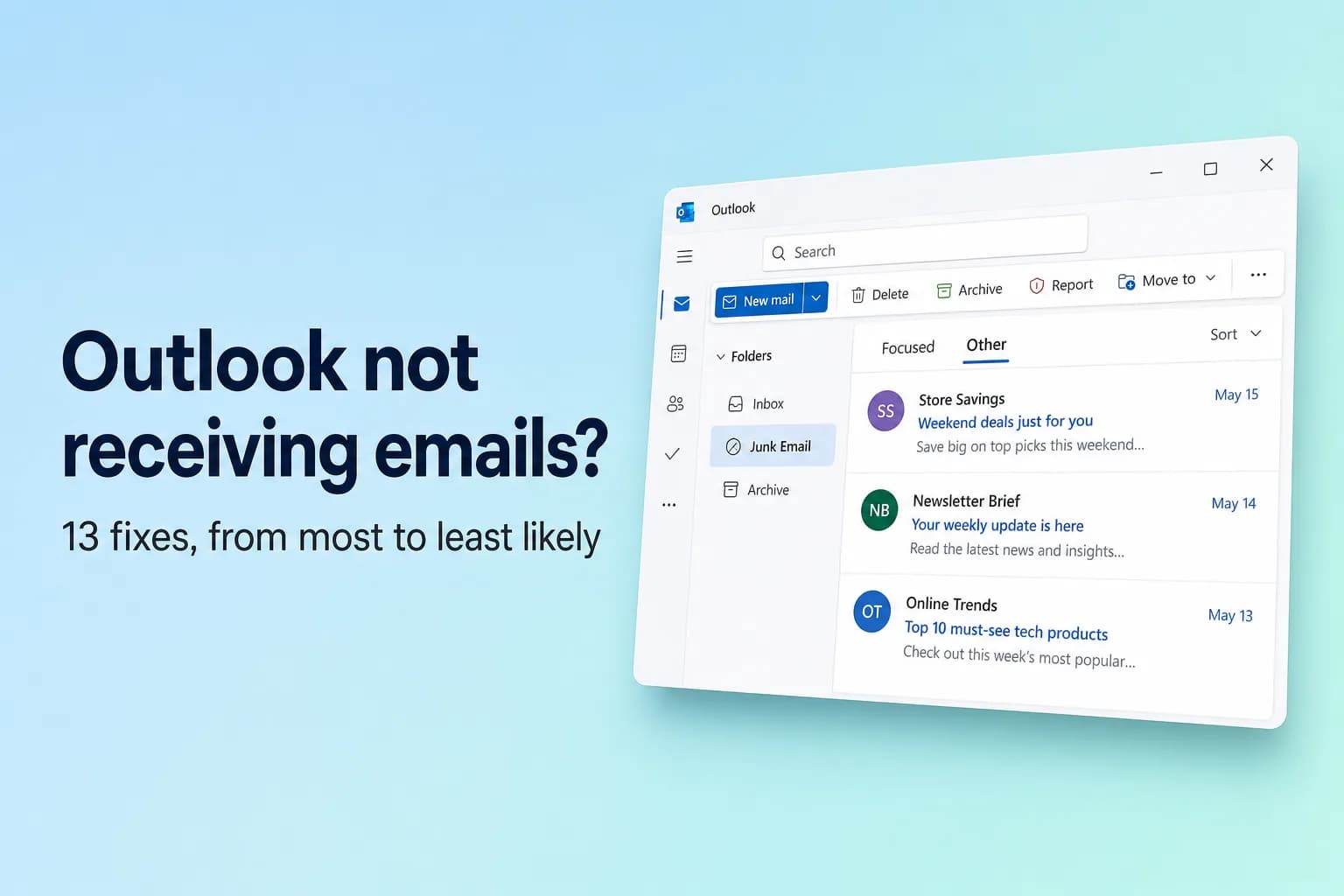
If Outlook is not receiving emails, first sign in to Outlook on the web (outlook.com for personal accounts, outlook.office.com for work or school) and look for the message there. If it's in the web inbox, the problem is your Outlook app and a sync fix will solve it. If it isn't, the cause is on the account or server side: a rule, the Junk filter, a full mailbox, forwarding or the sender.
Most "missing" emails were delivered and sorted somewhere you didn't look, usually Other or Junk Email, so work through the fixes in order.
| What you see | Most likely cause | Fixes |
|---|---|---|
| Email is in Outlook on the web but not in the app | App offline or out of sync | 8 and 11 |
| Some emails missing, others arrive fine | Other tab, Junk, filters, rules | 2 to 5 |
| No new email at all, anywhere | Full mailbox, outage, blocked account | 7, 10 and 12 |
| One person's emails never arrive | Blocked sender, wrong address, quarantine | 3, 6 and 13 |
Quick checklist
- Is the email in Outlook on the web? Search All folders.
- Did you check the Other tab and Junk Email?
- Is a filter such as Unread hiding messages?
- Is a rule, Sweep or forwarding moving mail away?
- Is your mailbox full?
- Does classic Outlook say Working Offline or Disconnected at the bottom?
- Is Microsoft having an outage?
1. Check Outlook on the web first
Sign in at outlook.com or outlook.office.com and search for the sender's name or a word from the subject.
- It's there: your mailbox received it. Go to fix 8 (Work Offline) and fix 11 (sync).
- It isn't there: work through fixes 2 to 7. These settings live on the server, so fixing them in the web version fixes every device.
2. Look in the Other tab
Focused Inbox splits your inbox into Focused and Other, and newsletters, automated mail and first-time senders often land in Other. To keep a sender in Focused, right-click their email and choose Move → Always move to Focused inbox.
To turn the split off:
- New Outlook and Outlook on the web: Settings (gear icon) → Mail → Layout → Focused Inbox → Don't sort my messages, then Save.
- Classic Outlook: click View → Show Focused Inbox so it's no longer highlighted.
3. Check Junk Email and Safe Senders
Open Junk Email. If the message is there, right-click it and choose Mark as not junk (in classic Outlook, Junk → Not Junk).
Then mark the sender as safe:
- New Outlook and Outlook on the web: Settings → Mail → Junk email → Safe senders and domains → Add, then Save. On the same page, make sure Only trust email from addresses in my Safe senders and domains list and mailing lists isn't ticked by accident.
- Classic Outlook: Home → Junk → Junk E-mail Options → Safe Senders → Add. On the Options tab, if the level is Safe Lists Only, everyone not on your list goes to Junk.
4. Clear filters and fix the sort order
- New Outlook and Outlook on the web: click Filter at the top of the message list, choose All, and under Sort choose Date so the newest mail is on top.
- Classic Outlook: click All (not Unread) above the message list. If it still looks wrong, use View → Reset View.
5. Check rules and Sweep
Rules move, delete or forward messages before you see them, which is the usual reason mail from one sender or about one topic vanishes.
- New Outlook and Outlook on the web: go to Settings → Mail → Rules. Turn off any rule that moves, deletes or forwards mail with its toggle, or delete it with the trash can icon. Then check Settings → Mail → Sweep for "always move messages from this sender" rules.
- Classic Outlook: File → Manage Rules & Alerts. Untick a rule to disable it. Rules marked (client-only) run only in classic Outlook on that PC and don't appear on the web, so check both.
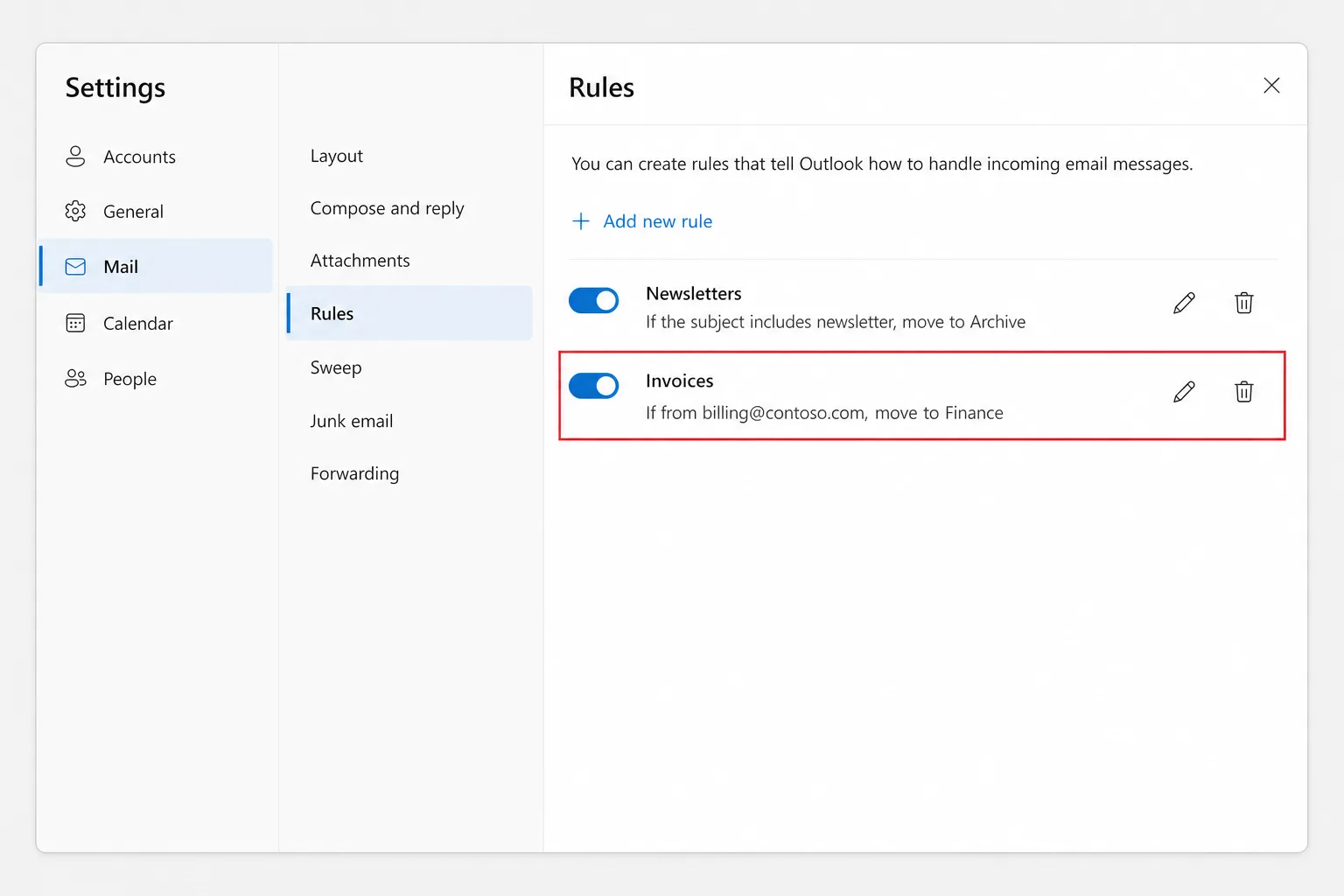
A moved email is still in its target folder, so search with All folders selected. If a rule deleted it, check Deleted Items and then Recover items deleted from this folder.
6. Check blocked senders
One click on Block is enough to stop someone's mail for good.
- New Outlook and Outlook on the web: Settings → Mail → Junk email → Blocked senders and domains. Delete the entry and click Save.
- Classic Outlook: Home → Junk → Junk E-mail Options → Blocked Senders, select the address and click Remove.
7. Make sure your mailbox isn't full
When storage is full, new email bounces back to the sender and simply stops arriving.
- Outlook.com: go to Settings → Accounts → Storage. Free accounts get 15 GB of mailbox storage, and attachments also count toward your Microsoft cloud storage (5 GB free, shared with OneDrive). If either is full, you can't send or receive. Empty Deleted Items and Junk Email, delete large attachments or free up OneDrive space.
- Microsoft 365 work or school: in classic Outlook, File → Info → Mailbox Settings shows the space left. Business mailboxes are typically 50 GB or 100 GB depending on the plan; move old mail to Archive or ask your admin about archiving.
Mail that bounced while you were full isn't delivered later, so ask senders to resend.
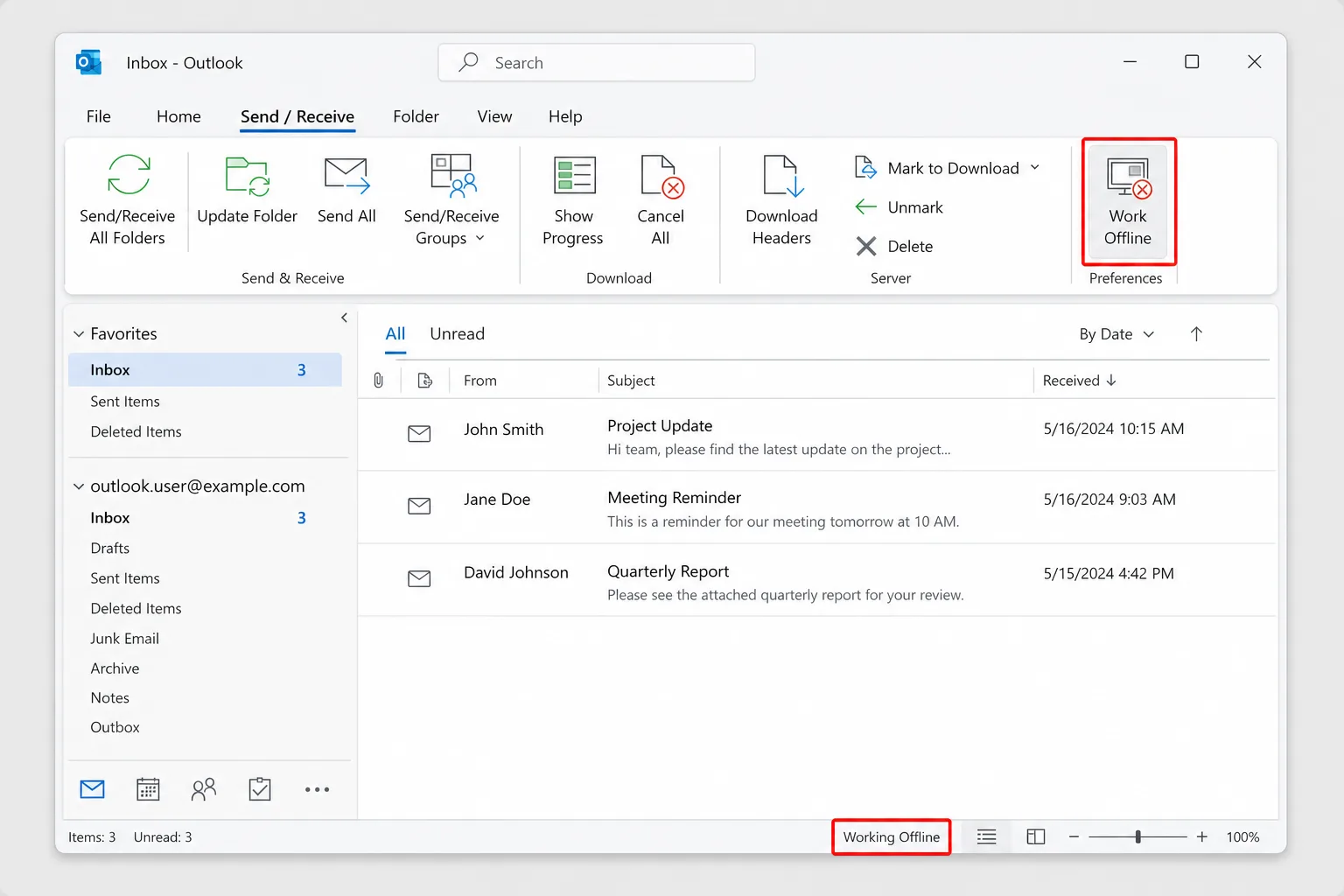
8. Turn off Work Offline in classic Outlook
Classic Outlook's Work Offline button stops all sending and receiving, and it's easy to click by accident.
- Check the status bar at the bottom of the window. Working Offline, Disconnected or Trying to connect means Outlook isn't reaching the server.
- Go to the Send / Receive tab.
- In the Preferences group, click Work Offline so it's no longer highlighted.
- Press
F9(or click Send/Receive All Folders) to pull in new mail.
If the status bar says Need Password, click it and sign in. New Outlook has no Work Offline button; if it stops updating, check your connection and restart it.
9. Check whether forwarding is on
With forwarding on and Keep a copy of forwarded messages unticked, your mail goes to another address and never stays in your inbox. In new Outlook or Outlook on the web, go to Settings → Mail → Forwarding, turn off Enable forwarding or tick Keep a copy of forwarded messages, and click Save.
A forward or rule you didn't create can mean someone else got into your account. Change your password if so.
10. Check for a Microsoft outage
Check Microsoft's service health page at status.cloud.microsoft. Microsoft 365 admins can go to the Microsoft 365 admin center → Health → Service health and look at Exchange Online. During an incident you can only wait; delayed mail usually arrives once it's resolved.
11. Fix sync problems in classic Outlook
If the email is on the web but not in classic Outlook, your local copy is out of sync. Try these in order:
Repair the account. Go to File → Account Settings → Account Settings, select the account on the Email tab and click Repair. If it's greyed out, as it often is for Microsoft 365 accounts, skip ahead.
Rebuild the offline file (OST).
- Go to File → Account Settings → Account Settings → Data Files, select the account and click Open File Location.
- Close Outlook and rename the account's
.ostfile, for example by adding.oldto the end. - Reopen Outlook. It downloads a fresh copy of the mailbox, which takes a while for big mailboxes.
Do this only for Microsoft 365, Exchange or Outlook.com accounts, where mail is stored on the server. Never delete a .pst file.
Create a new profile. Close Outlook, open Control Panel → Mail (Microsoft Outlook) → Show Profiles → Add, add your account, then select Always use this profile with the new profile and click OK.
Switch versions. If one version keeps failing, use the New Outlook toggle at the top right to switch between new and classic Outlook. If the toggle is missing, your organization may control the version. See New Outlook vs Classic Outlook: What Changed.
On the Outlook mobile app, go to Settings, tap your account and choose Reset account.
12. Unblock your Outlook.com account
If Microsoft spots unusual sign-in activity on a personal account, it can block the account temporarily, and new mail stops until you verify. Sign in at outlook.com and follow the prompts, usually a security code sent to your phone.
13. Check the sender's side
If one sender's mail is still missing:
- Ask them to check the address. One wrong letter or an old alias sends it elsewhere.
- Ask for the bounce message. A non-delivery report explains exactly why it was rejected.
- Microsoft 365 quarantine. Your company's filters may hold suspicious mail in quarantine rather than Junk. If your organization allows it, review yours in the Microsoft Defender portal (security.microsoft.com) under Email & collaboration → Review → Quarantine. Otherwise ask IT to check quarantine and run a message trace in the Exchange admin center (Mail flow → Message trace).
Frequently Asked Questions
Why am I not receiving emails in Outlook but I can send them? Incoming mail is being redirected or blocked: a rule, forwarding, the Junk filter, blocked senders or a full mailbox. Check Outlook on the web to see whether it arrived at all.
Why am I not receiving emails from one specific person? Check Junk Email, Blocked senders and your rules, then ask the sender to confirm your address and forward any bounce. At work, IT can trace the message.
Why do emails show on my phone but not on my computer? The desktop app isn't syncing. In classic Outlook, check for Working Offline, then repair the account, rebuild the OST or create a new profile.
Can I get back emails that bounced while my mailbox was full? No. They aren't stored for later delivery. Free up space and ask senders to resend.
How do I force Outlook to check for new email? In classic Outlook, press F9 or click Send / Receive → Send/Receive All Folders. New Outlook and Outlook on the web update automatically; restart or refresh them if they seem stuck.
Catch up fast once your mail is back
When the backlog finally lands, you may face a pile of long threads at once. CoreGPT for Outlook summarizes a thread in a few lines, including what was decided and what's waiting on you, right inside Outlook. It's free to start.
 CoreGPT
Priya Shah
Re: Q4 launch timeline
Can we confirm the dates…
Marco Rossi
Contract renewal
Attached is the updated…
Support
Ticket #4821 resolved
Your request has been…
Emma Clark
Lunch on Thursday?
Are you free around…
Re: Q4 launch timeline
Priya Shah
Marketing needs final copy by Oct 28 if we keep the Nov 3 launch. Can engineering confirm the release candidate is on track?
Daniel Kim
RC is on track for Oct 30. QA needs two extra days for the payments flow, so Nov 3 is tight but possible.
Priya Shah
If QA slips, should we move the launch to Nov 5 instead?
Summary:
- Launch planned for Nov 3
- RC due Oct 30, QA needs 2 more days
- Option: move launch to Nov 5
Try it: CoreGPT for Outlook
Related reading: