
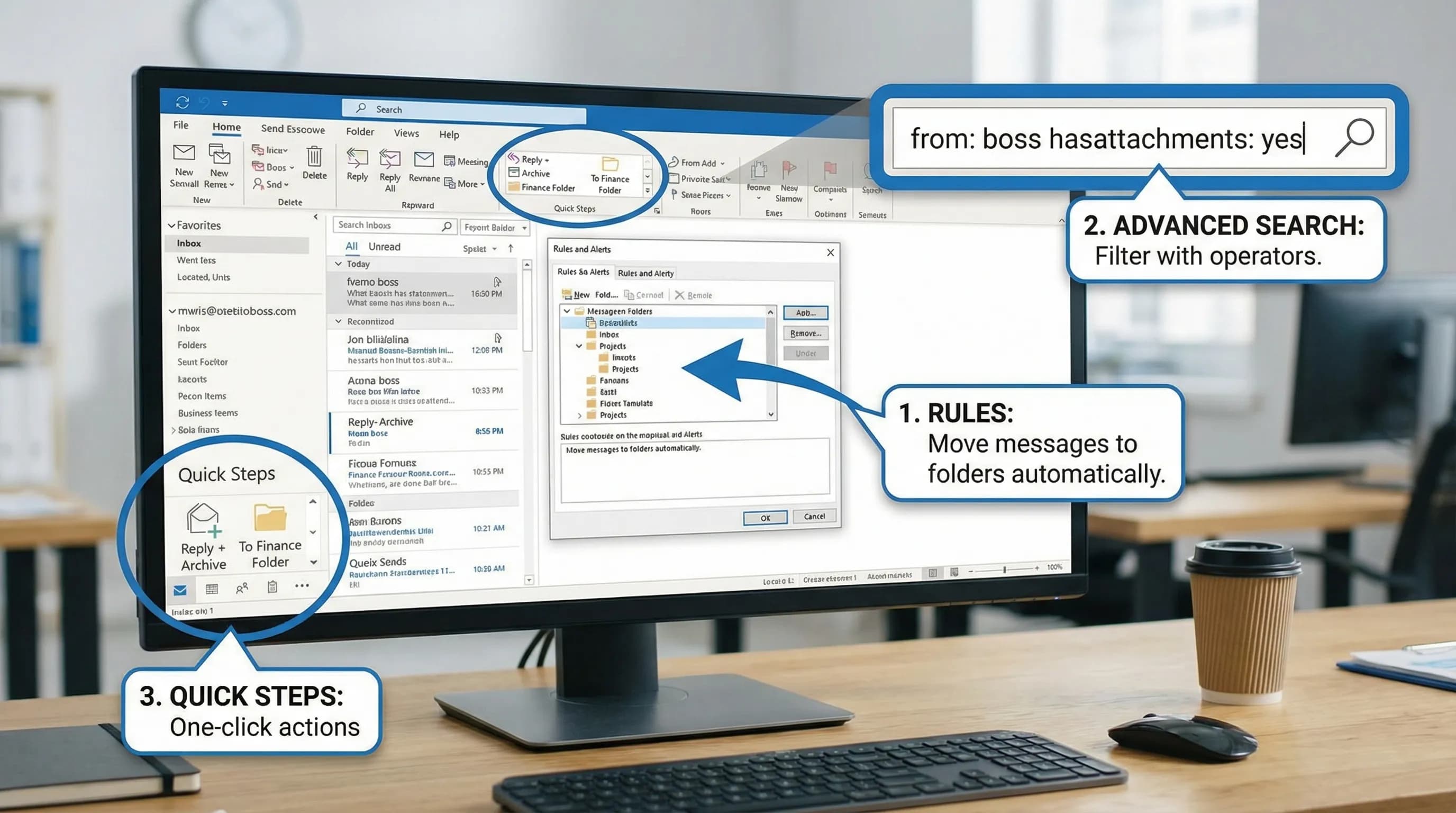
Microsoft is pushing new Outlook for Windows as the replacement for classic Outlook desktop — but if you recently switched (or had it switched for you) and things feel off, you are not imagining it. New Outlook is built differently. It is closer to Outlook on the web than to the classic desktop app, and that means some long-standing features work differently, some have moved, and a few are simply not there yet.
This guide compares the two versions directly, calls out the most common pain points users hit after switching, and explains what you can actually do about each one.
What makes new Outlook fundamentally different from classic
Classic Outlook is a traditional Windows desktop application that stores data locally, syncs with Exchange, and runs Office COM add-ins. New Outlook is essentially the web version of Outlook wrapped in a native window. That distinction explains almost every difference you will encounter.
| Feature area | Classic Outlook | New Outlook |
|---|---|---|
| Architecture | Native Win32 desktop app | Web-based shell (like Outlook.com) |
| COM add-ins | Fully supported | Not supported |
| Web add-ins | Supported | Supported |
| Offline access | Full offline mode | Limited offline support |
| Local PST/OST files | Supported | Not supported |
| Shared mailboxes | Full support | Partial — some categories/rules issues |
| Rules | Full rules engine | Simplified rules, server-side |
| Quick Steps | Supported | Not available yet |
| Focused Inbox | Supported | Supported |
| Calendar: room finder | Supported | Limited |
| Search scope | Local + server | Server-side only |
| Teams add-in | Integrated | Separate, may be missing |
The most common new Outlook complaints (and what to do)
1. Notifications stopped working or changed behavior
New Outlook uses a different notification system than classic Outlook. If you are not getting desktop notifications for new emails or calendar reminders, check these:
- Windows notification settings: go to Settings → System → Notifications and ensure "Mail" or "Outlook (new)" is allowed.
- Focus Assist / Do Not Disturb: check that these are not silencing Outlook notifications during work hours.
- In-app notification settings: inside new Outlook, go to Settings (gear icon) → Notifications and verify email and calendar notifications are enabled.
If notification banners appear but disappear too fast, Windows controls the duration: Settings → Ease of Access → Display → Show notifications for — set it to 5 seconds or longer.
2. Missing COM add-ins (Teams add-in, third-party tools)
This is the most impactful limitation for business users. Classic Outlook supports COM add-ins — the type used by the classic Microsoft Teams add-in, many CRM integrations, and older enterprise tools.
New Outlook only supports web add-ins (Office Add-ins from the Microsoft Store or deployed by your admin).
What this means:
- The classic Teams Meeting add-in (which adds a "New Teams Meeting" button to calendar) may not appear in new Outlook. Teams meetings can still be created from Teams itself, or your admin may need to enable the web-based version.
- Third-party COM add-ins (Salesforce, DocuSign legacy, etc.) simply will not load. Check if the vendor offers an updated web add-in version.
If your work depends heavily on COM add-ins, staying on classic Outlook is the practical choice for now.
3. Shared mailbox issues (categories, rules, permissions)
Shared mailboxes behave differently in new Outlook. Known issues include:
- Categories not showing for items in a shared mailbox (this is a known bug that Microsoft has acknowledged)
- Rules not applying correctly in shared mailboxes — new Outlook's simplified rule engine is server-side, and some rule conditions available in classic Outlook do not exist
- Folder sync delays in shared mailboxes with high volume
Workarounds:
- For categories: add the shared mailbox as a separate account (not just a delegated folder) to get fuller access
- For rules: create and manage rules via Outlook on the web (outlook.office.com) where the full server-side rule engine is accessible
- For persistent issues, report via Microsoft Feedback in the app — this is an area Microsoft is actively fixing
4. Search behaves differently
Classic Outlook can search local cached data, which makes it very fast and enables offline search. New Outlook searches server-side only.
Practical effects:
- Search may feel slower if your connection is slow
- Searching while offline returns no results
- The search operators are different — some classic Outlook search syntax does not work in new Outlook
Useful search operators in new Outlook:
from:name— filter by sendersubject:keyword— search subject linehasattachment:yes— emails with attachmentsreceived:last week— time-based filter
5. Quick Steps are gone (for now)
Quick Steps — one-click automations that move, flag, forward, or categorize messages — are not available in new Outlook as of 2026. This is one of the most-requested missing features.
In the meantime:
- Rules can replace some Quick Steps (auto-moving, auto-categorizing based on criteria)
- Keyboard shortcuts cover some repetitive actions (archive, delete, move)
- Microsoft has indicated Quick Steps are on the roadmap for new Outlook, but no firm date
6. Classic Outlook feels slow after switching back
If you try new Outlook, switch back, and classic Outlook feels sluggish, it may be rebuilding its local OST cache or conflicting with updated Office components. Fix:
- Close Outlook.
- Open Task Manager and end any remaining Outlook or "Microsoft Office Click-to-Run" processes.
- Restart Outlook and give it a few minutes to rebuild the cache.
If classic Outlook continues to be slow, see the full performance guide: How to Speed Up Slow Outlook.
Should you switch to new Outlook now?
It depends on what you do in Outlook every day.
Switch now if:
- You mostly read email, reply, and manage a simple calendar
- You do not use COM add-ins or Quick Steps
- You already use Outlook on the web and find the experience fine
- Your org is moving to new Outlook by policy
Stay on classic Outlook if:
- Your workflow depends on COM add-ins (Teams meeting button, CRM integration)
- You manage multiple shared mailboxes with complex rules
- You regularly work offline with large amounts of local mail
- You rely on Quick Steps heavily
- You have PST files you actively use
How to switch between them:
- To try new Outlook: toggle the "New Outlook" switch in the top-right corner of classic Outlook.
- To go back to classic: click the same toggle inside new Outlook, or open the classic Outlook app directly from the Start menu. Microsoft may eventually remove this option, but it remains available for now.
Feature-by-feature comparison table
| Feature | Classic Outlook | New Outlook | Notes |
|---|---|---|---|
| COM add-ins | ✅ Full support | ❌ Not supported | Teams meeting add-in affected |
| Web add-ins | ✅ | ✅ | Both support Office Store add-ins |
| Quick Steps | ✅ | ❌ | Coming in future update |
| Server-side rules | ✅ | ✅ | Classic has more conditions |
| PST files | ✅ | ❌ | No local file support |
| Offline access | ✅ Full | ⚠️ Limited | Classic caches locally |
| Shared mailboxes | ✅ Full | ⚠️ Partial | Category/rule bugs exist |
| Focused Inbox | ✅ | ✅ | Both support it |
| Multiple accounts | ✅ | ✅ | Works in both |
| Calendar: room finder | ✅ | ⚠️ Limited | Some options missing |
| Dark mode | ✅ | ✅ | Both support it |
| My day panel | ❌ | ✅ | New Outlook feature |
| Pinned emails | ❌ | ✅ | New Outlook feature |
Frequently Asked Questions
Can I keep using classic Outlook in 2026? Yes. Microsoft has pushed back the mandatory migration timeline. Classic Outlook for Windows remains available. Your IT department may control this via policy.
Why is the Teams meeting button missing in new Outlook? New Outlook does not support the classic Teams COM add-in. The Teams meeting button may appear via a web add-in if your admin has deployed it. Otherwise, create Teams meetings from the Teams app itself and copy the link.
Why are email categories not showing in my shared mailbox in new Outlook? This is a known bug in new Outlook's shared mailbox handling. A workaround is to add the shared mailbox as a separate account rather than a delegated folder. Check Microsoft's support documentation for the latest status.
Does new Outlook support offline email? Very limited. Classic Outlook's cached mode stores a local copy of your mailbox; new Outlook relies primarily on a server connection. If you frequently work without internet, classic Outlook is more reliable.
Can I have both new Outlook and classic Outlook installed? Yes. They are separate apps. You can toggle between them or open each independently from the Start menu.
Why is new Outlook searching slower than classic? Classic Outlook searches the local cached copy of your mailbox, which is fast. New Outlook searches server-side, which depends on your internet connection.
Use AI inside whichever Outlook version you run
Whether you stay on classic Outlook or move to new Outlook, CoreGPT Apps works as a web add-in — compatible with both. It brings GPT-powered AI directly into Outlook for summarizing threads, drafting replies, and rewriting emails, as well as Word, Excel, PowerPoint, OneNote, and Teams. It is free, requires no registration, and works out of the box.
Install here: CoreGPT for Outlook
Related reading: