

If your inbox feels like a to-do list you can never finish, the fix is rarely “work harder.” It is usually a better tool stack inside Outlook: a few built-in automation features, a reliable cleanup routine, and (optionally) AI to draft and summarize without switching tabs.
This guide breaks down the best Outlook tools for faster replies and inbox cleanup, with practical setups that work for real teams. Outlook, Word, and Excel take priority, with a short section on Google Docs and Google Sheets for organizations that live in both ecosystems.
What “best Outlook tools” really means (and what to prioritize)
Most people search for “Outlook tools” expecting add-ins. In practice, the highest ROI usually comes in this order:
- Outlook built-ins that reduce clicks (Search, Sweep, Rules, Quick Steps, Categories, Views).
- Reply acceleration tools (templates, signatures, Quick Parts, pinned snippets, scheduling).
- AI inside Outlook (summaries, suggested replies, tone control, action-item extraction).
- Cross-app workflows with Word and Excel (turn email into a memo, tracker, or brief).
- Optional third-party tools (only if you have a clear gap, like compliance workflows).
The goal is not “more tools,” it is fewer decisions per email.
The core Outlook 365 tools for inbox cleanup
Focused Inbox + Conversation View (reduce noise before you automate)
If you are not using these two, most other optimizations underperform:
- Focused Inbox pushes newsletters and low-signal threads into “Other.” It is not perfect, but it reduces triage volume.
- Conversation View groups long threads so you process the latest message with context.
Pro tip: Pair Conversation View with a habit of using “Ignore Conversation” for threads that are informational but not actionable.
Search (the cleanup tool people forget)
Inbox cleanup is not only deleting, it is finding clusters fast:
- Search by sender domain (example:
from:@vendor.com) to bulk archive. - Search by attachment (
hasattachments:yes) to locate storage-heavy threads. - Search by subject prefixes (example: “Invoice”, “Ticket”, “FW:”) to apply quick rules.
If Search feels slow or inconsistent, fix that first. A “broken search” experience forces manual scanning, which makes every other tool feel useless.
Sweep (newsletter and notification control)
Sweep is one of the quickest ways to shrink inbox volume without building complex rules.
Good Sweep use cases:
- Keep only the latest message from an automated system.
- Move all messages from a sender to a folder.
- Delete messages older than X days (for purely informational alerts).
This is especially effective for Teams notifications, CI/CD alerts, ticketing systems, and “daily digest” emails.
Rules (automation for repeatable routing)
Rules are your long-term cleanup engine. Aim for a small set of rules that reflect how work actually flows.
High-impact rule patterns:
- Route newsletters and product updates to “Read Later.”
- Route billing, invoices, and receipts to “Finance.”
- Route calendar and system notifications to “Notifications” (and keep them out of your main inbox).
Keep rules conservative. Over-aggressive rules cause missed messages, which trains you to distrust your system.
Categories + Search Folders (clean inbox without losing visibility)
If you want inbox zero without losing control, categories and search folders are a strong combo:
- Use Categories as status (example: “Reply,” “Waiting,” “Delegate,” “Deep Work”).
- Use Search Folders or saved searches to create “views” of what matters (example: “Waiting on others” across your mailbox).
This is often better than building a dozen folders that hide work.
The fastest Outlook tools for replies (send good emails with fewer keystrokes)
Quick Steps (the click-to-done reply accelerator)
Quick Steps are the most underrated Outlook productivity tool because they combine multiple actions.
Examples that cut reply time immediately:
- “Reply + Move to Waiting” (reply, apply category, move to folder)
- “Forward to teammate + Flag for follow-up”
- “Send template response + Archive thread”
If you only set up one Outlook tool this week, make it 3 to 5 Quick Steps aligned to your common email outcomes.
Templates, signatures, and reusable snippets
For repetitive replies (scheduling, pricing requests, support escalations), you need reusable text that stays consistent.
A practical approach:
- One short signature (mobile-friendly)
- One full signature (with legal/footer requirements)
- A small library of approved snippets (refund policy, escalation steps, security statement)
This also reduces risk: consistent phrasing prevents accidental commitments and helps your team sound aligned.
Delay Send + Schedule Send (simple, strategic control)
Not every email needs an instant response. Use scheduling to improve clarity and reduce back-and-forth:
- Draft now, schedule for business hours in the recipient’s timezone.
- Delay send by 1 to 2 minutes for “undo protection” on high-risk emails.
AI tools in Outlook: faster replies, better summaries, fewer missed tasks
AI is most valuable in Outlook when it does one of three things:
- Summarize long threads into decisions, context, and open questions.
- Draft a first-pass reply using your points.
- Extract action items and deadlines into a checklist.
The key is using AI where email is created and read, not in a separate tab.
CoreGPT Apps: free, out-of-the-box AI inside Outlook (plus Word and Excel)
CoreGPT Apps brings GPT-powered tools directly into Outlook and other apps you already use. It is free, works out of the box, and requires no registration, which makes it easy to test with a team.
In Outlook, common high-ROI uses include:
- Summarize a thread and list decisions plus next actions
- Draft a reply in a specific tone (friendly, firm, executive)
- Convert a messy email into a structured response with bullet points and questions
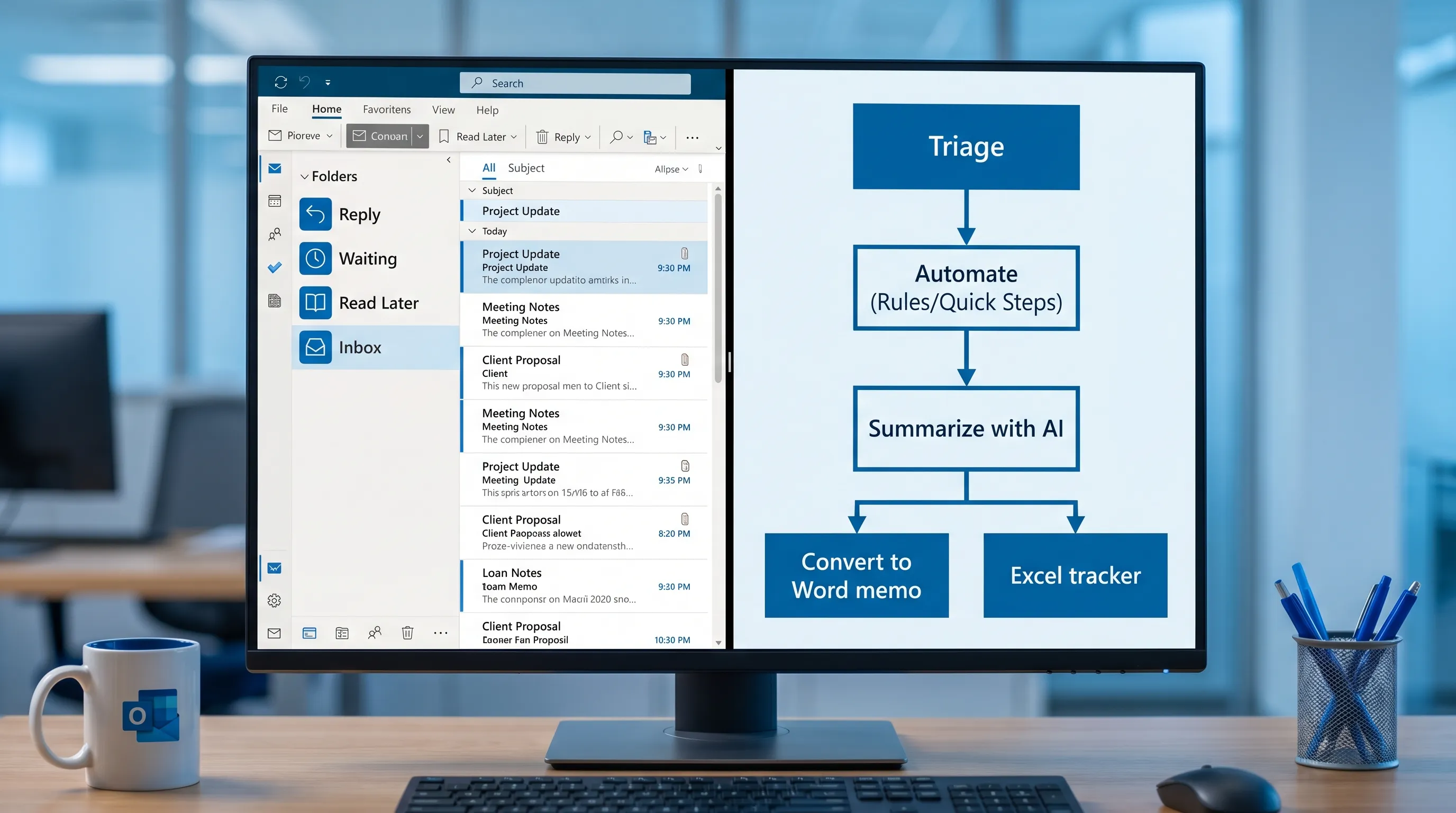
Because the same AI workflow is also available in Word and Excel, you can move from “email conversation” to “deliverable” quickly:
- Turn an email thread into a Word memo or customer update
- Turn requests into an Excel action tracker (owner, due date, status)
CoreGPT also supports Google Workspace apps, including Google Docs and Google Sheets (with Google Forms and Google Slides available too), which helps teams operating across Microsoft 365 and Google Workspace.
Built-in AI options (when available)
Some organizations also use Microsoft’s first-party AI features depending on licensing and tenant setup. If you have access, treat it like any other tool: validate outputs, avoid pasting sensitive data unnecessarily, and standardize prompts for common responses.
Cross-app “Outlook tools” that actually live in Word, Excel, and PowerPoint
Inbox cleanup and fast replies improve a lot when you stop trying to “finish work” inside email.
Word: turn email into a clean, shareable decision record
Use Word for outputs that must be readable and reusable:
- Meeting recap
- Customer incident summary
- Policy explanation
- Project decision log
A reliable pattern is:
- Paste key points (or use AI to summarize)
- Convert into a short memo format (context, decision, next steps)
- Share back to Outlook as a concise update
If your team writes frequently in Word, this is where in-app AI pays off: it reduces rewriting and helps maintain tone consistency across stakeholders.
Excel: convert requests into an operational tracker
Excel is your “email antidote” for recurring workflows:
- Intake requests
- Bugs and fixes
- Renewal checklists
- Onboarding tasks
Once a workflow lives in Excel, your inbox stops being the system of record.
PowerPoint: stop rewriting updates every week
If you send weekly updates, QBRs, or stakeholder briefings, PowerPoint becomes a reply tool:
- Keep one slide template for status (goals, progress, blockers, asks)
- Each week, update the slide, then email it (or paste the narrative)
This reduces long email explanations and speeds alignment.
The “tool stack” that works for most people (recommended setup)
Here is a practical way to choose tools based on the job you need done.
| Goal | Best Outlook tools | What to avoid | Why it works |
|---|---|---|---|
| Inbox volume reduction | Sweep, 3 to 5 Rules, Focused Inbox | Over-filtering everything into folders | Reduces low-signal email before you triage |
| Faster replies | Templates, Quick Steps, AI drafting | Writing every reply from scratch | Cuts repetitive typing and decision fatigue |
| Never miss follow-ups | Categories as status, Flags, Search views | Relying only on memory | Turns “waiting” into a visible queue |
| Turn email into execution | Excel tracker, Word memo, AI extraction | Keeping tasks inside the inbox | Email is a channel, not a system of record |
| Consistent stakeholder comms | PowerPoint update slide, scheduled sends | Long, unstructured status emails | Makes updates scannable and repeatable |
When you need more than email productivity: compliance and regulated workflows
If your inbox is full of regulatory questions, audit requests, and policy updates, “faster replies” is only half the problem. You also need traceability, risk assessment, and workflow automation that email alone cannot provide.
In those cases, it can be worth looking at specialized platforms built for compliance teams, such as AI for compliance teams, while still using Outlook automation and AI drafting for day-to-day communication.
A 15-minute implementation plan (no complex rebuild)
If you want results today, do this in one focused session:
- Set Focused Inbox and Conversation View.
- Create 3 Rules (newsletter, notifications, billing).
- Create 3 Quick Steps (Reply + Waiting, Forward + Flag, Archive + Done).
- Create 4 Categories (Reply, Waiting, Deep Work, Read Later).
- Add one AI workflow for Outlook: summarize thread, draft reply, extract action items.
Then maintain it with a weekly 5-minute audit: delete or unsubscribe from anything you never read, and remove rules that hide important messages.
Frequently Asked Questions
What are the best Outlook tools for faster replies? Quick Steps and templates are the biggest time-savers, then AI drafting for first-pass replies and tone rewrites. Combine them with Categories so messages do not linger.
What is the best Outlook tool for inbox cleanup? Sweep and a small set of Rules usually deliver the fastest reduction in inbox volume. Add Focused Inbox to reduce noise before you triage.
Can AI really help with Outlook email, or does it just create generic replies? AI helps most when you provide a few bullet points and ask for a specific structure and tone. It is especially strong at summarizing long threads and extracting action items.
How do Word and Excel fit into an “Outlook tools” workflow? Word is ideal for turning emails into clean memos and decision records, Excel is ideal for turning email requests into trackable tasks. This reduces repeated follow-ups.
Does CoreGPT Apps work with Google Workspace too? Yes. CoreGPT Apps works out of the box in Microsoft 365 apps like Outlook, Word, Excel, and PowerPoint, and also supports Google Workspace apps such as Google Docs, Google Sheets, Google Slides, and Google Forms.
Try a faster Outlook workflow with CoreGPT Apps
If your main bottleneck is writing and rewriting emails, or trying to pull action items out of long threads, in-app AI can remove a lot of friction.
CoreGPT Apps lets you use GPT-powered assistance directly in Outlook, and also in Word, Excel, and PowerPoint (plus Google Docs, Google Sheets, Google Slides, and Google Forms). It is free to use, requires no registration, and is designed with privacy in mind.
Explore CoreGPT Apps at CoreGPT and set up one repeatable workflow: summarize a thread, draft a reply, then push the actions into Word or Excel so your inbox stops being your task manager.