
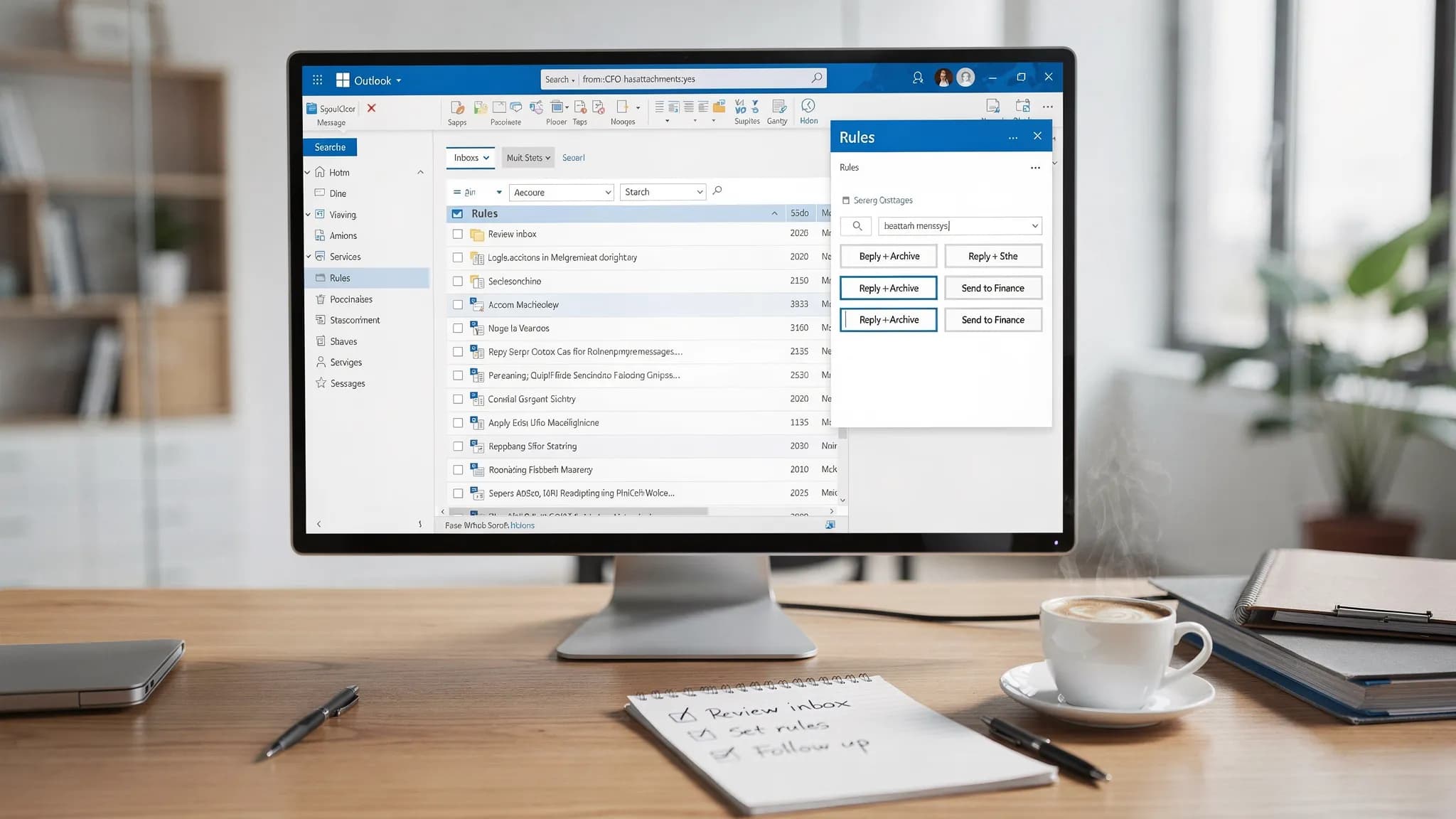
Inbox overload usually is not caused by a lack of effort, it is caused by a lack of systems.
Microsoft Outlook already has the tools to keep your mail searchable, sortable, and actionable. The problem is most people set them up once, forget the edge cases, and then fight the same issues every day: rules that silently fail, search that misses messages you know exist, and repetitive follow-ups that should be one click.
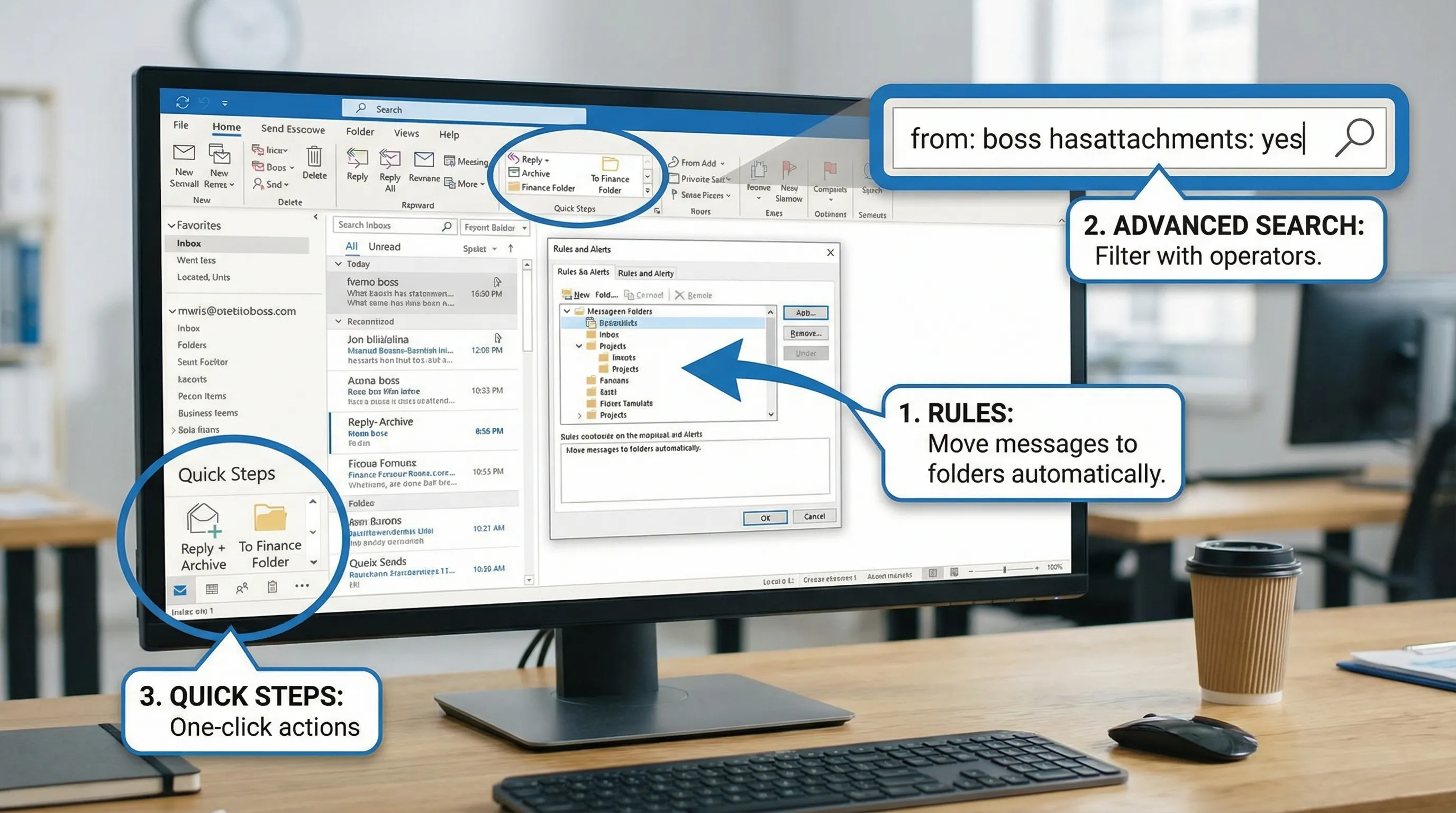
This checklist focuses on three high-leverage Outlook features: Rules, Search, and Quick Steps. Use it as a setup guide, a troubleshooting guide, or a quarterly tune-up.
Before you change anything (2-minute safety check)
A small tweak in Outlook can have big effects (especially rules that move or delete mail). Before you start cleaning up:
- Confirm which Outlook you use most: Outlook for Windows, Outlook for Mac, or Outlook on the web. Some rule and search behaviors vary.
- If you have multiple accounts (work, shared mailboxes, delegates), note which problems apply to which mailbox.
- If you are about to create aggressive rules (auto-delete, auto-archive), start with "move to a folder" first, then tighten later.
If you support a team, it is also worth documenting your "expected" folders, categories, and Quick Steps so everyone uses the same system.
Office Outlook Rules checklist (make your inbox sort itself)
Rules are best when they do two things: reduce noise and prevent important mail from getting buried. They are worst when they create hidden complexity.
Rules design principles (so they keep working)
Most rule failures come from a few predictable causes: overlapping conditions, conflicting rule order, and rules that depend on an email format that later changes.
Use these principles as you audit or build rules:
- Prefer simple, stable conditions (sender, domain, recipient, keywords in subject) over fragile ones (body text patterns that may change).
- Avoid creating separate rules for every sender when one domain rule is enough.
- Never auto-delete unless you are 100 percent certain, and even then route to a folder first.
- Use exceptions for VIPs and escalation paths.
Microsoft's overview of rule capabilities is a helpful reference when you are deciding what to automate: Manage email messages by using rules.
Build or audit your rules with this checklist
Read your rules top to bottom and confirm each item below.
- Name each rule clearly (example: "Newsletters to Read Later", "Invoices to AP", "GitHub alerts").
- Confirm the action is what you intend (move, categorize, flag, forward, mark as read).
- Check rule order and conflicts. If two rules match the same message, confirm which one "wins."
- Add exceptions for executives, your manager, and key customers (or any sender you cannot miss).
- Handle internal vs external mail differently when useful (example: treat vendor alerts differently from teammate updates).
- Confirm mobile and web expectations. If you rely on rules while away from your computer, ensure the behavior matches how you read mail.
- Test with real messages (send yourself a sample) and confirm the result.
Common "high ROI" rules (without making a mess)
If you want a practical starting set, these patterns cover most inboxes:
- Route newsletters, webinars, and marketing to a "Read Later" folder.
- Route automated system alerts (GitHub, CI/CD, monitoring tools) to an "Alerts" folder and add a category.
- Route invoices and receipts to "Finance" (or to your accounting workflow).
- Route calendar-related noise (accepted, declined, updates) away from the primary inbox.
To keep this objective, here is a rule planning table you can copy into your internal wiki.
| Goal | Recommended condition | Recommended action | Notes to avoid mistakes |
|---|---|---|---|
| Reduce marketing noise | From contains vendor domain OR subject contains "unsubscribe" | Move to "Read Later" | Add exception for vendors you actively manage |
| Separate system alerts | From contains system sender OR subject contains "[Alert]" | Move to "Alerts" + categorize | Avoid auto-delete, alerts matter when something breaks |
| Speed up finance processing | From specific vendors OR has attachment | Move to "Finance" | Consider adding a category like "Receipt" |
| Keep VIPs visible | From is VIP | Categorize + flag | Add exception in other rules so VIP mail is not moved |
Troubleshooting rules that "don't run"
If a rule seems correct but does nothing, the usual culprits are:
- The rule is set to run only on existing messages, not incoming.
- The message is being handled by another rule first.
- The condition is too specific (for example, a subject line changed slightly).
- You created the rule in one Outlook client, but your day-to-day inbox view happens elsewhere.
When in doubt, simplify the condition, move mail to a folder (instead of deleting), and retest.
Office Outlook Search checklist (find mail fast, every time)
Outlook Search should be boring, meaning it reliably returns the message you expect. If it feels "random," it is usually an indexing or scope issue, not user error.
Search setup and habits that improve results immediately
Before you dig into advanced operators, make sure you are searching the right place.
- Choose the right scope: Current Folder, Current Mailbox, All Mailboxes.
- Use filters first when you can (From, Subject, Has attachments, Date).
- If you use multiple accounts, confirm which mailbox you are searching.
If you regularly search for the same thing (example: "from: CFO hasattachment received:last month"), save it as a Search Folder or standardize on a naming convention for foldering.
Use Advanced Query Syntax (AQS) for precise searches
AQS operators help you search like a database instead of guessing keywords.
- Search by sender (example:
from:alex) - Search by subject phrase (example:
subject:"quarterly review") - Search by date (example:
received:this week) - Search for attachments (example:
hasattachments:yes) - Search by category (example:
category:Finance)
Microsoft documents many of these operators here: Use Advanced Query Syntax to refine search criteria.
Fix Outlook Search when it misses messages
If Outlook Search returns incomplete results, work through this short diagnostic path:
- Confirm the message exists where you think it does (inbox vs archive vs shared mailbox).
- Narrow the scope to "Current Mailbox" and retry.
- Try a search operator like
from:orsubject:rather than a general keyword. - If results still look wrong, check indexing status and rebuild if necessary.
Indexing and rebuild steps differ by environment, but Microsoft's guidance here is the right starting point: Fix Outlook search problems.
Office Outlook Quick Steps checklist (turn repeat work into one click)
Quick Steps are the most underrated Outlook feature for individual productivity. Think of them as personal macros: one click can perform multiple actions (move, categorize, flag, create a task, reply with a template).
When Quick Steps are the right tool
Use Quick Steps when the same action happens multiple times per day:
- Moving messages to a specific folder after replying
- Sending a message to a shared mailbox with a consistent subject prefix
- Categorizing and flagging follow-ups
- Creating a task from an email, then filing the email
Rules are automatic and run in the background. Quick Steps are manual but fast, and they are often safer for important mail because you choose when to run them.
Quick Steps setup checklist
- Create Quick Steps for your top 3 repeated actions first (do not try to automate everything).
- Use naming that matches your workflow (example: "Reply + Done", "Needs Review", "Send to Finance").
- Standardize categories and folder names before you build many Quick Steps.
- Test on low-risk mail to confirm it does exactly what you expect.
- Review monthly and remove Quick Steps you no longer use (a cluttered ribbon defeats the purpose).
Microsoft's overview is useful if you want to understand the full range of actions Quick Steps can include: Automate common or repetitive tasks with Quick Steps.
A simple Quick Steps "starter kit" (practical, not fancy)
If you want a baseline set that works for many roles:
- "Reply + Archive": Reply, then move to Archive.
- "Follow up": Categorize (Follow-up), flag for tomorrow.
- "Delegate": Forward to a teammate, then move to a "Delegated" folder.
- "To Finance": Move to Finance folder, categorize as Receipt.
The goal is not to build the perfect system. The goal is to remove friction from the actions you already take.
Putting it together: a 10-minute Outlook tune-up routine
Once your rules, search habits, and Quick Steps are stable, keep them that way with a lightweight maintenance routine.
First, scan your inbox and identify messages that keep reappearing as "manual sorting work." If you moved five similar emails this week, that is a candidate for a rule. If you replied and then filed the same type of email ten times, that is a Quick Step.
Second, keep search healthy by enforcing consistent naming. For example, if you always file vendor receipts under the same folder and category, category:Receipt and folder:Finance searches become effortless. Consistency beats complexity.
Finally, retire automations that no longer match reality. Org structures change, vendors change senders, subject lines change. A quarterly review prevents silent failures.
Optional: speed up Outlook workflows with AI (without leaving your apps)
Once Outlook is organized, the next bottleneck is the time spent reading, writing, and turning messages into documents or trackers.
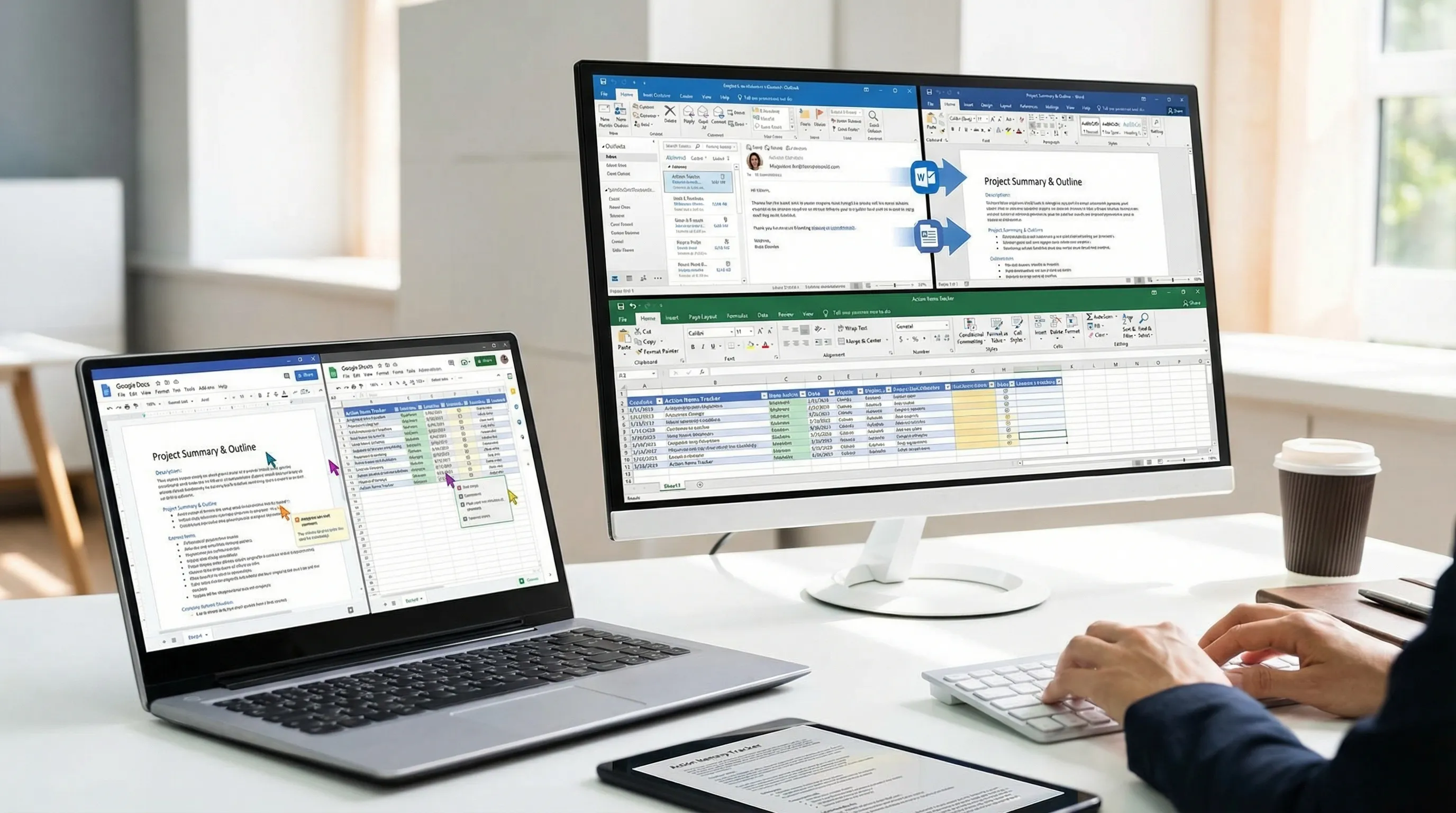
CoreGPT Apps brings GPT-powered AI tools directly into Microsoft 365 and Google Workspace, so you can work inside the tools you already use, instead of copy-pasting into a separate chat tab. If you frequently live in Outlook, Word, and Excel, this matters because those are exactly where communication turns into deliverables.
A few practical ways teams use AI in these apps (without overcomplicating the process):
- In Outlook: Draft replies in the right tone, summarize long email threads, and extract clear action items you can paste into your task system.
- In Word: Turn an email thread into a structured brief, meeting notes, or a first draft you can edit.
- In Excel: Convert messy updates into a clean table, classify requests, or summarize themes for reporting.
- In Google Docs and Google Sheets: Do the same kind of drafting and analysis for teams that run on Google Workspace.
CoreGPT Apps is designed to work out of the box, and per the product info, no registration is required and the design is privacy-focused. If you use multiple ecosystems, it is also helpful that CoreGPT supports both Microsoft 365 and Google Workspace apps from the same concept.
Frequently Asked Questions
What is the difference between Outlook Rules and Quick Steps? Rules run automatically on incoming or existing mail based on conditions. Quick Steps are manual one-click actions you trigger when you choose, often safer for important messages.
Why does Outlook Search not find emails that I know exist? It is usually a scope problem (searching the wrong mailbox or folder) or an indexing problem. Try narrowing scope, using AQS operators, then checking indexing status if results remain incomplete.
Are Outlook Rules the same on Outlook desktop and Outlook on the web? Not always. Some rule creation and execution details vary by client and mailbox type. If you rely on rules while traveling, test them in the environment you use most.
What are the best Outlook Search operators to learn first? Start with from:, subject:, received:, and hasattachments:. These cover most real-world "find that message" scenarios.
Can AI help with Outlook email triage without copying content into a separate tool? Yes. Tools that integrate directly into Outlook and companion apps (like Word and Excel) can help draft replies, summarize threads, and extract action items while you stay in your workflow.
Try CoreGPT in Outlook, Word, Excel, and Google Workspace apps
If you want to go beyond organizing mail and actually reduce the time spent writing and summarizing, explore CoreGPT Apps for Outlook, Word, and Excel, plus Google Docs, Google Sheets, Google Slides, and Google Forms.
CoreGPT is built to work out of the box, with no registration required, and a privacy-focused design.
Get started at CoreGPT Apps.