
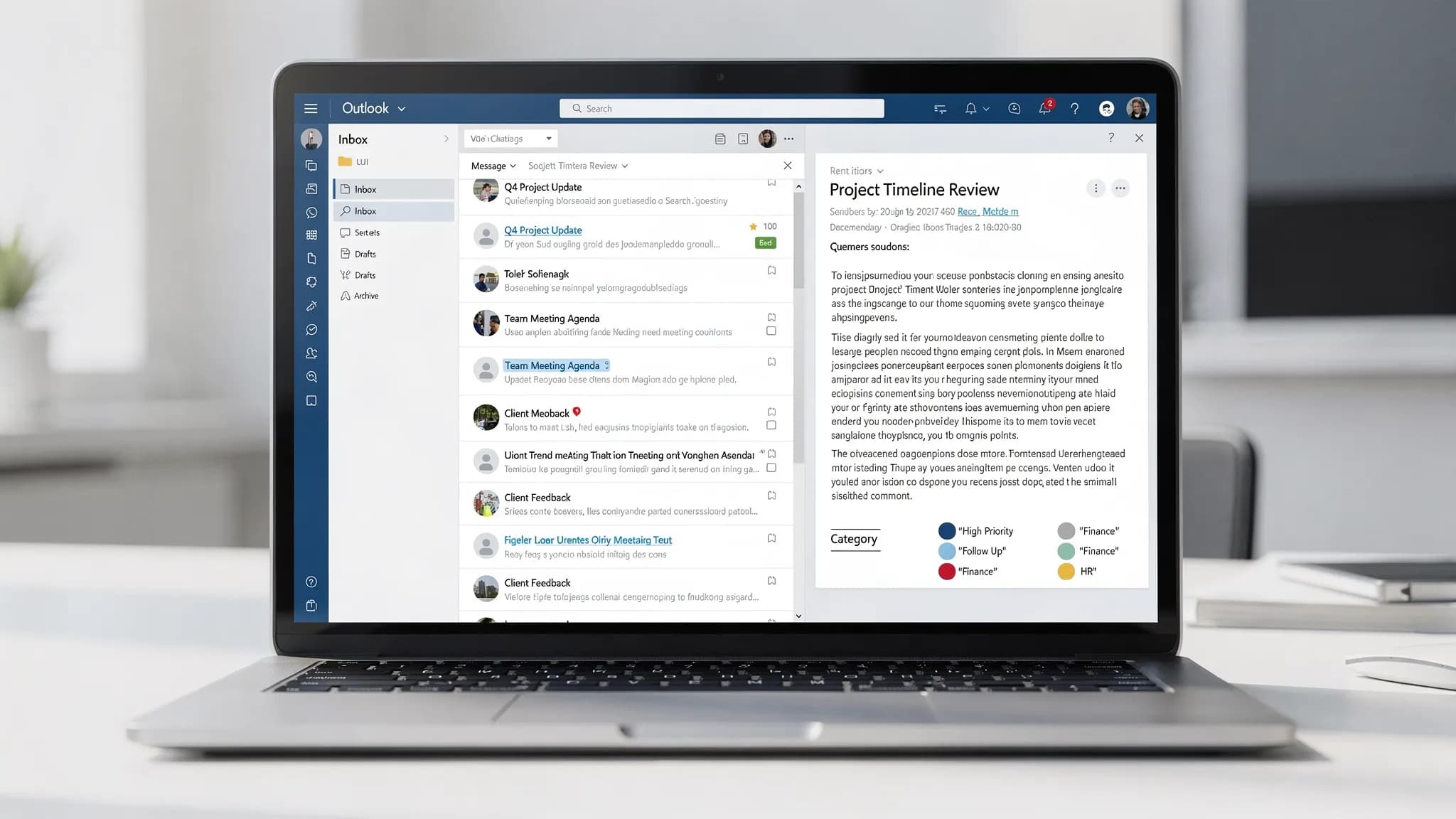
A slow Outlook wastes more time than almost any other productivity problem — because it sits between you and everything else. Slow startup, sluggish search, hangs when switching folders, calendar that takes forever to load: all of these are fixable in most cases. This guide covers the most effective fixes for classic Outlook for Windows, new Outlook, and Outlook for Mac, starting with the changes that have the biggest impact.
Quick diagnosis: what kind of slow are you dealing with?
Not all Outlook slowness has the same cause. Pin down the symptom first.
| Symptom | Most likely cause |
|---|---|
| Outlook takes a long time to open | Large OST file, too many add-ins, antivirus scanning mail store |
| Search is slow or returns results slowly | Search index needs rebuilding, OST too large |
| Scrolling through inbox is laggy | Rendering issue, hardware acceleration, large attached images in previews |
| Outlook hangs when switching folders | OST synchronization, large folder, corrupted local data |
| Slow when connected to VPN | Network latency to Exchange server, cached mode setting |
| Calendar loads slowly | Large number of calendar items, shared calendars refreshing |
| Whole Outlook freezes randomly | Add-in crash, memory issue, antivirus interference |
Fix 1: enable cached exchange mode (the single biggest fix for most users)
If Outlook is not using Cached Exchange Mode, every action (opening an email, switching folders, searching) requires a round-trip to the Exchange server. On a slow network or VPN, this compounds quickly.
To enable it in classic Outlook:
- Go to File → Account Settings → Account Settings.
- Select your Exchange account and click Change.
- Check Use Cached Exchange Mode.
- Set the cache to 1–3 years — keeping more data locally speeds up browsing, but very large caches (5+ years) can slow things down on older hardware.
- Click Next, then Finish, and restart Outlook.
Note: new Outlook uses a different caching approach and does not have this specific setting.
Fix 2: reduce your OST cache size
An OST file (the local cache of your mailbox) can grow to tens of gigabytes over years. Outlook has to manage this file constantly, and very large files slow down startup, sync, and search.
In classic Outlook:
- Go to File → Account Settings → Account Settings.
- Select your Exchange account and click Change.
- Under Offline Settings, reduce the slider — try 6 months or 1 year instead of All.
- Click Next → Finish and restart Outlook.
Outlook will trim the local cache to the new timeframe. Older emails remain on the server and are accessible when you open them (they just fetch on demand instead of being pre-cached).
Fix 3: disable or remove slow add-ins
Add-ins are the most common cause of slow startup and random freezes. Each one runs code when Outlook opens, and a buggy or outdated add-in can delay startup by 10–30 seconds.
Check which add-ins are slowing startup:
In classic Outlook, Microsoft tracks add-in load times automatically:
- Go to File → Options → Add-ins.
- At the bottom, look for a performance warning — Outlook sometimes shows "An add-in is slowing Outlook startup" with the culprit named.
- To see all active add-ins, change the dropdown to COM Add-ins and click Go.
Disable add-ins one by one to find the culprit:
- Uncheck an add-in, restart Outlook, and check the speed.
- Common slow add-ins: antivirus email scanners, legacy CRM plugins, older meeting scheduler tools.
Start Outlook in safe mode to skip all add-ins and confirm they are the cause:
- Hold Ctrl while clicking the Outlook icon, or run
outlook.exe /safefrom the Run dialog (Win+R). - If Outlook is fast in safe mode, an add-in is the problem.
Fix 4: rebuild the search index
Slow Outlook search is almost always a corrupted or incomplete search index.
Rebuild the index in classic Outlook:
- Go to File → Options → Search.
- Click Indexing Options.
- Click Advanced → Rebuild.
This takes 30 minutes to a few hours depending on mailbox size. Search speeds up once indexing is complete. Do not restart Outlook while indexing is in progress.
If search is still slow after rebuilding:
- Confirm that the Outlook data location is included in Windows indexing (in Indexing Options, click Modify and ensure the Outlook/Exchange data folder is checked).
- If your OST file is on a network drive or external drive, search will always be slow — move it to a local SSD if possible.
For new Outlook, search is entirely server-side. If it is slow, the fix is typically your internet connection or a temporary server issue, not a local index problem.
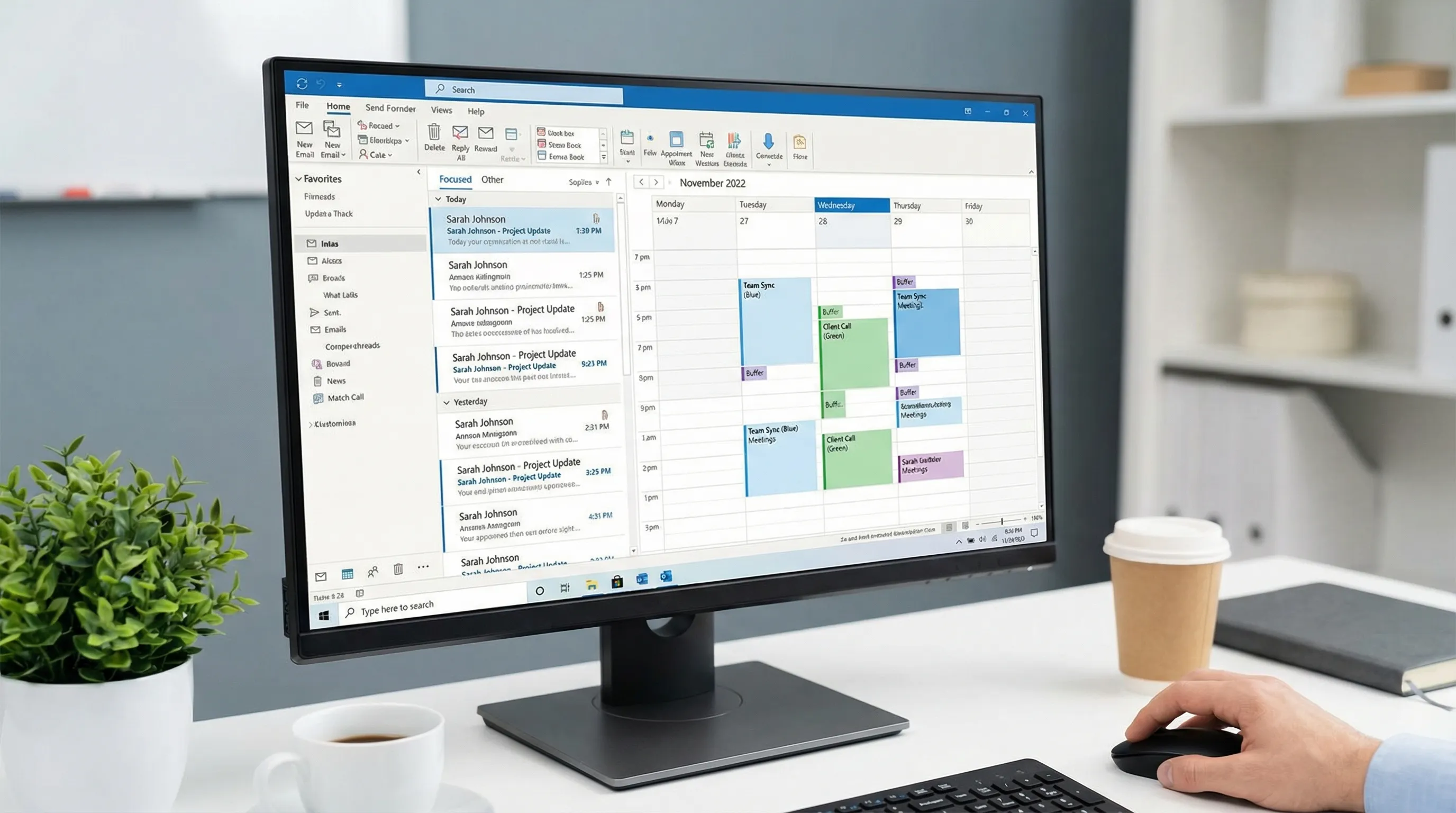
Fix 5: disable hardware acceleration (fixes rendering lag and scrolling issues)
If Outlook scrolling through the inbox feels choppy, or emails take a moment to render, a graphics rendering conflict may be the cause.
In classic Outlook:
- Go to File → Options → Advanced.
- Scroll to the Display section.
- Check Disable hardware graphics acceleration.
- Restart Outlook.
This is especially helpful on systems with multiple monitors or when using Remote Desktop.
Fix 6: compact (or move) the OST file if it is fragmented
Over time, the OST file can become fragmented as items are added and deleted. On spinning hard drives this is significant; on SSDs it matters less but still affects performance.
To move the OST file to a faster location (e.g., from a spinning drive to an SSD):
- Close Outlook.
- Go to File → Account Settings → Account Settings → select your account → Change → More Settings → Advanced tab → Outlook Data File Settings.
- Change the path to a location on your SSD.
Note: you can also simply delete the OST file when Outlook is closed — it will be rebuilt from the server on next launch. You will lose offline-cached data temporarily but Outlook will sync everything back.
Fix 7: check your antivirus email scanning settings
Many antivirus tools scan email attachments and message bodies in real-time as Outlook processes them. This can slow down folder switching, sending, and receiving dramatically.
- In your antivirus settings, look for "email scanning", "mail protection", or "Outlook integration" options.
- Disable real-time email scanning if your organization's security policy allows it. (Your organization's Exchange Online filtering handles the server-side scanning — local scanning in Outlook is often redundant.)
- Alternatively, exclude the OST file location from real-time file scanning (but keep on-demand scanning). The OST file path is typically:
C:\Users\[username]\AppData\Local\Microsoft\Outlook\
Fix 8: fix slow classic Outlook on a slow network or VPN
If Outlook is slow specifically when connected to VPN, the issue is latency between your PC and the Exchange server.
- Confirm Cached Exchange Mode is on (Fix 1) — this minimizes how much traffic goes over the VPN.
- Ensure your VPN does not route Microsoft 365 traffic through a central office unnecessarily. Microsoft recommends split tunneling for Microsoft 365 services.
- If your IT team controls the VPN, ask whether Microsoft 365 traffic is excluded from the VPN tunnel. This alone can transform Outlook performance.
Fix 9: speed up new Outlook specifically
New Outlook has fewer tuning options than classic Outlook, but a few things help:
- Clear browser cache: new Outlook is web-based. If performance degrades over time, signing out and back in clears the underlying web session cache.
- Reduce open add-ins: web add-ins running in the background add overhead. Remove any you do not actively use.
- Check connection quality: since new Outlook is server-dependent, a weak Wi-Fi connection or congested network affects it more than classic Outlook.
- Restart new Outlook periodically: unlike a browser, new Outlook does not always flush memory automatically after extended use.
Fix 10: Outlook for Mac — specific performance fixes
On Mac, Outlook slowness often stems from:
- Spotlight indexing the Outlook data folder — this competes with Outlook for disk I/O. Add the Outlook container folder to Spotlight's Privacy exclusions: System Settings → Siri & Spotlight → Spotlight Privacy → add
~/Library/Group Containers/UBF8T346G9.Office/. - Large number of Outlook profiles or accounts — remove accounts you no longer use via Outlook Preferences → Accounts.
- macOS updates pending — performance issues in Outlook for Mac often improve after OS or Office updates.
- Keychain prompts interfering — repeated Keychain access prompts slow Outlook down. Clean up stale entries for Microsoft Office and Outlook in Keychain Access.
A quick-start performance checklist
If you want to work through everything in one session:
- Enable Cached Exchange Mode and set cache to 1–2 years
- Start Outlook in safe mode — if fast, find and disable the slow add-in
- Rebuild the search index (File → Options → Search → Indexing Options → Rebuild)
- Disable hardware graphics acceleration
- Exclude OST file location from real-time antivirus scanning
- Check VPN split-tunneling with IT if you use VPN regularly
- On Mac: exclude Outlook data folder from Spotlight indexing
Frequently Asked Questions
Why is classic Outlook so slow to start up? The most common causes are add-ins loading at startup, a very large OST cache file, or antivirus scanning the mail store. Start Outlook in safe mode (outlook.exe /safe) to isolate add-ins as the cause.
Will deleting the OST file delete my emails? No. The OST file is a local cache. Your emails live on the Exchange server. Deleting the OST file forces Outlook to download everything again, which takes time, but nothing is permanently lost.
Why is Outlook search slow even after rebuilding the index? If the mailbox is very large, indexing can take hours. Also confirm that the Outlook data folder is included in Windows Indexing Options. On HDD (not SSD) systems, search will always be slower due to disk access speed.
Does new Outlook have the same performance fixes as classic? No. New Outlook has fewer local settings to tune since it is web-based. The most impactful fix for new Outlook is ensuring a fast, stable internet connection, since it depends on the server for almost everything.
Why is Outlook slow on VPN? If Cached Exchange Mode is off, every action requires a round-trip to Exchange over the VPN, adding latency. Enable cached mode. Also ask IT whether Microsoft 365 traffic is excluded from the VPN tunnel (split tunneling).
How do I know which add-in is slowing Outlook? Go to File → Options → Add-ins. Outlook often shows a warning about add-ins affecting startup. Alternatively, start Outlook in safe mode (hold Ctrl while launching), confirm it is fast, then re-enable add-ins one at a time.
Work faster inside Outlook with AI once it is running well
Once Outlook is running at full speed, the next bottleneck is usually triage: reading long threads, deciding what to reply, and writing responses. CoreGPT Apps adds GPT-powered AI directly inside Outlook — summarize threads in one click, generate draft replies, rewrite message tone, and more. It also works inside Word, Excel, PowerPoint, Teams, and OneNote, plus Google Docs and Google Sheets. Free to use, no registration required.
Install here: CoreGPT for Outlook
Related reading: