
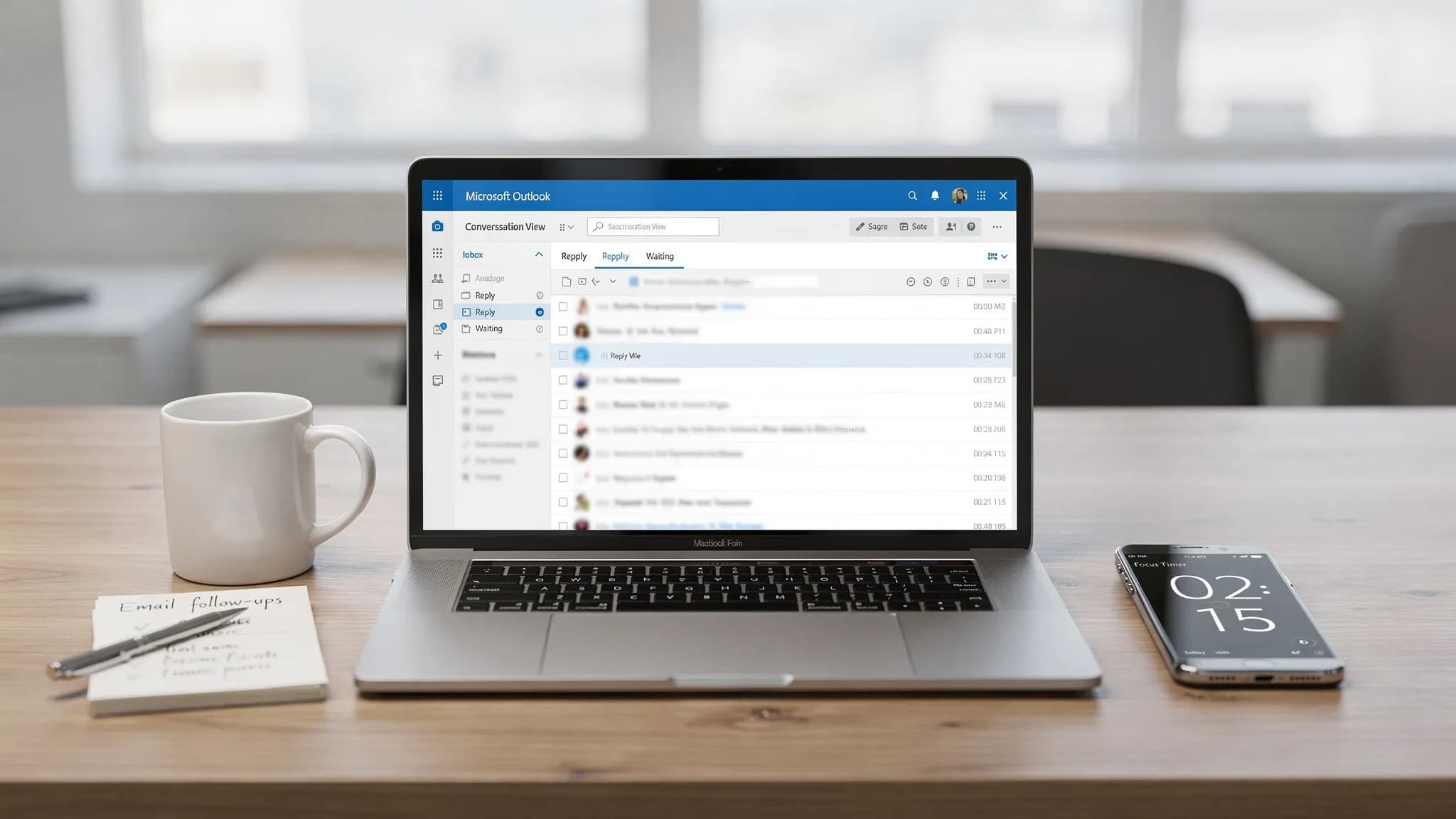
Most inboxes don't get messy because you "get too much email." They get messy because there's no fast decision path for the 80 percent of messages that are low value, repeated, or waiting on someone else.
This 20-minute routine is designed for Outlook Microsoft users who want quick wins, not a weekend-long reorganization. You will delete obvious clutter, separate "must reply" from "must keep," and set up two lightweight automations that prevent the mess from coming back.
What you need before you start (60 seconds)
- Open Outlook and switch to your main Inbox.
- Turn on Conversation View (so you can delete or archive whole threads faster).
- If you use Microsoft 365 on desktop, keep the Reading Pane open so you can triage without opening messages.
If you want the official Microsoft steps for Conversation View and mail organization options, Microsoft's Outlook help hub is a solid reference point: Outlook help & learning.
The 20-minute Outlook Microsoft inbox cleanup plan
Use the timer on your phone. The point is speed and momentum.
| Time box | What you do in Outlook | Goal | Best Outlook feature to use |
|---|---|---|---|
| 0 to 5 min | Delete or archive "obvious no" emails in bulk | Shrink the inbox fast | Search + multi-select + Delete/Archive |
| 5 to 10 min | Unsubscribe and sweep recurring noise | Stop repeat clutter | Unsubscribe + Sweep (web) |
| 10 to 15 min | Convert "needs reply" into a short action list | Clear mental load | Categories / Flags + quick AI summary |
| 15 to 18 min | Add two simple rules or one Quick Step | Prevent daily rework | Rules or Quick Steps |
| 18 to 20 min | Create a one-screen "today view" | Make it easy to stay clean | Search folders / Favorites |
Minute 0 to 5: Bulk delete the "obvious no" emails
You are not trying to read. You are trying to reduce volume.
Use search to find the biggest piles
In the Outlook search box, try quick searches that reliably surface clutter:
unsubscribenewsletterreceipt(if you do not need them in Inbox)from:store(swap in common senders)hasattachments:yes(to handle large, low-value threads)
Tip: If you use Outlook for Windows, you can sort by From or Subject to mass-select repetitive senders and delete in chunks.
Do one ruthless pass
For the first 5 minutes, only make three decisions:
- Delete (spam, outdated notifications, FYIs you will never reference)
- Archive (messages you might need later but not today)
- Keep (anything that affects money, deadlines, approvals, customers, or your manager)
If you are unsure, archive instead of keeping it in Inbox. The inbox is a work queue, not a filing cabinet.
Minute 5 to 10: Stop recurring noise with Unsubscribe and Sweep
This is where you get long-term ROI.
Unsubscribe from the worst offenders
If an email is truly promotional, unsubscribe right away. Many Microsoft 365 tenants also show an Unsubscribe link in Outlook for supported senders.
Use Sweep (Outlook on the web) for recurring senders
If you use Outlook on the web, Sweep is a fast way to automatically move or delete messages from a sender (for example, move all "system alerts" into a folder, keep only the latest).
Microsoft's Sweep overview is here: Sweep your inbox in Outlook on the web.
If you are on Outlook for Windows and do not see Sweep, you can get similar results with a simple rule (covered below).
Minute 10 to 15: Turn "needs reply" into an action list (without rereading threads)
Most inbox stress comes from untracked obligations. Your job here is to identify what you owe and what you are waiting on.
Add two categories (or use flags)
Create just two categories for now:
- Reply (you owe a response)
- Waiting (someone owes you)
Then do a fast scan of your remaining Inbox and tag the messages that matter. You are building a lightweight workflow without overengineering.
Use AI inside Outlook Microsoft to summarize long threads (optional but fast)
If a conversation is long, do not scroll. Summarize it and extract next actions.
With CoreGPT Apps, you can use ChatGPT, Gemini, or Claude directly inside Microsoft Outlook (no registration required, privacy-focused design). A practical prompt to paste into your AI sidebar:
Prompt: "Summarize this email thread in 5 bullets. Then list decisions made, open questions, and the next 3 actions with owners and due dates."
This is especially useful when you come back from PTO, join a thread midstream, or need to respond confidently without rereading everything.
If you want more dedicated templates for writing and summarizing, see: Microsoft Outlook Email: Write, Rewrite, and Summarize Fast.
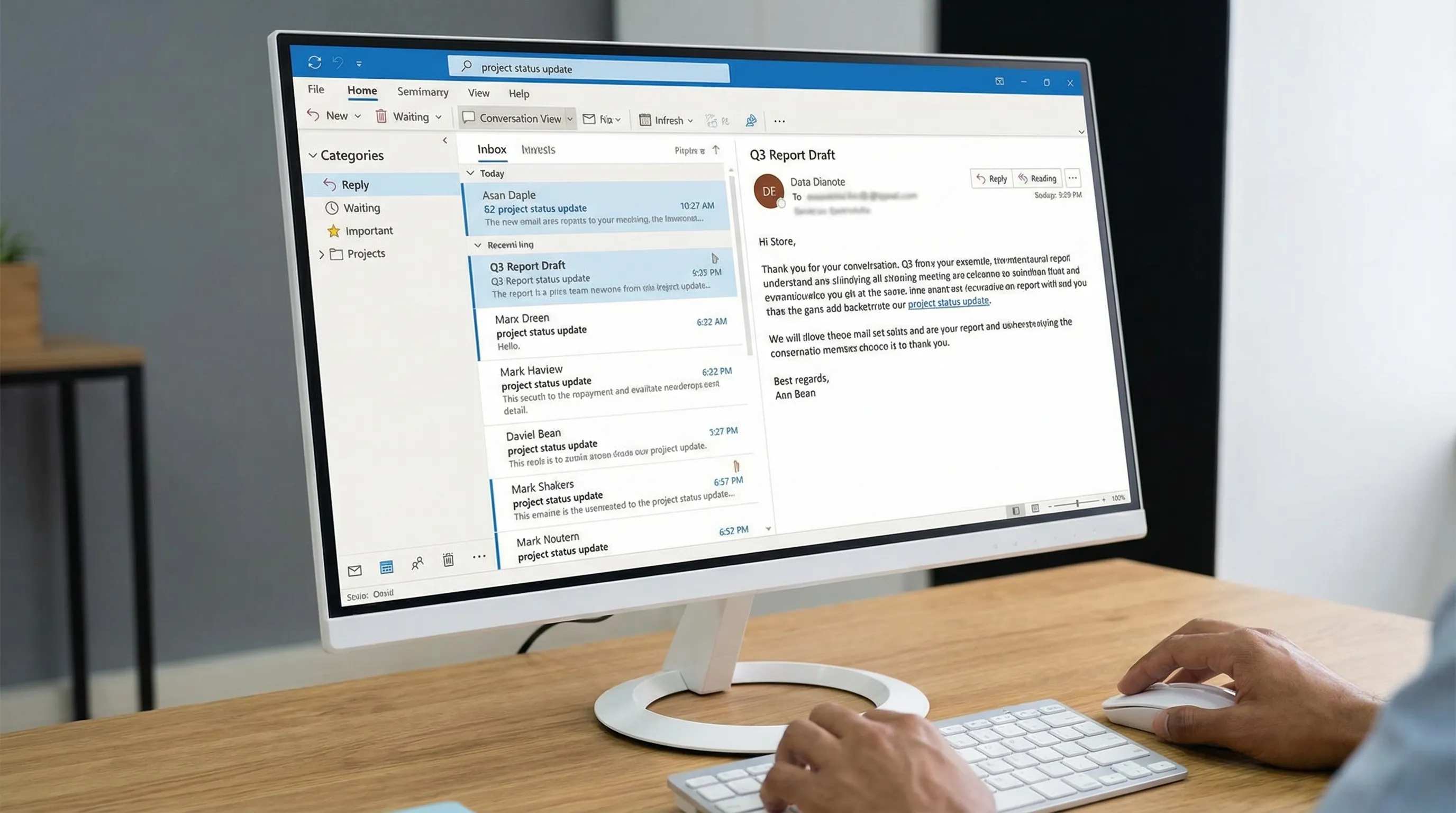
Minute 15 to 18: Add two tiny automations (rules or Quick Steps)
You do not need 30 rules. You need two that remove daily friction.
Automation 1: Route low-priority recurring mail out of your Inbox
Choose one recurring sender you never want in your main Inbox (tool notifications, automated reports, vendor marketing). Create a rule:
- Condition: from that sender (or with specific words in the subject)
- Action: move to a folder named Read Later (or Notifications)
Microsoft's rules guide is here: Manage email messages by using rules.
Automation 2: One-click "triage" Quick Step
Create a Quick Step that does one common action instantly, for example:
- Move to Read Later and mark as read
- Move to Waiting folder and add category Waiting
If you want a deeper checklist for rules and Quick Steps design, this guide goes further (you do not need to implement it all today): Outlook Rules, Search, and Quick Steps: Complete Checklist.
Minute 18 to 20: Make a "today view" so the inbox stays clean
Your future self needs a simple dashboard.
Pick one approach:
- Add your Reply category view to Favorites (easy and works well).
- Create a search folder (or saved search) for categorized mail.
A simple setup that works for most people:
- Inbox (work queue)
- Reply (what you owe)
- Waiting (what you are tracking)
- Read Later (low priority)
Now the inbox is no longer a junk drawer.
Keep it clean: the 2-minute daily loop
Once you have done the 20-minute reset, maintenance is simple:
- Spend 2 minutes at the start of the day tagging new messages as Reply or Waiting.
- Archive anything you are not acting on today.
- Do one quick unsubscribe per day.
This is how you avoid the "clean it once, lose it a week later" cycle.
When email turns into deliverables: use Word, Excel, and Google Workspace without context switching
Inbox cleanup is not only about deleting. It is also about converting email into work artifacts.
With CoreGPT Apps, you can keep the workflow inside the tools you already use:
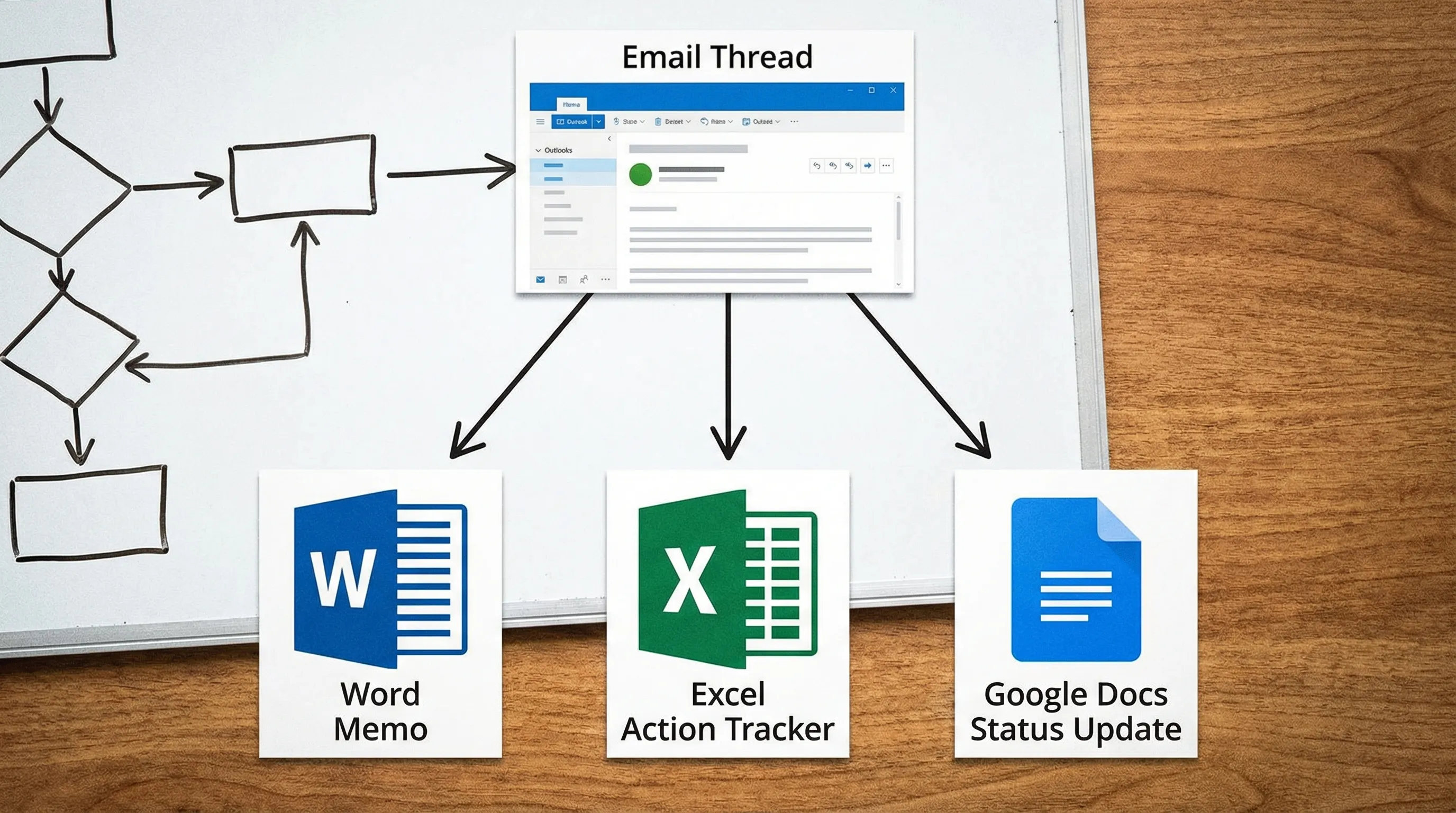
- Outlook to Word: Summarize a thread, then draft a one-page decision memo in Microsoft Word.
- Outlook to Excel: Extract action items into a tracker, then refine formulas or clean columns in Microsoft Excel.
- Outlook to Google Workspace: Turn the same summary into a Google Docs status update, generate a Google Sheets tracker, draft a Google Slides outline for a weekly readout, or structure a Google Forms follow-up.
CoreGPT Apps tools for Word, Excel, Outlook, Google Docs, Google Sheets, Google Slides, and Google Forms are free, work out of the box, and require no registration. If you want one place to start, visit CoreGPT Apps.
Common mistakes that waste your 20 minutes (avoid these)
Creating too many folders
Folders feel productive, but they slow you down during triage. Start with 2 to 4 folders max (or none, if you rely on search and categories).
Using Inbox as storage
If you might need it, archive it. If you must act on it, categorize or flag it. The inbox should stay small enough to scan.
Rewriting replies from scratch
If you are repeatedly sending "thanks, here's the update, next steps are…" templates, let AI draft the first version in Outlook, then you edit for accuracy and tone. That one change often saves more time than any folder structure.
A realistic outcome after 20 minutes
If you follow the timer, most people end up with:
- A noticeably smaller inbox
- Unsubscribed or routed repeat noise
- A visible queue of real obligations (Reply) and follow-ups (Waiting)
- One or two automations that reduce tomorrow's email load
And if you add in CoreGPT Apps for Outlook Microsoft, you can compress the slowest part of email, reading long threads and drafting replies, into a few focused minutes inside the inbox.