
Email is where work gets negotiated, confirmed, and recorded. It is also where time disappears, especially when you are rewriting the same message three different ways or scrolling a long thread just to find the one decision that matters.
If "Microsoft Outlook email" is your daily command center, the fastest wins usually come from three moves:
- Write a solid first draft in seconds (instead of starting from a blank page).
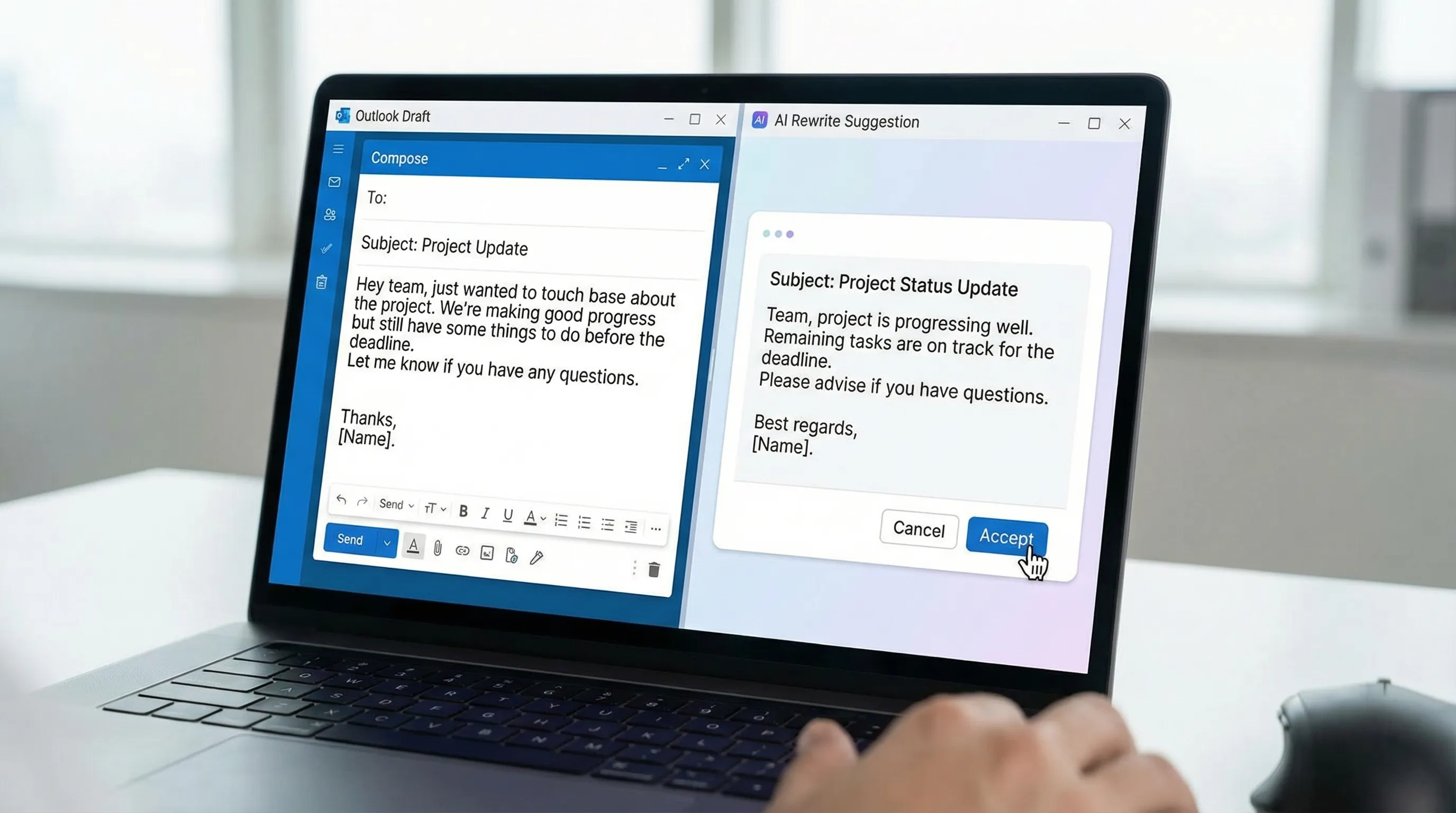
- Rewrite for tone, brevity, or clarity without changing meaning.
- Summarize long threads into actions, owners, and deadlines.
This guide shows practical, copy-pasteable workflows to do all three inside Outlook, plus how to carry the output into Word, Excel, and Google Workspace when an email turns into a document, spreadsheet, or update.
What "fast" actually means in Outlook email
Speed is not just typing faster. In practice, email time goes down when you reduce re-reading and second-guessing.
A useful benchmark is the "one-pass" standard:
- Open the thread
- Understand it in under 20 seconds
- Decide what you will do
- Reply with a clear message
- File it (or convert it into a task)
If you constantly stall at "understand" and "reply," AI-assisted summarizing and drafting are the highest ROI.
Productivity research has long noted how much of the day knowledge workers spend communicating and searching for information. For a classic reference point, McKinsey Global Institute estimated significant time spent on email and related communication activities in its analysis of the "social economy."
Write Microsoft Outlook email replies faster (without sounding robotic)
The easiest way to get a high-quality draft is to provide a few constraints up front. When people say "AI drafts are generic," it is usually because the prompt is generic.
The 5-part prompt that consistently produces good replies
When drafting an Outlook email reply, include:
- Context: paste the last message (or a short excerpt)
- Goal: what outcome you need (confirm, decline, ask, escalate)
- Tone: friendly, direct, executive, diplomatic
- Constraints: length, bullet vs paragraph, must-include facts
- Next step: what you want the recipient to do, by when
If you are using an in-app assistant like CoreGPT Apps, you can keep the prompt short and let the pasted email provide most of the context.
Drafting prompts you can reuse (table)
Use this as a mini "prompt library" for Outlook email. Replace bracketed text.
| Scenario | What to paste into the AI | Prompt to use (copy/paste) |
|---|---|---|
| Quick confirmation | The message you are replying to | "Draft a reply confirming: [what you are confirming]. Keep it under 70 words. Tone: professional and warm. Include next step: [date/time]." |
| Polite decline | Invite or request email | "Write a polite decline. Give one brief reason, propose an alternative: [option]. Keep it short. Tone: appreciative." |
| Follow-up that gets a response | Your sent email + no response context | "Write a follow-up that is concise and specific. Ask one clear question. Include a deadline: [date]. Tone: direct, not passive-aggressive." |
| Clarify requirements | The request email | "Draft a reply asking for missing details as a checklist of questions. Keep it friendly and efficient. End with: 'Once I have this, I can…'" |
| Escalation to a stakeholder | Thread excerpt + who you are escalating to | "Summarize the situation in 3 bullets, then draft a short escalation email to [name/role] asking for a decision on [decision]. Include risks if delayed." |
| Customer-style response (internal or external) | Customer email excerpt | "Draft a calm, helpful reply. Acknowledge the issue, restate the problem, outline 2 steps we will take, and ask for any missing info. No blame." |
A simple quality bar before you send
Before you hit Send, scan for these five items:
- The ask is explicit (what you need them to do)
- The deadline exists (even if it is "by EOD Thursday")
- Names and numbers match the thread
- You removed filler ("just," "quickly," "sorry to bother you")
- Subject line still matches the content (or adjust it)
Rewrite Outlook emails for tone, clarity, and brevity
Rewriting is where AI saves the most time because you can keep your facts and structure, then refine the delivery.
The safest way to rewrite without changing meaning
Instead of "Rewrite this," use "Rewrite without altering the meaning, keeping these facts unchanged." Then list the facts.
Here are three rewrite prompts that work well in Microsoft Outlook email:
| Rewrite goal | Prompt | When to use it |
|---|---|---|
| Shorten | "Rewrite to be 40 percent shorter, keep all facts and dates unchanged, remove hedging, keep a professional tone." | Your email is too long or repetitive |
| Make it more diplomatic | "Rewrite to be more diplomatic and collaborative, no sarcasm, no blame. Keep the request firm and clear." | Cross-team friction, escalations |
| Make it more executive | "Rewrite for an executive reader: 1 short paragraph, then 3 bullets: decision needed, impact, next step." | Leaders, time-sensitive updates |
Tone control cheat sheet
If you struggle to describe tone, try one of these words:
- "Warm and direct" (my go-to default)
- "Neutral and factual" (for tense situations)
- "Confident and concise" (for leadership updates)
- "Service-oriented" (for customer or partner comms)
If you are rewriting a sensitive message, add: "Avoid absolute statements like 'never' and 'always.'"
Summarize long Outlook threads into actions (and stop rereading)
Thread summarization is not just "TL;DR." A good summary answers:
- What was decided?
- What is still open?
- Who owns the next action?
- What is the deadline?
Thread summary prompt (works for most teams)
Paste the most recent portion of the conversation (or the whole thing if it is short), then use:
"Summarize this email thread for me. Output format:
- Context (1 sentence)
- Decisions (bullets)
- Open questions (bullets)
- Action items (owner + due date)
- Risks / blockers (if any) If any dates or owners are missing, say 'Unclear' instead of guessing."
That last line is important. It prevents the model from inventing details.
Convert a messy thread into a clean reply
After you generate the summary, use it to draft a reply that closes loops:
"Using the summary above, draft a reply that:
- Confirms the decisions
- Assigns the action items clearly
- Asks for answers to the open questions
- Proposes a deadline for each open item Keep it under 150 words."
This turns "infinite thread" behavior into "one email that ends the thread."
A 2-minute workflow: summarize, draft, rewrite, send
When you are moving quickly, you need a repeatable loop. Here is a simple sequence that works in most Outlook inboxes:
- Summarize the thread into decisions and action items
- Draft the reply with one clear ask and a deadline
- Rewrite for your desired tone (warm, neutral, executive)
- Generate subject line options if the topic shifted
- Do a 10-second fact check (names, dates, numbers)
If you already use Outlook automation like Quick Steps and Rules, this workflow pairs nicely with it. For a practical setup, see CoreGPT's checklist on Outlook Rules, Search, and Quick Steps.
Using CoreGPT Apps inside Outlook (and beyond)
CoreGPT Apps brings GPT-powered assistance directly into the apps where you already work, including:
- Microsoft Outlook
- Microsoft Word
- Microsoft Excel
- Google Docs
- Google Sheets
- Google Slides
- Google Forms
The advantage of in-app AI is that you do not have to jump between tabs, copy text back and forth, or lose the thread you are replying to. You keep context close to the work.
CoreGPT Apps is also built with a privacy-focused design, and no registration is required to get started.
If your work spans both ecosystems, this matters: you can keep the same "write, rewrite, summarize" habits whether you are replying in Outlook, drafting in Word, analyzing in Excel, or collaborating in Google Workspace.
Per your team's needs, you can use different models (ChatGPT, Gemini, Claude) through CoreGPT Apps.
Mentioning the other apps (free and out of the box)
If you mainly came here for Outlook email, it is still worth knowing that CoreGPT's other app integrations (like Word, Excel, and Google Workspace apps) are completely free and work out of the box, so you can standardize the same workflow across documents and spreadsheets without extra setup.
To go deeper on the document and spreadsheet sides, you can reference:
- How to use ChatGPT in Microsoft Word
- How to use ChatGPT in Excel
- Google Workspace AI workflows for busy teams
Turn Outlook email into Word docs and Excel trackers (common real-world flow)
Email rarely ends as email. It becomes a document, a plan, or a tracker.
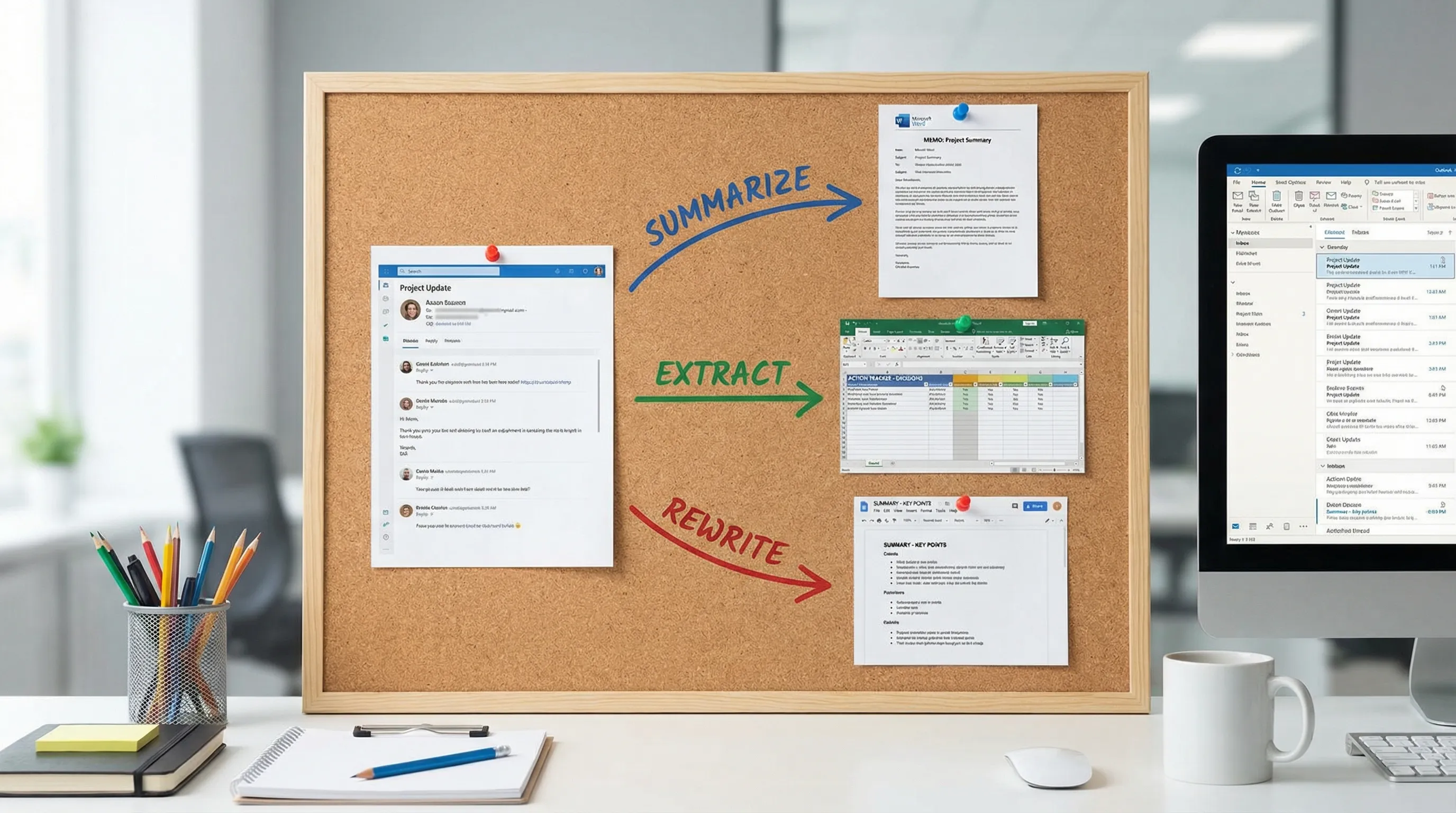
From Outlook thread to Word memo in 60 seconds
Use this when a discussion needs an internal write-up:
"Create a one-page memo I can paste into Microsoft Word. Structure:
- Background
- Current status
- Options (with pros/cons)
- Recommendation
- Next steps Use only facts from the thread. If something is not stated, mark it as 'Not specified.'"
This is especially useful for leadership updates, vendor decisions, incident summaries, or policy clarifications.
From Outlook requests to an Excel action tracker
If you are managing a shared inbox or a project thread, extract work items:
"Extract action items from this thread into a table with columns: Task | Owner | Due date | Status | Notes If owner or due date is missing, leave it blank."
Paste the table into Excel, then add your own status updates. If you want to get more advanced later, CoreGPT's Excel guide covers in-sheet AI functions and cleanup workflows.
From Outlook recap to Google Workspace updates
Many teams run Microsoft email but collaborate in Google Workspace. The same outputs translate cleanly:
- Summaries become a Google Doc for a shared record
- Action tables become a Google Sheet for ongoing tracking
- Weekly rollups become a Google Slide for a team update
- Intake questions become a Google Form
If you want repeatable templates for these handoffs, the Google Workspace AI workflows post includes prompt patterns you can standardize.
Accuracy and privacy: how to use AI in Outlook responsibly
Email often contains sensitive context. A few practical habits help you get speed without creating risk.
Accuracy safeguards that take seconds
- Ask the model to mark unknowns as "Unclear" instead of guessing.
- Keep a "facts list" in your prompt when rewriting (dates, amounts, commitments).
- For summaries, request "Decisions" and "Open questions" separately so assumptions are easier to spot.
Privacy habits that work for most teams
- Share the minimum necessary thread excerpt, especially for sensitive topics.
- Remove or anonymize customer identifiers if you are just rewriting for tone.
- Treat AI output as a draft, not a system of record.
If you work in a regulated environment, align usage with your organization's policies.
Quick prompt pack for Microsoft Outlook email (copy and save)
If you want a small set of prompts that cover most inbox work, save these:
| Use case | Prompt |
|---|---|
| "Reply all" status update | "Draft a reply-all update. Start with current status in 1 sentence, then 3 bullets: completed, in progress, blocked. End with next check-in time: [time]." |
| Tighten a long email | "Rewrite to be 120 words max. Keep all facts unchanged. Remove repetition. Keep a calm, professional tone." |
| Ask for a decision | "Write an email asking for a decision on [choice]. Include: 2 options, my recommendation, and a deadline. Keep it concise." |
| Summarize for your manager | "Summarize this thread for my manager in 5 bullets: why it matters, what changed, decision needed, risks, my recommendation." |
| Create subject line options | "Suggest 5 subject lines under 50 characters, clear and specific, reflecting the main ask: [ask]." |
| Translate and keep tone | "Translate to [language], keep a professional tone, preserve names, dates, and numbers exactly." |
When you want this workflow built into your tools
If you like these prompt patterns, the next step is making them frictionless. CoreGPT Apps puts AI directly into Outlook for drafting, rewriting, and summarizing, and it also works across Word, Excel, and Google Workspace apps (Docs, Sheets, Slides, Forms) so you can reuse the same workflow wherever the work lands.
You can explore CoreGPT Apps here: coregptapps.com