
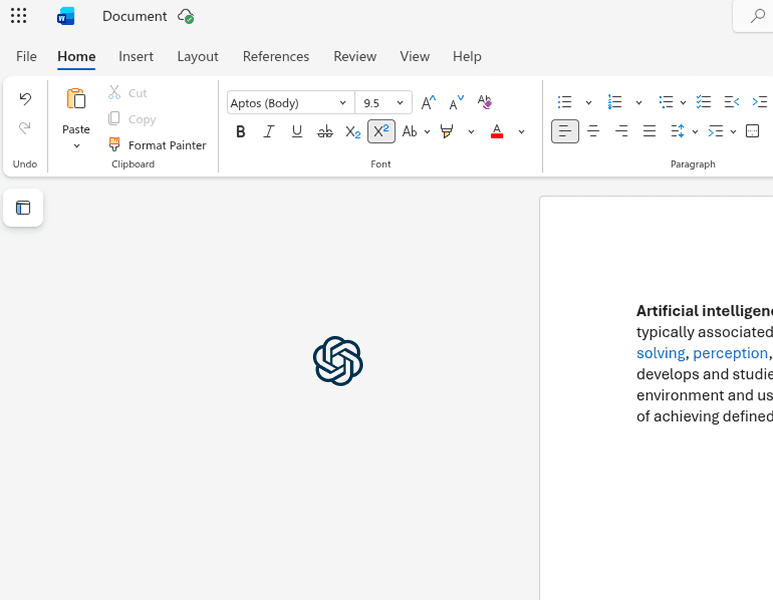
Microsoft Word is where most professional writing happens — reports, proposals, contracts, emails, and more. With AI now available directly inside Word, you can write faster, edit smarter, and produce better documents in a fraction of the time.
In this guide, you'll learn exactly how to use ChatGPT inside Microsoft Word to draft content, improve your writing, summarize documents, and automate repetitive tasks.
Why Use AI in Microsoft Word?
Most people use Word the same way they did 20 years ago — typing every word manually, fixing grammar by eye, and spending hours on documents that could be done in minutes with the right tools.
AI changes this completely. Here's what becomes possible when you bring ChatGPT into Word:
- Draft entire sections from a short prompt
- Rewrite and improve existing paragraphs with one click
- Summarize long documents into key bullet points
- Change tone — make text formal, casual, concise, or persuasive
- Translate content into any language instantly
- Fix grammar and style across the whole document
Getting Started: Install CoreGPT for Word
To use ChatGPT inside Word, you need the CoreGPT add-in. It integrates directly into your Word ribbon — no browser tab switching, no copy-pasting.
Installation takes under 2 minutes:
- Open Microsoft Word
- Go to Insert → Add-ins → Get Add-ins
- Search for CoreGPT
- Click Add — it's free to start
Once installed, the CoreGPT panel appears on the right side of your document. You can select any text and apply AI actions directly.
What You Can Do with CoreGPT in Word
Draft Content from a Prompt
Select a blank area or type a short description of what you need, then ask CoreGPT to write it. For example:
"Write a professional introduction for a project proposal about implementing a new HR system."
CoreGPT generates a full paragraph you can insert directly into your document.
Improve and Rewrite Existing Text
Select any paragraph you've already written and choose Improve or Rewrite. CoreGPT will:
- Fix grammar and spelling
- Improve sentence flow and clarity
- Suggest stronger word choices
- Adjust the length — expand or condense as needed
Summarize Long Documents
Working with a long report or legal document? Select all the text (or a long section) and ask CoreGPT to summarize it. You'll get a clean, concise summary in seconds — perfect for executive summaries or meeting prep.
Change Tone and Style
Need the same content in a different voice? Select your text and ask CoreGPT to:
- Make it more formal for a board report
- Make it friendlier for a client email
- Make it more persuasive for a proposal
- Shorten it for an executive brief
Translate Text
Select any text and ask CoreGPT to translate it to French, Spanish, German, Japanese — or any other language. The translation appears inline, ready to use.
Practical Use Cases
Writing Business Reports
Instead of starting from a blank page, give CoreGPT a bullet-point outline and ask it to expand each section into full paragraphs. Then refine each section using the Improve action.
Creating Proposals and Pitches
Describe your solution in plain language and ask CoreGPT to write a compelling proposal section. You can specify the target audience, desired tone, and key points to include.
Editing Team Documents
When reviewing documents from colleagues, use CoreGPT to quickly identify unclear sections and rewrite them for better clarity — without spending 30 minutes per document.
Drafting Contracts and Legal Text
While CoreGPT is not a lawyer, it can help draft standard contract sections, clauses, and terms based on your requirements — giving you a solid first draft to review with your legal team.
Tips for Getting the Best Results
Be specific in your prompts. The more context you give CoreGPT, the better the output. Instead of "write an introduction," say "write a 2-paragraph introduction for a report on Q4 sales performance for a retail company, formal tone."
Iterate. AI output is a starting point. Use Improve or Rewrite to refine until it matches your voice.
Select text before applying actions. CoreGPT works on whatever text you have selected — so always highlight the section you want to work on first.
Use it for repetitive tasks. If you write the same type of content regularly (status updates, meeting summaries, client emails), create a prompt template and reuse it.
CoreGPT vs. Microsoft Copilot for Word
You might be wondering how CoreGPT compares to Microsoft Copilot, which is also available in Word. Here's a quick comparison:
- CoreGPT is free to install and use for basic tasks. It works with Microsoft 365 personal and business accounts, and doesn't require a Copilot subscription.
- Microsoft Copilot requires a Microsoft 365 Copilot licence (currently $30/user/month) on top of your existing Microsoft 365 subscription.
For most users who want AI writing assistance in Word without the enterprise price tag, CoreGPT is the practical choice.
Getting the Most from AI in Your Workflow
AI in Word works best when you treat it as a writing partner rather than a replacement. Use it to:
- Get past the blank page faster
- Spend less time on repetitive editing
- Produce consistent, professional output at scale
The more you use it, the more natural it becomes — and the faster your documents get done.
Ready to try it? Install CoreGPT for Word for free and start writing smarter today.