

Most "Google Workspace AI" advice stops at features and buzzwords. Busy teams need something else: repeatable workflows that cut hours from writing, reporting, and coordination, without forcing everyone to learn a new tool.
This guide gives you practical, real-world ways to use AI inside the apps your team already lives in: Google Docs, Sheets, Slides, and Forms. It also includes parallel workflows for Outlook, Word, and Excel, because many teams operate in mixed Microsoft 365 and Google Workspace environments.
If you want AI to actually move work forward, start with workflows, not prompts.
What "Google Workspace AI" should do for a busy team
In practice, Google Workspace AI is valuable when it reliably handles three jobs:
- Turn messy inputs into clean outputs: meeting notes into a plan, form responses into a report, comments into decisions.
- Compress time-to-first-draft: proposals, customer updates, executive summaries, slide narratives.
- Make spreadsheets less fragile: cleaning, classifying, summarizing, and explaining data so decisions happen faster.
The best implementations keep people in-context, meaning no copy-pasting between tabs, no "prompt graveyards," and no extra logins.
CoreGPT Apps is one example of this approach: it brings GPT-powered assistance directly into Google Workspace apps (Docs, Sheets, Slides, Forms) and also into Microsoft apps like Outlook, Word, and Excel, with a privacy-focused design and no registration required. Many teams use this to standardize how AI is applied across documents and spreadsheets, even when different departments prefer different suites.
A simple operating model: the 4 reusable AI workflows
Across most roles, AI usage clusters into four repeatable patterns. If you standardize these, adoption becomes easy.
| Workflow pattern | Best for | Where it lives in Google Workspace | Common MS 365 twin |
|---|---|---|---|
| Draft (create from outline + constraints) | Proposals, SOPs, email updates | Docs | Word, Outlook |
| Transform (rewrite, shorten, change tone, translate) | Executive summaries, customer-friendly versions | Docs, Slides speaker notes | Word |
| Extract & structure (pull fields, create tables, tag items) | Forms responses, notes, research | Docs, Sheets, Forms | Excel |
| Analyze & explain (summaries, patterns, anomalies, next steps) | Weekly metrics, pipeline reviews | Sheets | Excel |
Keep these patterns in mind as you build the workflows below.
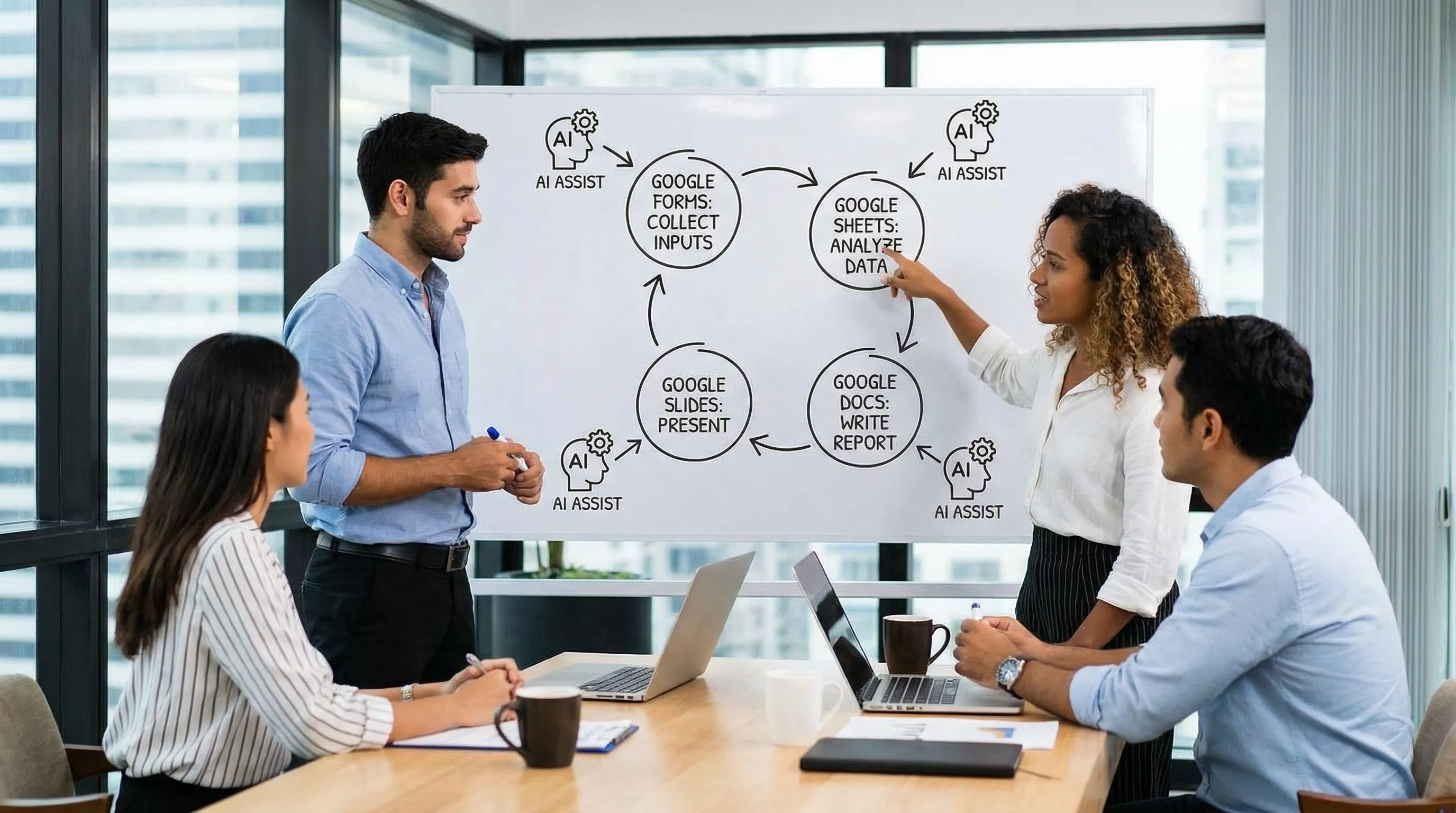
Workflow 1: Weekly status update that writes itself (Forms → Sheets → Docs)
Who it helps: Team leads, project managers, agency account managers
Goal: Collect updates consistently, roll them up automatically, ship a clean weekly summary in under 20 minutes.
How it works
- Google Forms: Create a lightweight weekly check-in form.
- Google Sheets: Store responses and standardize fields.
- Google Docs: Generate the weekly update narrative for stakeholders.
Form fields that make AI outputs better
Use fields that force clarity:
- Project / workstream
- Top 3 wins (bullets)
- Top 3 blockers (bullets)
- Metrics this week (freeform is fine)
- Decisions needed (yes/no + details)
- Confidence level (1 to 5)
Prompt you can reuse in Docs (paste the raw responses or a tabular summary)
Use a constraint-driven prompt:
You are writing a weekly project update for stakeholders.
Inputs: the team check-in responses below.
Output format:
- TL;DR (3 bullets)
- Progress (by project)
- Risks and blockers (grouped by theme)
- Decisions needed (owner + due date if mentioned)
- Next week plan (5 bullets max)
Style: concise, neutral, no jargon, keep it under 350 words.
Microsoft twin workflow (if stakeholders live in Outlook/Word)
- Use the same rollup to draft a Word status memo, then adapt it into an Outlook email update with a shorter TL;DR.
Why this works: You are not asking AI to "figure out your business." You are collecting structured inputs, then using AI to summarize and standardize.
Workflow 2: Turn a messy sheet into an executive narrative (Sheets → Slides)
Who it helps: Ops, finance, marketing, founders
Goal: Convert weekly metrics into a story, not a data dump.
Steps
- In Google Sheets, keep a stable weekly table (week, metric, value, target, notes).
- Ask AI to:
- Summarize what changed
- Identify 3 drivers
- Flag anomalies
- Propose next actions
- Move the output into Google Slides as speaker notes, then turn it into slide bullets.
Prompt template for Sheets analysis
Analyze the table below as weekly business metrics.
Deliver:
- 5-sentence executive summary
- 3 notable wins and why they likely happened
- 3 risks or anomalies (include which metric, which week)
- 5 recommended actions for next week
Rules:
- If data is missing, say what's missing
- Do not invent causes, label hypotheses as hypotheses
Make Slides faster: "one message per slide" outline
After you have the summary, ask:
Create a 6-slide outline where each slide has one key message, 3 bullets max, and a suggested chart/table reference.
Microsoft twin workflow (Excel → PowerPoint)
If your team uses Excel for the source of truth, keep the same prompt structure and generate the narrative for a PowerPoint outline. Many teams find this especially effective for monthly business reviews.
Workflow 3: Customer QBR in an hour (Docs + Sheets → Slides)
Who it helps: Customer success, account managers, agencies
Goal: Produce a consistent QBR (quarterly business review) without starting from scratch.
Inputs to gather
- A performance snapshot table in Sheets (KPIs, trends, goals)
- Top initiatives completed (bullets)
- Open issues and next steps
- Customer goals for next quarter
QBR prompt template in Docs
Build a QBR narrative for a client.
Audience: business stakeholder and a hands-on operator.
Include:
- Executive summary
- What we delivered (tie to outcomes)
- Performance highlights (use the KPI table)
- Challenges and what we are changing
- Next quarter plan (3 priorities, success metrics)
- Asks from the client
Constraints: client-friendly tone, avoid internal jargon, do not mention tools unless necessary.
Output to Slides
Once the narrative is approved, ask for a slide outline:
Convert this QBR narrative into a 10-slide deck outline with slide titles and bullets. Keep bullets short.
Pro tip: Keep a "house style" paragraph in the Doc (voice, formatting rules, forbidden phrases). Reuse it in your prompt so every QBR sounds consistent.
Workflow 4: Minutes to meeting notes that people actually read (Docs → email)
Who it helps: Any team with recurring meetings
Goal: Turn raw notes into decisions, owners, and deadlines.
In Google Docs
Paste your raw notes, then prompt:
Convert these meeting notes into an action memo.
Output:
- Decisions (bullet list)
- Action items (owner, due date, dependency)
- Open questions
- Risks
- Summary for non-attendees (5 bullets max)
Rules:
- If an owner is missing, mark as "Owner: TBD"
- Keep original terminology for project names
Outlook twin (when email is the system of record)
Use the same structure to draft an Outlook follow-up email:
- Subject line options
- A 5-bullet recap
- Action items table
If your org runs on Microsoft, you can do the same with a Word meeting memo and then adapt it into Outlook.
Workflow 5: Clean and classify messy inputs (Forms/Sheets or Excel)
Who it helps: Sales ops, recruiting, support ops, research teams
Goal: Standardize messy free-text inputs into analysis-ready categories.
Examples
- Categorize inbound leads by intent
- Tag support tickets by issue type
- Classify survey responses into themes
- Extract entities like company, role, budget, timeline
A practical approach that avoids overengineering
- Decide your taxonomy (keep it small, 8 to 15 categories).
- Run AI classification.
- Sample-check 30 rows, refine categories.
- Re-run.
Prompt template
Classify each row into one of these categories: [list categories].
For each row, return:
- Category
- Confidence (high/medium/low)
- Short rationale (10 words max)
If none fit, use "Other" and suggest a new category.
Where this shines for busy teams
- In Google Sheets, it turns form responses into a dashboard quickly.
- In Excel, it supports the same workflow for teams already living in Microsoft.
If you want deeper, app-specific walkthroughs for Excel and Word, CoreGPT has dedicated guides you can reference: How to Use ChatGPT in Excel and How to Use ChatGPT in Microsoft Word.
Workflow 6: Proposal and statement of work pipeline (Docs or Word)
Who it helps: Sales, agencies, consulting, procurement
Goal: Go from discovery notes to a usable first draft in minutes, with fewer rewrites.
Inputs that matter
- Client context (industry, size, current tools)
- Problem statement
- Success criteria (measurable)
- Scope boundaries (what is out of scope)
- Timeline assumptions
- Pricing model (even if you do not include numbers yet)
Prompt template for a first draft
Draft a proposal based on the information below.
Include:
- Problem summary
- Proposed approach (phases)
- Deliverables
- Timeline (assumptions clearly labeled)
- Roles and responsibilities
- Risks and mitigations
- Next steps
Style: confident, simple language, avoid hype.
Why mention Word here
Even if your team standardizes on Google Docs, stakeholders often request Word exports. If you work in a mixed environment, having AI available in both Docs and Word helps keep drafts consistent and reduces "format translation" overhead.
Prompt patterns that reduce back-and-forth
Teams waste time when prompts are vague. These "prompt wrappers" are simple, reusable, and consistently effective.
| Pattern | What you add | When to use it |
|---|---|---|
| Role + audience | "You are writing for…" | Executive summaries, customer comms |
| Output schema | Headings, table columns, max bullets | Any recurring deliverable |
| Constraints | Word count, tone, forbidden items | Legal, brand voice, leadership updates |
| Non-invention rule | "If missing, say it's missing" | Metrics, attribution, compliance |
A good standard is: Audience + format + constraints + non-invention.
Practical governance for Google Workspace AI (without slowing down)
Busy teams adopt AI faster when guardrails are lightweight and specific.
1) Create a "shareable safe" rule
Decide what is safe to include in prompts. Many organizations start with:
- OK: public info, internal process docs, anonymized metrics
- Not OK: credentials, customer PII, secrets, unreleased financials
If you support regulated work, align this with your security team.
2) Maintain one approved template per recurring deliverable
Examples:
- Weekly status update template
- Meeting action memo template
- QBR outline
- Incident update format
A single approved format often saves more time than any model upgrade.
3) Verify before you amplify
AI is excellent at summarizing and structuring, but it can be wrong. Adopt a simple review habit:
- If it is a number, check it.
- If it is a claim, add a source or reword as a hypothesis.
- If it is a decision, confirm the owner.
For more on responsible AI practices, see NIST's AI Risk Management Framework.
How CoreGPT fits into these workflows (Google Workspace + Outlook, Word, Excel)
If your main friction is switching contexts, CoreGPT Apps is designed to put AI where work already happens:
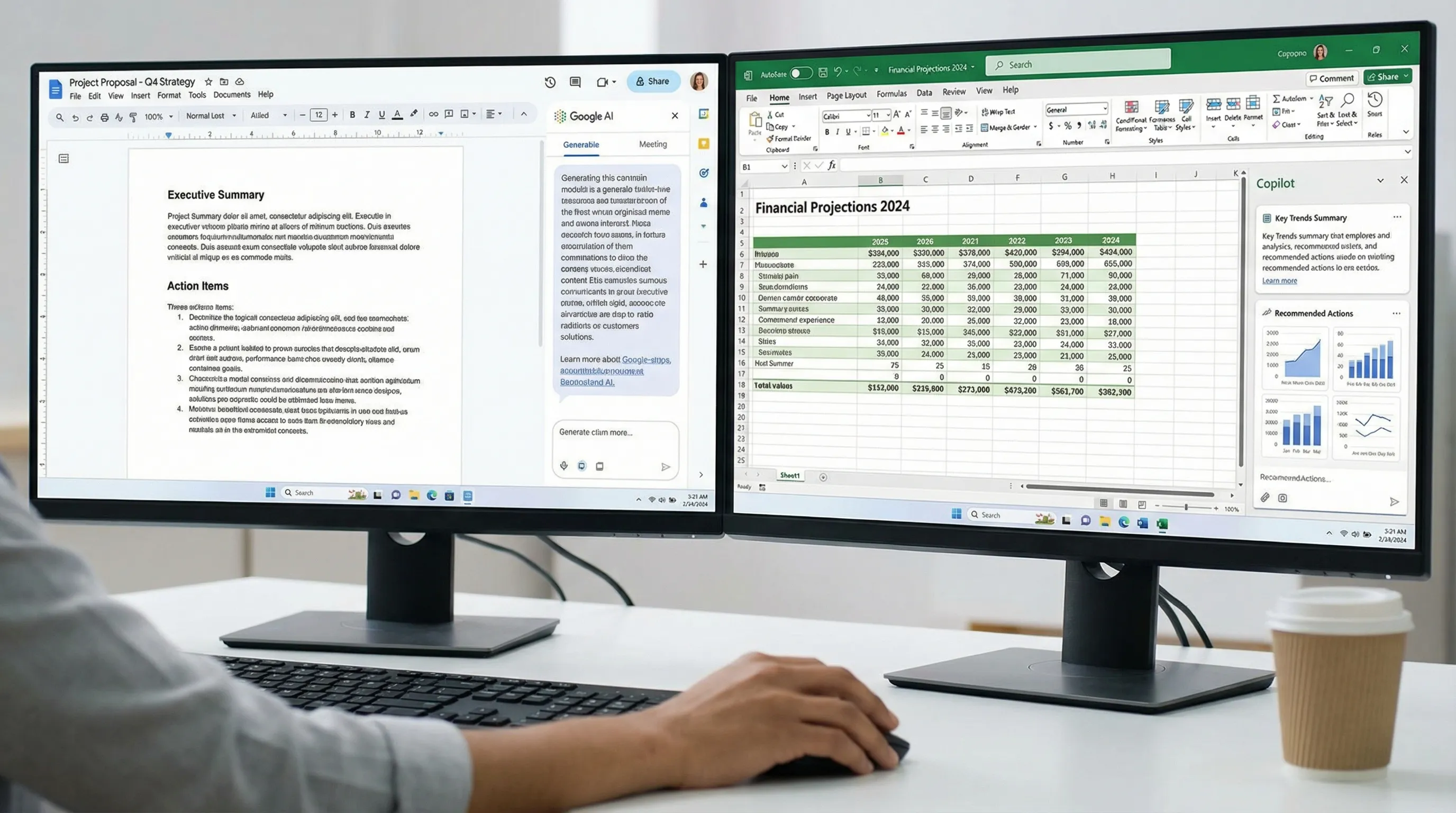
- Google Workspace: use AI in Google Docs, Sheets, Slides, and Forms for drafting, analysis, and content transformation.
- Microsoft: use the same approach in Outlook, Word, and Excel, which is especially helpful for mixed-suite teams.
- Works out of the box: no registration required, and the privacy-focused approach is built for teams that care about where their data goes.
If you want to explore it, start here: CoreGPT Apps.
The fastest way to start this week
Pick one workflow that matches a recurring meeting or deliverable, then standardize it:
- One Google Form for weekly inputs
- One Google Sheet tab for rollups
- One Google Doc template for the narrative
- Optional: one Google Slides outline for the deck version
If part of your organization lives in Microsoft, mirror the same template in Outlook, Word, and Excel so outputs stay consistent across teams.
The point of Google Workspace AI is not to generate more text. It is to make your team's work easier to ship, easier to review, and harder to forget.