

When Microsoft Login 365 stops working, it rarely happens at a convenient time. You are trying to get into Outlook before a meeting, open a Word contract, or update an Excel tracker, and suddenly you are blocked by a password prompt, an MFA challenge you cannot complete, or a "we couldn't sign you in" message.
This guide is designed to get you through account recovery with the least possible frustration. You will learn how to identify your account type, choose the right recovery path, avoid common dead ends, and harden your account after you are back in.
Step 1: Identify which "Microsoft 365 login" you actually use
Account recovery depends on whether you are signing in with a personal Microsoft account or a work/school (organization) account.
A) Personal Microsoft account (consumer)
Common signs:
- Email ends in @outlook.com, @hotmail.com, @live.com
- You sign in at Microsoft services like Outlook.com
- Your account is managed by you, not an IT admin
Recovery typically routes through the Microsoft account system.
Helpful starting point: Microsoft account sign-in
B) Work or school Microsoft 365 account (organization)
Common signs:
- Email is your company or school domain (for example, [email protected])
- You see organization branding during sign-in
- Your company controls security policies (MFA methods, Conditional Access)
Recovery typically routes through Microsoft Entra ID (formerly Azure AD) and your organization's reset policies.
If you are unsure, try signing in at Microsoft 365 and note whether you are prompted for organizational methods.
Step 2: Do a 2-minute "not actually recovery" check
A surprising number of Microsoft Login 365 "recovery" cases are caused by something else.
- Confirm the URL: Use office.com (avoid lookalike phishing links).
- Check for outages: Look at the Microsoft 365 Service health status.
- Try a private window: This bypasses cached sessions and some cookie issues.
- Check device time: Incorrect time can break modern auth and MFA prompts.
- Try a different network: Corporate VPNs and captive portals can interfere with sign-in.
If you still cannot get in, move to the recovery path below.
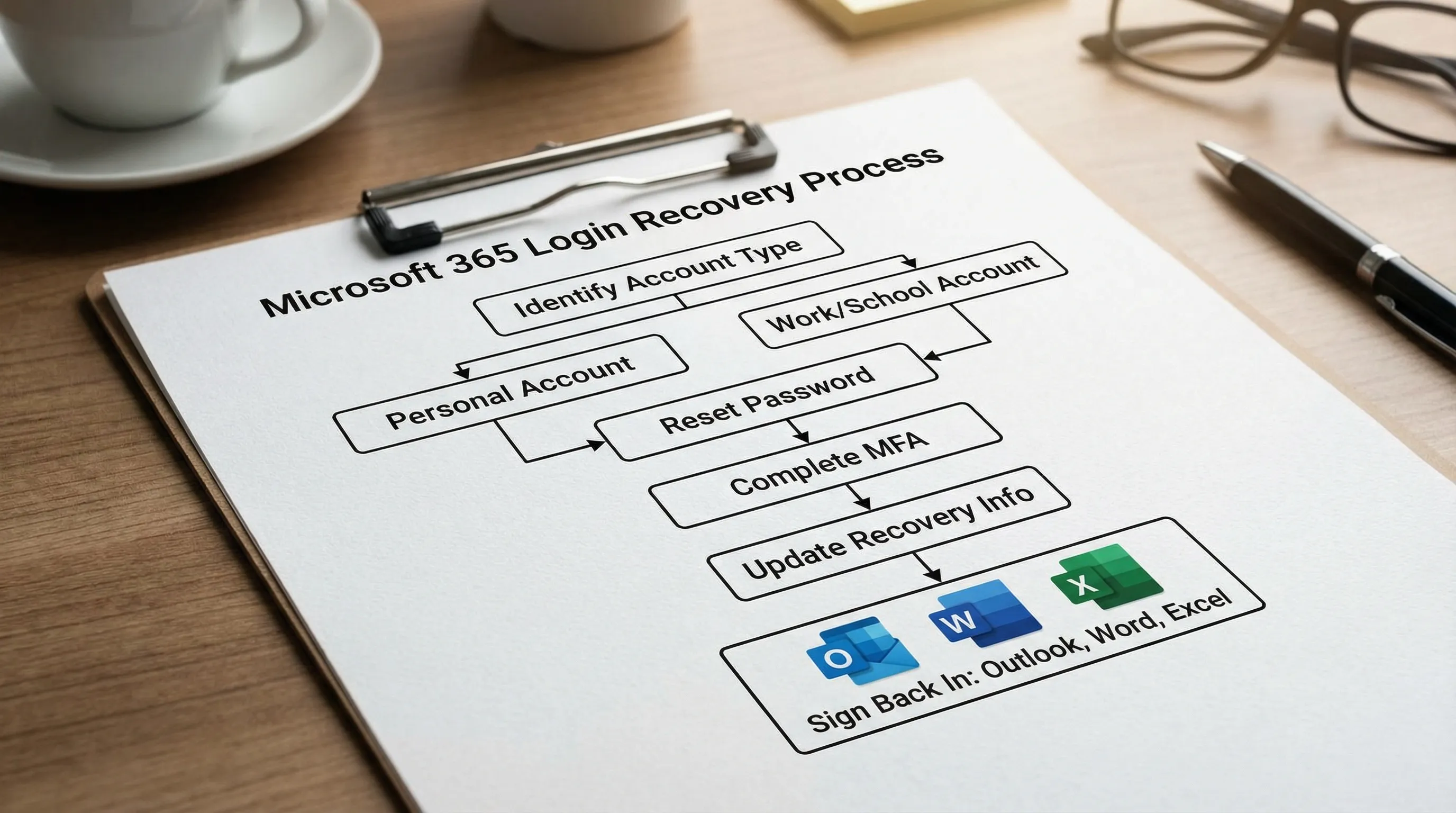
Recovering a personal Microsoft account (Outlook.com, Hotmail, Live)
1) Reset the password the official way
Use the password reset flow first because it is the fastest and least error-prone.
- Password reset: Reset your Microsoft account password
If you no longer have access to your recovery email or phone, continue to the recovery form.
2) Use the account recovery form (when you cannot receive codes)
If you cannot receive verification codes, Microsoft may route you to the recovery form.
- Recovery form: Microsoft account recovery
Tips that often improve success rates:
- Submit from a device and location you have used before.
- Enter previous passwords you remember (even approximate).
- Include subject lines of recent emails if asked (especially for Outlook.com users).
- Be consistent with profile details (name, birthday, region).
3) If you suspect the account was compromised
If Microsoft flagged unusual activity, you may see extra verification steps. After you regain access:
- Review recent sign-ins and security info in your Microsoft account settings.
- Change the password again (unique and long).
Start here: Microsoft account security
Recovering a work or school Microsoft 365 account (Microsoft Entra ID)
Work/school recovery depends on whether your organization enabled Self-Service Password Reset (SSPR) and how MFA is configured.
1) Try your organization's password reset link
Many organizations support "Forgot my password" from the sign-in screen. If you have the direct reset page, use:
- Work/school password reset: SSPR portal
If this works, you should be able to sign back into Outlook, Word, and Excel with the new password once your device updates stored credentials.
2) If MFA is the blocker (lost phone, new number, broken Authenticator)
If you cannot satisfy MFA, you usually need one of these:
- A backup method you already enrolled (SMS, call, security key)
- A Temporary Access Pass (if your org uses it)
- An admin to reset your MFA methods
Practical next step: contact your IT helpdesk and ask for MFA method reset (or a Temporary Access Pass if your organization uses it). Microsoft's help content for Authenticator issues can also help you pinpoint the failure mode: Microsoft Authenticator help
3) If you are locked out by organization policies
Some sign-ins are blocked by policy rather than credentials (for example, device compliance requirements or location restrictions). In that case:
- Ask IT whether your sign-in is blocked by Conditional Access.
- Share the exact error message and timestamp.
Common Microsoft Login 365 recovery blockers (and the fastest fixes)
Use this table to match what you see to the most likely recovery action.
| What you see during Microsoft Login 365 | Likely cause | Fastest recovery path |
|---|---|---|
| "Your account or password is incorrect" (but you are sure) | Wrong account type, cached password, or recent password change not updated | Confirm account type, reset password, then sign out everywhere and sign back in |
| "We could not verify your account" | Recovery info outdated or not accessible | Use recovery form (personal) or SSPR/IT helpdesk (work/school) |
| MFA prompt never arrives | Notification delay, device time drift, wrong default method | Check device time, switch method, then re-register MFA if you regain access |
| "Too many attempts" or temporary lock | Rate limit from repeated tries | Wait and retry, then reset password once (avoid repeated attempts) |
| "You cannot access this right now" (policy style message) | Organization policy or risk-based block | Contact IT, ask about Conditional Access or risky sign-in flags |
Getting back into Outlook, Word, and Excel after you recover the account
Account recovery is only half the battle. Many users recover successfully, then Outlook keeps prompting, Word shows licensing errors, or Excel cannot sync.
Once you can sign in on the web at office.com, do this next:
- Outlook: sign out of Outlook (desktop or mobile) and sign back in with the recovered account so the token refreshes.
- Word and Excel: open any file, then go to Account (or your profile) and confirm the correct signed-in identity.
- If prompted for an old password: update saved credentials on the device (Windows Credential Manager or macOS Keychain may still hold the previous password).
If your goal is to resume work quickly, verify sign-in in this order: web Microsoft 365, then Outlook, then Word, then Excel.
Preventing the next lockout (do this immediately after recovery)
These steps reduce repeat recoveries and help you get back into Microsoft 365 faster next time.
- Add two recovery methods (for example, phone plus backup email).
- Use a password manager and a unique password.
- Enable MFA wherever possible.
- If you are on a work account, enroll at least two MFA methods if your organization allows it.
- Watch for phishing: Microsoft Login 365 issues often begin with a fake sign-in page.
For work/school accounts, ask IT which methods are recommended for your environment (Authenticator, security key, SMS, etc.).
While you are waiting: keep work moving (Microsoft 365 and Google Workspace)
If recovery is delayed (for example, you need IT to reset MFA), you can still make progress:
- Draft content offline and paste later into Word or Google Docs.
- Build your next tracker in Excel or Google Sheets once access returns.
- Prepare follow-up messages in a notes app, then send from Outlook when you are back.
- If your team uses Google Workspace as a backup path, keep shared work updated in Docs, Sheets, Slides, and Forms.
The key is separating "work creation" from "account access" so you are not blocked from thinking and writing.
Frequently Asked Questions
What is the correct Microsoft Login 365 website? The safest starting point is office.com. From there you can open Outlook, Word, Excel, and other Microsoft 365 apps.
Why does Microsoft 365 keep asking me to sign in even after I reset my password? Your device may still have cached credentials or expired sign-in tokens. Confirm you can sign in on the web first, then sign out and back in inside Outlook, Word, and Excel.
I lost my phone and cannot complete MFA, how do I get back in? For personal accounts, use the recovery flow and update security info after. For work/school accounts, you usually need IT to reset your MFA methods or issue a Temporary Access Pass.
What if my account is work/school and I do not see a "Forgot password" option? Your organization may not have enabled self-service password reset. Contact your IT admin or helpdesk and request a password reset and MFA re-registration.
Is it safe to use third-party tools during account recovery? Be cautious. Use Microsoft's official pages for recovery and avoid "login helper" sites. Once you are signed back in, you can use productivity add-ins inside your apps.
Get back to work faster inside Outlook, Word, Excel, and Google Workspace
Once your Microsoft Login 365 access is restored, you can remove a lot of day-to-day friction by bringing AI help directly into the apps you already use.
CoreGPT Apps puts GPT-powered assistance inside Outlook, Word, and Excel, plus Google Docs, Google Sheets, Google Slides, and Google Forms. It is designed to work out of the box, and the add-ins are free to use with no registration required, with a privacy-focused approach.
If you want a practical next step, start here: use CoreGPT in Outlook to summarize long threads and draft replies, then move those decisions into Word for a clean memo and Excel for an action tracker.