
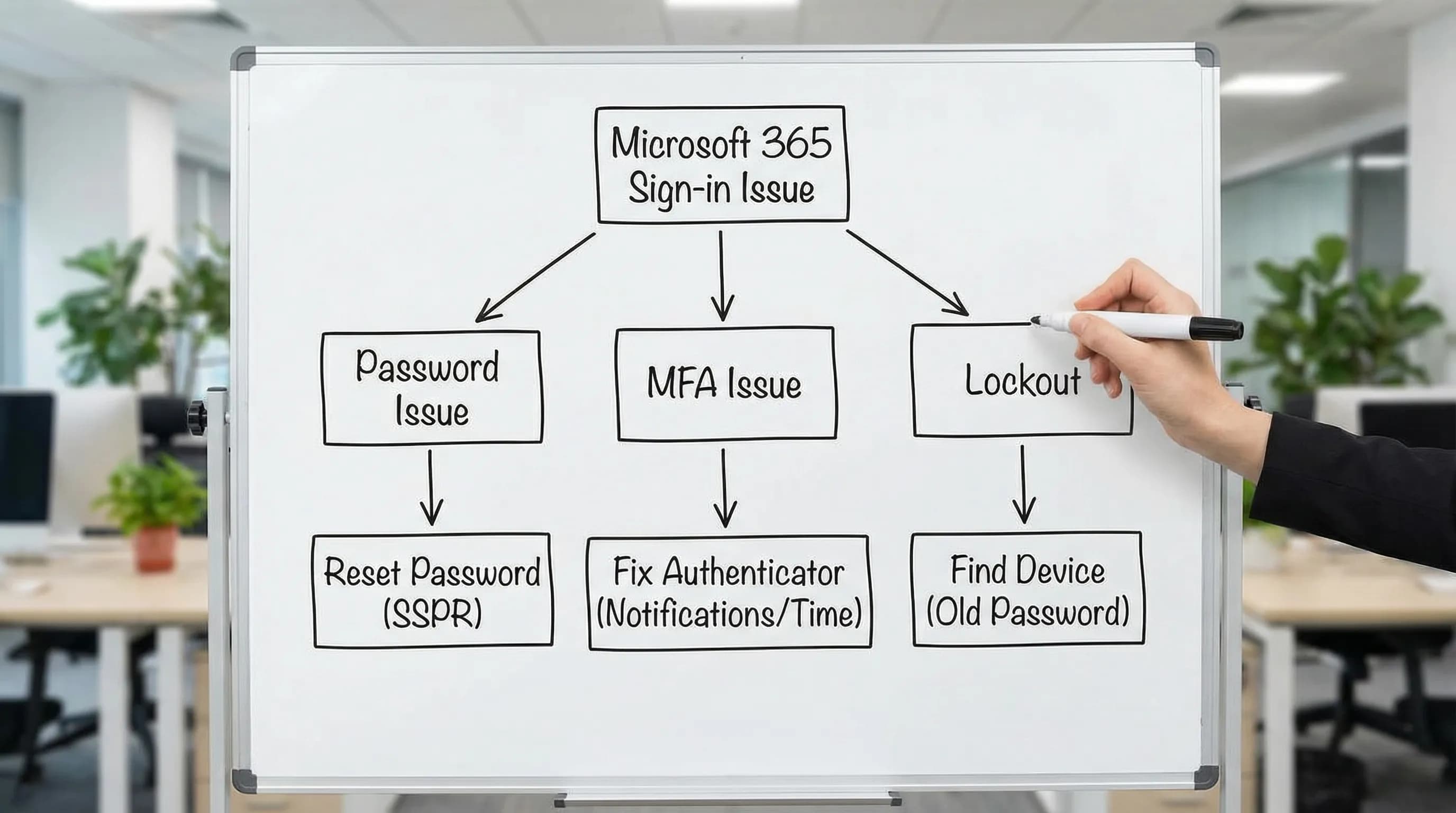
If Microsoft Authenticator keeps asking for approval — especially when you are not the one trying to sign in — you have one of two problems: either your account credentials were compromised and someone else is triggering the requests, or there is a device, app, or cached credential stuck in a loop re-authenticating with an old password. Both are fixable. This guide covers both.
First: figure out which type of "keeps asking" you have
There are two completely different situations that look similar from your phone:
| What you see | What it means | What to do first |
|---|---|---|
| Authenticator requests you triggered (signing into Outlook, Word, etc.) but approval keeps looping | App or credential cache stuck re-authenticating | Fix the cache/app — see section below |
| Requests you did not trigger ("Are you trying to sign in?" out of nowhere) | Someone else has your password and is trying to use it | Deny, change your password immediately, then fix MFA |
| Requests happen once, you approve, then the same app asks again | Token not saving, Conditional Access requiring re-auth, or app-specific issue | Fix token/credential issue for that specific app |
If you are getting "Not me" alerts
Deny the request immediately using the "No, it's not me" option in Authenticator. Then:
- Change your Microsoft 365 password right now at account.microsoft.com.
- Sign out everywhere: go to My Sign-Ins and revoke active sessions.
- Review your registered MFA devices at My Security Info and remove any device you do not recognize.
- Report the incident to your IT department if you are on a work account.
Once your password is changed and sessions revoked, the phantom requests will stop. Then read on for the credential loop fix to prevent the old password from triggering further lockout attempts from your own devices.
Why Microsoft Authenticator loops on your own sign-ins
When Authenticator keeps firing for apps you are actively using, the cause is nearly always one of these:
- An app still using an old password (phone mail app, older Outlook desktop, printer/scanner configured with SMTP)
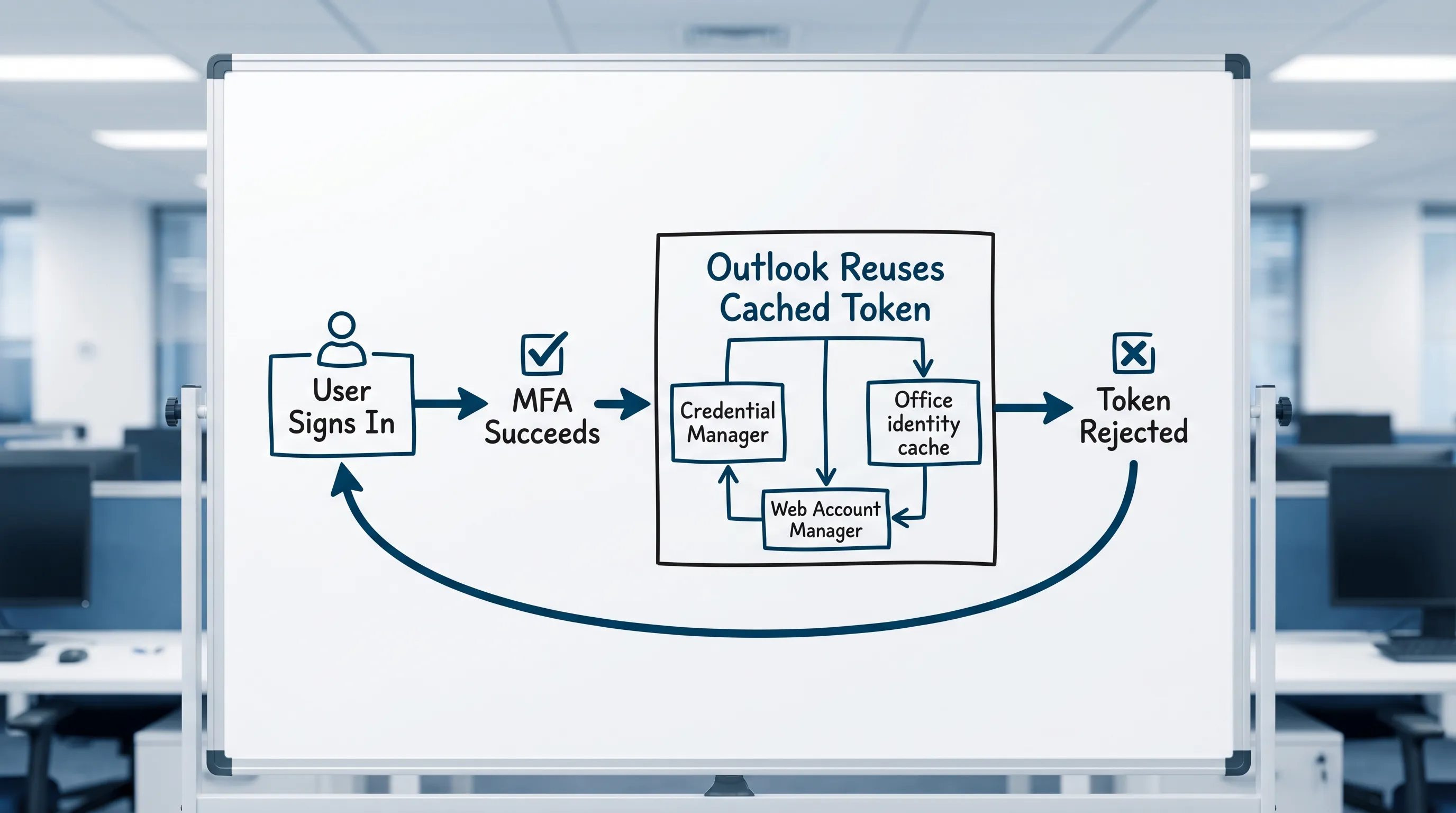
- Stale tokens in Windows Credential Manager or macOS Keychain that Outlook and Office keep submitting
- Conditional Access policy requiring frequent re-authentication, so every session expires quickly
- A corrupted Office identity cache shared across Outlook, Word, and Excel
- Multiple Microsoft accounts on one device creating a tenant conflict
Fix 1: find what is triggering the repeated authentication
Before you start clearing caches, identify the culprit app. Check your sign-in activity at My Sign-Ins — recent sign-in attempts show the application name and device. Look for:
- Repeated entries from "Outlook", "Exchange ActiveSync", "Office", or "SMTP" (the last one usually means a printer or old mail client)
- Repeated entries from a mobile OS (iOS/Android) mail app
- Any device name you do not currently use
If you see an unfamiliar app triggering MFA, that is your starting point.
Fix 2: update your password on every device and app (the most common root cause)
After any password change, these locations silently keep using the old one and trigger repeated authentication attempts:
- Outlook desktop (Windows and Mac)
- Phone mail app (iOS Mail, Gmail with Microsoft account, Samsung Email)
- OneDrive desktop sync client
- Microsoft Teams desktop and mobile
- Printers, scanners, or any device configured to send email
- Any third-party email or calendar client (Thunderbird, Spark, Fantastical, etc.)
Go through each one, sign out, and sign back in with the new password. On mobile mail apps, deleting and re-adding the account is often faster than hunting for the password field.
Fix 3: clear stale credentials in Windows (Credential Manager)
If Authenticator loops when you open Outlook, Word, or Excel, old saved credentials in Windows Credential Manager are usually the cause.
- Close Outlook and all Office apps completely (use Task Manager if needed).
- Open Control Panel → Credential Manager → Windows Credentials.
- Remove any entry that contains:
- MicrosoftOffice
- Outlook
- ADAL or MSAL
- MSOID
- msteams
- Your organization's domain name
- Restart your computer.
- Open Outlook and sign in fresh — Authenticator will prompt once, approve it, and the token will save correctly.
Fix 4: clear stale credentials on macOS (Keychain)
On a Mac, the equivalent of Credential Manager is Keychain Access.
- Quit Outlook and Office apps.
- Open Keychain Access (search in Spotlight).
- Search for: Microsoft Office, Outlook, ADAL, MSAL, Exchange.
- Delete the relevant entries.
- Reopen Outlook and sign in. Approve the Authenticator prompt once.
Fix 5: fix Authenticator notification issues (prompts not arriving)
Sometimes the issue is reversed — Authenticator should prompt you but does not, so the sign-in hangs waiting for approval that never comes.
On Android:
- Open phone Settings → Apps → Microsoft Authenticator → Notifications → ensure notifications are allowed.
- Check Battery optimization: set Authenticator to "Not optimized" (or "Unrestricted") so the OS does not kill it in the background.
- Ensure Background app refresh is allowed.
On iOS:
- Settings → Microsoft Authenticator → Notifications → allow.
- Disable Focus/Do Not Disturb during sign-in.
On both platforms:
- Ensure the phone has internet connectivity (cellular or Wi-Fi).
- Check that your phone's date and time are set automatically — time drift breaks OTP codes.
- If prompts stopped after a phone migration, re-register Authenticator at My Security Info.
Fix 6: re-register Authenticator after a phone change
If you replaced your phone and Authenticator prompts keep going to the old device:
- Go to My Security Info on a computer.
- Remove the old phone from your authentication methods.
- Add your new phone by clicking Add sign-in method → Authenticator app.
- Scan the QR code with the new phone.
If you are completely locked out (old phone gone, no backup method), you need IT or Microsoft support to reset your MFA methods.
Fix 7: deal with Conditional Access forcing frequent re-authentication
In work and school accounts, admins can configure sign-in frequency — requiring fresh MFA every few hours or every session. This is not a bug; it is intentional policy.
Signs this is the cause:
- MFA prompts happen on a predictable schedule (e.g., every morning, every 8 hours).
- Multiple apps on the same device all prompt at roughly the same time.
- It affects everyone in your org, not just you.
If this is the case, the fix is at the admin level in Microsoft Entra ID. As an end user, you can:
- Use persistent browser sessions where allowed (sign-in stays active longer in the browser).
- Ensure your device is Entra ID joined or registered — compliant devices often get longer token lifetimes.
- Talk to IT about whether the sign-in frequency policy is intentionally aggressive.
Symptom-to-fix quick reference
| Symptom | Most likely cause | Best fix |
|---|---|---|
| Authenticator prompts you never triggered | Someone else has your password | Change password, revoke sessions, review MFA devices |
| Loops every time you open Outlook | Old credential cached in Credential Manager/Keychain | Clear Credential Manager (Windows) or Keychain (Mac) |
| Loops after a password change | Old password still saved on another device/app | Update password on all devices and apps |
| Prompts arrive but token does not save (keeps asking tomorrow) | Conditional Access sign-in frequency policy | IT-level fix; check device compliance status |
| No prompts arriving on phone | Notification blocked or Authenticator killed by battery optimization | Fix app notification and battery settings |
| Got a new phone, prompts go to old device | Old device still registered as MFA method | Remove old device from My Security Info, add new phone |
| Authenticator code rejected ("invalid code") | Time drift on phone | Enable automatic date/time on phone |
Frequently Asked Questions
Why does Microsoft Authenticator keep sending requests I didn't make? Someone else has obtained your password and is attempting to sign in. Deny the request, change your password immediately, sign out of all sessions, and review your registered MFA devices.
Why does Authenticator loop even after I approve the request? Usually an app (often Outlook desktop or a phone mail client) keeps re-authenticating because it has stale or incorrect credentials saved. Clear Windows Credential Manager or macOS Keychain entries for Microsoft Office.
Will clearing Credential Manager delete my emails? No. Credential Manager stores sign-in tokens, not mail content. Your email stays on the Exchange Online server. You will just need to sign in once to rebuild the token.
Why did Authenticator stop working after I got a new phone? The registration for Authenticator is tied to the specific device. After a phone change, you need to remove the old device from My Security Info and register the new phone.
Can a printer trigger Microsoft Authenticator requests? Yes. Printers and scanners configured to send email via SMTP using your Microsoft account will trigger repeated authentication attempts, especially after a password change. Update the stored credentials on the device itself.
What if Authenticator is completely broken and I cannot sign in at all? Contact your IT department. Admins can reset MFA methods in Microsoft Entra ID. If this is a personal Microsoft account, use Microsoft's account recovery flow at account.microsoft.com.
Stay productive inside Outlook, Word, and Excel once you are back in
Once MFA is stable, the most common next step is catching up on everything that piled up while you were locked out. CoreGPT Apps brings GPT-powered AI directly inside Outlook (summarize threads, draft replies), Word (write and rewrite documents), and Excel (build formulas, analyze data) — plus Google Docs, Sheets, Slides, and Forms. It is free and works out of the box with no registration required.
Try it here: CoreGPT Apps
Related reading: