

If Outlook keeps bouncing you back to the Microsoft Outlook sign in 365 prompt, you are usually dealing with a token problem, not a “wrong password” problem. In many cases, the real culprit is cached credentials (old passwords, stale refresh tokens, or conflicting work and personal accounts) stored in Windows, macOS, or inside the Office identity cache.
This guide focuses on fixing the classic Outlook 365 sign-in loop by clearing and rebuilding those caches safely, and it also covers why the same fix often resolves sign-in prompts in Word, Excel, and PowerPoint.
What a sign-in loop looks like (and why cached credentials cause it)
A sign-in loop typically looks like one of these patterns:
- Outlook opens and immediately asks you to sign in.
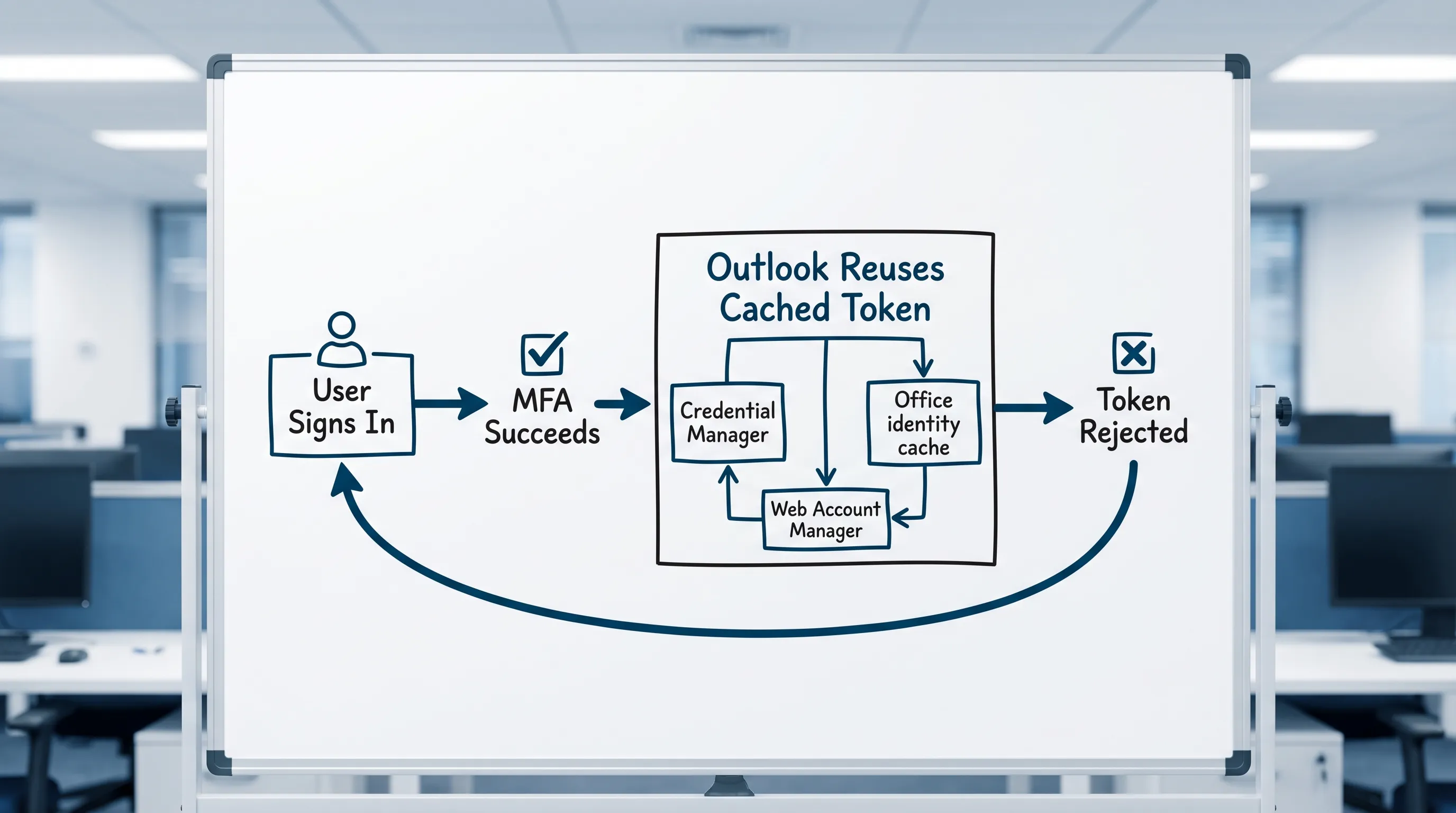
- You sign in successfully (sometimes you even complete MFA).
- Outlook returns to the same sign-in prompt, or shows “Need Password” again.
What is happening under the hood is usually one of these:
- Old credentials are being reused automatically (Windows Credential Manager or macOS Keychain keeps submitting an outdated password).
- A refresh token is invalid (password change, security policy change, Conditional Access update), but the app keeps trying to use it.
- Multiple identities conflict (work account and personal Microsoft account in Windows, or several tenants).
- Embedded sign-in components are stuck (Web Account Manager, AAD Broker, WebView, Office identity cache).
Before you clear anything: isolate whether Outlook or your account is the problem
These quick checks prevent you from spending 30 minutes clearing caches when the issue is actually an outage or a policy block.
Check 1: Can you sign in on Outlook on the web?
Try signing in at Outlook on the web using the same account.
- If web sign-in fails, this is likely account, password, MFA, or policy related.
- If web sign-in works, the problem is likely local caching, profile, or device state.
Check 2: Try an InPrivate/Incognito window
This eliminates browser cookie conflicts (especially common if you juggle multiple Microsoft accounts).
Check 3: Confirm you are not mixing “work/school” and “personal” accounts
A very common loop trigger is having:
- A personal Microsoft account (Outlook.com, Hotmail, Live) signed into Windows Store apps
- A work/school Microsoft 365 account used for Outlook
They can coexist, but when tokens and “default” identities collide, Outlook can get stuck.
The highest-impact fix (Windows): clear cached credentials and Office identity tokens
If you are on Outlook for Windows (classic Outlook desktop), do these in order. The sequence matters.
Step 1: Quit Outlook (and fully close Office)
Close Outlook, then in Task Manager end tasks for:
- Outlook
- Microsoft Word, Excel, PowerPoint (if open)
- Microsoft Teams (optional, but helpful)
Step 2: Remove stale entries from Windows Credential Manager
- Open Control Panel → Credential Manager.
- Click Windows Credentials.
- Remove entries that reference:
- MicrosoftOffice
- Outlook
- ADAL
- MSOID
- msteams
- OneDrive (if it is tied to the same sign-in problem)
Be conservative. If you are unsure about an entry, remove only those clearly tied to Microsoft 365/Office sign-in.
Microsoft’s overview of Credential Manager is here: Credential Manager in Windows (navigate to Credential Manager docs).
Step 3: Disconnect conflicting accounts in Windows “Access work or school”
On Windows 10/11:
- Settings → Accounts → Access work or school.
- Select the connected work/school account.
- Choose Disconnect.
Then restart your PC.
After reboot, reconnect the account only if needed (many users can simply sign in inside Outlook again and let Office re-register the identity cleanly).
Step 4: Clear Office identity cache (the part that often fixes Word, Excel, PowerPoint too)
Outlook, Word, Excel, and PowerPoint share Microsoft 365 identity components. That is why an Outlook sign-in loop often shows up as:
- Word: “Sign in to continue”
- Excel: repeated sign-in prompt when opening cloud files
- PowerPoint: cannot validate license, keeps asking to sign in
The simplest safe approach is to clear credentials (Step 2) and disconnect the work account (Step 3). If the loop persists, use Microsoft’s official tool.
Step 5 (recommended): Use Microsoft Support and Recovery Assistant (SaRA)
Microsoft’s Support and Recovery Assistant can reset sign-in and profile components more thoroughly than manual steps.
Use: Microsoft Support and Recovery Assistant
Choose the scenario for Outlook sign-in, authentication, or profile issues.
If it still loops: rebuild the Outlook profile
When cached credentials are cleared but the Outlook profile still holds broken auth state, rebuilding the profile is often the cleanest fix.
- Close Outlook.
- Open Control Panel → Mail.
- Click Show Profiles.
- Click Add to create a new profile.
- Set Always use this profile to the new one.
If you are in a managed work environment, confirm with IT whether you should use Autodiscover only, or if there are special settings.
“New Outlook” vs classic Outlook: the fix can be different
Microsoft now has two experiences on Windows:
- Classic Outlook for Windows (traditional desktop app)
- New Outlook for Windows (web-based shell)
Sign-in loops in new Outlook are more likely to be tied to:
- Web sign-in session issues
- WebView components
- Cached browser tokens
A practical test:
- If Outlook on the web works, but new Outlook loops, sign out of the new Outlook app completely, remove the account, then add it again.
- If both new Outlook and Outlook on the web loop, focus on account/MFA/policy.
macOS fix: clear Outlook credentials from Keychain
If you are on Outlook for Mac and see repeated sign-in prompts:
- Quit Outlook.
- Open Keychain Access.
- Search for entries containing:
- Microsoft Office
- Outlook
- ADAL
- MSAL
- Exchange
- Delete the relevant entries.
- Restart Outlook and sign in again.
If you have multiple Microsoft accounts on the Mac (personal plus work), be especially careful to remove the correct tenant/account tokens.
A quick “symptom to fix” table (cached credentials edition)
Use this to avoid random troubleshooting.
| Symptom | Most likely cause | Best first fix |
|---|---|---|
| Outlook asks for password repeatedly after you just entered it | Stale password saved in OS credential store | Clear entries in Credential Manager (Windows) or Keychain (Mac) |
| MFA succeeds, then Outlook asks you to sign in again | Stale refresh token or identity cache conflict | Disconnect work account in Windows, restart, then sign in fresh |
| Outlook loops, and Word/Excel/PowerPoint also keep prompting | Shared Office identity cache is corrupted | Clear credentials, then run Microsoft SaRA |
| Web sign-in works, but desktop Outlook loops | Local profile/token issue | Rebuild Outlook profile |
| Only one device loops, others are fine | Device-specific cache/token | Clear credentials on that device, re-add account |
Common causes that look like “cached credentials” but are not
Sometimes you clear caches and the loop continues because the real cause is upstream.
Conditional Access or security defaults changed
If you are in Microsoft 365 Business or Enterprise, IT may have recently:
- blocked legacy authentication
- enforced compliant device requirements
- required a stronger MFA method
In that case, Outlook may authenticate but fail post-auth checks and bounce back.
If you are an admin, check Microsoft Entra ID sign-in logs for the failure reason.
Time and timezone drift
Incorrect system time can break token validation.
- On Windows: ensure Set time automatically is enabled.
- On Mac: ensure Set date and time automatically is enabled.
Password changed, but Outlook is still trying the old one
This is the most literal cached credential problem. Clear credentials and sign in again.
Add-ins interfering with Outlook startup
This is less common for sign-in loops, but still worth testing:
- Start Outlook in safe mode.
- If the loop stops, disable add-ins and re-enable one by one.
Prevent the loop from coming back (practical habits)
A few habits reduce repeat sign-in issues, especially for people who use multiple Microsoft accounts.
- Use one primary work identity on the device for Office apps.
- Avoid saving passwords in random browser profiles if you regularly switch tenants.
- After a password reset, sign out and back in on your main devices in a controlled order (phone first, then desktop).
- Keep Office updated (many auth fixes ship quietly in updates).
Productivity note: once Outlook sign-in works, keep the momentum in Word, Excel, PowerPoint (and Google Workspace)
Sign-in loops waste time because they break the flow inside the apps you actually work in. Once you are back in:
- Outlook is where triage, replies, and follow-ups live.
- Word is where the decision memo, customer summary, or meeting narrative gets written.
- Excel is where the tracker, list, or analysis gets built.
- PowerPoint is where the story gets presented.
If you also work in Google Workspace, Google Docs and Google Sheets are usually the highest-leverage equivalents, with Google Forms and Google Slides supporting intake and presentations.
CoreGPT Apps brings GPT-powered help directly into these tools, especially Outlook, Word, and Excel, and then Google Docs and Google Sheets, plus other Microsoft 365 and Google Workspace apps. It is free, works out of the box, and requires no registration, with a privacy-focused design.
You can learn more here: CoreGPT Apps
Frequently Asked Questions
What does “cached credentials” mean in an Outlook 365 sign-in loop? Cached credentials are saved passwords and authentication tokens stored on your device (Windows Credential Manager, macOS Keychain, and Office identity components). If they become stale or conflicting, Outlook can repeatedly prompt you to sign in.
Will clearing cached credentials delete my emails? No. Clearing cached credentials removes saved sign-in data, not mailbox content. Your mail remains on the server (Exchange Online or your mail provider). You may need to sign in again.
Why does the sign-in loop also affect Word, Excel, or PowerPoint? Microsoft 365 apps share identity and licensing components. If the Office sign-in token cache is corrupted, multiple apps can prompt repeatedly until the cache is reset.
Is rebuilding my Outlook profile safe? In most Microsoft 365 setups, yes. A new profile forces Outlook to re-create local settings and re-authenticate cleanly. If you use shared mailboxes or special configs, coordinate with IT.
What if Outlook on the web works but desktop Outlook keeps looping? That strongly suggests a device or profile issue (cached credentials, Office identity cache, or Outlook profile corruption). Clear credentials first, then rebuild the Outlook profile if needed.
Get back to work faster with in-app AI (Outlook first, then Word and Excel)
Once your Outlook sign-in loop is resolved, the next time sink is context switching, rewriting emails, and turning threads into documents and trackers.
CoreGPT Apps lets you use GPT-powered assistance directly inside Outlook, Word, and Excel (and also PowerPoint, Teams, OneNote, plus Google Docs, Google Sheets, Google Forms, and Google Slides). It is free to use, works out of the box, and requires no registration.
Try it here: CoreGPT Apps