
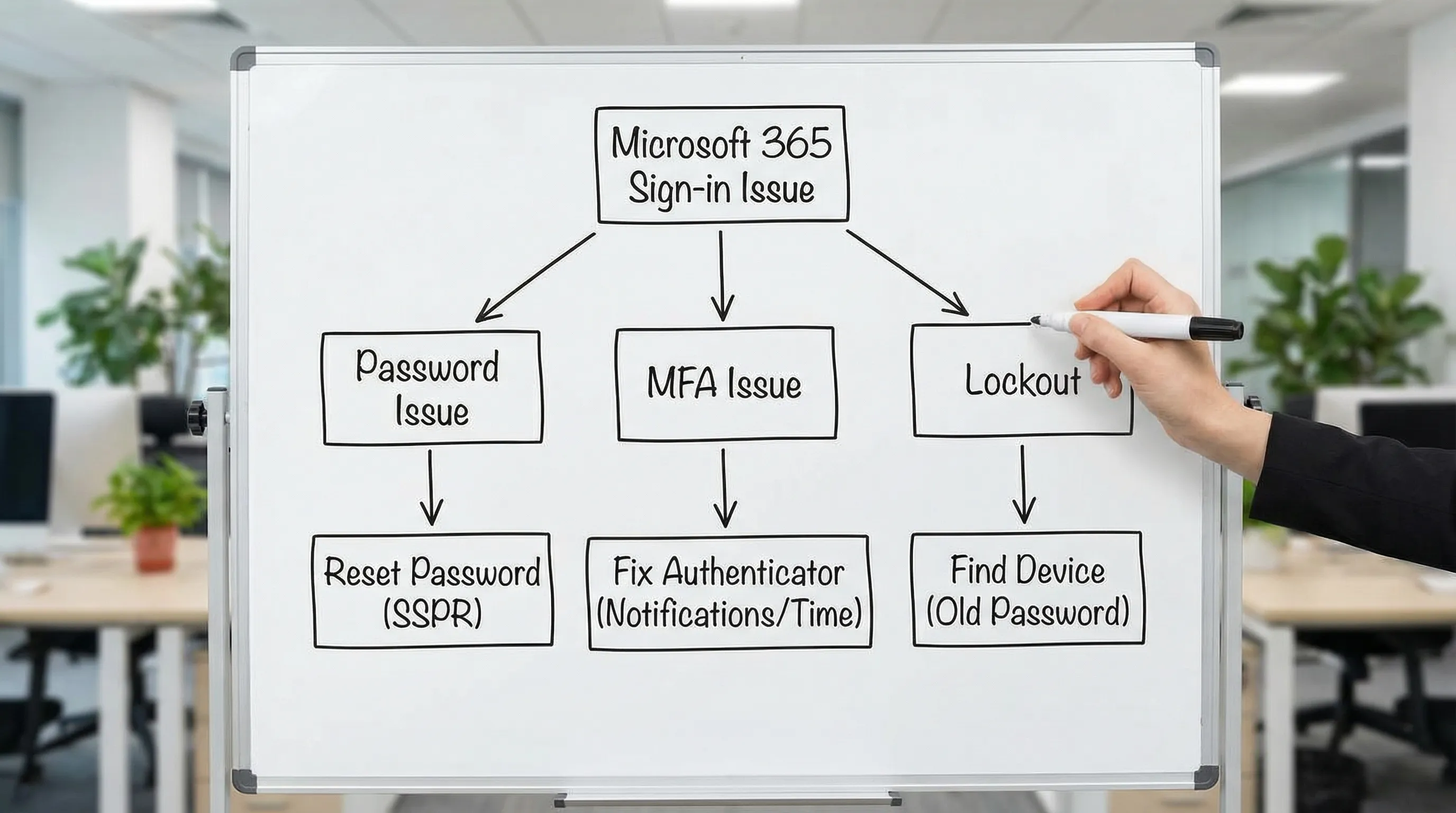
Microsoft 365 sign-in issues are rarely "just a bad password." Most failures come from a small set of causes: an expired or recently changed password, MFA challenges that never arrive (or loop), stale saved credentials in Outlook, or an automated device that keeps trying the old password until your account locks.
This guide walks through a practical, fast checklist to fix Microsoft sign in 365 problems, with extra attention to the apps people use every day: Outlook, Word, and Excel. If you also work in Google Workspace (Docs, Sheets, Slides, Forms), there's a section near the end for cross-account and browser profile gotchas.
Quick triage: identify what kind of sign-in failure you have
Before changing anything, answer two questions:
- Is the issue only in one app (like Outlook) or everywhere (browser + Word + Excel + phone)?
- Did anything change recently (password reset, new phone, new MFA policy, new laptop, VPN, travel)?
Here's a quick mapping from symptom to likely fix.
| What you see | Most common cause | Best first fix |
|---|---|---|
| "Incorrect password" but you are sure it's right | Old password cached in an app, keyboard layout, wrong account (UPN) | Try sign-in in a private browser window, then update saved credentials everywhere |
| MFA code works sometimes, pushes never arrive | Notification permissions, battery optimization, time drift, stale Authenticator registration | Fix phone notifications/time, then re-register MFA if needed |
| "Your account has been locked" | Repeated attempts from a device/service still using an old password | Update the password on all devices, remove old Outlook profiles, check legacy email apps |
| Outlook keeps prompting for password | Token cache or Windows Credential Manager entries are stale | Sign out/in, clear saved credentials, rebuild Outlook profile if needed |
| Works in browser, fails in Word/Excel/Outlook | Office identity cache, licensing/account mismatch | Sign out of Office apps, remove old accounts, restart, sign in again |
Step 0: confirm it's not a service outage
If sign-in suddenly fails for many users, check Microsoft's status first:
- Microsoft 365 Service health (admins)
- Microsoft 365 Status (limited public view)
If there's an active incident, avoid repeated sign-in attempts that can trigger lockouts.
Fix password and "wrong account" problems
1) Make sure you're signing into the right identity
In Microsoft 365, the "username" is usually your work or school account UPN, often your email address. Common mistakes:
- Signing into a personal Microsoft account (like outlook.com) instead of your work account.
- Using an old domain/alias after a company rename or tenant migration.
- Autocomplete choosing the wrong saved account.
Fast check: open an InPrivate/Incognito window and sign in at Microsoft 365. If that works, your password is likely fine and the issue is saved credentials elsewhere.
2) Reset your password the right way
If you truly need a reset, use your organization's method:
- Self-service password reset (SSPR), if enabled by IT. Microsoft overview: Reset your work or school password
- Help desk reset, if SSPR is not enabled.
Important: after a reset, update the password on every device and app (phone mail app, Outlook desktop, tablets, Teams, any third-party email client). If one device keeps the old password, lockouts often follow.
3) Clear "stuck" saved passwords on Windows (common for Outlook)
Outlook and other Office apps can keep trying an old password even after you changed it.
- Open Credential Manager on Windows
- Go to Windows Credentials
- Remove entries related to Office, Outlook, MicrosoftOffice, ADAL, Teams, or your organization's domain
Then restart Outlook and sign in again.
Fix MFA problems (loops, missing prompts, wrong codes)
MFA failures usually fall into one of these buckets:
- The phone never receives prompts
- Codes are rejected
- You are stuck in an MFA loop (keeps asking again)
- You changed phones and the old device is still registered
1) Fix Microsoft Authenticator push notifications
On iOS and Android, push notifications can fail if permissions or power settings block them.
Check:
- Notification permissions for Microsoft Authenticator are allowed
- Focus/Do Not Disturb is not silencing prompts
- Battery optimization is not restricting background activity (Android)
- Your phone has data connectivity (cellular/Wi-Fi)
If prompts still do not arrive, open the Authenticator app directly and check whether it shows pending requests.
2) Fix time drift (a surprisingly common reason codes fail)
Time mismatch can break OTP codes.
- Ensure automatic date/time is enabled on your phone
- Ensure the computer's time is correct, especially after travel or VM use
3) Re-register MFA when you changed phones or lost access
If you migrated phones and sign-in still tries to approve on an old device, you typically need to update your security info.
Microsoft's entry point is often:
If you are locked out of MFA entirely, you may need IT to reset MFA methods in Microsoft Entra ID (Azure AD).
4) Understand MFA "loops" in Office apps
An MFA loop can happen when:
- Your organization enforces Conditional Access requiring frequent re-authentication
- Office app tokens are corrupted or stale
- You have multiple work accounts and the app is "crossed" between tenants
Fix sequence for Office desktop apps:
- In Word or Excel: File > Account > Sign out (for the affected account)
- Close all Office apps
- Reopen Word/Excel, then Sign in again
If the loop persists, clear Windows saved credentials (Credential Manager step above) and reboot.
5) Avoid legacy authentication pitfalls
Older protocols (like basic auth in legacy mail apps) can trigger repeated sign-in prompts or lockouts, especially in Outlook-related scenarios.
If you are using:
- Old email clients
- Devices configured with IMAP/POP using a password only
Ask IT whether legacy auth is blocked and whether you need a modern sign-in method.
Fix "account locked" and repeated lockouts
Account lockouts are usually caused by one device or service repeatedly trying an old password.
Common lockout culprits
- Outlook on an old laptop that wakes up and retries
- A phone's mail app still configured with the old password
- A shared mailbox configured in multiple places
- A printer/scanner using SMTP with stored credentials
- A third-party email client or add-in
What to do (end users)
- Change or reset the password once (if required), then immediately update it everywhere
- Sign out and back in on your main apps first: Outlook, Word, Excel
- Remove and re-add the account on mobile mail apps, if updating the password fails
What to do (admins)
If you have access to Entra ID sign-in logs, look for:
- Repeated failures from the same IP/device
- Legacy client sign-ins
- "Invalid password" events that continue after a successful login
Microsoft guidance for investigating sign-in activity: Sign-in logs in Microsoft Entra ID
Outlook sign-in issues: the fastest reliable fixes
Because Outlook is always running and always authenticating (mailbox, calendar, shared mailboxes), it is a top source of Microsoft 365 sign-in trouble.
If Outlook keeps asking for your password
Try these in order:
- Confirm you can sign in via browser at Microsoft 365
- Quit Outlook completely, reopen, and sign in
- Remove stale credentials in Credential Manager (Windows)
- Disable problematic add-ins temporarily (Outlook safe mode can help)
If it still loops, creating a fresh Outlook profile often resolves corrupted tokens and profile settings.
If Outlook works, but search and prompts are weird after sign-in fixes
After a credential reset, Outlook may rebuild parts of the local cache. Give it time, and ensure Outlook is fully updated.
If you want a deeper Outlook productivity and reliability checklist (rules, search, Quick Steps), CoreGPT's guide is here: Outlook Rules, Search, and Quick Steps: Complete Checklist
Word and Excel sign-in issues: fix licensing, account mismatch, and cached identity
Word and Excel typically fail sign-in for three reasons:
- The wrong account is signed into Office
- The license is not applied to the correct identity
- The local Office identity cache is stale
Quick fix: sign out/in inside Word or Excel
- Open Word (or Excel)
- Go to File > Account
- Under User Information, select Sign out
- Close the app
- Reopen and Sign in with the correct work account
If you use multiple tenants (consulting, partner access, multiple orgs), keep separate browser profiles to reduce cross-account confusion.
Browser sign-in problems (login.microsoftonline.com issues)
If you cannot sign in in the browser, the problem is usually cookies, extensions, or network controls.
Try:
- Sign in using an InPrivate/Incognito window
- Disable extensions that modify pages (privacy blockers, password managers, script blockers)
- Clear cookies for Microsoft login domains (especially if you see redirect loops)
- Temporarily disable VPN and retry (some orgs restrict sign-in locations)
If your organization uses Conditional Access, sign-ins can be blocked based on location, device compliance, or risk.
Admin checklist: what IT should verify for recurring sign-in failures
If you're troubleshooting this for a team, check these areas in Microsoft 365 and Entra ID:
Identity and access policy checks
- User is enabled and not blocked from sign-in
- MFA methods are registered and allowed (Authenticator, SMS, FIDO2, etc.)
- Conditional Access policies (device compliance requirements, location restrictions, sign-in frequency)
- Risk-based policies (if using Entra ID Protection)
Lockout and legacy auth checks
- Look for repeated "Invalid password" attempts in sign-in logs
- Identify legacy sign-ins (old mail protocols, older clients)
- Confirm modern authentication expectations for Outlook and mobile clients
Support tooling
Microsoft's own tools can speed up diagnosis:
- Microsoft Support and Recovery Assistant
If you also use Google Workspace: reduce cross-account sign-in conflicts
Many teams use Microsoft 365 and Google Workspace side-by-side. That's productive, but it can create confusing sign-in behavior in the browser.
Common fixes:
- Use separate Chrome profiles for different work accounts
- Avoid being signed into multiple Google and Microsoft tenants in the same profile
- If a Google sign-in seems "stuck," clear cookies for Google accounts and retry
This matters because "wrong account" problems often show up inside productivity apps too, like being signed into the wrong identity in Word/Excel while your browser is logged into a different tenant.
Make troubleshooting faster inside Outlook, Word, Excel, and Google Workspace
Once you can sign in again, the next challenge is usually cleaning up the aftermath: summarizing what happened, drafting a clear ticket for IT, or documenting steps so the issue does not repeat.
CoreGPT Apps places GPT-powered assistance directly inside:
- Microsoft 365 apps: Outlook, Word, Excel
- Google Workspace apps: Docs, Sheets, Slides, Forms
It's designed to work out of the box (no registration required) and is privacy-focused. If you want AI help where you already work, start here: CoreGPT Apps.
If your day-to-day work is mainly writing and analysis, you may also like:
- How to Use ChatGPT in Microsoft Word
- How to Use ChatGPT in Excel
- Outlook 365: Setup, Tips, and AI Email Shortcuts
- Google Workspace AI: Real-World Workflows for Busy Teams
Frequently Asked Questions
Why does Microsoft 365 keep asking me to sign in? It's often caused by stale tokens or saved credentials, especially in Outlook. Sign out inside the app, clear saved credentials (Windows Credential Manager), then sign in again.
How do I fix Microsoft 365 MFA not sending a notification? Check Authenticator notification permissions, battery optimization settings, connectivity, and automatic time. If it still fails, re-register your MFA methods at the security info page.
What causes repeated Microsoft 365 account lockouts? Usually a device or service keeps trying an old password (phone mail app, old Outlook profile, printer SMTP config, or a legacy email client). Update the password everywhere and remove stale sign-ins.
Why can I sign in to Microsoft 365 in the browser but not in Outlook? Outlook may be using cached credentials or a corrupted profile. Clear Credential Manager entries and consider creating a new Outlook profile if prompts persist.
What should admins check first for sign-in failures? Entra ID sign-in logs, Conditional Access policies, MFA method registration, and legacy authentication attempts. Identify the device/IP causing repeated failures.
Does using Google Workspace alongside Microsoft 365 cause sign-in issues? It can, especially in the browser if multiple accounts are mixed in one profile. Separate Chrome profiles and reduce cross-tenant account overlap to avoid "wrong account" loops.
Get back to work faster with AI inside Outlook, Word, Excel, and Google Workspace
When sign-in breaks, the real cost is context switching and lost time. If you want help drafting support tickets, summarizing error messages, rewriting comms to your team, or getting right back into writing and analysis once access is restored, try CoreGPT Apps. It brings GPT-powered tools directly into Outlook, Word, Excel, plus Google Docs, Sheets, Slides, and Forms, and the other apps are free and work out of the box.