
Outlook 365 setup: a practical checklist (15 minutes that pays back daily)
If you are setting up Outlook 365 for the first time (or cleaning up an old profile), focus on the few choices that affect reliability and speed.
1) Add your account the right way
Most Microsoft 365 work accounts use modern authentication, so you generally want the default “sign in” flow rather than manual IMAP settings.
- For Outlook desktop, start with Microsoft’s official setup guidance for your version (Windows, Mac, or the new Outlook). The steps vary slightly across builds, and Microsoft keeps the canonical instructions current in their support docs.
- For Outlook on the web, confirm you are logging into the right tenant and mailbox (especially if you collaborate across companies).
Helpful reference: Microsoft Support’s Outlook setup pages are the safest source for your exact client and build.
2) Confirm sync and caching settings (desktop)
If your mailbox is large, performance often depends on what Outlook stores locally.
- If you travel or work offline, cached mode helps.
- If search feels slow or incomplete, indexing and cache size are common culprits.
3) Choose the inbox view that matches your workload
Two toggles change how quickly you process email:
- Focused Inbox: Great for high-volume mail if it reliably separates newsletters and notifications.
- Conversation view: Helpful for threads, but it can hide unread messages if you do not like grouping.
Try them for a week, then commit. Constantly switching creates “I swear I saw that email” moments.
4) Standardize signatures and defaults
Small defaults reduce errors.
- Signature: keep it short, include what people need to act.
- Default reply behavior: decide whether you want replies to include original messages.
- Attachment handling: check whether Outlook is defaulting to OneDrive links or classic attachments (important for external recipients).
5) Install the add-ins you actually use (and remove the rest)
Add-ins can be a huge productivity win, but too many can slow Outlook and create distractions.
If you want AI assistance directly where you write and read mail, CoreGPT Apps offers GPT in Outlook, so you can draft, rewrite, and summarize without switching tabs.
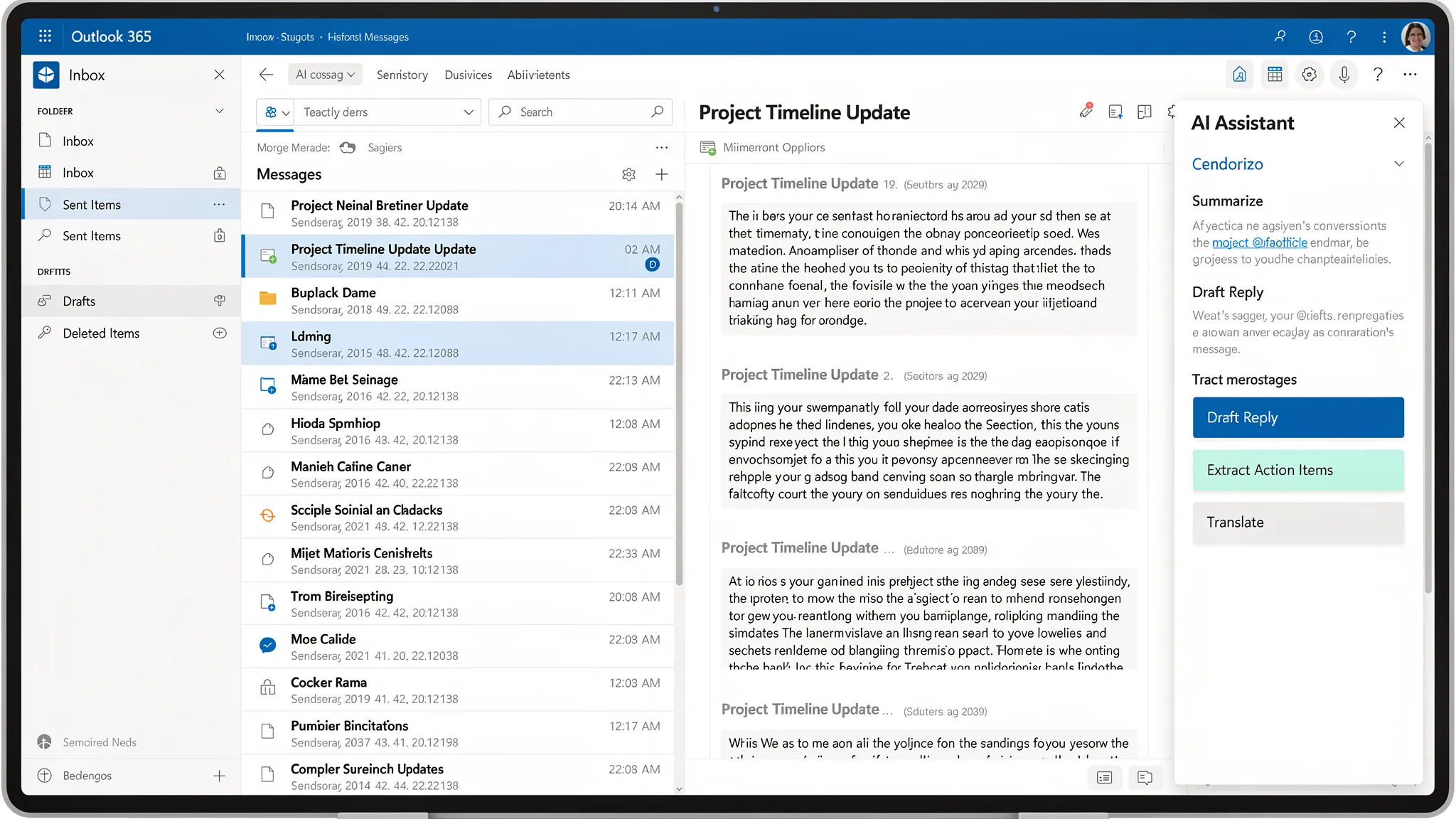
Inbox ergonomics: settings that make triage faster
A “good” inbox is less about perfection and more about reducing repeated decisions.
Use categories as lightweight labels (faster than folders)
Folders are best for archiving and compliance-driven separation. Categories are better for active work.
A simple set that works for many teams:
- Action (you owe a response)
- Waiting (someone else owes you)
- FYI (no action)
- Deep work (needs focused time)
If you already have a folder jungle, do not migrate everything. Start applying categories to new mail, then gradually standardize.
Create Quick Steps for your top 3 actions
Quick Steps bundle multiple clicks into one action (for example, move to a folder, categorize, and create a task). Pick just a few that match your recurring workflow.
Good Quick Step candidates:
- “Reply + Move to Done”
- “Request info + Set category Waiting”
- “Escalate to manager + CC team + Categorize Action”
Keep your reading pane consistent
Whether you prefer right or bottom, consistency matters. Pair it with a predictable preview setting so you stop wasting attention re-orienting.
Rules that reduce noise (without hiding important mail)
Rules are best when they:
- Remove obvious low-value noise
- Organize predictable sources
- Support follow-up loops
Avoid rules that silently move “important but variable” mail, like customer escalations or executive threads.
Here is a practical starting set.
| Goal | Best tool | Example trigger | What it does | Why it helps |
|---|---|---|---|---|
| Keep receipts, alerts, and system mail out of your main view | Rule | From “no-reply@…” or subject contains “receipt” | Move to a “Receipts/Alerts” folder | Cuts volume without risk |
| Highlight urgent mail, without moving it | Conditional formatting / category | From VIP list, or contains “urgent” | Apply category or formatting | Keeps signal visible |
| Build a clean “waiting on others” loop | Quick Step + category | You send a request | Categorize “Waiting” and optionally create a task | Prevents dropped follow-ups |
| Prevent meeting sprawl | Rule | Meeting updates from specific distribution lists | Route to a calendar-updates folder | Keeps inbox focused |
Microsoft’s own guidance on rules can help if you want server-side reliability across devices: Manage email messages by using rules.
Search tips that save real time in Outlook 365
Most “missing email” problems are search problems, not deletion problems.
Learn a few search operators
Outlook search supports useful filters (exact syntax can vary slightly by client), for example:
- Search by sender, like
from:alex - Search by subject, like
subject:invoice - Filter for attachments, like
hasattachments:yes
If you do this daily, it is worth memorizing two or three patterns you use constantly.
Build a habit: search before you ask
In teams, a lot of time is lost to “can you resend that” messages. A consistent search habit reduces thread bloat and keeps decisions in one place.
Keyboard shortcuts: the fastest wins (especially for heavy email days)
Shortcuts vary by Outlook version, but a few are widely used in Outlook on Windows. For the official and current list, see Microsoft’s shortcuts documentation: Keyboard shortcuts for Outlook.
| Action (Windows) | Common shortcut | When it helps |
|---|---|---|
| New email | Ctrl+Shift+M | You draft often |
| Reply | Ctrl+R | Fast responses |
| Reply all | Ctrl+Shift+R | Team threads |
| Forward | Ctrl+F | Handoffs |
| Send | Ctrl+Enter | Fewer mouse clicks |
| Search | Ctrl+E | Find messages quickly |
If you adopt only two, make it Search and Send.
AI email shortcuts inside Outlook 365 (draft, summarize, reply without switching tools)
Once your inbox basics are in place, AI is most valuable for the repetitive work around emails:
- Summarizing long threads
- Extracting action items and owners
- Drafting a reply in the right tone
- Turning a messy email into a clean agenda
- Translating and rewriting for clarity
CoreGPT Apps brings GPT-powered assistance into Microsoft 365, including GPT in Outlook, so you can work inside your mailbox instead of copying content into a separate chat tool. It is also designed to be privacy-focused and it does not require registration to start.
You can learn more about CoreGPT Apps here: CoreGPT.
Set up CoreGPT in Outlook (high-level steps)
Exact UI labels differ across Outlook desktop, new Outlook, and Outlook on the web, but the flow is typically:
- Open Outlook, go to Add-ins (or Get Add-ins) and search for CoreGPT.
- Add it to Outlook and pin it if your client supports pinning.
- Open an email (or start a draft) and launch CoreGPT from the ribbon or sidebar.
If your organization manages add-ins centrally, you may need an admin to approve it.
Prompt templates you can reuse as “AI shortcuts”
The biggest productivity gains come from reusable prompts that match what you do every day. Below are templates designed for email work. Replace bracketed text with your details.
| Use case | Prompt you can paste | What you get |
|---|---|---|
| Summarize a long thread | “Summarize this email thread in 6 bullets. Then list decisions made and open questions.” | Fast context without rereading |
| Extract action items | “Extract action items with owner and due date if mentioned. If missing, mark as ‘due date not specified’.” | A task-ready checklist |
| Draft a reply with constraints | “Draft a reply: friendly, concise, 120 words max. Confirm receipt, answer the questions, and propose two meeting times.” | Sendable response quickly |
| Say no politely | “Write a polite decline. Thank them, give a brief reason, offer an alternative: [alternative].” | Professional boundaries |
| Clarify requirements | “Ask 5 precise follow-up questions to unblock this request. Keep it to short bullets.” | Better intake, less back-and-forth |
| Translate without losing tone | “Translate to [language]. Keep a professional tone and preserve names, dates, and product terms.” | Cleaner cross-language communication |
| Turn email into an agenda | “Create a meeting agenda from this email. Include objective, topics, pre-reads, and desired outcome.” | Meetings that end with decisions |
A practical tip: when you paste email content, include only what the model needs. Trim signatures, long legal footers, and irrelevant quoted history.
Three real workflows that combine Outlook + AI
1) Morning triage in 10 minutes
- Use AI to summarize the 3 longest threads you missed.
- Extract action items from each.
- Draft two quick “ack + next step” replies so senders know you are on it.
2) Executive-ready update from scattered emails
- Select the key emails from a project thread.
- Ask AI to produce a status update: progress, blockers, decisions, next milestones.
- Paste into a clean email or into Word if you need a more formal memo (CoreGPT also supports Word, see: How to Use ChatGPT in Microsoft Word).
3) Customer escalation response
- Ask AI to rewrite your draft for clarity and empathy.
- Ask it to propose a short remediation plan and a timeline.
- Sanity-check the facts, then send.
The key is not to outsource judgment. Use AI for structure and speed, then confirm accuracy.
Privacy and safety: using AI responsibly in email
Email often contains sensitive data, so treat AI like any other productivity tool with risk.
- Follow your company policy on what can be shared with third-party tools.
- Redact data you do not need for the task (IDs, personal info, financials).
- Prefer prompts that describe the goal instead of pasting full histories.
- Always verify: dates, commitments, pricing, and legal language.
CoreGPT Apps is built with a privacy-focused design, but you should still apply the principle of least disclosure.
Troubleshooting common Outlook 365 problems
Outlook search is incomplete or slow
This is often indexing-related on desktop clients.
- Confirm Outlook is allowed to index.
- Try narrowing the mailbox scope (current folder vs all mailboxes).
Microsoft’s search troubleshooting pages are a good starting point: Microsoft Support.
Rules do not run the way you expect
- Server-side rules are more consistent across devices.
- Some rules only trigger on new messages, not existing mail.
- If you have many rules, conflicts can occur (ordering matters).
Add-in does not appear
- Check whether your admin blocks add-ins.
- In Outlook, ensure the add-in is enabled, not disabled for performance.
A simple “best of” Outlook 365 system to copy
If you want one workflow to implement today:
- Keep Inbox mostly flat, use categories for active work.
- Create 3 Quick Steps for your most common actions.
- Use 2 to 3 rules to route predictable noise.
- Adopt Ctrl+E search and Ctrl+Enter send.
- Add AI only where it removes repetition, like summaries and first drafts.
When you are ready to bring AI directly into your mailbox, explore CoreGPT’s Outlook integration here: CoreGPT. If you also live in Teams, you may like the companion guide: How to Use ChatGPT in Microsoft Teams.