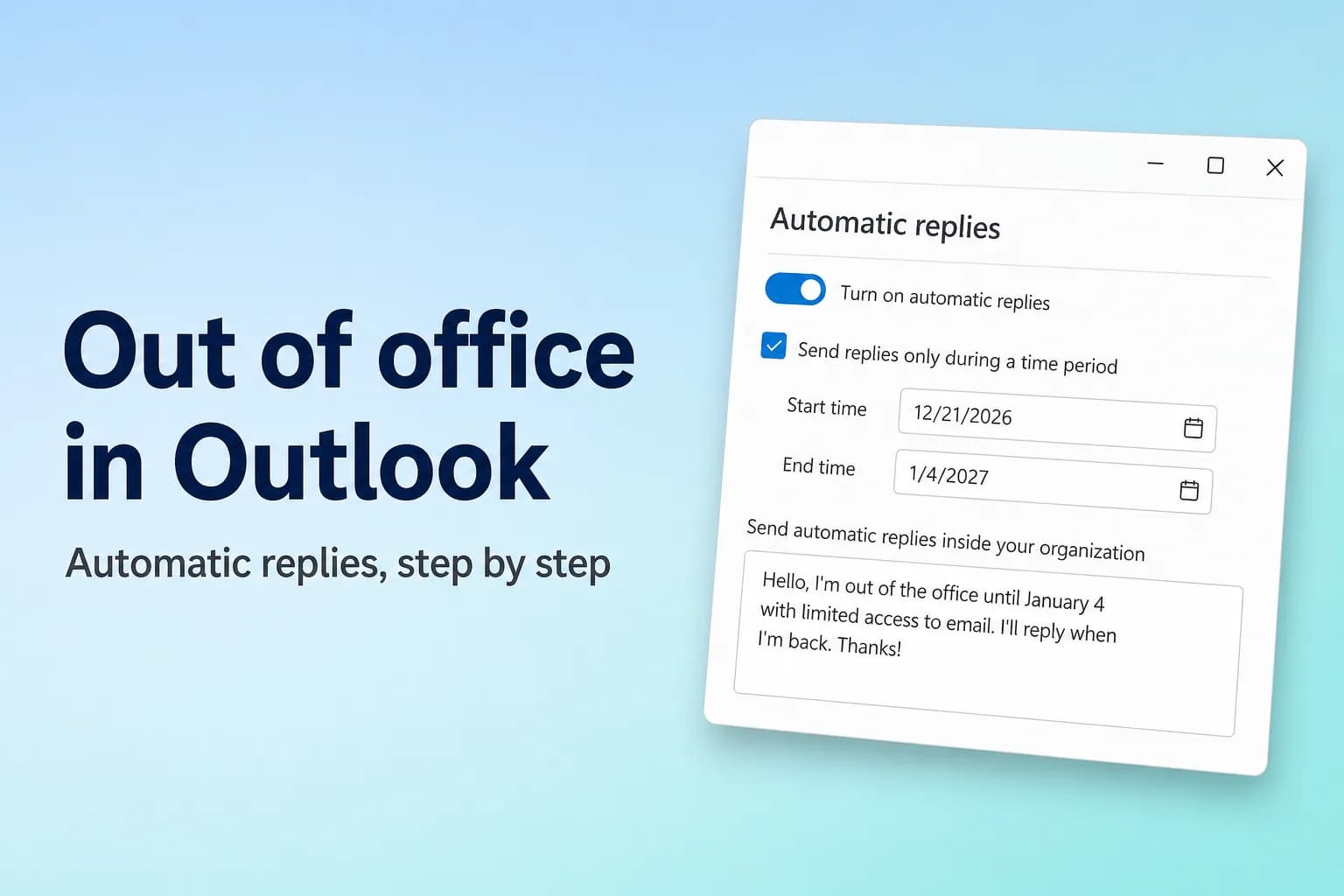
New Outlook या Outlook on the web में out of office सेट करने के लिए Settings → Accounts → Automatic replies पर जाएँ, toggle चालू करें, अपना message लिखें और Save पर click करें। Windows के classic Outlook में यह File → Automatic Replies है। शुरू और खत्म होने की तारीख़ जोड़ दें, और आपके लौटते ही Outlook replies अपने-आप बंद कर देता है।
मुख्य पेच account के प्रकार का है। Automatic replies Microsoft 365 work या school accounts, Exchange और Outlook.com में built-in होते हैं। अगर आपने Outlook में Gmail, Yahoo या कोई दूसरा POP/IMAP account जोड़ा है, तो यह option वहाँ नहीं मिलता, और आपको ऐसा rule चाहिए जो तभी तक चलता है जब तक Outlook आपके computer पर खुला रहे।
इस article में Outlook के menu और button के नाम English version के हिसाब से दिए गए हैं।
| आपका Outlook | कहाँ मिलेगा | तारीख़ें schedule कर सकते हैं? |
|---|---|---|
| New Outlook for Windows | Settings → Accounts → Automatic replies | हाँ |
| Outlook on the web / Outlook.com | Settings → Accounts → Automatic replies | हाँ |
| Classic Outlook for Windows | File → Automatic Replies | हाँ |
| Outlook for Mac | Tools → Automatic Replies | हाँ |
| Outlook for iPhone और Android | Settings → आपका account → Automatic Replies | हाँ |
| Classic Outlook में Gmail, Yahoo या कोई दूसरा IMAP/POP account | Reply template वाला rule | नहीं, और Outlook चालू रहना ज़रूरी है |
new Outlook और Outlook on the web में out of office सेट करें
New Outlook for Windows, Outlook on the web (outlook.office.com) और Outlook.com में settings का page एक ही है:
- Settings (ऊपर दाईं ओर gear icon) पर click करें। New Outlook में आप View tab पर जाकर View settings भी चुन सकते हैं।
- Accounts → Automatic replies पर जाएँ। (कुछ layouts में पहले item का नाम Account होता है।)
- Automatic replies का toggle चालू करें।
- Send replies only during a time period पर tick लगाएँ और Start time तथा End time चुनें। यह छोड़ देंगे तो replies तब तक चालू रहेंगे जब तक आप उन्हें बंद न करें।
- चाहें तो calendar के options पर tick लगाएँ, अगर आपके account में वे दिखते हैं:
- Block my calendar for this period एक event जोड़ता है ताकि लोग देख सकें कि आप बाहर हैं।
- Automatically decline new invitations for events that occur during this period।
- Decline and cancel my meetings during this period, जो लंबी अनुपस्थिति में काम आता है।
- Box में अपना message लिखें। आप उसे format कर सकते हैं और links जोड़ सकते हैं।
- Work या school account में बाहरी senders के बारे में तय करें। दूसरी कंपनियों के लोगों को reply देने के लिए Send replies outside your organization पर tick लगाएँ, और उसे अपनी contacts list के लोगों तक सीमित करने के लिए Send replies only to contacts पर tick लगाएँ।
- Save पर click करें।
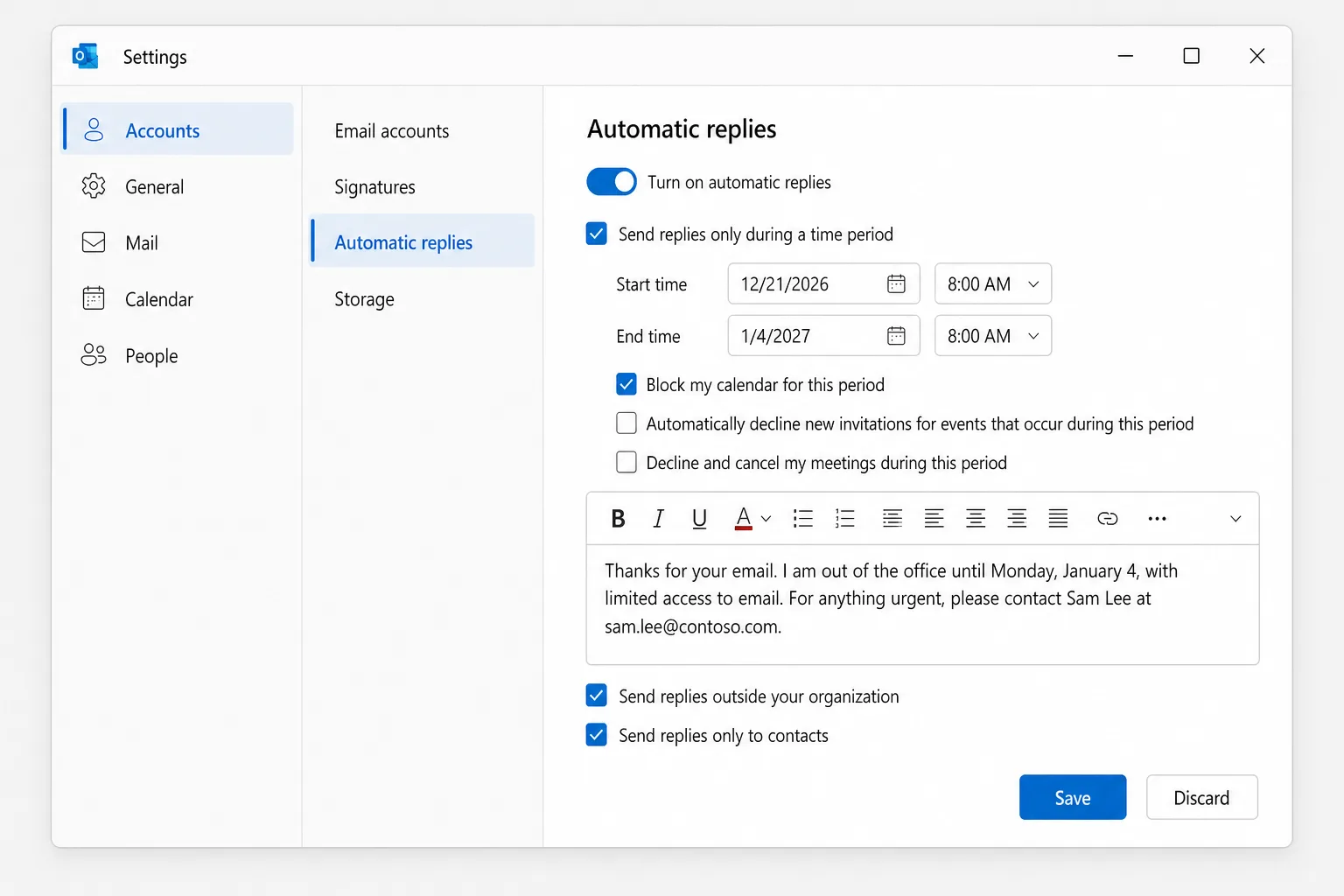
Microsoft बाहरी senders के लिए सिर्फ़-contacts वाला option सुझाता है। वरना newsletters, sales emails और कुछ spam को भी आपका message मिल जाता है।
Windows के classic Outlook में out of office सेट करें
- File पर click करें। अगर Info page पर आपको Automatic Replies button दिखे, तो आपका account इसे support करता है। (अगर न दिखे, तो अगले section पर जाएँ।)
- Automatic Replies चुनें।
- Send automatic replies चुनें।
- Only send during this time range पर tick लगाएँ और Start time तथा End time सेट करें।
- Inside My Organization tab पर अपने सहकर्मियों के लिए message लिखें।
- Outside My Organization tab पर Auto-reply to people outside my organization पर tick लगाएँ, My Contacts only या Anyone outside my organization चुनें, और बाहरी senders के लिए message लिखें।
- OK पर click करें।
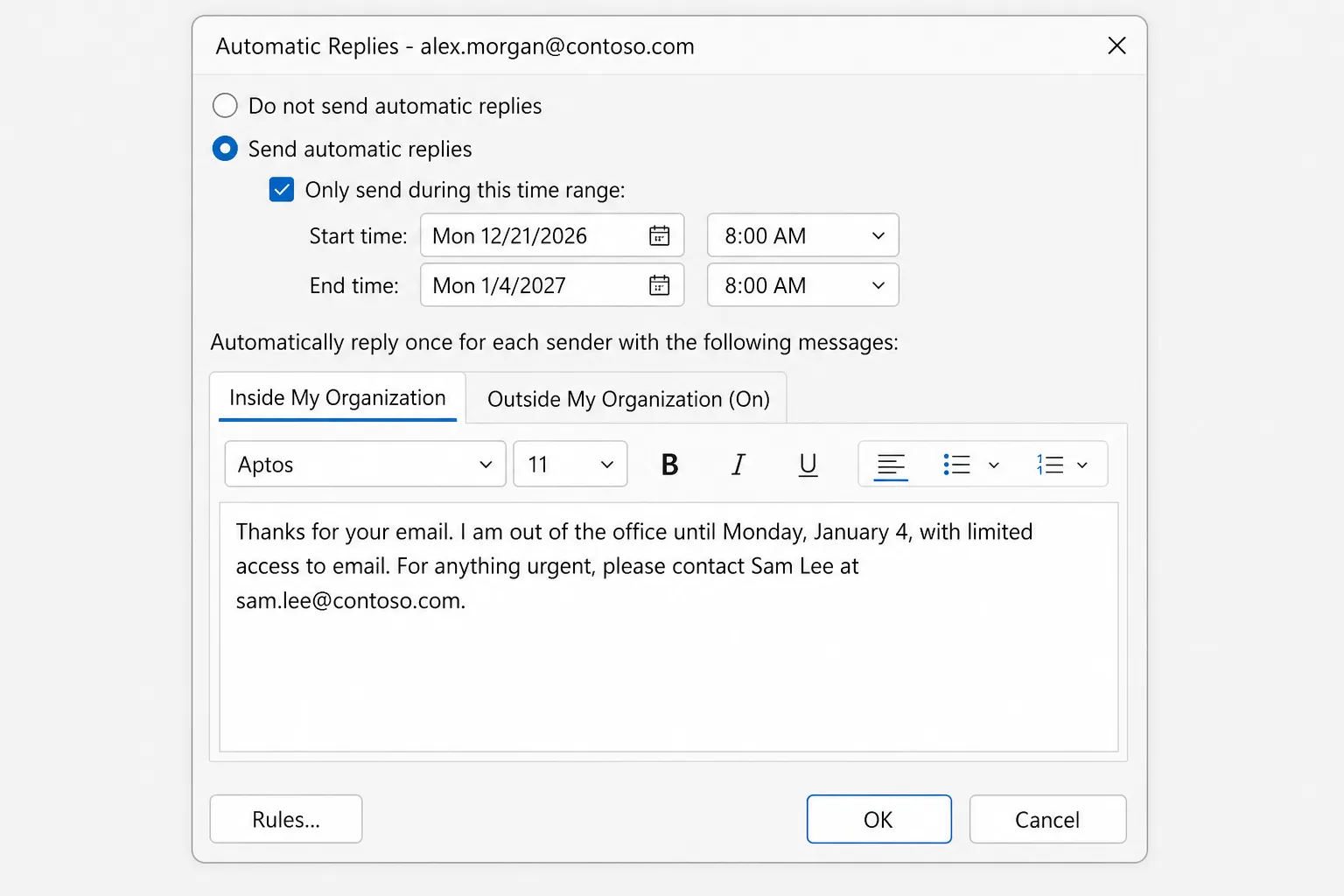
Replies चालू रहने के दौरान ribbon के नीचे एक bar आपको याद दिलाती है, जिसमें Turn off button होता है।
Automatic Replies button नहीं है? Rule इस्तेमाल करें (Gmail, Yahoo, IMAP और POP)
Classic Outlook इन accounts के लिए भी reply कर सकता है, लेकिन reply Outlook खुद करता है, इसलिए आपके बाहर रहने के पूरे समय आपका computer चालू और Outlook खुला रहना चाहिए।
पहले अपना message template के रूप में सहेजें:
- नया email बनाएँ, subject लिखें (जैसे "Out of office") और अपना message लिखें।
- File → Save As पर जाएँ, Save as type में Outlook Template (*.oft) चुनें और Save पर click करें।
फिर rule बनाएँ:
- File → Manage Rules & Alerts → New Rule पर जाएँ।
- Start from a blank rule के नीचे Apply rule on messages I receive चुनें और Next पर click करें।
- Conditions खाली छोड़ें, Next पर click करें, और हर message पर rule लागू करने के लिए Yes पर click करें।
- reply using a specific template पर tick लगाएँ, फिर नीचे वाले box में a specific template पर click करें।
- Look In में User Templates in File System चुनें, अपना template चुनें और Open पर click करें, फिर Next।
- चाहें तो exceptions जोड़ें, फिर Next पर click करें।
- Rule का नाम "Out of office" रखें और Finish पर click करें।
इस rule की कोई अंतिम तारीख़ नहीं होती, इसलिए लौटने पर इसे खुद बंद करें (File → Manage Rules & Alerts, rule का tick हटाएँ)। यह हर sender को हर Outlook session में सिर्फ़ एक बार reply करता है, जब तक आप Outlook बंद करके दोबारा न खोलें।
Gmail account के लिए Gmail का अपना Vacation responder (Settings → See all settings → General) ज़्यादा भरोसेमंद है, क्योंकि वह Google के servers पर चलता है।
Outlook for Mac में out of office सेट करें
- Mail में Tools menu खोलें और Automatic Replies चुनें।
- अगर आपके पास एक से ज़्यादा account हैं तो अपना account चुनें, और Send Automatic Replies चालू करें (कुछ versions में यह Send automatic replies for account नाम का checkbox होता है)।
- अपनी organization के अंदर के लोगों के लिए message लिखें।
- Schedule करने के लिए time period वाला option चालू करें और शुरू व खत्म होने की तारीख़ें और समय चुनें।
- अगर आपकी organization अनुमति देती है, तो organization के बाहर के लोगों वाले option पर tick लगाएँ, Send only to my contacts चुनें या सबको भेजें, और बाहरी message लिखें।
- सहेजने के लिए window बंद करें (या पुराने versions में OK पर click करें)।
अपने फ़ोन पर out of office सेट करें (iPhone और Android)
जाने से पहले भूल गए? Outlook app Microsoft 365, Exchange और Outlook.com accounts के लिए यह कर सकता है:
- ऊपर बाईं ओर अपनी profile picture या account icon पर tap करें, फिर Settings gear पर।
- Account पर tap करें, फिर Automatic Replies पर, और उसे चालू करें।
- Reply to everyone या Reply only to my organization चुनें। सबको चुनने पर आप बाहरी senders के लिए Use different messages चालू कर सकते हैं।
- Reply during a time period चालू करें और शुरू व खत्म होने का समय सेट करें।
- अपना message लिखें और उसे सहेजें (iPhone पर checkmark)।
Teams में out of office
Work या school account के साथ आप इसे Microsoft Teams में भी सेट कर सकते हैं: अपनी profile picture चुनें, फिर Set status message → Schedule out of office। यह वही setting है, इसलिए Teams आपके Outlook के automatic replies उसी message और उन्हीं तारीख़ों के साथ चालू कर देता है।
कॉपी करने लायक out of office message templates
इसे छोटा रखें: आप कब लौटेंगे और अभी कौन मदद कर सकता है। ब्रैकेट वाले हिस्सों को बदल दें।
छोटा और सरल
आपके email के लिए धन्यवाद। मैं [सोमवार, 4 जनवरी] तक office से बाहर हूँ और email तक मेरी पहुँच सीमित है। लौटने पर मैं आपको जवाब दूँगा/दूँगी।
Backup contact के साथ
आपके संदेश के लिए धन्यवाद। मैं [तारीख़] तक बाहर हूँ और email नहीं देख रहा/रही हूँ। किसी भी ज़रूरी काम के लिए कृपया [नाम] से [email] या [फ़ोन] पर संपर्क करें। बाकी मामलों में मैं लौटने के बाद आपसे संपर्क करूँगा/करूँगी।
छुट्टियों में बंद
संपर्क करने के लिए धन्यवाद। हमारा office छुट्टियों के कारण [तारीख़] से [तारीख़] तक बंद रहेगा। [तारीख़] को दोबारा खुलने पर हम आपके संदेश का जवाब देंगे। ज़रूरी सहायता के लिए कृपया [पता] पर email करें। आपको छुट्टियों की शुभकामनाएँ!
लंबी छुट्टी
आपके email के लिए धन्यवाद। मैं [माह/तारीख़] तक अवकाश पर हूँ और मेरी email तक पहुँच नहीं होगी। मेरी अनुपस्थिति में [नाम] ([email]) [प्रोजेक्ट या accounts] देख रहे/रही हैं। कृपया सीधे उनसे संपर्क करें ताकि आपके काम में देरी न हो।
बाहरी लोगों को जाने वाले message में यात्रा का ब्योरा न दें, और अपने backup contact का नाम लिखने से पहले उनसे पूछ लें।
Outlook में out of office बंद कैसे करें
अगर आपने खत्म होने का समय रखा है, तो Outlook अपने-आप रुक जाता है। जल्दी रोकने के लिए:
- New Outlook और Outlook on the web: Settings → Accounts → Automatic replies, toggle बंद करें और Save पर click करें।
- Classic Outlook: ribbon के नीचे की bar में Turn off पर click करें, या File → Automatic Replies → Do not send automatic replies पर जाएँ।
- Mac: Tools → Automatic Replies, Send Automatic Replies बंद करें।
- Mobile: Settings → आपका account → Automatic Replies, उसे बंद करें।
- Rule-आधारित replies: File → Manage Rules & Alerts में rule का tick हटाएँ।
आपका out of office काम क्यों नहीं कर रहा
- हर व्यक्ति को यह सिर्फ़ एक बार मिलता है। Automatic replies चालू रहने के दौरान हर sender को एक बार जाते हैं, हर message पर नहीं। अगर आप एक ही address से दो बार जाँच करते हैं, तो दूसरे email पर कुछ नहीं आएगा। किसी दूसरे account से जाँच करें।
- बाहरी senders शामिल नहीं हैं। अगर Send replies outside your organization (या Outside My Organization tab) पर tick नहीं है और message नहीं भरा है, तो दूसरी कंपनियों के लोगों को कुछ नहीं मिलता। कुछ organizations बाहरी addresses पर automatic replies पूरी तरह रोक भी देती हैं, जिसे सिर्फ़ आपका IT admin बदल सकता है।
- आपने सिर्फ़ contacts चुना है। जो senders आपके contacts में नहीं हैं, उन्हें बाहरी message नहीं मिलता।
- Time period अभी शुरू नहीं हुआ है या खत्म हो चुका है। तारीख़ें जाँचें, AM और PM समेत।
- आने वाला email Junk में चला गया। Spam के रूप में छँटे messages को आमतौर पर automatic reply नहीं मिलता।
- यह POP या IMAP account है। इसमें built-in automatic reply नहीं है, इसलिए आपको rule चाहिए, और वह rule सिर्फ़ तब चलता है जब Outlook ऐसे computer पर खुला हो जो चालू और online है।
- Mail आ ही नहीं रहा। आने वाला email नहीं तो replies भी नहीं। Outlook में Email नहीं आ रहे? 13 समाधान देखें।
अक्सर पूछे जाने वाले सवाल
क्या मेरा computer बंद होने पर भी automatic replies चलते हैं? हाँ, Microsoft 365, Exchange और Outlook.com accounts के लिए, क्योंकि उन्हें server भेजता है। आप इन्हें outlook.office.com या outlook.com पर किसी भी browser से भी सेट कर सकते हैं। सिर्फ़ POP और IMAP accounts के rule-आधारित तरीके में Outlook का चालू रहना ज़रूरी है।
Outlook एक ही व्यक्ति को out of office reply कितनी बार भेजता है? आपके automatic replies जितने समय चालू रहते हैं, उसमें हर sender को एक बार। Classic Outlook के rule-आधारित replies हर बार Outlook शुरू करने पर हर sender को एक बार जाते हैं।
क्या मैं सहकर्मियों और बाहरी contacts के लिए अलग-अलग messages रख सकता/सकती हूँ? हाँ। Classic Outlook में अलग Inside My Organization और Outside My Organization tabs हैं, और new Outlook, Mac और mobile में बाहरी senders को replies चालू करते समय आप बाहरी message जोड़ सकते हैं।
मुझे Outlook में Automatic Replies क्यों नहीं मिल रहा? आपका account शायद Gmail, Yahoo या कोई दूसरा POP/IMAP account है, जो इसे support नहीं करता। Classic Outlook में rule इस्तेमाल करें, या अपने email provider की अपनी settings में vacation responder।
क्या मैं किसी और के लिए out of office सेट कर सकता/सकती हूँ? सिर्फ़ तब जब आपके पास उनके mailbox की पहुँच हो। IT admin इसे Microsoft 365 admin center से सेट कर सकता है, और full access वाला delegate दूसरे mailbox को खोलकर उसके automatic replies बदल सकता है।
साफ़ inbox तक जल्दी लौटें
आपका automatic reply आपको समय देता है, पर emails फिर भी जमा होते रहते हैं। CoreGPT for Outlook एक लाइन के instruction से हर message का छोटा, विनम्र reply draft कर देता है, ताकि लौटने का आपका पहला दिन एक जैसे जवाब बार-बार टाइप करने की जगह बाकी काम निपटाने में लगे। यह Outlook के अंदर चलता है और शुरू करना free है।
 CoreGPT
Priya Shah
Re: Q4 लॉन्च टाइमलाइन
क्या हम तारीख़ें पक्की कर सकते हैं…
Marco Rossi
कॉन्ट्रैक्ट रिन्यूअल
अपडेट किया हुआ संलग्न है…
सपोर्ट
टिकट #4821 सुलझ गया
आपका अनुरोध…
Emma Clark
गुरुवार को लंच?
क्या आप लगभग … ख़ाली हैं
Re: Q4 लॉन्च टाइमलाइन
Priya Shah
अगर हम 3 नवंबर का लॉन्च रखते हैं तो मार्केटिंग को फ़ाइनल कॉपी 28 अक्टूबर तक चाहिए। क्या इंजीनियरिंग पुष्टि कर सकती है कि रिलीज़ कैंडिडेट समय पर है?
Daniel Kim
RC 30 अक्टूबर तक समय पर है। QA को पेमेंट फ़्लो के लिए दो दिन और चाहिए, इसलिए 3 नवंबर मुश्किल है पर संभव है।
Priya Shah
अगर QA में देरी हुई तो क्या हमें लॉन्च 5 नवंबर तक खिसका देना चाहिए?
हाय Priya, सहमत हूँ। अगर QA को और दिन चाहिए तो लॉन्च 5 नवंबर कर देते हैं और फ़ाइनल कॉपी की तारीख़ 28 अक्टूबर ही रखते हैं। धन्यवाद!
आज़माएँ: CoreGPT for Outlook
ये भी पढ़ें: