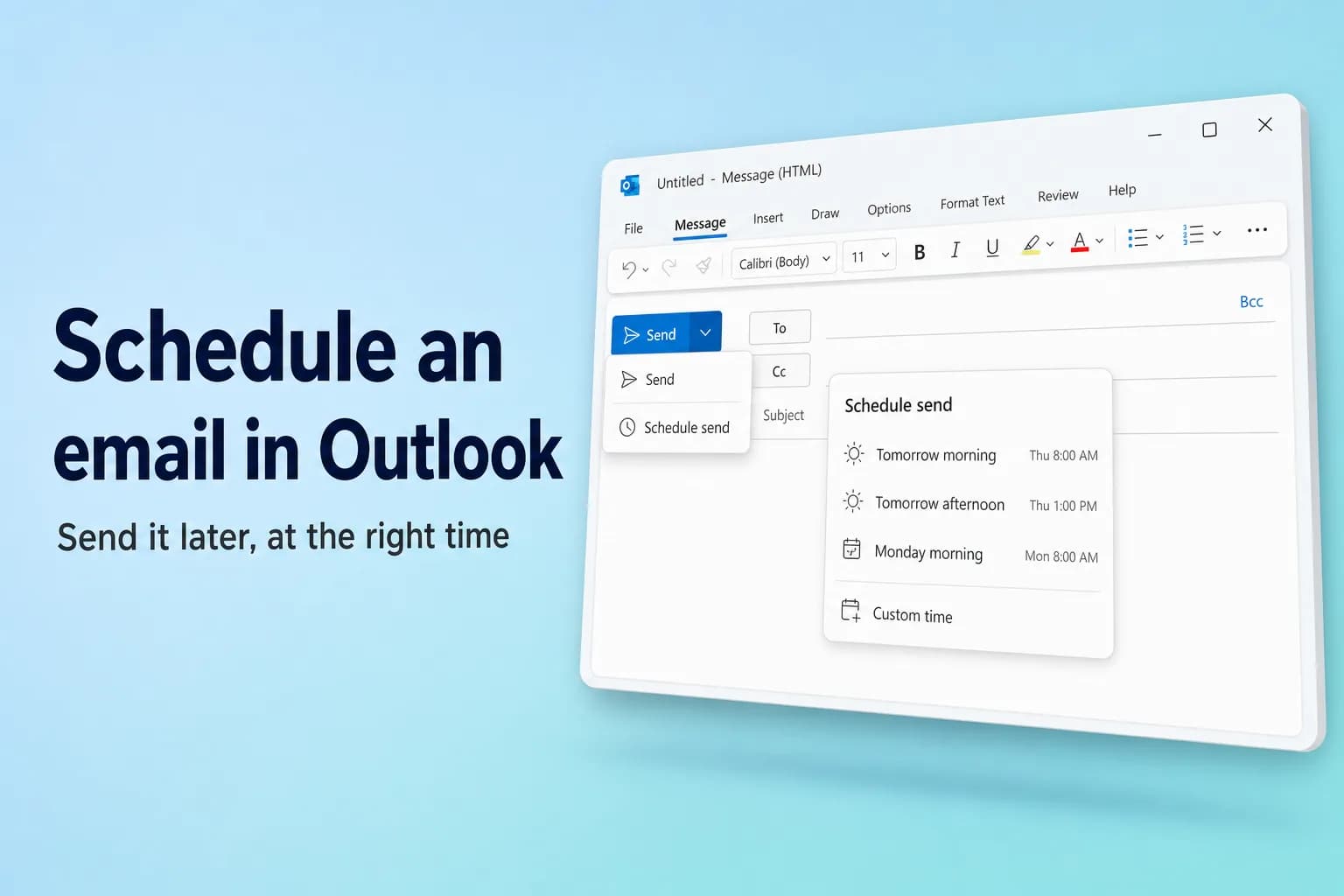
To schedule an email in Outlook, write your message, click the arrow next to Send → Schedule send, pick a suggested time or Custom time, and click Send. That works in new Outlook for Windows, Outlook on the web, Outlook.com and Outlook for Mac. In classic Outlook for Windows, use Options → Delay Delivery and tick Do not deliver before instead.
The big difference is where the message waits. New Outlook, the web and Mac hand it to the server, so it goes out even if your computer is off. Classic Outlook keeps it in your Outbox, so Outlook has to be open and online at the scheduled time.
| Outlook version | How to schedule | Waits in | Needs Outlook open? |
|---|---|---|---|
| New Outlook for Windows | Send arrow → Schedule send | Drafts | No |
| Outlook on the web / Outlook.com | Send arrow → Schedule send | Drafts | No |
| Classic Outlook for Windows | Options → Delay Delivery | Outbox | Yes, running and online |
| Outlook for Mac | Send arrow → Schedule send | Drafts | No |
| Outlook mobile (iPhone, Android) | … menu → Schedule send | Your mailbox | No |
Schedule an email in new Outlook or Outlook on the web
New Outlook for Windows, Outlook on the web (outlook.office.com) and Outlook.com share the same steps:
- Click New mail, or reply to a message, and write your email as usual. Add at least one recipient.
- Click the small arrow next to Send (not the Send button itself).
- Select Schedule send.
- Pick one of the suggested times, such as tomorrow morning, or choose Custom time and set the date and time you want.
- Click Send.
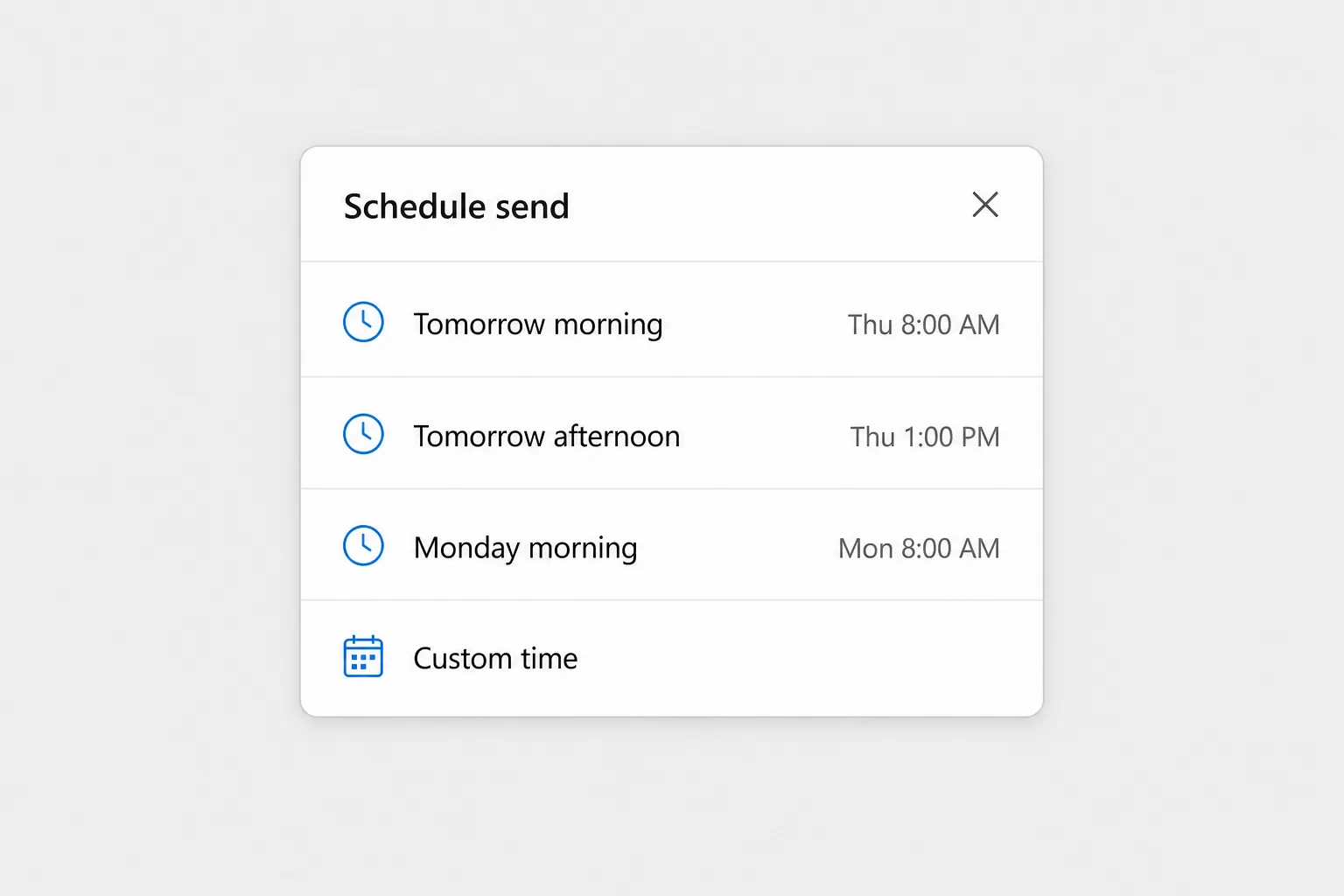
The message closes as if you'd sent it, but it actually moves to your Drafts folder. Open it there and you'll see a banner with the date and time it's scheduled to go out. Because the server sends it, you can close Outlook, shut down your laptop, or go offline.
Schedule send isn't available for IMAP or POP accounts you've added to new Outlook (for example, a Gmail or Yahoo address). It works with Microsoft 365 work or school accounts and Outlook.com, Hotmail and Live accounts.
Change or cancel a scheduled email in new Outlook or on the web
- Go to Drafts and open the scheduled message.
- Select Cancel send in the banner. The message turns back into a normal draft.
- Edit the text, recipients or attachments as needed.
- Either click Send to send it right now, or use the arrow next to Send → Schedule send again to pick a new time.
If you just want to stop it for good, cancel the send and then delete the draft.
Delay delivery in classic Outlook for Windows
Classic Outlook doesn't use the Schedule send menu. It has an older feature called Delay Delivery:
- Write your message and add the recipients.
- Go to the Options tab and click Delay Delivery (in the More Options group). In the simplified ribbon you may need the … overflow menu to find it. You can also open the same dialog from the small arrow in the Tags group on the Message tab.
- In the Properties dialog, under Delivery options, tick Do not deliver before.
- Choose the date and time from the two boxes next to it.
- Click Close, then click Send.
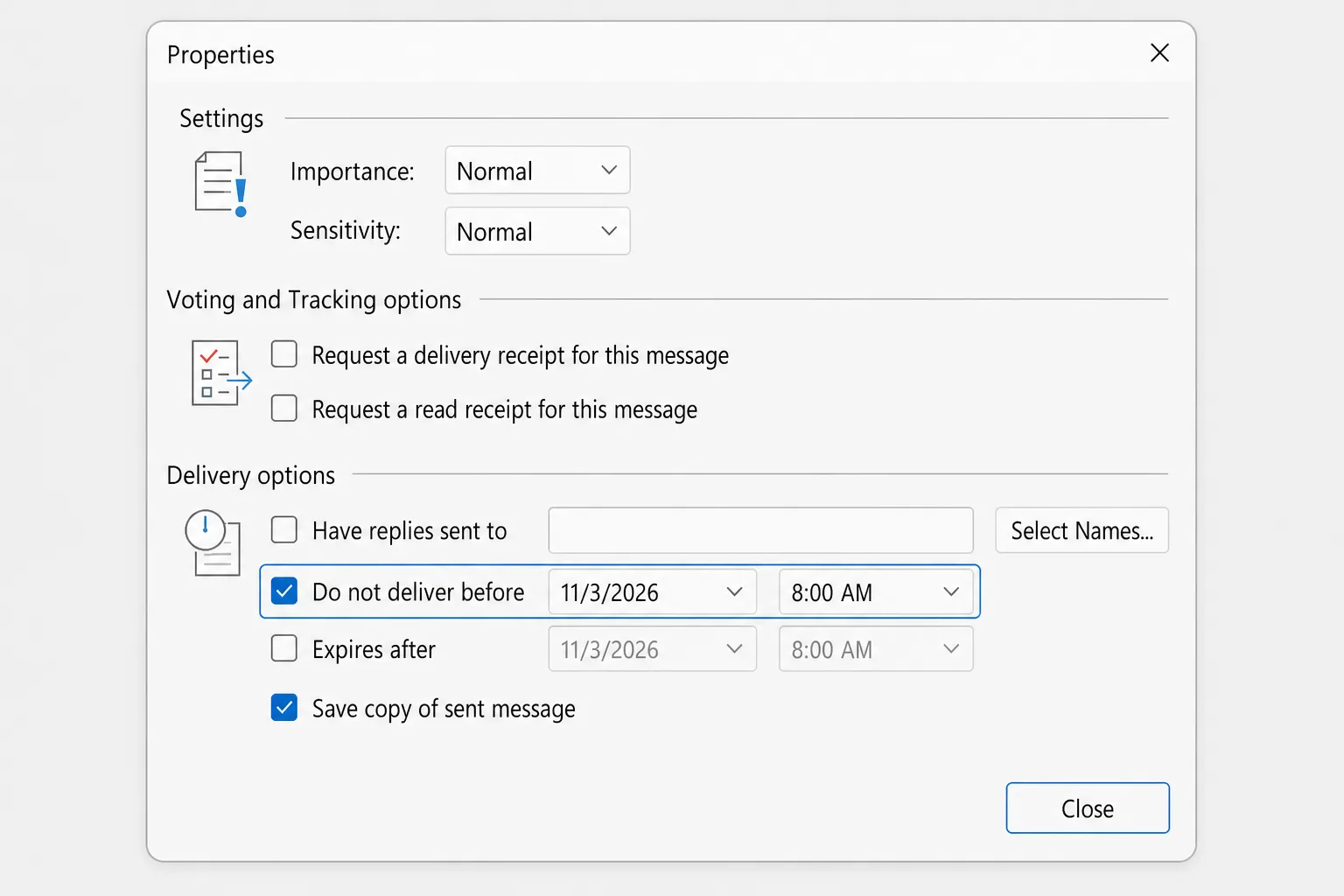
The message now sits in your Outbox until the time you picked. Microsoft's own guidance is that Outlook must be online and connected for it to send, so leave classic Outlook running (and your computer awake) at the scheduled time. If Outlook is closed, the email goes out the next time you open it.
Change or cancel a delayed message in classic Outlook
- Open the Outbox and double-click the message.
- Go to Options → Delay Delivery.
- Change the date and time, or clear Do not deliver before to send it straight away.
- Click Close, then click Send.
That last step matters. If you open a delayed message from the Outbox and close it without clicking Send again, it becomes a draft sitting in the Outbox (shown in italics) and won't be delivered at all. To cancel the email completely, just delete it from the Outbox.
Delay every email by a few minutes
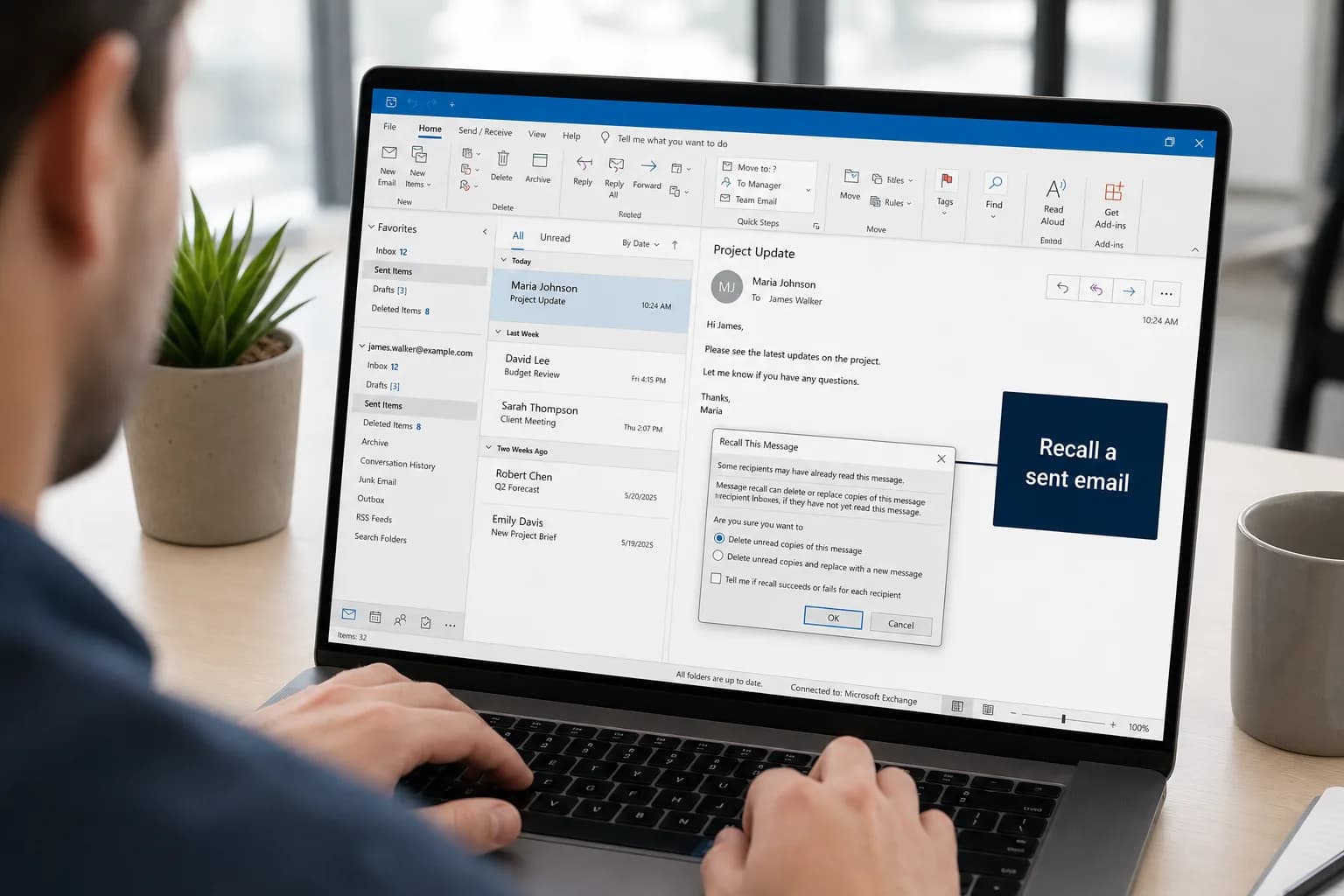
If you want a safety window on everything you send, a rule can hold each message in the Outbox for up to 120 minutes: File → Manage Rules & Alerts → New Rule → Apply rule on messages I send, then choose defer delivery by a number of minutes. Our guide on how to recall an email in Outlook walks through the full rule and the Undo Send setting in new Outlook.
Schedule an email in Outlook for Mac
In Outlook for Microsoft 365 for Mac (and Outlook 2019, 2021 and 2024 for Mac):
- Write your message and add at least one recipient in To.
- Click the arrow on the Send button and choose Schedule send.
- Set the date and time, then click OK.
The message is saved in Drafts until the scheduled time and is sent even if Outlook isn't open on your Mac. To cancel it, open it from Drafts, click Cancel Send and confirm with Yes. You can then edit it and send it now or schedule it again. Older Mac versions called this feature Send Later.
On the Mac, this requires an Exchange-based account, such as Microsoft 365 or Outlook.com. It doesn't work with IMAP or POP accounts like Gmail, Yahoo or iCloud.
Schedule an email from the Outlook mobile app
Current versions of Outlook for iPhone and Android can schedule emails too:
- Write your email in the app.
- Tap the … (more options) menu at the top of the compose screen.
- Tap Schedule send and choose a suggested time or pick your own date and time.
The exact placement varies a little between app versions. If you don't see the option, update the app, or use Outlook on the web in your phone's browser, which has the full Schedule send menu.
Time zones: when will it actually arrive?
Outlook schedules in your own time zone, not the recipient's. If you're in New York and want an email to land at 9:00 AM in London, schedule it for 4:00 AM your time (the gap changes for a few weeks each year when daylight saving starts and ends on different dates).
If emails arrive at the wrong hour, check the time zone Outlook is using. In new Outlook and on the web it's in Settings → General, in the language and time settings. Classic Outlook follows your Windows clock, so check the time zone in Windows Settings → Time & language as well.
Why your scheduled email didn't send
When a scheduled message never arrives, it's usually one of these:
- Classic Outlook was closed or asleep. Delayed messages in classic Outlook only leave when Outlook is running and connected. Open Outlook, check the Outbox, and it should send.
- You were offline. A Work Offline button that's switched on (in classic Outlook, on the Send / Receive tab) or no internet connection keeps messages in the Outbox.
- You opened it in the Outbox and didn't resend it. An italic message in the Outbox is an unsent draft. Open it and click Send.
- It's a POP or IMAP account. Schedule send isn't offered for these accounts in new Outlook or on the Mac. Use classic Outlook's Delay Delivery (with Outlook left running), or send from a Microsoft 365 or Outlook.com account.
- The scheduled time is in the wrong time zone. Check the date and time on the draft's banner (new Outlook and web) or in Delay Delivery (classic).
- You're looking in Sent Items. Until the scheduled time, the message lives in Drafts (new Outlook, web, Mac) or the Outbox (classic), not in Sent Items.
Frequently Asked Questions
Will a scheduled email send if my computer is off? Yes in new Outlook, Outlook on the web, Outlook for Mac and the mobile app, because the server sends it. No in classic Outlook, where Outlook must be open and online at the scheduled time.
Where do scheduled emails go in Outlook? In new Outlook, on the web and on the Mac they wait in the Drafts folder with a banner showing the send time. In classic Outlook they wait in the Outbox.
Why don't I see Schedule send in Outlook? You're either in classic Outlook, which uses Options → Delay Delivery instead, or using an IMAP or POP account (such as Gmail or Yahoo), which doesn't support Schedule send.
Can the recipient tell an email was scheduled? No. They see the email arrive at the scheduled time like any other message.
Can I schedule a recurring email in Outlook? Not with a built-in option. Schedule send and Delay Delivery work one message at a time. For repeating emails, set a recurring reminder for yourself, or use a Power Automate flow if your organization allows it.
How do I unschedule an email in Outlook? Open it from Drafts and select Cancel send (new Outlook, web or Mac), or open it from the Outbox, clear Do not deliver before in Delay Delivery, and send it (classic Outlook).
Write it now, send it at the right time
Scheduling works best when the message itself is ready to go: clear, the right length, and in the right tone for someone reading it at 8 AM. CoreGPT for Outlook drafts a short reply from a one-line instruction, right inside Outlook, so you can write it now, polish it, and schedule it for when it'll actually get read. It's free to start.
 CoreGPT
Priya Shah
Re: Q4 launch timeline
Can we confirm the dates…
Marco Rossi
Contract renewal
Attached is the updated…
Support
Ticket #4821 resolved
Your request has been…
Emma Clark
Lunch on Thursday?
Are you free around…
Re: Q4 launch timeline
Priya Shah
Marketing needs final copy by Oct 28 if we keep the Nov 3 launch. Can engineering confirm the release candidate is on track?
Daniel Kim
RC is on track for Oct 30. QA needs two extra days for the payments flow, so Nov 3 is tight but possible.
Priya Shah
If QA slips, should we move the launch to Nov 5 instead?
Hi Priya, agreed. If QA needs the extra days, let’s move the launch to Nov 5 and keep Oct 28 for final copy. Thanks!
Try it: CoreGPT for Outlook
Related reading: