

Most professionals do not lose time because they cannot write email. They lose time because every email forces a small decision: what to say, how much context to include, when to follow up, where to track the next step, and whether the tone is too blunt or too vague.
That is why the best Microsoft Office email tips are not just shortcuts. They are repeatable writing and follow-up systems. In practice, Microsoft Office email usually means Outlook inside Microsoft 365, but the workflow often extends into Word, Excel, Teams, OneNote, and even Google Workspace when teams collaborate across tools.
If you want faster replies without sounding rushed, start by standardizing how you write, track, and reuse your best email patterns.
First, separate email writing from email deciding
A slow inbox usually has two problems hiding inside one screen. The first is writing: turning your thoughts into a clear message. The second is deciding: figuring out what outcome you want from the conversation.
Do not try to solve both at the same time. Before you draft, answer one question: what should happen after the recipient reads this?
That outcome might be approval, clarification, a meeting, a payment update, a document review, or a simple acknowledgment. Once you know the outcome, the email becomes much easier to write because every sentence has a job.
A fast Microsoft Office email workflow looks like this:
- Decide the outcome: Identify the action, answer, or decision you need.
- Choose the email type: Reply, request, recap, reminder, escalation, or handoff.
- Draft from a pattern: Use a reusable structure instead of starting from a blank screen.
- Set the follow-up before you send: Add a flag, category, reminder, or tracker entry.
- Archive or file the message: Keep the inbox as a decision queue, not a storage cabinet.
This small shift prevents the classic mistake of sending a decent email and then forgetting to follow up.
Build a faster Microsoft Office email setup
Outlook has plenty of features, but the goal is not to use all of them. The goal is to create a small setup that removes repetitive work every day.
| Setup piece | Where it helps | Practical tip |
|---|---|---|
| Signature blocks | First replies, client emails, internal updates | Create role-based signatures for formal, short, and internal messages. |
| Templates or snippets | Recurring replies and reminders | Save common replies for approvals, scheduling, status checks, and document requests. |
| Quick Steps | Repetitive email handling | Use one-click actions to categorize, flag, move, and reply when the pattern repeats. |
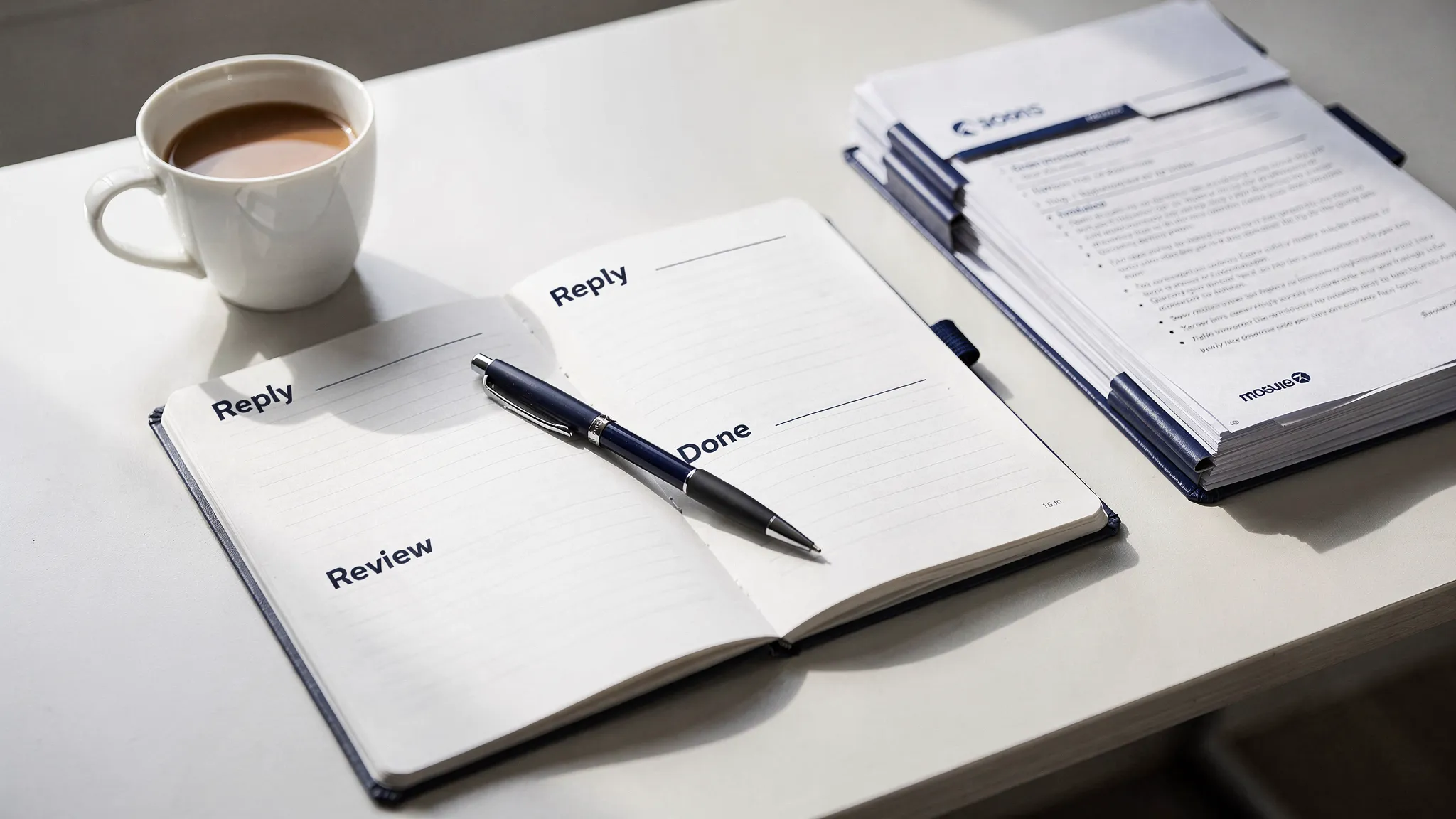
| Categories and flags | Follow-up visibility | Keep categories status-based, such as Reply, Waiting, Review, and Delegate. |
| Draft discipline | Longer or sensitive replies | If research is needed, create a clear follow-up task instead of leaving the email half handled. |
Classic Outlook, new Outlook, and Outlook on the web do not always expose features in exactly the same way. If a feature name is different in your version, keep the principle: reduce repeated clicks, reuse proven language, and make follow-ups visible.
For a deeper setup around automation, search, and triage, CoreGPT also has an Outlook Rules, Search, and Quick Steps checklist that pairs well with the writing workflows below.
Use the 5-line framework for faster replies
Most work emails can be written with a simple five-part structure. It keeps messages short without making them feel abrupt.
| Line | Purpose | Example |
|---|---|---|
| Subject | Make the outcome clear | Approval needed by Friday: Q2 slide changes |
| Context | Remind the reader why this matters | We updated the deck based on Monday's feedback. |
| Request or answer | State the main point early | Please approve option B, or send edits by Friday at 2 PM. |
| Next step | Explain what happens after that | I will send the final version to the team after approval. |
| Close | Keep the tone human | Thanks, I appreciate the quick review. |
This framework works because it answers the reader's unspoken questions: why am I getting this, what do you need, when do you need it, and what happens next?
It also helps you avoid overexplaining. If the reader needs background, include it after the request, not before. Busy people scan from the subject line to the first sentence. Put the action where they will see it.
Make subject lines do more work
A vague subject line creates follow-up work later. A strong subject line tells the recipient what kind of attention the email needs.
Instead of writing a subject like Project update, use a subject that includes the action or status:
- Approval needed: budget summary for May
- FYI: client onboarding schedule changed
- Decision by Thursday: vendor renewal options
- Recap: launch meeting actions and owners
- Follow-up: contract edits from legal review
This is one of the simplest Microsoft Office email tips because it improves writing speed and searchability at the same time. When the subject line is specific, future you can find the thread faster in Outlook search, and your recipient can prioritize it more accurately.
Write follow-ups that do not sound pushy
The phrase just following up is common because it is easy, but it rarely adds value. A better follow-up reminds the recipient of the context, restates the action, and gives a reasonable next step.
| Situation | Typical timing | Better opening |
|---|---|---|
| After a meeting | Same day or next business day | Here is my recap of the decisions and next steps from today's meeting. |
| Unanswered approval request | After the agreed deadline or a reasonable review window | Checking whether you are comfortable approving option B, or if you would prefer changes first. |
| Client or customer next step | Based on the promised timeline | Sharing the next step we discussed so nothing gets lost. |
| Internal dependency | Before the work becomes blocked | I am planning the next milestone and need your input on the item below. |
| Low-urgency reminder | Several business days later | Keeping this on your radar for when you have a chance to review. |
The right cadence depends on urgency, relationship, and business context. A sales team, support team, agency, internal operations group, and executive assistant will all follow up differently. The useful habit is to set the next reminder at the moment you send the message, not when you suddenly remember it later.
Service and appointment-based teams can adapt the same pattern. For example, a business like Lumina Skin Sanctuary might send a post-consultation recap, confirm recommended next steps, and schedule a courteous check-in. The same principle applies to any professional follow-up: be specific, be helpful, and make the next action easy.
Turn follow-ups into a visible system
If follow-ups live only in memory, they will fail. Outlook gives you several ways to make them visible, and you only need a simple version to start.
A reliable follow-up system can be as simple as this:
- Create a Waiting category: Apply it to any email where someone else owes you a response.
- Add a flag or reminder: Choose the date when you want to review the thread again.
- Move handled email out of the inbox: Archive it or file it so your inbox only shows current decisions.
- Review Waiting once per day: Spend five minutes checking whether anything needs a nudge.
- Close the loop: Remove the category when the response arrives or the issue is resolved.
For many Microsoft 365 accounts, flagged Outlook emails can also appear in Microsoft To Do, which makes follow-ups easier to manage alongside tasks. If your organization uses Teams or Planner, keep the rule simple: email is for communication, but recurring work should move into the shared work system.
Save templates for replies you send every week
Templates are not just for customer support. They are for any professional who writes the same type of email more than twice.
Start with these high-return templates:
| Template | Use it when | Core structure |
|---|---|---|
| Acknowledgment | You received something but cannot act yet | Confirm receipt, set expectation, give next timing. |
| Approval request | You need a decision | State recommendation, give options, include deadline. |
| Status follow-up | You need an update | Reference prior message, ask for current status, clarify impact. |
| Meeting recap | A conversation produced next steps | Summarize decisions, list owners, confirm dates. |
| Escalation | A blocker needs attention | Explain issue, impact, attempted fixes, requested decision. |
A good template should not feel robotic. Leave room for a personalized first sentence, specific details, and a human close. The goal is to avoid rewriting the skeleton, not to remove judgment.
Here is a simple follow-up template you can adapt:
Hi [Name],

I wanted to bring this back to the top of your inbox. We are waiting on [specific item] so we can [business outcome].

Could you send an update by [date], or let me know if someone else should own this?

Thanks,
[Your name]
And here is a faster meeting recap template:
Hi everyone,

Here is a quick recap from today's discussion.

Decision: [decision]
Owner: [person]
Next step: [action]
Due date: [date]
Open question: [question if any]

Please reply if I missed anything.
Use AI to draft, rewrite, and extract follow-ups
AI is most useful in Microsoft Office email when it handles the first draft, the rewrite, or the structure. You should still verify facts, names, dates, attachments, and commitments before sending.
CoreGPT Apps brings GPT-powered AI tools directly into Microsoft 365 and Google Workspace, including Outlook, Word, Excel, PowerPoint, Teams, OneNote, Google Docs, Google Sheets, Google Slides, and Google Forms. That matters because email work rarely stays inside email. A thread often becomes a document, spreadsheet, task list, or team update.
Use prompts that include context, goal, tone, and constraints. The more specific you are, the less editing you will need.
| Task | Prompt you can reuse |
|---|---|
| Draft a reply | Draft a concise Outlook reply that confirms receipt, answers the main question, and asks for the missing detail. Keep it professional and under 120 words. |
| Rewrite tone | Rewrite this email to sound warmer and clearer without changing the meaning. Keep the request direct. |
| Summarize a thread | Summarize this email thread into decisions, open questions, action items, owners, and deadlines. |
| Create a follow-up | Write a polite follow-up that references the previous request, explains why it matters, and asks for a response by Friday. |
| Convert to tracker | Extract the action items from this thread into a table with columns for task, owner, deadline, status, and source note. |
The best AI workflow is not generate and send. It is generate, verify, personalize, then send. This keeps speed high without sacrificing trust.
Move complex email into Word or Excel
Not every email should remain an email. Long threads often become hard to scan, especially when they contain decisions, attachments, dates, and multiple owners.
Use this rule: if an email thread has more than three action items or more than two decision makers, convert it into a structured artifact.
That artifact might be a Word memo, an Excel tracker, a Teams update, or a OneNote page. Email is still useful for notifying people, but the work itself becomes easier to manage when it is structured.
For example, after a long project thread, you can ask AI to summarize the conversation into a one-page Word brief. If the thread includes owners and deadlines, convert it into an Excel action tracker. If it is a team status update, turn it into a short Teams message with blockers and next steps.
This is where Microsoft Office email becomes more powerful than a standalone inbox. Outlook captures the conversation, Word clarifies the narrative, Excel tracks the work, and Teams keeps everyone aligned.
Keep quality high when writing faster
Faster email should not mean careless email. The risk of templates and AI is that they can make messages sound generic or introduce details you did not intend.
Before sending, use a quick quality check:
- Verify names, dates, numbers, attachments, and links.
- Remove unnecessary history if the recipient only needs the action.
- Make the deadline visible in the subject or first few lines.
- Replace generic phrasing with one specific detail from the conversation.
- Check whether the email should be a task, meeting, document, or chat instead.
Also be careful with confidential or regulated information. If you use AI in email workflows, avoid pasting sensitive data unless your organization's policies allow it and the tool is approved for that type of content. When in doubt, redact names, account numbers, financial details, medical information, and private customer data.
A 15-minute setup plan for this week
You do not need to rebuild your entire Outlook system. Start with a small setup that pays off immediately.
- Minutes 0 to 3: Create or refine four categories: Reply, Waiting, Review, and Delegate.
- Minutes 3 to 6: Save one acknowledgment template and one follow-up template.
- Minutes 6 to 9: Create one Quick Step or equivalent action for messages you handle repeatedly.
- Minutes 9 to 12: Choose a daily follow-up review time and put it on your calendar.
- Minutes 12 to 15: Test one AI prompt on a non-sensitive email draft and refine it for your tone.
By the end, you will have a system that helps you write faster, follow up more reliably, and reduce the number of messages that sit in your inbox because they feel slightly unfinished.
Frequently Asked Questions
What is the fastest way to write Microsoft Office email replies? Use a repeatable structure: context, request or answer, next step, deadline, and close. Save common versions as templates so you do not start from a blank screen each time.
How can I track Outlook follow-ups without forgetting them? Use a Waiting category plus a flag or reminder. Review that category once per day, then remove it when the recipient responds or the issue is resolved.
Can AI write Outlook emails for me? AI can draft, rewrite, summarize, and structure emails, but you should verify facts, tone, names, dates, and commitments before sending. Use AI as a writing assistant, not an autopilot.
Should I use folders or categories for follow-ups? Categories are usually better for follow-up status because one message can carry a status without disappearing into a folder. Folders are better for storage and reference.
When should an email become a document or spreadsheet? Convert an email thread when it includes multiple owners, deadlines, decisions, or action items. Use Word for narrative summaries and Excel for trackers.
Bring faster email workflows into your Office apps
If your day runs through Outlook, Word, Excel, Teams, and shared documents, your AI assistant should work where the writing and follow-ups already happen.
CoreGPT Apps brings GPT-powered assistance into Microsoft 365 and Google Workspace so you can draft replies, rewrite messages, summarize threads, and turn email into structured work without constant copy-paste. Use it to make Microsoft Office email faster, clearer, and easier to follow through on.