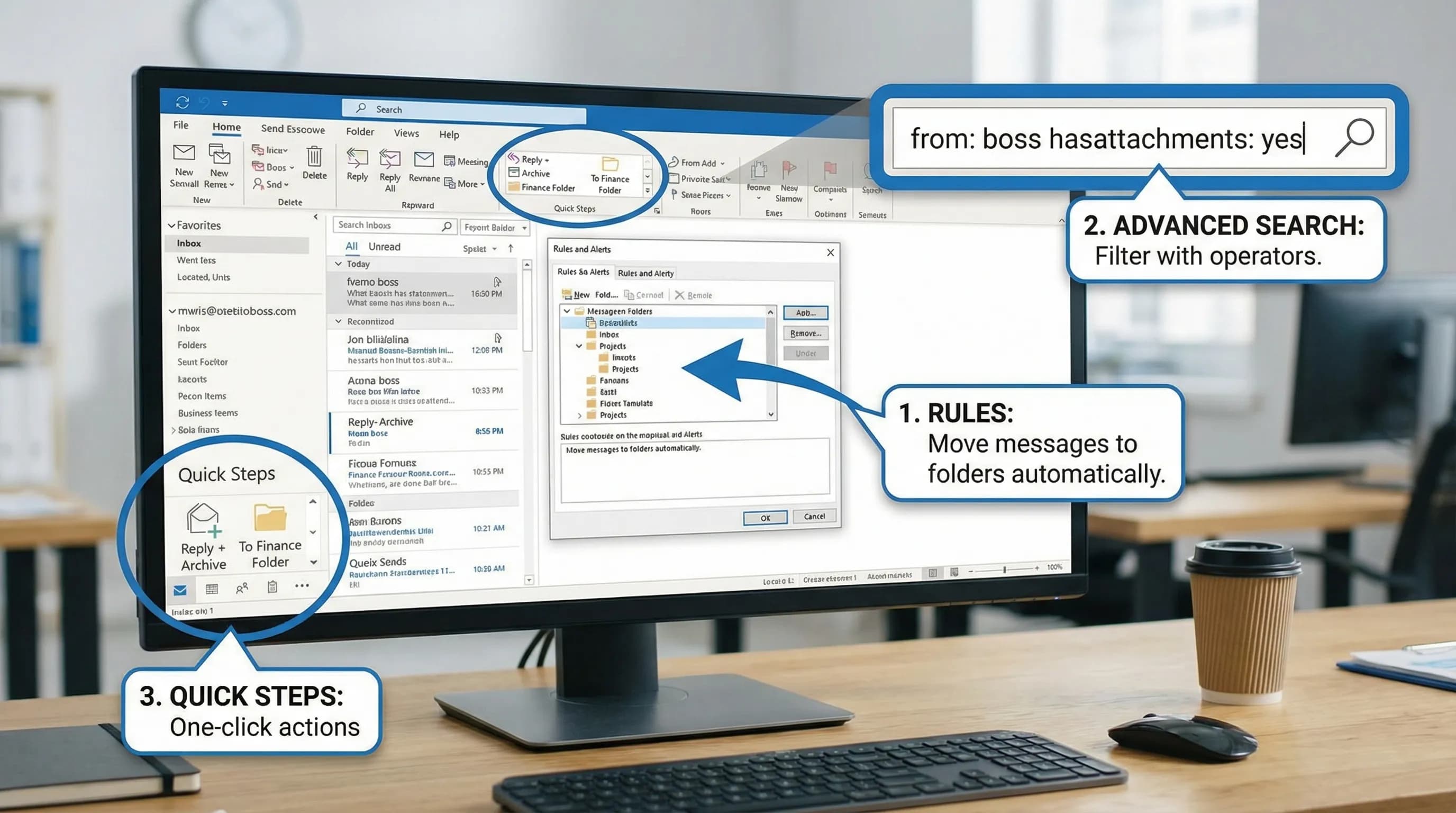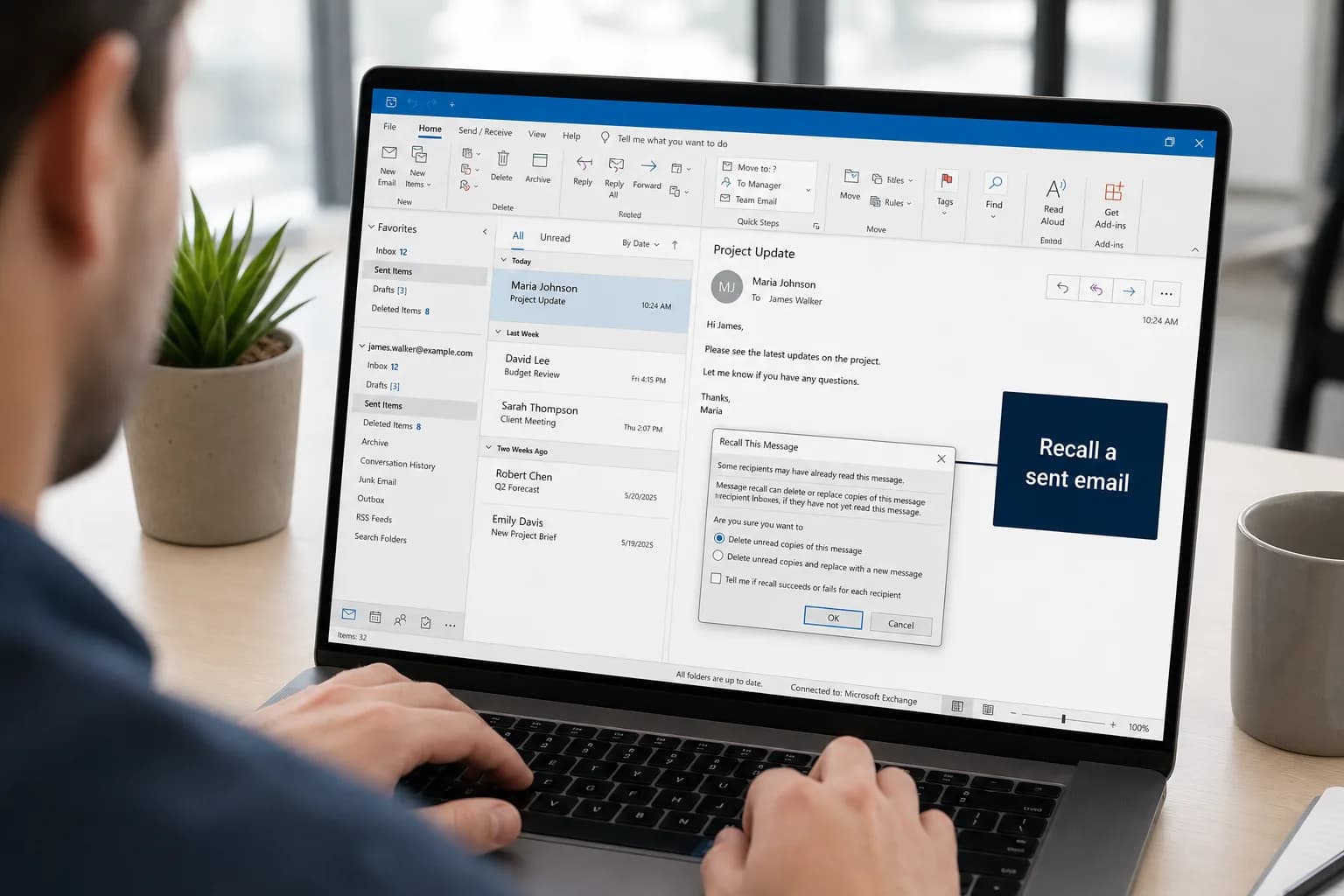
To recall an email in Outlook, open the message in your Sent Items folder and choose Recall message. In classic Outlook for Windows that's File → Info → Message Resend and Recall → Recall This Message. Outlook then tries to delete the copy from each recipient's mailbox.
It only works in specific situations, though: you and the recipients need work or school accounts in the same Microsoft 365 or Exchange organization, and the recipient usually must not have opened the message yet. If you've sent a Gmail address or a personal Outlook.com account the wrong email, recall can't reach it.
| Your situation | Can you recall? |
|---|---|
| Work or school account, recipient in your own organization, not read yet | Yes |
| Recipient outside your organization (Gmail, Yahoo, another company) | No |
| Personal Outlook.com or Hotmail account | No |
| Recipient has already opened the message | Usually no |
| Outlook mobile app on iPhone or Android | No, use a computer or Outlook on the web |
Recall an email in new Outlook or Outlook on the web
The new Outlook for Windows and Outlook on the web (outlook.office.com) use the same steps:
- Go to Sent Items in the folder list.
- Double-click the message you want to recall so it opens in its own window.
- Select Recall message. If you don't see it, look under More actions (the … menu), then Advanced actions.
- Confirm with OK.
These versions delete the unread copy; they don't offer to replace it with a new version. If you need to send a correction, send a new email afterwards.
A few moments later you'll receive a Message Recall Report email. Open it to see, recipient by recipient, whether the recall succeeded, is still pending or failed.
Recall or replace an email in classic Outlook for Windows
Classic Outlook can also replace the message with a corrected one:
- Open Sent Items and double-click the message to open it in its own window. (Recall isn't available from the reading pane.)
- Go to File → Info → Message Resend and Recall → Recall This Message. In some versions it's also on the Message tab under Actions → Recall This Message.
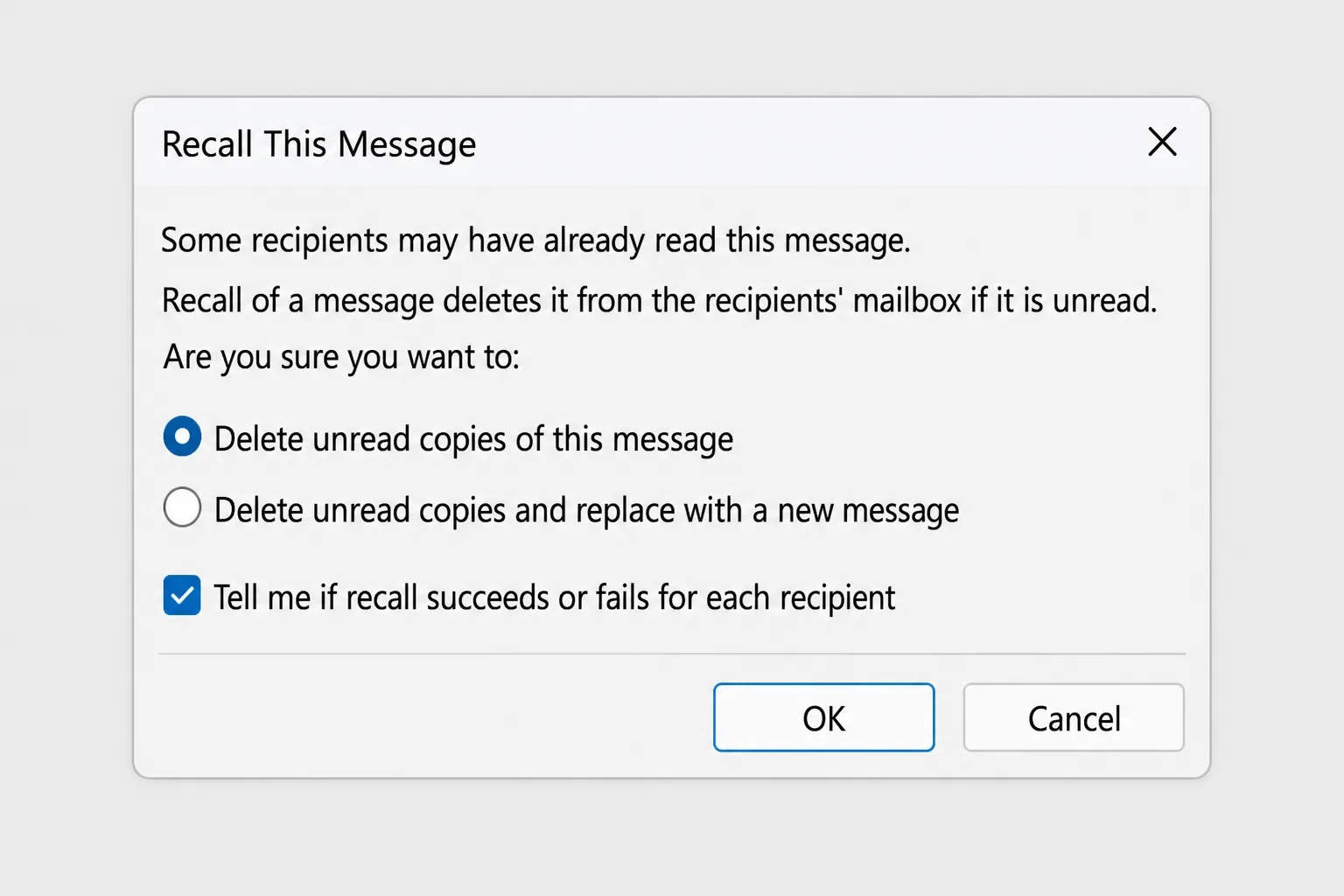
- Choose one of the two options:
- Delete unread copies of this message to remove it.
- Delete unread copies and replace with a new message to remove it and send a corrected version.
- Leave Tell me if recall succeeds or fails for each recipient ticked if you want a report.
- Click OK. If you chose to replace the message, a copy of the original opens. Edit it and click Send.
Recall an email in Outlook for Mac
In the new Outlook for Mac, recall is available for Microsoft 365 work or school accounts. Open the message from Sent Items in its own window and look for Recall Message in the message window's toolbar or menu. As on Windows, it only reaches recipients in your own organization.
Why your recall failed
When the Message Recall Report says "failed", it's almost always one of these:
- The recipient already opened it. By default, Microsoft 365 won't remove a message that has been read. Your organization's admin can change this, but most leave the default.
- The recipient is outside your organization. Recall only works inside the same Microsoft 365 or Exchange organization. Once an email reaches Gmail, Yahoo or another company's server, it's out of your mail system's reach.
- You use a personal account. Outlook.com, Hotmail and Live accounts don't support recall.
- A rule moved or forwarded the message. If the recipient's rules forwarded the email or moved it to another folder, the original or its forwarded copy may stay put.
- The message was opened on a phone first. If someone read it on their mobile, it counts as read and won't be removed.
What the recipient sees
With today's Microsoft 365 recall, the message is removed in the background, even if the recipient's Outlook is closed. Depending on your organization's settings, recipients may get a notice that a message was recalled, so it's best to assume the person may know you tried.
If the recall fails, a short, honest follow-up usually works better than silence: "Please ignore my previous email; the figures in it were wrong. The correct version is below."
Stop it happening again: Undo Send and delayed sending
Recall is unreliable by design, so the best fix is a few seconds or minutes of delay before each email actually leaves.
Turn on Undo Send in new Outlook and Outlook on the web
- Go to Settings (the gear icon) → Mail → Compose and reply.
- Under Undo send, drag the slider to the maximum, 10 seconds.
- Click Save.
After you click Send, an Undo button appears for those 10 seconds. Click it and the message comes back as a draft.
Delay every message in classic Outlook with a rule
Classic Outlook has no Undo button, but a rule can hold every message in your Outbox for a few minutes:
- Go to File → Manage Rules & Alerts → New Rule.
- Under Start from a blank rule, select Apply rule on messages I send and click Next.
- Leave the conditions empty and click Next. Confirm that the rule should apply to every message you send.
- Tick defer delivery by a number of minutes, click a number of, and enter 1 or 2 minutes (up to 120 are allowed).
- Click Finish.
Your messages now wait in the Outbox for that time, and you can open and fix them before they go. Outlook needs to be running and online for them to send.
Delay one important message
For a single email you want to double-check, or send later, use Options → Delay Delivery in classic Outlook, or the arrow next to Send → Schedule send in new Outlook and Outlook on the web.
If you also use Gmail
Gmail has a similar setting: Settings → See all settings → General → Undo Send, with a cancellation period of up to 30 seconds.
Frequently Asked Questions
How long do I have to recall an email in Outlook? There's no fixed time limit, but it only works until the recipient opens the message. In practice that can be seconds, so act immediately.
Can I recall an email sent to a Gmail address? No. Once a message reaches a server outside your organization, Outlook can't remove it.
Will the recipient know I recalled the email? They may. Depending on your organization's settings, a notice can appear that a message was recalled, and if the recall fails they'll still have the original.
Why don't I see the Recall option? You're probably using a personal Outlook.com account, a non-Exchange email account (such as IMAP), or the reading pane in classic Outlook. Open the message in its own window from Sent Items, and check you're signed in with a work or school account.
Can I recall an email from my phone? No. The Outlook mobile app doesn't support recall. Use Outlook on the web in your phone's browser, or a computer.
Is Undo Send the same as recall? No. Undo Send stops the email before it leaves your outbox, so it always works within its time window. Recall tries to delete an email that has already been delivered.
Get it right before you hit Send
Most recalls happen because an email went out a little too fast: a wrong figure, a missing attachment, a tone that reads harsher than intended. CoreGPT for Outlook drafts replies from a one-line instruction, rewrites a message to sound clearer or more polite, and summarizes long threads so you don't miss what was already agreed, all inside Outlook. It's free to start.
 CoreGPT
Priya Shah
Re: Q4 launch timeline
Can we confirm the dates…
Marco Rossi
Contract renewal
Attached is the updated…
Support
Ticket #4821 resolved
Your request has been…
Emma Clark
Lunch on Thursday?
Are you free around…
Re: Q4 launch timeline
Priya Shah
Marketing needs final copy by Oct 28 if we keep the Nov 3 launch. Can engineering confirm the release candidate is on track?
Daniel Kim
RC is on track for Oct 30. QA needs two extra days for the payments flow, so Nov 3 is tight but possible.
Priya Shah
If QA slips, should we move the launch to Nov 5 instead?
Hi Priya, agreed. If QA needs the extra days, let’s move the launch to Nov 5 and keep Oct 28 for final copy. Thanks!
Try it: CoreGPT for Outlook
Related reading: