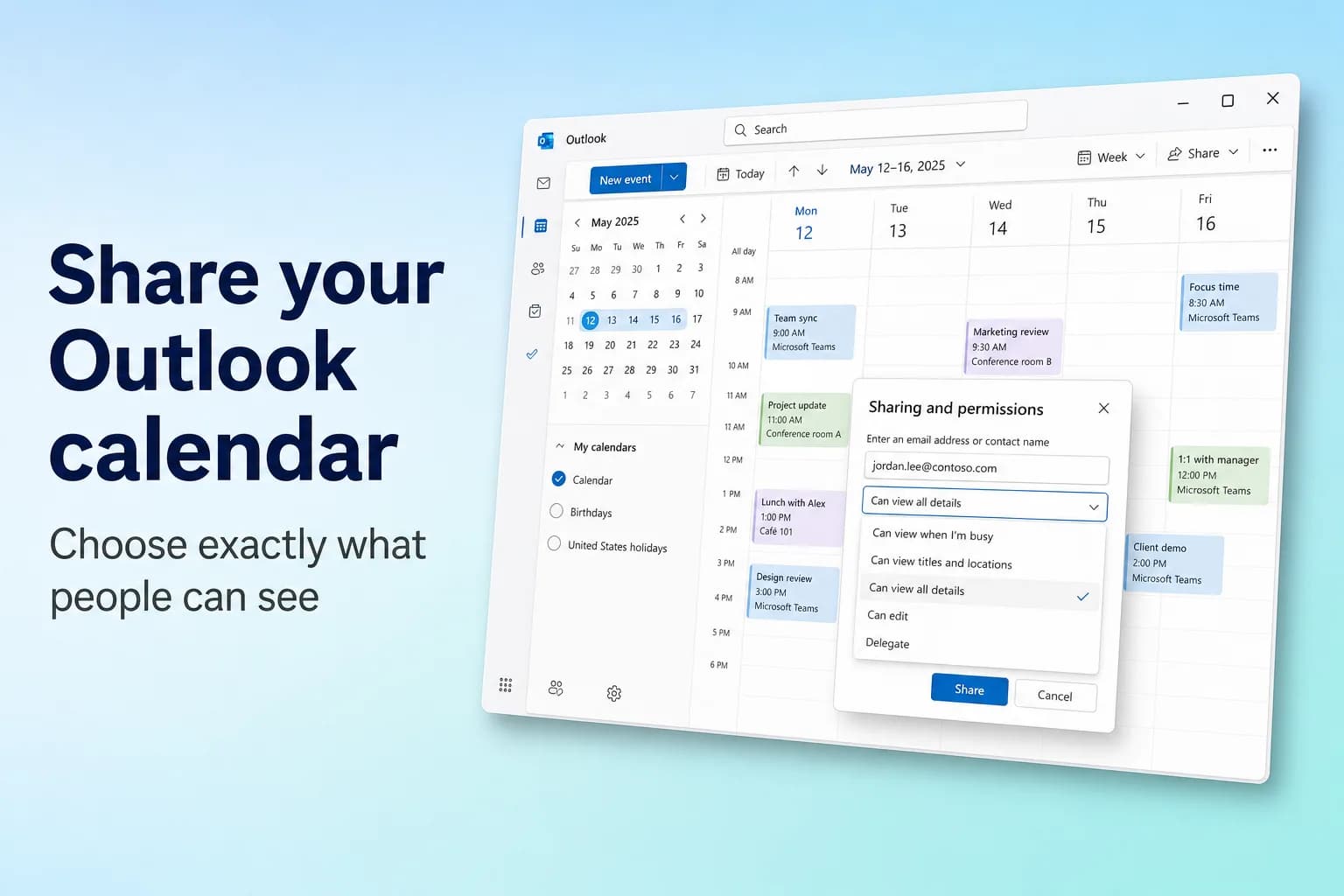
To share your Outlook calendar, go to Calendar, select Share calendar on the Home tab (or right-click the calendar and choose Sharing and permissions), enter the person's name or email address, pick a permission level such as Can view all details, and select Share. They get an email invitation, and once they accept, your calendar appears next to theirs.
What you can share depends on who's receiving it. Inside your own organization you can give anyone view, edit or delegate access. People outside it (including Gmail users) can only get view access, and your admin may limit them further, sometimes to free/busy times only.
| Outlook version | Where to start sharing |
|---|---|
| New Outlook for Windows | Calendar → Home → Share calendar |
| Outlook on the web and Outlook.com | Calendar → Share, or right-click the calendar → Sharing and permissions |
| Classic Outlook for Windows | Calendar → Home → Share Calendar (opens Calendar Properties) |
| Outlook for Mac | Control-click the calendar → Sharing Permissions |
| Outlook for iPhone and Android | Calendar → calendar menu → gear icon next to the calendar |
| Someone without Outlook | Publish an ICS or HTML link from settings |
Permission levels: what each one shows
Pick the lowest level that does the job. You can change it later at any time.
| Permission level | What the other person can do | Available to people outside your organization? |
|---|---|---|
| Can view when I'm busy | See only when you're busy, no titles or details | Yes |
| Can view titles and locations | See busy times plus each event's title and location | Yes, if your admin allows it |
| Can view all details | See everything about your events, but not change them | Yes, if your admin allows it |
| Can edit | View, create, change and delete events on your calendar | No (personal Outlook.com accounts can share edit access) |
| Delegate | Everything an editor can do, plus receive and respond to meeting invitations for you | No, same organization only, primary calendar only |
Events marked Private stay hidden at every level (people see only that you're busy), unless you let a delegate view them.
Share your calendar in new Outlook or Outlook on the web
The new Outlook for Windows, Outlook on the web (outlook.office.com) and Outlook.com use the same steps:
- Select Calendar in the navigation pane.
- On the Home tab, select Share calendar. If you have more than one calendar, choose the one you want to share. You can also right-click a calendar under My calendars and choose Sharing and permissions.
- In the box at the top, type the person's name or email address. Select them from the list, or press Enter if they don't appear. You add one person at a time.
- Open the drop-down next to their name and choose a permission level.
- Select Share.
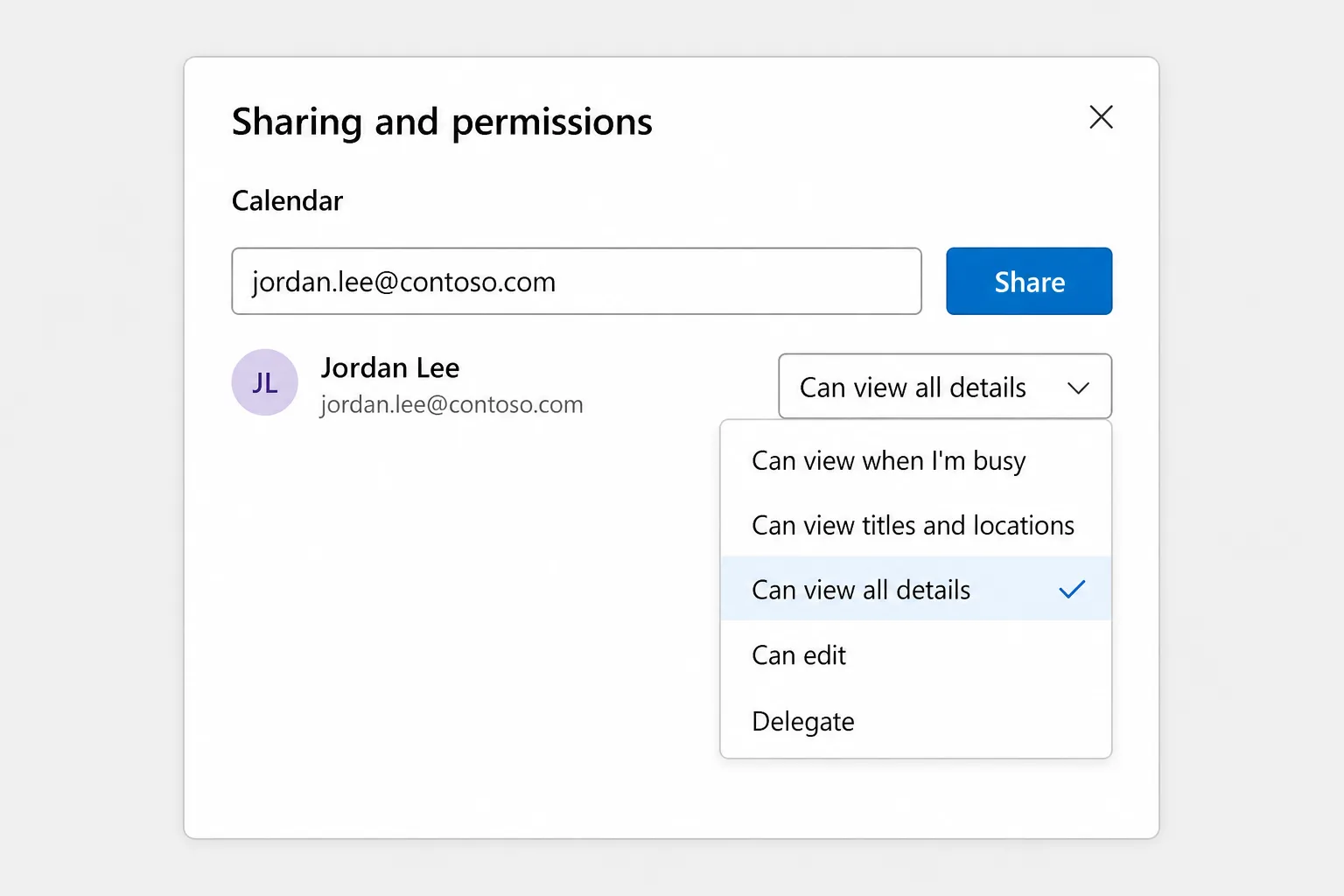
If you choose Delegate, extra options appear: Let delegate view private events, and under Delegates, a Send invitations and responses to setting where you choose Delegate only, Delegate and send me a copy, or Both my delegate and me. Delegate access only works on your main calendar; editors can be added to any calendar you own.
Personal Outlook.com accounts offer fewer levels: you can share view or edit access, but not delegate access.
Share your calendar in classic Outlook for Windows
- Open your Calendar.
- On the Home tab, select Share Calendar and pick the calendar from the list. (In the full ribbon, Calendar Permissions in the same group opens the same window.)
- In Calendar Properties, on the Permissions tab, select Add.
- Search your address book or type an email address, select Add, then OK in the Add Users dialog.
- Select the person in the list and choose how much they can see. Current Microsoft 365 versions use the same levels as new Outlook; older versions show options such as Reviewer or Editor.
- Select OK. The person gets an email invitation to accept.
To give someone delegate access in classic Outlook, use File → Account Settings → Delegate Access → Add instead. By default a delegate gets Editor permission on your calendar.
Share your calendar in Outlook for Mac
Both you and the other person need a Microsoft 365 or Exchange work or school account.
- Select the calendar icon in the sidebar.
- Control-click the calendar you want to share (or use the … menu next to it) and choose Sharing Permissions.
- In Calendar Properties, click the + button.
- Search for the person, choose their permission level, and click Add.
In legacy Outlook for Mac, the same window is under Organize → Calendar Permissions. One thing to know if your colleague uses a Mac: they need at least Reviewer-level access (equivalent to viewing all details) to open your calendar. Free/busy access only shows up when they schedule a meeting with you.
Share from your phone
In Outlook for iPhone or Android, open Calendar, tap the calendar icon or menu at the top left, then tap the gear icon next to the calendar you want to share. From there you can add people and set what each one can see or edit. Sharing works with Microsoft 365, Exchange and Outlook.com accounts, not with Gmail or iCloud accounts added to the app.
How the other person accepts and opens your calendar
- Inside your organization: they open the invitation email and select Accept. Your calendar is added to their calendar list. In classic Outlook it appears under Shared Calendars, where they can right-click it and choose Overlay to see it on top of their own.
- Without waiting for an invite: colleagues with a work or school account can add your calendar themselves in new Outlook with Add calendar → Add from directory, as long as you've given them access.
- Outlook.com users get an email with an Accept and view calendar button.
- On a phone: if the email has an Accept button, tap it. If it only has a link, the link opens Outlook on the web to finish accepting.
Share your calendar with Gmail and Google Calendar users
You have two options.
Send a sharing invitation to their address. To accept it, they need a Microsoft 365 or Outlook.com account, so this is often a dead end for Gmail users.
Publish a link they can subscribe to. This is the reliable route:
- In new Outlook or Outlook on the web, go to Settings → Calendar → Shared calendars (in new Outlook you can also open it from View → Calendar settings).
- Under Publish a calendar, choose the calendar and how much detail to include, for example Can view all details, or Can view titles and locations for less.
- Select Publish. An HTML link and an ICS link appear.
- Send the ICS link to the person.
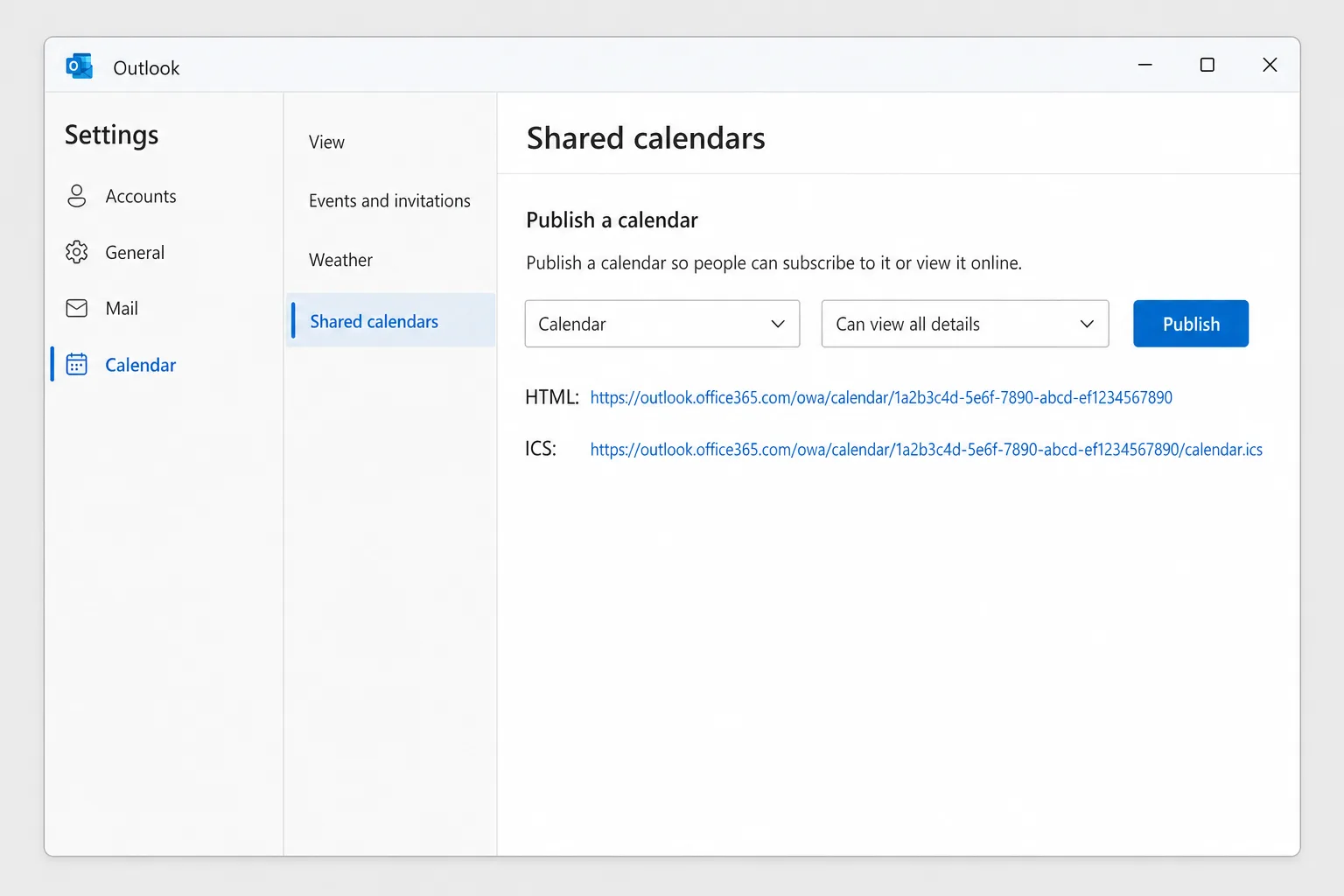
In Google Calendar on a computer, they click the + next to Other calendars, choose From URL, paste the ICS link and click Add calendar. (Subscribing by URL isn't available in the Google Calendar phone apps, but once added, the calendar shows on their phone too.)
The HTML link opens your calendar in any browser. Both links are read-only, but anyone who has them can see your calendar, so share them carefully. Google refreshes subscribed calendars on its own schedule, so new events can take hours to appear. To revoke the links, select Unpublish.
If there's no Publish a calendar section, your admin has probably turned publishing off.
Change permissions or stop sharing
- New Outlook and Outlook on the web: right-click the calendar, choose Sharing and permissions (or go to Home → Share calendar), then change the level in the drop-down or select the remove icon next to the person.
- Classic Outlook: Folder → Calendar Properties → Permissions, select the person, then change their level or select Remove and OK.
- Outlook for Mac: open Sharing Permissions, select the person, click the − button, then Done.
People outside your organization keep a copy of what they've already seen, but it stops updating. Removal can take a while to sync.
Why calendar sharing isn't working
The Share button is greyed out or missing. Usually your organization has a policy that blocks calendar sharing, or blocks it for external addresses. Your IT admin controls this. It's also missing if the calendar isn't yours (you can only share calendars you own) or if the account is an IMAP/POP account such as Gmail added to Outlook. Sharing needs a Microsoft 365, Exchange or Outlook.com account.
"This calendar can't be shared." Classic Outlook shows this when the address isn't valid, belongs to a Microsoft 365 group rather than a person, or belongs to someone outside your organization when external sharing isn't allowed. Check the address, or publish a link instead.
External people only see free/busy. Your admin's sharing policy sets the maximum detail for outside domains. Choosing Can view all details in Outlook won't override it.
The other person can't see your calendar. Check they actually accepted the invitation (it sometimes lands in Junk), and that they're opening it with the account you shared to. Mac users need at least Reviewer-level access. On mobile, shared calendars may need to be turned on in the calendar list before they show up.
Events are missing or out of date. Shared calendars usually sync quickly, but ICS subscriptions refresh on the recipient app's schedule, and delays of hours are normal in Google Calendar.
Frequently Asked Questions
How do I share my Outlook calendar without showing details? Choose Can view when I'm busy. The other person sees blocks of busy time with no titles, locations or attendees. For a single sensitive event, mark it Private instead.
Can I share my Outlook calendar with someone who doesn't use Outlook? Yes. Publish your calendar from Settings → Calendar → Shared calendars and send them the ICS link. It works in Google Calendar, Apple Calendar and most other calendar apps, read-only.
Can someone edit my Outlook calendar? Yes, if they're in your organization (or you both use Outlook.com) and you give them Can edit or Delegate. People outside your organization can only view.
What's the difference between sharing and publishing? Sharing sends an invitation to specific people and you can give edit access. Publishing creates a read-only link that anyone who has it can open, which is handy for people without Outlook.
Will people see my private appointments? No. Events marked Private show only as busy time, whatever level you've shared, unless you let a delegate view private events.
Spend less time on the scheduling back-and-forth
Sharing your calendar cuts down on "when are you free?" emails, but meeting threads still pile up: someone proposes Tuesday, someone else can only do Thursday, and three replies later nobody's sure what was agreed. CoreGPT for Outlook summarizes a long thread in a few lines, so you can see the decisions, open questions and next steps without rereading every message. It's free to start and works in new Outlook, classic Outlook and Outlook on the web.
 CoreGPT
Priya Shah
Re: Q4 launch timeline
Can we confirm the dates…
Marco Rossi
Contract renewal
Attached is the updated…
Support
Ticket #4821 resolved
Your request has been…
Emma Clark
Lunch on Thursday?
Are you free around…
Re: Q4 launch timeline
Priya Shah
Marketing needs final copy by Oct 28 if we keep the Nov 3 launch. Can engineering confirm the release candidate is on track?
Daniel Kim
RC is on track for Oct 30. QA needs two extra days for the payments flow, so Nov 3 is tight but possible.
Priya Shah
If QA slips, should we move the launch to Nov 5 instead?
Summary:
- Launch planned for Nov 3
- RC due Oct 30, QA needs 2 more days
- Option: move launch to Nov 5
Try it: CoreGPT for Outlook
Related reading: