
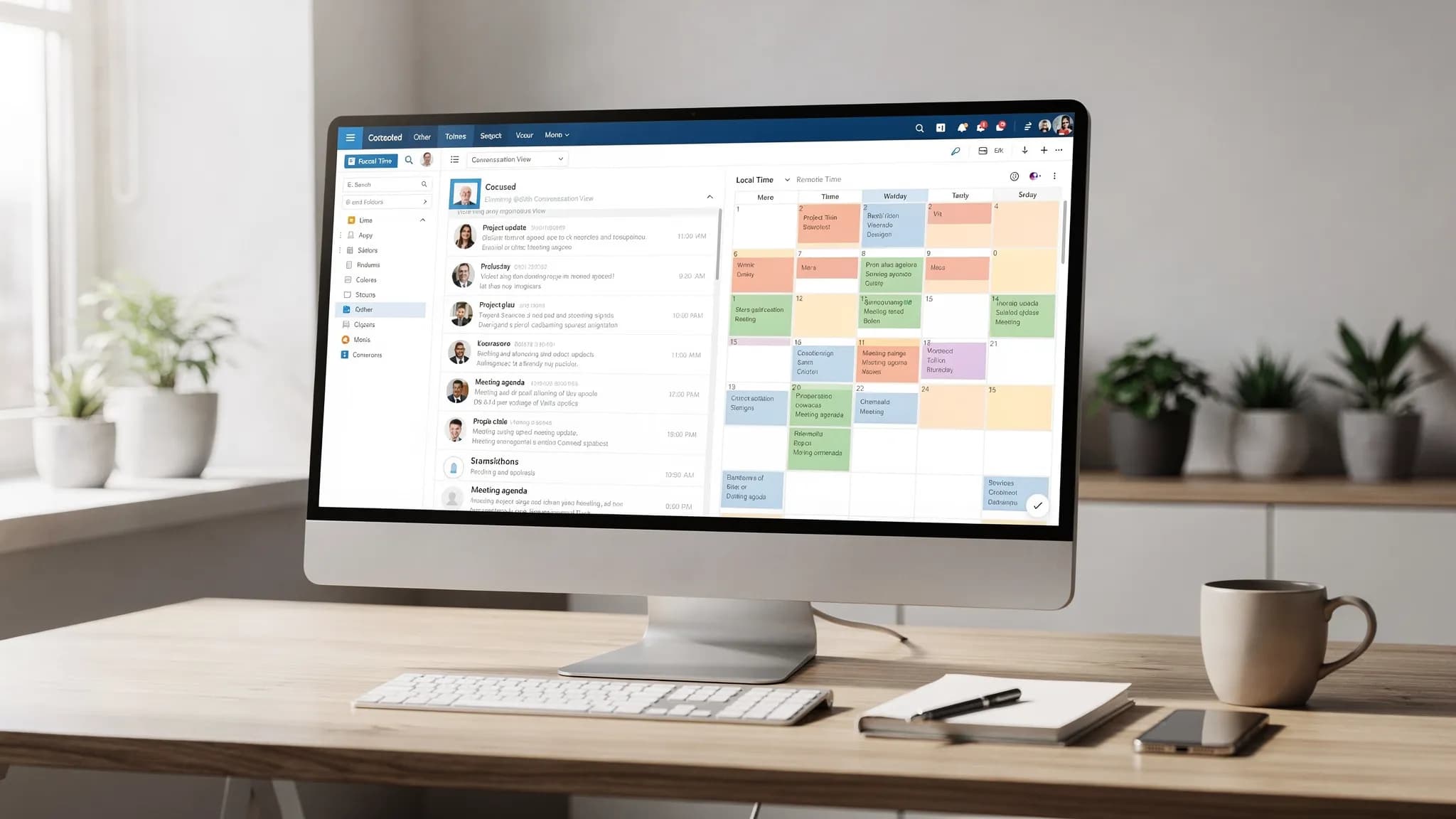
An overloaded inbox and a cluttered calendar create the same problem, you can't trust what deserves attention next. The good news is that a handful of Microsoft Outlook 365 settings can dramatically reduce noise, prevent missed meetings, and make follow-ups easier to manage.
This guide focuses on settings (not complex rule-building) for both Email and Calendar, with notes for Classic Outlook (Windows), the new Outlook, Outlook on the web, and mobile where it matters.
What "best settings" means (and what it doesn't)
The "best" Outlook setup is the one that supports two outcomes:
- Fast triage: you can scan, decide, and move on.
- Reliable commitments: meetings show up correctly (time zones, reminders, buffers) and tasks don't vanish.
This article avoids deep dives into Rules, Search operators, and Quick Steps, since those deserve their own checklist. If you want that next, use this companion guide: Outlook Rules, Search, and Quick Steps: Complete Checklist.
Microsoft Outlook 365 email: best settings (the high impact defaults)
1) Turn on Focused Inbox (most people should)
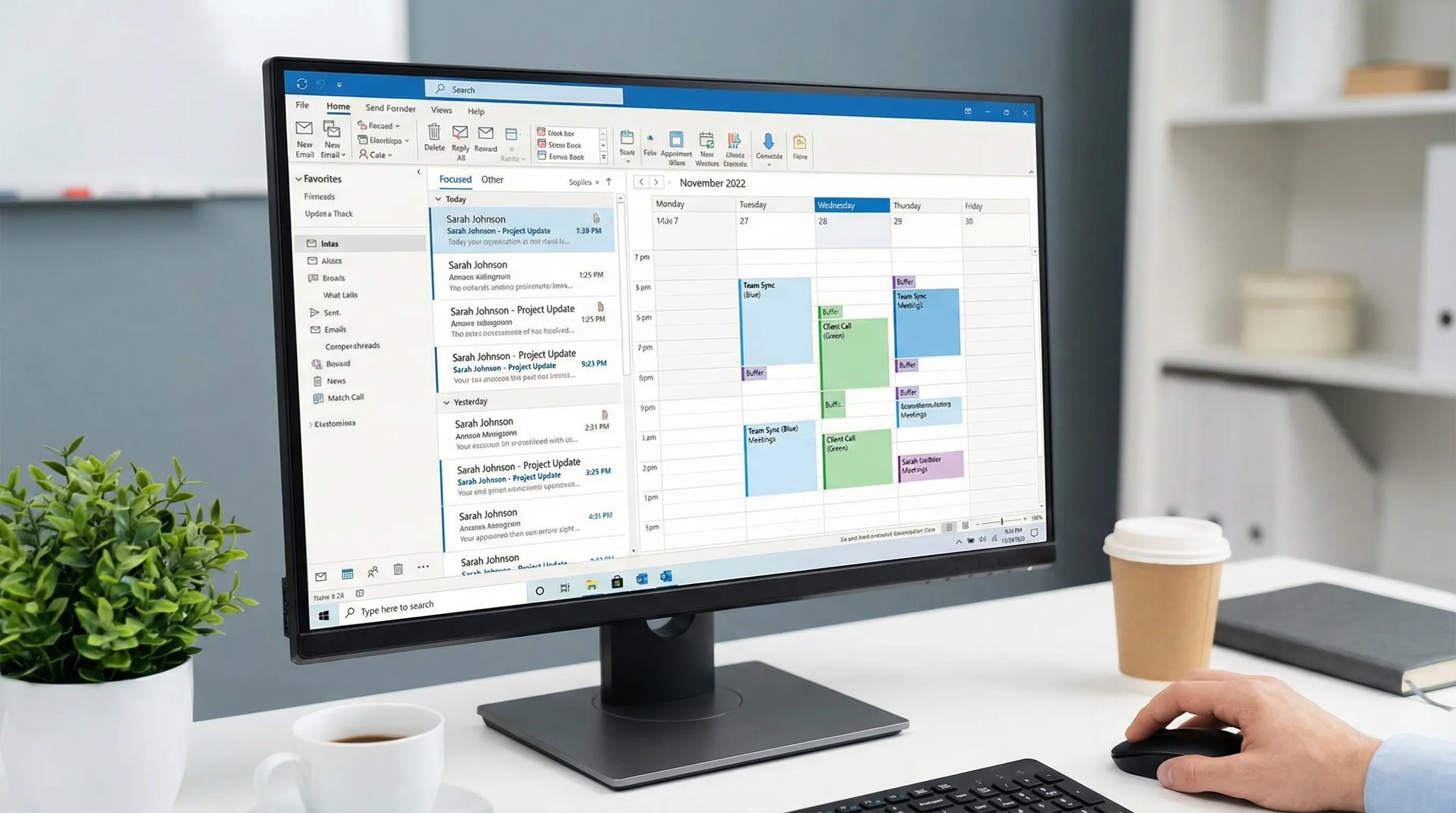
Focused Inbox separates likely important mail from the rest so your first scan is shorter.
- Use Focused for human conversations and time-sensitive threads.
- Use Other for newsletters, automated notifications, and receipts.
Microsoft's overview: Focused Inbox for Outlook.
When to turn it off: If you work in a shared mailbox-heavy role (support, operations) and everything is "important," Focused can hide items you need to see immediately.
2) Use Conversation View (but control how it behaves)
Conversation View groups replies, forwards, and branching threads. That saves time, especially when a thread goes long.
Recommended options (wording varies by Outlook version):
- Conversation View: On
- Show messages from other folders: On (so Sent items appear in the thread)
- Newest messages on top: On (most people triage top-down)
If you dislike threading, you can keep it off, but then commit to a stronger subject line habit.
3) Put the Reading Pane on the right
The right-side Reading Pane makes scanning and replying faster on widescreen monitors and reduces the "open email, go back" loop.
- Reading Pane: Right
- Mark as read: consider delaying (for example, mark after a few seconds) so you can skim without "closing the loop" accidentally.
4) Reduce visual noise in the message list
A calm message list improves decision speed.
Recommended:
- Preview text (1 line) instead of 2 to keep the list dense.
- Turn off unnecessary columns (like Size) and keep the ones you actually act on.
- Sort by Received for most roles, but consider Sort by Flag Due Date if you primarily manage follow-ups.
5) Keep notifications conservative (especially banners)
Notifications are a setting, not a personality trait. Too many alerts fragment your attention.
A balanced setup:
- Disable most new mail desktop alerts (banners and sounds)
- Keep badge counts (unread) so you can check intentionally
- Keep calendar reminders on (those are time-bound commitments)
6) Make "From" and "Categories" visible (then actually use them)
Two settings-supported habits make Outlook feel dramatically more organized:
- Ensure the message list clearly shows From (triage is usually sender-based).
- Use Categories as lightweight labels (Project A, Customer X, Finance, Hiring).
Categories work well across both email and calendar because the same colors help you understand your day at a glance.
7) Keep external images off by default (privacy and noise reduction)
If your Outlook version offers it, don't auto-download external images in email. This reduces tracking pixels and visual clutter, and you can download images per message when needed.
Email settings checklist (recommended defaults)
| Area | Recommended setting | Why it helps |
|---|---|---|
| Triage | Focused Inbox: On (most roles) | Shorter first scan, less distraction |
| Threads | Conversation View: On | Keeps context together |
| Sent context | Show messages from other folders: On | You see your own replies in the thread |
| Layout | Reading Pane: Right | Faster scan/reply loop |
| Read behavior | Mark as read: delayed or on selection | Prevents accidental "read" state |
| Attention | Desktop alerts: Off or minimal | Fewer interruptions |
| Organization | Categories: Visible and used | Shared structure across email and calendar |
| Privacy | Auto-download external images: Off | Less tracking and clutter |
Microsoft Outlook 365 calendar: best settings (so your week is trustworthy)
Email overload is annoying. Calendar overload is expensive.
These settings are about preventing scheduling errors (time zones, reminders), reducing meeting sprawl (buffers), and making your day readable.
1) Set your work hours, work days, and location
Work hours power scheduling suggestions, free/busy visibility, and some org-level insights.
- Confirm Time zone is correct
- Set Work days (for example, Mon to Fri)
- Set Working hours (realistically, not aspirationally)
Microsoft guide: Set your work hours and location.
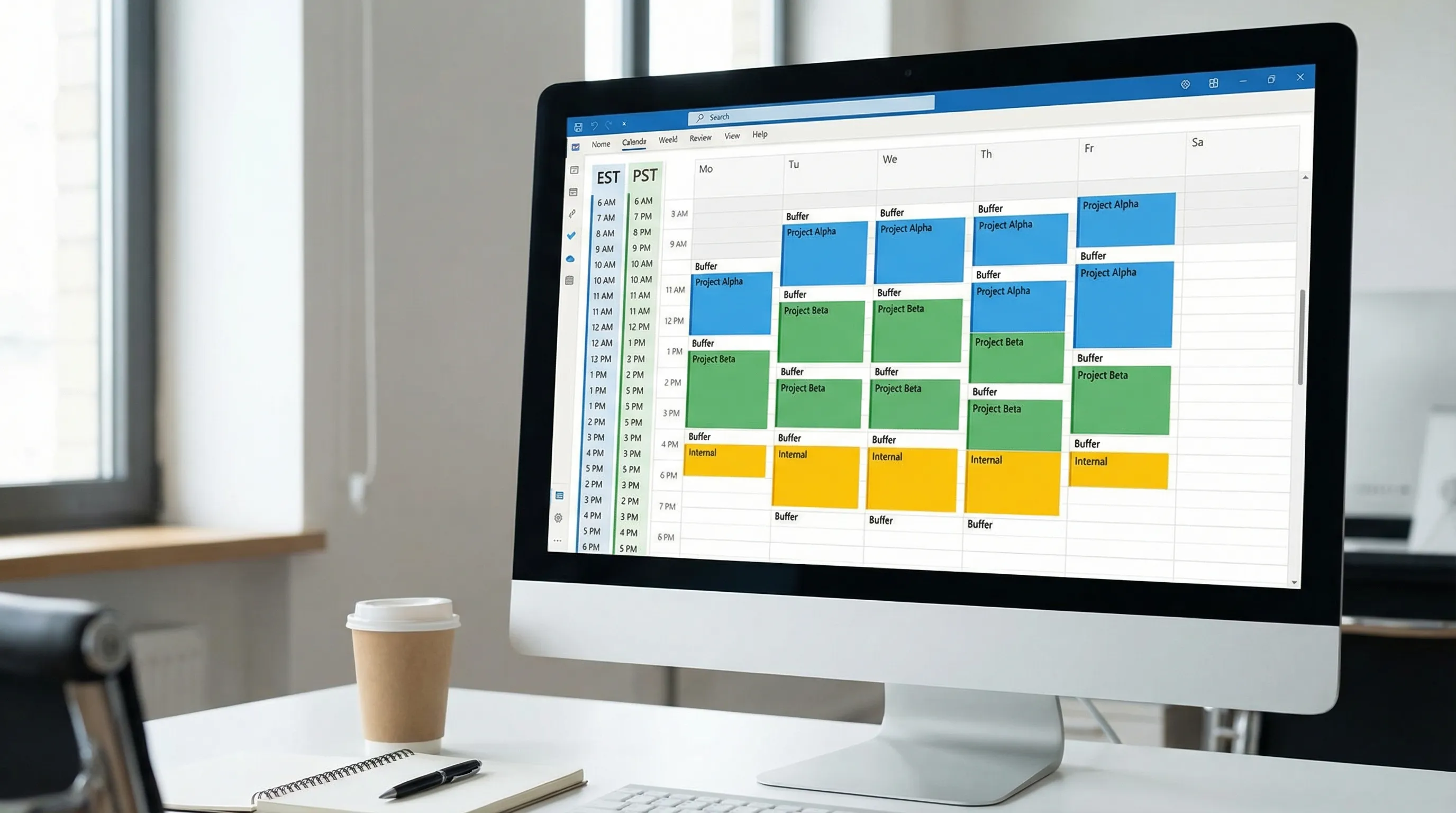
2) Add a second time zone (if you work across regions)
If you frequently schedule with other regions, showing a second time zone can prevent subtle mistakes.
- Add your most common counterpart time zone
- Use it consistently (don't mentally convert every invite)
Microsoft guide: Add time zones in Outlook.
3) Shorten meetings by default (build buffer time automatically)
If your Outlook version supports it, enable the setting that ends meetings a few minutes early. A common pattern is:
- 30-minute meetings end 5 minutes early
- 60-minute meetings end 10 minutes early
This creates natural buffer time for notes, context switching, and being on time.
Microsoft guide: Shorten meetings by default.
4) Choose a calendar view you will actually use daily
Most people do best with one of these defaults:
- Work Week view for execution-heavy schedules
- Week view if you juggle many time blocks
Then:
- Turn on Week numbers if your company plans by week (W14, W15, etc.)
- Keep multiple calendars overlay available if you manage a shared team calendar
5) Make reminders consistent
A good baseline:
- Default reminder: 10 to 15 minutes for standard meetings
- All-day events: consider a longer reminder (or none), depending on your workflow
If you miss meetings because you snooze, you don't need more reminders. You need fewer meetings, more buffers, and a cleaner day view.
6) Control automatic processing (so your calendar stays clean)
Depending on your Outlook and Exchange settings, you may have options such as automatically adding events to your calendar or processing meeting responses.
Recommended principle:
- If your calendar is your "source of truth," avoid settings that add tentative noise automatically.
- If you receive high volumes of invites, ensure declines don't keep clogging the view.
Calendar settings checklist (recommended defaults)
| Area | Recommended setting | Why it helps |
|---|---|---|
| Scheduling | Work hours/days set correctly | Better availability suggestions |
| Time safety | Second time zone (if cross-region) | Fewer scheduling errors |
| Buffers | End meetings early (if available) | Built-in time for notes and transitions |
| View | Work Week or Week as default | You actually use it |
| Readability | Categories on calendar events | Day becomes scannable |
| Reminders | Default 10 to 15 minutes | Consistent, not excessive |
| Cleanliness | Avoid auto-adding low-signal events | Less calendar clutter |
Recommended setups by work style (quick guidance)
If you are an individual contributor managing deep work
Prioritize focus and fewer interruptions:
- Focused Inbox on
- Desktop mail notifications off
- Conversation View on
- Calendar buffers enabled (end early)
- Categories to separate "maker time" blocks from meetings
If you are in sales, recruiting, or customer-facing roles
Prioritize responsiveness and follow-up clarity:
- Focused Inbox on, but train it by moving misfiled mail between Focused and Other
- Conversation View on with Sent included
- A consistent follow-up habit (Flags and Categories)
- Default reminders at 10 minutes, plus buffers to avoid being late to calls
If you manage projects across time zones
Prioritize time correctness and predictable scheduling:
- Second time zone on
- Week view on weekdays (or Work Week)
- Categories for projects
- Keep reminders consistent, avoid stacking last-minute reminders
Common Outlook 365 setting mistakes (and how to fix them)
"I miss emails because Outlook marks them as read too fast"
Fix: adjust the Reading Pane behavior so messages are marked as read only after a delay, or when selection changes. This prevents accidental "read" status while you skim.
"My calendar is full of junk, tentative holds, and FYIs"
Fix: reduce automatic calendar additions when possible, and standardize categories so true commitments stand out.
"I keep scheduling the wrong time with international teammates"
Fix: add a second time zone and stop converting times mentally. Also include the time zone explicitly when proposing times.
"Email triage still takes forever"
Settings help, but after that you need workflow.
If you want a pragmatic system for automation and finding anything fast, pair this article with: Outlook Rules, Search, and Quick Steps: Complete Checklist.
A practical upgrade: use AI inside Outlook (without leaving your inbox)
Once your settings reduce noise, AI can reduce the time spent on what remains, especially drafting, summarizing, and turning messages into next actions.
CoreGPT Apps brings GPT-powered tools directly into Microsoft Outlook 365, Word, and Excel, plus Google Workspace apps like Google Docs, Google Sheets, Google Slides, and Google Forms. It's designed to work out of the box, and CoreGPT emphasizes a privacy-focused approach with no registration required.
Where this helps day-to-day:
- In Outlook: summarize long threads, draft a reply in your tone, extract action items, and create a clear follow-up message after a meeting.
- In Word: turn messy notes into a clean memo or proposal draft (see: How to Use ChatGPT in Microsoft Word: A Complete Guide).
- In Excel: debug formulas, clean exports, classify rows, and summarize datasets (see: How to Use ChatGPT in Excel: A Complete Guide).
- In Google Docs/Sheets/Slides/Forms: apply the same "in-context" workflow patterns across your team's existing Google Workspace files (see: Google Workspace AI: Real-World Workflows for Busy Teams).
If you want to explore the add-ins, start here: CoreGPT Apps.
The "set it once" Outlook 365 tune-up (15 minutes)
If you only do one thing after reading, do this:
- Turn on Focused Inbox (unless your role requires a single flat queue).
- Enable Conversation View and show messages from other folders.
- Set Reading Pane to the right and adjust mark-as-read behavior.
- Set work hours, add a second time zone if needed, and enable meeting buffers (end early) if available.
- Make Categories visible and use the same category names for email and calendar.
Those are low-effort settings with long-term payoff, and they make every other productivity tactic (rules, templates, AI drafting) work better.