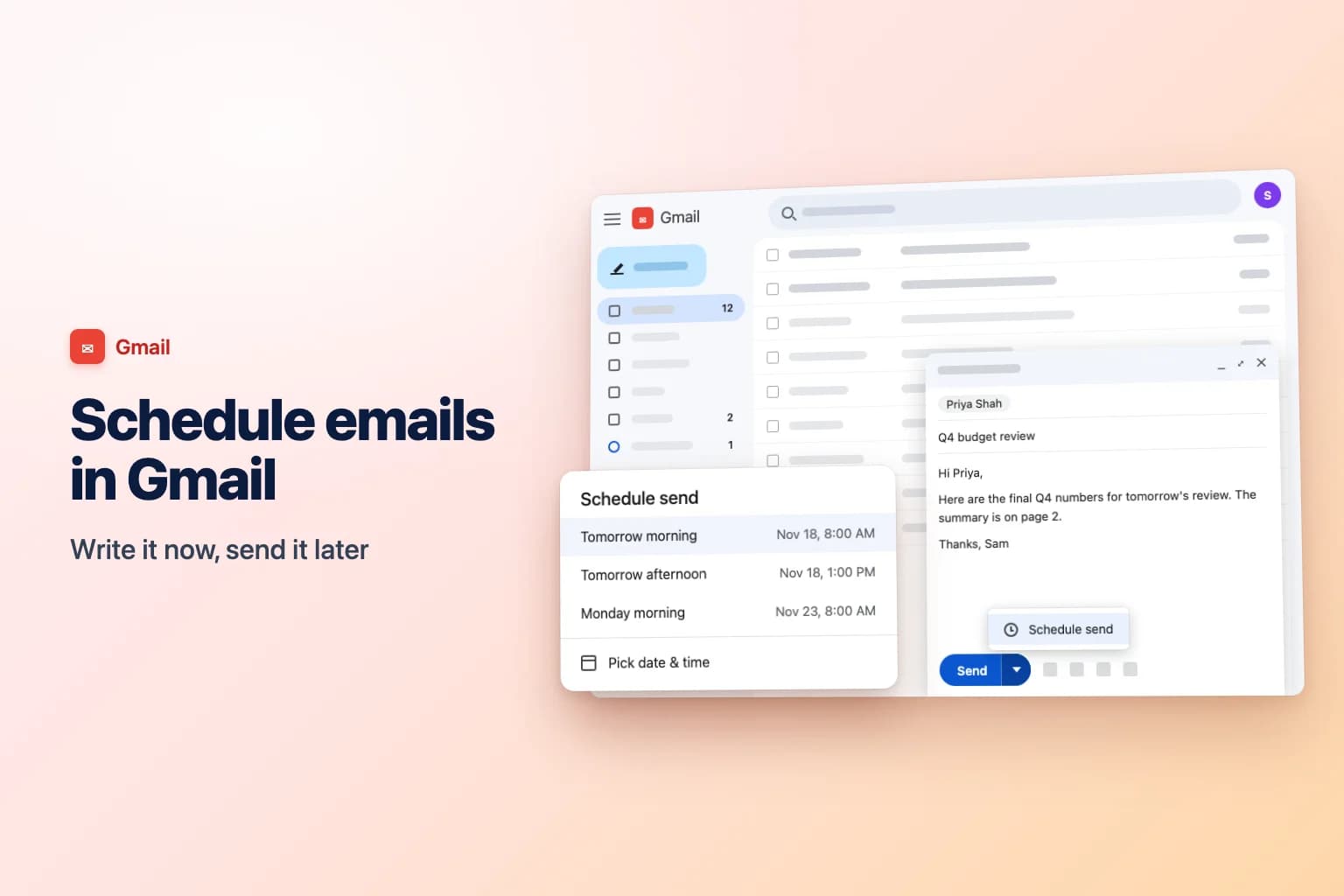
To schedule an email in Gmail, write your message, click the down arrow next to Send → Schedule send, and pick a suggested time or Pick date & time. In the Gmail app on iPhone or Android, tap More (the three dots at the top right) → Schedule send instead. The email then waits in the Scheduled folder until it goes out.
Google's servers do the sending, so you can close the tab, shut your laptop or put your phone away. The main catch: once you cancel a scheduled email to edit it, it turns back into a draft and won't send until you schedule it again.
| Where you're using Gmail | How to schedule | Where it waits | To edit or cancel |
|---|---|---|---|
| Gmail on a computer (any browser) | Arrow next to Send → Schedule send | Scheduled in the left menu | Open it, click Cancel send |
| Gmail app for Android | More (three dots) → Schedule send | Menu → Scheduled | Open it, tap Cancel send |
| Gmail app for iPhone and iPad | More (three dots) → Schedule send | Menu → Scheduled | Open it, tap Cancel send |
| Google Workspace (work or school) | Same as above | Same as above | Same as above |
Schedule an email in Gmail on a computer
These steps work in any browser, on Windows, Mac or Chromebook:
- Go to Gmail and click Compose at the top left. You can also schedule a reply or a forward.
- Write your email and add at least one recipient.
- At the bottom of the message, click the down arrow next to Send (not the Send button itself).
- Click Schedule send.
- Choose one of the suggested times, such as Tomorrow morning, Tomorrow afternoon or Monday morning, or click Pick date & time to set your own.
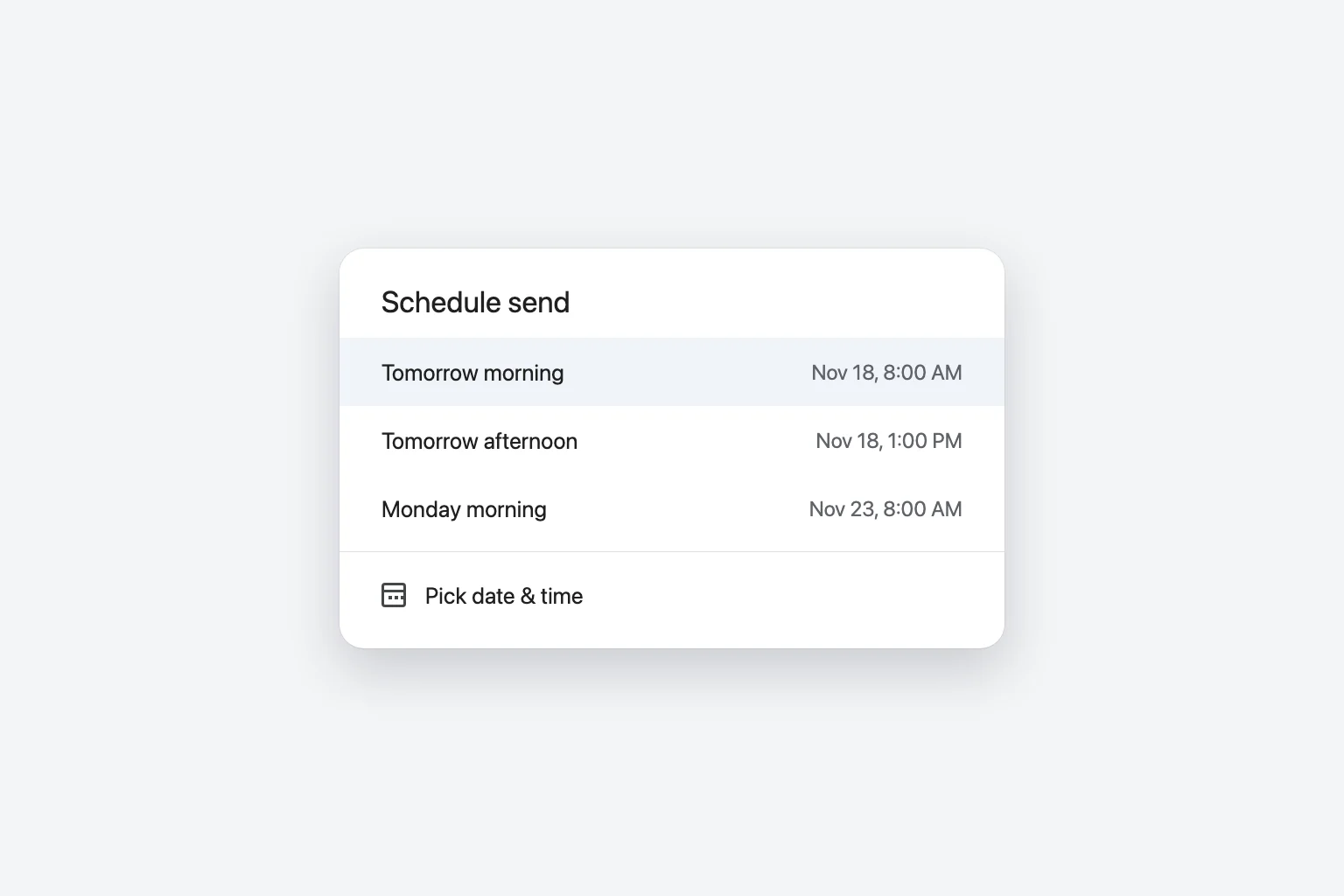
The suggestions change with the day you're scheduling on. If you've scheduled an email before, Gmail may also offer your last scheduled time, which is handy when you send a batch of messages for the same moment.
Pick your own date and time
- In the Schedule send dialog, click Pick date & time.
- Click a day in the calendar, or type a date into the date box.
- Type a time into the time box, for example
9:30 AM. You aren't limited to the times on the hour. - Click Schedule send.
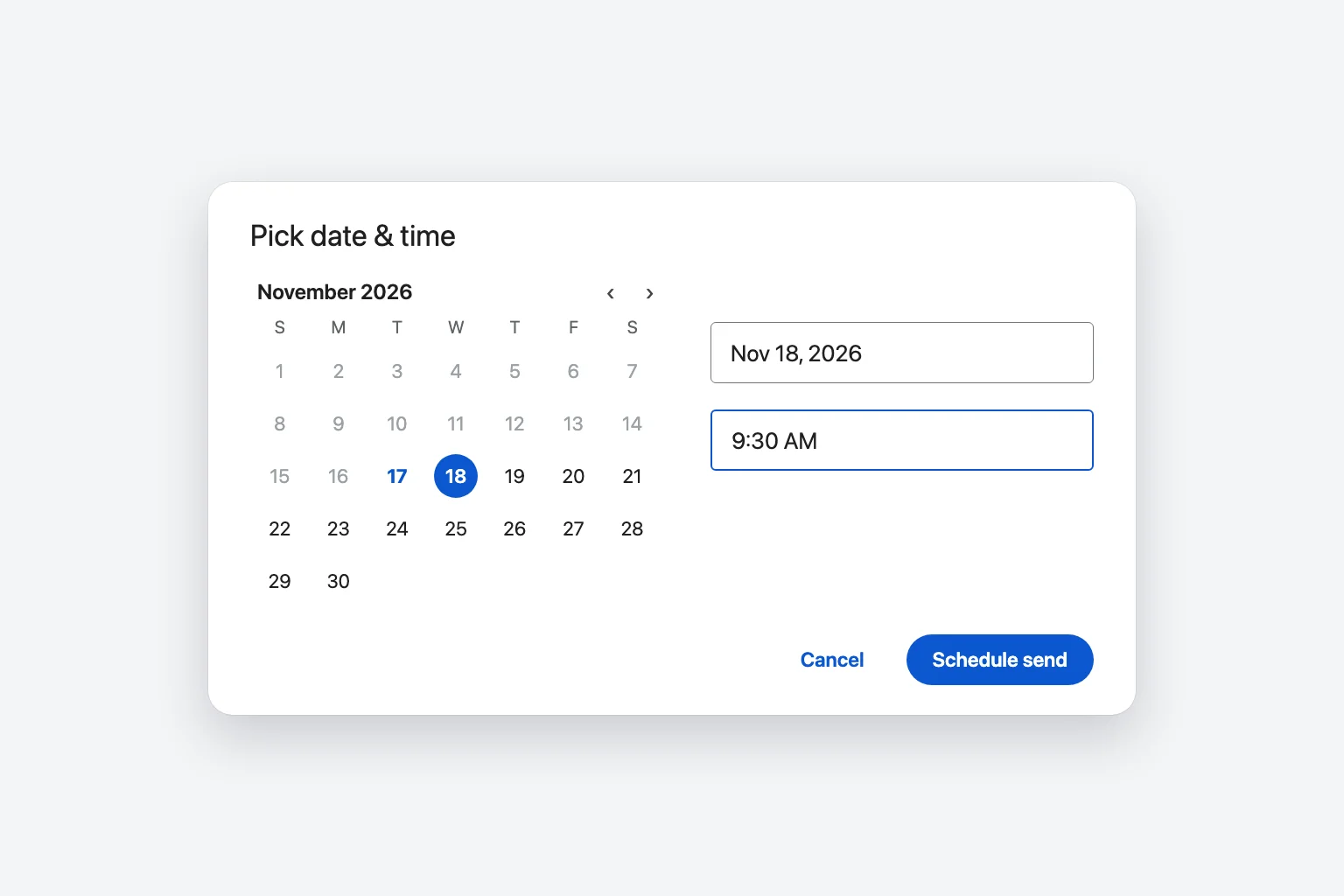
The compose window closes and a short confirmation appears at the bottom left with an Undo option. Click Undo within a few seconds if you picked the wrong time; the message reopens as a draft.
Find, edit or cancel a scheduled email on a computer
Every email waiting to go out sits in the Scheduled folder in Gmail's left menu (click More under your labels if you don't see it). Scheduled emails don't appear in Drafts or Sent until something changes.
To change the time or edit the text:
- Click Scheduled in the left menu and open the email.
- Click Cancel send. The email turns back into a draft and opens for editing.
- Make your changes to the text, recipients or attachments.
- Click the down arrow next to Send → Schedule send and choose the new time. Or click Send to send it right now.
To cancel it completely, open it from Scheduled, click Cancel send, then discard the draft (the trash can icon at the bottom of the compose window). If you'd rather keep it for later, just close the draft; it stays in Drafts.
Step 4 is the one people miss. After Cancel send, the email is an ordinary draft, and closing it without scheduling it again means it never goes out.
You can also select several emails in the Scheduled folder with the checkboxes. Deleting them from there cancels them for good.
Schedule an email in the Gmail app on iPhone, iPad or Android
The Gmail app works the same way on Android and iOS:
- Open the Gmail app and tap Compose at the bottom right.
- Write your email and add a recipient.
- Tap More (the three dots) at the top right.
- Tap Schedule send.
- Choose a suggested time, or tap Pick date & time, set the date and time, and confirm.
To change or cancel it on your phone:
- Tap Menu (the three lines at the top left), then Scheduled.
- Open the email and tap Cancel send. It becomes a draft.
- To reschedule, open the draft, make your changes, tap More → Schedule send, and pick a new time.
If Schedule send is missing from the three-dot menu, update the Gmail app from the App Store or Google Play. And note that this only works in the Gmail app itself. If your Gmail account is added to the iPhone Mail app, Outlook or another email app, Gmail's Schedule send isn't available there; those apps have their own send-later features (if any), which work differently.
Emails you schedule on your phone show up in the Scheduled folder on your computer too, and the other way around, so you can schedule on one device and edit on another.
Google Workspace work and school accounts
If your company or school uses Google Workspace, Schedule send works exactly as described above, in the browser and in the Gmail app. The Scheduled folder, the 100-email limit and the Cancel send button are all the same.
Gmail schedule send limits
- Up to 100 scheduled emails at a time. That's Google's documented limit. Once one is sent or cancelled, the slot frees up.
- No published maximum on how far ahead. Google's help page doesn't state one. The date picker accepts dates many years in the future (commonly reported as up to 49 years), so for any normal use you won't hit a limit.
- It can be a few minutes late. Google notes that scheduled emails may go out a few minutes after the time you chose. Don't rely on exact-to-the-minute delivery.
- One email, one send. There's no option to repeat a scheduled email every week or month. See the FAQ below for workarounds.
Time zones: when will your email actually arrive?
Gmail sends the email based on the time zone you scheduled it in. In practice, that's the time zone your computer or phone is set to when you schedule it, not your recipient's.
So if you're in Chicago and want an email to land at 9:00 AM in New York, schedule it for 8:00 AM your time. For London, that's 3:00 AM Chicago time for most of the year (the gap changes for a few weeks when the US and UK switch to daylight saving time on different dates).
Two things to check if times look wrong:
- Your device clock. If your laptop or phone is set to the wrong time zone, so are the suggested times. Fix it in your computer's or phone's date and time settings, then reload Gmail.
- Travel. If you schedule an email while abroad, it's set in the local time where you are, unless your device stayed on your home time zone. Open the email in Scheduled and look at the send time Gmail shows before you rely on it.
Why your scheduled email didn't send
When a scheduled message never arrived, it's almost always one of these:
- You cancelled it to edit and didn't reschedule. Look in Drafts. If it's there, open it and use Schedule send or Send again.
- You picked the wrong date or AM/PM. Open the email in Scheduled and check the time Gmail shows. It's easy to choose 8:00 PM instead of 8:00 AM in the picker.
- The time zone was different from what you expected. See the section above.
- You hit the 100-email limit. Send or cancel some scheduled emails, then schedule again.
- It went out, just a little late. Check Sent. Delivery can lag the scheduled time by a few minutes.
- The recipient's filters caught it. If it's in your Sent folder, Gmail delivered it. Ask the recipient to check their spam folder.
Frequently Asked Questions
Will a scheduled email send if my computer is off? Yes. Google's servers send it at the scheduled time, so your computer or phone can be off, offline or closed.
Where do scheduled emails go in Gmail? They wait in the Scheduled folder in the left menu (or Menu → Scheduled in the app). After they're sent, they move to Sent like any other email.
Can the recipient see that an email was scheduled? No. The email arrives with the time it was actually sent, the scheduled time, as its date. There's no label or note saying it was scheduled.
Can I schedule a recurring email in Gmail? Not with a built-in option. Schedule send handles one email at a time. You can schedule several copies for different dates (up to 100 at once), set a Google Calendar reminder to send it yourself, or use Google Apps Script if you're comfortable with a little code.
Can I unsend a scheduled email after it goes out? No. Gmail's Undo only appears for a few seconds right after you click Send or schedule the message. Until the scheduled time, though, you can still Cancel send from the Scheduled folder. For what's possible and what isn't, read how to unsend an email in Gmail.
How do I schedule an email in Outlook instead? Outlook has its own Schedule send, plus Delay Delivery in classic Outlook. Our guide on how to schedule an email in Outlook covers every version.
Catch up on the thread, then schedule the reply
Scheduling helps most when you reply to a long thread at a sensible hour instead of late at night. CoreGPT for Gmail sits next to your inbox and summarizes the thread you have open into a few key points, such as what was asked and by when, so you can write a clear reply and schedule it for the morning. It's free to start.
 InboxGmail
Invoice correction and billing change
Alex (Acme Inc.)
Our invoices for September show the wrong tax ID. Can you reissue them before Friday? Our finance team needs them for the audit.
You
Thanks Alex, checking with billing now.
Alex (Acme Inc.)
Also, can we switch to yearly billing from next month?
 CoreGPT AI
Summary
3 messages · Acme Inc.
Key points:
- Reissue Sept invoices with correct tax ID
- Needed before Friday for an audit
- Wants yearly billing from next month
Try it: CoreGPT for Gmail
Related reading: