

Most people don’t lose time in Google Sheets because they “don’t know Sheets.” They lose time because they leave the spreadsheet to get help, then come back and re-load context: which tab, which range, which logic, which exception.
This guide shows how to get help in Google Sheets fast, using built-in tools first, then escalating to teammates or AI, without turning a 30-second question into a 30-minute derail.
The key principle: keep context, reduce back-and-forth
When you’re stuck in Sheets, speed comes from two moves:
- Diagnose what kind of problem it is (formula logic, data quality, performance, permissions, collaboration).
- Ask for help with the minimum complete context so you get a usable answer on the first try.
A simple rule: if your question cannot be answered without “seeing the sheet,” then you need to provide a small, safe representation of it (example rows, headers, and the exact error).
A 60-second “help request” template that works
Before you open a help article or message a coworker, capture these four items:
- Goal: What are you trying to produce? (Example: “Return the most recent non-empty status per customer.”)
- Where: Tab name + range. (Example: “Raw!A:G, output in Summary!C2.”)
- Sample data: 5 to 10 rows with headers (sanitized if needed).
- Current attempt + error: Paste the formula and the error exactly (for example
#N/A,#REF!).
That “bundle” is also what makes AI assistance dramatically faster and safer.
Fast help that’s already inside Google Sheets
1) Use menu search instead of hunting
If you know what you want to do but not where it lives in the UI, use menu search.
- Windows/ChromeOS: press Alt + /
- macOS: press Option + /
Then type what you want, like “data validation,” “named ranges,” “split text,” or “pivot table.” This is often the quickest path when you’re interrupted mid-task.
2) Pull up keyboard shortcuts on demand
Instead of Googling “how to freeze rows,” open the built-in shortcuts list.
- Windows/ChromeOS: Ctrl + /
- macOS: Cmd + /
You can search the shortcut dialog, which is faster than scanning a long page. For the official reference, Google maintains a shortcuts list here: Google Sheets keyboard shortcuts.
3) Let formula autocomplete teach you
When you type = in a cell, Sheets suggests functions and argument patterns. Don’t ignore it, it often reveals:
- The correct function name (especially for newer functions)
- The expected argument order
- Which arguments are optional
Also, when you’re inside a function, Sheets shows an inline helper for arguments. This is the fastest way to confirm “What does this function expect?” without leaving the sheet.
If you need deeper docs with examples, the official directory is: Google Sheets function list.
4) Use error messages as a search query (but keep it specific)
Sheets errors are more actionable than they look. A quick translation:
| Error | Usually means | Quick fix to try first |
|---|---|---|
#N/A | Lookup did not find a match | Confirm key formats match (text vs number), trim spaces |
#REF! | A reference is invalid (deleted row/col, spilled array blocked) | Check for deleted columns, unblock spill range |
#VALUE! | Wrong type in an operation | Confirm dates are real dates, numbers are numbers |
#DIV/0! | Dividing by zero or blank | Wrap with IFERROR or check denominator |
#NAME? | Function or named range not recognized | Confirm spelling, locale separators, add-on functions |
When searching for help, include the function name and the error (example: “XLOOKUP #N/A Sheets” or “ARRAYFORMULA #REF spill blocked”). That narrows results dramatically.
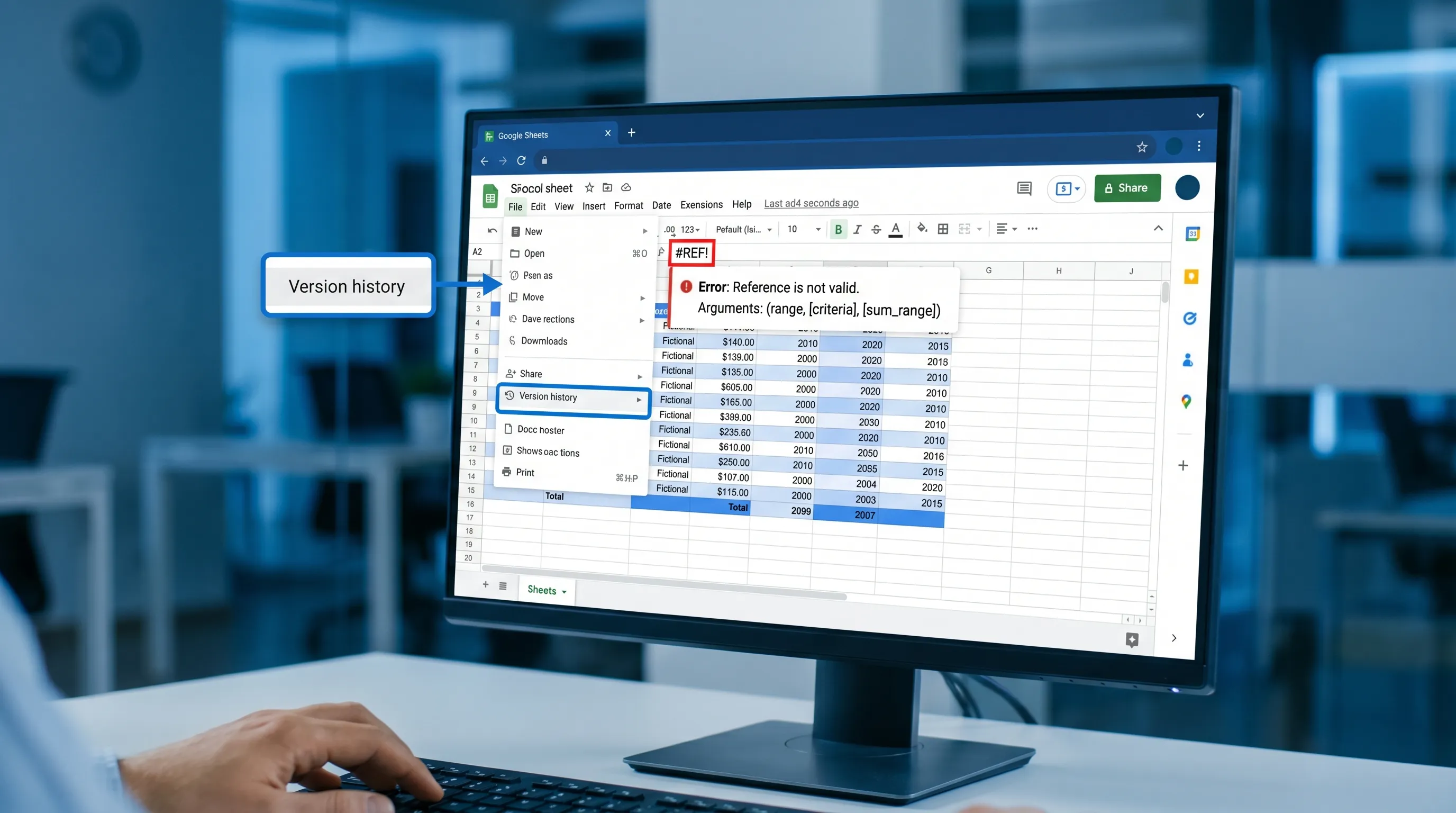
5) Use version history to unbreak work quickly
When something “mysteriously changed,” don’t debate it in chat. Check version history.
- Go to File → Version history → See version history
This is often the fastest path to:
- Identify what changed and when
- Restore a known-good version
- Copy a working formula back into place
Official reference: View version history in Google Docs/Sheets/Slides.
Don’t “fix formulas” first if the real issue is data quality
A common slowdown pattern is rewriting formulas that are correct, while the input data is inconsistent.
Before you refactor logic, run these quick checks:
- Hidden spaces: a lookup key that looks identical can fail because of leading or trailing spaces.
- Text vs number mismatch: IDs imported from CSV often become text.
- Dates that are text: especially from copy-paste or form exports.
- Inconsistent headers: one column named
Statusand another namedstatusin a combined range.
If you can’t explain why a formula “sometimes works,” it’s often a data consistency issue.
A quick triage playbook for the most common “help Google Sheets” problems
Use this table to choose the fastest place to get unstuck.
| Problem you see | Fastest first move | What to capture if you escalate | Common time-waster |
|---|---|---|---|
A lookup returns #N/A | Verify key formatting (trim spaces, confirm type) | Example of key values from both tables + formula | Rebuilding the whole lookup before checking types |
Array formula shows #REF! | Check if spill range is blocked by existing values | Screenshot-free: note the output cell and what’s in the spill area | Deleting random rows/cols hoping it clears |
| Sheet is slow | Identify heavy ranges, volatile formulas, full-column refs | What changed recently (new import, new formulas, added conditional formatting) | Copying everything into a new sheet immediately |
| Pivot table looks wrong | Confirm source range and whether headers are unique | Pivot config (rows/cols/values), source headers, sample rows | Tweaking formatting instead of verifying the source |
| Sharing is broken | Confirm access level and whether file is in a shared drive | Exact error message + who cannot access + link sharing settings | Sending screenshots without stating permission model |
| “I need to do X but don’t know where” | Use menu search (Alt/Option + /) | The outcome you want (not the steps you tried) | Clicking through every menu repeatedly |
How to ask a teammate for help without creating a meeting
The best Sheets collaboration help is asynchronous and precise.
Use comments anchored to the exact cell
Instead of “The totals are off,” add a comment on the output cell:
- What you expected
- What you got
- The input range it depends on
Anchoring keeps context and reduces follow-up questions.
Protect logic, not people
If a sheet breaks often, it’s usually because logic cells are editable.
Two lightweight patterns that prevent repeated “help me fix it” loops:
- Put raw inputs in one tab, computed outputs in another.
- Protect ranges that contain formulas so edits happen only where intended.
Use filter views so you stop overwriting each other’s filters
If multiple people analyze the same dataset, use filter views so your sorting and filtering does not affect others. This prevents a surprising amount of “Why did my view change?” chatter.
Getting help in Google Sheets with AI, without context switching
Built-in help is great for “where is the button” and “what does this function do.” AI can be faster for:
- Generating a formula from a plain-English goal
- Debugging why a formula fails on edge cases
- Proposing a cleanup plan for messy imports
- Turning analysis into a short narrative (for a status update or email)
The catch is accuracy. The fastest workflow is “AI draft, you verify.”
Use CoreGPT Apps to get in-sheet help without copying data into a separate chat
CoreGPT Apps brings GPT-powered assistance into Google Workspace, including GPT for Google Sheets, so you can ask for help while staying in the spreadsheet.
Because CoreGPT supports multiple model families (ChatGPT, Gemini, Claude) and is designed with a privacy-focused approach and no registration required, it fits well for teams that want faster help without adding yet another standalone tool to manage.
You can learn more or install it here: CoreGPT Apps.
If you want practical, repeatable ways to use AI across Docs, Sheets, Slides, and Forms, this companion guide is a good next read: Google Workspace AI workflows.
Prompt patterns that reduce wrong answers
Use prompts that force clarification and verification.
Formula builder prompt (safe and fast)
“Help me write a Google Sheets formula. Goal: [what the output should be] Inputs: columns and meaning: [A:..., B:...] Constraints: [must handle blanks, case-insensitive match, latest date wins] Output cell: [C2] Provide: (1) formula, (2) explanation, (3) 3 test cases with expected results.”
Debug prompt for errors
“My formula returns #N/A.
Formula: [paste]
Sample rows from lookup table: [paste]
Sample rows from source: [paste]
Assumptions: keys should match on [Customer ID]
Ask: identify the most likely mismatch and how to fix it.”
Cleanup workflow prompt
“I imported a CSV into Google Sheets. Problems: inconsistent dates, extra spaces, mixed number formats. Give me a step-by-step cleanup checklist I can apply in a ‘Clean’ tab, plus validation checks to confirm it worked.”
For more Sheets-specific AI examples (formulas, cleanup, analysis workflows), see: Google Sheets AI workflows.

FAQ
What’s the fastest way to get help in Google Sheets without leaving the file? Use menu search (Alt/Option + /), the shortcuts dialog (Ctrl/Cmd + /), inline function hints, and version history. For more complex tasks, use an in-app assistant so you can ask questions without context switching.
How do I quickly find where a Google Sheets feature is located? Press Alt + / (Windows/ChromeOS) or Option + / (Mac) to search the menus, then type the feature name, like “pivot table” or “data validation.”
Why does my lookup return #N/A even when the values look the same? Usually the key formats differ: hidden spaces, text vs number, or inconsistent casing. Trim spaces and confirm both sides are the same type before rewriting the formula.
How can I get AI help with formulas in Google Sheets safely? Share minimal sample data, include your exact goal and constraints, and ask for test cases with expected results. Then verify on a small range before applying to the full sheet.
What should I do if someone broke a working spreadsheet? Check File → Version history → See version history to identify changes and restore a previous version or copy back a known-good formula.
Get faster help inside Google Sheets with CoreGPT Apps
If you regularly need help Google Sheets tasks like formulas, cleanup, or analysis, the biggest speed gain comes from keeping assistance inside the tool you’re already using.
CoreGPT Apps brings GPT-powered help directly into Google Workspace, including Google Sheets, so you can draft formulas, troubleshoot errors, and document steps without bouncing between tabs.
Explore CoreGPT here: https://coregptapps.com