
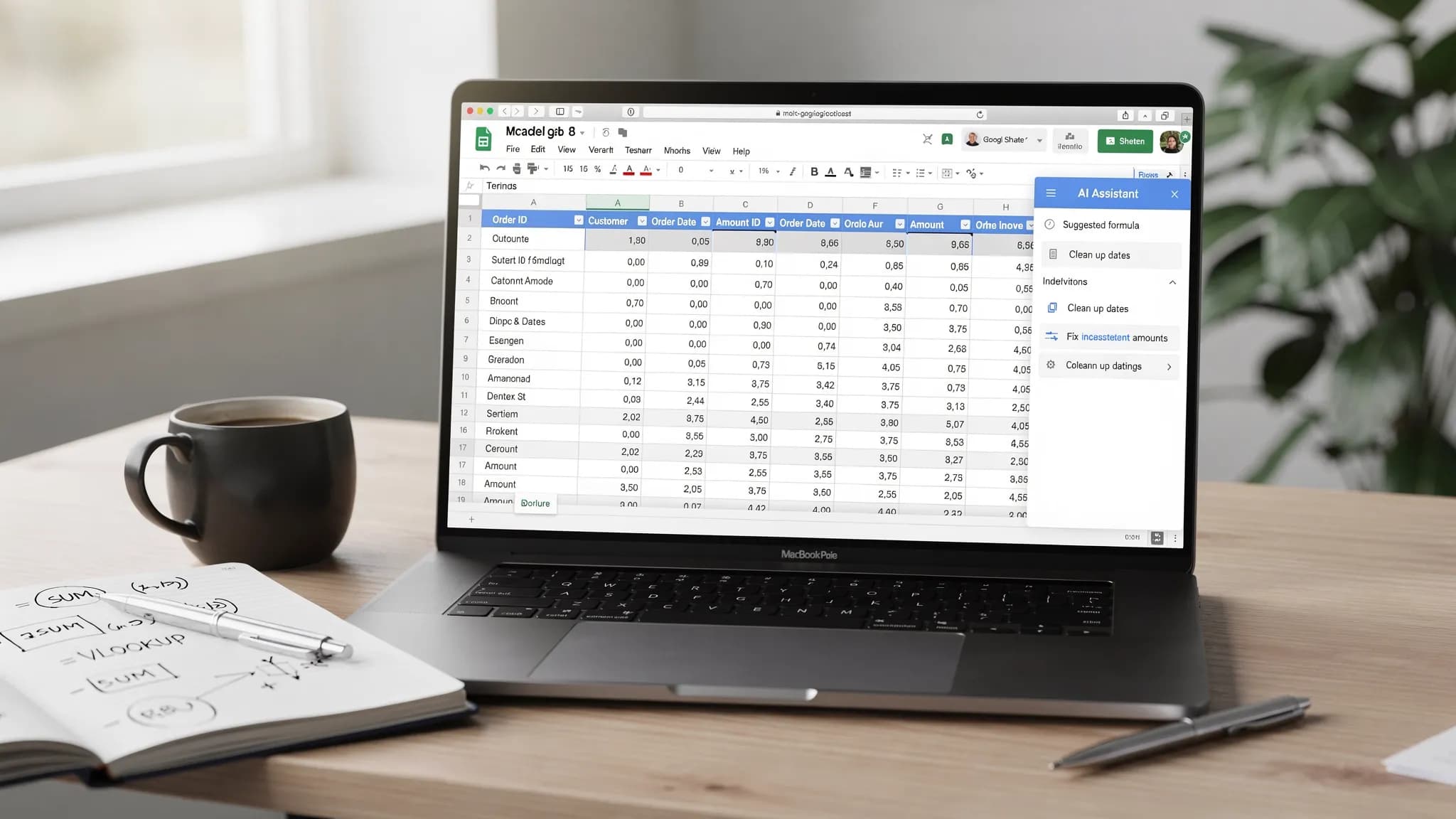
Spreadsheets are where work goes to become real, numbers turn into decisions, messy exports become reports, and “quick questions” become hours of formula debugging. Google Sheets AI changes that workflow: instead of hunting through function docs and trial-and-error, you can describe what you want in plain English, then validate and refine the output like an analyst.
This guide focuses on three practical areas where AI consistently saves time in Google Sheets:
- Formulas (write, fix, explain, and optimize)
- Cleanup (normalize messy columns, dates, names, IDs, and duplicates)
- Analysis workflows (cohorts, pivots, summaries, charts, and decision-ready insights)
Along the way, you’ll get ready-to-copy prompts and Sheets-native patterns so you can keep your work reproducible and auditable.
How to think about Google Sheets AI (so it actually helps)
AI is best treated as a fast “first draft” generator for spreadsheet logic. The winning approach is:
- Ask for an output you can verify (a formula, a set of steps, a pivot configuration, a validation rule)
- Provide context (sample rows, column headers, desired output examples)
- Validate in Sheets (spot-check results, test edge cases, and wrap with
IFERROR)
If you use an AI assistant inside your productivity suite, the experience is even smoother because you can work in the same place you build the spreadsheet.
CoreGPT Apps, for example, brings GPT-powered tools into Google Workspace so you can use models like ChatGPT, Gemini, and Claude while working in your documents and spreadsheets, with a privacy-focused design and no registration required. (If you evaluate any AI tool, prioritize privacy controls and organizational policies for sensitive data.)
AI for Google Sheets formulas: from “what do I want?” to a working expression
Most formula problems are not about knowing a function, they are about translating intent into a precise rule. AI helps you bridge that gap quickly.
1) Generate formulas from natural language, with guardrails
When you ask AI for a formula, include:
- Sheet name (optional)
- Column letters and headers
- A sample input row
- The exact desired output
Prompt template (formula generation)
“Write a Google Sheets formula for cell E2. Columns: A=Order ID, B=Customer, C=Order Date, D=Amount. In E, return High if Amount >= 500, Medium if 200-499.99, else Low. Handle blanks.”
A typical result would be:
=IF(D2="","",IF(D2>=500,"High",IF(D2>=200,"Medium","Low")))
What to verify
- Blank handling (
""vs0) - Numeric parsing (are amounts stored as text?)
- Boundary conditions (exactly 200, exactly 500)
2) Ask AI to explain or debug an existing formula
Google Sheets formulas can become unreadable fast, especially when nested. AI is great at turning a formula into plain English and highlighting likely break points.
Prompt template (debugging)
“Explain what this Google Sheets formula does, then suggest a simpler version if possible:
=IFERROR(ARRAYFORMULA(IF(A2:A="","",VLOOKUP(A2:A,Map!A:B,2,FALSE))),"")”
Common outcomes:
- A readable step-by-step explanation
- Suggestions like replacing
VLOOKUPwithXLOOKUP(if available in your account) or usingINDEX/MATCH - Advice on performance (limiting full-column references where possible)
3) Use AI to choose the right function family
A lot of time is lost using the wrong tool:
- Lookup problems (use
XLOOKUP,VLOOKUP,INDEX/MATCH, orFILTERdepending on needs) - Multi-criteria aggregations (use
SUMIFS,COUNTIFS,AVERAGEIFS) - SQL-like reporting (use
QUERY) - Text extraction (use
REGEXEXTRACTandREGEXREPLACE)
If you tell AI your constraints, it can recommend the right family and produce a first pass formula.
4) High-leverage formula patterns AI can produce quickly
Below are common “AI-worthy” patterns because they are easy to get wrong manually.
| Task | Google Sheets pattern (example) | What to ask AI for |
|---|---|---|
| Multi-criteria sum | =SUMIFS(D:D,B:B,"Acme",C:C,">="&DATE(2026,1,1)) | “Sum Amount for Acme since Jan 1, 2026” |
| Split full name | =SPLIT(A2," ") (or smarter regex) | “Handle middle names and extra spaces” |
| Extract domain from email | =REGEXEXTRACT(A2,"@(.+)$") | “Extract domain, handle blanks” |
| Normalize phone digits | =REGEXREPLACE(A2,"\D","" ) | “Remove non-digits, keep leading + if present” |
| Bucket by date | =TEXT(C2,"YYYY-MM") | “Create month cohort key” |
| De-duplicate list | =UNIQUE(A2:A) | “Unique values, ignore blanks, sort” |
For function references and edge cases, Google’s official documentation is still the source of truth, especially for QUERY and regex behavior. A good starting point is the Google Sheets function list.
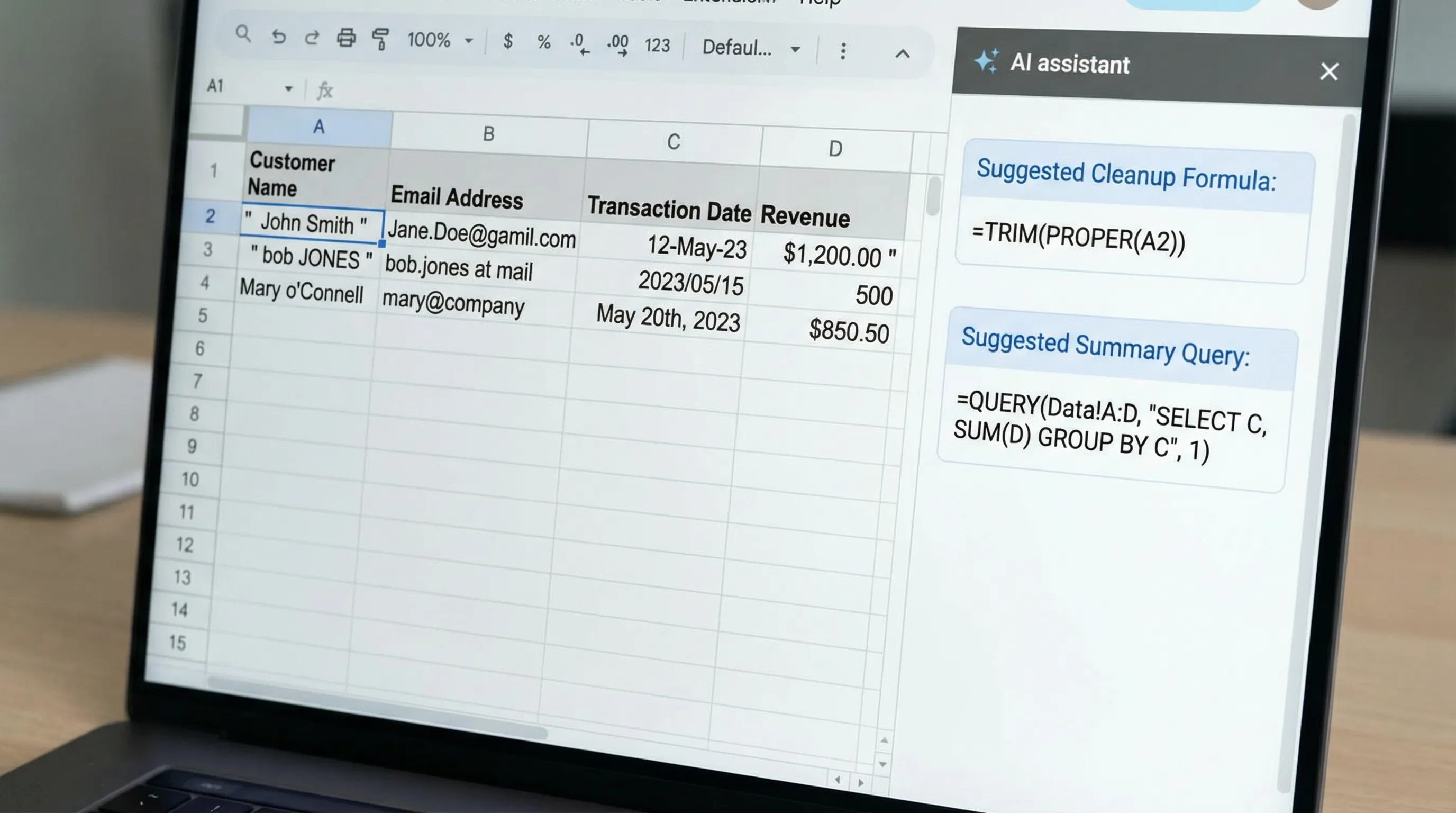
AI for cleanup: a repeatable “messy export to analysis-ready” workflow
Data cleanup is where Google Sheets AI can save the most time, because cleanup involves dozens of small transformations.
Step 1: Profile the mess before you “fix” it
Ask AI to propose a cleanup plan based on a few sample rows and column headers.
Prompt template (cleanup plan)
“Here are 8 sample rows from a CSV import (paste). Identify the likely data quality issues by column, then propose a cleanup plan using Google Sheets features and formulas.”
Typical issues AI can flag:
- Leading/trailing spaces, invisible characters
- Mixed date formats
- Numbers stored as text (currency symbols, commas)
- Inconsistent casing (ACME, Acme, acme)
- Duplicates caused by whitespace or punctuation
- Combined fields (City, State in one column)
Step 2: Normalize text fields (names, companies, SKUs)
Common Sheets-native tools:
TRIM()to remove extra spacesCLEAN()to remove non-printing charactersPROPER(),UPPER(),LOWER()for casingSUBSTITUTE()and regex functions for punctuation normalization
Example: normalize a company name field while keeping the raw value:
=IF(A2="","",PROPER(TRIM(CLEAN(A2))))
If your data has patterns like “Inc.”, “LLC”, or inconsistent punctuation, AI can propose targeted REGEXREPLACE rules.
Step 3: Standardize dates and numbers
AI can help you write “defensive” conversions that handle multiple input formats.
- If dates are text, you may need
DATEVALUE()or format-specific parsing. - If currency includes symbols, remove them before conversion.
Example: convert a currency-like text value such as “$1,234.50” into a number:
=IF(A2="","",VALUE(REGEXREPLACE(A2,"[^0-9.-]","")))
Validation tip: After conversion, use a quick ISNUMBER() check in a helper column for a few rows to confirm.
Step 4: Split and extract fields reliably
AI is especially useful when the split rules are subtle.
SPLIT()works well for consistent delimiters.REGEXEXTRACT()is better for “extract the part that matches.”
Example: extract the first 5 digits of a ZIP code from “12345-6789”:
=IF(A2="","",REGEXEXTRACT(A2,"^(\d{5})"))
Step 5: De-duplicate correctly (not just “remove duplicates”)
Google Sheets has a built-in Data cleanup option to remove duplicates, but analytics workflows often need more control.
AI can suggest approaches like:
- Normalize first (trim, case-fold), then
UNIQUE()on the normalized column - Keep the most recent record per ID using
SORT()plusUNIQUE()(orQUERY)
Example: unique non-blank emails:
=SORT(UNIQUE(FILTER(A2:A,A2:A<>"")))
Step 6: Make it reproducible with helper columns and named outputs
A common anti-pattern is “fixing” data by editing cells directly. Instead:
- Keep a Raw tab
- Create a Clean tab using formulas
- Create an Analysis tab built on the Clean output
AI can draft this structure for your specific dataset and describe which columns should remain raw vs derived.
AI for analysis: build insights that are easy to defend
Once data is clean, analysis is about turning rows into decisions. AI is helpful when it produces artifacts you can verify: pivot table configs, QUERY statements, and summary metrics.
Workflow 1: Cohort or time-based summaries (monthly, weekly, by quarter)
A reliable approach:
- Create a time key:
=TEXT(OrderDate,"YYYY-MM") - Use
QUERYor a Pivot Table to summarize
Example (create month key):
=IF(C2="","",TEXT(C2,"YYYY-MM"))
Then ask AI:
Prompt template (monthly summary)
“I have MonthKey in column E and Amount in column D. Give me a QUERY formula that returns MonthKey, total revenue, order count, and average order value, sorted by MonthKey ascending.”
Because QUERY syntax is easy to slightly miswrite, AI saves time, but you should still spot-check totals against a manual SUM on a filtered month. For reference, see Google’s QUERY function documentation.
Workflow 2: Multi-dimensional pivots, without guessing the configuration
If you are not sure whether a pivot needs rows vs columns vs filters, ask AI to propose a pivot design.
Prompt template (pivot plan)
“I want to understand revenue by Region and Product Category, with a monthly filter and a YoY comparison if possible. Propose a pivot table layout and the calculated fields needed in Google Sheets.”
Even if you build the pivot manually, the plan prevents dead ends.
Workflow 3: Outlier detection and data sanity checks
AI is useful for building lightweight QA checks:
- Duplicate IDs
- Negative amounts
- Dates in the future
- Missing mandatory fields
Example: flag negative or blank amounts:
=IF(D2="","Missing",IF(D2<0,"Negative","OK"))
Ask AI to propose a “data QA checklist” tailored to your columns, then implement the top 5 checks as helper columns.
Workflow 4: Executive summaries that tie metrics to narrative
Sheets can calculate the numbers, but turning them into a readable narrative takes time.
A good pattern is:
- Compute metrics in cells (total revenue, MoM change, top product)
- Ask AI to write a short summary using those cell values
Prompt template (analysis narrative)
“Using these metrics (paste values), write a 6 sentence summary for a weekly business review. Include 2 notable drivers, 1 risk, and 1 recommended next action. Keep it neutral and specific.”
This keeps AI grounded in computed results, not guessing.
Practical prompt library for Google Sheets AI (copy and adapt)
Use these as starting points, then add your column headers and sample rows.
Formula creation
- “Write a formula that returns the last non-empty value in row 2 across columns A to Z.”
- “Create an
ARRAYFORMULAversion so it applies from row 2 downward, leaving blanks for empty input rows.” - “Fix this formula so it works with European decimal commas and handles blanks.”
Cleanup
- “Propose regex rules to normalize these product SKUs (paste 10 examples). Output
REGEXREPLACEformulas.” - “Create a consistent
FirstNameandLastNameextraction approach for these name formats (paste examples).” - “Given these address strings (paste), extract City and State, and note which rows cannot be parsed reliably.”
Analysis
- “I need a dashboard-ready table. Suggest the minimum set of KPIs and the exact formulas to compute them.”
- “Build a segmentation logic: new vs returning customers based on email, and compute revenue by segment.”
- “Suggest a chart type for these metrics and how to structure the source table.”
Safety, privacy, and quality checks (especially at work)
AI can accelerate spreadsheet work, but spreadsheets often contain customer data, financials, and internal planning.
A few operational rules help keep you safe:
- Minimize sensitive data in prompts when possible (use samples, masked values, or aggregates).
- Validate before trusting: spot-check at least 10 random rows after a cleanup transform.
- Use “raw/clean/analysis” separation so changes are reproducible and reviewable.
- Document transformations in a Notes tab (what changed, why, and when).
If you are adopting an AI assistant for Google Workspace, evaluate how it handles privacy, admin controls, and whether it requires account registration.
Putting it all together: a fast, repeatable Sheets AI workflow
Here is the simplest end-to-end workflow that works for most teams:
- Start with a Raw tab (paste/import data, do not edit cells).
- Create a Clean tab where each messy column gets a derived clean column.
- Run QA checks (duplicates, blanks, invalid dates, numeric parsing).
- Build an Analysis tab using pivots or
QUERY, then add charts. - Generate a narrative summary from computed metrics.
When you use an in-app assistant, you can iterate much faster because you are not constantly switching contexts. If you want to work with ChatGPT, Gemini, or Claude directly inside Google Workspace apps, you can explore CoreGPT Apps to bring AI into your day-to-day spreadsheet workflow while keeping a privacy-focused approach.