

Email is where work goes to wait.
Even in fast teams, response time stretches because every message triggers the same hidden tasks: reconstruct the context, find the latest decision, choose the right tone, confirm facts, and only then write.
AI emails cut response time when they take over the repetitive parts (summarizing threads, drafting first passes, extracting action items), while you keep control over judgment (accuracy, commitments, and tone). The goal is not “write faster,” it is reduce time-to-a-good-reply.
This guide shows practical, quality-safe ways to do it inside the tools you already live in, especially Microsoft Outlook, plus Word, Excel, and PowerPoint, and then Google Docs and Google Sheets (with workflows that also apply to Google Forms and Google Slides).
Why response time slows down (and what AI actually fixes)
Most “slow replies” are not typing problems. They are context problems.
Common time sinks:
- Thread archaeology: skimming 20-message chains to find the latest ask.
- Tone switching: customer-friendly, executive-ready, legal-safe, all in one hour.
- Rework loops: you send a draft, someone rewrites it, then you rewrite again.
- Manual tracking: copying commitments into a tracker after you hit Send.
AI helps most when it can operate on the email context directly (the whole thread, not a pasted snippet) and produce structured outputs you can verify quickly.
That is why in-app assistance matters. With CoreGPT Apps, you can use ChatGPT, Gemini, or Claude directly inside Outlook (and also inside Word, Excel, PowerPoint, plus Google Docs, Google Sheets, Google Slides, and Google Forms). It is designed to work out of the box and is privacy-focused, which removes a lot of the friction that makes “AI email” pilots fail.
The quality trap: faster replies that create more work
Teams often see an initial speed boost, then quality drops:
- Vague promises (“we’ll ship this tomorrow”) that were never approved.
- Hallucinated details (wrong dates, incorrect pricing, made-up references).
- Tone mismatches (too casual for an exec, too cold for a customer).
So the real playbook is: use AI for acceleration, keep human checks for correctness.
A simple rule that works across roles:
AI can draft. Humans commit.
A 5-stage workflow that cuts response time without losing quality
You can implement this workflow in Outlook immediately, then connect it to Word, Excel, and PowerPoint for “downstream” outputs.
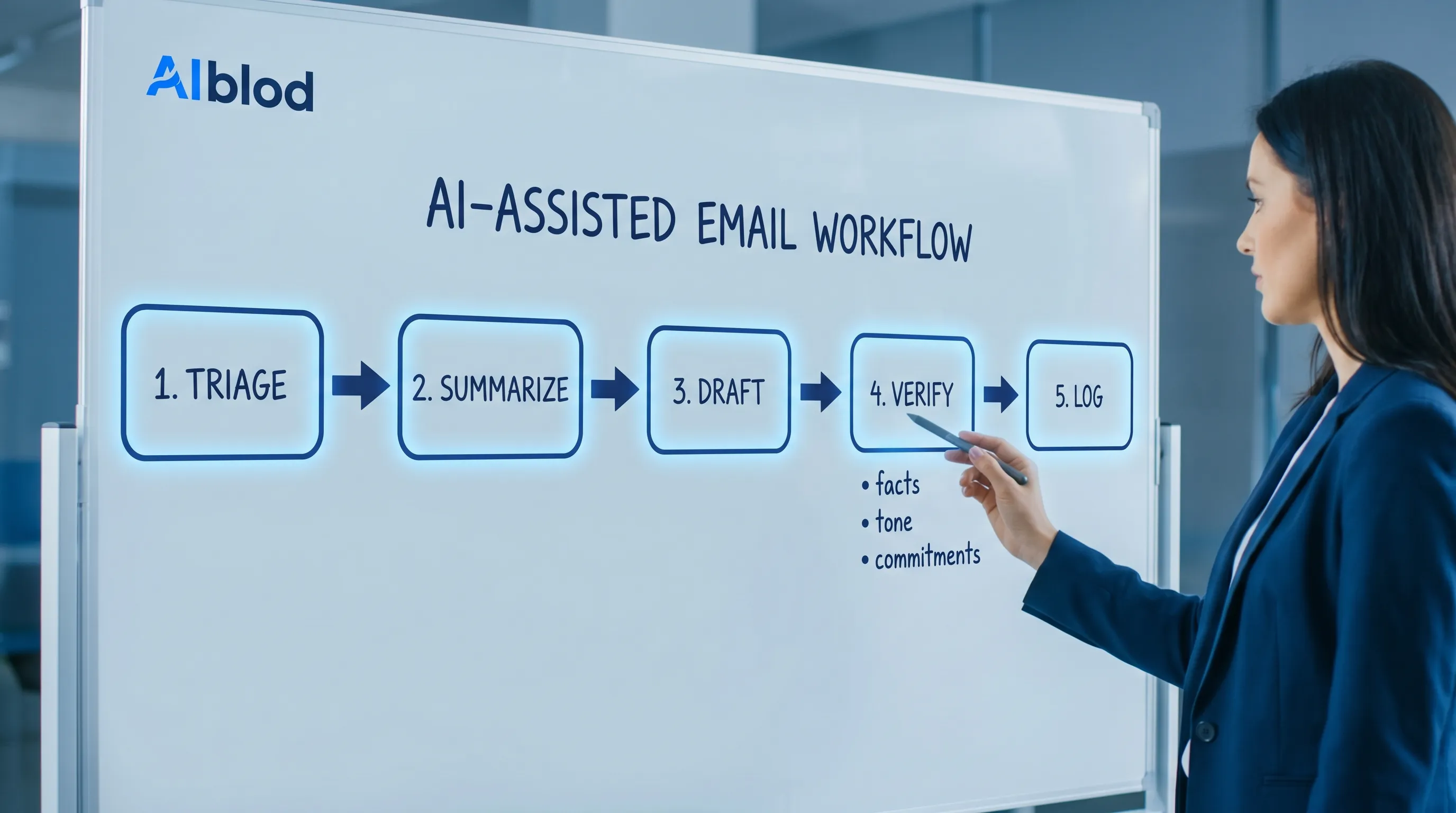
1) Triage: classify the email so you stop rereading it
In Outlook, ask AI to label the message before you write anything.
Useful triage labels:
- “Needs reply now” vs “Can batch later”
- “FYI” vs “Decision required”
- “Blocker” vs “Waiting on info”
Quality guardrail: require a reason. If the AI marks something “urgent,” it should state why (deadline, customer escalation, dependency).
2) Summarize: turn the thread into a decision record
Instead of a generic summary, ask for a structured one. This is where response time shrinks the most, because it removes thread archaeology.
A high-signal thread summary format:
- Context in 2 sentences
- Decisions already made
- Open questions (who owes what)
- Proposed next action
Quality guardrail: ask the AI to quote the exact line (or at least reference the message) that supports each decision or action item. If it cannot, treat it as a guess.
3) Draft: generate 2 reply options, not 1
One draft invites rework. Two drafts give you choice and make you faster.
Ask for:
- Option A: concise and direct
- Option B: warm and collaborative
Both should include:
- The actual answer
- Any needed clarifying questions
- A clear next step with owner and date (if appropriate)
Quality guardrail: explicitly tell the AI what it cannot do, for example “Do not agree to timelines or discounts I did not approve.”
4) Verify: use a checklist that forces accuracy
Verification is not “read it once.” It is a short, repeatable checklist.
A practical verification checklist for AI-written emails:
- Facts: names, dates, numbers, attachments, links
- Commitments: promises made, deadlines accepted, scope agreed
- Tone: matches relationship and stakes
- Compliance: no sensitive data exposed, no risky claims
- Clarity: the recipient knows exactly what to do next
If you want AI to help here, use it as a reviewer:
“Review this draft for ambiguity, missing details, and risky commitments. Suggest edits, but do not add new facts.”
5) Log: convert the email into usable work artifacts
This is the step most teams skip, and it is why fast replies still feel chaotic.
After you reply in Outlook, generate the downstream artifacts where work is actually managed:
- Word: an internal memo (“What we told the customer, what we need to deliver, and risks”).
- Excel: a tracker row (owner, due date, status, next follow-up date).
- PowerPoint: a 1-slide status update for leadership.
On the Google side, the same pattern holds:
- Google Docs: decision memo for your team.
- Google Sheets: lightweight tracker for follow-ups.
- Google Forms: turn repeated email requests into a structured intake.
This is where in-app AI really pays off: the email becomes structured output without copy-paste gymnastics.
What “good” looks like: AI vs human responsibility (table)
| Step | What AI should do | What the human must do | Quality risk to watch |
|---|---|---|---|
| Triage | Categorize, prioritize, suggest next action | Choose what you actually answer now | Mislabeling urgency |
| Summarize | Extract decisions, questions, action items | Confirm the summary matches the thread | Missing a key constraint |
| Draft | Produce 2 tone variants + clarifying questions | Pick the right tone and message | Overconfidence in wording |
| Verify | Flag ambiguity, risky promises, missing info | Validate facts and commitments | Hallucinated details |
| Log | Generate memo/tracker/update formats | Ensure the artifacts reflect reality | “Shadow process” drift |
Prompts that speed up Outlook replies without lowering quality
Use these as templates, then adjust for your role.
Prompt 1: Fast reply with guardrails
“Draft a reply to this email thread.
Constraints:
- Keep it under 120 words.
- Confirm what we can do, ask for what we need.
- Do not commit to timelines or pricing.
- End with a single clear next step.
Provide two versions: (1) concise, (2) warm.”
Prompt 2: Executive-ready response
“Rewrite this reply for an executive audience.
Constraints:
- 5 sentences max.
- Lead with the decision.
- Include risks and dependencies.
- No jargon.”
Prompt 3: Turn email into an Excel tracker entry
“Extract action items from this thread. Return a table with columns: Task, Owner, Due date (if stated), Status, Next follow-up date suggestion. If a field is not in the thread, write ‘Not specified’.”
How Word, Excel, and PowerPoint reduce email back-and-forth
Email often becomes a loop because information is not packaged in the right format.
Here are high-leverage conversions:
Outlook to Word: the “single source of truth” memo
When a thread becomes important (customer escalation, contract terms, leadership decision), turn it into a Word memo with:
- Background
- Current status
- Options
- Recommendation
- Open questions
That memo reduces future reply time because you stop re-explaining the same context in each email.
If you already work heavily in Word, using in-document AI to refine that memo (tighten structure, clarify logic, adjust tone) is usually higher quality than rewriting the same email repeatedly.
Outlook to Excel: follow-ups that do not depend on memory
Most slow response time is actually “slow second response time,” because follow-ups get lost.
A simple Excel tracker (or Google Sheets tracker) helps you:
- See who is waiting on you
- Batch follow-ups
- Prove workload and bottlenecks
AI can extract tasks from the thread, but you should still confirm owners and dates.
Outlook to PowerPoint: fewer “any updates?” emails
Leadership update requests create email traffic because the latest status is not visible.
Convert the thread into a PowerPoint slide:
- Goal
- Current status (green/yellow/red)
- Risks
- Next milestone
When that slide exists, you often prevent the next wave of inbox pings.
How Google Docs and Google Sheets fit the same playbook
If your team runs on Google Workspace, the same workflow works with slightly different outputs:
- Google Docs is perfect for a “decision log” that multiple stakeholders can comment on.
- Google Sheets is the fastest way to share a follow-up tracker with filter views.
- Google Forms is the long-term fix for repeated inbound questions (requests, approvals, intake), which reduces email volume altogether.
CoreGPT Apps supports in-app help across Google Docs and Google Sheets (and also Google Slides and Google Forms), which keeps the workflow consistent across Microsoft and Google environments.
Measuring impact: the metrics that prove AI emails work
Avoid vanity metrics like “emails drafted.” Focus on outcomes.
| Metric | What it tells you | How to measure quickly |
|---|---|---|
| First response time | Speed of initial acknowledgment and direction | Sample 50 threads per team per month |
| Time to resolution | Whether faster replies actually close work | Compare close times before vs after |
| Rework rate | Quality of drafts and clarity | Count “please clarify” loops |
| Escalation rate | Whether speed is causing mistakes | Track escalations per 100 threads |
| Stakeholder satisfaction | Tone and usefulness | Lightweight internal survey quarterly |
If you want a broader view of how teams deploy AI across email, calls, and research (and which KPIs to watch), this overview of AI categories that simplify email, calls, and research is a solid companion read.
Safety and privacy: what to do before you scale AI email
To keep quality high and reduce risk, standardize a few rules.
Redact and minimize sensitive data
Even with privacy-focused tools, good hygiene matters:
- Remove personal identifiers when they are not necessary for drafting.
- Avoid sharing confidential contract terms with any tool unless your policy allows it.
- Prefer summarization and structured extraction over copying full sensitive threads.
Force “I don’t know” behavior
In prompts, explicitly instruct:
“Do not invent facts. If the thread does not specify, say ‘Not specified.’”
This single line prevents a large portion of AI email quality failures.
Use consistent templates
Teams get better results when they reuse formats. Store templates in:
- Outlook drafts or templates for common replies
- Word for canonical external messaging
- Google Docs for shared response standards
Then use AI to customize within those constraints.
Frequently Asked Questions
Do AI emails work for complex, high-stakes replies? Yes, if you use AI for summarizing and drafting, then apply a human verification checklist for facts and commitments. High-stakes emails benefit the most from structured summaries and clear next steps.
What is the fastest way to cut response time in Outlook? Use AI to summarize long threads into decisions and action items, then generate two draft replies (concise and warm). You choose the best version and verify details before sending.
How do you keep AI email drafts from sounding generic? Provide constraints (tone, audience, length) and specific context (what you can agree to, what is out of scope). Asking for two variants also helps you avoid a single “default” voice.
Can AI help beyond Outlook, like Word, Excel, and PowerPoint? Yes. The biggest time savings often come from converting email into Word memos, Excel trackers, and PowerPoint updates so you reduce repeated explanations and follow-up emails.
How do Google Docs and Google Sheets fit into AI email workflows? Google Docs works well for decision memos and shared drafts, while Google Sheets is ideal for tracking follow-ups and owners. Google Forms can reduce email volume by turning repeated requests into structured intake.
Try in-app AI where email work actually happens
If you want faster replies without sacrificing quality, the biggest unlock is keeping AI inside your workflow, not in a separate tab.
CoreGPT Apps brings GPT-powered assistance directly into Outlook (and also Word, Excel, and PowerPoint), plus Google Docs and Google Sheets (and Google Slides and Google Forms). It works out of the box, requires no registration, and is built with a privacy-focused design.
Explore CoreGPT Apps at coregptapps.com and start with one workflow: thread summary in Outlook, two-draft reply, then a Word memo or Excel tracker for follow-through.