
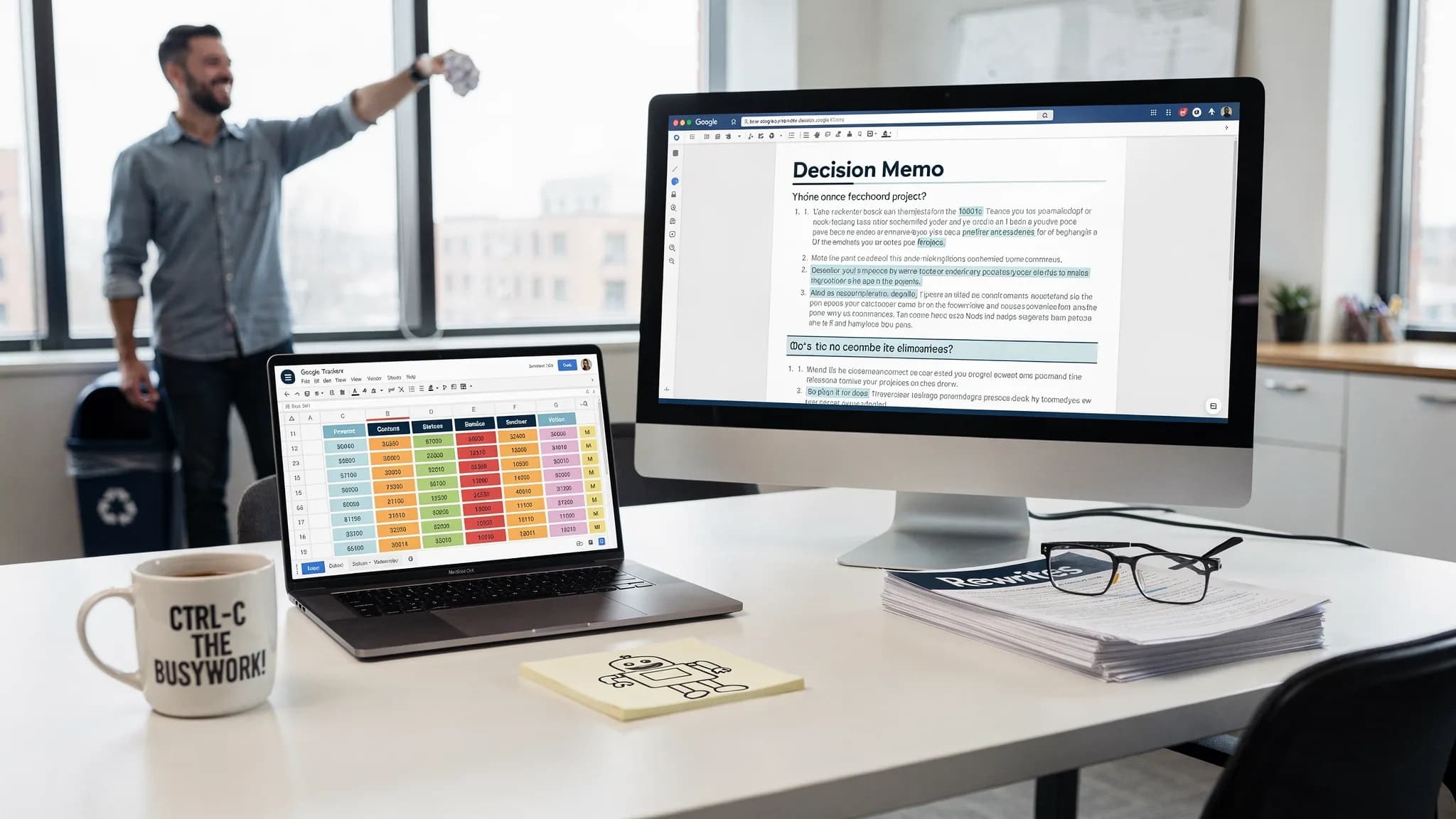
Busywork rarely lives in one file. It happens in the handoff between a messy Sheet, a half-written Doc, a comment thread, and the status update someone has to rewrite for the third time.
That is why the best Google workflows are not just about learning one more shortcut in Docs or one more formula in Sheets. They are about designing a repeatable path from raw information to a usable output: a decision memo, a project tracker, a weekly update, a client report, or a clean action list.
In this article, “Google workflows” means practical Google Workspace processes across Google Docs and Google Sheets, not Google Cloud Workflows. The goal is simple: reduce manual copying, rewriting, formatting, and re-explaining, while keeping humans in control of the final work.
The core rule: Sheets for structure, Docs for judgment
Google Sheets and Google Docs do different jobs well.
Sheets is best when the work needs rows, labels, status, ownership, dates, scoring, or calculations. Docs is best when the work needs context, narrative, reasoning, decisions, edits, or stakeholder review.
Most busywork appears when teams use the wrong app for the job. A status update trapped in a spreadsheet becomes hard to read. A project plan buried in a Doc becomes hard to track. A strong workflow lets each app do what it is good at.
| Work type | Best starting point | Best final output | Why it works |
|---|---|---|---|
| Meeting notes | Google Docs | Google Sheets action tracker | Notes become owners, deadlines, and next steps |
| KPI data | Google Sheets | Google Docs business summary | Numbers become decisions and explanations |
| Customer feedback | Google Sheets | Google Docs insight memo | Raw comments become themes and recommendations |
| Project updates | Google Sheets | Google Docs weekly report | Status fields become readable updates |
| Review comments | Google Docs | Google Sheets issue log | Feedback becomes trackable work |
This separation also makes AI more useful. Instead of asking an assistant to “make this better,” you can ask it to transform one clear format into another.
Workflow 1: Turn meeting notes into a clean action tracker
Meetings create busywork when notes stay as paragraphs. Someone has to reread the Doc, find decisions, identify owners, and manually build a tracker. A better workflow starts in Docs and ends in Sheets.
Start with a simple meeting notes structure in Google Docs:
Meeting: [Name]
Date: [Date]
Attendees: [Names]
Context:
Decisions:
Open questions:
Action items:
Risks:
After the meeting, use AI or a manual pass to extract the operational details into rows. The target Sheet should include columns like action item, owner, due date, source note, priority, status, and dependency.
A reusable prompt can look like this:
Extract the action items from these meeting notes and format them as a table with columns: Action Item, Owner, Due Date, Priority, Dependency, Source Note, and Status. If a due date or owner is missing, write "Needs confirmation" instead of guessing.
The important part is the final instruction. Busywork is reduced only if the workflow avoids invented details. Missing information should be flagged, not filled in creatively.
Once the tracker exists in Sheets, use filters or filter views to show each person only their open items. At the end of the week, reverse the workflow: summarize the Sheet back into a short Google Docs update.
Workflow 2: Convert spreadsheet data into a decision-ready Doc
Teams often have the data they need, but not the explanation. A sales pipeline, campaign report, support backlog, or financial forecast may be accurate in Sheets, yet still require someone to translate it for leaders.
The workflow is simple: prepare the Sheet, select the relevant data, then generate a concise narrative in Docs.
Before summarizing, make the Sheet AI-friendly. Use clear column names, remove duplicate header rows, separate raw data from analysis, and add a short note explaining what the numbers represent. If your Sheet has formulas, keep the calculated results visible rather than asking AI to infer hidden logic.
Use a prompt like this:
Using the table below, write a one-page business summary for a leadership audience. Include: 1) the headline takeaway, 2) three supporting observations, 3) risks or anomalies, 4) recommended next actions. Do not invent causes. If the data does not explain why something happened, say what should be investigated.
This workflow is especially useful for recurring reports. Once you standardize the prompt and the Sheet layout, the weekly report becomes a review task rather than a rewrite task.
For deeper spreadsheet-specific techniques, CoreGPT’s guide to Google Sheets AI formulas, cleanup, and analysis workflows covers formula debugging, data cleanup, and repeatable analysis patterns.
Workflow 3: Build a feedback-to-brief pipeline
Customer feedback, support tickets, survey responses, and sales notes often begin as unstructured text. If they sit in a spreadsheet forever, nobody knows what to do with them. If they are pasted directly into a Doc, the themes get lost.
A better workflow uses Sheets as the collection layer and Docs as the synthesis layer.
In Sheets, create columns for source, customer segment, feedback text, theme, severity, frequency, suggested action, and evidence. Use AI to classify and summarize feedback, but keep the original text in the row so reviewers can verify the classification.
Then generate a Google Docs brief with sections like:
- Executive summary
- Top feedback themes
- Evidence from customer quotes
- Recommended product or process changes
- Open questions
- Risks of inaction
This is valuable for product, marketing, customer success, and operations teams. For example, a founder collecting app feedback in Sheets can turn it into a product brief before working with an engineering partner. If the next step is a funded iOS or Android build, a specialized team such as Appzay’s premium mobile app development agency can use that structured brief as a clearer starting point for strategy, UX, and development.
The key is traceability. Every insight in the Doc should point back to the row or source evidence in Sheets. That keeps the workflow fast without making it vague.
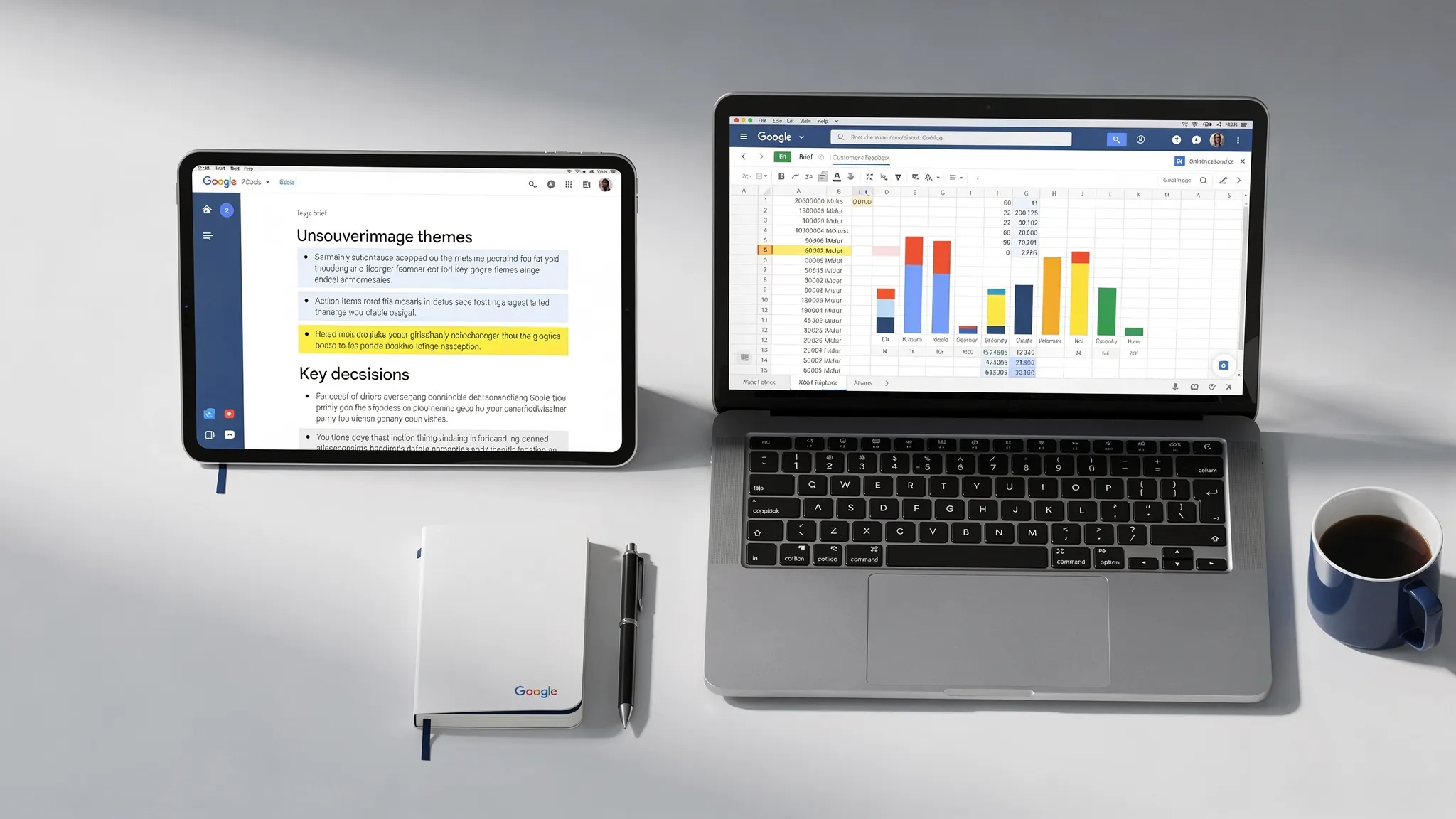
Workflow 4: Use Sheets as the control panel for recurring Docs
Many documents are not truly unique. Weekly updates, client reports, project recaps, onboarding plans, and campaign summaries often follow the same structure every time.
Instead of writing each one from scratch, use Sheets as the control panel. Each row represents one report or document. Columns store the variables: audience, period, objective, key metrics, blockers, decisions needed, tone, and owner.
| Sheet column | Example value | How it appears in the Doc |
|---|---|---|
| Audience | Executive team | Adjusts level of detail and tone |
| Reporting period | Apr 20 to Apr 26 | Sets report timeframe |
| Main metric | 18 percent increase in qualified leads | Becomes headline insight |
| Blocker | Legal review delayed launch page | Becomes risk section |
| Decision needed | Approve revised launch date | Becomes call to action |
This setup is useful because it separates inputs from writing. The person responsible for the update fills in fields in Sheets. The writer, manager, or AI assistant turns those fields into a polished Doc.
A prompt for this workflow:
Create a weekly project update from the row data below. Use a concise professional tone. Structure the update with: Summary, Progress, Metrics, Blockers, Decisions Needed, and Next Week. Keep the update under 400 words. Flag any missing inputs at the end.
You can also add a “ready for draft” checkbox in Sheets. That gives your team a lightweight approval gate before anything is turned into a document.
Workflow 5: Turn Docs comments into a trackable issue log
Comments in Google Docs are useful for collaboration, but they become hard to manage when there are many reviewers. A document with 60 comments can hide duplicate feedback, unresolved decisions, and conflicting instructions.
The fix is to move from comment chaos to issue tracking.
After a major review round, extract comments into a Sheet with columns for section, commenter, issue, category, severity, owner, resolution, and status. Categories might include factual correction, tone change, missing evidence, legal review, formatting, or decision needed.
This creates a shared view of what needs action. It also prevents the common problem of resolving comments in the Doc before the underlying issue is actually handled.
Google’s own Docs Editors Help is a useful reference for built-in collaboration features such as comments, suggestions, sharing, and version history. Pairing those native features with a Sheet-based issue log gives teams both flexibility and accountability.
Where CoreGPT fits into Docs and Sheets workflows
The workflows above can be done manually, but AI makes them faster when it stays close to the work. Copying sensitive notes or spreadsheet data into random browser tabs creates friction and risk. It also breaks context.
CoreGPT Apps brings GPT-powered assistance directly into Google Workspace and Microsoft 365 apps, including Google Docs and Google Sheets. That means teams can draft, summarize, classify, rewrite, and analyze inside the tools where the work already lives.
For Google Docs, CoreGPT can support tasks like turning notes into summaries, rewriting drafts for clarity, and creating structured reports. For Google Sheets, it can help with formulas, cleanup, classification, extraction, and analysis workflows. CoreGPT also supports AI-powered workflows across productivity apps, with a privacy-focused design and no registration required.
The practical advantage is not just speed. It is less context switching. When AI is available inside Docs and Sheets, the workflow becomes easier to repeat, teach, and audit.
A 30-minute setup plan for your team
You do not need to redesign your entire workspace. Start with one recurring piece of busywork and make it repeatable.
For the first 10 minutes, choose one workflow that happens every week. Good candidates include meeting notes to action items, KPI reports, customer feedback summaries, or weekly project updates. Pick something frequent enough that the time savings will compound.
For the next 10 minutes, standardize the inputs. Create a Doc template or Sheet template with clear fields. Do not overbuild it. The goal is to remove ambiguity, not create a complicated operating system.
For the final 10 minutes, write one prompt that transforms the input into the output. Save it in the Doc, a shared prompt library, or a dedicated tab in the Sheet. Then test it on a real example and adjust the wording until the output is useful.
A simple starter prompt is often enough:
Transform the content below into [desired output] for [audience]. Use this structure: [sections]. Preserve facts, numbers, owners, and deadlines exactly. Do not invent missing information. List any assumptions or missing inputs at the end.
Once one workflow works, clone the pattern. The best automation culture starts with small, reliable wins.
Quality checks that prevent AI-assisted busywork
AI can reduce busywork, but it can also create new cleanup work if the output is unchecked. Every Google workflow should include a short verification step.
Use these checks before sending or sharing an AI-generated output:
- Confirm that numbers match the source Sheet.
- Verify that names, dates, owners, and deadlines are accurate.
- Check that the output does not invent causes or conclusions.
- Make sure the tone fits the audience.
- Keep a link to the source Doc or Sheet for traceability.
For recurring workflows, add a “verified by” or “last checked” column in Sheets. This makes quality control visible and avoids confusion about whether a report is still a draft.
Frequently Asked Questions
What are Google workflows in Docs and Sheets? Google workflows are repeatable processes that move work between Google Workspace apps. In Docs and Sheets, that often means turning notes into trackers, data into reports, comments into issue logs, or spreadsheet rows into polished documents.
Do I need automation tools to create these workflows? Not always. Many high-value workflows only require templates, consistent columns, clear prompts, and good review habits. AI tools can speed up drafting, summarizing, classifying, and analyzing, but the process design matters most.
How do I stop AI from making up details in reports? Give it source data, define the output structure, and explicitly instruct it not to invent missing information. Ask it to label unknowns as “Needs confirmation” or “Not provided.” Always verify numbers and decisions against the original Doc or Sheet.
Should my team start in Google Docs or Google Sheets? Start in Sheets when the work needs structure, tracking, ownership, or calculations. Start in Docs when the work needs context, narrative, discussion, or review. The strongest workflows usually use both.
Can CoreGPT help with these Google workflows? Yes. CoreGPT Apps brings GPT-powered assistance into Google Docs and Google Sheets, so teams can summarize, rewrite, classify, extract, and analyze without leaving their workspace.
Cut the handoff tax inside Google Workspace
The fastest teams are not the ones with the most documents or the most spreadsheets. They are the ones with clear handoffs between them.
If your team spends too much time rewriting notes, cleaning reports, summarizing spreadsheets, or turning comments into tasks, start with one of the workflows above. Then use CoreGPT Apps to bring AI assistance directly into Google Docs, Google Sheets, and the rest of your productivity stack.
Explore CoreGPT Apps at coregptapps.com and start reducing busywork where it actually happens: inside the files your team already uses.