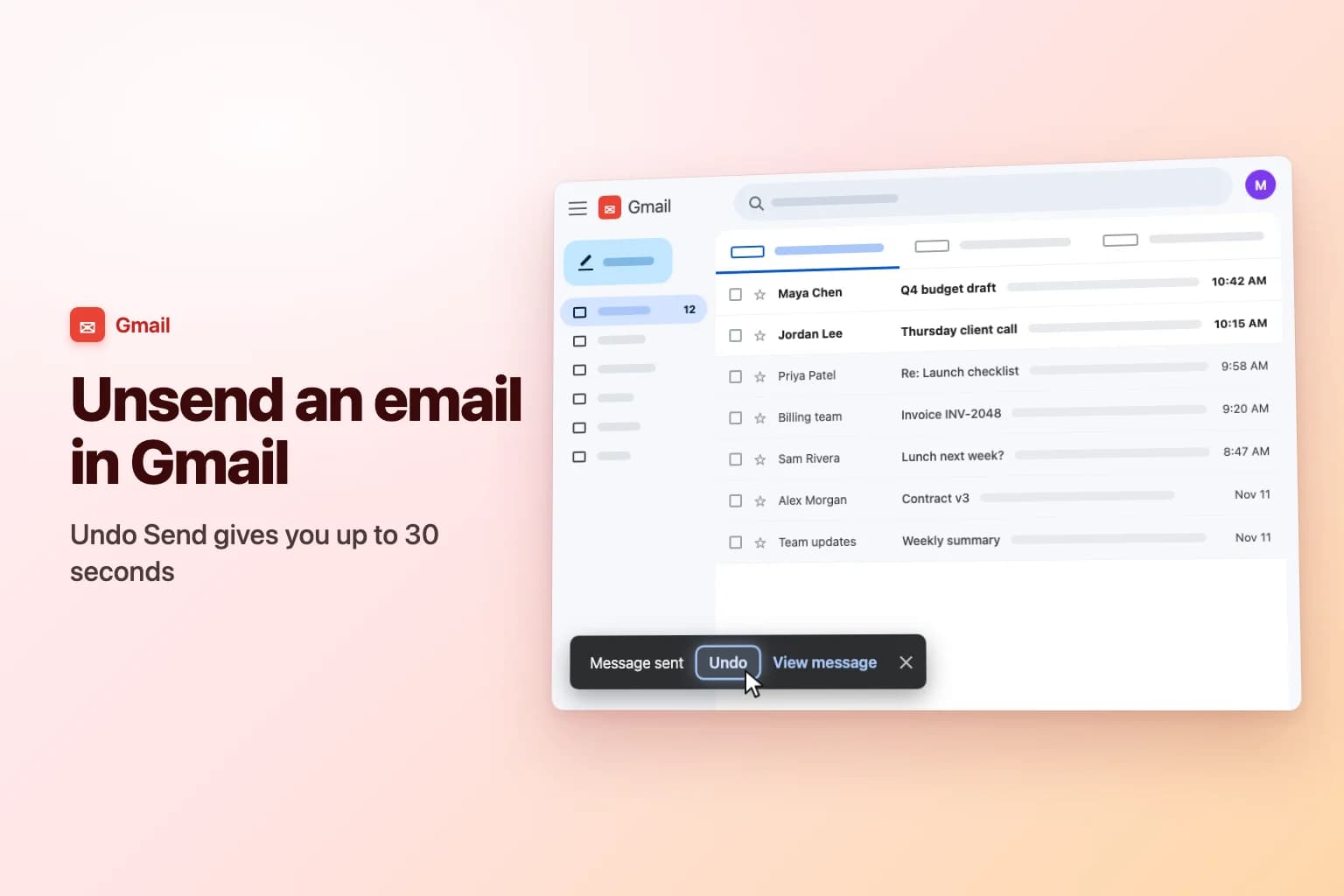
To unsend an email in Gmail, click Undo in the Message sent box that appears at the bottom left of the screen right after you hit Send. The email turns back into a draft and never reaches the recipient. By default you only have 5 seconds, but you can stretch that to 30 seconds in Settings → See all settings → General → Undo Send.
The catch: Gmail can't recall an email once that window has passed. Undo Send works by holding your message for a few seconds before it actually goes out. After that it's delivered, there is no recall button, and deleting it from your Sent folder only removes your own copy.
| Where you're sending from | How to unsend | How long you have |
|---|---|---|
| Gmail on a computer (mail.google.com) | Undo in the Message sent box, bottom left | 5 seconds by default, or 10, 20 or 30 if you change it |
| Gmail app for Android | Undo at the bottom of the screen after sending | A few seconds |
| Gmail app for iPhone and iPad | Undo at the bottom of the screen after sending | A few seconds |
| Work or school (Google Workspace) account | Same as a personal account | Same as a personal account |
| After the Undo window closes | Not possible: send a correction instead | None |
How to unsend an email in Gmail on a computer
- Send your email as usual: click Send, or press
Ctrl+Enter(Cmd+Enteron a Mac). - Look at the bottom left of the Gmail window. A dark box appears with Message sent, Undo and View message.
- Click Undo before the box disappears.
- Gmail confirms that sending was undone and reopens your message as a draft.
- Fix what was wrong (recipient, attachment, typo, tone), then click Send again, or close the draft and delete it if you don't want to send it at all.
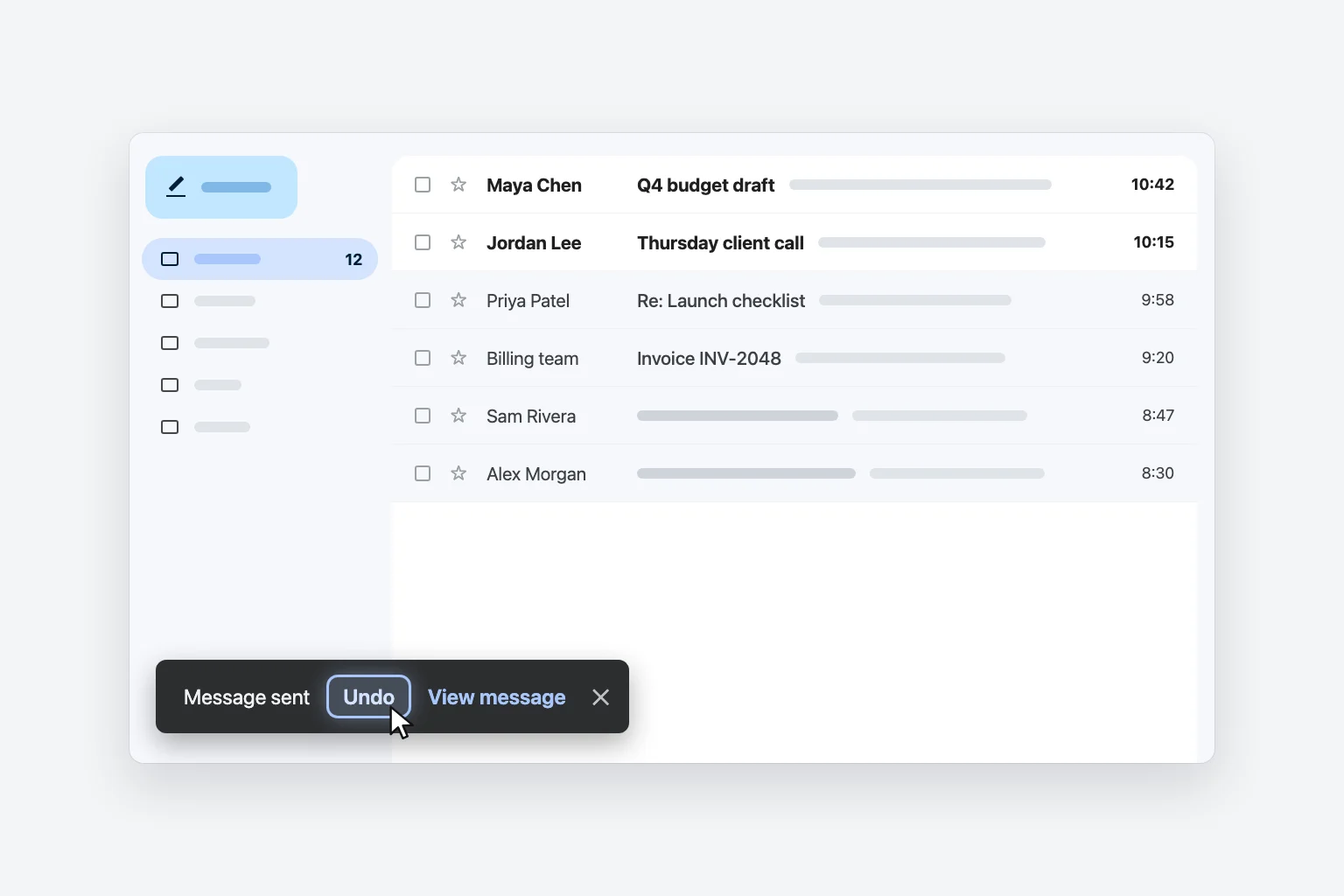
It works the same for new emails, replies and forwards. If you're quick enough, the recipient gets nothing at all, not even a blank or partial message.
Change the Undo Send time to 30 seconds
Five seconds is barely enough to notice a mistake, let alone click Undo. Here's how to give yourself more time:
- In Gmail on a computer, click Settings (the gear icon) at the top right.
- Click See all settings.
- On the General tab, find Undo Send.
- Open the Send cancellation period menu and choose 5, 10, 20 or 30 seconds.
- Scroll to the bottom of the page and click Save Changes.
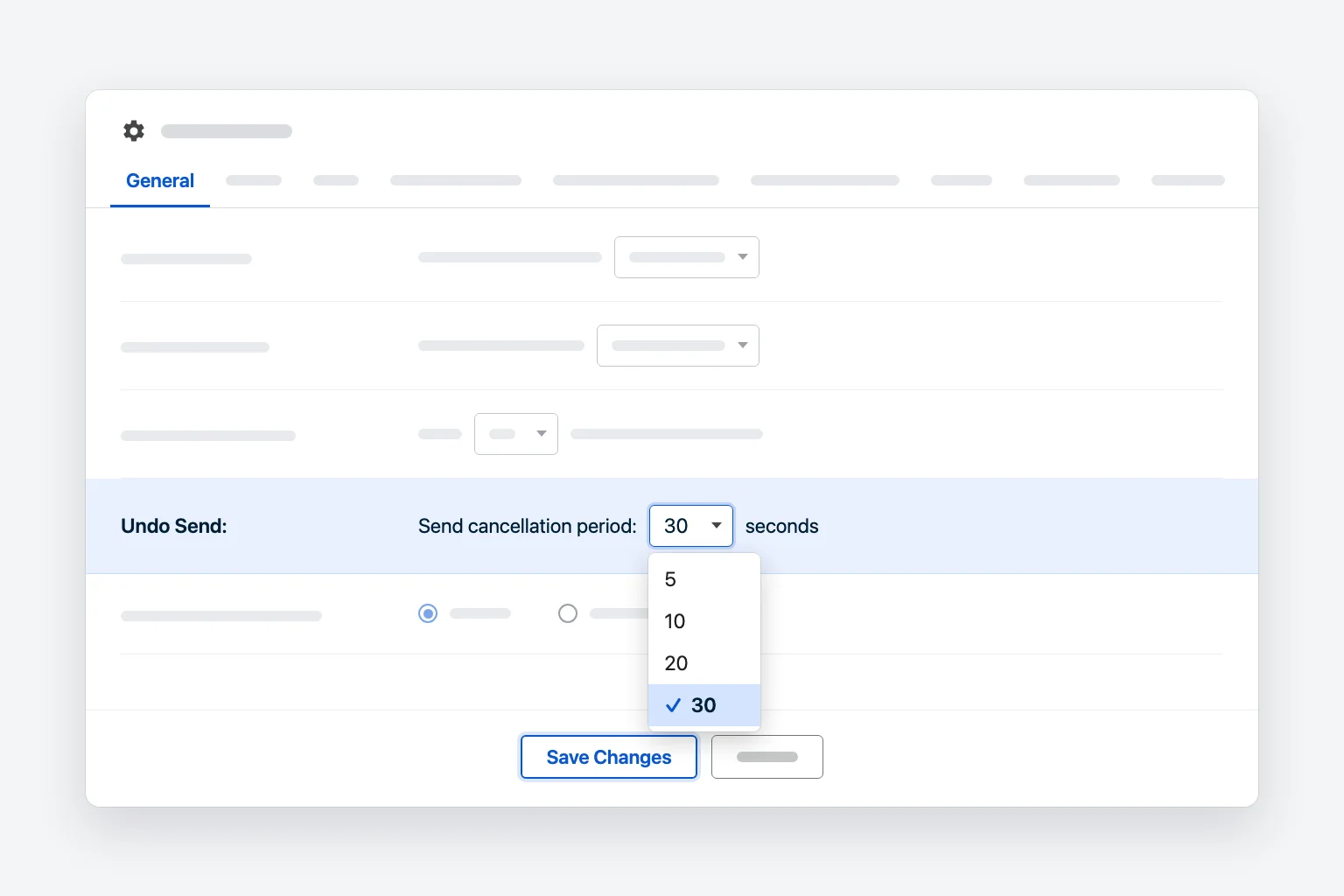
There's no setting to make it longer than 30 seconds, and no way to turn Undo Send off: 5 seconds is the minimum. The only trade-off with 30 seconds is that every email reaches its recipient about half a minute later, which almost nobody notices.
The setting is saved for each Gmail account. If you switch between a personal and a work account, change it in both. The mobile apps don't have this setting, so don't assume your 30 seconds carries over to your phone.
Unsend an email in the Gmail app on Android or iPhone
The Gmail app for Android, iPhone and iPad has Undo too:
- Tap Send.
- Watch the bottom of the screen. A bar appears confirming that the message was sent, with an Undo button.
- Tap Undo right away. The message reopens as a draft so you can fix it or discard it.
The window in the app is short, just a few seconds, and you can't change it from the app's settings. It's worth sending a test email to yourself once so you know how fast you need to be. If you want a real safety margin on your phone, use Schedule send instead (see below), because a scheduled email can be cancelled any time before it goes out.
Gmail on a work or school account
If your Gmail is a Google Workspace account from your employer or school, unsending works exactly the same: the same Undo button and the same Undo Send setting under See all settings → General.
What Workspace doesn't add is a recall feature. Even when you email a colleague in the same organization, Gmail can't pull the message back after the Undo window. If you sent confidential or personal data to the wrong person, tell your IT or security team straight away. On some Workspace editions, administrators have tools to find and remove a message from mailboxes inside the organization, but that's their call, not a button you have.
Outlook works differently: it has a Recall command, but it only works in limited cases, mainly for recipients in the same Microsoft 365 organization. See our guide on how to recall an email in Outlook.
Can you recall an email in Gmail after the Undo window?
No. Once the Undo box is gone, the email has been delivered to the recipient's mail server and it's out of your hands. There's no recall, no "unsend later" option and no setting that changes this. Deleting the message from your Sent folder doesn't touch the recipient's copy.
Here's what you can still do:
- Send a short correction. Reply to your own message (so it lands in the same thread) with the fix: "Quick correction: the meeting is on Thursday, not Tuesday." Keep it brief and don't over-apologize.
- Ask a wrong recipient to delete it. A polite one-line note usually works: "That email was meant for someone else. Could you please delete it?"
- Cut off access to a Drive file. If you shared a Google Drive link rather than attaching a file, open the file in Drive and change its sharing settings. The person can no longer open it, even though the email is still in their inbox. A regular attachment can't be taken back this way.
- Report sensitive mistakes. At work, let IT or your security team know if you sent personal, financial or confidential data to the wrong address.
How to avoid needing to unsend next time
Set Undo Send to 30 seconds. It's the simplest fix and costs you nothing.
Use Schedule send as a buffer. On a computer, click the down arrow next to Send, choose Schedule send, then Pick date & time and set it a few minutes (or hours) ahead. The email waits in the Scheduled folder. To stop it, open it there and click Cancel send. It turns back into a draft that you can edit and send again. In the Gmail app on iPhone and iPad, tap More at the top right of the compose screen, then Schedule send. You can have up to 100 scheduled emails at a time.
Use confidential mode for sensitive emails. Confidential mode is the closest Gmail gets to taking an email back, but you have to switch it on before you send:
- In the compose window, click the Toggle confidential mode icon (the padlock with a clock) at the bottom.
- Set an expiration date and choose No SMS passcode or SMS passcode.
- Click Save, then send.
Later, you can open the email from Sent and click Remove access to stop the recipient from opening it, even before it expires. Recipients can't forward, copy, print or download a confidential email, but they can still take a screenshot or a photo of it. If you don't see the confidential mode icon on a work account, your administrator has probably turned it off.
Add recipients last. Write the email, check the attachment, and only then fill in To. Gmail can't send a message with no recipient, so a half-finished email can't go out by accident.
Why you can't see the Undo button
- The window has already passed. With the default 5 seconds, the box disappears very quickly. Extend it to 30 seconds for next time.
- You sent it from another email app. Undo Send is a feature of Gmail on the web and the Gmail apps. If you sent from a Gmail address through another program, such as Apple Mail or Outlook, Gmail's Undo doesn't apply. Those apps have their own settings, if any.
- You were watching the wrong corner. On a computer the box appears at the bottom left of the Gmail window. On the phone it's at the bottom of the screen and is easy to miss while the keyboard is closing.
Frequently Asked Questions
Does the recipient know if I unsend an email in Gmail? No. If you click Undo in time, the email never leaves Gmail, so the recipient receives nothing and gets no notification.
Can I unsend an email in Gmail after an hour? No. Unsending only works during the Undo window right after you click Send, which is 30 seconds at most. After that, the best you can do is send a follow-up correction.
How long do I have to unsend an email in Gmail? 5 seconds by default. You can change it to 10, 20 or 30 seconds under Settings → See all settings → General → Undo Send → Send cancellation period, then click Save Changes.
How do I recall an email in Gmail like in Outlook? You can't. Gmail has no recall feature for personal or Google Workspace accounts. Undo Send, scheduled sending and confidential mode (with Remove access) are the only ways to stop or limit an email, and all of them have to be used before or right after you send.
If I delete a sent email in Gmail, does it disappear for the recipient? No. Deleting it from Sent only removes your copy. The recipient's copy stays in their inbox.
Can I unsend an email I sent to the wrong person? Only within the Undo window. After that, ask the person to delete it and, if it contained sensitive information, tell your IT or security team.
Get it right before you hit Send
Most unsend moments come from rushing: the wrong date, a missing detail, a reply that sounds sharper than you meant. CoreGPT for Gmail drafts a clear reply from a one-line instruction, right inside Gmail, so you can read it over once, adjust it, and send it with confidence. It's free to start.
 InboxGmail
Invoice correction and billing change
Alex (Acme Inc.)
Our invoices for September show the wrong tax ID. Can you reissue them before Friday? Our finance team needs them for the audit.
You
Thanks Alex, checking with billing now.
Alex (Acme Inc.)
Also, can we switch to yearly billing from next month?
 CoreGPT AI
Draft a reply
Confirm we’ll reissue the invoices by Thursday and switch to yearly billing.
Hi Alex, we’ll reissue the September invoices with the correct tax ID by Thursday and move you to yearly billing from next month.
Try it: CoreGPT for Gmail
Related reading: