

Most decks take longer than they should, not because the ideas are hard, but because the work is scattered: outlining in one place, visuals in another, reviews in chat, and last minute edits that break consistency.
The fastest way to fix this in 2026 is to use AI inside Google Slides as a “deck co-pilot” for structure, wording, and QA, then pair it with a simple team workflow so feedback turns into clean commits instead of chaos.
Below are practical Google Slides AI tips to build faster decks and improve teamwork, without sacrificing accuracy or brand consistency.
What AI is actually good at in Google Slides (and what it is not)
AI can dramatically shorten the first 70 percent of deck work, especially when you feed it clear constraints.
AI is strong at:
- Turning a rough brief into a slide outline (storyboard)
- Generating first draft slide titles and bullets
- Rewriting for tone (executive, customer friendly, technical)
- Creating speaker notes and talk tracks
- Enforcing consistency (terminology, capitalization, parallel phrasing)
- Summarizing long source material into slide ready points
AI is weak at:
- Being a trustworthy source of facts by default (you still need to verify)
- Making strategic decisions (what to cut, what to emphasize) without guidance
- Producing “final” visuals without human taste and brand context
A good working model is: AI drafts, your team decides, AI polishes, your team verifies.
Tip 1: Start with a deck “brief slide” to anchor every AI output
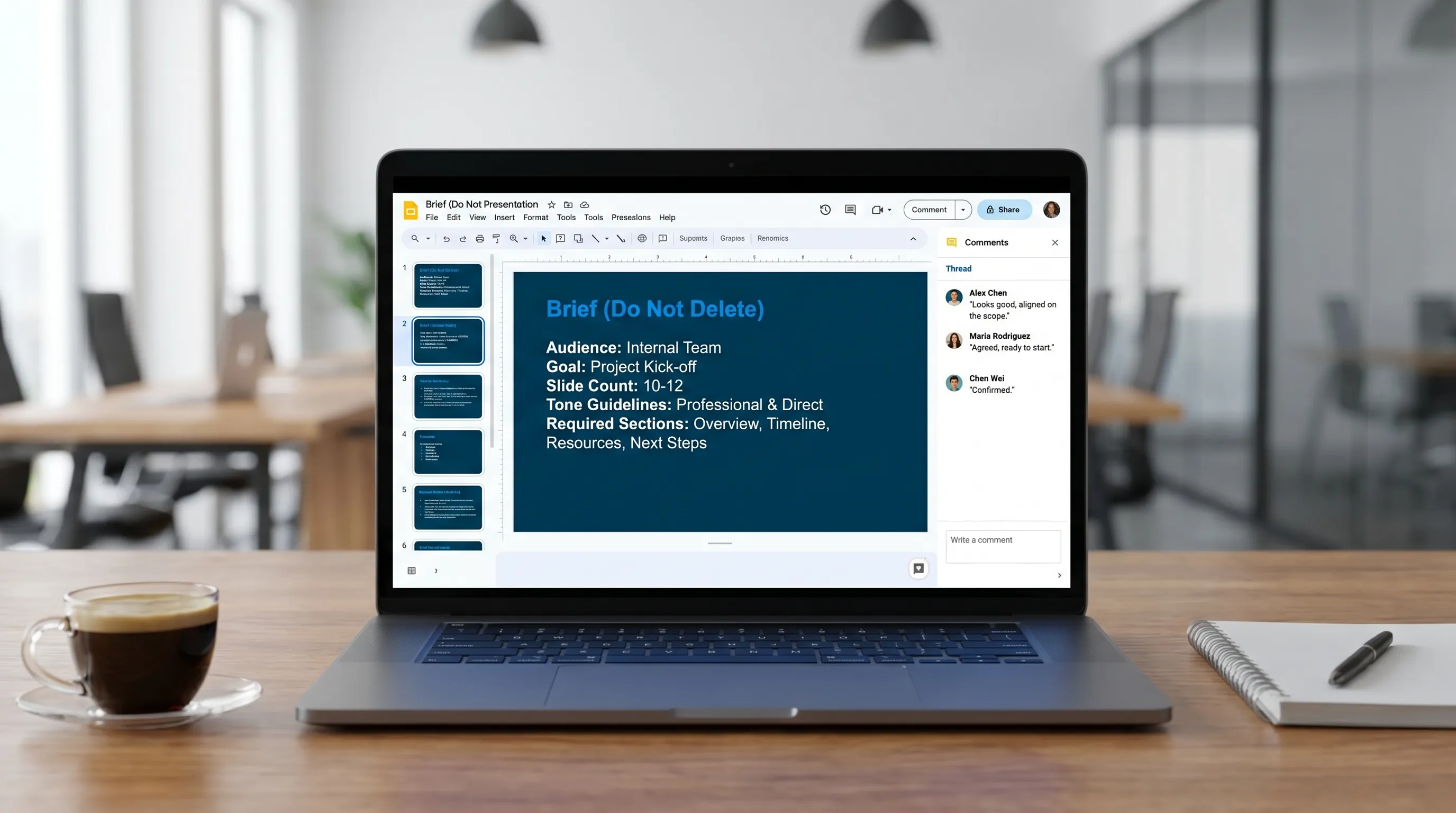
Before you generate anything, create one slide at the top of the deck called Brief (Do Not Delete). Put the constraints there, then reuse them in prompts.
Include:
- Audience (who, what they care about)
- Goal (decision, alignment, update)
- Context (what changed since last time)
- Length (e.g., 8 slides plus appendix)
- Voice (direct, no jargon, active verbs)
- Must include (metrics, timeline, risks)
- Must avoid (sensitive details, speculation)
Why this helps: when AI outputs drift, it is usually because the deck has no stable “source of truth” for intent.
Tip 2: Generate a storyboard first, then write slides second
Many teams jump straight into slide text. That creates rework because the narrative is still fuzzy.
Use AI to produce a storyboard with:
- A one sentence “through line”
- Slide by slide titles (headline style, not topic style)
- The job of each slide (convince, explain, prove, decide)
- Where evidence lives (link to a Sheet, data owner, date)
Storyboard prompt template
Use this prompt in your AI assistant (and paste your Brief slide content first):
Create a storyboard for a Google Slides deck. Constraints: 8 slides plus appendix. For each slide, provide (1) a punchy title that states the takeaway, (2) 3 to 5 bullets max, (3) suggested visual (chart/table/diagram), (4) what source data is required.
Once the storyboard is approved, slide writing becomes assembly, not debate.
Tip 3: Use AI to “compress” slides into a single takeaway line
A common reason decks feel slow is that every slide becomes a mini document. Your reviewers then rewrite everything.
A high leverage AI move is to force a takeaway title and a short body.
Takeaway compression prompt
Rewrite this slide so the title is a clear takeaway statement (max 12 words). Reduce body text to 3 bullets, each max 10 words. Keep meaning and do not add new claims.
Use this especially on slides that are text heavy, like updates and retros.
Tip 4: Create speaker notes that match the slide, not a separate script
Speaker notes are where you keep nuance without cluttering the slide.
Have AI generate notes that:
- Expand each bullet with one supporting sentence
- Include transitions (“What this means for next quarter is…”)
- Flag any missing proof (“Need source for churn figure”)
Speaker notes prompt
Draft speaker notes for this slide. Format: 3 short paragraphs. Each paragraph maps to one bullet. End with a transition sentence to the next slide.
This speeds delivery prep and reduces “what did we mean here?” comments.
Tip 5: Turn comments into an edit plan, then execute in batches
Teamwork breaks when comments are handled one by one. The deck ends up inconsistent because the writer is constantly context switching.
Instead:
- Collect comments until a cut-off time.
- Ask AI to summarize comments into an edit plan.
- Apply changes in batches: narrative, then wording, then formatting.
Comment to plan prompt
Summarize the open comments in this deck into an edit plan. Output: (1) decisions needed, (2) content changes, (3) wording/style edits, (4) formatting fixes. Do not propose new content beyond the comments.
If your team struggles with review sprawl, it also helps to track slide tasks explicitly. A lightweight option that fits Google Workspace well is the Kanbanchi project management tool for Google Workspace, which can keep “Slide 4 data,” “Replace chart,” and “Legal review” visible without burying action items in chat.
Tip 6: Standardize “slide components” and let AI fill them
Fast decks come from reusable patterns. Pick 4 to 6 slide types your team uses repeatedly, then reuse them as components.
Common high ROI components:
- Problem, impact, recommendation
- KPI snapshot (3 metrics, 1 insight, 1 action)
- Plan (milestones, owners, dates)
- Risks (risk, likelihood, mitigation, owner)
- Decision slide (options, tradeoffs, ask)
Then prompt AI to fill the component, rather than inventing structure.
Component fill prompt
Fill this slide template with my context. Keep the structure exactly as written. If data is missing, insert [NEEDS INPUT: …].
This keeps AI helpful while preventing it from “free styling” your narrative.
Tip 7: Use AI as a consistency checker across the whole deck
Decks get messy because multiple people write in different voices. AI can clean that up quickly.
Ask it to check:
- Terminology (are we using “customers” vs “clients” consistently?)
- Capitalization (feature names, team names)
- Repeated phrases and filler
- Slide title style (all takeaway statements, or all topics?)
- Number formatting (percent vs percentage, decimals)
Consistency audit prompt
Audit this deck for consistency. Output a table with: Issue type, example slide, recommended fix. Do not change meaning.
Tip 8: Bring data in cleanly (Sheets to Slides), then let AI write the narrative
If your deck is driven by metrics, the fastest workflow is:
- Keep numbers in Google Sheets
- Link charts or tables into Slides
- Use AI to write the interpretation, not to invent numbers
A simple rule: never ask AI “what are the trends?” without providing the data. Ask it to describe trends from the pasted table or the specific ranges you provide.
If you want a deeper companion workflow, see Google Sheets AI: Formulas, Cleanup, and Analysis Workflows and then apply the narrative output to your slide titles and speaker notes.
A prompt pack you can reuse for Google Slides (without making the deck longer)
Here is a compact set of prompts that map to the most common deck tasks.
| Deck task | Copyable AI prompt | What you get |
|---|---|---|
| Outline | “Create a storyboard for an 8-slide deck based on this brief. Titles must be takeaways.” | Slide plan with narrative |
| Rewrite | “Rewrite for exec clarity. Keep it short, remove buzzwords, no new claims.” | Cleaner slide text |
| Speaker notes | “Write speaker notes that map 1:1 to the bullets. Add transitions.” | Talk track without clutter |
| Decision slide | “Create a decision slide with 3 options, tradeoffs, and a clear ask.” | Decision-ready structure |
| Risk slide | “List risks with likelihood, impact, mitigation, owner. If unknown, mark as [NEEDS INPUT].” | Actionable risk table |
| Consistency | “Find inconsistent terminology, capitalization, and metrics formatting.” | Fast QA checklist |
A simple team workflow for “better teamwork” (not just more edits)
If you want smoother collaboration, define roles and handoffs.
A practical pattern:
- Owner: responsible for narrative and final quality
- Contributors: own specific slides (data, screenshots, product details)
- Reviewer: gives feedback only within the brief (no scope creep)
Then run reviews in two passes:
- Pass 1, narrative: “Are these the right slides in the right order?”
- Pass 2, polish: “Is each slide clear in 10 seconds?”
AI helps most between the passes: summarize feedback, apply consistent rewrites, and re-check for drift.
Accuracy and privacy guardrails when using AI in Google Slides
Decks often contain sensitive strategy, customer details, or financials. Treat AI like a powerful assistant that still needs boundaries.
Use these guardrails:
- Minimize sensitive inputs: paste only what the AI needs for the task
- Force “no new claims”: add that constraint to rewrite prompts
- Verify numbers: link charts from Sheets, and confirm the source of truth
- Mark unknowns explicitly: instruct AI to use placeholders like [NEEDS INPUT]
- Keep an audit trail: use version history and named versions before major edits
For broader, cross-app patterns (Docs, Sheets, Slides, Forms), you can also reference Google Workspace AI: Real-World Workflows for Busy Teams.
Frequently Asked Questions
What are the best Google Slides AI tips for making decks faster? Start with a brief slide, generate a storyboard before writing slides, compress each slide into one takeaway title, and use AI for speaker notes and consistency checks.
How do I stop AI from adding made-up facts to my slides? Add constraints like “do not add new claims,” require placeholders for missing info (for example, [NEEDS INPUT]), and only ask for insights based on data you provide.
Can AI help with teamwork in Google Slides, not just writing? Yes. Use AI to summarize comment threads into an edit plan, standardize slide components, and run a deck-wide consistency audit after multiple contributors edit.
What is the fastest way to build metric-driven slides? Keep numbers in Google Sheets, link charts into Slides, then ask AI to write the narrative and slide titles based on the pasted table or confirmed figures.
Do I need to copy content into a separate AI tool to do this? Not necessarily. In-app assistants and add-ons can let you draft, rewrite, and summarize directly where your work already lives.
Build decks directly inside Google Slides with CoreGPT Apps
If you want these workflows without bouncing between tabs, CoreGPT Apps brings GPT-powered assistance into Google Slides (plus Docs, Sheets, and Forms), and also works across Microsoft 365 apps. You can use models like ChatGPT, Gemini, and Claude in the context of the document you are editing.
CoreGPT Apps is designed to be simple to try (no registration required) and privacy-focused, which is especially useful when your decks contain internal plans and sensitive context.
Explore CoreGPT Apps at coregptapps.com and use the prompt templates above to turn deck creation into a repeatable, team-friendly system.