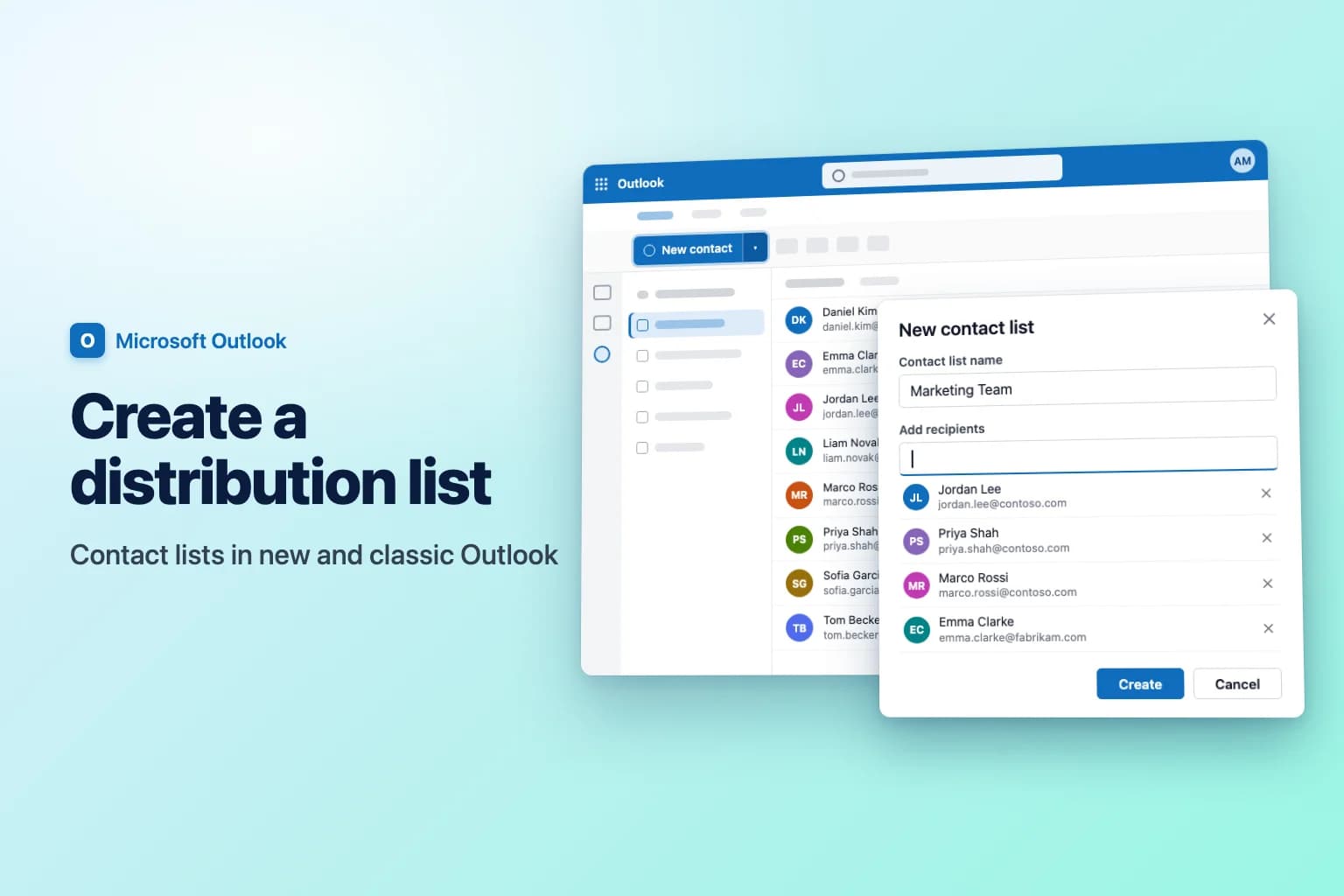
To create a distribution list in Outlook, go to People, select the arrow next to New contact → New contact list, type a name, add people under Add recipients, and select Create. That works in new Outlook for Windows, Outlook on the web and Outlook.com. In classic Outlook for Windows, go to People → Home → New Contact Group, name it, use Add Members, and select Save & Close.
Outlook's own name for this has changed over the years. A personal list you create yourself is a contact list in new Outlook and on the web, a contact group in classic Outlook, and a contact list on the Mac. All three are what most people mean by a distribution list. An organization-wide distribution list (like [email protected]) is different: it lives in your company's directory, has its own email address, and is usually created by an IT admin.
| Outlook version | Where to create it | It's called |
|---|---|---|
| New Outlook for Windows | People → New contact arrow → New contact list | Contact list |
| Outlook on the web / Outlook.com | People → New contact arrow → New contact list | Contact list |
| Classic Outlook for Windows | People → Home → New Contact Group | Contact group |
| Outlook for Mac | People → New Contact → New Contact List | Contact list |
| Microsoft 365 admin center | Teams & groups → Active teams & groups → Distribution list | Distribution list (admins) |
Personal contact list or organization distribution list?
Pick the right kind before you start:
- Personal contact list (contact group): only you use it, it's saved in your own Contacts, and it can mix coworkers and outside addresses. Good for "my project team".
- Organization distribution list: everyone in your company can email it at one address, and recipients see the list's address instead of every member's. Ask your IT admin when a whole team or department needs one.
- Microsoft 365 group: a distribution list plus a shared inbox, calendar and files. If your organization allows it, you can create one in new Outlook or on the web from Groups → New group.
The rest of this guide covers personal lists, which you can make right now.
Create a contact list in new Outlook or Outlook on the web
New Outlook for Windows, Outlook on the web (outlook.office.com) and Outlook.com use the same steps:
- Select People in the left navigation bar.
- Select the arrow next to New contact, then select New contact list.
- Type a name in Contact list name, for example Marketing Team.
- In Add recipients, type a name or email address and pick the person from the suggestions. Repeat for everyone you want on the list. People outside your organization are fine, just type their full email address.
- Optionally add a description, then select Create.
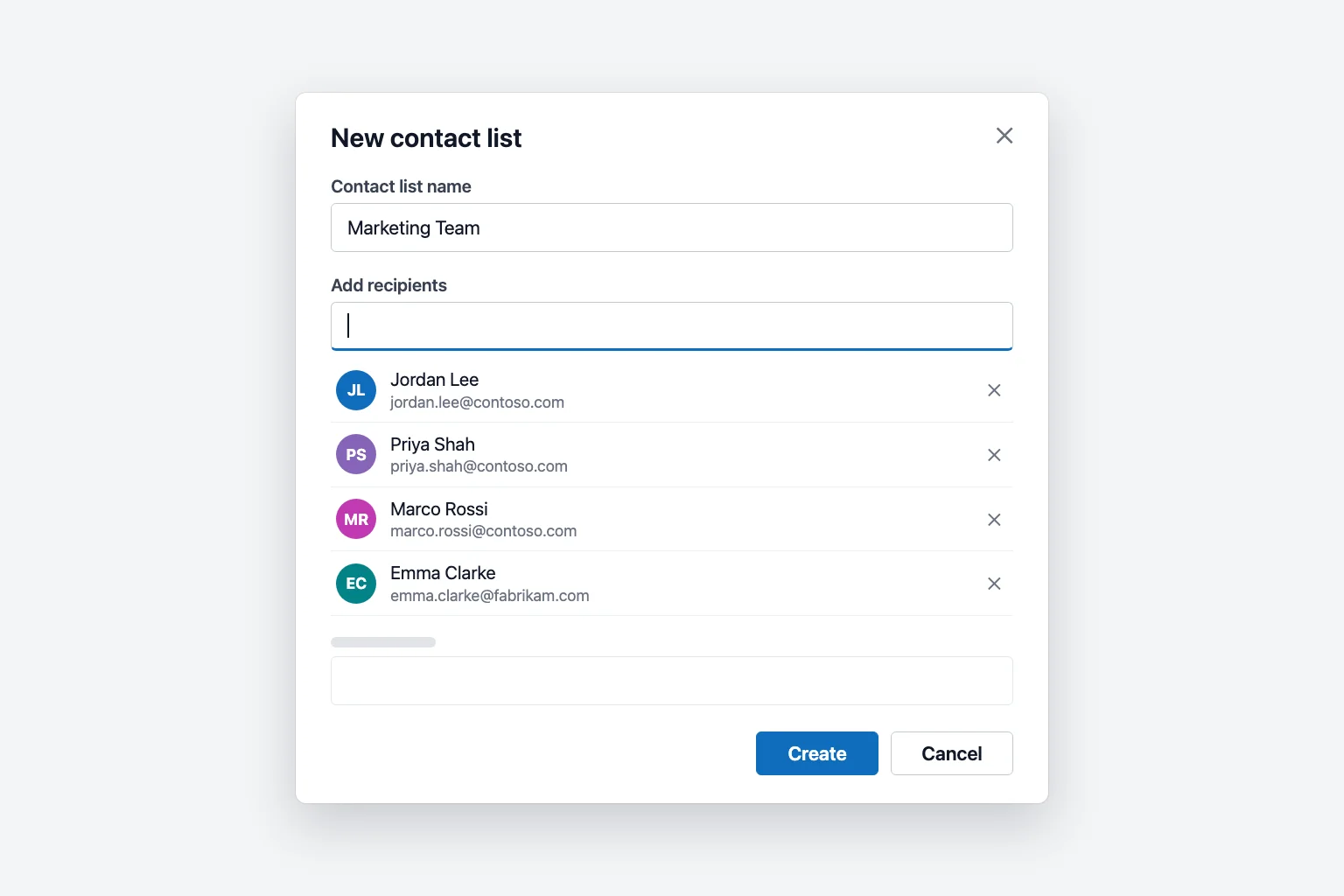
Your new list appears under Your contact lists in People. It's saved in your default Contacts folder, so it syncs to your other Outlook apps on the same Microsoft 365 or Outlook.com account. A contact list only holds email addresses, so every member needs one.
Create a contact group in classic Outlook for Windows
- Select People in the navigation bar (the people icon at the bottom or left side of the window).
- On the Home tab, select New Contact Group. From the Mail view you can also use Home → New Items → More Items → Contact Group.
- Type a name for the group in the Name box.
- On the Contact Group tab, select Add Members and choose where the people come from:
- From Outlook Contacts for people saved in your Contacts.
- From Address Book for coworkers in your organization's directory.
- New E-mail Contact for someone who isn't in either, such as an outside partner.
- Double-click each name to add it to the Members box (or hold
Ctrlto pick several), then select OK. - Select Save & Close.
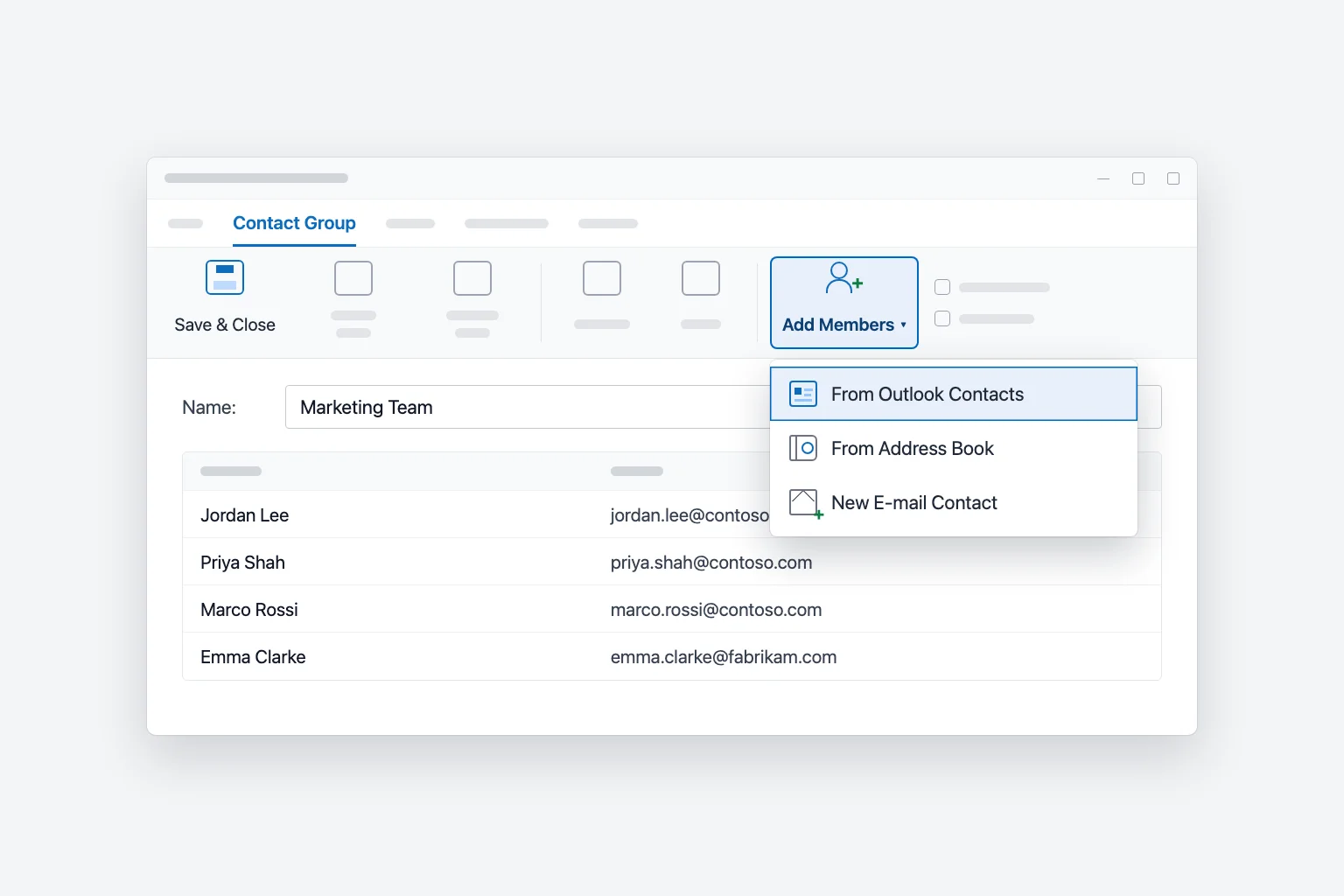
The group is saved in your Contacts folder with a group icon next to its name.
Build a group fast from Excel or an existing email
The Members box in the Select Members dialog accepts addresses pasted with semicolons between them, which gives you two shortcuts in classic Outlook:
- From Excel: if the addresses are in B2:B40, put
=TEXTJOIN(";",TRUE,B2:B40)in an empty cell, copy the result, choose Add Members → From Outlook Contacts, paste it into Members, and select OK. - From an email: copy everything in the To or Cc line of a message that went to the right people, and paste it into Members the same way.
In new Outlook and on the web, import the people as contacts first (People → Manage contacts → Import contacts, with a .csv file), then add them to the list by name.
Create a contact list in Outlook for Mac
In the current Outlook for Mac:
- Select People in the side navigation bar.
- Select the Contacts folder of the account you want to use, hover over New Contact, and select New Contact List.
- Type a name for the list.
- Under Add members, type an email address and select Add. Repeat for each person.
- Select Save.
In legacy Outlook for Mac, it's People → Home → New Contact List, then Save & Close; legacy also offers a Use Bcc to hide member information check box. Lists sync with the server only for Microsoft 365 and Outlook.com accounts. In legacy Outlook for Mac, lists for an Exchange account stay on your Mac.
Send an email to your distribution list
- Start a New mail (or New Email in classic Outlook).
- In To, start typing the list name and pick it from the suggestions. In classic Outlook you can also select To, search for the group, and double-click it.
- Write your message and select Send.
Hide the addresses with Bcc
When you send to a personal list, Outlook expands it into individual addresses, so every recipient can see everyone else's email. To keep them private, put your own address in To and the list in Bcc. In new Outlook and on the web, select Bcc at the right end of the To line; in classic Outlook it's Options → Bcc. Bcc also stops one person's reply all from reaching the whole list.
Edit, remove members or delete a list
New Outlook and the web: go to People → Your contact lists, hover over the list and select Edit (the pencil). Add people in Add recipients, or select the X next to someone to remove them, then select Save. The trash can icon deletes the list.
Classic Outlook: in People, double-click the group. Use Add Members or select a person and choose Remove Member, then Save & Close. To delete the whole group, select it and choose Delete.
Deleting a list never deletes the contacts in it.
Share a contact group with a coworker
Classic Outlook can send a group as an attachment: open the group, select Forward Group → As an Outlook Contact, and send the email. The recipient opens the attachment in classic Outlook and selects Save & Close (or drags it into their Contacts) to get their own copy.
New Outlook and the web have no forward option for lists, so send your coworker the addresses and let them build their own. If several people need the same list long term, ask IT for an organization distribution list, so there's only one copy to maintain.
Limits to know
A personal list counts every member as a separate recipient. Microsoft 365 work and school accounts can send to 500 recipients per message by default (admins can raise it to 1,000) and 10,000 a day. Outlook.com allows 500 per message for Microsoft 365 subscribers, and less for new and free accounts. An organization distribution list counts as one recipient, so big mailings belong there.
Why your distribution list isn't working
The list doesn't show up when you type its name. Type the full name and wait a moment for the search results, or select To and search for it there. In classic Outlook, also check that your Contacts folder is used as an address book: right-click Contacts, choose Properties, open the Outlook Address Book tab, and tick Show this folder as an e-mail Address Book.
Contact groups from classic Outlook are missing in new Outlook. Groups saved in a Contacts (This computer only) folder or in a .pst file (common with Gmail, Yahoo and other IMAP or POP accounts) stay on that PC and don't sync. Export those contacts to a .csv file from classic Outlook, import them in new Outlook, and recreate the list there.
You can't expand the group in the To line. In classic Outlook, select the + next to the group name to replace it with its members (this can't be undone for that message). Organization distribution lists may not expand if they're very large, have hidden membership, or if you're offline.
People outside your company aren't getting the email. Personal lists can include any address, so check the spelling. Organization distribution lists often reject email from outside senders, and outside members have to be added by an admin as mail contacts.
Frequently Asked Questions
What's the difference between a contact group and a distribution list in Outlook? A contact group (called a contact list in new Outlook) is a personal list saved in your own Contacts. An organization distribution list sits in the company directory, has its own email address, and anyone in the organization can use it.
Can I create a distribution list in the Outlook mobile app? No, the iPhone and Android apps don't have an option to create one. Create the list in Outlook on the web or on your computer.
Can people on my contact list see each other's email addresses? Yes, if you put the list in To or Cc. Put it in Bcc to hide the addresses.
How many people can I add to an Outlook contact list? The practical limit is what you can send: usually 500 recipients per message, with each member counted separately. For larger groups, use an organization distribution list.
How do I create a group email in Outlook for my whole team? For a group only you use, create a contact list as shown above. For one address the whole team can email, ask your admin to create a distribution list or a Microsoft 365 group.
Keep up with the reply-all threads
Emailing a group is quick; reading what comes back isn't. One question to the list can turn into a dozen replies with different answers and side conversations. CoreGPT for Outlook summarizes the whole thread in a few lines, right next to the message, so you can see who said what and what still needs an answer before you reply. It's free to start.
 CoreGPT
Priya Shah
Re: Q4 launch timeline
Can we confirm the dates…
Marco Rossi
Contract renewal
Attached is the updated…
Support
Ticket #4821 resolved
Your request has been…
Emma Clark
Lunch on Thursday?
Are you free around…
Re: Q4 launch timeline
Priya Shah
Marketing needs final copy by Oct 28 if we keep the Nov 3 launch. Can engineering confirm the release candidate is on track?
Daniel Kim
RC is on track for Oct 30. QA needs two extra days for the payments flow, so Nov 3 is tight but possible.
Priya Shah
If QA slips, should we move the launch to Nov 5 instead?
Summary:
- Launch planned for Nov 3
- RC due Oct 30, QA needs 2 more days
- Option: move launch to Nov 5
Try it: CoreGPT for Outlook
Related reading: