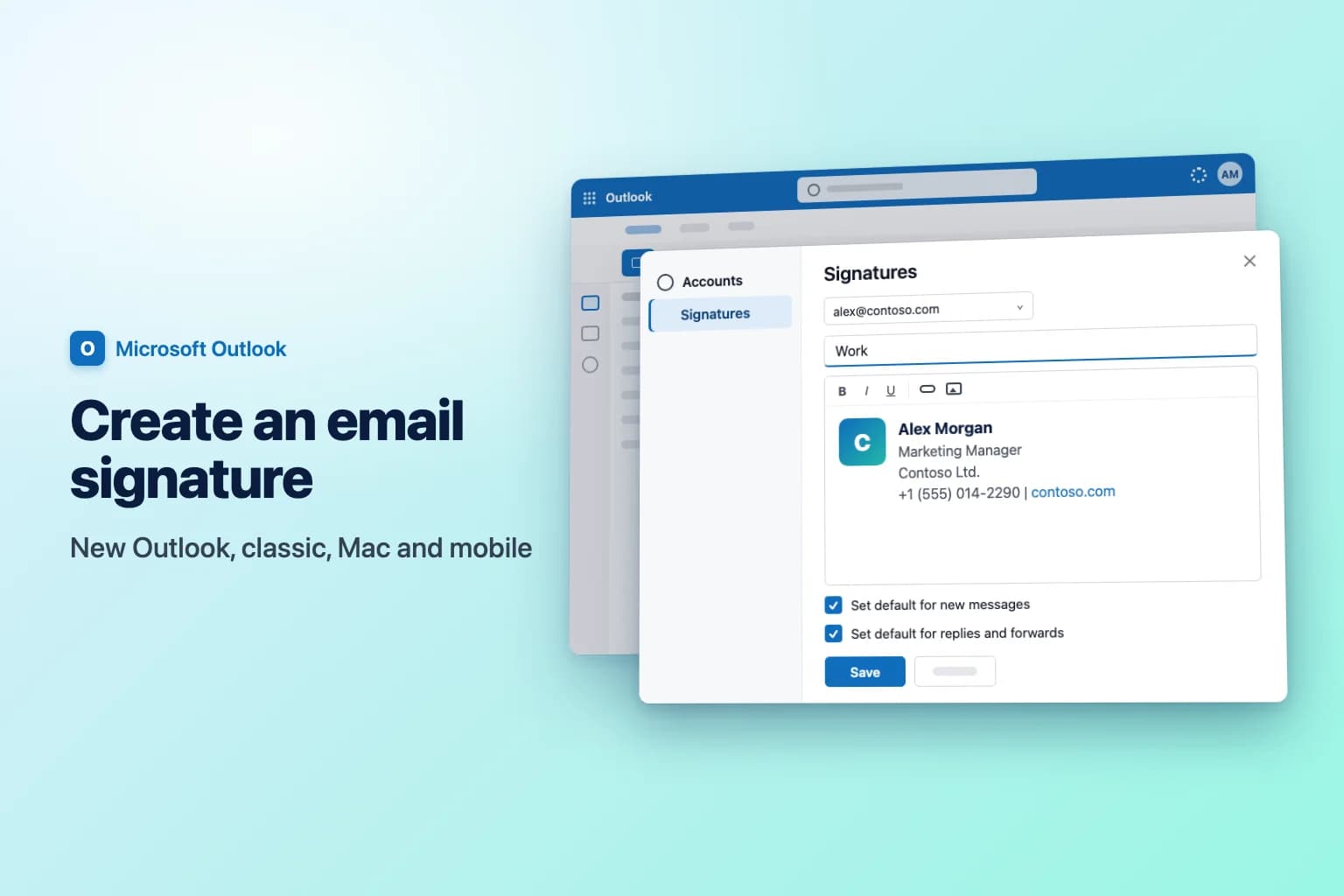
To add an email signature in Outlook, go to Settings → Accounts → Signatures in new Outlook or Outlook on the web, select Add signature, give it a name, type your signature, tick the boxes to use it for new messages and for replies and forwards, and click Save. In classic Outlook for Windows, the same settings live in File → Options → Mail → Signatures.
One thing catches almost everyone out: a signature belongs to the Outlook app (and sometimes the device) where you created it. Outlook mobile has its own separate signature, and a signature made in classic Outlook may not appear on your other computer. The sync section below explains when it follows you and when you need to set it up again.
| Outlook version | Where to create it | Automatic for new emails and replies? | Logo and links |
|---|---|---|---|
| New Outlook for Windows | Settings → Accounts → Signatures | Yes, two separate settings | Yes |
| Outlook on the web / Outlook.com | Settings → Accounts → Signatures | Yes, two separate settings | Yes |
| Classic Outlook for Windows | File → Options → Mail → Signatures | Yes, New messages and Replies/forwards | Yes |
| Outlook for Mac | Outlook → Settings → Signatures | Yes, per account | Yes |
| Outlook for iPhone and Android | Settings → Signature | Always on when filled in | Text only, in practice |
A simple signature that works everywhere
A clean business signature needs four or five lines:
Alex Morgan
Marketing Manager
Contoso Ltd.
+1 (555) 014-2290 | contoso.com
Name first, then job title, company and one or two ways to reach you. Every extra line (quotes, optional legal text, a second image) makes threads harder to read on a phone.
Create a signature in new Outlook or Outlook on the web
New Outlook for Windows, Outlook on the web (outlook.office.com) and Outlook.com share the same steps:
- Select Settings (the gear icon at the top right).
- Go to Accounts → Signatures.
- If you have more than one email account in Outlook, pick the account this signature is for.
- Select Add signature and type a name you'll recognize, such as "Work". Recipients never see the name.
- Type your signature in the editing box. The toolbar handles fonts, colors, links and pictures such as a logo.
- At the bottom, tick the box to use it for new messages, the box to use it for replies and forwards, or both. Leave both empty if you'd rather add it by hand.
- Click Save.
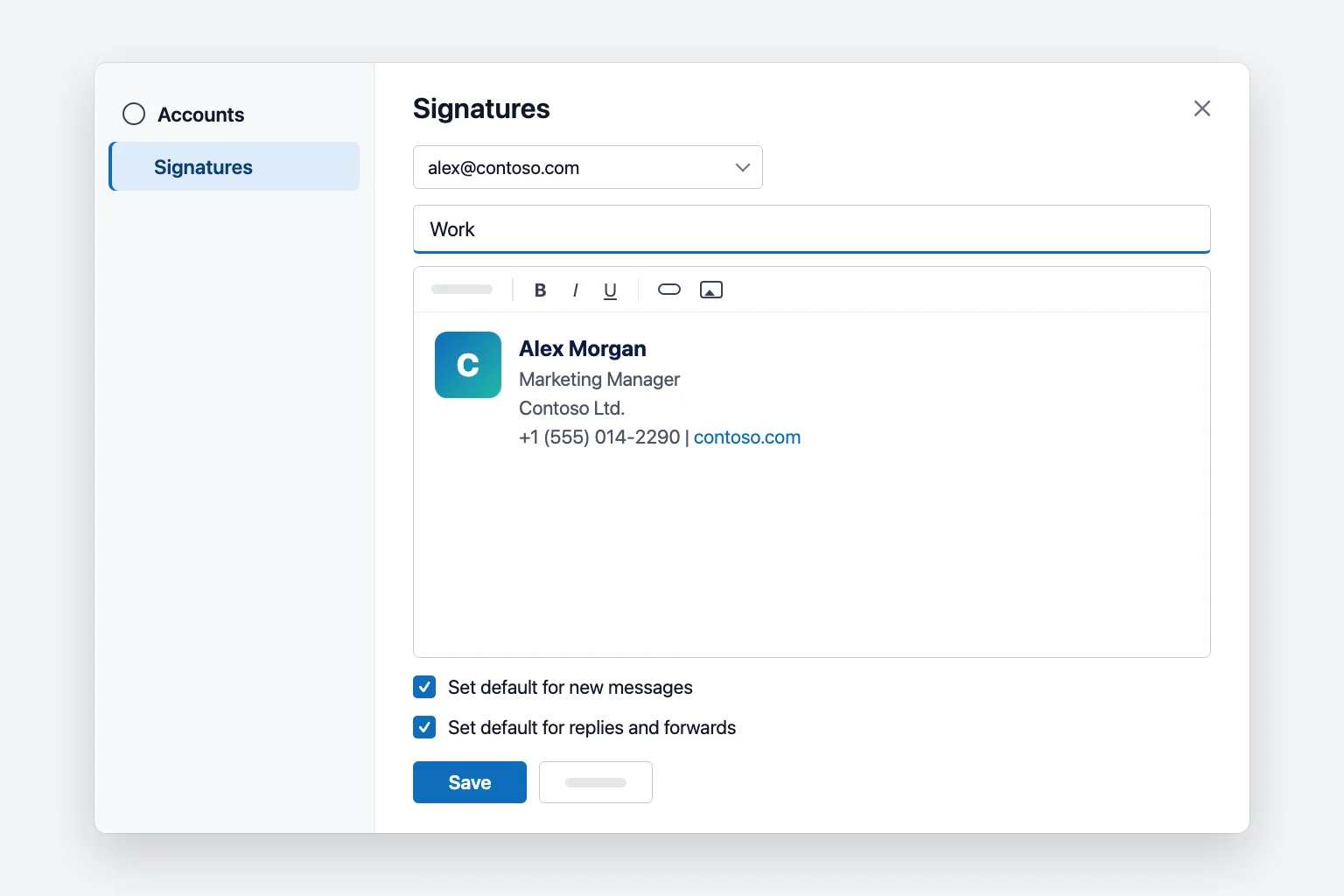
Older layouts of new Outlook and the web show a + New signature button instead, with For New Messages and For Replies/Forwards drop-downs under the editor. They do the same job: pick your signature in each box and click Save.
To change a signature later, return to Settings → Accounts → Signatures, select the Edit (pencil) icon next to it, make your changes and click Save.
Create a signature in classic Outlook for Windows
- Go to File → Options → Mail and click Signatures. (From an open message you can also use Message → Signature → Signatures.)
- On the E-mail Signature tab, click New, type a name and click OK.
- Type your signature in the Edit signature box. The small toolbar above it handles fonts, colors, alignment, a picture and a hyperlink.
- Under Choose default signature, pick the account in E-mail account.
- Choose the signature in New messages and in Replies/forwards. Pick (none) in either box if you don't want it there.
- Click Save, then OK.
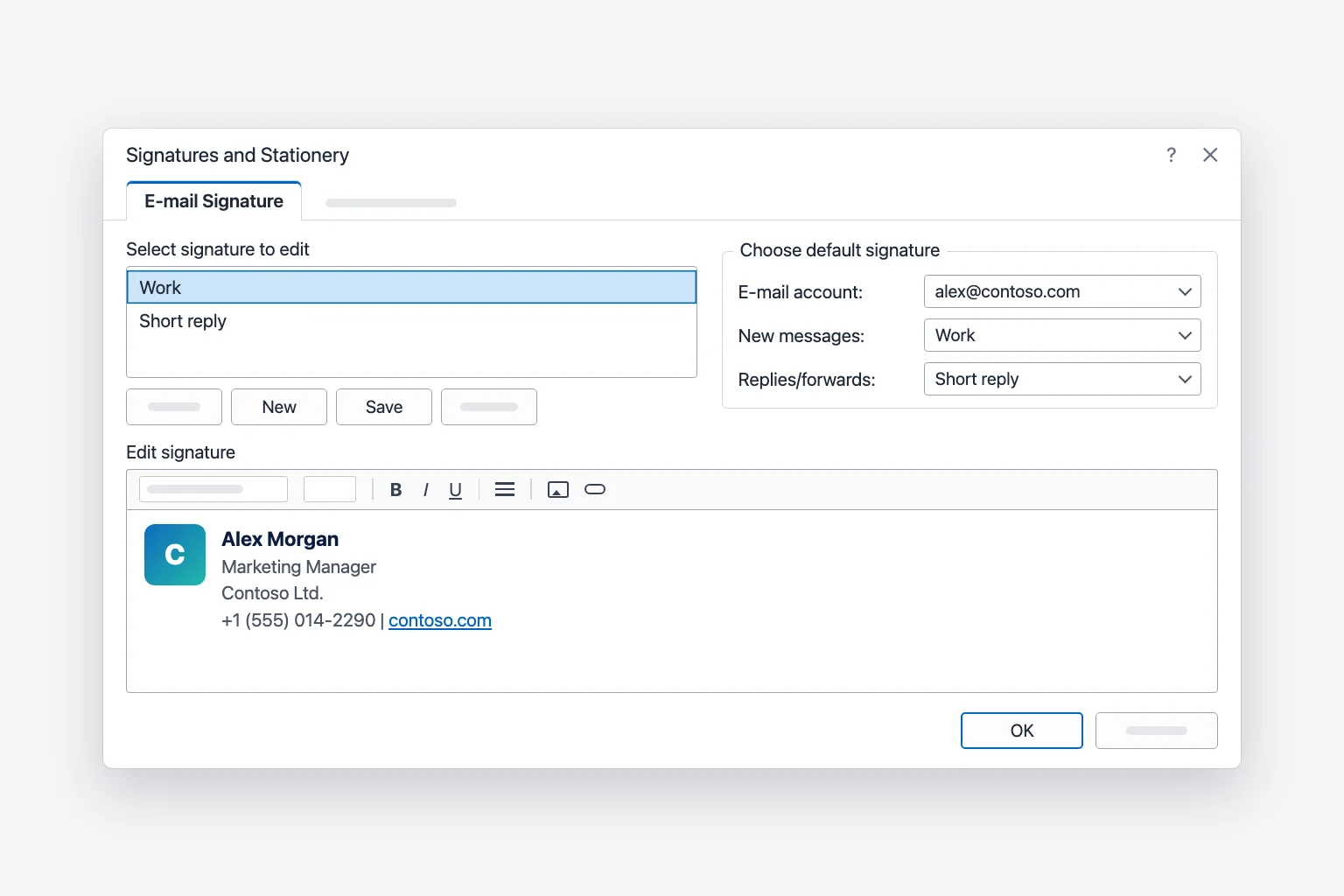
A message you already had open won't get the new signature; insert it manually or start a new email. For bullets, tables or borders, build the signature in Word and paste it into Edit signature.
Create a signature in Outlook for Mac
In current Outlook for Mac:
- Open the Outlook menu and choose Settings, then click Signatures (under Mail).
- Click + to add a signature, or select the existing "Untitled" one and rename it.
- Type a name, then type and format the signature in the editor. Use See more items (...) to add a picture, link or table.
- Under Set default signature, select the account, then choose your signature for For new messages and For replies or forwards.
- Close the Signatures window to finish. There's no separate save step.
Legacy Outlook for Mac uses Settings → Email → Signatures and calls the defaults New messages and Replies/forwards, but the idea is the same.
Add a signature in the Outlook mobile app
Outlook for iPhone and Android keeps its own signature, separate from your desktop:
- Open Outlook and tap your account icon at the top left.
- Tap Settings (the gear).
- Tap Signature. Depending on your app version it may be grouped under Mail or your account.
- Replace the default "Get Outlook for iOS" or "Get Outlook for Android" text with your own lines. On iPhone, turn on Per Account Signature if each account needs a different one.
The app adds it to every new message and reply. Treat it as plain text: desktop logos and formatting don't carry over, so a short "Alex Morgan, Contoso Ltd., +1 (555) 014-2290" works best.
Insert a signature manually
If you left the defaults empty, or want a different signature for one email:
- New Outlook and the web: in the message, on the Message tab, select Signature and pick one. Choose Signatures... at the bottom of that list to create a new one.
- Classic Outlook: on the Message tab (or the Insert tab), click Signature and pick one from the list.
- Outlook for Mac: click in the body, then click Signature on the ribbon (you may need See more items (...) first).
Picking a different signature normally replaces the one Outlook inserted automatically. If you end up with two, delete the extra lines by hand.
How to change your signature in Outlook
To edit a signature you already have, open the same screen you used to create it:
- New Outlook and Outlook on the web: go to Settings → Accounts → Signatures, select the Edit (pencil) icon next to the signature, change the text or picture and click Save.
- Classic Outlook for Windows: go to File → Options → Mail → Signatures, pick the signature under Select signature to edit, change it in the Edit signature box and click OK.
- Outlook for Mac: open Outlook → Settings → Signatures, select the signature and edit it. Close the window to finish.
- Outlook mobile: tap your account icon, then Settings → Signature, and type over the old text.
To change which signature Outlook adds automatically, switch the choices for new messages and for replies and forwards on that same screen. The change applies to emails you start afterwards. A message that is already open keeps the old signature, so insert the new one by hand or start again.
Use more than one signature
You can save several signatures and switch per message. Two common setups:
- Full signature for new emails, short one for replies. Set Work for new messages and a one-line Short reply (name and phone) for replies and forwards.
- One signature per account. In new Outlook, select the account at the top of Signatures before setting defaults. In classic Outlook, switch the E-mail account box and set the defaults for each account.
Add a logo or image to your Outlook signature
A logo is the part of a signature most likely to break. A few rules keep it reliable:
- Resize the image before you insert it. Aim for roughly 150 to 300 pixels wide. A large photo scaled down in the editor can still send the full file with every email.
- Use PNG or JPG. Avoid SVG and animated GIFs, which many email apps don't display well.
- Keep it to one image. Each embedded picture can show up as an attachment for some recipients, which looks like spam and clutters their inbox.
- Embedded vs hosted images. A picture inserted from your computer is embedded in every email: it always travels with the message but adds weight and may appear as an attachment. A hosted image (stored on your website and linked by URL) keeps emails light, but many email apps hide external images until the reader chooses to download pictures.
- Resize in classic Outlook properly. In Edit signature, right-click the image, choose Picture, open the Size tab and keep Lock aspect ratio ticked so the logo doesn't stretch.
Keep your name, phone number and website as real text, never only inside the image, so they stay readable when pictures are blocked.
Why your Outlook signature doesn't sync between devices
What syncs depends on the app and account:
- Microsoft 365 work or school accounts. Current versions of classic Outlook store signatures in your mailbox, and new Outlook and Outlook on the web read them from there, so one signature can show up on all three. Some organizations turn this off. If classic Outlook lists a signature under Signatures on this device, it stays on that computer only.
- Outlook.com and Hotmail accounts. Microsoft says that if you use both Outlook and Outlook on the web with a Microsoft account, you need to create the signature in both.
- Outlook mobile. Always separate. Set it once in the app on each phone.
- IMAP and POP accounts (Gmail, Yahoo, iCloud) in classic Outlook. Signatures are saved locally on each PC. To move them, copy the files in
%APPDATA%\Microsoft\Signaturesto the same folder on the new computer.
After setting up a signature, send yourself a test email from each device you use.
Outlook signature not working? Common fixes
- It's missing from replies. The replies and forwards default is empty (or set for a different account). Set it as shown above, for each account.
- The logo shows as an attachment or a red X. Shrink the image, use PNG or JPG, and limit yourself to one picture. Some recipients' email apps block images by default, and there's nothing you can change on your side for that.
- Formatting is lost. Your message is probably in plain text, which strips images, links and fonts. Switch the message to HTML (the Format Text tab in classic Outlook, the Options tab in new Outlook) and set HTML as the default compose format in your mail settings.
- The layout breaks when pasted from Word. Complex tables cause most broken signatures. Simplify it, or rebuild it directly in the signature editor.
- It disappeared after switching to new Outlook. Signatures saved only on your device in classic Outlook may not move over. Recreate it in Settings → Accounts → Signatures.
Frequently Asked Questions
How do I add a signature in Outlook automatically? Set it as the default. In new Outlook and on the web, tick the boxes for new messages and replies and forwards in Settings → Accounts → Signatures. In classic Outlook, choose it under New messages and Replies/forwards in File → Options → Mail → Signatures.
Can I have different signatures for new emails and replies? Yes. Create two signatures and set one as the default for new messages and the other for replies and forwards.
Why doesn't my Outlook signature show on my phone? The Outlook mobile app doesn't use your desktop signature. Set it separately in the app under Settings → Signature.
How do I add a logo to my Outlook signature? Insert the picture from the signature editor's toolbar in any desktop version. Resize the file first so it's about 150 to 300 pixels wide, and keep your contact details as text.
How do I change or delete my email signature in Outlook? In new Outlook and on the web, use the pencil or trash icon next to the signature in Settings → Accounts → Signatures. In classic Outlook, select it in Signatures and Stationery and edit it, or click Delete.
Let Outlook sign off while you write the rest
A good signature takes care of the last few lines of every email. CoreGPT for Outlook helps with everything above them: describe what you want to say in one line and it drafts a short, clear reply right inside Outlook, ready for your signature. It's free to start.
 CoreGPT
Priya Shah
Re: Q4 launch timeline
Can we confirm the dates…
Marco Rossi
Contract renewal
Attached is the updated…
Support
Ticket #4821 resolved
Your request has been…
Emma Clark
Lunch on Thursday?
Are you free around…
Re: Q4 launch timeline
Priya Shah
Marketing needs final copy by Oct 28 if we keep the Nov 3 launch. Can engineering confirm the release candidate is on track?
Daniel Kim
RC is on track for Oct 30. QA needs two extra days for the payments flow, so Nov 3 is tight but possible.
Priya Shah
If QA slips, should we move the launch to Nov 5 instead?
Hi Priya, agreed. If QA needs the extra days, let’s move the launch to Nov 5 and keep Oct 28 for final copy. Thanks!
Try it: CoreGPT for Outlook
Related reading: