
To concatenate in Excel, type =A2&" "&B2 in an empty cell: the & operator joins the two cells, and " " adds the space between them. For more than two cells, =TEXTJOIN(" ",TRUE,A2:C2) joins a whole range with one separator and skips blank cells. =CONCAT(A2," ",B2) and the older =CONCATENATE(A2," ",B2) give the same result as &.
The main caveat is version support. & and CONCATENATE work in every version of Excel, but CONCAT and TEXTJOIN need Excel 2019 or later, Microsoft 365 or Excel for the web. In older versions, such as a standalone Excel 2016, they show a #NAME? error.
| Method | Example | Joins a range? | Separator built in? | Skips blanks? | Works in |
|---|---|---|---|---|---|
& operator | =A2&" "&B2 | No | No | No | Every version |
| CONCATENATE | =CONCATENATE(A2," ",B2) | No | No | No | Every version (legacy) |
| CONCAT | =CONCAT(A2:C2) | Yes | No | No | Excel 2019+, Microsoft 365, web |
| TEXTJOIN | =TEXTJOIN(", ",TRUE,A2:C2) | Yes | Yes | Yes | Excel 2019+, Microsoft 365, web |
| Flash Fill | Ctrl+E | n/a | Any pattern | n/a | Excel 2013+ (no formula, no updates) |
This post covers formulas that combine text into a new cell. If you want to turn several cells into one bigger cell for a title, that's a formatting job: see how to merge cells in Excel.
Combine two columns with the & operator
The ampersand is the quickest way to join a few cells, and it works in Excel for Windows, Mac, the web, mobile and Google Sheets.
Say first names are in column A and last names in column B:
- Click C2, the first empty cell in your new Full name column.
- Type
=A2&" "&B2and pressEnter. "Emma" and "Johnson" become Emma Johnson. - Double-click the fill handle (the small square at the bottom-right of C2) to copy the formula down the column.
Everything inside double quotes is added as typed, so you can mix in any text you like:
=B2&", "&A2returns Johnson, Emma="Dear "&A2&","returns Dear Emma,=LEFT(A2,1)&". "&B2returns E. Johnson
In Excel for Microsoft 365 and Excel 2021 or later you can also join two whole columns in one go: =A2:A7&" "&B2:B7 spills a full name for every row, with no copying down.
CONCATENATE vs CONCAT: which should you use?
CONCATENATE is the original function: =CONCATENATE(A2," ",B2). It still works in every version, but it only accepts single cells or text, so joining ten cells means listing all ten. Microsoft keeps it for compatibility and recommends CONCAT instead.
CONCAT is its replacement. It does the same thing, but it also accepts ranges:
=CONCAT(A2," ",B2)
=CONCAT(A2:D2)
The catch is that =CONCAT(A2:D2) joins the cells with nothing in between, so "125 Main St" and "Denver" come out as 125 Main StDenver. CONCAT has no separator or skip-blanks option. For anything beyond two or three cells, TEXTJOIN is the better tool.
Short version: use & or CONCAT for quick joins, TEXTJOIN when you need a separator, and CONCATENATE only in files that must open in Excel 2016 or older (where & works just as well).
TEXTJOIN: join a range with a separator
TEXTJOIN takes the separator once and applies it between every value:
=TEXTJOIN(delimiter, ignore_empty, text1, [text2], ...)
- delimiter is the text to put between values, such as
" ",", "or" | ". - ignore_empty is
TRUEto skip blank cells orFALSEto keep them. - text1, text2... are the cells or ranges to join.
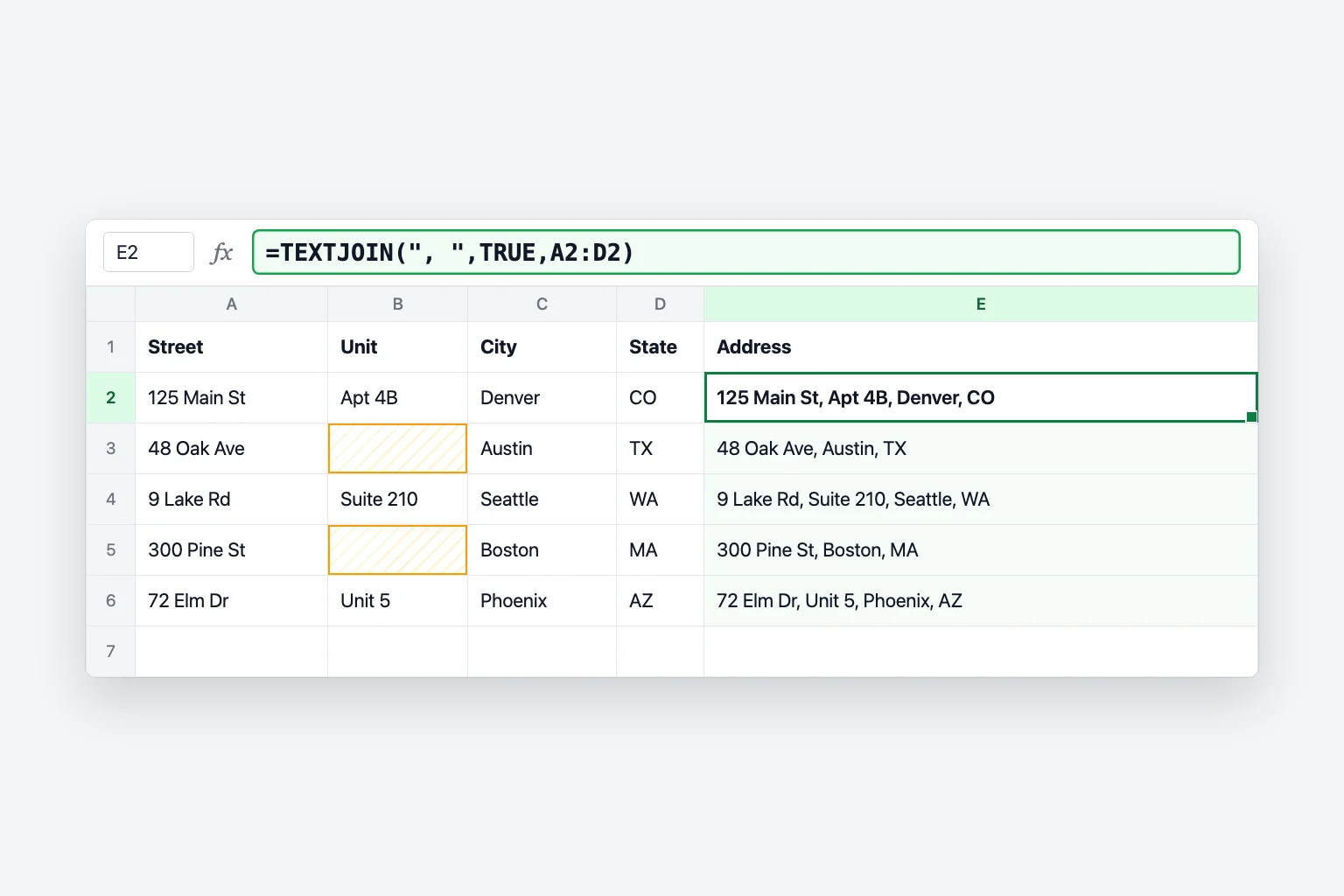
It's at its best when some cells are empty. With a street in A, an apartment number in B (often blank), a city in C and a state in D:
- Click E2.
- Type
=TEXTJOIN(", ",TRUE,A2:D2)and pressEnter. - Fill the formula down.
Row 2 returns 125 Main St, Apt 4B, Denver, CO. Row 3 has no apartment, and instead of "48 Oak Ave, , Austin, TX" you get 48 Oak Ave, Austin, TX, because TRUE skips the blank cell. With & you'd need an IF for every optional field.
Add spaces, commas and line breaks
Excel never adds a separator for you, so every space or comma has to be in the formula:
| You want | & formula | TEXTJOIN formula |
|---|---|---|
| Emma Johnson | =A2&" "&B2 | =TEXTJOIN(" ",TRUE,A2:B2) |
| Johnson, Emma | =B2&", "&A2 | =TEXTJOIN(", ",TRUE,B2,A2) |
| Emma-Johnson | =A2&"-"&B2 | =TEXTJOIN("-",TRUE,A2:B2) |
| Each value on its own line | =A2&CHAR(10)&B2 | =TEXTJOIN(CHAR(10),TRUE,A2:C2) |
CHAR(10) is the line-break character. The formula inserts it, but the cell only shows separate lines once wrapping is on: select the cell and click Home → Wrap Text. Without Wrap Text, the lines run together on one row.
Keep dates and numbers formatted with TEXT
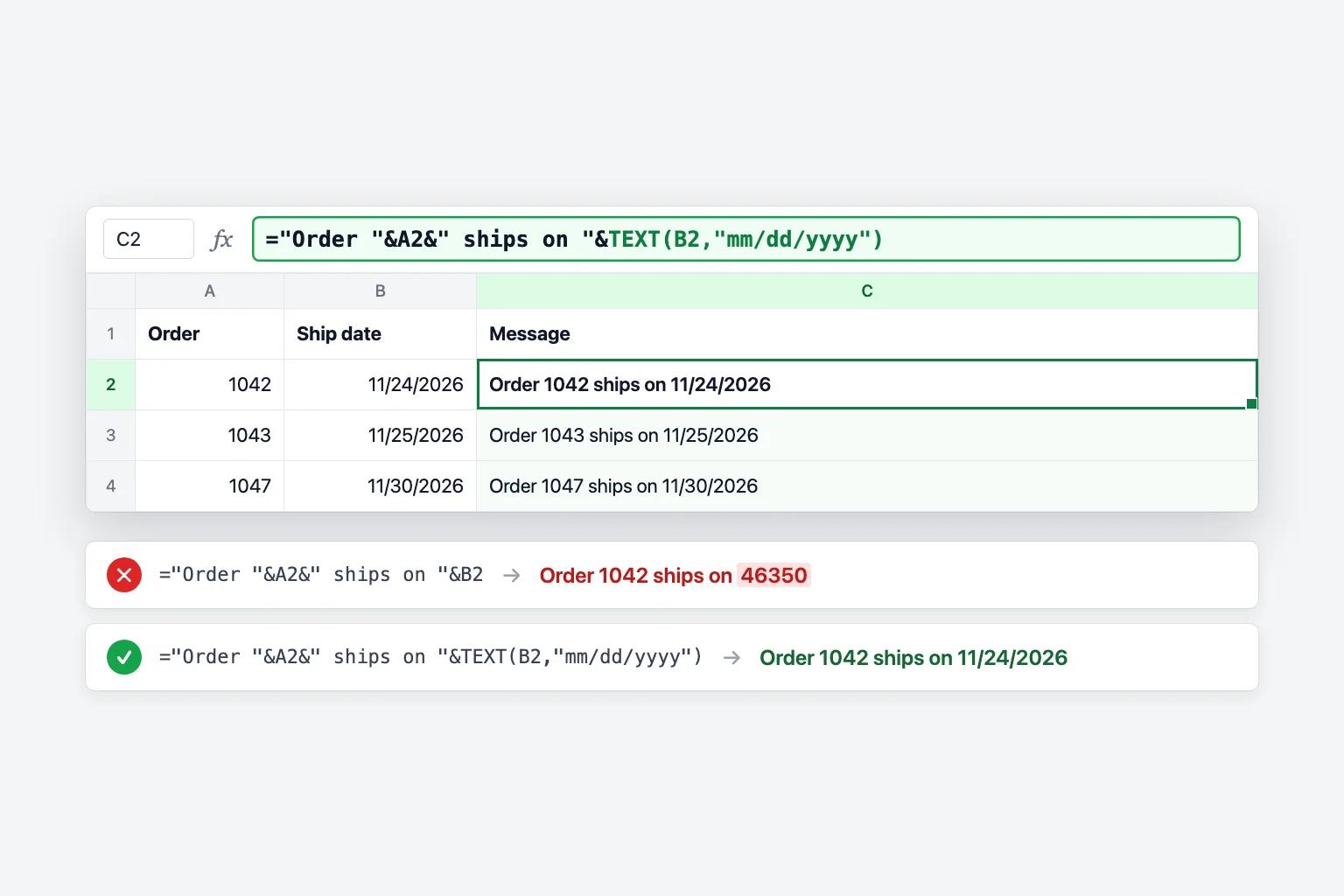
When you concatenate a date or a formatted number, Excel uses the raw value underneath, not what you see in the cell. A ship date of 11/24/2026 in B2 turns into its serial number:
="Order "&A2&" ships on "&B2
returns Order 1042 ships on 46350. Wrap the date in the TEXT function and give it a format code:
="Order "&A2&" ships on "&TEXT(B2,"mm/dd/yyyy")
Now it returns Order 1042 ships on 11/24/2026.
The same fix works for currency, percentages and decimals. If C2 holds 1250.5 formatted as currency, =A2&" owes "&C2 shows Emma owes 1250.5. These format codes keep it readable:
TEXT(C2,"$#,##0.00")gives $1,250.50TEXT(B2,"mmmm d, yyyy")gives November 24, 2026TEXT(D2,"0%")turns 0.15 into 15%TEXT(E2,"0.0")rounds to one decimal place
Format codes follow your regional settings, so mm/dd/yyyy is the US order. Use dd/mm/yyyy if that's how dates are written where you are.
Combine a whole column into one cell
To turn a list into a single comma-separated line, for example email addresses in A2:A20, use:
=TEXTJOIN(", ",TRUE,A2:A20)
The TRUE skips empty rows, so you can point it at a longer range than you need and it won't leave trailing commas. Use "; " as the separator if you're pasting addresses into an email client that expects semicolons. If you need plain text rather than a live formula, copy the cell and use Home → Paste → Paste Values.
CONCAT can do this too (=CONCAT(A2:A20)), but without a separator the values run together.
Flash Fill: combine without a formula
Flash Fill copies a pattern you type by hand:
- In C2, type the result for the first row exactly as you want it, for example
Emma Johnson. - Click C3 and press
Ctrl+E, or go to Data → Flash Fill. - Check a few rows. Excel fills the rest of the column from your example.
It's fast for one-off cleanup, but the result is plain text. If a first name changes later, the full name doesn't update. Use a formula when the source data will keep changing.
How to reverse it: split text into columns
To go the other way, from "Emma Johnson" back to two cells:
- TEXTSPLIT (Microsoft 365, Excel 2024 and Excel for the web):
=TEXTSPLIT(C2," ")spills "Emma" and "Johnson" into two cells side by side. - Text to Columns (every version): select the column, go to Data → Text to Columns, choose Delimited, tick the separator (for example Space or Comma), and click Finish. The results go into the columns to the right, so make sure they're empty first.
- Flash Fill also works in reverse: type "Emma" next to "Emma Johnson" and press
Ctrl+E.
Concatenate in Google Sheets
Google Sheets supports the same approaches, with one difference:
&works exactly as in Excel:=A2&" "&B2.=CONCATENATE(A2," ",B2)and=TEXTJOIN(", ",TRUE,A2:D2)work too.- CONCAT in Google Sheets joins only two values, so
=CONCAT(A2,B2)works but=CONCAT(A2," ",B2)returns an error. Use&or TEXTJOIN instead. - To split text, use
=SPLIT(A2," ")or Data → Split text to columns.
Why your concatenate formula isn't working
You get #NAME?. CONCAT and TEXTJOIN don't exist in Excel 2016 and older versions without a Microsoft 365 subscription. If someone opens your file in one of those, the formula bar shows _xlfn.TEXTJOIN and the cell shows #NAME?. Rewrite the formula with & if the file must work there. A #NAME? can also come from a typo in the function name or from text without quotation marks, such as =Dear&A2 instead of ="Dear "&A2.
The formula shows as text instead of a result. The cell was formatted as Text before you typed the formula. Change it to General in the Number Format box on the Home tab, then click into the cell, press F2 and Enter. If every formula on the sheet shows as text, Show Formulas is on: press Ctrl+` or click Formulas → Show Formulas to turn it off.
A date turned into a five-digit number. Excel joined the date's serial number. Wrap it in TEXT, as in TEXT(B2,"mm/dd/yyyy").
The words run together. You left out the separator. Add " " between the cells: =A2&" "&B2, not =A2&B2.
Line breaks don't appear. CHAR(10) is in the result, but Wrap Text is off. Select the cells and click Home → Wrap Text.
#VALUE! from TEXTJOIN or CONCAT. The combined result is longer than 32,767 characters, the most a cell can hold.
Frequently Asked Questions
What is the difference between CONCAT and CONCATENATE? CONCAT accepts ranges such as A2:D2, while CONCATENATE only accepts individual cells and text. CONCAT is the newer replacement; CONCATENATE stays for compatibility with older versions of Excel.
How do I concatenate with a space in Excel? Put " " between the cells: =A2&" "&B2 or =CONCAT(A2," ",B2). With TEXTJOIN, make the space the delimiter: =TEXTJOIN(" ",TRUE,A2:C2).
What's the opposite of concatenate in Excel? Splitting. Use =TEXTSPLIT(A2," ") in Microsoft 365, or Data → Text to Columns in any version.
Can I concatenate a range of cells in Excel? Yes, with =CONCAT(A2:A20) (no separator) or =TEXTJOIN(", ",TRUE,A2:A20) (with one). The & operator and CONCATENATE need each cell listed separately.
How do I keep leading zeros or number formats when concatenating? Use TEXT with a format code. For a ZIP code stored as a number, TEXT(A2,"00000") keeps it at five digits; for money, TEXT(A2,"$#,##0.00").
Is there a TEXTJOIN alternative for older Excel? Not a single function. Use & with each separator written out, like =A2&", "&B2&", "&C2.
Let AI write the formula
Concatenate formulas are simple once you know the pieces, but the quotes, separators and TEXT format codes are easy to get slightly wrong. CoreGPT for Excel lets you describe the result instead, like "combine first and last name with a space" or "flag each rep as above or below target", and writes the formula into your sheet so you can check it. It's free to start and works in Excel for Windows, Mac and the web.
 CoreGPT
Use this formula and fill it down:
=IF(C2>=D2,"Above","Below")Try it: CoreGPT for Excel
Related reading: