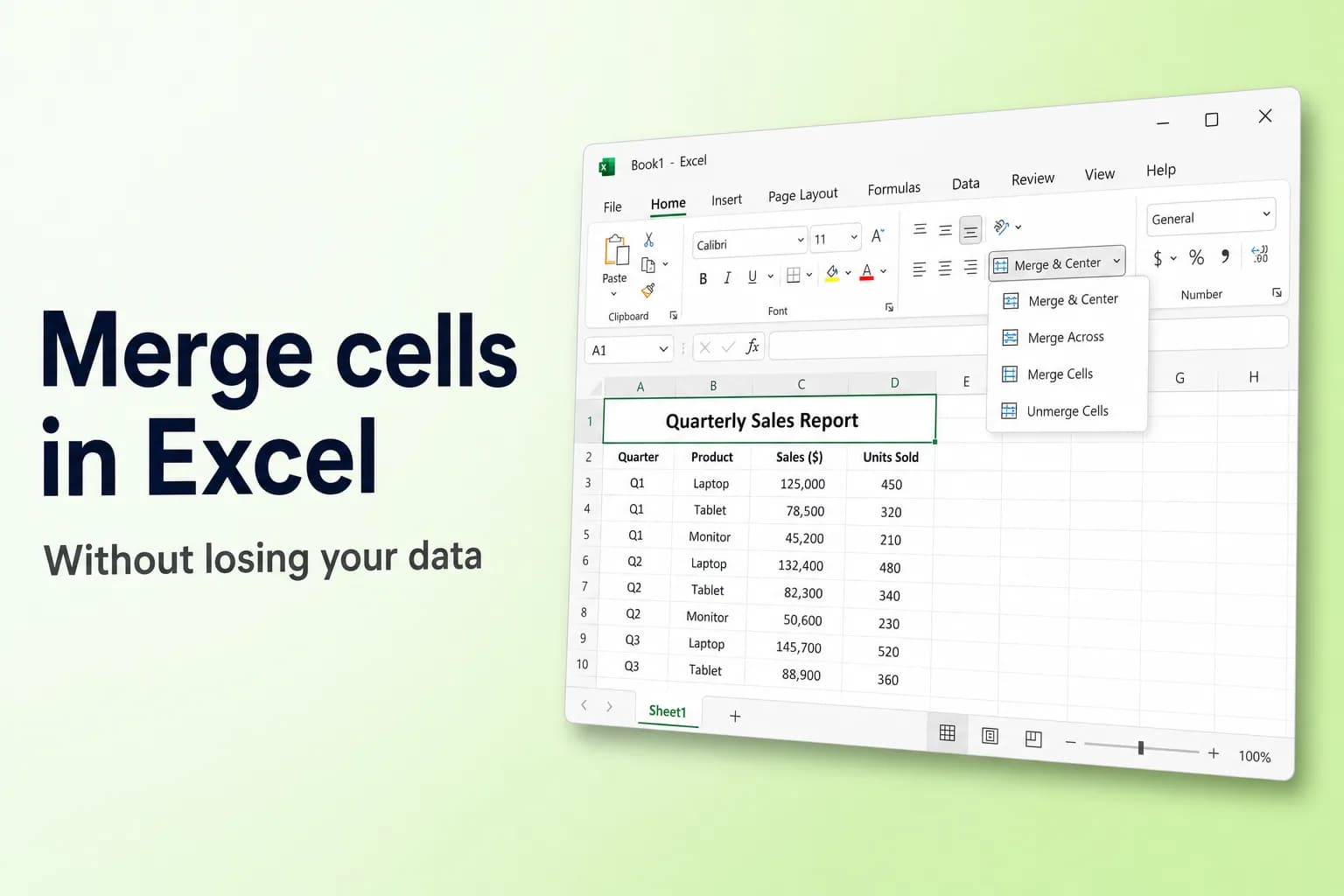
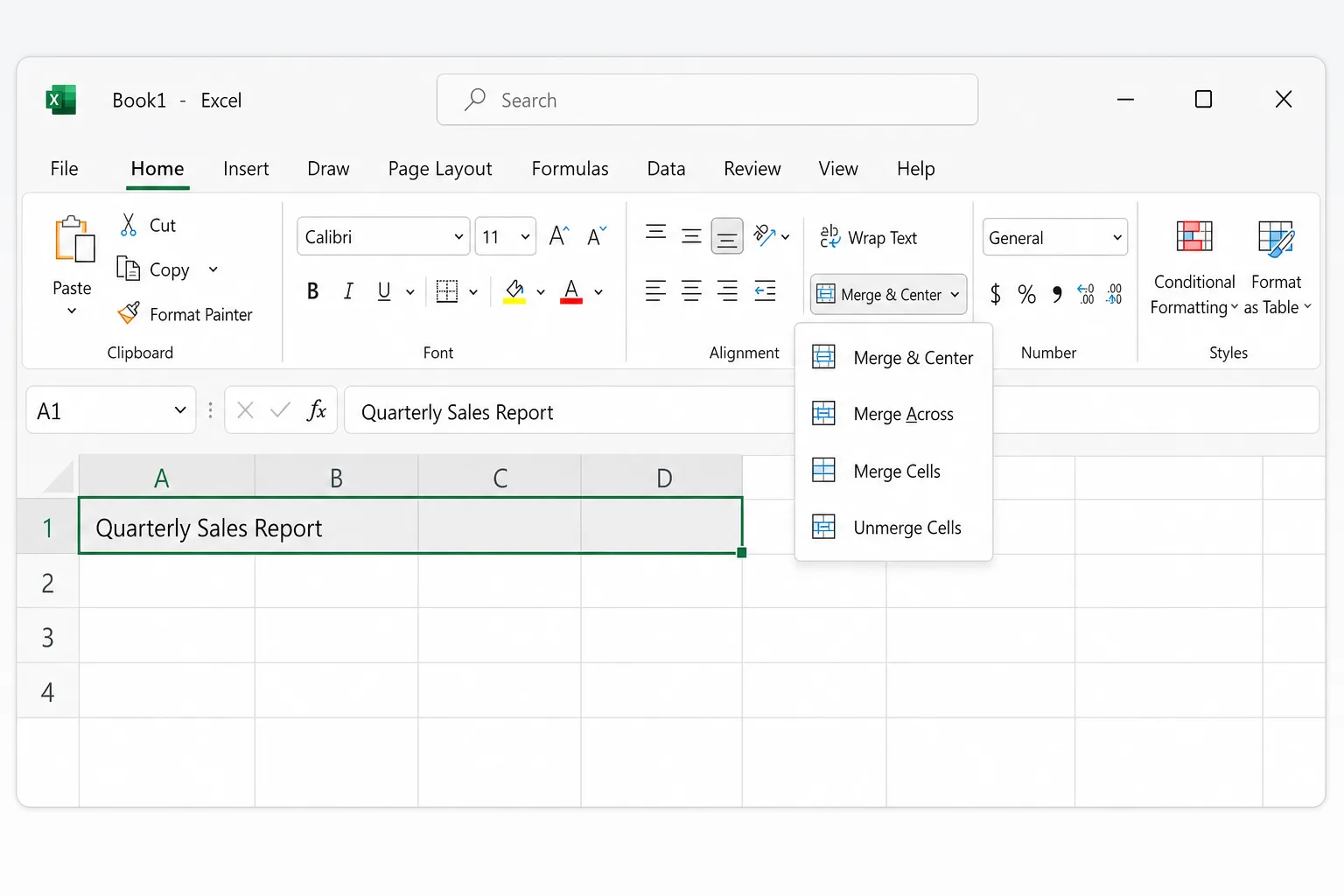
To merge cells in Excel, select the cells and click Home → Merge & Center. Excel turns them into one larger cell and centers the content. Click the small arrow next to the button for the other options: Merge Across, Merge Cells and Unmerge Cells.
The catch: merging keeps only the value in the upper-left cell. If any of the other cells contain data, Excel warns you and then deletes it. If you want to combine the text of two cells (say, first and last names), you need a formula or Flash Fill instead, which is covered below.
| What you want to do | Best method |
|---|---|
| Center a title over several columns | Merge & Center, or Center Across Selection |
| Merge each row of a block separately | Merge Across |
| Merge without centering the text | Merge Cells |
| Join the text of several cells into one | &, CONCAT, TEXTJOIN or Flash Fill |
| Keep a merged look but still sort and filter | Center Across Selection |
| Split a merged cell back up | Unmerge Cells |
How to merge cells with Merge & Center
This works the same way in Excel for Microsoft 365, Excel 2021, 2019 and 2016 on Windows.
- Select the cells you want to merge, for example A1:D1. They must be next to each other and form a rectangle.
- Go to the Home tab and find the Alignment group.
- Click Merge & Center to merge and center in one step, or click the arrow next to it and choose an option:
- Merge & Center: merges the selection into one cell and centers the content horizontally.
- Merge Across: merges each selected row into its own cell. Select A1:D3 and you get three merged cells, one per row.
- Merge Cells: merges the selection into one cell without changing the alignment.
- Unmerge Cells: splits a merged cell back into separate cells.
- If more than one cell contains data, Excel warns that only the upper-left value will be kept. Click OK to continue, or Cancel to stop and combine the data first.
If you merge something by mistake, press Ctrl+Z (Cmd+Z on a Mac) straight away. Unmerging later won't bring back the values Excel deleted.
Keyboard shortcut for merging cells
Excel for Windows has no single merge shortcut, but you can use the ribbon key sequence. Press and release each key in turn (don't hold them together):
Alt, H, M, C: Merge & CenterAlt, H, M, A: Merge AcrossAlt, H, M, M: Merge CellsAlt, H, M, U: Unmerge Cells
These letters apply to English versions of Excel. In other languages, press Alt and follow the key tips shown on the ribbon.
Excel for Mac, the web and mobile
- Excel for Mac: select the cells and click Home → Merge & Center, or use the arrow next to it for Merge Across, Merge Cells and Unmerge Cells. There is no built-in keyboard shortcut for merging on a Mac.
- Excel for the web: select the cells and use Home → Merge & Center and its arrow. If the button is dimmed, you're probably still typing in a cell or the cells are inside a table.
- Excel on iPhone, iPad and Android: select the cells, open the Home tab and tap Merge & Center.
How to combine text from several cells without losing data
Merging is a layout tool, not a way to combine data. To join "Maria" in A2 and "Lopez" in B2 into "Maria Lopez", put a formula in a new column.
The & operator works in every version of Excel:
=A2&" "&B2
The " " adds a space between the two values. Use ", " for a comma and a space.
CONCAT does the same thing as a function and accepts ranges (Excel 2019 and later, Microsoft 365, and the web):
=CONCAT(A2," ",B2)
TEXTJOIN is the best choice when you're joining more than two cells, because you set the separator once and it can skip empty cells:
=TEXTJOIN(" ",TRUE,A2:B2)
The first argument is the delimiter, TRUE tells Excel to ignore blank cells, and the last argument is the range to join. For an address split over four columns, =TEXTJOIN(", ",TRUE,A2:D2) avoids stray commas when a cell is empty.
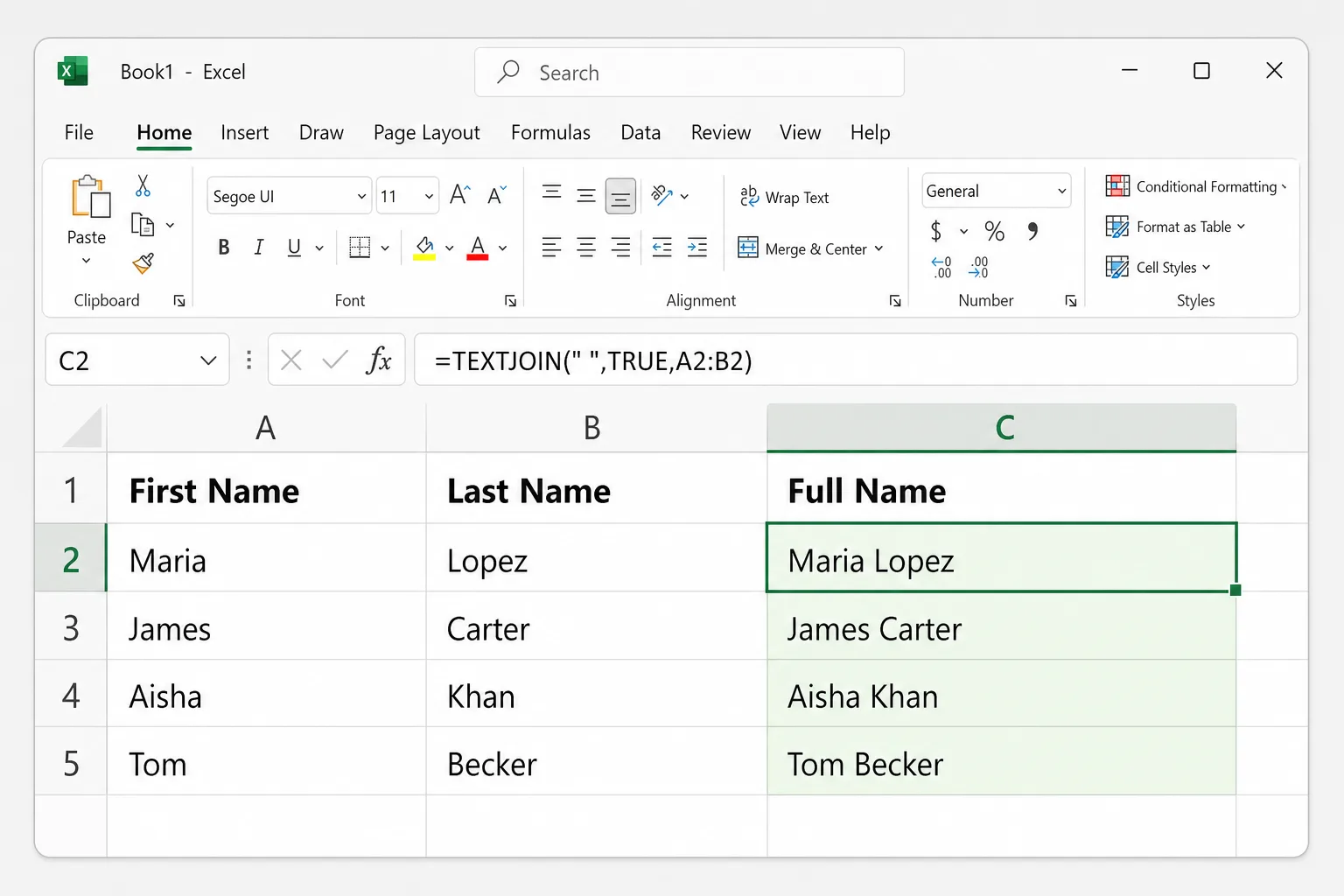
Fill the formula down by double-clicking the small square at the bottom-right corner of the cell. If you then want to delete the original columns, first copy the results and use Home → Paste → Paste Values, otherwise the formulas break.
Flash Fill needs no formula at all:
- In C2, type the combined result for the first row exactly as you want it, for example
Maria Lopez. - Click C3 and press
Ctrl+E, or go to Data → Flash Fill. - Excel spots the pattern and fills the rest of the column.
Flash Fill gives you plain values that won't update if the names change, so check a few rows before relying on it.
The better alternative: Center Across Selection
If you only want a title to look centered over several columns, Center Across Selection gives you the same look without merging anything. Each cell stays separate, so sorting, filtering, copying and selecting columns all keep working.
- Type the title in the first cell, for example A1, and leave B1:D1 empty.
- Select A1:D1.
- Press
Ctrl+1(Cmd+1on a Mac) to open Format Cells. - On the Alignment tab, open the Horizontal list and choose Center Across Selection.
- Click OK.
The title now sits centered across A1:D1, but clicking B1 selects only B1. It only works horizontally, so a label spanning several rows still needs merging. If your version of Excel for the web doesn't offer it, set it up in the desktop app.
Why merged cells cause problems
- Sorting fails with the message "To do this, all the merged cells need to be the same size."
- Filtering hides rows. When a label is merged down several rows, only the first row actually holds the value, so a filter shows just that row.
- Copying and pasting into a range that partly overlaps a merged cell is blocked, often with "We can't do that to a merged cell."
- Selecting a column next to a merged cell selects every column it spans.
- Formulas see the value only in the upper-left cell; the rest of the merged area counts as blank.
A good rule: merge only in titles and printed reports, never inside data you'll sort, filter or analyze.
How to unmerge cells and fill the blanks
- Select the merged cell, or press
Ctrl+Ato select the whole sheet and unmerge everything at once. - Click Home → Merge & Center. On a merged cell the button works as a toggle, or you can pick Unmerge Cells from its arrow.
The value goes back into the upper-left cell and the rest are empty. If a label like "North" was merged down several rows, fill the blanks so every row has its value:
- Select the column range that contains the labels and blanks, for example A2:A40.
- Go to Home → Find & Select → Go To Special, choose Blanks and click OK. On a Mac, press
Ctrl+Gand click Special. - Type
=and press the Up Arrow key, so the active cell points to the cell above it. - Press
Ctrl+Enter(Cmd+Returnon a Mac) to enter that formula in every selected blank cell. - Copy the column and use Paste Values to replace the formulas with the actual text.
How to find merged cells in a sheet
When a sort fails and you can't see where the merged cells are, let Excel find them (Excel for Windows):
- Press
Ctrl+Fto open Find and Replace. - Click Options, then Format.
- On the Alignment tab, tick Merge cells and click OK.
- Leave Find what empty and click Find All.
Excel lists every merged cell. Press Ctrl+A while the results list is active to select them all on the sheet, then unmerge them in one go.
Why can't I merge cells in Excel?
If Merge & Center is greyed out, check these causes:
- You're still editing a cell. Press
EnterorEscto leave edit mode, then try again. - The cells are in an Excel table. Tables don't allow merging. Use Center Across Selection, or convert the table back to a range with Table Design → Convert to Range.
- The sheet is protected. Unprotect it under Review → Unprotect Sheet (you may need the password).
- The workbook is in an old shared-workbook mode. The legacy Shared Workbook feature blocks merging. Modern co-authoring in Microsoft 365 doesn't have this limit.
Frequently Asked Questions
How do I merge cells in Excel without losing data? Merging itself always keeps only the upper-left value. Combine the text first with =TEXTJOIN(" ",TRUE,A2:C2), =A2&" "&B2 or Flash Fill (Ctrl+E), paste the result as values, and then merge if you still need to.
What is the shortcut to merge cells in Excel? On Windows, press Alt, H, M, C one key after another for Merge & Center. Use Alt, H, M, U to unmerge. Excel for Mac has no built-in shortcut.
Can I merge cells vertically? Yes. Select cells in one column, such as A2:A5, and use Merge & Center or Merge Cells. To center the text vertically too, use Middle Align in the Alignment group.
How do I unmerge all cells at once? Press Ctrl+A to select the sheet, then choose Home → Merge & Center → Unmerge Cells.
What's the difference between Merge & Center and Center Across Selection? Merge & Center turns several cells into one. Center Across Selection only changes the alignment, so the cells stay separate and sorting, filtering and copying keep working.
Clean up messy layouts with AI
Merged cells usually turn up in reports exported from other systems, along with blank rows, inconsistent names and duplicate entries. CoreGPT for Excel lets you describe the cleanup in plain English, such as "remove duplicate rows and standardize the country names", and makes the changes in your workbook. It's free to start and works in Excel for Windows, Mac and the web.
 CoreGPT
Done. I made these changes:
- Removed 12 duplicate rows
- Changed “US”, “DE”… to full names
- Formatted phone numbers
Try it: CoreGPT for Excel
Related reading: