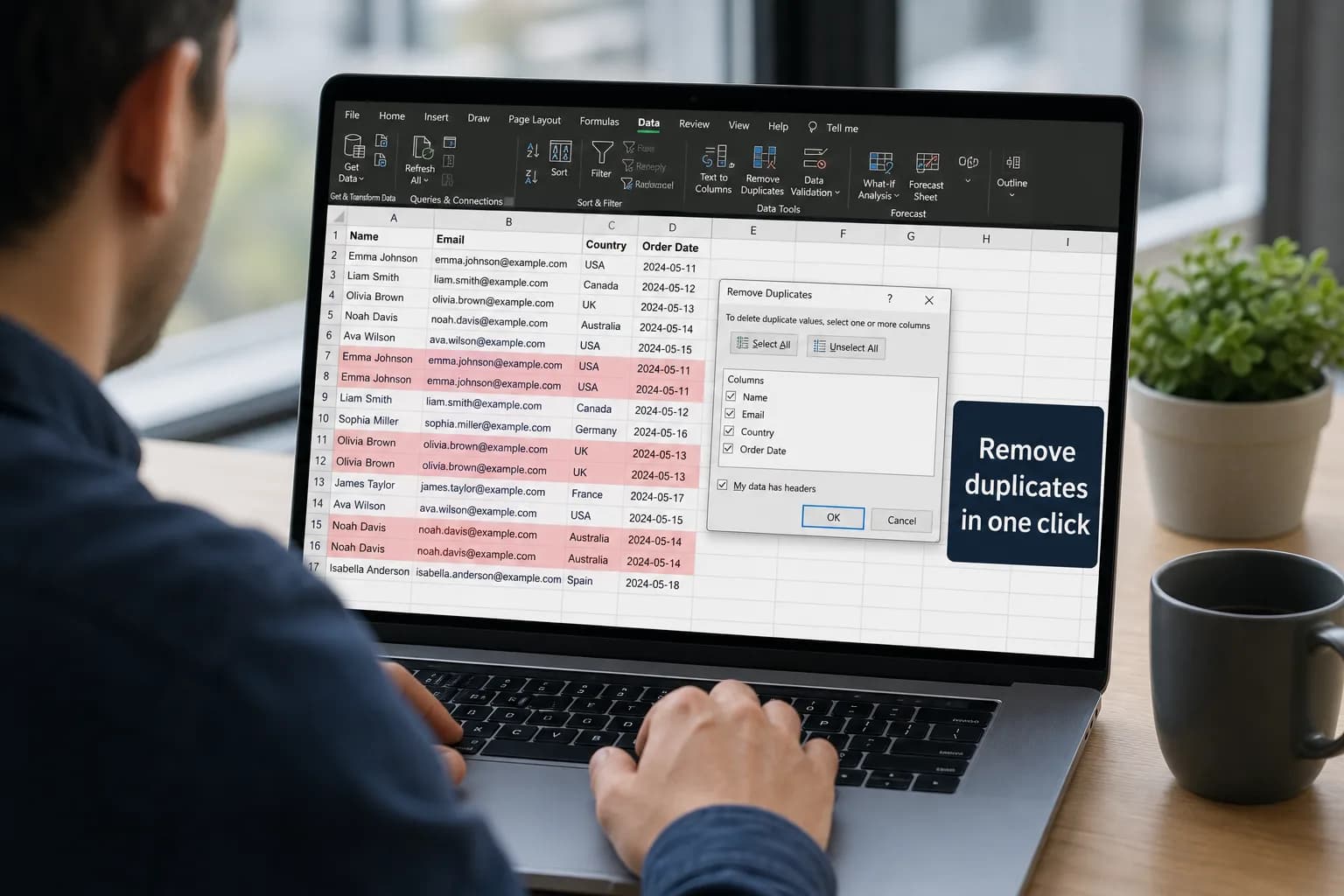
The fastest way to remove duplicates in Excel is Data → Remove Duplicates: select your table, pick the columns that define a duplicate, and click OK. Excel keeps the first copy of each row and deletes the rest in one step.
That button changes your data permanently, though. If you'd rather check the duplicates first, keep the original list, or get a clean list that updates on its own, one of the other four methods below is a better fit.
| Method | Changes your data? | Best for |
|---|---|---|
| Remove Duplicates button | Yes, deletes rows | A quick one-time cleanup |
| UNIQUE function | No, builds a new list | A list that updates when the data changes |
| Advanced Filter | No, copies unique rows | Keeping the original intact, older Excel versions |
| Power Query | No, until you load it | Repeating the same cleanup on new data every week |
| Highlight or count first | No | Reviewing duplicates before you delete anything |
Before you start: two things that make duplicates "invisible"
Excel only treats rows as duplicates when the values match exactly. These two problems cause most "it didn't remove anything" complaints:
- Extra spaces. "Acme Ltd" and "Acme Ltd " (with a trailing space) are different values. Clean them first with a helper column such as
=TRIM(A2), then paste the results back as values. - Different formats of the same value. Excel compares values as they are displayed. The same date shown as
3/8/2026in one cell andMar 8, 2026in another counts as two different values. Give the whole column one number format before removing duplicates.
It's also worth saving a copy of the workbook, or the sheet, before any method that deletes rows.
Method 1: the Remove Duplicates button (fastest)
This works in Excel for Microsoft 365, Excel 2021, 2019 and 2016 on Windows and Mac, and in Excel for the web.
- Click any cell inside your data. Excel selects the whole table automatically. To work on only part of it, select that range yourself.
- Go to Data → Remove Duplicates (in the Data Tools group). On Windows the keyboard shortcut is Alt, A, M.
- Leave My data has headers ticked if the first row contains column names.
- Choose which columns decide whether two rows are duplicates:
- Keep all columns ticked to remove only rows that are identical in every column.
- Tick only some columns to remove rows that match on those columns, even if other columns differ. For example, tick just Email to keep one row per customer.
- Click OK. Excel tells you how many duplicate values it removed and how many unique values remain.
Excel always keeps the first occurrence (the row nearest the top) and deletes the ones below it. If you change your mind, press Ctrl+Z straight away to undo.
How to keep the latest row instead of the first
Say a customer appears three times and you want to keep their most recent order. Sort first, so the row you want to keep sits on top:
- Sort the table by Order date, newest to oldest (Data → Sort).
- Run Remove Duplicates with only the Customer or Email column ticked.
Because Excel keeps the top row, you're left with each customer's latest order.
When the button is greyed out or doesn't work
- Your data has subtotals or an outline. Remove Duplicates doesn't work on outlined data. Remove the subtotals first (Data → Subtotal → Remove All).
- The sheet is protected. Unprotect it under Review → Unprotect Sheet.
- Your cursor is outside the data. Click a cell inside the table and try again.
Method 2: the UNIQUE function (keeps your original data)
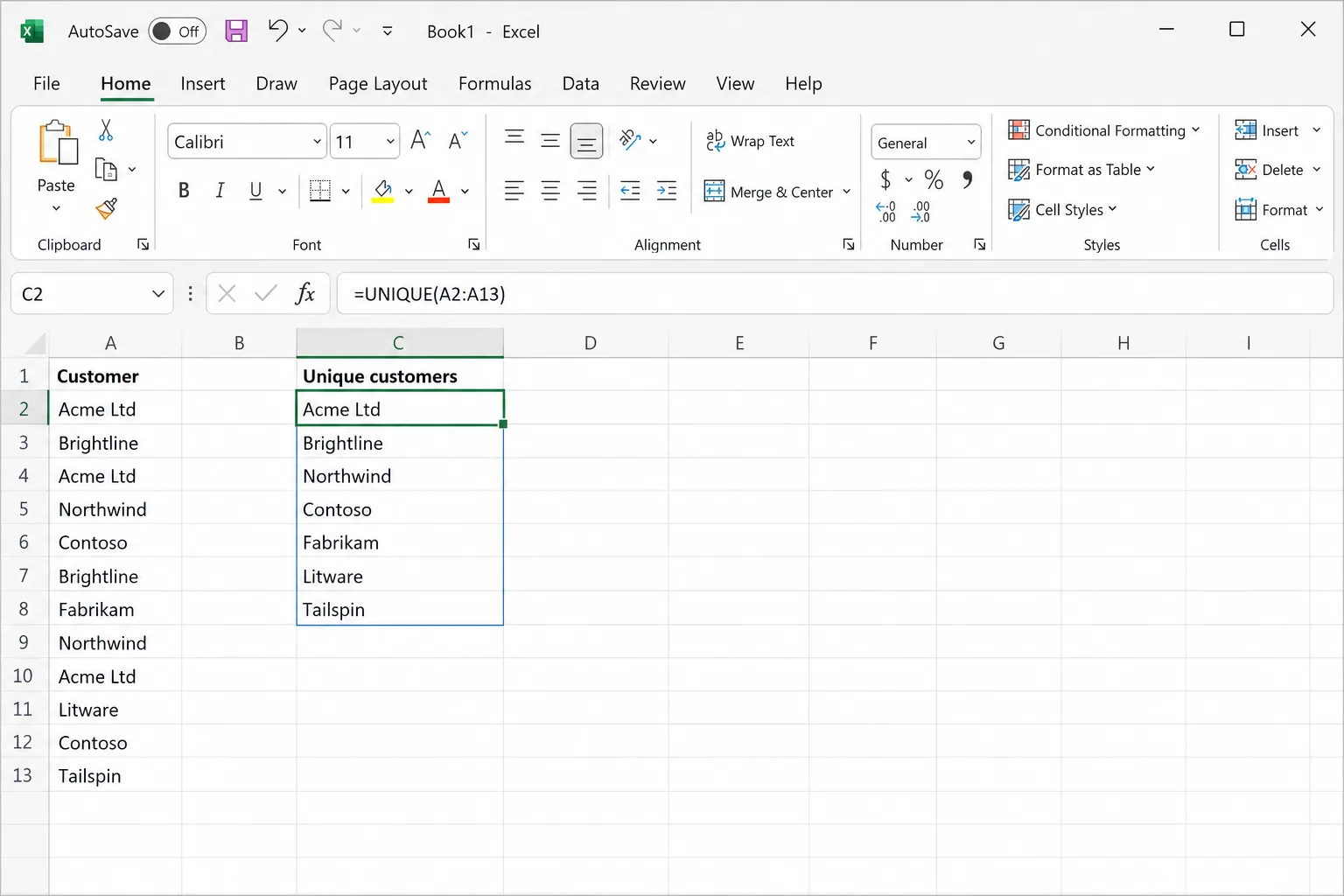
If you have Excel for Microsoft 365, Excel 2021 or later, or Excel for the web, the UNIQUE function builds a duplicate-free copy of your list and updates it automatically when the source changes.
=UNIQUE(A2:A500)
Type it in an empty cell and press Enter. The results "spill" down into the cells below, so make sure that space is empty.
Useful variations:
- Unique rows across several columns:
=UNIQUE(A2:C500)returns each distinct combination of the three columns. - Sorted unique list:
=SORT(UNIQUE(A2:A500)). - Values that appear exactly once:
=UNIQUE(A2:A500,,TRUE). This leaves out every value that has any duplicate at all, which is handy for spotting one-off entries. - Unique values from a whole column that keeps growing: turn your data into a table first (Ctrl+T) and refer to the column, for example
=UNIQUE(Table1[Email]), so new rows are included automatically.
If you need the result as plain values, copy the spilled range and use Paste Special → Values.
Method 3: Advanced Filter (works in older versions too)
Advanced Filter copies the unique rows somewhere else and leaves the original untouched. It's available in every desktop version of Excel, including ones without the UNIQUE function.
- Click inside your data.
- Go to Data → Advanced (in the Sort & Filter group).
- Choose Copy to another location.
- Check that List range covers your data, including the header row.
- In Copy to, click an empty cell where the clean list should start.
- Tick Unique records only and click OK.
Method 4: Power Query (best for a cleanup you repeat)
If you import the same kind of file every week, say an export from your CRM or a shop, Power Query lets you set up the cleanup once and rerun it with one click.
- Click inside your data and choose Data → From Table/Range. The Power Query Editor opens.
- Select the column or columns that define a duplicate. Hold Ctrl to select more than one.
- Go to Home → Remove Rows → Remove Duplicates.
- Click Close & Load to put the clean table on a new sheet.
Next time, paste in the new data and click Data → Refresh All.
One difference to know: Power Query is case-sensitive, so it treats "ACME" and "Acme" as different values. The Remove Duplicates button is not case-sensitive and treats them as the same. If capitalisation is inconsistent, add a step to change the column to lowercase (Transform → Format → lowercase) before removing duplicates.
Method 5: find and highlight duplicates first (delete nothing)
When you're not sure what counts as a duplicate, look before you delete.
Highlight duplicates with conditional formatting
- Select the column you want to check.
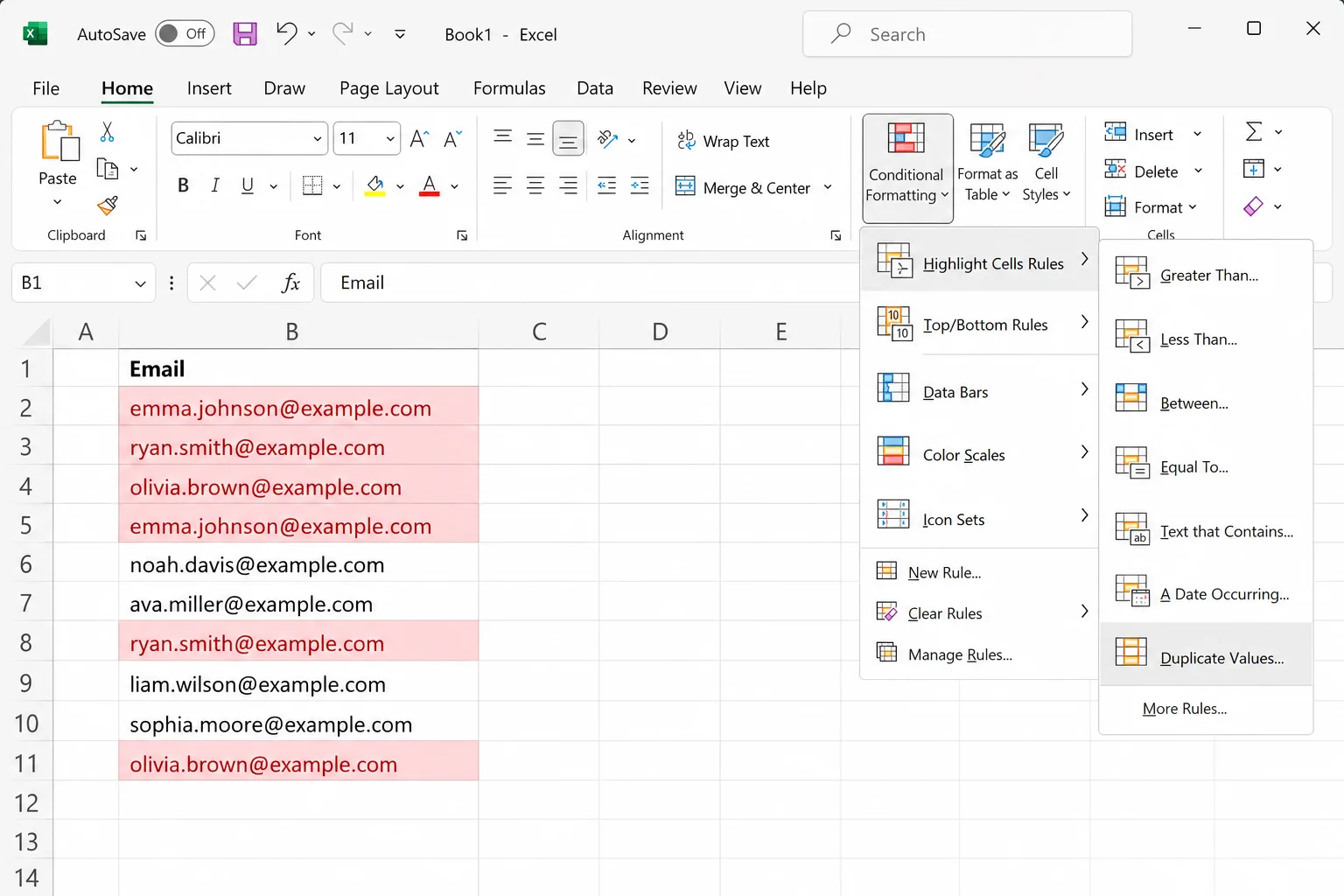
- Go to Home → Conditional Formatting → Highlight Cells Rules → Duplicate Values.
- Pick a colour and click OK.
Every value that appears more than once is highlighted, including the first occurrence. You can then filter by colour (Data → Filter, then filter the column by cell colour) to review them together.
Count how many times each value appears
Add a helper column next to your data with:
=COUNTIF($A$2:$A$500, A2)
Any result above 1 is a duplicate. To flag only the second and later copies, so the first one stays unmarked, anchor the start of the range and let the end grow:
=COUNTIF($A$2:A2, A2)>1
This returns TRUE from the second occurrence onwards. Filter the helper column for TRUE, review the rows, and delete them if they're really duplicates.
To check duplicates across several columns, for example the same first name and last name, use COUNTIFS:
=COUNTIFS($A$2:$A$500, A2, $B$2:$B$500, B2)
Which method should you use?
- One-off cleanup and you're confident about the result: the Remove Duplicates button.
- You want to keep the original data: UNIQUE (newer Excel) or Advanced Filter (any version).
- The same messy file arrives every week: Power Query.
- You need to check before deleting anything: highlight or count duplicates first.
Removing duplicates in Google Sheets
If your data lives in Google Sheets instead, use Data → Data cleanup → Remove duplicates. Google Sheets also has a UNIQUE function that works like Excel's: =UNIQUE(A2:A500).
Frequently Asked Questions
Does Remove Duplicates delete the whole row or just the cell? It deletes the whole row within the range you selected. Columns outside the selection aren't touched, so select the full table to keep each row's data together.
Which duplicate does Excel keep? The first one, meaning the row closest to the top. Sort your data first if you want to keep a different one, such as the newest.
Is Remove Duplicates case-sensitive? No. "Apple" and "APPLE" count as the same value. Power Query, by contrast, is case-sensitive.
Can I undo Remove Duplicates? Yes, with Ctrl+Z, as long as you haven't closed the workbook. To be safe, copy the sheet first.
Why didn't Excel find duplicates I can see? Usually because of extra spaces, numbers stored as text, or the same value shown in different formats. Use TRIM, give the column one consistent format, and try again.
How do I remove duplicates but keep one copy? That's exactly what Remove Duplicates and UNIQUE do by default: one copy of every value stays. To remove every copy of a value that appears more than once, use =UNIQUE(range,,TRUE), which returns only the values that appear exactly once.
Clean messy data in plain English with AI
Duplicates are rarely the only problem in a messy list. Names come in different capitalisations, countries are spelled three ways, and dates arrive in mixed formats. CoreGPT for Excel lets you describe the cleanup you want, such as "remove duplicate customers by email and keep the most recent order", and does it inside your workbook, or writes the formula for you if you'd rather build it yourself. It's free to start and works in Excel for the web, Windows and Mac.
 CoreGPT
Done. I made these changes:
- Removed 12 duplicate rows
- Changed “US”, “DE”… to full names
- Formatted phone numbers
Try it: CoreGPT for Excel
Related reading: