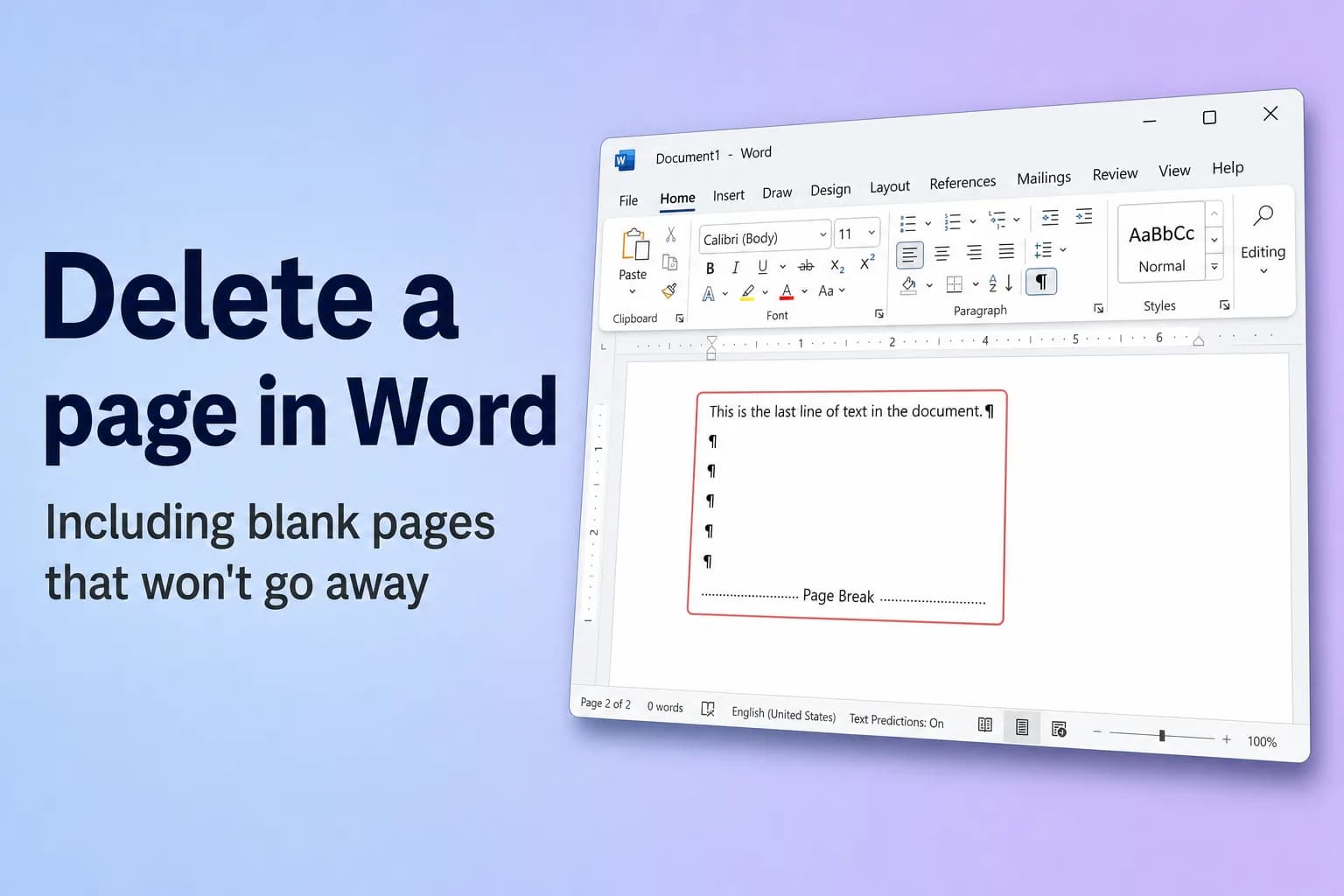
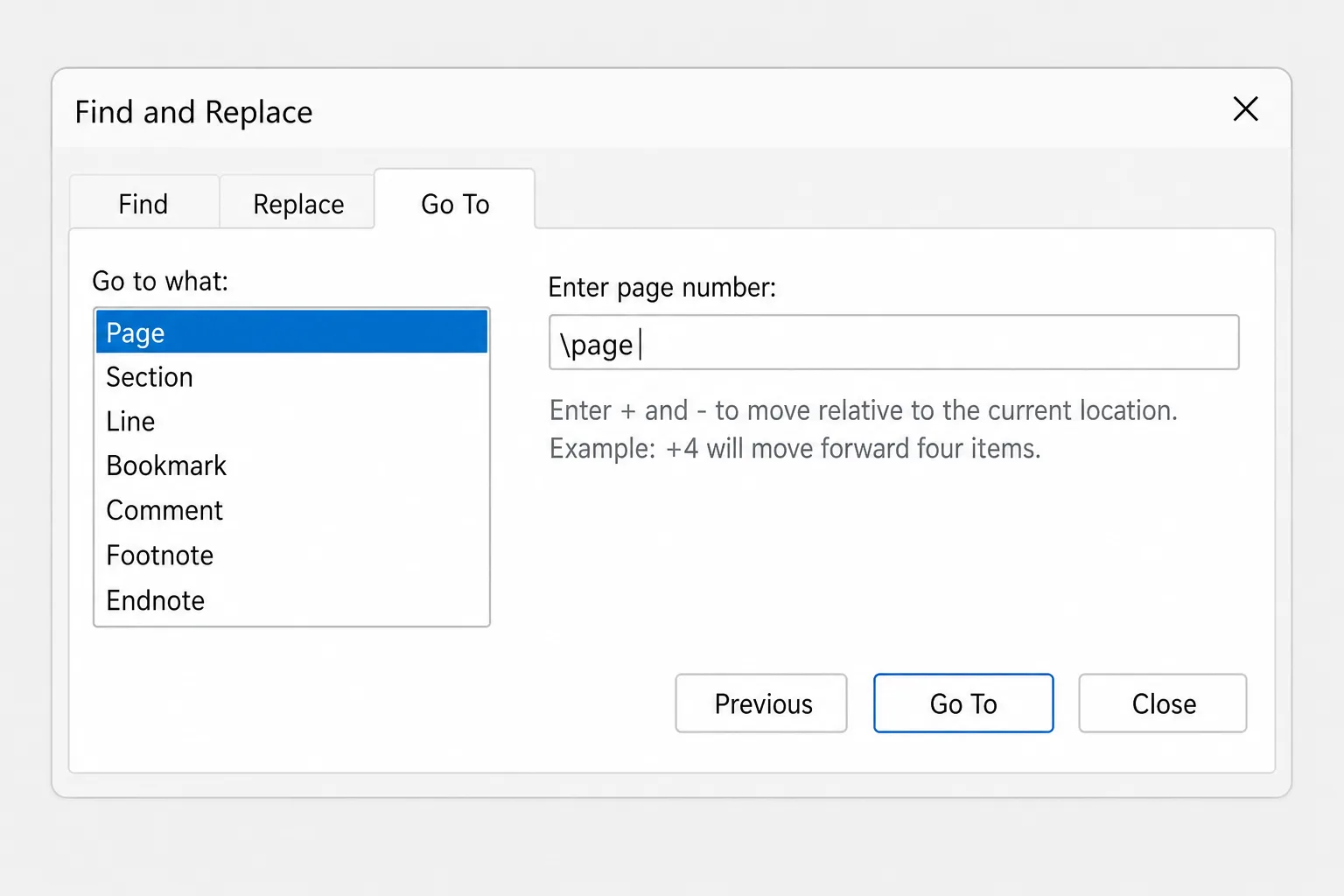
To delete a page in Word, click anywhere on that page, press Ctrl+G (or go to Home → Find → Go To), type \page in the Enter page number box, press Enter, then select Close and press Delete. Word selects the whole page for you, so you remove exactly that page and nothing else. On a Mac, open Go To with Option+Cmd+G.
Blank pages are a different story. A blank page has nothing to select, because it's made of empty paragraphs, a page break, a section break, or the paragraph mark Word always keeps after a table. To remove it, turn on formatting marks with Ctrl+Shift+8 (Cmd+8 on a Mac) so you can see what's actually on the page, then delete that.
| Situation | Quickest fix |
|---|---|
| Page with text, images or tables you don't need | Go To \page, then Delete |
| Blank page in the middle of the document | Show formatting marks, delete the extra ¶ marks or the Page Break |
| Blank page at the very end after a table | Shrink the last ¶ to 1 pt font, or hide it |
| Blank page caused by a section break | Delete the break, or change it to Continuous |
| Text always jumps to a new page | Turn off Page break before in paragraph settings |
| Word for the web | Select the content or blank lines and press Delete |
Delete a page with content
Select it and press Delete
For a page or two, selecting by hand works fine:
- Click at the very start of the first line on the page.
- Scroll to the end of the page and hold Shift while you click after the last character.
- Press Delete (or Backspace).
On Windows, Ctrl+Shift+End selects everything from the cursor to the end of the document.
Use the Go To \page shortcut (most precise)
Selecting by hand gets fiddly when a page ends in the middle of a table or a long paragraph. Word's built-in \page bookmark always selects exactly one page:
- Click or tap anywhere on the page you want to delete.
- Press
Ctrl+Gon Windows orOption+Cmd+Gon a Mac. The Find and Replace dialog opens on the Go To tab, with Page selected under Go to what. - In the Enter page number box, type
\page. - Press Enter, then select Close.
- Check that the whole page is highlighted, then press Delete.
To delete several pages in a row, click on the first page, run \page to select it, then hold Shift and click at the end of the last page you want gone.
If you change your mind, press Ctrl+Z (Cmd+Z on a Mac) straight away.
Delete a blank page
Step 1: turn on formatting marks
Formatting marks show the hidden characters that take up space: paragraph marks (¶), page breaks and section breaks.
- Windows: Home → Show/Hide ¶, or
Ctrl+Shift+8. - Mac: Home → Show/Hide ¶, or
Cmd+8.
They never print. Press the shortcut again to hide them.
Step 2: delete what's on the blank page
Look at the blank page and the bottom of the page before it:
- A column of empty ¶ marks. Every press of Enter creates one, and enough of them spill onto a new page. Select them all and press Delete.
- A dotted line labeled Page Break. This is a manual page break, usually inserted with
Ctrl+Enter. Click just before it (or double-click it) and press Delete.
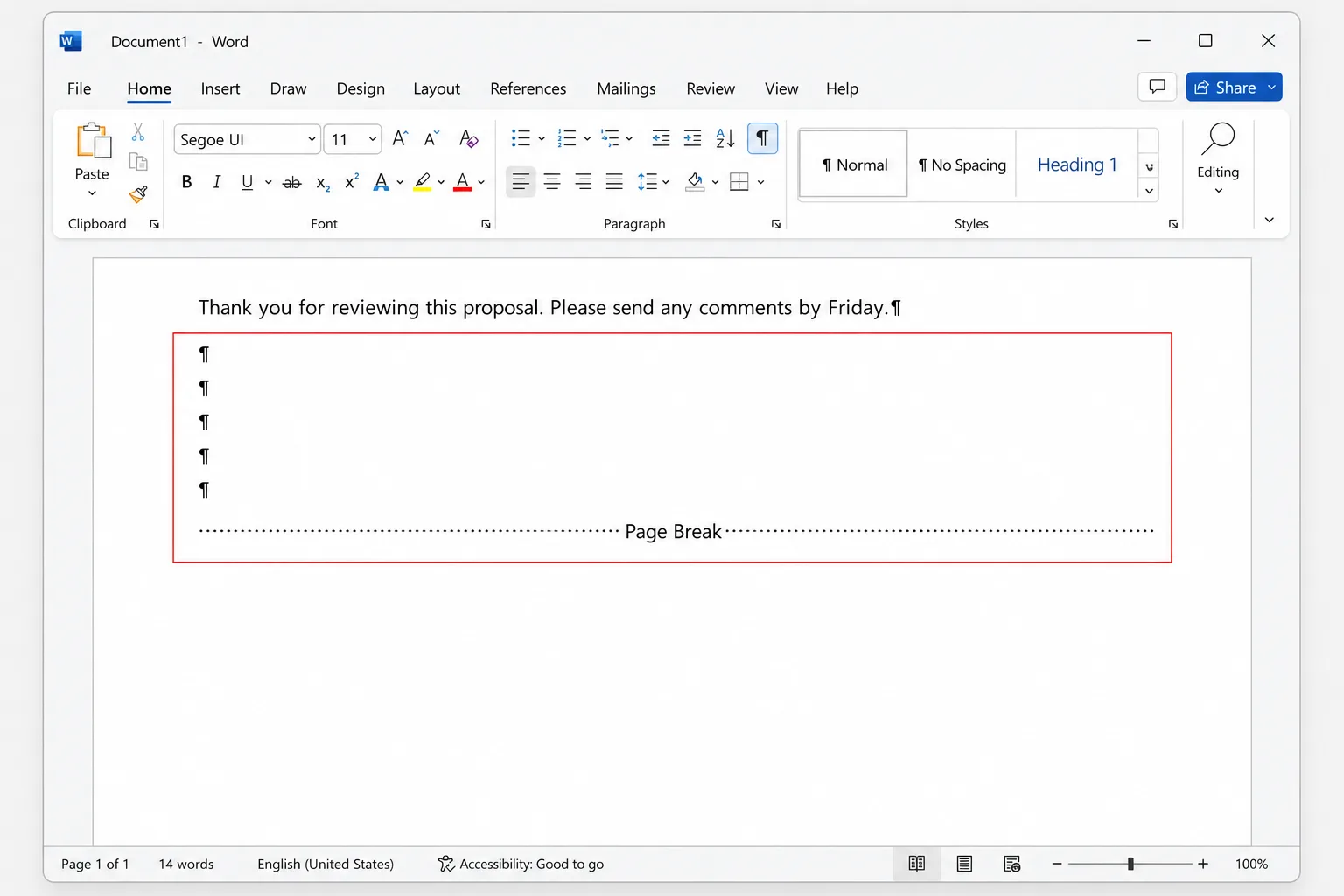
If neither is there, the blank page comes from one of the three causes below.
Fix the blank page after a table at the end
This is the most common stubborn blank page. Word always places a paragraph mark after a table, and you can't delete it. When the table fills the last page, that paragraph mark gets pushed onto a new, empty page.
You can make the paragraph mark small enough to fit on the previous page:
- Turn on formatting marks (
Ctrl+Shift+8/Cmd+8). - Select the ¶ mark on the blank page.
- Click in the Font Size box on the Home tab, type
1, and press Enter. - Turn formatting marks off again.
If the blank page is still there, try one of these:
- Hide the paragraph mark. Select it, press
Ctrl+D(Cmd+Don a Mac) to open the Font dialog, tick Hidden, and click OK. Then turn formatting marks off, because Word shows hidden text while they're on. - Remove the spacing. With the ¶ still selected, go to Layout and set Spacing Before and After to 0.
- Shrink the bottom margin slightly. Go to Layout → Margins → Custom Margins and reduce the Bottom margin, for example by a tenth of an inch.
Fix a blank page caused by a section break
Section breaks let parts of a document have different margins, orientation or headers. Some of them start a new page, and an Odd Page or Even Page section break can insert a completely blank page so the next section starts on the right side.
To see section breaks clearly, switch to View → Draft, or turn on formatting marks in Print Layout. You have two options:
- Delete the break. Click just before the Section Break line and press Delete. Be aware that the text before the break then takes on the formatting of the section after it, such as its margins, orientation or headers.
- Change the break type instead (safer). Click in the section after the break, open Layout → Page Setup (click the small arrow in the corner of the group), go to the Layout tab, and set Section start to Continuous or New page. Click OK.
Fix text that always jumps to a new page
If a heading or paragraph always starts on a new page and leaves a gap behind it, it probably has Page break before turned on. With formatting marks on, you'll see a small black square next to it.
- Right-click the paragraph and choose Paragraph. You can also click the small arrow at the bottom right of the Paragraph group on the Home tab.
- Go to the Line and Page Breaks tab.
- Untick Page break before. While you're there, check that Keep with next isn't pushing several paragraphs onto the next page.
- Click OK.
If it's a heading style, make the same change in the style itself (right-click it in the Styles gallery, Modify → Format → Paragraph) so it applies everywhere.
Find blank pages fast with the Navigation pane
In a long document, the Navigation pane shows small thumbnails of every page, which makes blank pages easy to spot.
- Go to View and tick Navigation Pane (or press
Ctrl+Fon Windows). - Select Pages at the top of the pane.
- Click a thumbnail to jump to that page.
You can't delete a page from the thumbnail itself. Click it to go there, then use one of the methods above. On a Mac, the pane opens from the View tab as well and shows thumbnails in the sidebar.
Word for Mac and Word for the web
Word for Mac works the same way, with Mac shortcuts: Cmd+8 for formatting marks, Option+Cmd+G for Go To (or Edit → Find → Go To), and Cmd+D for the Font dialog. The Paragraph dialog is also under Format → Paragraph in the menu bar.
Word for the web has fewer tools:
- Select the content or the empty lines on the page and press Delete. Click a page break to select it, then press Delete.
- Look for Show/Hide ¶ on the Home tab to see paragraph marks. Depending on your screen width, it may sit under the paragraph options or the … menu.
- Word for the web can't delete or change section breaks. Use Editing → Open in Desktop App to fix them in the Word desktop app.
On a phone, select the text on the page and delete it. Blank pages from breaks and tables are much easier to fix on a computer.
Why a page won't delete
- Track Changes is on. Deleted text only turns into strikethrough and keeps taking up space. Turn it off under Review → Track Changes, or accept the deletions with Review → Accept.
- The document is protected. If editing is restricted, you'll need the password or a copy you can edit (Review → Restrict Editing).
- It's the paragraph after a table. It can't be deleted, only shrunk or hidden.
- The blank page only appears when printing. That's usually an Odd Page section break, or your printer's duplex settings adding a blank back page.
Frequently Asked Questions
How do I delete a blank page at the end of a Word document? Turn on formatting marks with Ctrl+Shift+8 (Cmd+8 on a Mac), go to the last page and delete any empty ¶ marks or page breaks. If the page follows a table, select the last ¶ mark and set its font size to 1.
How do I delete a page in Word on a Mac? Click on the page, press Option+Cmd+G, type \page, press Enter, close the dialog and press Delete. For blank pages, use Cmd+8 to show formatting marks.
Can I delete multiple pages at once in Word? Yes. Click at the start of the first page, scroll to the last page you want to remove, hold Shift and click at its end, then press Delete.
How do I delete a page break in Word? Show formatting marks, click just before the dotted Page Break line and press Delete.
Why does Word keep adding a blank page? Usually because of extra empty paragraphs, a manual page break, an Odd Page or Even Page section break, Page break before in the paragraph settings, or a table that ends at the bottom of a page.
Can I undo deleting a page in Word? Yes, press Ctrl+Z (Cmd+Z on a Mac) right after. If you've already saved and closed the file, check File → Info → Version History for OneDrive or SharePoint files.
Trim pages without losing the point
People often delete a page because a document runs long, not because a page is empty. CoreGPT for Word works inside your document: select a paragraph and ask it to make the text more professional, tighter or shorter, and you get a cleaner version that takes less space without cutting what matters. It's free to start and works in Word for Windows, Mac and the web.
 CoreGPT
Update for the Acme account
Thank you for your patience while we resolved the delivery issue.
We have identified the cause of the delay and put measures in place to ensure it does not happen again. Your order will arrive on Friday.
Please let us know if there is anything else we can help with.
We identified the cause of the delay and have put safeguards in place so it won’t happen again. Your order will arrive this Friday.
Try it: CoreGPT for Word
Related reading: