
If you’ve searched for “365 in Word”, you’re usually trying to understand one of two things: what “Microsoft 365” actually changes inside Word, or how to get more value out of Word when it’s connected to the rest of Microsoft 365 (Outlook, Excel, OneDrive, Teams) and your AI tools.
This guide explains what “365 in Word” means in practical terms, what you get (and what you do not), and the highest-impact ways to use Word better, including workflows that start in Outlook, end in Excel, and stay compatible with Google Docs, Sheets, Slides, and Forms.
What “365 in Word” actually means
“365 in Word” is not a special mode you toggle on. It’s a shorthand people use for Microsoft Word when it’s part of Microsoft 365.
In practice, Word in Microsoft 365 is Word plus:
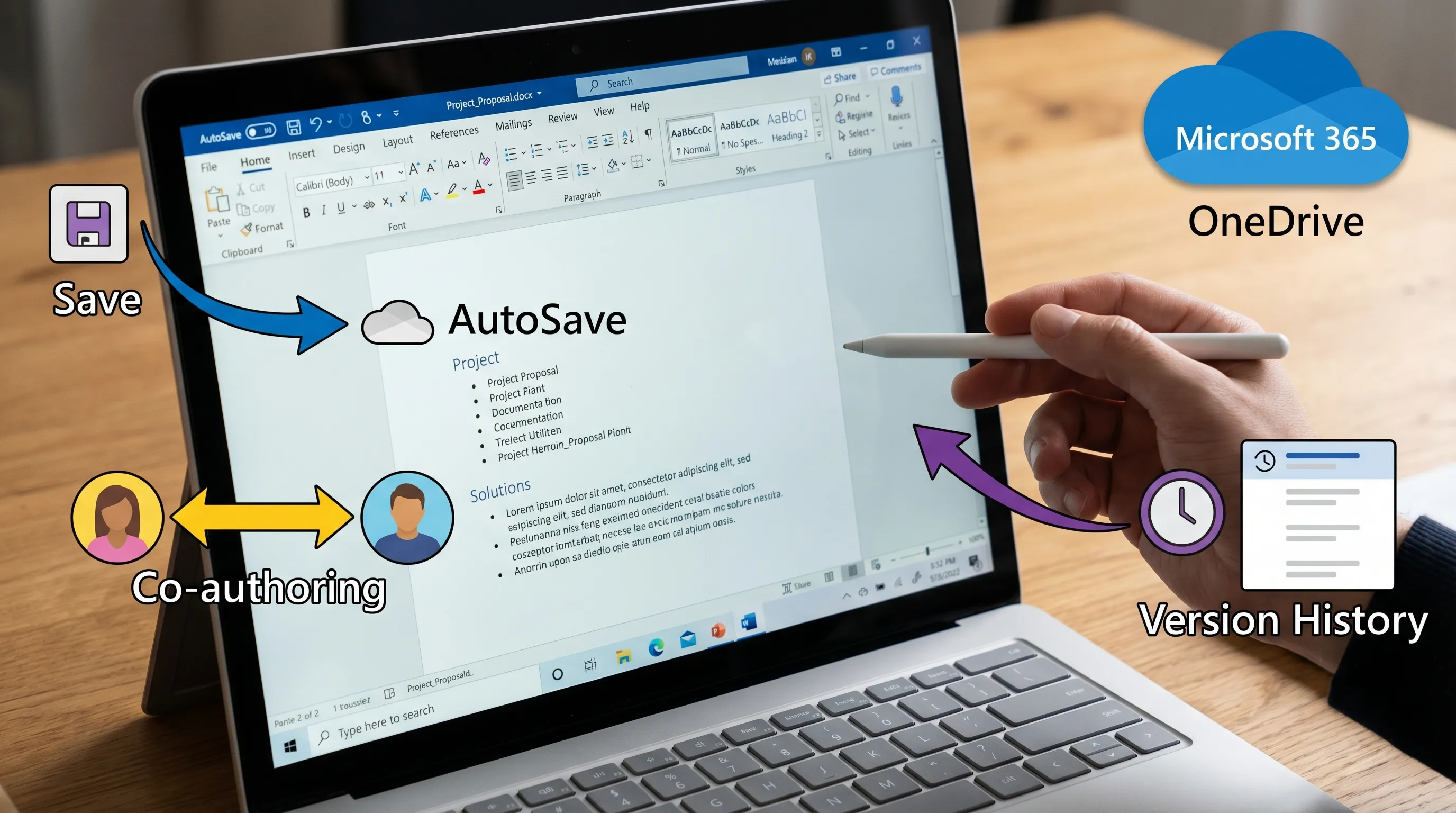
- Connected cloud features (OneDrive and SharePoint integration, AutoSave, real-time coauthoring)
- A faster update cadence (new features roll out continuously)
- Optional AI experiences (depending on your plan and organizational settings)
- Tighter integration with Outlook and Excel, especially for sharing, mail merge, and collaboration
You can still use Word like a classic desktop app, but many “365” benefits appear only when you are signed in and saving to OneDrive or SharePoint.
Word for Microsoft 365 vs “one-time purchase” Word
The most common confusion is thinking Word is different software. It is often the same Word interface, but your license and update model change what’s available over time.
| Topic | Word in Microsoft 365 | One-time purchase Word (for example, Office 2021) |
|---|---|---|
| Updates | Ongoing feature updates | Security updates, limited new features |
| Collaboration | Best experience with AutoSave and coauthoring | Collaboration can be more limited |
| Cloud storage | Designed around OneDrive/SharePoint | Can be used locally, cloud optional |
| AI add-ons | May be available depending on license and admin controls | Typically fewer built-in AI options |
For Microsoft’s own overview of Word capabilities and collaboration basics, see Word help and learning.
Set up Word (365) so the best features actually work
A surprising number of “Word 365 isn’t working” complaints come down to setup details.
1) Confirm you are signed in with the right account
Word can be signed into multiple identities (personal Microsoft account, work/school account). If Word is signed into the wrong one, you may see:
- Missing OneDrive locations
- AutoSave disabled
- Add-ins not showing
- Sync conflicts on shared documents
If you’re stuck in sign-in loops or MFA errors, use this quick-fix guide: Microsoft Get Help: Fast Fixes for 365 (Outlook, Word, Excel).
2) Save to OneDrive or SharePoint for AutoSave and coauthoring
AutoSave and real-time coauthoring are “365 in Word” signature benefits, but they usually require:
- A cloud location (OneDrive/SharePoint)
- A modern file format (.docx)
- A signed-in session
3) Keep Word updated (especially in managed orgs)
Microsoft 365 apps update frequently. If you collaborate across teams, mismatched versions can cause formatting differences or missing features.
If you’re in a company environment, updates may be controlled by IT. If you suspect that, focus on using features that are consistent across versions (styles, comments, track changes, templates) and treat newer features as “nice to have.”
How to use Word in Microsoft 365 better (high-ROI habits)
These improvements are less about “hidden buttons” and more about creating repeatable, professional output faster.
Use Styles to make formatting predictable (and AI-friendly)
Styles are the single most underrated way to work faster in Word.
When you use Heading 1, Heading 2, Normal, Quote correctly:
- Your document becomes navigable (Navigation Pane works perfectly)
- Tables of contents update automatically
- Copying into Google Docs keeps structure better
- AI rewriting and summarization tools preserve intent more reliably
A practical workflow: apply styles first, then draft. You will spend less time cleaning up formatting at the end.
Use the Navigation Pane like a document map
Turn it on (View tab), then:
- Jump between sections instantly
- Drag headings to reorder your outline
- Spot missing sections quickly
This is especially useful for long proposals, SOPs, research summaries, and policies.
Turn Track Changes + Comments into a real review system
For collaborative documents (especially when content starts in email):
- Use Track Changes for edits
- Use Comments for decisions and questions
- Resolve comments as you go
This keeps a clean audit trail and avoids “final_v7_REALfinal.docx” chaos.
Use Version History instead of manual file copies
When documents are stored in OneDrive/SharePoint, you get version history. This reduces risk when:
- Multiple people edit at once
- Someone pastes the wrong content
- Formatting changes unexpectedly
The key habit: do not create local duplicates “just in case.” Rely on version history when your organization’s policies allow it.
Build reusable building blocks (templates, sections, and snippets)
Most teams write the same elements repeatedly:
- Executive summaries
- Scope and assumptions
- Risk sections
- Security statements
- Meeting memo templates
If you standardize those, you write faster and stay consistent.
A simple approach is to maintain:
- One master template doc
- A “snippets” doc with approved paragraphs
Mail merge and data-driven docs (Word + Excel)
“365 in Word” becomes powerful when you treat Excel as structured input.
Common examples:
- Personalized outreach letters
- Invoice or statement documents
- HR notifications
Even without advanced automation, a clean Excel table lets Word generate polished outputs quickly.
If your Excel work includes formula generation, cleanup, or classification, this companion guide is useful: How to Use ChatGPT in Excel: A Complete Guide.
Accessibility Checker and exported PDFs that hold up
If your documents go to customers, partners, or leadership, accessibility and export quality matter.
Two habits help:
- Use built-in headings and lists (not manual formatting)
- Run the Accessibility Checker before exporting to PDF
This also makes it easier to reuse your content in Google Docs later.
Using AI in Word 365 (without losing accuracy)
AI in Word generally falls into two buckets:
- Microsoft’s built-in AI features, which may require eligible licenses and admin enablement
- Third-party AI add-ins, which can bring models like ChatGPT, Gemini, and Claude into Word
The “better” option depends on your licensing, privacy requirements, and whether you need the same experience across Microsoft 365 and Google Workspace.
The most practical AI uses inside Word
These are reliable, everyday tasks where AI can save time:
- Drafting from a structured outline
- Rewriting for clarity, tone, or audience (executive vs technical)
- Summarizing long sections into an abstract or brief
- Turning messy notes into a clean memo
- Extracting action items and owners (then sending to Excel)
The main rule: treat AI output as a first draft. Verify facts, dates, names, and numbers.
If you want the step-by-step “how to do it inside Word” version, this article focuses specifically on that workflow: How to Use ChatGPT in Microsoft Word: A Complete Guide.
Word + Outlook + Excel: the workflow most people actually need
In real teams, Word rarely starts from a blank page. It starts from an email thread, a meeting recap, or a spreadsheet.
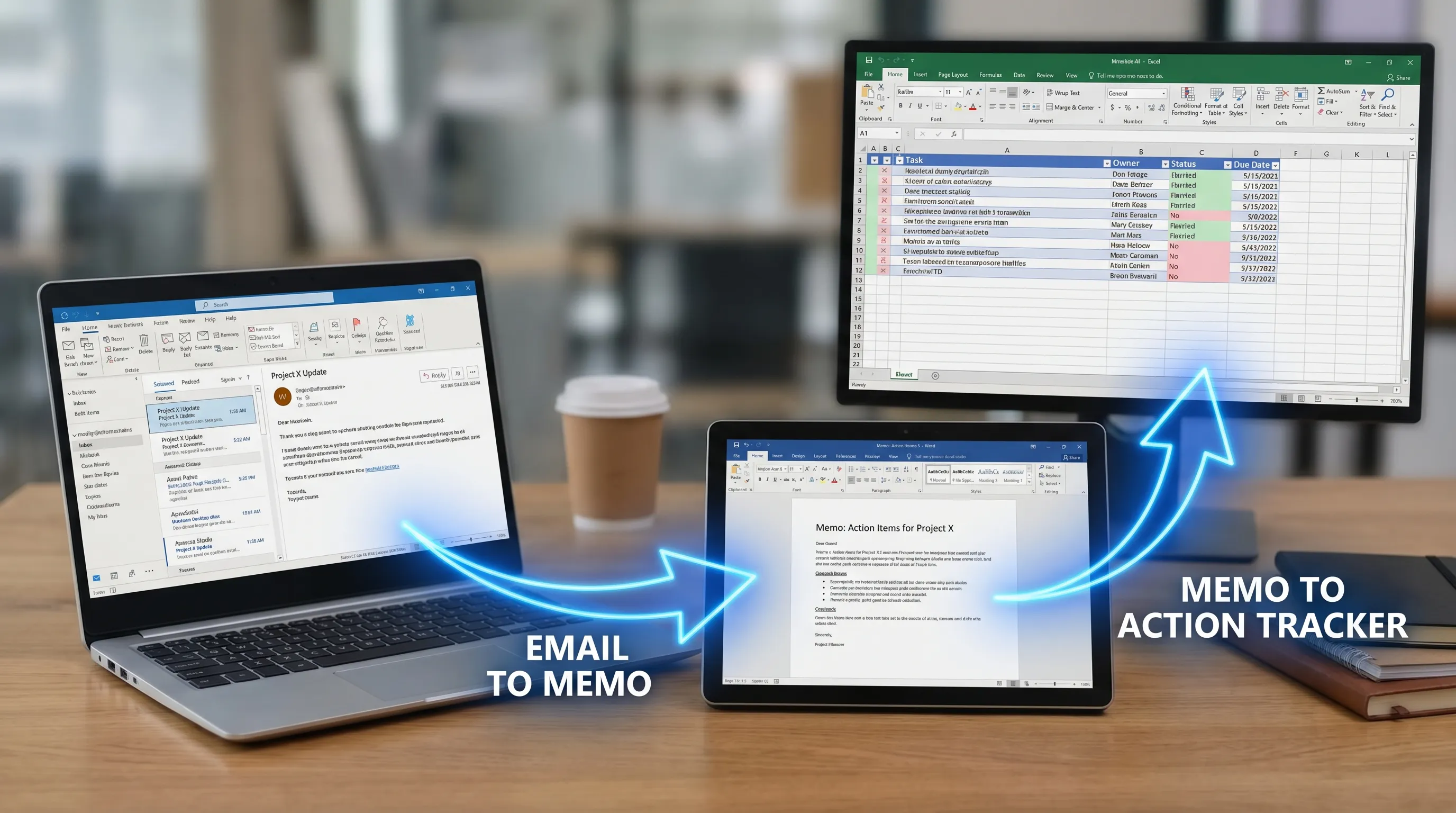
A simple, repeatable “email to doc to tracker” flow
- Start in Outlook: summarize a thread, pull decisions, and list open questions.
- Move to Word: convert that summary into a structured memo (background, decision, rationale, next steps).
- Push to Excel: extract action items into a tracker with owner, due date, status.
If you want to improve the Outlook side (rules, Quick Steps, faster drafting and summarization), these are strong primers:
- Outlook 365: Setup, Tips, and AI Email Shortcuts
- Microsoft Outlook Email: Write, Rewrite, and Summarize Fast
Cross-app prompt pattern (works in Word, Outlook, and Docs)
When you ask AI for help, give it structure:
- Role: “You are my operations editor”
- Input: “Here is the email thread / notes”
- Output: “Create a 1-page memo with headings”
- Constraints: “No invented facts, keep it neutral, include an action list”
This prompt pattern produces better results than asking “Summarize this” with no target format.
Word + Google Workspace: how to stay compatible across ecosystems
Many organizations are mixed environment. You might draft in Word, then share in Google Docs, or pull inputs from Google Forms, analyze in Sheets, and present in Slides.
The “365 in Word” advantage here is using Word’s structure well so the content transfers cleanly.
Best practices when content will land in Google Docs
- Prefer headings, lists, and styles over manual formatting
- Avoid complex floating text boxes for critical content
- Use tables only when necessary (and keep them simple)
- Export or share as .docx when editing is required, PDF when it is final
A practical Google Workspace loop (Docs, Sheets, Slides, Forms)
A common workflow looks like this:
| Start | What you generate | Where it ends |
|---|---|---|
| Google Forms | Clean responses, categorize themes | Google Sheets |
| Google Sheets | Insights summary, key charts to include | Google Slides |
| Word or Google Docs | Narrative memo, recommendations | Shared Doc for review |
If you want concrete, ready-to-use workflows inside Google Workspace apps, this is a strong playbook: Google Workspace AI: Real-World Workflows for Busy Teams.
Common “365 in Word” issues (and quick fixes)
AutoSave is missing or grayed out
Most often:
- File is not in OneDrive/SharePoint
- File is in an older format
- You are signed out (or signed into the wrong account)
Add-ins are not showing in Word
This can happen when:
- Your admin restricts add-ins
- Your account has store limitations
- Word needs an update
If multiple Microsoft 365 apps are acting strange (Outlook + Word + Excel), start with this broader checklist: Microsoft Get Help: Fast Fixes for 365 (Outlook, Word, Excel).
Coauthoring conflicts and formatting drift
To reduce drift:
- Keep the document style system simple
- Avoid each editor manually formatting headings differently
- Use Track Changes for heavy edits
Frequently Asked Questions
Is “365 in Word” a separate app? No. It usually means Microsoft Word as part of Microsoft 365, which adds cloud-connected collaboration, frequent updates, and optional AI features.
Is Word 365 free? Word is not generally free as a full desktop product. Many people access Word through Microsoft 365 subscriptions or workplace licensing, and Word on the web has different availability and limits.
Do I need internet to use Word in Microsoft 365? You can work offline in the desktop app, but features like AutoSave, coauthoring, and cloud version history require saving to OneDrive or SharePoint.
What’s the best way to turn Outlook emails into a Word document? Summarize the thread into decisions, context, and next steps, then paste into a Word memo template using headings and an action list. For faster email workflows, see the Outlook guides linked above.
Can I use AI in Word if I do not have Microsoft Copilot? Often yes, via third-party add-ins or approved tools, depending on your organization’s policies. Always verify outputs and follow your privacy rules.
Does CoreGPT Apps work only in Word? No. CoreGPT Apps is designed to bring AI into Word, Excel, and Outlook, plus Google Docs, Google Sheets, Google Slides, and Google Forms, with a privacy-focused design and no registration required.
Try CoreGPT Apps for AI inside Word, Outlook, Excel, and Google Workspace
If your goal is to use “365 in Word” better by writing and editing faster, the highest leverage upgrade is in-app AI that reduces tab switching.
CoreGPT Apps brings AI copilots directly into Microsoft Word, Excel, and Outlook, and also into Google Docs, Google Sheets, Google Slides, and Google Forms. It is free to install, works out of the box, and requires no registration. You can also choose between popular model families like ChatGPT, Gemini, and Claude, based on what your team prefers.
To get started with the Word workflow specifically, use: How to Use ChatGPT in Microsoft Word: A Complete Guide.