To wrap text in Excel, select the cells and click Home → Wrap Text (in the Alignment group). To start a new line at a specific spot inside a cell, double-click the cell, click where the break should go, and press Alt+Enter on Windows or Option+Return (or Control+Option+Return) on a Mac.
The difference matters: Wrap Text lets Excel decide where the lines break, based on the column width, so the text reflows when you make the column wider or narrower. A line break you type yourself stays where you put it, which is what you want for addresses, lists and labels. If a cell still looks cut off after either one, the row height is usually fixed or the cells are merged (see the troubleshooting section).
| What you want | How to do it |
|---|---|
| Fit long text inside the column width | Home → Wrap Text, or Alt, H, W |
| Start a new line at an exact point (Windows, web) | Edit the cell, press Alt+Enter |
| Start a new line at an exact point (Mac) | Edit the cell, press Option+Return or Control+Option+Return |
| Start a new line on iPhone, iPad or Android | Tap and hold in the cell, tap New Line |
| Line break inside a formula | ="Line 1"&CHAR(10)&"Line 2" with Wrap Text on |
| Remove all line breaks | Find & Replace with Ctrl+J, or =SUBSTITUTE(A2,CHAR(10)," ") |
| Make text smaller instead of taller | Format Cells → Alignment → Shrink to fit |
How to wrap text in Excel (Windows)
This works in Excel for Microsoft 365, Excel 2024, 2021, 2019 and 2016.
- Select the cells you want to wrap. Click a column letter to wrap a whole column, or press
Ctrl+Afor the whole sheet. - Go to the Home tab.
- In the Alignment group, click Wrap Text.
The text now breaks onto as many lines as it needs to fit the column width, and Excel makes the row taller to show all of it. Click Wrap Text again to turn it off.
Keyboard shortcut: there's no single shortcut, but in English versions of Excel for Windows you can press Alt, H, W one key after another to toggle Wrap Text on the selected cells.
Tip: wrapped text sits at the bottom of a tall cell by default, which looks odd next to single-line cells. Click Top Align in the same Alignment group to line everything up at the top.
Wrap text with the Format Cells dialog
The same setting lives in the Format Cells dialog, which is handy when you want to change several alignment options at once.
- Select the cells and press
Ctrl+1(Cmd+1on a Mac), or right-click and choose Format Cells. - Open the Alignment tab.
- Under Text control, tick Wrap text.
- Click OK.

Shrink to fit is greyed out while Wrap text is ticked, because the two options do opposite things. You'll find more on Shrink to Fit below.
How to start a new line in an Excel cell (line break)
Pressing Enter in Excel moves you to the next cell, so you need a different key combination to break a line inside the same cell.
Windows
- Double-click the cell, or select it and press
F2. - Click where you want the new line to start.
- Press
Alt+Enter.
You can also press Alt+Enter while typing a new entry, or while editing in the formula bar. Excel turns on Wrap Text for that cell automatically, so the line break shows right away.
Mac
- Double-click the cell (or select it and press
Control+U). - Click where you want the break.
- Press
Option+Return. If that doesn't work with your keyboard, useControl+Option+Return.
Excel for the web
- Double-click the cell, or select it and press
F2. - Click where you want the break and press
Alt+Enter. On a Mac, the browser treatsOptionasAlt, so pressOption+Return.
iPhone, iPad and Android
- Double-tap the cell to edit it (on iPhone and iPad you may need to tap the keyboard toggle to bring up the text keyboard).
- Tap and hold where you want the line break.
- Tap New Line in the menu that appears.
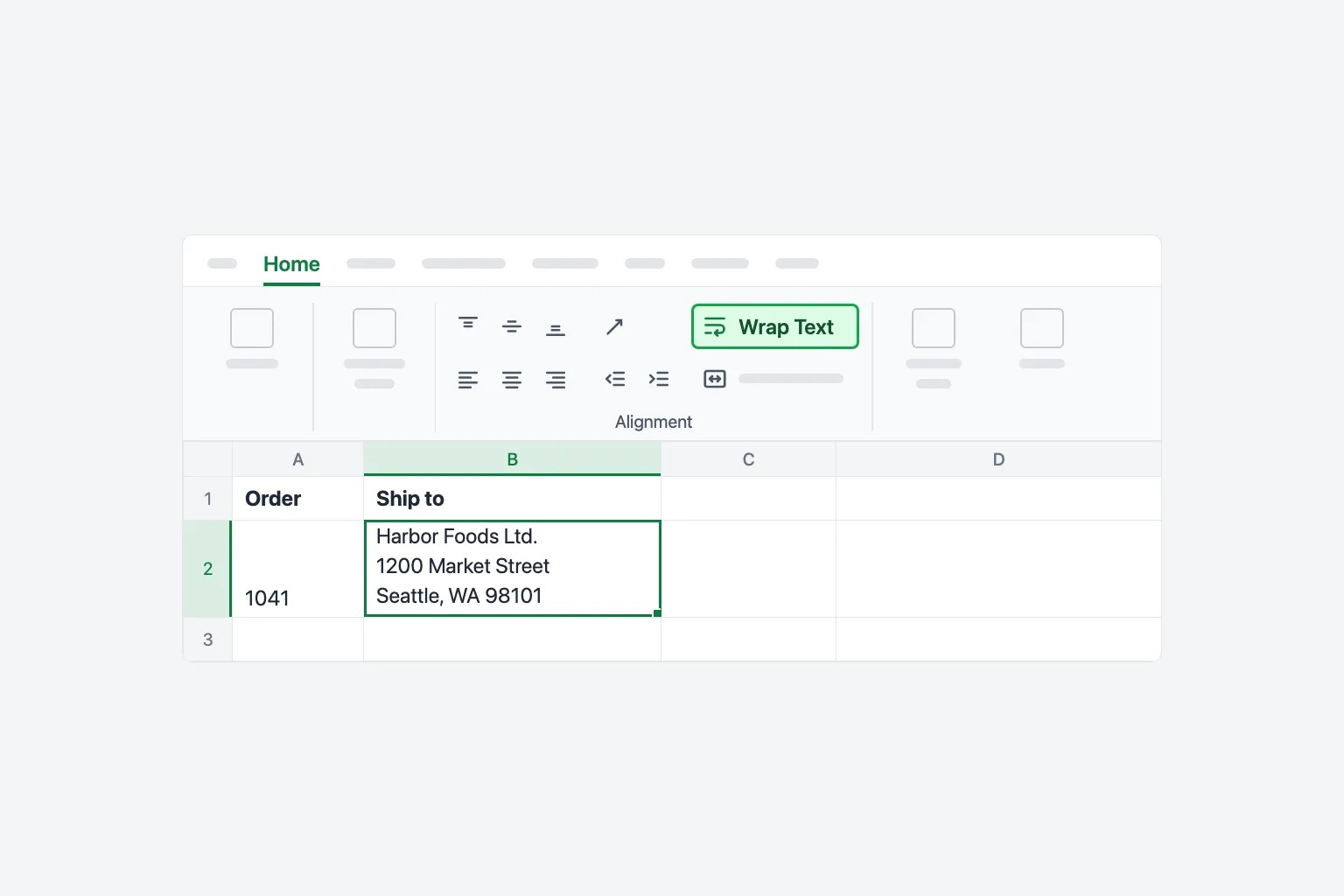
To type a line break in a long address, for example, enter Harbor Foods Ltd., press Alt+Enter, type 1200 Market Street, press Alt+Enter, type Seattle, WA 98101, then press Enter to finish.
Wrap text in Excel for Mac, the web and mobile
- Mac: select the cells and click Home → Wrap Text. You can also use
Cmd+1→ Alignment → Wrap text. Excel for Mac has no built-in shortcut for Wrap Text. - Web: select the cells and click Home → Wrap Text. If you can't see the button, widen the browser window: on a narrow window or the single-line ribbon, some buttons move into the overflow menu (…) at the end of the ribbon.
- iPhone, iPad and Android: select the cells, open the Home tab (on phones, tap the icon that opens the ribbon commands), and tap Wrap Text.
The setting is saved with the cell, so a sheet wrapped in one version looks the same in the others.
How to fix row height that doesn't adjust
Normally Excel resizes the row when you wrap text. If it doesn't, one of these is the reason:
The row has a fixed height. If you or someone else dragged the row border before, Excel stops adjusting that row. Select the rows, then go to Home → Format → AutoFit Row Height (on Windows, Alt, H, O, A). Double-clicking the bottom border of the row number does the same thing. On a Mac you'll also find it in the menu bar under Format → Row → AutoFit.
The cells are merged. AutoFit ignores merged cells, so wrapped text in a merged cell often stays cut off. Drag the row border to set the height by hand, or avoid the merge: Center Across Selection gives the same centered look while each cell stays separate and AutoFit keeps working.
The text is longer than a row can show. A row can be at most 409 points tall. Very long text in a narrow column can run past that. Widen the column so the text needs fewer lines, or move the long text to a comment or a separate sheet.
How to add a line break inside a formula (CHAR(10))
When you build text with a formula, Alt+Enter won't help: you need the line break character itself. In Excel that's CHAR(10) (a line feed), on both Windows and Mac.
Say A2 holds the company name, B2 the street and C2 the city, state and ZIP code. To put them on three lines in one cell:
=A2&CHAR(10)&B2&CHAR(10)&C2
Or with plain text: ="Line 1"&CHAR(10)&"Line 2".
In Excel 2019 and later, TEXTJOIN is shorter and skips blank cells:
=TEXTJOIN(CHAR(10),TRUE,A2:C2)
Turn on Wrap Text for the formula cells. Unlike Alt+Enter, a formula doesn't switch it on for you. Without it, the cell shows everything on one line and the breaks are invisible.
How to remove line breaks in Excel
Line breaks often arrive with data pasted from websites, emails or exports, and they break lookups and CSV files.
With Find & Replace (Windows)
- Select the cells (or one cell to search the whole sheet).
- Press
Ctrl+Hto open Find and Replace. - Click in Find what and press
Ctrl+J. The box looks empty (you may see a tiny blinking dot), but it now contains the line break. - In Replace with, type a space, or a comma and a space.
- Click Replace All.
With a formula (any version)
=SUBSTITUTE(A2,CHAR(10)," ")replaces each line break with a space. Use", "instead to keep the parts separated by commas.=CLEAN(A2)removes line breaks and other non-printing characters, but it joins the lines with nothing in between, so "Market Street" and "Seattle" become "Market StreetSeattle". Use SUBSTITUTE when you need a separator.- Text from some systems contains a carriage return as well (
CHAR(13)). If spaces still look doubled or odd, clean both:=SUBSTITUTE(SUBSTITUTE(A2,CHAR(13),""),CHAR(10)," ").
Copy the formula down, then use Copy → Paste Special → Values if you want to replace the original text.
Split the lines into separate cells instead. In Excel for Microsoft 365, =TEXTSPLIT(A2,CHAR(10)) spreads each line into its own column. In any version, Data → Text to Columns → Delimited → Other works too: click in the Other box and press Ctrl+J.
Shrink to Fit: an alternative to wrapping
If you'd rather keep every row the same height, Shrink to fit makes the font smaller until the text fits on one line:
- Select the cells and press
Ctrl+1(Cmd+1on a Mac). - On the Alignment tab, clear Wrap text and tick Shrink to fit.
- Click OK.
It suits headers that are slightly too long. For longer text the font gets too small to read, so wrap instead.
Why Wrap Text isn't working
Wrap Text is greyed out. You're probably still editing a cell: press Enter or Esc and try again. Other causes: the sheet is protected without the Format cells permission (Review → Unprotect Sheet), the file is open in Viewing mode in Excel for the web (switch to Editing), or a chart or shape is selected instead of cells.
Text is still cut off after wrapping. The row height is fixed or the cells are merged. Use AutoFit Row Height, or set the height manually for merged cells, as described above.
The text doesn't wrap at all. Wrap Text only affects text. A long number shows ##### or scientific notation instead of wrapping, so widen the column or change its number format.
Alt+Enter doesn't work.
- Use the left
Altkey. On many European keyboards the right-hand key isAltGr, which doesn't insert a line break. - Make sure you're editing the cell (double-click it or press
F2) before you press the keys. - On a Mac,
Alt+Enterdoesn't exist: useOption+ReturnorControl+Option+Return. - In Excel for the web, a browser extension or a remote desktop app can capture
Alt+Enter. Try another browser or a private window.
Frequently Asked Questions
What is the shortcut to wrap text in Excel? On Windows, press Alt, H, W one after another (English versions of Excel). There's no default Wrap Text shortcut on a Mac; use the Home tab or Cmd+1 → Alignment → Wrap text.
How do I go to the next line in an Excel cell? Press Alt+Enter on Windows and in Excel for the web, or Option+Return (or Control+Option+Return) on a Mac. On mobile, tap and hold in the cell and tap New Line.
How do I make Excel cells expand to fit text automatically? Turn on Wrap Text, then use Home → Format → AutoFit Row Height. For column width, double-click the border to the right of the column letter, or use AutoFit Column Width.
Why does my wrapped text not show all lines? The row has a fixed height or the cell is merged. AutoFit the row height, or for merged cells, drag the row border to the height you need.
How do I wrap text in Excel without changing the row height? Wrap Text always needs taller rows. To keep rows the same height, use Shrink to fit instead, or widen the column.
Can I find cells that contain line breaks? Yes. Open Find and Replace (Ctrl+F), click in Find what, press Ctrl+J, and click Find All. For a formula check, =ISNUMBER(SEARCH(CHAR(10),A2)) returns TRUE when the cell has a line break.
Clean up messy text faster
Stray line breaks rarely come alone: data pasted from emails and exports usually brings duplicate rows and inconsistent spellings with it. CoreGPT for Excel lets you describe the cleanup in plain English, such as "remove duplicate rows and standardize the country names", and makes the changes in your workbook. It's free to start and works in Excel for Windows, Mac and the web.
 CoreGPT
Done. I made these changes:
- Removed 12 duplicate rows
- Changed “US”, “DE”… to full names
- Formatted phone numbers
Try it: CoreGPT for Excel
Related reading: