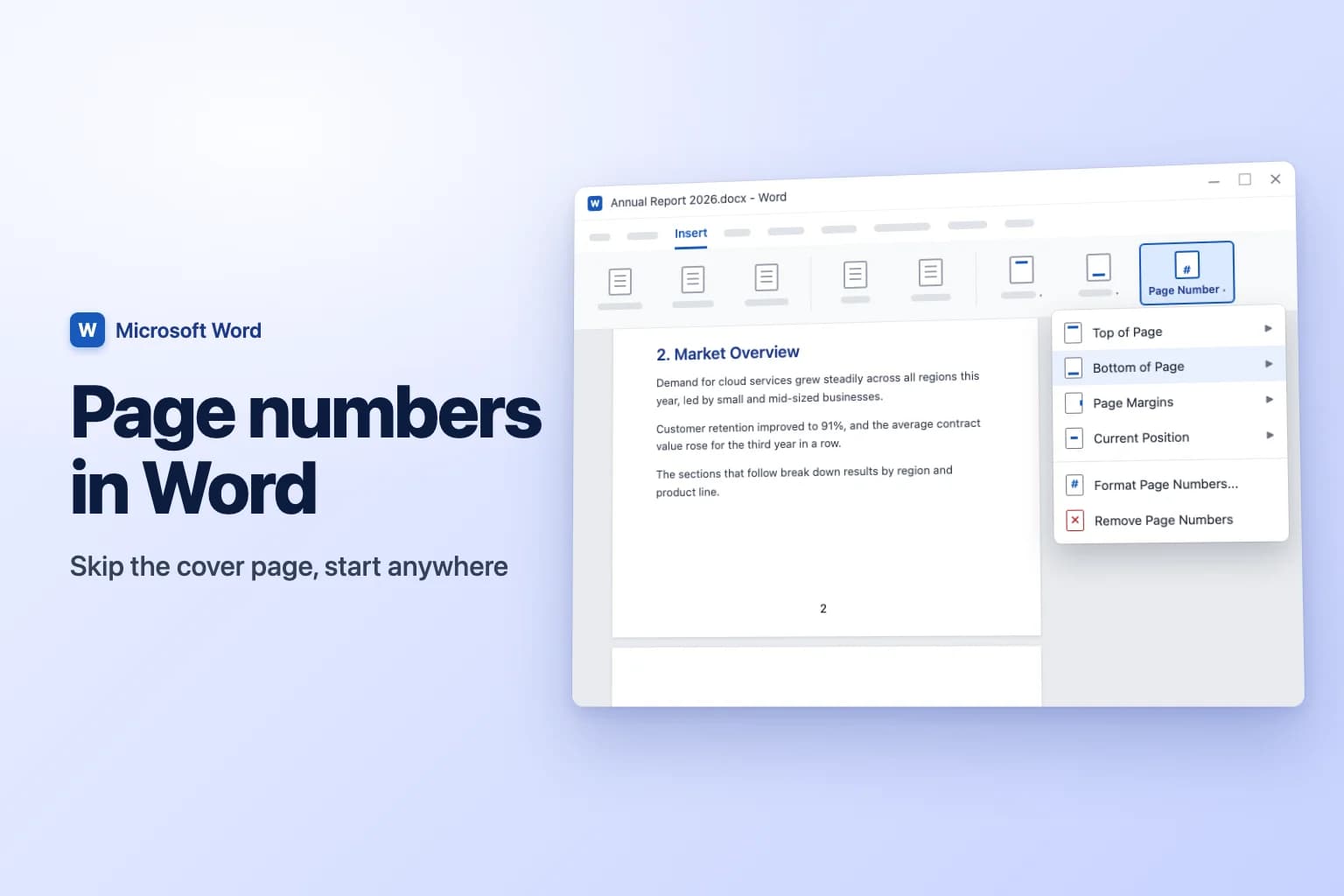
To add page numbers in Word, go to Insert → Page Number, choose Top of Page or Bottom of Page, and click a style such as Plain Number 2 (centered). Word puts the number in the header or footer of every page and keeps it up to date as you add or delete pages. Click Close Header and Footer or press Esc to get back to your text.
The tricky part comes after that: skipping the cover page, starting at 1 on page 3, or switching from i, ii, iii to 1, 2, 3. Those all come down to Different First Page, Format Page Numbers, and a section break where the numbering changes.
| What you want | How to do it |
|---|---|
| A number on every page | Insert → Page Number → Bottom of Page → pick a style |
| No number on the cover page | Header & Footer → Different First Page |
| Page 2 shows "1" | Different First Page + Format Page Numbers → Start at: 0 |
| Numbering starts on page 3 or later | Layout → Breaks → Next Page, unlink, then Start at: 1 |
| "Page 2 of 12" | Bottom of Page → Page X of Y gallery |
| i, ii, iii for the front matter | Section break + Format Page Numbers → Number format |
| No numbers at all | Insert → Page Number → Remove Page Numbers |
Add page numbers in Word for Windows
These steps work in Word for Microsoft 365, Word 2024, 2021, 2019 and 2016.
- Go to Insert → Page Number (in the Header & Footer group).
- Point to Top of Page or Bottom of Page, or Page Margins for the side margin.
- Click a style. Plain Number 1, 2 and 3 put the number on the left, in the center or on the right.
- Click Close Header and Footer, or press
Esc.
Picking a style from Top of Page or Bottom of Page replaces whatever is already in that header or footer. If your footer already has text, such as a company name, click where the number should go and use Page Number → Current Position instead (or press Alt+Shift+P on Windows). To restyle the number later, double-click it and format it like normal text.
Remove the page number from the first page
- Double-click the header or footer on any page (or go to Insert → Footer → Edit Footer).
- On the Header & Footer tab, tick Different First Page.
- Click Close Header and Footer. If a number still shows in the First Page Footer, select it and press
Delete.
The first page is hidden but still counted, so the next page shows 2. To make it show 1, go to Insert → Page Number → Format Page Numbers, select Start at, set it to 0, and click OK.
Start page numbers on page 3 (or any later page)
With a title page and a table of contents in front, you need a section break so Word can number the two parts differently:
- Click at the very end of page 2. If page 2 ends with a page break, delete it first so you don't get a blank page.
- Go to Layout → Breaks and, under Section Breaks, choose Next Page.
- Double-click the footer on page 3. It's now labeled Footer -Section 2-.
- On the Header & Footer tab, click Link to Previous to turn it off. The Same as Previous label disappears. If your numbers are in the header, unlink the header too.
- If there's no number yet, add one with Page Number → Bottom of Page.
- Go to Page Number → Format Page Numbers, select Start at, type 1, and click OK.
- Delete the numbers in the footers of pages 1 and 2. Page 3 onward keeps its numbers.
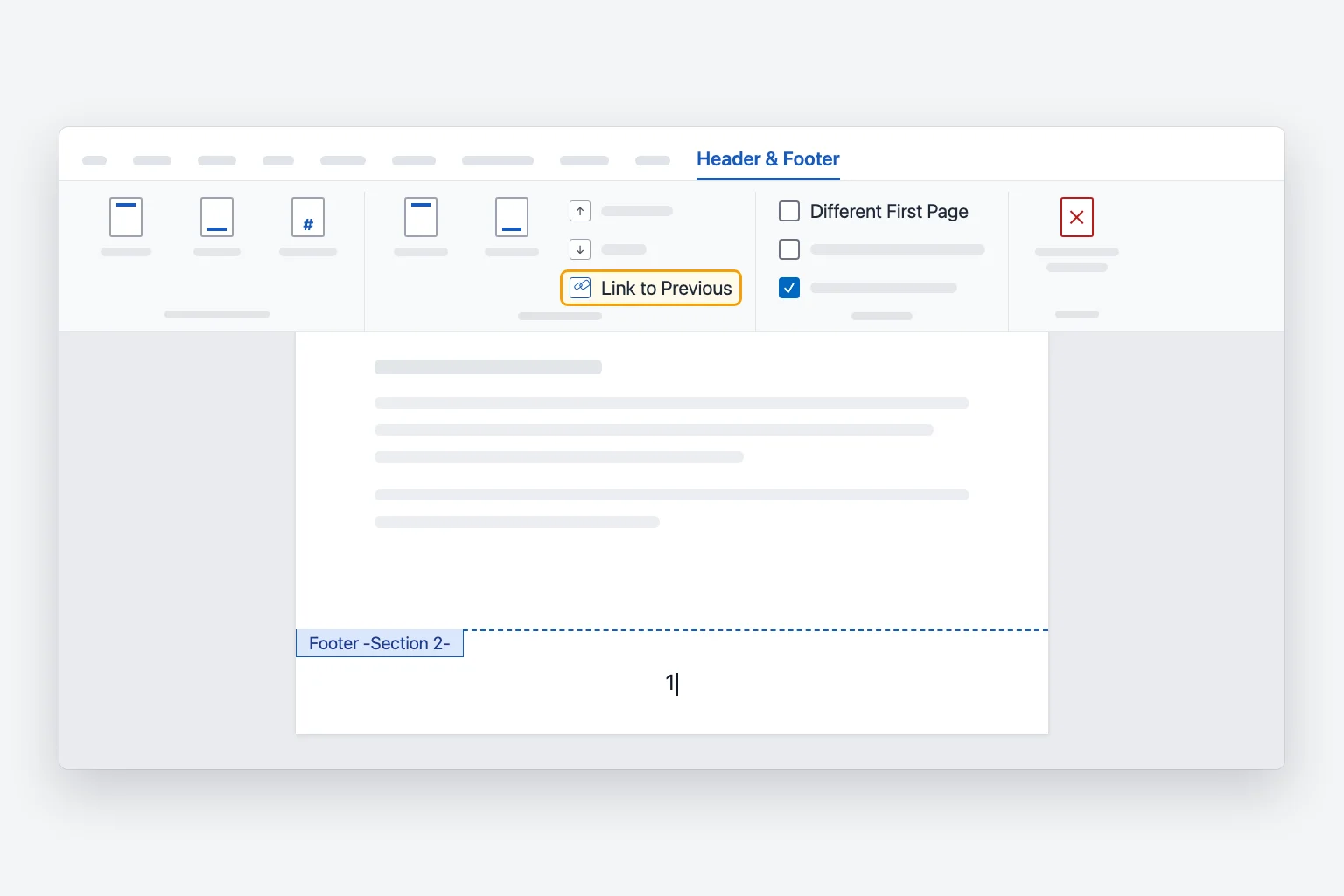
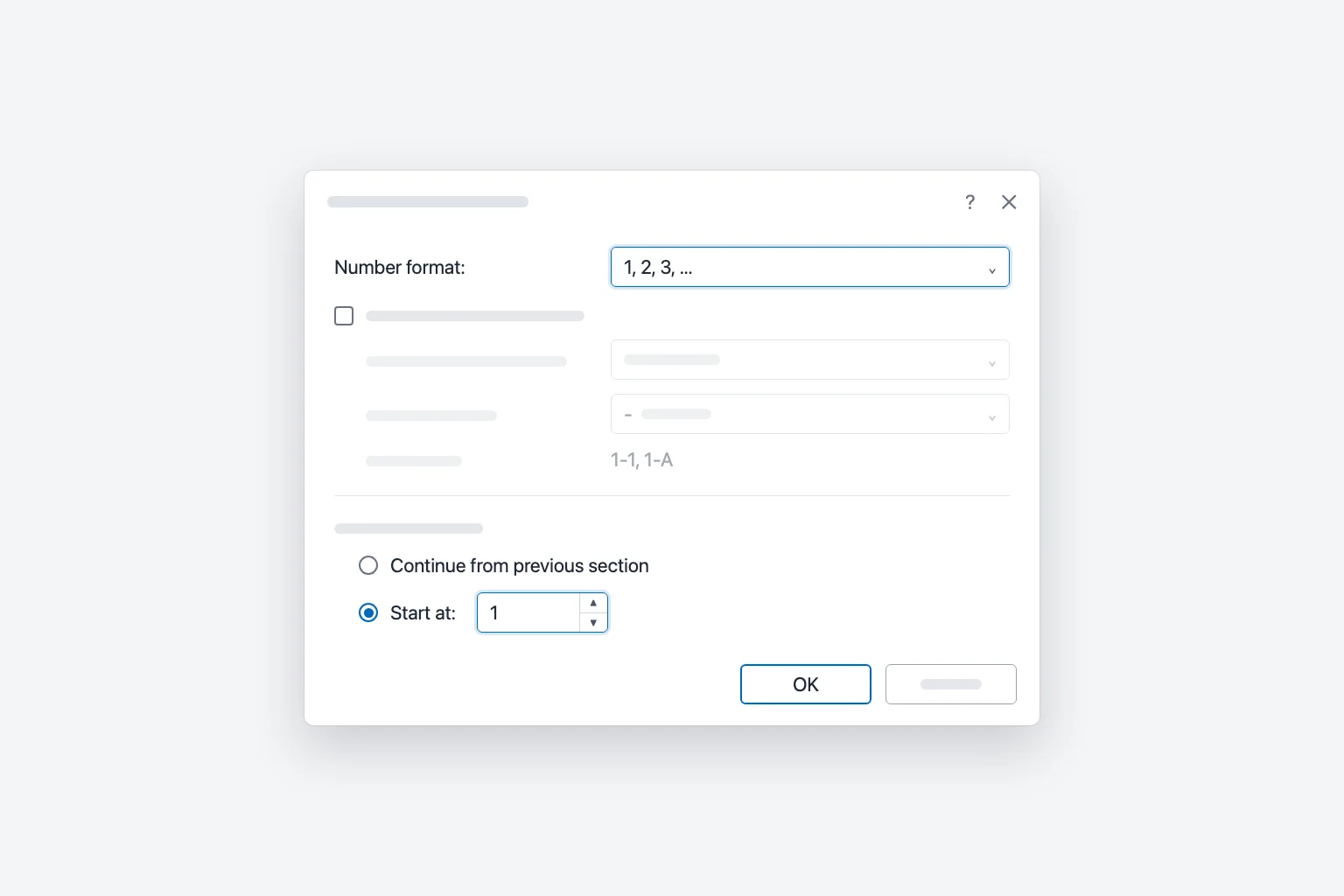
To start on any other page, put the Next Page break right before it. If a break leaves an empty page behind, see how to delete a page in Word.
Use roman numerals (i, ii, iii) for the front matter
Each section has its own number format, so theses and reports can number the front matter i, ii, iii and the main text 1, 2, 3:
- Insert a Next Page section break at the end of the front matter, as above.
- Click in a front matter footer, open Page Number → Format Page Numbers, set Number format to i, ii, iii, …, and click OK.
- Click in the footer of the first main-text page, open Format Page Numbers, set Number format to 1, 2, 3, …, select Start at: 1, and click OK.
To hide the number on the title page, tick Different First Page in the first section. It still counts as page i. A table of contents picks up both formats; just update it afterward, as shown in how to add a table of contents in Word.
Add "Page X of Y" page numbers
- Go to Insert → Page Number → Bottom of Page (or Top of Page).
- Scroll down to the Page X of Y section of the gallery.
- Pick Bold Numbers 1, 2 or 3 (left, center or right). The footer shows "Page 2 of 12".
To add it to an existing footer, type Page , press Ctrl+F9 (Cmd+F9 on a Mac) and type PAGE inside the braces, then type of and insert a second field with NUMPAGES. Press F9 to update. You can also use Insert → Quick Parts → Field and choose Page and NumPages.
If numbering starts on page 3, NUMPAGES still counts every page, so the last page reads "Page 10 of 12". Use SECTIONPAGES instead, which counts only the pages in the current section.
Remove page numbers
Go to Insert → Page Number → Remove Page Numbers. If some survive (common with unlinked sections or a different first page), double-click the footer where they appear, select the number, and press Delete.
Page numbers in Word for Mac
Go to Insert → Page Number. Depending on your version you get the same gallery as Windows, or a Page Numbers dialog (choose Page Number again) where you set Position and Alignment. In that dialog, clear Show number on first page to skip the cover, and click Format to set the number format and Start at. Section breaks, Link to Previous and Different First Page are in the same places as on Windows.
Page numbers in Word for the web
In Editing mode, go to Insert → Page Numbers and pick a position. Tick Include Page Count for "Page X of Y", or choose Remove Page Numbers at the bottom of the gallery. To hide the first page number, go to Insert → Header & Footer and turn on Different First Page.
Microsoft notes that Word for the web can't start numbering later in the document or number sections differently. Use Open in Desktop App for that. Once saved, the numbers display correctly everywhere, including Word on a phone or tablet.
Why your page numbers aren't working
Every page shows the same number. The number was typed or pasted as text instead of inserted as a field. Delete it and use Insert → Page Number again. In converted documents where every page is its own section, each section may be set to Start at 1: switch each one to Continue from previous section.
Numbering restarts after a section break. That section has Start at set. Open Format Page Numbers from its footer and select Continue from previous section.
The number is missing on the first page of a section. Different First Page is set per section, and new sections often inherit it. Untick it in that section.
Deleting the cover page number removed them all. Tick Different First Page (or unlink the sections) before deleting, then reinsert the numbers.
The first page shows 0. You set Start at: 0 without ticking Different First Page.
You see { PAGE } instead of a number. Field codes are showing. Press Alt+F9 (Option+F9 on a Mac; add Fn if your keyboard needs it).
You can't click into the header or footer. Read Mode, Web Layout and Draft views don't show them, so switch to View → Print Layout. If the file is in Protected View, click Enable Editing; if it uses Review → Restrict Editing, ask the owner to lift it. In Word for the web, switch from Viewing to Editing.
Frequently Asked Questions
How do I start page numbers on page 2 in Word? Tick Different First Page on the Header & Footer tab, then set Format Page Numbers → Start at to 0. The cover has no number and page 2 shows 1.
How do I put page numbers in the bottom right corner? Go to Insert → Page Number → Bottom of Page and choose Plain Number 3.
Why do all my pages say page 1? The "1" was typed as text, or each page is a separate section set to Start at 1. Reinsert the number, or set each section to Continue from previous section.
How do I add "Page 1 of 10" in Word? Pick a Bold Numbers style from the Page X of Y section of Insert → Page Number → Bottom of Page. In Word for the web, tick Include Page Count under Insert → Page Numbers.
How do I put page numbers on the outside edge for double-sided printing? Tick Different Odd & Even Pages on the Header & Footer tab, then insert a right-aligned number on an odd page and a left-aligned number on an even page.
Can I start page numbers on page 3 in Word for the web? No. Different numbering per section needs Word for Windows or Mac. Set it up there and it displays correctly on the web afterward.
Get the long document written, then number it
Page numbers matter most in long documents like reports and proposals, and the hard part is usually writing them. CoreGPT for Word drafts a full first version, such as a project proposal with sections for the introduction, analysis, pricing and timeline, from a short prompt right inside Word. Add your section breaks and page numbers once the structure is there. It's free to start.
 CoreGPT
Project Proposal: Customer Portal Redesign
This proposal outlines a three-month plan to redesign the customer portal, reduce support tickets by 30% and improve onboarding for new accounts.
Objectives: simplify navigation, add self-service billing and introduce guided setup for first-time users.
Timeline and budget are detailed in the sections below.
Here’s a draft with an overview, objectives and next steps:
- Overview and goals
- Three key objectives
- Timeline and budget
Try it: CoreGPT for Word
Related reading: