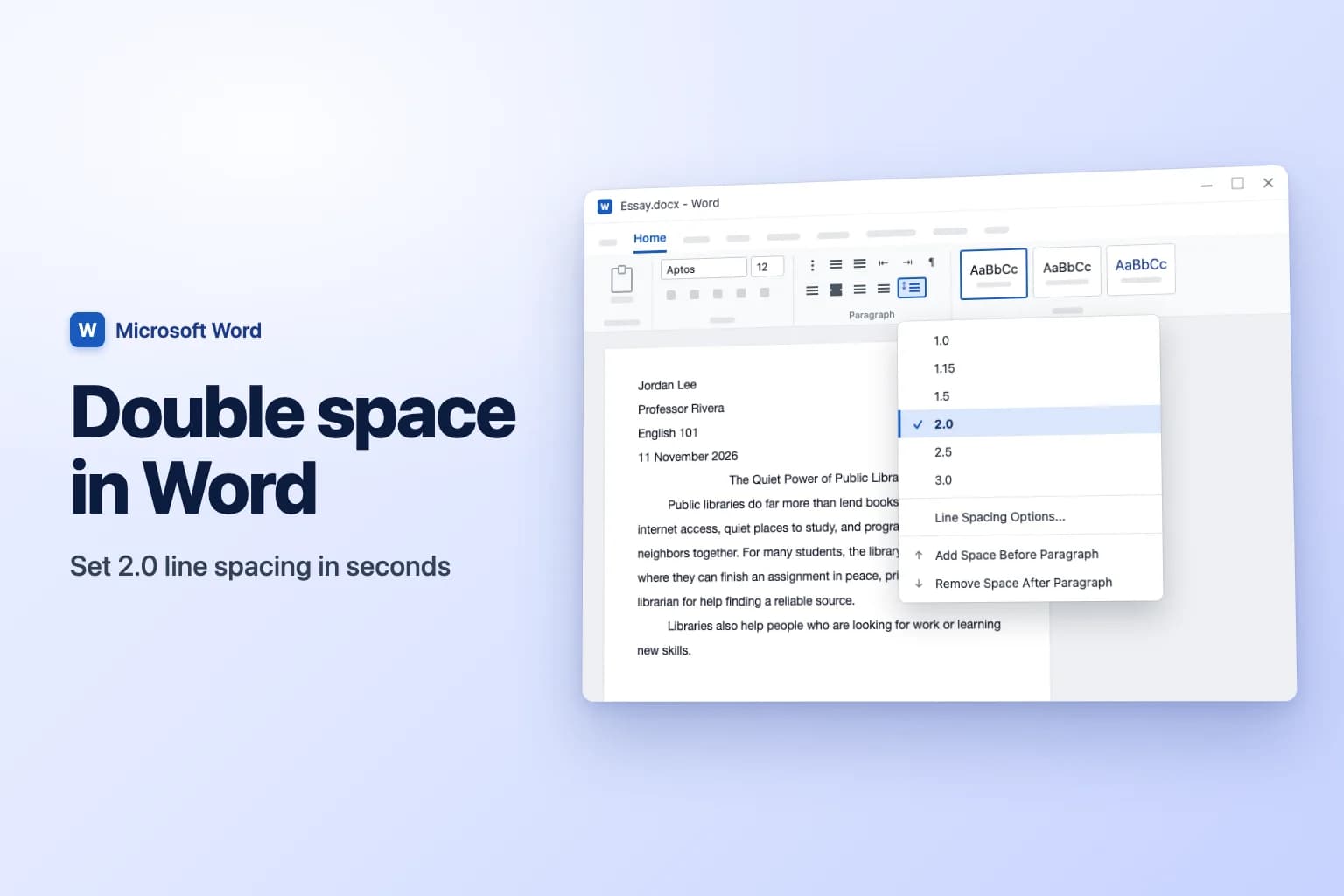
To double space in Word, select your text (press Ctrl+A / Cmd+A for the whole document), go to Home → Line and Paragraph Spacing in the Paragraph group, and choose 2.0. The fastest way is the shortcut: select the text and press Ctrl+2 on Windows or Cmd+2 on a Mac.
Line spacing only changes the paragraphs you select, and it doesn't remove the extra gap many templates add after each paragraph. If your double-spaced text still has bigger gaps between paragraphs, open Line Spacing Options and set Before and After to 0 pt (details below).
| Method | Where to find it | Best for |
|---|---|---|
| Line and Paragraph Spacing button | Home → Line and Paragraph Spacing → 2.0 | Selected text or the whole document |
| Keyboard shortcut | Ctrl+2 (Windows), Cmd+2 (Mac) | The quickest change |
| Paragraph dialog | Line Spacing Options → Line spacing: Double | Exact control, removing extra paragraph space |
| Design tab | Design → Paragraph Spacing → Double | The whole document through its styles |
| Word for the web | Home → Line Spacing → 2.0 | Documents in a browser |
| Google Docs | Format → Line & paragraph spacing → Double | Google Docs files |
How to double space in Word for Windows
This works in Word for Microsoft 365, Word 2024, 2021, 2019 and 2016.
- Select the text you want to change. To double space the whole document, click in the body text and press
Ctrl+A. - Go to the Home tab.
- In the Paragraph group, click Line and Paragraph Spacing (the icon with lines and up and down arrows).
- Choose 2.0.
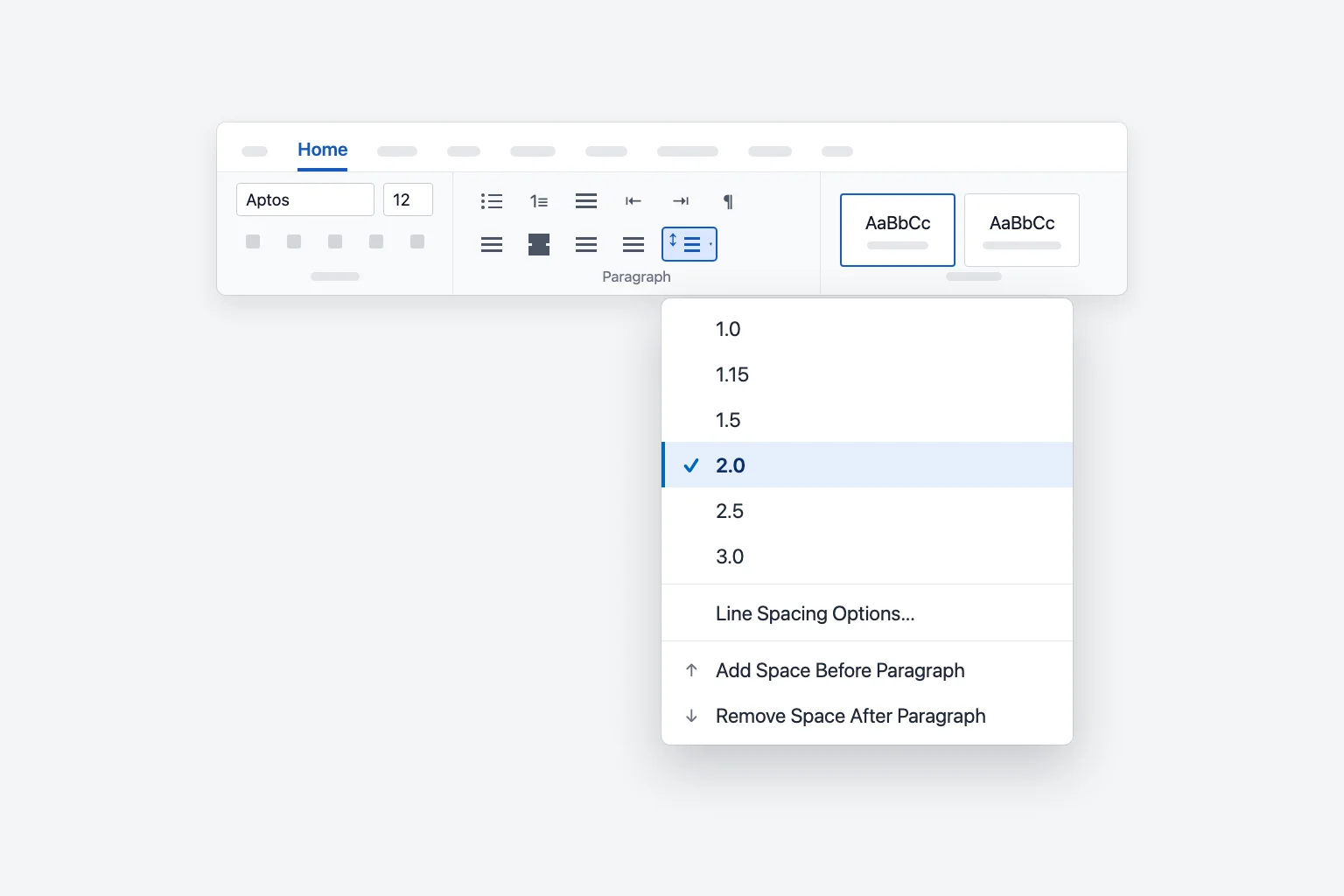
2.0 in this menu is the same as Double in the Paragraph dialog. The two commands at the bottom of the menu are handy too: Remove Space After Paragraph deletes the extra gap after each selected paragraph, which is often what makes double spacing look uneven.
Double spacing keyboard shortcut
Select the text and press:
Ctrl+2(Windows) orCmd+2(Mac) for double spacingCtrl+5orCmd+5for 1.5 line spacingCtrl+1orCmd+1to go back to single spacing
The shortcuts apply to whole paragraphs, so you don't need to select every character: clicking inside a paragraph is enough to change that one paragraph.
Use the Paragraph dialog for exact double spacing
The Paragraph dialog sets line spacing and paragraph spacing in one place, which is what you want for a school paper or a manuscript.
- Select the text (or press
Ctrl+A). - Go to Home → Line and Paragraph Spacing → Line Spacing Options. You can also click the small arrow in the bottom-right corner of the Paragraph group.
- On the Indents and Spacing tab, under Spacing, set Line spacing to Double.
- Set Before and After to 0 pt if you don't want extra space between paragraphs.
- Check the Preview box, then click OK.
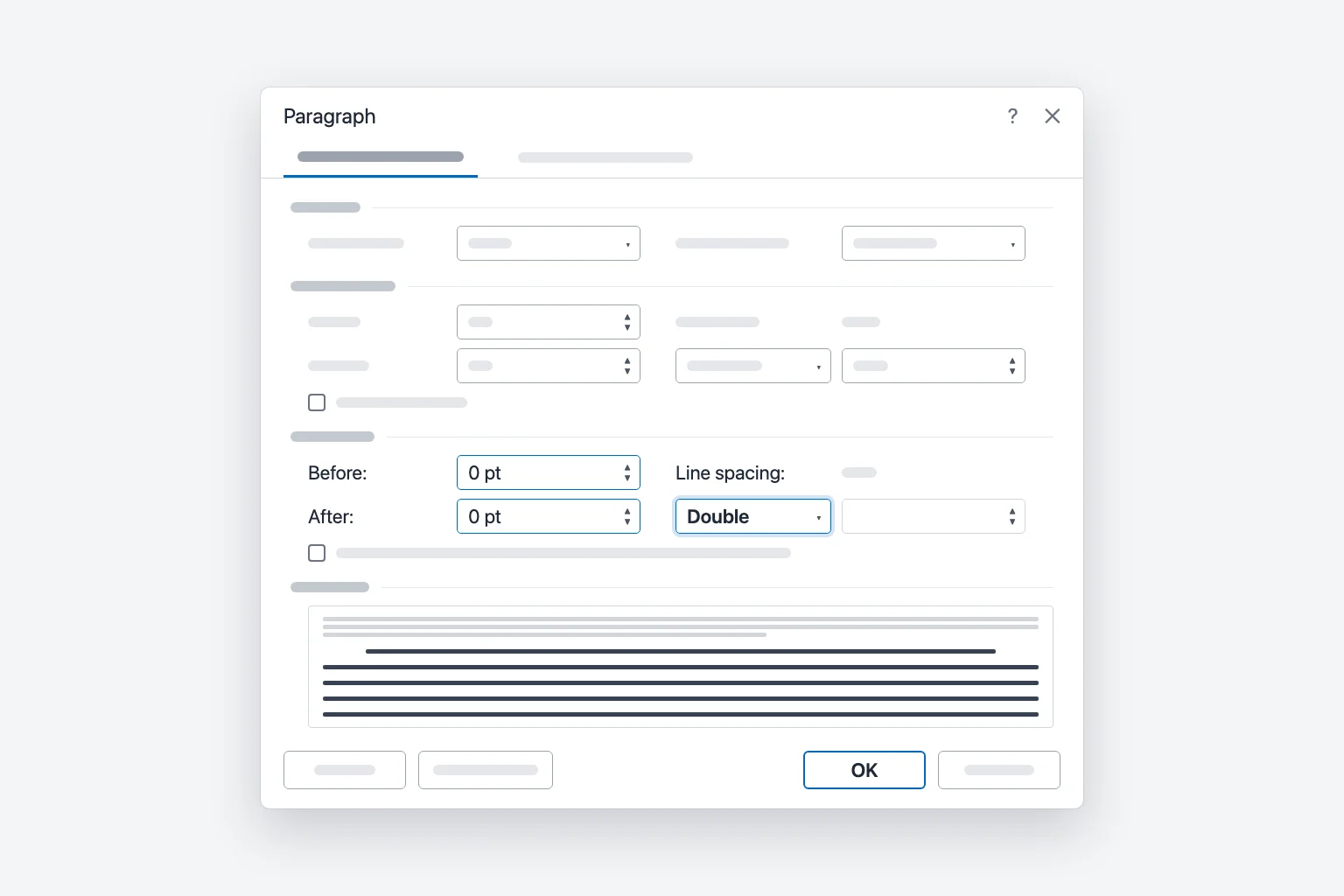
While you're here, Special: First line with By: 0.5" gives you the half-inch paragraph indent that most essay formats ask for, so you don't need to press Tab at the start of every paragraph.
Double space the whole document
You have two options, and they behave differently:
- Select all and apply 2.0. Press
Ctrl+A, then pick 2.0 or pressCtrl+2. This changes every paragraph in the main text right now. Text you type later in those paragraphs keeps the setting. - Design → Paragraph Spacing → Double. This changes the document's style set, so every paragraph that uses the document's styles picks it up, including new ones. Paragraphs you formatted by hand keep their own settings. Hover over the option to preview it before you click.
Ctrl+A only selects the main body. Footnotes, headers and footers, and text boxes are separate, so click inside them and apply the spacing there too if they need to be double spaced.
Make double spacing the default in Word
To have every new document start double spaced:
- Open a blank document and go to Home → Line and Paragraph Spacing → Line Spacing Options.
- Set Line spacing to Double (and Before/After to 0 pt if you like).
- Click Set As Default.
- Choose All documents based on the Normal template? and click OK.
Choosing This document only? changes just the current file. If you used Design → Paragraph Spacing → Double instead, click Set as Default on the Design tab to save that choice for new documents.
If the new default doesn't stick, Word may not have been able to save the Normal template (common on locked-down work computers). Close Word, reopen it, and check a new blank document.
How to double space in Word for Mac
Word for Mac uses the same ribbon:
- Select the text, or press
Cmd+Afor the whole document. - Go to Home → Line and Paragraph Spacing and choose 2.0. Or just press
Cmd+2. - For exact settings, choose Line Spacing Options (or Format → Paragraph in the menu bar), set Line spacing to Double under Spacing, and click OK.
The Design → Paragraph Spacing menu is available on the Mac too, if you want to change the whole document through its styles.
How to double space in Word for the web
In Word for the web (word.office.com, or a file opened from OneDrive or SharePoint):
- Select the text, or press
Ctrl+A(Cmd+Aon a Mac). - Go to Home → Line Spacing and choose 2.0.
- For Before and After spacing, choose Line Spacing Options to open the Paragraph dialog.
Use the menu rather than Ctrl+2 in a browser, because many browsers use that shortcut to switch tabs. Microsoft also notes that Word for the web starts new documents at 1.15 spacing even if you changed the default in the desktop app, so you'll need to set double spacing in each new web document.
Double spacing in Google Docs
If your file lives in Google Docs instead, select the text (Ctrl+A / Cmd+A for everything), then go to Format → Line & paragraph spacing → Double. The same option is on the Line & paragraph spacing button in the toolbar, along with Remove space after paragraph if there's an extra gap. To make it the default for new documents, format a paragraph of normal text the way you want, then choose Format → Paragraph styles → Normal text → Update 'Normal text' to match, and Format → Paragraph styles → Options → Save as my default styles.
Why double spacing doesn't look double
There's extra space between paragraphs. Most Word templates add space after each paragraph (often 8 pt). On top of double spacing, that makes the gap between paragraphs bigger than the gap between lines. Set Before and After to 0 pt in the Paragraph dialog, choose Remove Space After Paragraph, or tick Don't add space between paragraphs of the same style.
Line spacing is set to Exactly or At least. If the Paragraph dialog shows Exactly with a small value such as 12 pt, lines stay tightly packed no matter what. Change Line spacing to Double.
Only part of the text was selected. Line spacing applies per paragraph. Paragraphs you missed, pasted text that brought its own formatting, and footnotes or text boxes keep their old spacing. Select them and apply 2.0 again, or press Ctrl+A then Ctrl+2.
A heading or quote uses a different style. Headings, block quotes and captions have their own styles, and Design-tab changes may not reach paragraphs with direct formatting. Click the paragraph, check Line spacing in the Paragraph dialog, and fix it there. To change a style everywhere, right-click it in the Styles gallery, choose Modify → Format → Paragraph, and set Double.
Some lines look taller than others. Double spacing is relative to the largest text on the line. A bigger font, an inline image or an equation makes that line taller. Keep body text one size, or set images to wrap with text.
Double spacing for APA and MLA papers
Both APA (7th edition) and MLA (9th edition) ask for double spacing throughout:
- APA: double space everything, including the title page, abstract, body, block quotations and reference list. Don't add extra blank lines between paragraphs or before headings. Tables and figures can use different spacing.
- MLA: double space the whole paper, including the heading in the top-left corner, quotations and the Works Cited list, with no extra space between paragraphs.
In Word, that means Line spacing: Double, Before and After at 0 pt, and a First line indent of 0.5". Your instructor's rules win if they differ.
1.5 vs double spacing
1.5 lines (Ctrl+5) adds half a line of space and is common for reports, theses and some business documents. Double (Ctrl+2) adds a full line and is the standard for school essays, manuscripts and drafts that someone will mark up by hand. If a guideline just says "double spaced", choose 2.0, not 1.5. The default spacing in new Word documents is closer to single spacing (1.08 or 1.15, depending on your version).
Frequently Asked Questions
What is the shortcut for double spacing in Word? Press Ctrl+2 on Windows or Cmd+2 on a Mac with the text selected. Ctrl+1 / Cmd+1 switches back to single spacing.
Is 2.0 the same as double spacing in Word? Yes. 2.0 in the Line and Paragraph Spacing menu sets the same thing as Double in the Paragraph dialog.
How do I double space only part of a document? Select just those paragraphs and choose Home → Line and Paragraph Spacing → 2.0. The rest of the document keeps its spacing.
Why is there a bigger gap between my paragraphs? That's Spacing After, not line spacing. Open Line Spacing Options and set Before and After to 0 pt, or choose Remove Space After Paragraph.
How do I double space on Word on my phone? In the Word mobile app, select the text, open the Home commands and look for the line spacing option there. The layout differs between iPhone, iPad and Android, so if you can't find it, open the file in Word for the web and use Home → Line Spacing → 2.0.
How do I remove double spacing in Word? Select the text and choose 1.0 from Line and Paragraph Spacing, or press Ctrl+1 (Cmd+1 on a Mac).
Get the essay right, not just the spacing
Double spacing makes a paper look finished, but the writing still has to read well. CoreGPT for Word works inside your document: select a paragraph and ask it to make the text clearer or more professional, and you get a polished version you can drop straight back into your double-spaced draft. It's free to start and works in Word for Windows, Mac and the web.
 CoreGPT
Update for the Acme account
Thank you for your patience while we resolved the delivery issue.
We have identified the cause of the delay and put measures in place to ensure it does not happen again. Your order will arrive on Friday.
Please let us know if there is anything else we can help with.
We identified the cause of the delay and have put safeguards in place so it won’t happen again. Your order will arrive this Friday.
Try it: CoreGPT for Word
Related reading: