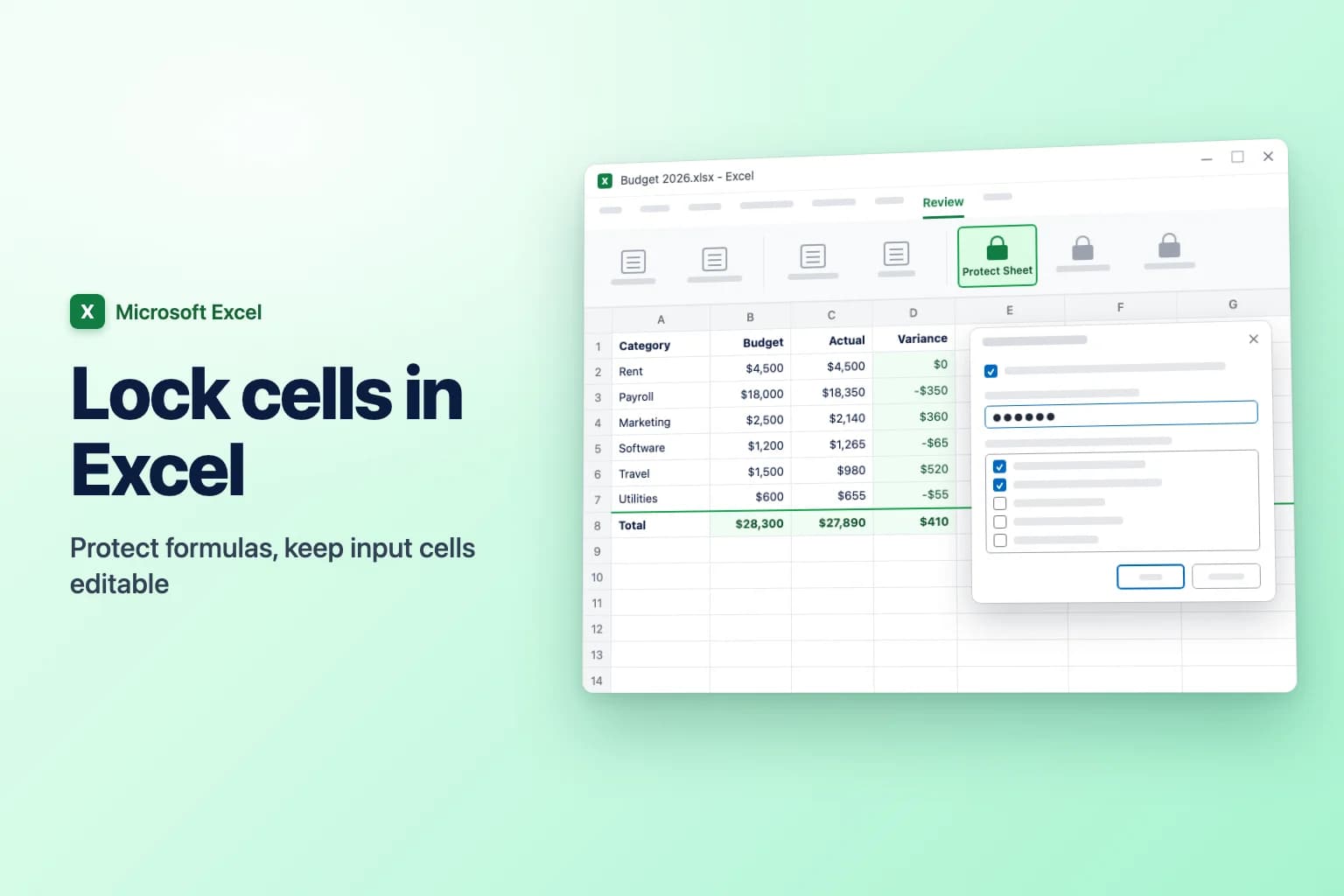
To lock cells in Excel, select the cells people should still be able to edit, press Ctrl+1 (Cmd+1 on a Mac), and on the Protection tab clear Locked. Then go to Review → Protect Sheet, add a password if you want one, and click OK. Everything else on the sheet is now locked.
The part most people miss: every cell in a new worksheet is already marked Locked. That setting does nothing until you protect the sheet, and once you do, it applies to the whole sheet. So the real job is not locking cells, it's unlocking the ones that should stay editable before you turn protection on.
| What you want | How to do it |
|---|---|
| Lock a few cells, leave the rest editable | Unlock all cells, lock the chosen ones, then Protect Sheet |
| Lock everything except input cells | Unlock the input cells, then Protect Sheet |
| Lock only the formulas | Go To Special → Formulas, lock those, then Protect Sheet |
| Hide formulas from the formula bar | Tick Hidden on the Protection tab, then Protect Sheet |
| Let certain people edit certain ranges | Review → Allow Edit Ranges (Windows) or Unlocked ranges (web) |
| Stop people adding, deleting or renaming sheets | Review → Protect Workbook |
| Keep a cell reference fixed in a formula | Add $ signs with F4 (Cmd+T on a Mac) |
How to lock specific cells in Excel (Windows)
This works in Excel for Microsoft 365, Excel 2024, 2021, 2019 and 2016. Example: on a budget sheet, lock the headings and the Variance and Total formulas, but keep the Budget and Actual columns editable.
- Select the whole sheet with
Ctrl+A(press it twice if your cursor is inside a block of data), or click the Select All triangle where the row and column headings meet. - Press
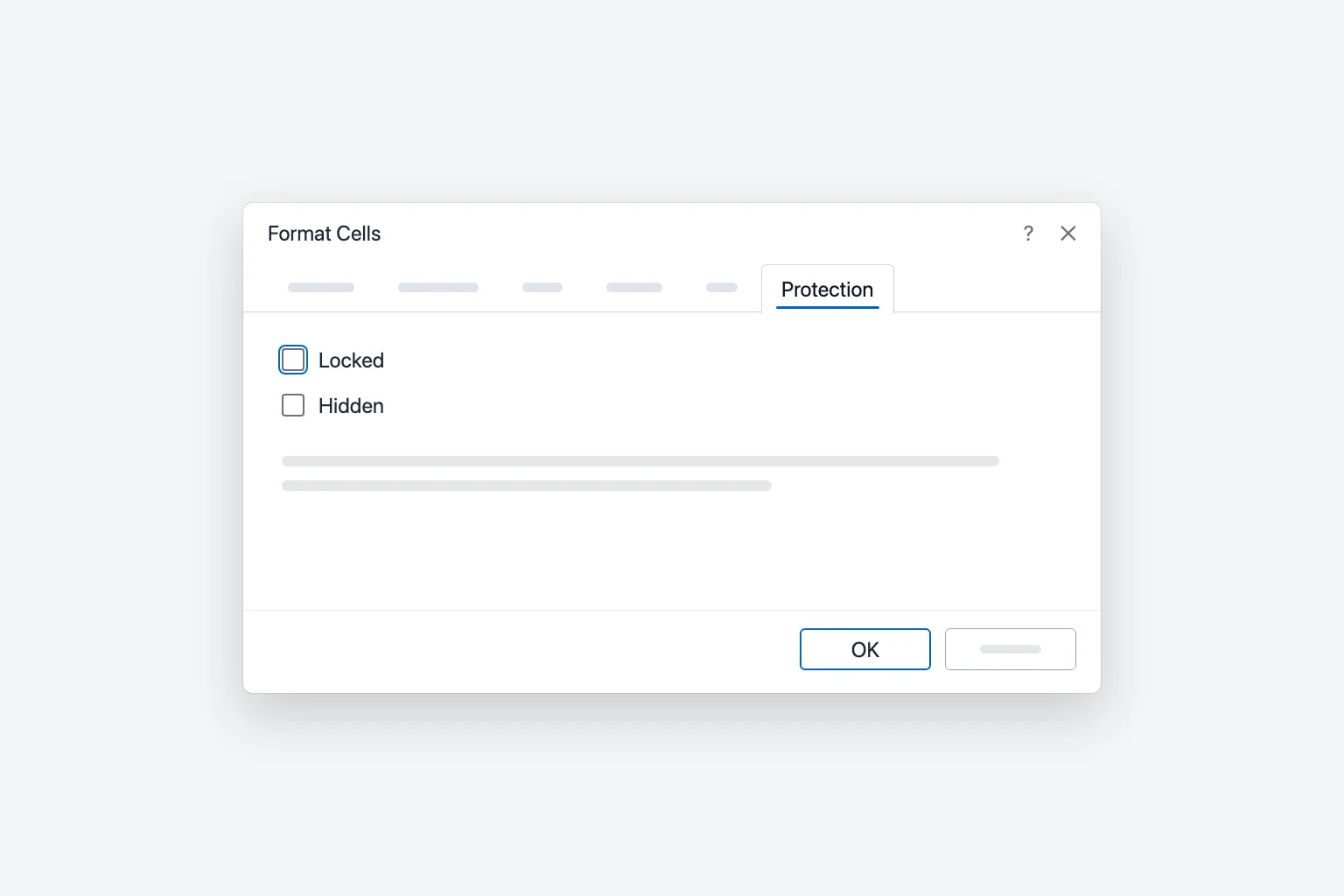
Ctrl+1(or right-click and choose Format Cells). - Open the Protection tab, clear Locked, and click OK. Every cell is now unlocked.
- Select only the cells you want to lock. Hold
Ctrlto select ranges that aren't next to each other. - Press
Ctrl+1again, tick Locked on the Protection tab, and click OK. - Go to Review → Protect Sheet.
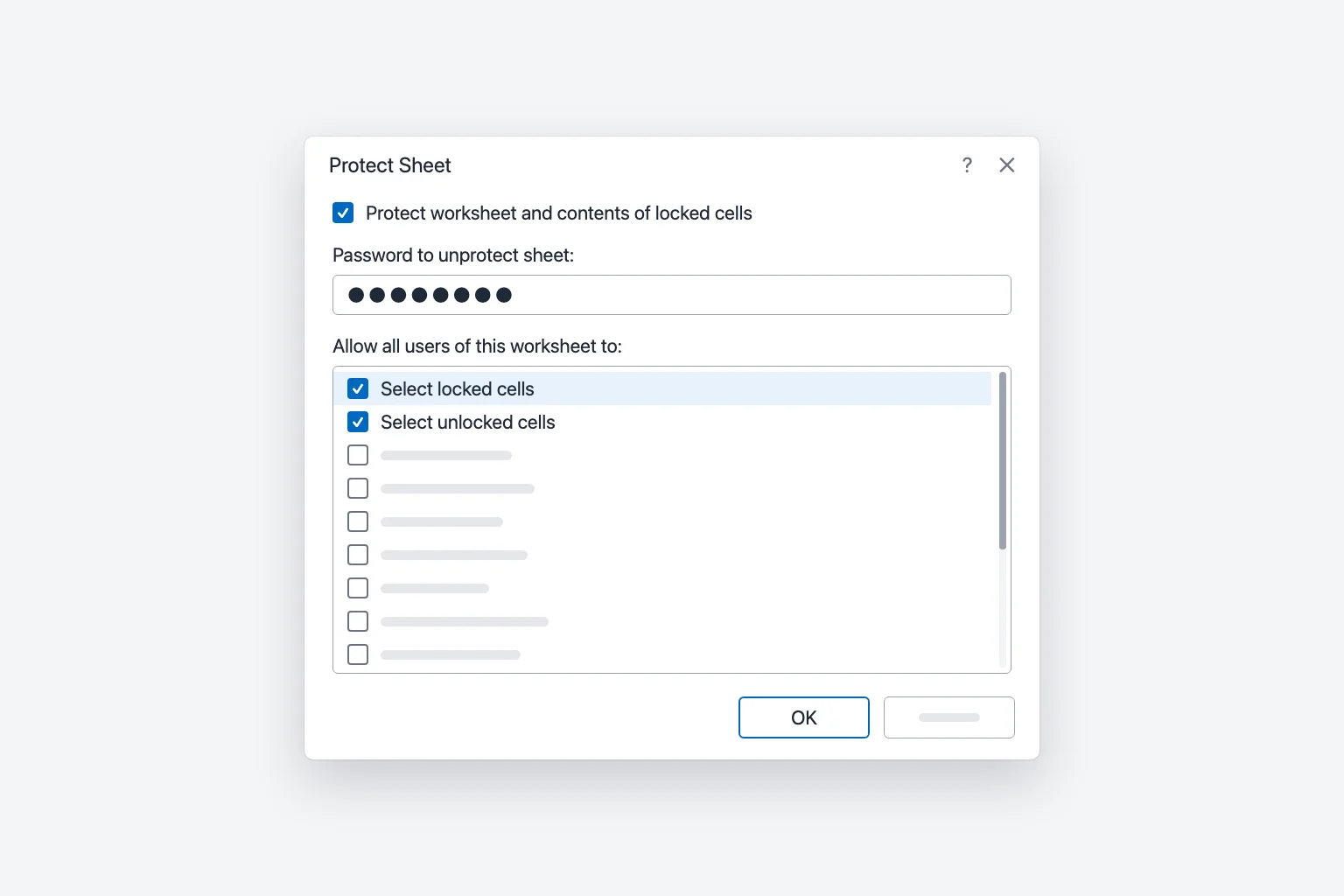
- Leave Protect worksheet and contents of locked cells ticked.
- Type a password in Password to unprotect sheet if you want one. It's optional.
- Under Allow all users of this worksheet to:, tick anything people should still be able to do (more on this below).
- Click OK, and retype the password to confirm if you set one.
Type in a locked cell now and Excel warns that the cell is on a protected sheet. Unlocked cells work as normal, and Tab jumps between them.
To lock everything except a few input cells, skip steps 1 to 5: unlock just the input cells and protect the sheet.
What the "Allow all users" options do
By default only Select locked cells and Select unlocked cells are ticked. A few others worth knowing:
- Format cells, Format columns, Format rows: let people change fonts, fills or column widths without editing the values.
- Insert rows / Delete rows: handy for lists that grow.
- Sort and Use AutoFilter: let people sort and filter (see the troubleshooting section, there's a catch).
- Clearing Select locked cells stops people clicking locked cells at all, steering them to the input cells.
How to lock only formulas in Excel
Often you only need to protect the calculations. Go To Special selects every formula in one go:
- Unlock the whole sheet first: select all, press
Ctrl+1, clear Locked, click OK. - Click any single cell, then go to Home → Find & Select → Go To Special. (Or press
Ctrl+GorF5, then click Special.) - Choose Formulas and click OK. Excel selects every cell that contains a formula.
- Press
Ctrl+1, tick Locked on the Protection tab, and click OK. - Go to Review → Protect Sheet and click OK.
People can now change the inputs and see the results update, but can't overwrite the formulas. Formulas you add later start unlocked (you unlocked the whole sheet in step 1), so repeat the steps after big changes.
Hide formulas so people can't see them
On the same Protection tab, tick Hidden for the formula cells as well as Locked. Once the sheet is protected, those cells show their results but the formula bar stays empty. Treat it as tidiness, not security.
How to unprotect a sheet
Go to Review → Unprotect Sheet (the Protect Sheet button changes to this while the sheet is protected) and enter the password if there is one. You need to unprotect before changing which cells are locked.
Let specific people edit certain ranges (Allow Edit Ranges)
In Excel for Windows, Allow Edit Ranges lets you unlock a range with its own password while the rest of the sheet stays protected:
- Unprotect the sheet (the button is greyed out on a protected sheet), then go to Review → Allow Edit Ranges and click New.
- Give it a Title, check the cells in Refers to cells, and type a Range password.
- Click OK, then click Protect Sheet in the same dialog and protect the sheet as usual.
Anyone with the range password can edit those cells. The Permissions button can grant named people access instead, but it needs Windows domain accounts and doesn't work in Excel for Mac.
Lock cells in Excel for Mac
The steps match Windows with Mac shortcuts:
- Select the cells that should stay editable and press
Cmd+1(or choose Format → Cells). - On the Protection tab, clear Locked and click OK.
- Go to Review → Protect Sheet, enter an optional password, choose what users are allowed to do, and click OK.
Excel for Mac limits protection passwords to 15 characters. If a file was protected on Windows with a longer password, you may not be able to unprotect it on the Mac.
Lock cells in Excel for the web
Excel for the web uses a side pane instead of the Protect Sheet dialog:
- Go to Review → Manage Protection.
- Turn on Protect sheet. By default the whole sheet is locked.
- To keep some cells editable, add them under Unlocked ranges (a name plus a cell range). You can give a range its own Range password.
- Optionally set a Sheet protection password, and expand Options to choose what users can do, like sorting or formatting.
A lock icon appears on the protected sheet's tab. Review → Pause Protection lets you make quick edits (with the password, if set), and Resume Protection turns it back on.
Protect Workbook vs Protect Sheet
- Protect Sheet stops people changing locked cells on one worksheet. Each sheet needs its own protection.
- Protect Workbook (Review → Protect Workbook, with Structure ticked) stops people adding, deleting, renaming, moving, hiding or unhiding sheets. It doesn't stop anyone editing cells.
Neither one stops people opening the file. For that, use File → Info → Protect Workbook → Encrypt with Password on Windows. Microsoft is clear that sheet protection isn't a security feature: it's there to prevent accidental changes, not to keep data secret.
Lock a cell reference with $ (F4): a different kind of locking
Sometimes "locking a cell" means keeping a formula pointed at the same cell when you copy it. That's an absolute reference, not protection.
Click inside a cell reference in the formula bar (or while typing a formula) and press F4 (Cmd+T on a Mac, or Fn+F4 depending on your keyboard settings). Each press cycles through:
$A$1: column and row both lockedA$1: only the row locked$A1: only the column lockedA1: back to relative
For example, =B2*$F$1 keeps multiplying by the tax rate in F1 as you fill the formula down column C. Without the $ signs, the reference would slide to F2, F3 and so on.
Why locked cells aren't working (and other fixes)
You locked cells but people can still edit them. The sheet isn't protected. Locking only takes effect after Review → Protect Sheet.
Everything is locked, even the cells you wanted editable. You protected the sheet without unlocking the input cells first. Unprotect, select those cells, clear Locked, and protect again.
You can't edit a cell and don't know why. If the Review tab shows Unprotect Sheet, the sheet is protected. If the whole file is read-only, that's something else, such as Mark as Final or Protected View.
Sort and filter don't work on a protected sheet. Tick Sort and Use AutoFilter when you protect. Even then, Excel won't sort a range that contains locked cells, and people can use existing filter arrows but can't turn AutoFilter on or off. Apply the filter before protecting, and unlock the data rows if people need to sort them.
You forgot the password. Microsoft can't recover protection passwords. If an older unprotected copy exists (for example in OneDrive or SharePoint version history), restore it. Otherwise you'll have to rebuild the locked parts, so store passwords in a password manager.
Frequently Asked Questions
Are cells locked by default in Excel? Yes. Every cell starts with Locked ticked, but it has no effect until you protect the sheet, which is why protecting without unlocking anything locks every cell.
How do I lock cells in Excel without protecting the sheet? You can't. Locking only works on a protected sheet. If you just don't want a password, protect the sheet and leave the password box empty. Anyone can then unprotect it from the Review tab, but it still stops accidental edits.
How do I lock a cell in an Excel formula? Use an absolute reference: click the reference in the formula and press F4 (Cmd+T on a Mac) to add $ signs, like $A$1.
Does locking cells stop people copying the data? Not really. People can select and copy locked cells unless you clear Select locked cells, and anyone who can open the file can read it. Use file encryption or sharing permissions for sensitive data.
Can I lock cells in Excel for the web? Yes. Go to Review → Manage Protection, turn on Protect sheet, and add editable areas under Unlocked ranges.
How do I lock a row so it stays visible when I scroll? That's Freeze Panes, not protection: View → Freeze Panes → Freeze Top Row. Our guide on how to freeze panes in Excel covers multiple rows and columns.
Write the formulas, then lock them
The formulas are usually the cells worth protecting, and they're also the slow part to get right. CoreGPT for Excel writes them from a plain description, like "flag whether each actual is above or below budget", and puts the result next to your data so you can check it before you lock it down. It's free to start and works in Excel for Windows, Mac and the web.
 CoreGPT
Use this formula and fill it down:
=IF(C2>=D2,"Above","Below")Try it: CoreGPT for Excel
Related reading: