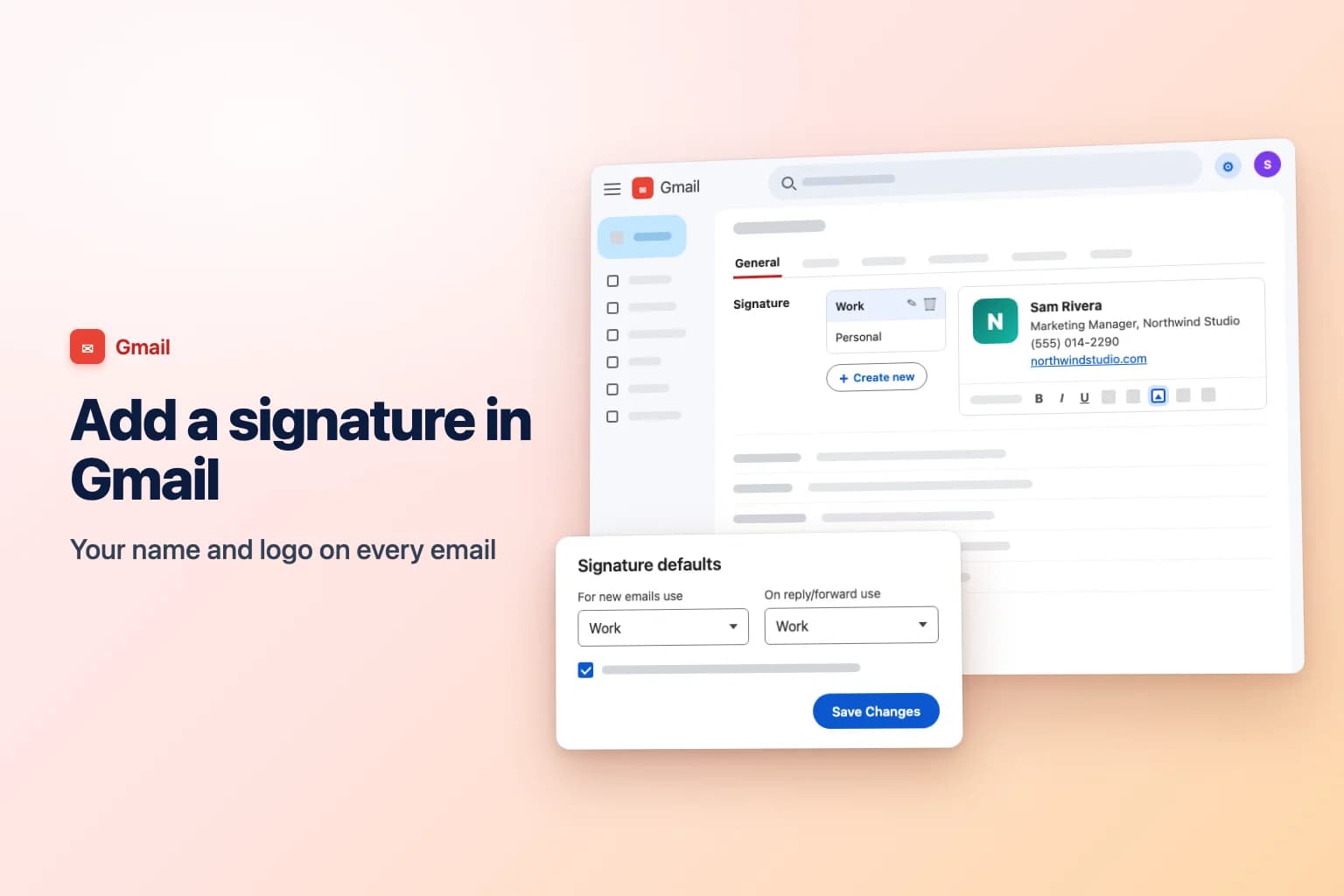
To add a signature in Gmail on a computer, click Settings (the gear icon) → See all settings, scroll down the General tab to Signature, click Create new, give it a name and type your signature. Then pick it under Signature defaults and click Save Changes at the bottom of the page. In the Gmail app, go to Menu → Settings → your account → Mobile signature on Android, or Signature settings on iPhone.
Two things catch most people out. Gmail doesn't save anything on the Settings page until you click Save Changes, which sits at the very bottom of a long page. And the signature you set in the Gmail app is a separate, plain-text signature that only applies to emails you send from your phone.
| Where you use Gmail | Where to set the signature | What it can include | Used for |
|---|---|---|---|
| Gmail on a computer (any browser) | Settings → See all settings → General → Signature | Formatted text, links, images, several signatures | Emails sent from Gmail on the web |
| Gmail app for Android | Menu → Settings → your account → Mobile signature | Plain text only | Emails sent from the app |
| Gmail app for iPhone and iPad | Menu → Settings → Signature settings → Mobile Signature | Plain text only | Emails sent from the app |
| Google Workspace (work or school) | Same as above, plus anything your admin adds | Same as above | Same as above |
How to add a signature in Gmail on a computer
These steps work in any browser on Windows, Mac or Chromebook:
- Open Gmail and click Settings (the gear icon) at the top right.
- Click See all settings.
- Stay on the General tab and scroll down to the Signature section.
- Click Create new.
- Type a name for the signature, such as "Work", and click Create. Only you see this name; it doesn't appear in your emails.
- Type your signature in the box on the right. Use the toolbar under the box to change the font, size and color, make text bold, add a link or insert an image.
- Under Signature defaults, choose your new signature for For new emails use and for On reply/forward use (see the next section).
- Scroll to the bottom of the page and click Save Changes.
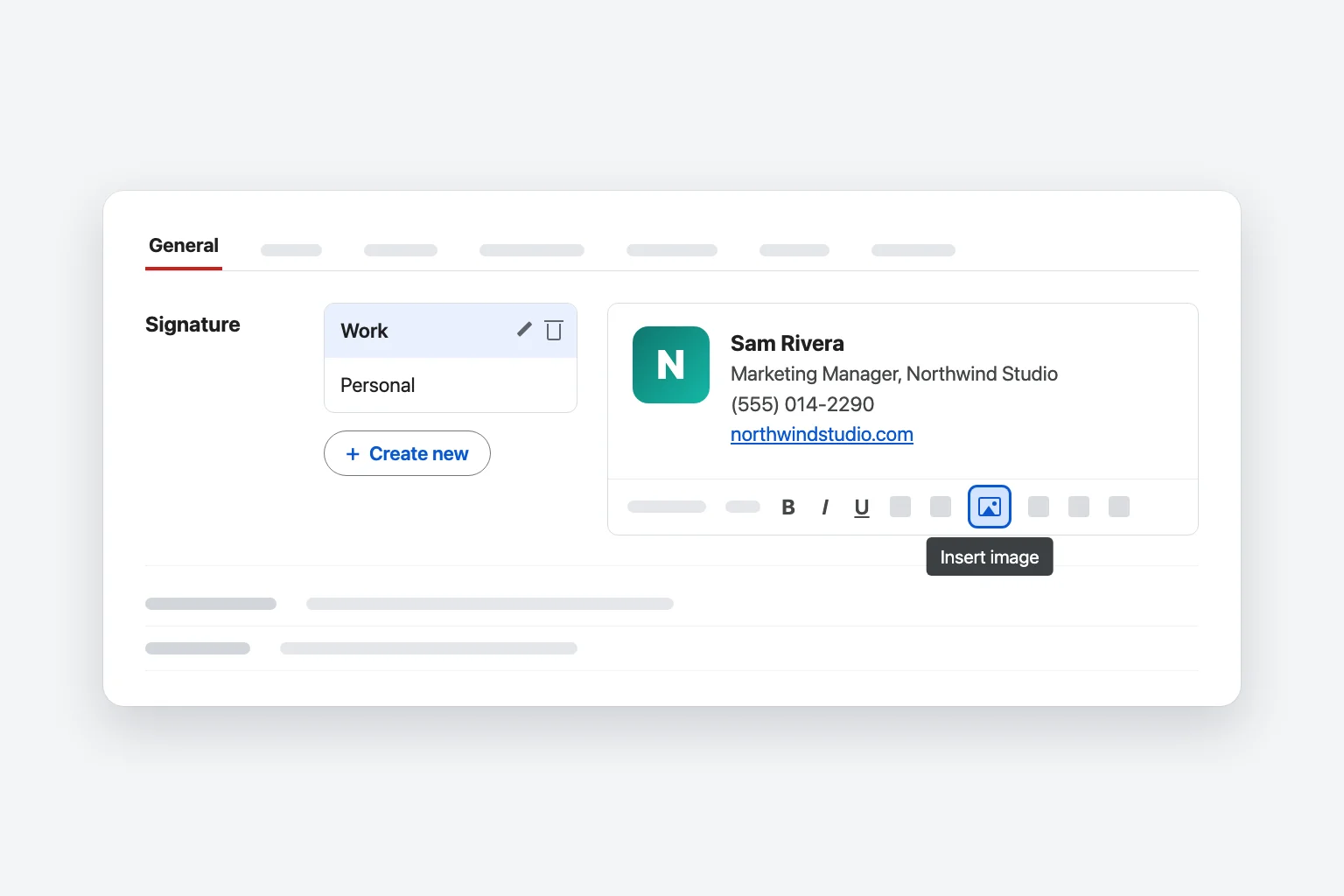
Open a new message to check it. Your signature appears at the bottom of the compose window, and you can still edit or delete it in that one email before you send.
A good signature is short: your name, your role and company, one phone number and one link. Gmail allows up to 10,000 characters, and images count toward that limit, but most people stop reading after four lines.
Choose when your signature appears
The Signature defaults row decides which signature Gmail adds automatically:
- For new emails use: the signature added when you click Compose.
- On reply/forward use: the signature added when you reply to or forward a message. Pick No signature here if you only want it on new emails, or create a shorter second signature (just your name and phone number) for replies.
- Insert signature before quoted text in replies and remove the "--" line that precedes it: tick this box to put your signature right under your reply instead of at the very bottom of the email, below the earlier messages in the thread. It also removes the two dashes Gmail otherwise adds above your signature.
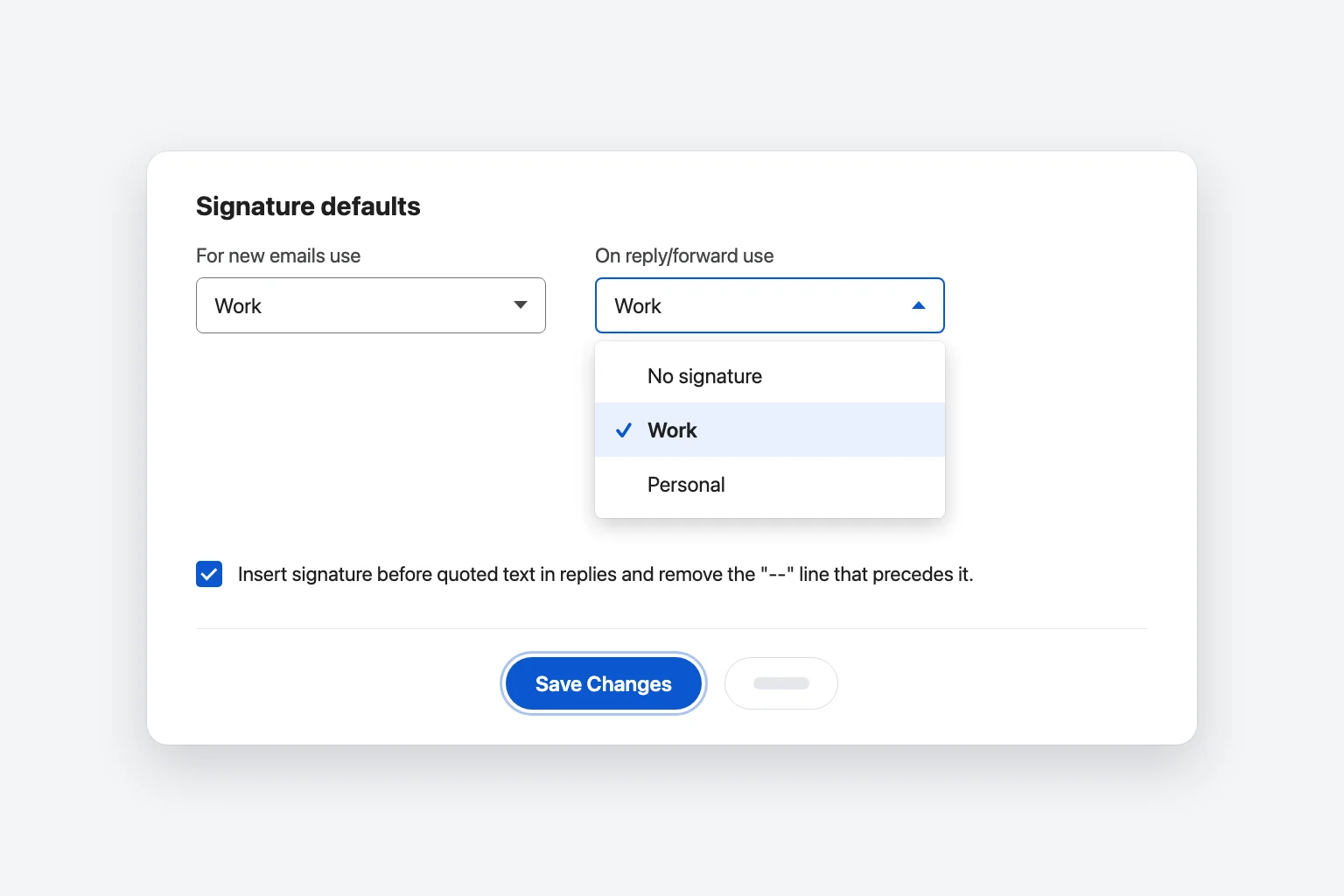
Click Save Changes after changing any of these. The new defaults apply to emails you start after saving, not to drafts you already have open.
How to add an image or logo to your Gmail signature
- Go to Settings → See all settings → General → Signature and click the signature you want to change.
- Click where the image should go in the signature box.
- Click Insert image in the toolbar under the box.
- Choose where the image comes from: My Drive, Upload (from your computer) or Web Address (URL).
- Select the image and click Select.
- Click the image in the signature box to resize it, for example to Small or Medium.
- Click Save Changes at the bottom of the page.
Tips that keep your logo looking right for everyone:
- Keep it small. A logo around 300 to 400 pixels wide and under 100 pixels high works well. Google recommends that range for company footer images, and it suits signatures too. If Gmail shows an error when you save, the image is too large; resize it and insert it again.
- Prefer Upload or Web Address (URL). An image from My Drive only shows up if the file is shared publicly (Anyone with the link). If it isn't, recipients see a broken image.
- Insert images, don't paste them. Images copied and pasted into the signature box often turn into attachments or blank boxes for recipients. Delete them and use Insert image instead.
- Use a PNG with a white or transparent background, and check how it looks in dark mode on your phone. Dark logos on a transparent background can disappear on a dark screen.
Recipients may still see a placeholder until they choose to show images. Many email apps, including Outlook, block images from senders they don't know until the reader clicks to download them. That isn't something you can fix from Gmail, which is why your name and contact details should always be text, not part of the image.
Use more than one signature in Gmail
You can save several signatures (for example "Work", "Personal" and a short "Reply" version) and switch between them as you write:
- Open a new email, a reply or a forward.
- At the bottom of the compose window, click Insert signature (the pen icon).
- Choose the signature you want, or No signature to remove it from this email.
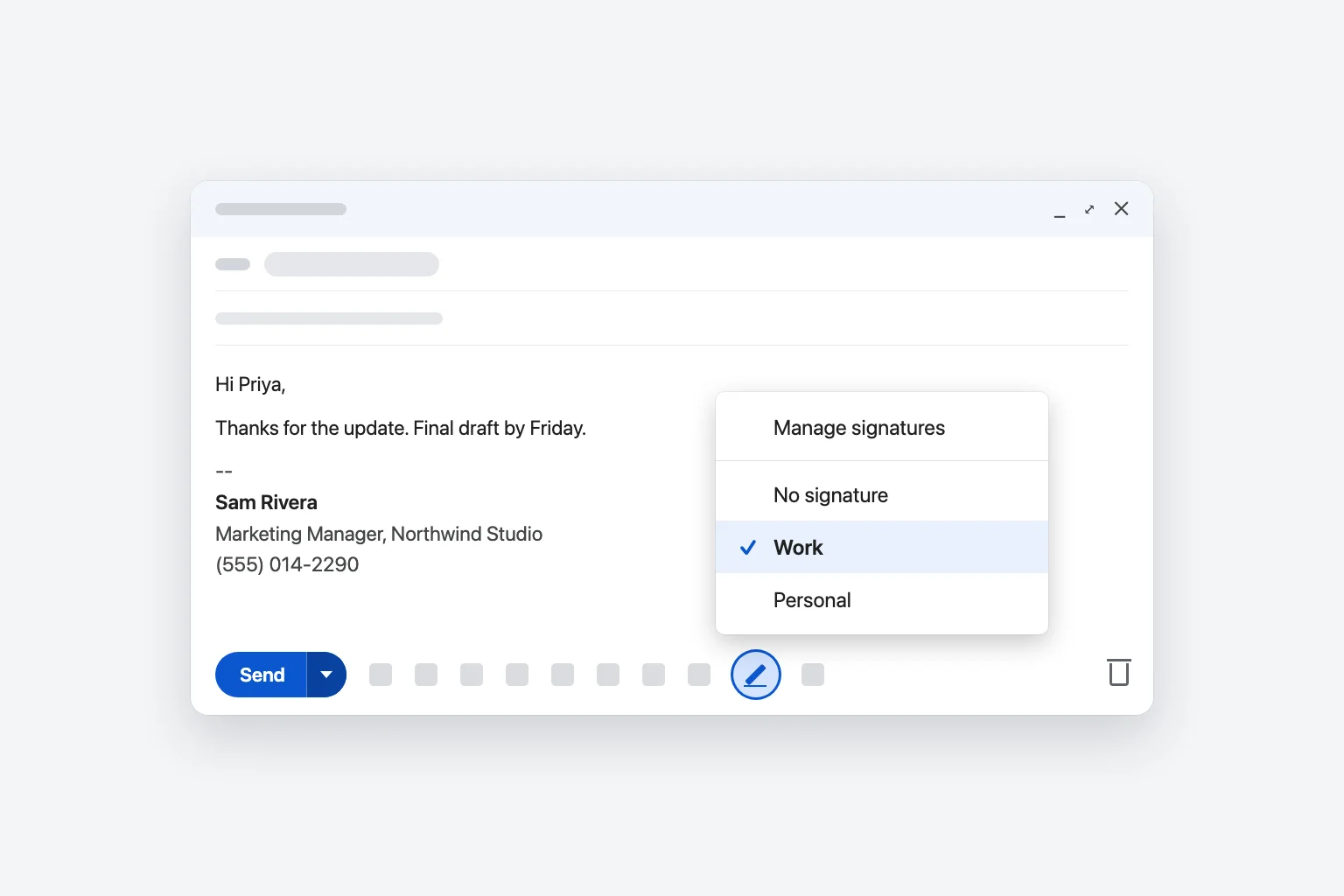
The signature you pick replaces the one already in the message. Manage signatures at the top of that menu takes you straight to the Signature settings.
If you send from more than one address in the same Gmail account (set up under Accounts and Import → Send mail as), a drop-down appears above the signature box and in Signature defaults. Choose the address first, then set its default signatures. If you use separate Gmail accounts, each account has its own settings: switch accounts with your profile picture at the top right and repeat the steps.
Edit or delete a signature
- Go to Settings → See all settings → General → Signature.
- Click the signature in the list.
- Change the text in the box. To rename it, click the pencil icon (Edit) next to its name. To remove it, click the trash can icon (Delete) and confirm.
- Click Save Changes.
Add a signature in the Gmail app on iPhone or iPad
- Open the Gmail app and tap Menu (the three lines at the top left).
- Scroll down and tap Settings, then tap your account if you have more than one.
- Under Compose and Reply, tap Signature settings.
- Turn on Mobile Signature.
- Type your signature, then tap Back to save it.
Add a signature in the Gmail app on Android
- Open the Gmail app and tap Menu (the three lines at the top left).
- Scroll to the bottom and tap Settings.
- Tap the account you want to add a signature to.
- Tap Mobile signature.
- Type your signature and tap OK.
How the mobile signature works with your computer signature
- The app signature is plain text. No logo, no links you can style, no fonts. Keep it to your name and a phone number.
- It only applies to emails you send from the Gmail app. It doesn't change your computer signature, and your computer signature doesn't sync into this box.
- If you leave it empty, Google uses your computer signature for new messages you send from the app. Set a mobile signature only when you want something different, like a shorter one.
- There's one mobile signature per account. You can't switch between several signatures in the app the way you can on a computer.
If your Gmail account is added to the iPhone Mail app or another email app instead, Gmail's signature settings don't apply there. In Apple Mail on iPhone, go to Settings → Apps → Mail → Signature (in iOS 17 and earlier, Settings → Mail → Signature).
Gmail signatures on Google Workspace work and school accounts
The steps above are the same in Google Workspace. Two differences can surprise you:
- Your organization may add its own footer. Admins can set a footer, such as a legal disclaimer, that Gmail adds to outgoing email after you click Send. You don't see it while you write, and you can't edit or remove it. Some companies also push one standard signature to everyone with a signature management tool.
- Drive images may not work. If your admin blocks sharing files outside the organization, a logo from My Drive can't be shared publicly and won't show for outside recipients. Use Upload instead, or ask IT for the approved logo.
If the Signature section is missing or your changes keep getting replaced, ask your IT team whether signatures are managed centrally.
Gmail signature not showing? Check these
- You didn't click Save Changes. It's at the very bottom of the General tab. If you navigate away without it, everything is lost. Open the settings again and check that the signature is still there.
- The default is set to No signature. Creating a signature isn't enough. Under Signature defaults, choose it for For new emails use and On reply/forward use, then save.
- It's missing only in replies. Either On reply/forward use is set to No signature, or the signature is placed below the quoted earlier messages. Tick Insert signature before quoted text in replies to put it right under your reply.
- You're writing from a different address or account. Each Send mail as address and each Gmail account has its own defaults. Check the drop-down above the signature box.
- It's missing on your phone. The Gmail app uses its Mobile signature if one is set, and other email apps never use your Gmail signature.
- The logo shows as an attachment or a broken image. Remove it and insert it again with Insert image using Upload or Web Address (URL). For a Drive image, share the file with Anyone with the link.
- You get an error when saving. The signature is over 10,000 characters, usually because of a large image. Use a smaller image file.
Frequently Asked Questions
Where is the signature setting in Gmail? On a computer, go to Settings (the gear icon) → See all settings, then scroll down the General tab to Signature. In the Gmail app, it's under Menu → Settings (then your account), labeled Mobile signature on Android and Signature settings on iPhone.
Why doesn't my Gmail signature appear on my phone? The Gmail app has its own plain-text Mobile signature. If one is set, it's used instead of your computer signature. If it's empty, Google uses your computer signature for new messages you send from the app.
Can I add a clickable link or social media icons to a Gmail signature? Yes, on a computer. Select the text or icon image in the signature box, click Link in the toolbar, paste the address and click OK. For icons, insert small images with Insert image first, then link each one. The Gmail app's mobile signature can't contain links or images.
How do I add a signature automatically to every email in Gmail? Set it under Signature defaults for both For new emails use and On reply/forward use, then click Save Changes. Gmail then adds it every time you compose, reply or forward on the web.
Can I have different signatures for different emails? Yes. Create several signatures in Settings, then click Insert signature (the pen icon) at the bottom of the compose window to pick one for each email. In the Gmail app you get one mobile signature per account.
How do I remove my signature from Gmail? To stop it being added, set both Signature defaults to No signature and click Save Changes. To delete it entirely, click it in the Signature list, click the trash can icon, confirm, and save.
Sign off on a reply worth sending
A polished signature is the last thing people see in your email, so it's worth making the message above it just as clear. CoreGPT for Gmail sits next to your inbox and drafts a short, clear reply from a one-line instruction, so you can adjust it, let your signature finish it off, and send. It's free to start.
 InboxGmail
Invoice correction and billing change
Alex (Acme Inc.)
Our invoices for September show the wrong tax ID. Can you reissue them before Friday? Our finance team needs them for the audit.
You
Thanks Alex, checking with billing now.
Alex (Acme Inc.)
Also, can we switch to yearly billing from next month?
 CoreGPT AI
Draft a reply
Confirm we’ll reissue the invoices by Thursday and switch to yearly billing.
Hi Alex, we’ll reissue the September invoices with the correct tax ID by Thursday and move you to yearly billing from next month.
Try it: CoreGPT for Gmail
Related reading: