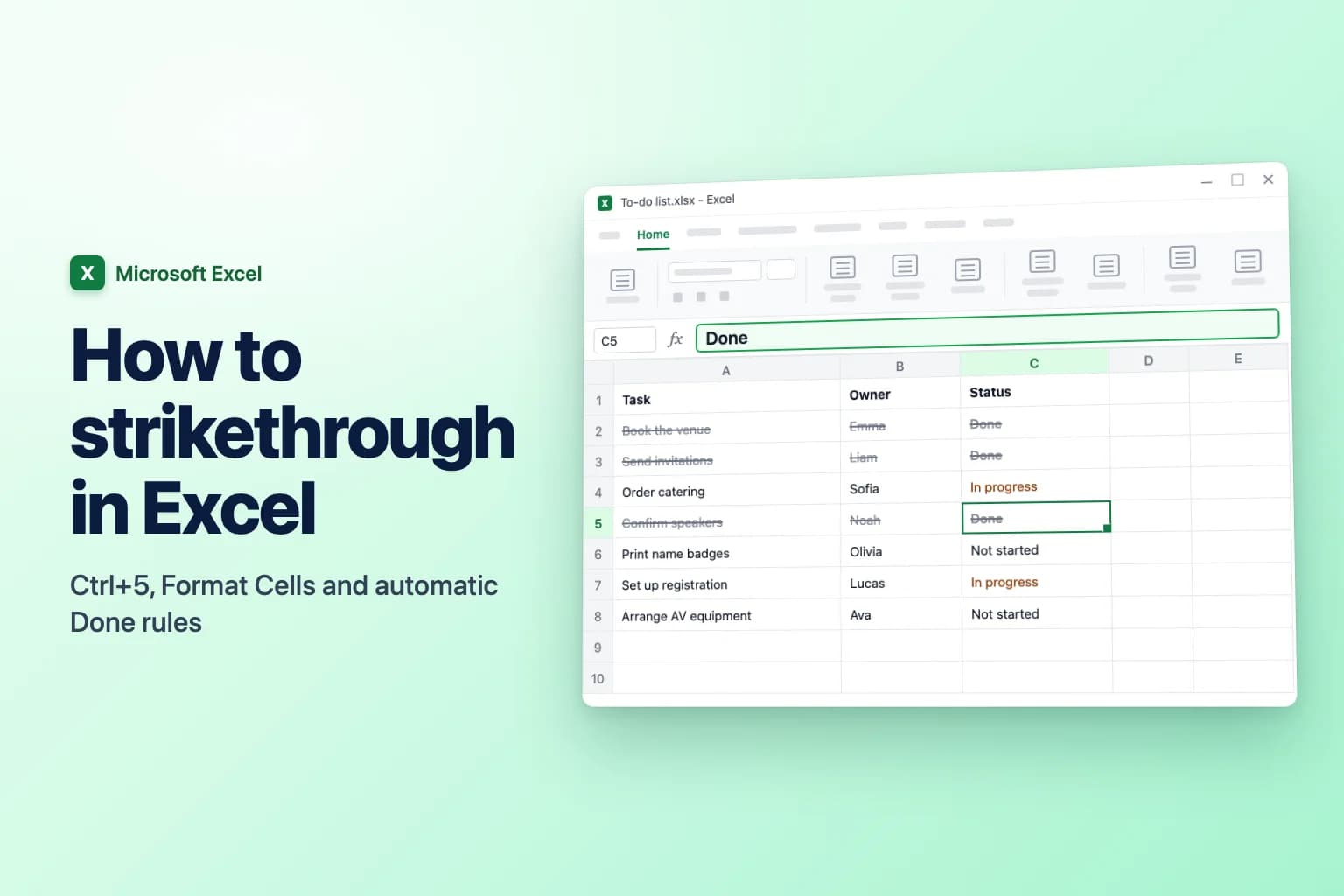
To strikethrough in Excel, select the cells and press Ctrl+5 on Windows or Cmd+Shift+X on a Mac. You can also press Ctrl+1 (Cmd+1 on a Mac), open the Font tab, tick Strikethrough under Effects, and click OK. Press the same shortcut again to remove the line.
Unlike Word, desktop Excel has no Strikethrough button on the Home tab, which is why so many people go looking for it. The shortcut and the Format Cells dialog are the built-in ways, and you can add a button yourself in a minute (see below). In Excel for the web, the button is on the Home tab.
| What you want | How to do it |
|---|---|
| Strike through whole cells (Windows, web) | Select the cells, press Ctrl+5 |
| Strike through whole cells (Mac) | Select the cells, press Cmd+Shift+X |
| Use the menu instead | Ctrl+1 / Cmd+1 → Font → Strikethrough → OK |
| Strike through only some words in a cell | Edit the cell, select the words, press Ctrl+5 |
| One-click button | Add Strikethrough to the Quick Access Toolbar |
| Remove strikethrough | Press the same shortcut again, or clear the box in Format Cells |
| Cross out tasks automatically when marked Done | Conditional formatting rule =$C2="Done" with Strikethrough |
| Google Sheets | Alt+Shift+5 (Windows) or Cmd+Shift+X (Mac) |
Strikethrough shortcut in Excel (Windows and Mac)
- Select the cell, or a range of cells. Click a row number to cross out a whole row.
- Press
Ctrl+5on Windows. On a Mac, pressCmd+Shift+X.
That's it: a line runs through every value in the selection, text and numbers alike. The value itself doesn't change, so formulas that refer to the cell still use it.
Use the 5 in the number row above the letters, not the 5 on the numeric keypad. Ctrl+5 is a toggle: press it again on the same cells to remove the line.
Strikethrough with the Format Cells dialog
The dialog is handy when you want to change the font color at the same time, for example a grey line through finished items.
- Select the cells.
- Press
Ctrl+1(Cmd+1on a Mac), or right-click and choose Format Cells. On Windows,Ctrl+Shift+Fopens the dialog straight on the Font tab, and so does the small arrow in the corner of the Font group on the Home tab. - Open the Font tab.
- Under Effects, tick Strikethrough.
- Optionally pick a lighter Color, then click OK.
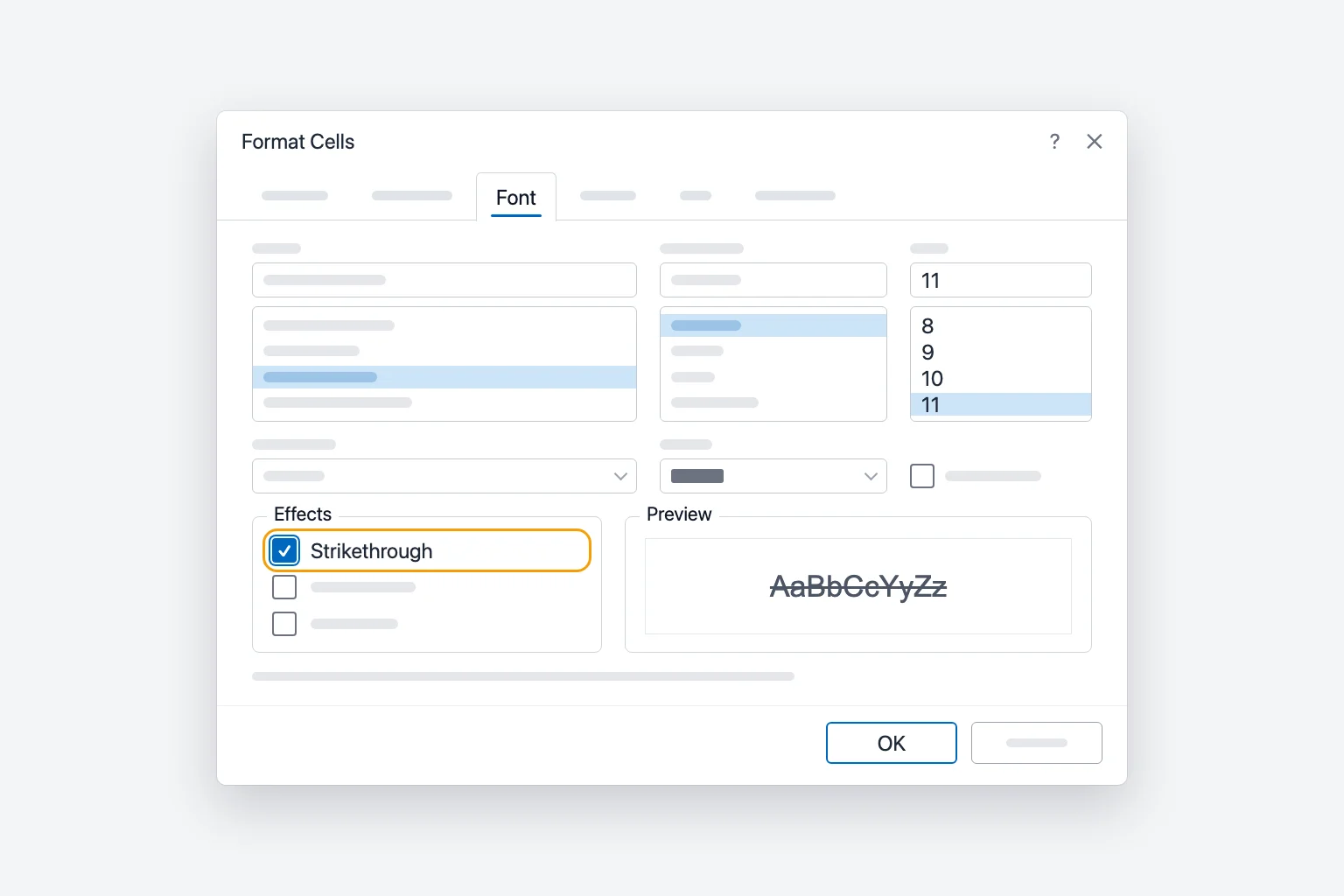
The strikethrough line always takes the font color, so changing the color of the text also changes the color of the line. Excel has no separate setting for the line color and no double strikethrough (that's a Word feature).
Strike through only part of the text in a cell
Sometimes you want to cross out one item in a cell, such as Milk, eggs, bread, and keep the rest.
- Double-click the cell, or select it and press
F2(Control+Uon a Mac), to start editing. - Select the characters you want to cross out, with the mouse or with
Shift+Arrowkeys. - Press
Ctrl+5, or pressCtrl+1and tick Strikethrough. When you're editing, Format Cells opens with only the Font tab. - Press
Enterto finish.
This only works on text you've typed. You can't format individual characters in a number, a date or a formula result: Excel applies the strikethrough to the whole cell or not at all.
Add a Strikethrough button to the Quick Access Toolbar
If you cross things out often, a button saves you from remembering the shortcut.
Windows
- Right-click any ribbon tab and choose Customize Quick Access Toolbar. (You can also go to File → Options → Quick Access Toolbar.)
- In Choose commands from, select Commands Not in the Ribbon.
- Scroll to Strikethrough, select it, and click Add.
- Click OK.
If you don't see the Quick Access Toolbar after that, right-click the ribbon and choose Show Quick Access Toolbar. A bonus: each button on the toolbar gets its own key sequence, so if Strikethrough is the first button, pressing Alt, then 1 applies it.
To put the button on the ribbon instead, use Customize the Ribbon in the same Options window. Excel only lets you add commands to a custom group, so click New Group under the Home tab first, then add Strikethrough to it.
Mac
- Press
Cmd+,to open Excel's settings and choose Ribbon & Toolbar. - Under Commands Not in the Ribbon, select Strikethrough and add it to the toolbar or to a custom ribbon group.
- Click Save.
Strikethrough in Excel for the web
- Select the cells.
- On the Home tab, in the Font group, click Strikethrough (the ab button with a line through it), or press
Ctrl+5. - If you don't see the button, the window is probably too narrow: open More font options (the … button in the Font group) and choose Strikethrough there. You can also open Font Settings for the full Format Cells dialog.
Click the button again to remove it. If Ctrl+5 switches browser tabs or does nothing, a browser shortcut or an extension is catching the keys, so use the button instead.
How to remove strikethrough in Excel
- A few cells: select them and press
Ctrl+5(Cmd+Shift+Xon a Mac) again, or open Format Cells → Font and clear Strikethrough. - A mixed selection: the shortcut looks at the active cell, so if some cells are crossed out and some aren't, it can add the line instead of removing it. Use
Ctrl+1instead: the Strikethrough box shows a filled square for "mixed". Click it until it's empty, then click OK. - Every struck-out cell on the sheet: press
Ctrl+F, click Options → Format, tick Strikethrough on the Font tab, click OK, then Find All. PressCtrl+Ain the results list to select all the matches, close the dialog, and clear the strikethrough withCtrl+1. - Everything at once: Home → Clear → Clear Formats removes strikethrough, but also fills, borders, number formats and every other formatting, so use it with care.
If the line won't go away at all, it probably comes from a conditional formatting rule, which the shortcut can't override. See the troubleshooting section.
Strike through finished tasks automatically with conditional formatting
For a to-do list or a task tracker, let Excel cross out a row as soon as its status says Done. Say your list is in A1:C20 with Task in column A, Owner in column B and Status in column C.
- Select the rows without the header, for example A2:C20.
- Go to Home → Conditional Formatting → New Rule.
- Choose Use a formula to determine which cells to format.
- In Format values where this formula is true, type
=$C2="Done". - Click Format, open the Font tab, tick Strikethrough, and pick a grey Color if you like.
- Click OK, then OK again.
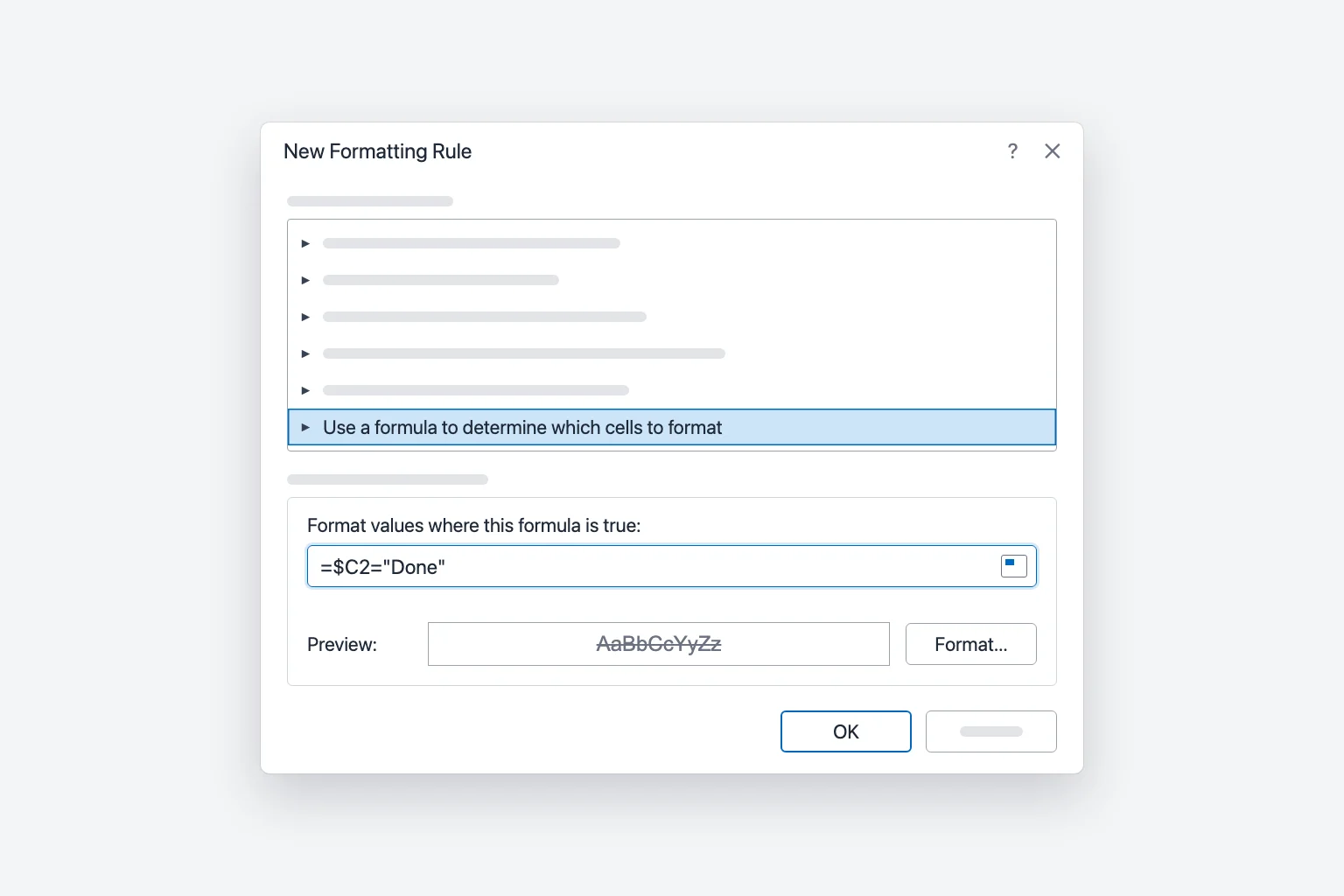
Now type Done in column C and the whole row is crossed out. Change it back and the line disappears. The $ in front of C keeps every cell in the row looking at the Status column, while the row number moves down with each row. Our guide to conditional formatting in Excel explains the $ rules and more formula examples.
A few variations:
- Match the word anywhere in the cell:
=ISNUMBER(SEARCH("done",$C2))also catches "Done (Mon)". - Use a checkbox: with Excel's in-cell checkboxes (Insert → Checkbox in Microsoft 365), a ticked box is
TRUE, so the rule becomes=$D2=TRUEfor checkboxes in column D. - Mac: in New Rule, set Style to Classic, choose Use a formula to determine which cells to format, set Format with to Custom Format, and tick Strikethrough.
- Excel for the web: rules created on the desktop work in the browser. The browser's Conditional Formatting pane has fewer custom format options; if you can't find Strikethrough there, create the rule in the desktop app.
Strikethrough in Google Sheets
Google Sheets has a toolbar button for it (the S with a line through it), and Format → Text → Strikethrough in the menu. The shortcut is Alt+Shift+5 on Windows and ChromeOS and Cmd+Shift+X on a Mac. For automatic strikethrough, go to Format → Conditional formatting, choose Custom formula is, enter =$C2="Done", and click the strikethrough button under Formatting style.
Why strikethrough isn't working in Excel
Ctrl+5 does nothing.
- Use the 5 in the number row, not on the numeric keypad.
- On some non-US keyboard layouts the shortcut behaves differently or doesn't work (some French AZERTY users need
Ctrl+Shift+5). The Format Cells dialog and a Quick Access Toolbar button work on every layout. - On a Mac,
Ctrl+5isn't the shortcut: useCmd+Shift+X. - Another app (a screen recorder, a graphics driver utility, a remote desktop tool) may have claimed the key combination.
Only part of the cell got crossed out, or nothing did. You were still editing the cell. In edit mode, Ctrl+5 only affects the characters you've selected. Press Esc to leave edit mode, select the cell itself, and press Ctrl+5 again.
Strikethrough is greyed out or the shortcut is ignored. The sheet is probably protected without the Format cells permission. Go to Review → Unprotect Sheet, or ask the owner to allow formatting when protecting it (see how to lock cells in Excel). In Excel for the web, a file opened in Viewing mode also blocks formatting: switch to Editing.
The line won't go away. A conditional formatting rule is adding it. Select the cells and check Home → Conditional Formatting → Manage Rules, then edit or delete the rule. Pressing Ctrl+5 on those cells changes the cell's own format, but the rule still wins.
The Done rule doesn't cross anything out. Check for a stray space ("Done " looks identical to "Done"), and make sure the formula refers to the first row of your selection ($C2 when you selected from row 2). Capitalization doesn't matter: "done" and "DONE" both match.
Frequently Asked Questions
What is the shortcut for strikethrough in Excel? Ctrl+5 on Windows and in Excel for the web, and Cmd+Shift+X in Excel for Mac. Press it again to remove the strikethrough.
How do I strikethrough in Excel without a shortcut? Press Ctrl+1 (or right-click and choose Format Cells), open the Font tab, tick Strikethrough under Effects, and click OK. In Excel for the web, use the Strikethrough button on the Home tab.
Why is there no strikethrough button in Excel? Desktop Excel doesn't show one on the ribbon by default. Add it through Customize Quick Access Toolbar → Commands Not in the Ribbon → Strikethrough.
Can I strikethrough part of a cell in Excel? Yes, for typed text: double-click the cell, select the words, and press Ctrl+5. It doesn't work on numbers or formula results.
How do I automatically strikethrough a row when a task is done? Select the rows, create a conditional formatting rule with Use a formula to determine which cells to format, enter =$C2="Done" (with your status column), and set Format → Font → Strikethrough.
Can I change the color of the strikethrough line? Not separately. The line uses the font color, so make the text grey or red to change both.
Keep your task lists clean
A crossed-out task list only works if the statuses are consistent. When several people add to the same sheet, you end up with duplicate tasks and "Done", "done " and "Finished" all meaning the same thing. CoreGPT for Excel lets you describe the cleanup in plain English, such as "remove duplicate rows and standardize the status column", and makes the changes in your workbook. It's free to start and works in Excel for Windows, Mac and the web.
 CoreGPT
Done. I made these changes:
- Removed 12 duplicate rows
- Changed “US”, “DE”… to full names
- Formatted phone numbers
Try it: CoreGPT for Excel
Related reading: