

If you ask ten people which “Microsoft apps” matter most, you will get ten different answers. The better question is: which apps create the work artifacts your role is responsible for (emails, documents, spreadsheets, reports, plans, and decisions).
For most teams in 2026, the highest-leverage Microsoft 365 apps are still Outlook, Word, and Excel, and the highest-leverage Google Workspace apps are Gmail/Calendar (via Google), Docs, Sheets, Slides, and Forms. Mastering the right subset for your role usually beats trying to learn everything.
Start with the “output” of your role (not the app list)
A simple way to pick the Microsoft apps that matter is to map your day to four outputs:
- Communication (alignment, decisions, follow-ups): Outlook (and sometimes Teams)
- Documents (narratives, policies, proposals): Word
- Data (analysis, tracking, forecasting): Excel
- Collaboration artifacts (shared docs, lightweight intake): Google Docs, Google Sheets, Google Forms (or Microsoft equivalents)
If you are in a Google-heavy organization, you will still run into the same outputs, just in different tools. That is why role-based skill building works across Microsoft 365 and Google Workspace.
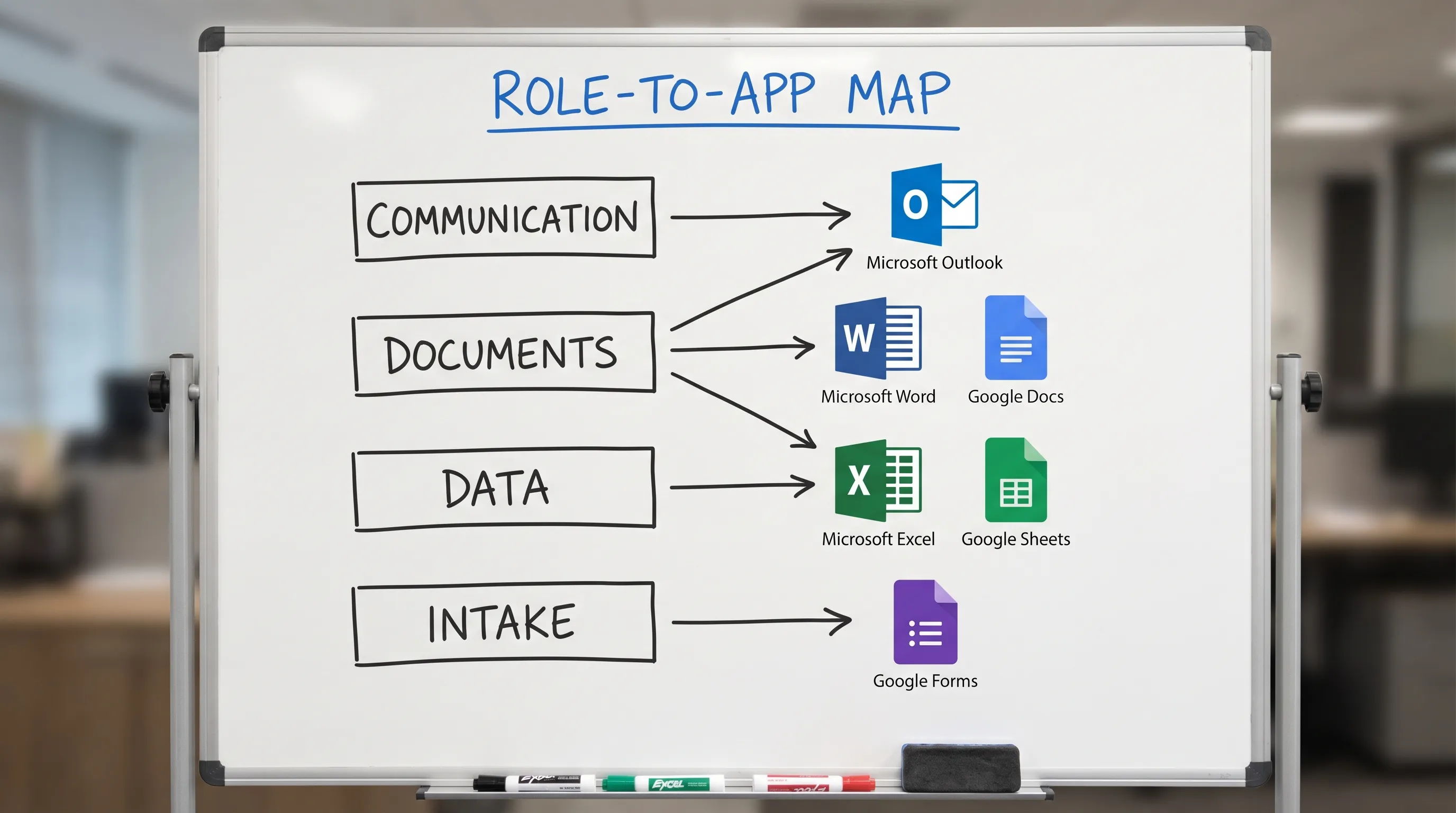
The Big 3 Microsoft apps that matter for most roles
Outlook (communication and commitments)
Outlook is where work becomes real: requests arrive, meetings get scheduled, and commitments are made. If you only optimize one Microsoft app, optimize Outlook.
High-impact Outlook skills by role:
- Faster triage (Focused Inbox, search, categories)
- Repeatable replies (templates, Quick Steps, Rules)
- Turning long threads into clear decisions and next steps
If Outlook is your “work intake,” you may also like these deeper guides:
- Outlook 365: setup, tips, and AI email shortcuts
- Outlook rules, search, and Quick Steps (complete checklist)
- Microsoft Outlook email: write, rewrite, and summarize fast
Word (decisions, documentation, and credibility)
Word is still the standard for proposals, policies, customer communications, and internal memos. The best Word users are not “formatting experts,” they are structure experts: they can turn messy inputs into a coherent narrative.
High-impact Word skills by role:
- Outlines that match the decision being made
- Editing for clarity (shorter, scannable, consistent tone)
- Rewriting for different audiences (exec vs customer vs legal)
If you want a dedicated walkthrough, see: How to use ChatGPT in Microsoft Word: a complete guide.
Excel (thinking, not just spreadsheets)
Excel is where ambiguity turns into numbers: forecasts, funnels, headcount plans, budgets, performance reporting, and operational tracking.
High-impact Excel skills by role:
- Cleaning data reliably
- Building “explainable” analysis (so stakeholders trust it)
- Turning results into a simple story (what changed, why, what to do)
For an Excel-first AI workflow, see: How to use ChatGPT in Excel: a complete guide.
The Google Workspace set that matters most (especially in mixed-tool organizations)
Many teams live in both ecosystems. Even if your company standard is Microsoft 365, you may collaborate with partners, clients, or departments using Google.
The highest-value Google Workspace apps for most roles:
- Google Docs for shared drafting, fast collaboration, and lightweight specs
- Google Sheets for quick analysis, shared trackers, and operational visibility
- Google Slides for narrative updates and stakeholder readouts
- Google Forms for intake (requests, surveys, QA, routing)
If your work frequently starts in Sheets, this guide is particularly practical: Google Sheets AI: formulas, cleanup, and analysis workflows.
For broader cross-app workflows: Google Workspace AI: real-world workflows for busy teams.
Microsoft apps by role: what to learn first
Use this table as a role-based “minimum viable toolkit.” (It is intentionally opinionated: it favors the apps that most directly change your weekly output.)
| Role | Microsoft apps that matter most | Google Workspace apps that matter most | Typical high-ROI outcomes |
|---|---|---|---|
| Executive / Founder | Outlook, Word, Excel | Docs, Sheets, Slides | Faster decision memos, cleaner delegation, crisp weekly updates |
| Manager (any function) | Outlook, Word, Excel | Docs, Sheets | Meeting-to-actions, performance narratives, team status rollups |
| Sales / Account Management | Outlook, Excel, Word | Sheets, Docs | Pipeline hygiene, follow-ups, QBR narratives, renewal tracking |
| Customer Support / Success | Outlook, Excel | Sheets, Forms, Docs | Triage, escalation summaries, case tracking, templated replies |
| Finance / FP&A | Excel, Outlook, Word | Sheets (sometimes), Docs | Forecast models, variance explanations, budget narratives |
| Marketing / Content | Word, Outlook, Excel | Docs, Sheets, Slides | Briefs, content drafts, reporting, campaign retros |
| Operations / BizOps | Excel, Outlook, Word | Sheets, Forms, Docs | Intake to tracker, weekly ops review, SOPs |
| HR / People Ops | Outlook, Word, Excel | Docs, Sheets, Forms | Policy documentation, hiring trackers, onboarding checklists |
| Product / Project Management | Outlook, Excel, Word | Docs, Sheets, Slides | Status clarity, launch checklists, stakeholder updates |
| IT / Admin / Enablement | Outlook, Excel, Word | Sheets, Docs, Forms | Requests and routing, documentation, support-ready summaries |
What this table is really saying
- If your job is relationship-heavy, Outlook is the control center.
- If your job is decision-heavy, Word is where you win trust.
- If your job is measurement-heavy, Excel is where you create clarity.
- If your job is cross-functional, you will likely need both Microsoft and Google equivalents.
Role playbooks (quick guidance you can act on)
Executives and managers
Your bottleneck is rarely “writing,” it is turning inputs into decisions.
Focus on:
- Outlook: fast triage and consistent follow-up
- Word (or Docs): one-page decision memos and alignment notes
- Excel (or Sheets): a small set of metrics you can explain in plain language
A practical pattern: convert long email threads into a short memo (context, options, recommendation, next steps). This reduces meeting load and preserves decisions.
Analysts (finance, ops, RevOps, FP&A)
Your credibility comes from repeatability.
Focus on:
- Excel first (data cleanup, formulas, QA)
- Word second (explain results, assumptions, and limitations)
- Outlook third (stakeholder updates and clear asks)
If your org collaborates in Google Sheets, make sure you can move between Excel and Sheets without losing definitions (columns, filters, naming conventions).
Sales, support, and customer success
Speed and accuracy matter more than perfect formatting.
Focus on:
- Outlook: templates, tone control, and fast summarization
- Excel (or Sheets): trackers for pipeline, renewals, escalations
- Word (or Docs): QBR narratives, follow-up recaps, customer-facing summaries
A simple discipline: every customer thread should end with “What we decided” and “What happens next,” even if it is only three bullets.
HR and People Ops
You ship policies and processes.
Focus on:
- Word (or Docs): policy writing, onboarding docs, consistent language
- Excel (or Sheets): headcount and hiring trackers
- Forms (Google) when you need clean intake (requests, surveys, training feedback)
Where AI fits: in-app, role-specific help (without context switching)
Most people do not need “more AI tools.” They need less switching between tabs, chat windows, and documents.
CoreGPT Apps brings GPT-powered assistance inside Microsoft 365 and Google Workspace, especially the apps most roles live in daily:
- Microsoft Outlook, Word, Excel
- Google Docs, Google Sheets, Google Slides, Google Forms
It also supports other Microsoft apps like PowerPoint, OneNote, and Teams. Those additional apps are free and work out of the box, so you can try them when you are ready without turning rollout into a project.
CoreGPT Apps is designed to be simple to adopt (including no registration required) and privacy-focused, while letting you use leading model families (ChatGPT, Gemini, Claude) directly where your work already happens.
If you want a product overview first: Free AI copilot for Outlook, Word, Excel, and Google Docs.
Practical prompts that match the apps you use most
These are intentionally “role-shaped” prompts you can reuse.
Outlook prompts (communication)
- “Summarize this email thread into: context, decision needed, risks, and next steps. Keep it under 120 words.”
- “Draft a reply that (1) answers the question, (2) proposes two time options, (3) sets a deadline, and (4) stays friendly and direct.”
- “Rewrite my draft to be more concise and more confident, without sounding harsh.”
Word or Google Docs prompts (documents)
- “Turn these notes into a one-page memo with headings: Background, Current state, Options, Recommendation, Next steps.”
- “Rewrite this section for a non-technical audience. Keep meaning identical, reduce length by 25%.”
- “List the assumptions in this document and flag any that should be validated.”
Excel or Google Sheets prompts (data)
- “Given these columns, propose 5 validation checks to catch common errors (duplicates, missing values, date issues).”
- “Create a formula that categorizes rows based on these rules. Explain the logic in one paragraph.”
- “Summarize the key trends in this table and suggest 3 questions a stakeholder will ask.”
Frequently Asked Questions
Which Microsoft apps should I learn first? For most roles: Outlook first (communication and commitments), then Word (clear writing), then Excel (analysis and tracking). After that, add the app that best matches your weekly deliverable (presentations, forms, notes, or team chat).
Do Microsoft apps matter if my team uses Google Workspace? Yes. The underlying skills transfer: writing (Word or Docs), analysis (Excel or Sheets), intake (Forms), and stakeholder updates (Outlook or Gmail/Calendar equivalents). Many organizations are mixed, so fluency in both helps.
What is the fastest way to get better at Outlook for work? Learn search, categories, and one automation mechanism (Rules or Quick Steps). Then standardize two reusable reply templates. This usually cuts triage time significantly. The checklist here helps: Outlook rules, search, and Quick Steps.
Is Excel still worth learning if I can “just use AI”? Yes. AI can speed formulas and cleanup, but you still need to validate logic, understand assumptions, and explain results. Excel literacy is a career multiplier in finance, ops, and leadership roles.
How do I use AI safely in Outlook, Word, and Excel? Treat AI output as a draft, not a source of truth. Remove or redact sensitive data, verify numbers and claims, and keep an audit trail for important decisions. In regulated environments, confirm your organization’s AI and data-sharing policy.
Make the apps you already use feel 2x faster
If your day is mostly Outlook, Word, Excel, and you also collaborate in Google Docs, Sheets, Slides, or Forms, CoreGPT Apps is built for exactly that reality.
Install CoreGPT Apps and use ChatGPT, Gemini, or Claude directly inside your Microsoft 365 and Google Workspace apps, with no registration required and a privacy-focused design.
Get started here: CoreGPT Apps