
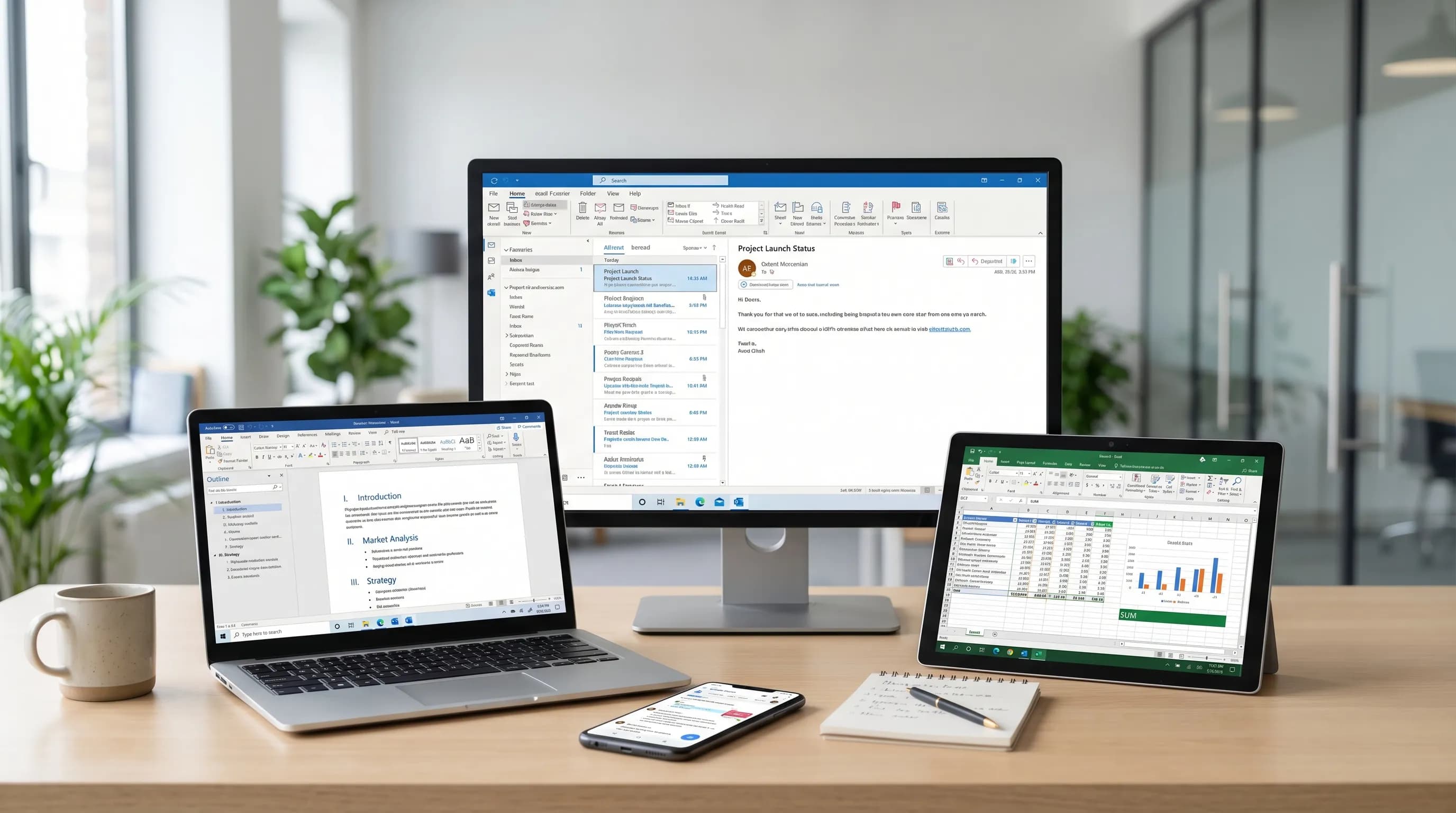
Most “AI copilots” still make you work in the wrong place: you copy an email into a chatbot, paste the answer back, then repeat for your document and your spreadsheet. A free AI copilot for Outlook, Word, Excel, and Google Docs should do the opposite, it should meet you where your work already lives, so drafting, rewriting, summarizing, and analyzing happens inside your daily apps.
CoreGPT Apps is built around that idea: bring GPT-powered help directly into Microsoft 365 and Google Workspace, so teams can move faster without constant context switching.
What a “free AI copilot” should actually help you do
In productivity work, the highest ROI AI tasks are repetitive and language-heavy:
- Writing and rewriting (emails, docs, comments)
- Summarizing (threads, long documents, meeting notes)
- Extracting structure (action items, decisions, fields)
- Spreadsheet help (formulas, cleanup, quick analysis)
The best copilot experience is not just “generate text”. It is generate text that fits the format and intent of the app you are currently using:
- In Outlook, you need a reply that matches the thread tone, includes a clear ask, and is short enough to send.
- In Word or Google Docs, you need sections, headings, and a consistent voice.
- In Excel, you need formulas, transformations, or explanations that you can verify.
CoreGPT Apps: AI inside Outlook, Word, Excel, and Google Docs (plus more)
CoreGPT Apps brings AI assistance into the tools people spend their day in, including:
- Microsoft Outlook, Word, and Excel
- Google Docs (and Google Workspace apps like Sheets, Slides, and Forms)
It is designed to work out of the box and is privacy-focused, and CoreGPT Apps also states no registration is required.
Just as importantly for many teams in 2026, CoreGPT supports using multiple model families in the same workflow (CoreGPT highlights ChatGPT, Gemini, and Claude) so you can choose what fits your org’s preferences.
If you want app-specific deep dives, these guides go further:
- Outlook email workflows: Microsoft Outlook Email: Write, Rewrite, and Summarize Fast
- Word authoring workflows: How to Use ChatGPT in Microsoft Word: A Complete Guide
- Excel analysis workflows: How to Use ChatGPT in Excel: A Complete Guide
- Cross-app playbooks: Google Workspace AI: Real-World Workflows for Busy Teams
Outlook: a free AI copilot that speeds up triage and replies
Email is where most teams bleed time. The fastest wins usually come from (1) summarizing what happened, (2) deciding what to do next, and (3) drafting a reply that is easy to send.
Use case 1: Summarize a long thread into “what matters now”
Paste the thread (or the relevant parts) and use a prompt like:
“Summarize this Outlook thread for me as:
- Context (1 to 2 sentences)
- Decisions made
- Open questions
- Action items with owner and due date (use ‘TBD’ if missing) Keep it under 180 words.”
This format is useful because it produces something you can forward to a manager or drop into a status update without rewriting.
Use case 2: Draft a reply that matches tone and constraints
Many drafts fail because they are too long, too confident, or they ignore a real-world constraint (timeline, policy, budget). Try:
“Draft a reply that:
- Acknowledges the request
- States our constraint: [insert constraint]
- Offers 2 options
- Ends with a single clear question Tone: calm, direct, not overly formal. Target length: 90 to 120 words.”
Use case 3: Turn the email into work (tasks you can track)
If your inbox is your task system (even temporarily), extract structure:
“Extract a task list from this email. Output as a table with: Task, Owner, Deadline, Dependency, Notes. Do not invent owners or dates.”
That “do not invent” line matters. It reduces the chance of AI filling gaps with guesses.
Word: a free AI copilot for faster first drafts and cleaner rewrites
In Word, speed comes from getting to a usable structure quickly, then iterating in place.
Use case 1: Create a solid outline before writing
Instead of “write a proposal”, request a decision-friendly outline:
“Create a Word-ready outline for a 2-page proposal about [topic]. Include:
- Executive summary (5 bullets)
- Problem
- Approach
- Scope (in and out)
- Timeline
- Risks and mitigations
- Next steps Use headings and subheadings.”
Outlines reduce rework because stakeholders can approve structure early.
Use case 2: Rewrite for clarity without changing meaning
A practical rewrite prompt for internal docs:
“Rewrite the selected text for clarity and brevity. Keep meaning and any numbers unchanged. Prefer active voice. Flag any ambiguous sentence with ‘[Ambiguous]’ at the end.”
Use case 3: Convert a messy draft into an executive memo
“Turn this document into a 1-page executive memo with:
- TL;DR (3 bullets)
- What changed since last update
- Decision needed (if any)
- Recommended option and rationale
- Risks Keep it skimmable.”
Excel: a free AI copilot for formulas, explanations, and cleanup plans
Spreadsheets are high leverage and high risk. The best copilot behavior in Excel is to propose formulas and steps you can validate.
Use case 1: Generate a formula with assumptions spelled out
“Given this table structure:
- A: Date
- B: Region
- C: Revenue I need monthly revenue by region with missing dates handled. Propose the best approach using formulas (not VBA). Provide:
- The formula(s)
- Where to place them
- Any helper columns needed
- A short explanation”
Use case 2: Explain a complex formula like you are onboarding a teammate
“Explain this Excel formula step by step. Then provide a simplified alternative if possible. Do not change the logic.”
Use case 3: Plan a data cleanup workflow before touching data
“Create a cleanup checklist for this dataset (customer names, emails, free-text notes). Goals:
- Standardize casing and spacing
- Identify duplicates
- Flag invalid emails Output as steps I can execute in Excel, including recommended functions.”
If you also work in Google Sheets, the underlying workflow is similar. For Sheets-specific prompts and verification tips, see: Google Sheets AI: Formulas, Cleanup, and Analysis Workflows
Google Docs: a free AI copilot for collaborative writing
Google Docs work often starts messy: comments, partial drafts, meeting notes, and multiple editors. A good copilot helps you converge.
Use case 1: Turn comments into an action-oriented revision plan
“Read this Doc content and the included comments. Create a revision plan with:
- Section to change
- What to change
- Who to confirm with
- Risk if not changed Do not rewrite the doc yet.”
This prevents AI from bulldozing context before humans agree on edits.
Use case 2: Create a clean “final” version from a collaborative draft
“Produce a clean final version that:
- Resolves repeated ideas
- Keeps all factual claims, but removes hedging
- Uses consistent headings
- Preserves any quoted text verbatim Return the revised doc text only.”
Use case 3: Draft a client-ready version with careful tone control
“Rewrite this as a client-ready doc. Tone: confident, friendly, precise. Avoid slang. Keep it under 700 words. If anything is unclear, add a short ‘Open questions’ section at the end instead of guessing.”
A cross-app workflow that actually saves time (Outlook → Word → Excel → Google Docs)
The biggest productivity gain is often not “write faster”, it is move information between apps without losing the plot.
Here is a practical workflow that many teams repeat weekly: you receive a messy email thread, convert it into a decision memo, then track follow-ups in a spreadsheet, then share a final narrative for stakeholders.
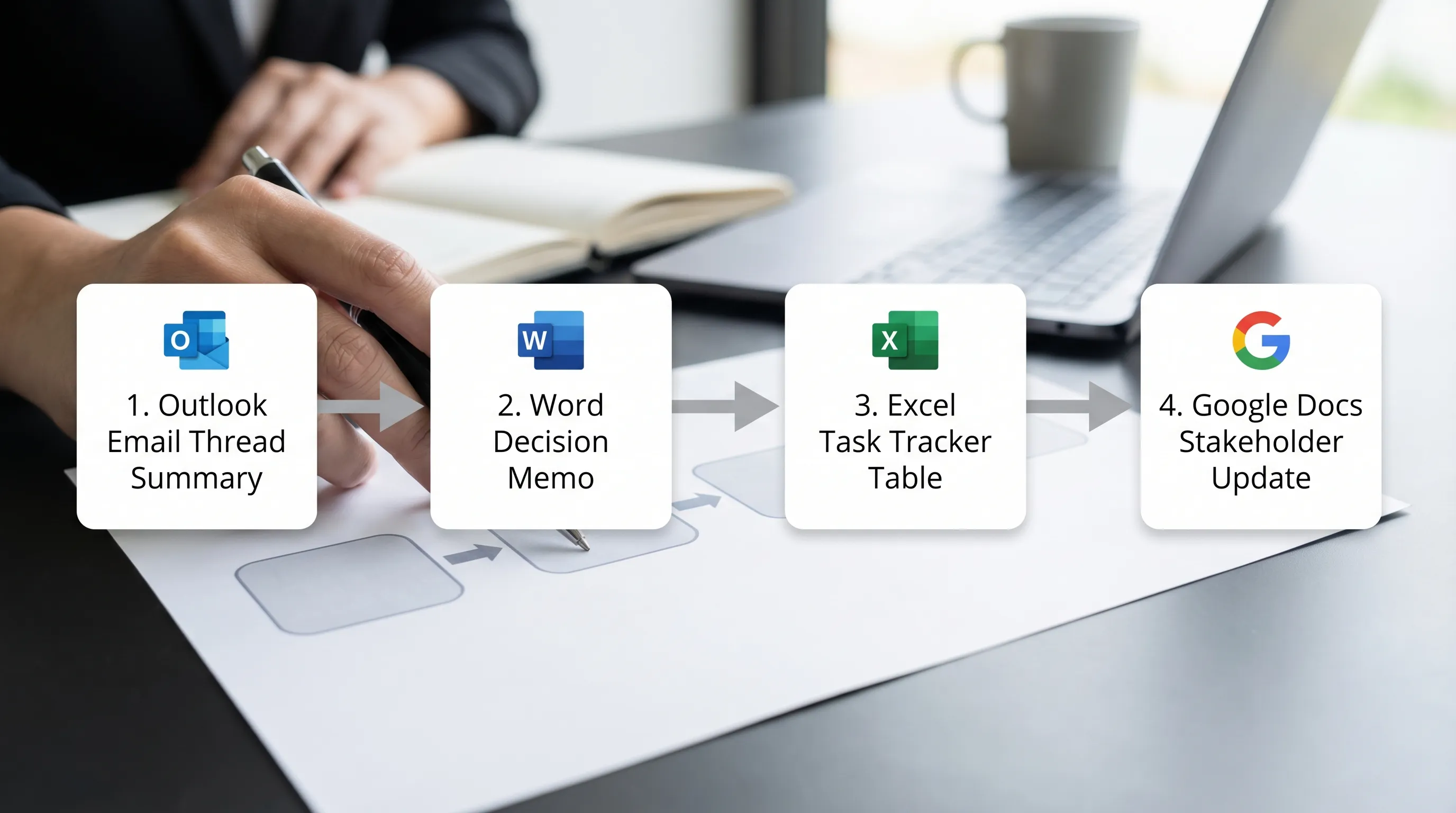
To make this repeatable, use a consistent handoff format.
| Step | App | What to ask the copilot for | Output you should verify |
|---|---|---|---|
| 1 | Outlook | Thread summary, decisions, action items | Missing owners/dates, incorrect decisions |
| 2 | Word | 1-page memo with options and recommendation | Scope, numbers, commitments |
| 3 | Excel | Tracker table (task, owner, due date, status) | Dates, dependencies, duplicates |
| 4 | Google Docs | Stakeholder update with concise narrative | Tone, confidentiality, claims that need sources |
If you standardize these four outputs, AI becomes a reliable accelerator instead of a novelty.
Privacy and accuracy: how to use an AI copilot safely in work apps
CoreGPT Apps positions itself as privacy-focused, but good outcomes still depend on what you paste and what you accept.
A practical checklist that works for Outlook, Word, Excel, and Google Docs:
- Do not paste secrets by default (passwords, private keys, unreleased financials, sensitive personal data).
- Redact identifiers when you only need structure (replace names with “Customer A”, “Vendor B”).
- Require uncertainty handling in prompts, for example “If missing, write TBD” and “Do not invent”.
- Verify anything that could become a commitment, especially dates, pricing, or policy statements.
- Keep an audit trail for important docs: save the pre-AI version and the final version.
A simple rule: if a mistake would be expensive or embarrassing, treat AI output as a draft, not as a decision.
Getting started quickly (without changing how you work)
If your goal is “free AI copilot” value in one afternoon, start with one workflow per app:
- Outlook: summarize a thread, draft a reply, extract action items
- Word: create a 2-page outline, rewrite one section for clarity
- Excel: generate one formula you can test, then ask for an explanation
- Google Docs: turn comments into a revision plan, then produce a clean version
CoreGPT Apps is built to run inside Microsoft 365 and Google Workspace apps, and CoreGPT highlights that it requires no registration and works out of the box. It also supports additional apps beyond the four in this article (for example Google Sheets, Slides, and Forms, plus other Microsoft 365 apps), and those are described as free and ready to use as well.
Frequently Asked Questions
Is there really a free AI copilot for Outlook, Word, Excel, and Google Docs? CoreGPT Apps is positioned as a free, in-app AI copilot experience for these apps, designed to work out of the box so you can draft, rewrite, summarize, and analyze without switching tools.
Do I need to create an account to use it? CoreGPT Apps states that no registration is required, which is helpful for quick trials and for teams that want fewer sign-up steps.
Can I use different AI models (ChatGPT, Gemini, Claude) in the same workflow? CoreGPT highlights support for ChatGPT, Gemini, and Claude, which can be useful if your organization prefers a specific model family for certain tasks.
How is this different from Microsoft Copilot? Microsoft Copilot is a Microsoft-first offering that can integrate deeply with Microsoft 365, while CoreGPT Apps focuses on bringing multiple model options into Microsoft 365 and Google Workspace apps. The right choice depends on your licensing, governance, and where your team works day to day.
Will an AI copilot write correct formulas and summaries every time? No. AI can be wrong or incomplete. The most reliable approach is to ask for assumptions, avoid invented fields (owners, dates, numbers), and verify outputs before sending or publishing.
Which Google Workspace apps should I use AI in first? Start with Google Docs for drafting and cleanup, and Google Sheets for formulas and data cleanup. Many teams then expand to Slides for narrative decks and Forms for structuring intake questions.
Try CoreGPT Apps in your daily tools
If you want a free AI copilot for Outlook, Word, Excel, and Google Docs that works inside the apps you already use, explore CoreGPT Apps. Start with one workflow (summarize a thread, outline a doc, debug a formula), then standardize the prompts your team repeats every week.