

Windows Outlook is still the control center for many teams: email, calendar, shared mailboxes, and the daily stream of “what needs my attention now?” When it’s tuned well, Outlook on Windows is fast, predictable, and incredibly automatable. When it isn’t, it becomes a constant source of missed messages, noisy calendars, and search that mysteriously fails right when you need it.
This guide breaks down the best Windows Outlook features worth leaning on, plus the top pain points that slow people down (and how to reduce them). You’ll also see practical ways to turn Outlook work into cleaner deliverables in Word and Excel, or in Google Docs and Google Sheets, without copying and pasting all day.
Windows Outlook today: classic vs new Outlook (and why it matters)
“Windows Outlook” can mean two different apps:
- Classic Outlook for Windows (Win32 desktop): the long-standing desktop app with deep features (PST/OST behavior, many enterprise add-ins, more mature offline handling).
- New Outlook for Windows: Microsoft’s newer app experience that aligns more closely with Outlook on the web. It is improving quickly, but some workflows still differ.
Why you should care: many pain points are version-specific. If your Outlook problem is “rules aren’t behaving,” “search is weird,” or “shared mailbox feels broken,” the first diagnostic question is often: classic or new?
If you are unsure, Microsoft explains how to identify and switch experiences in their Outlook help content (start at Microsoft Support and search for “new Outlook for Windows”).
Best Windows Outlook features (the ones that actually save time)
1) Focused Inbox and Conversation View for faster triage
For most knowledge workers, the bottleneck is not writing email, it’s deciding what deserves attention.
- Focused Inbox separates “likely important” from “the rest.” It is not perfect, but it reduces scanning time.
- Conversation View keeps long threads together, which is essential for customer support, recruiting loops, and vendor back-and-forth.
If you want a settings-first tune-up, see: Outlook 365 Basics: Best Settings for Faster Email.
2) Search that understands people, attachments, and time
Great Outlook users don’t “browse” their inbox, they retrieve.
Outlook search becomes powerful when you routinely search by:
- Sender or recipient
- Attachment presence
- Time windows (this week, last month)
- Keywords plus filters
If your org uses Advanced Query Syntax (AQS), it can feel like a superpower once learned. For a checklist and reliability fixes, see: Outlook Rules, Search, and Quick Steps: Complete Checklist.
3) Rules and Quick Steps that remove repetitive clicks
Windows Outlook is not just an email client, it is a light automation tool.
Two high-leverage building blocks:
- Rules: auto-file newsletters, tag messages, move CC noise, route alerts.
- Quick Steps: one-click actions like “Reply + move to folder,” “Forward to manager,” or “Create task from email.”
The best Quick Steps are the ones that match your actual habits, not the ones you think you should have.
4) Calendar features that prevent meeting sprawl
Outlook’s calendar is where your day is won or lost.
Worth using intentionally:
- Work hours and time zone settings to reduce scheduling mistakes
- Default reminders that fit your role (IC vs manager)
- Category colors for visual scanning
For deeper calendar and email settings together, see: Microsoft Outlook 365 Best Settings for Email and Calendar.
5) Shared mailboxes and delegated access (when configured correctly)
Shared mailboxes remain one of Outlook’s strongest enterprise features, especially for:
- Support@ / billing@ queues
- Exec assistants managing calendars
- Team inboxes where ownership rotates
The “feature” is less about having a shared mailbox and more about having conventions: categories, “who owns what,” and a simple handoff rhythm.
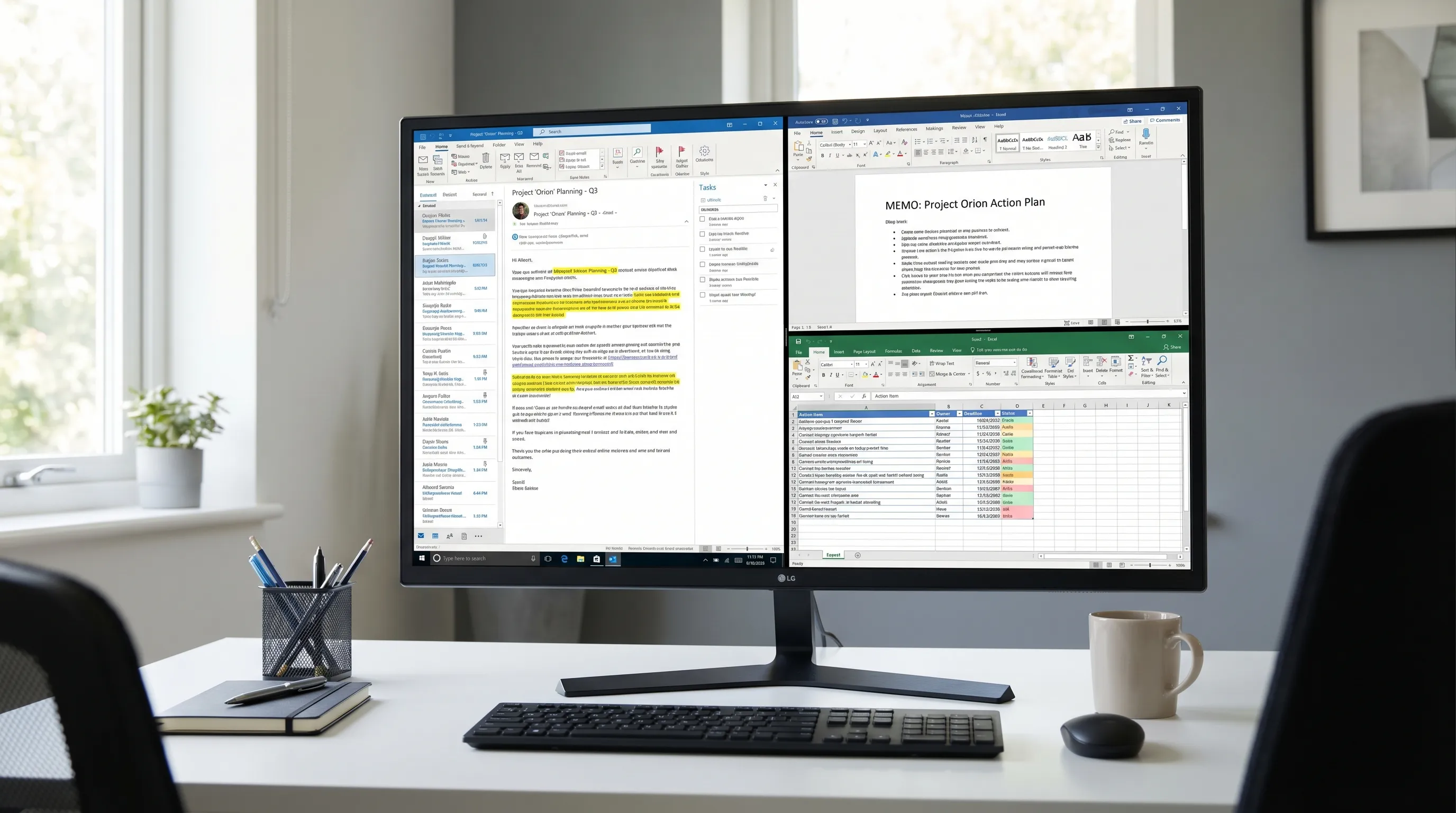
6) Outlook as an input layer for Word and Excel work
Outlook is where raw information arrives. The best teams turn that raw input into clean artifacts:
- Word: turn a long thread into a one-page memo, a customer recap, or a decision doc.
- Excel: turn email action items into an owner, due date, status tracker.
This is exactly where in-app AI becomes useful: not as a novelty, but as a bridge from messy email to structured output.
Top Windows Outlook pain points (and what usually fixes them)
Outlook problems tend to fall into a few predictable buckets: noise, search, sync, rules, calendar, and version differences.
Pain point 1: “My inbox is chaos and I miss important emails.”
Common causes:
- Notification overload trains you to ignore Outlook
- No consistent triage routine
- Too many “FYI” threads and CC clutter
High-impact fixes:
- Turn down notifications so Outlook becomes intentional, not reactive
- Use Focused Inbox (and train it by moving messages)
- Use rules to auto-file low-value senders
A fast reset routine: Outlook Microsoft: Clean Up Your Inbox in 20 Minutes.
Pain point 2: “Search doesn’t find emails I know exist.”
Common causes:
- Windows Search indexing issues
- Cached mode or mailbox size constraints
- Profile corruption or add-in interference
High-impact fixes:
- Confirm Windows indexing is enabled for Outlook data
- Reduce unnecessary add-ins and restart
- If it’s persistent, consider rebuilding the profile (especially after password or MFA resets)
If you want a broader Microsoft 365 diagnostic checklist (including Outlook, Word, Excel), see: Microsoft Get Help: Fast Fixes for 365 (Outlook, Word, Excel).
Pain point 3: “Rules don’t run, or they run sometimes.”
Common causes:
- Client-only rules (classic Outlook) that require Outlook to be open
- Conflicts between similar rules
- Differences between classic Outlook, new Outlook, and Outlook on the web
High-impact fixes:
- Prefer server-side rules when possible
- Consolidate overlapping rules
- Audit rules quarterly, old rules are silent productivity killers
Pain point 4: “The new Outlook is missing features I used daily.”
This is a real friction point on Windows.
Typical complaints:
- Workflow differences from classic Outlook
- Add-in or integration differences
- Shared mailbox behavior not matching expectations
Practical approach:
- If your day depends on a specific classic feature, stay on classic until parity works for you
- Standardize within teams where possible, mixed experiences increase support burden
Pain point 5: “Attachments and versioning are a mess.”
Common causes:
- Too many file versions across email threads
- People replying with outdated attachments
- Mixed ecosystems (Microsoft 365 plus Google Workspace) without a clear convention
High-impact fixes:
- Use links to source-of-truth documents when possible
- For external recipients, include a short “version line” in the email body (date, doc name)
- Convert final decisions into a memo in Word or Google Docs so the decision is searchable and stable
Pain point 6: “Outlook is slow on Windows.”
Performance issues are usually not “just Outlook,” they’re usually one of:
- Large mailboxes and local cache pressure
- Too many add-ins
- Search indexing and Windows resource constraints
The fastest first step: disable or remove nonessential add-ins and restart. If the problem persists, use Microsoft’s built-in repair and support tooling, and involve IT if you’re in a managed environment.
A practical map: features vs pain points (and the best lever to pull)
Use this table to quickly match what’s hurting you to the most likely fix.
| What you want from Windows Outlook | Feature to lean on | Common failure mode | Best first fix |
|---|---|---|---|
| Faster inbox triage | Focused Inbox, Conversation View | Too many notifications and CC noise | Reduce notifications, add 2-3 rules for repeat noise |
| Find messages instantly | Search + filters (AQS if available) | Indexing not up to date | Check indexing, restart Outlook, consider profile rebuild |
| Fewer repetitive steps | Quick Steps, Rules | Rule conflicts, client-only rules | Consolidate rules, prefer server-side patterns |
| Less meeting chaos | Calendar settings, categories | Too many low-value invites | Tighten notifications, set work hours, use categories |
| Team coverage on shared inboxes | Shared mailbox + conventions | Ownership unclear, duplicates | Agree on categories and handoff rules |
| Turn email into deliverables | Word + Excel (or Google Docs + Sheets) | Copy-paste and lost context | Use a repeatable convert-and-track workflow |
Where AI helps most in Windows Outlook (without creating new risk)
AI is most useful in Outlook when it reduces reading and rewriting, especially for long threads.
High-ROI use cases:
- Summarize a thread into: context, decision, open questions, next steps
- Draft a reply in your tone (short, direct, polite)
- Extract action items into a structured list you can paste into Excel or Google Sheets
If you want prompt patterns specifically for Outlook email, see: Microsoft Outlook Email: Write, Rewrite, and Summarize Fast.
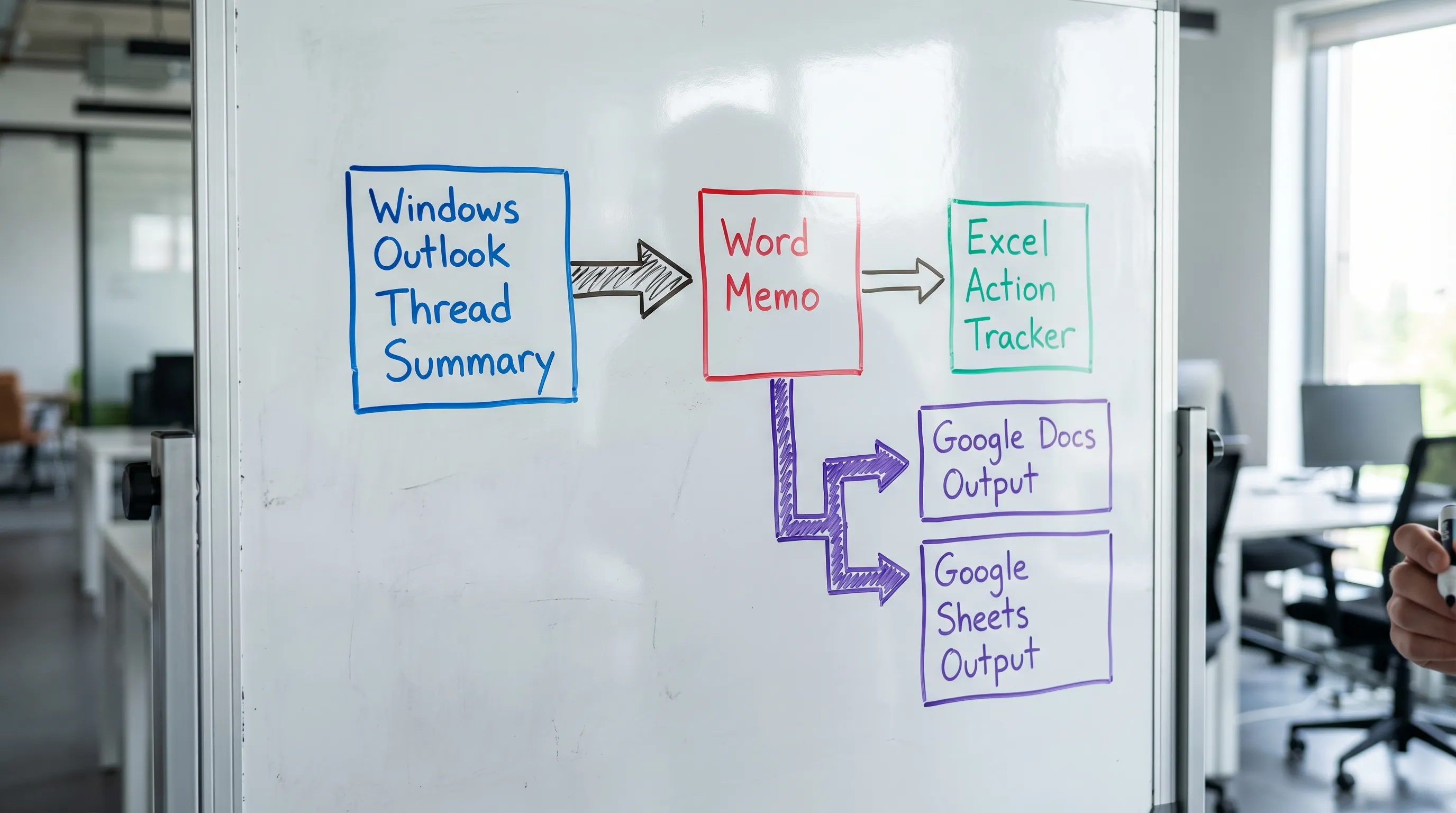
The best cross-app workflow: Outlook to Word to Excel (or Google Docs to Google Sheets)
A simple, repeatable pattern for busy teams:
- In Outlook: summarize the thread and extract decisions and tasks.
- In Word: generate a short memo (what happened, what we decided, risks, next step).
- In Excel: generate a task tracker (owner, due date, status, dependencies).
If your team works in Google Workspace, the same structure works in Google Docs and Google Sheets, which is often ideal for sharing outside your Microsoft tenant.
CoreGPT Apps: in-app AI for Outlook, Word, Excel, plus Google Workspace
If you want AI support without constantly switching tabs, CoreGPT Apps brings AI directly into the apps you already use.
- Windows Outlook: draft, rewrite, and summarize emails where the work happens.
- Microsoft Word and Excel: turn communication into documents and structured trackers.
- Google Docs, Google Sheets, Google Slides, and Google Forms: get the same in-app help across Google Workspace.
CoreGPT Apps is designed to work out of the box, and the apps are free to install, with no registration required and a privacy-focused design. Learn more at CoreGPT Apps.
Frequently Asked Questions
What are the best Windows Outlook features for productivity? Focused Inbox, Conversation View, Search with filters, Rules, Quick Steps, and calendar categories are the biggest time-savers for most roles.
Why is Outlook search not finding emails on Windows? The most common causes are Windows Search indexing issues, profile problems, mailbox size and caching constraints, or add-in interference.
Should I use the new Outlook for Windows or classic Outlook? Use the one that supports your daily workflow and add-ins reliably. If you depend on a classic feature that is not yet available in the new experience, staying on classic is often the pragmatic choice.
How can I turn Outlook email threads into Word and Excel outputs faster? Use a consistent workflow: summarize the thread, extract decisions and action items, generate a Word memo for the narrative, then create an Excel tracker for owners and due dates.
Can I use AI inside Outlook and Google Workspace without switching tools? Yes. Tools like CoreGPT Apps integrate AI directly into Outlook, Word, Excel, and Google Docs, Sheets, Slides, and Forms so you can draft, summarize, and analyze in place.
Try an out-of-the-box AI copilot inside Outlook, Word, Excel, and Google Workspace
If your biggest Windows Outlook pain points are long threads, repetitive replies, and constant context switching, try CoreGPT Apps in the tools you already live in. Install it and use AI directly in Outlook, Word, Excel, plus Google Docs and Google Sheets, with no registration required: CoreGPT Apps.