
What “faster email” really means in Outlook
Speed is not only about app performance. For most teams, the biggest time costs come from:
- Triage time (deciding what matters, what can wait, and what can be archived)
- Repeat actions (moving the same types of emails to the same folders, assigning the same follow-ups)
- Context switching (notifications, popups, and jumping between messages)
- Search latency (not finding messages instantly, especially in large mailboxes)
The settings below are chosen because they reduce one or more of those costs.
1) Set up your inbox for rapid scanning
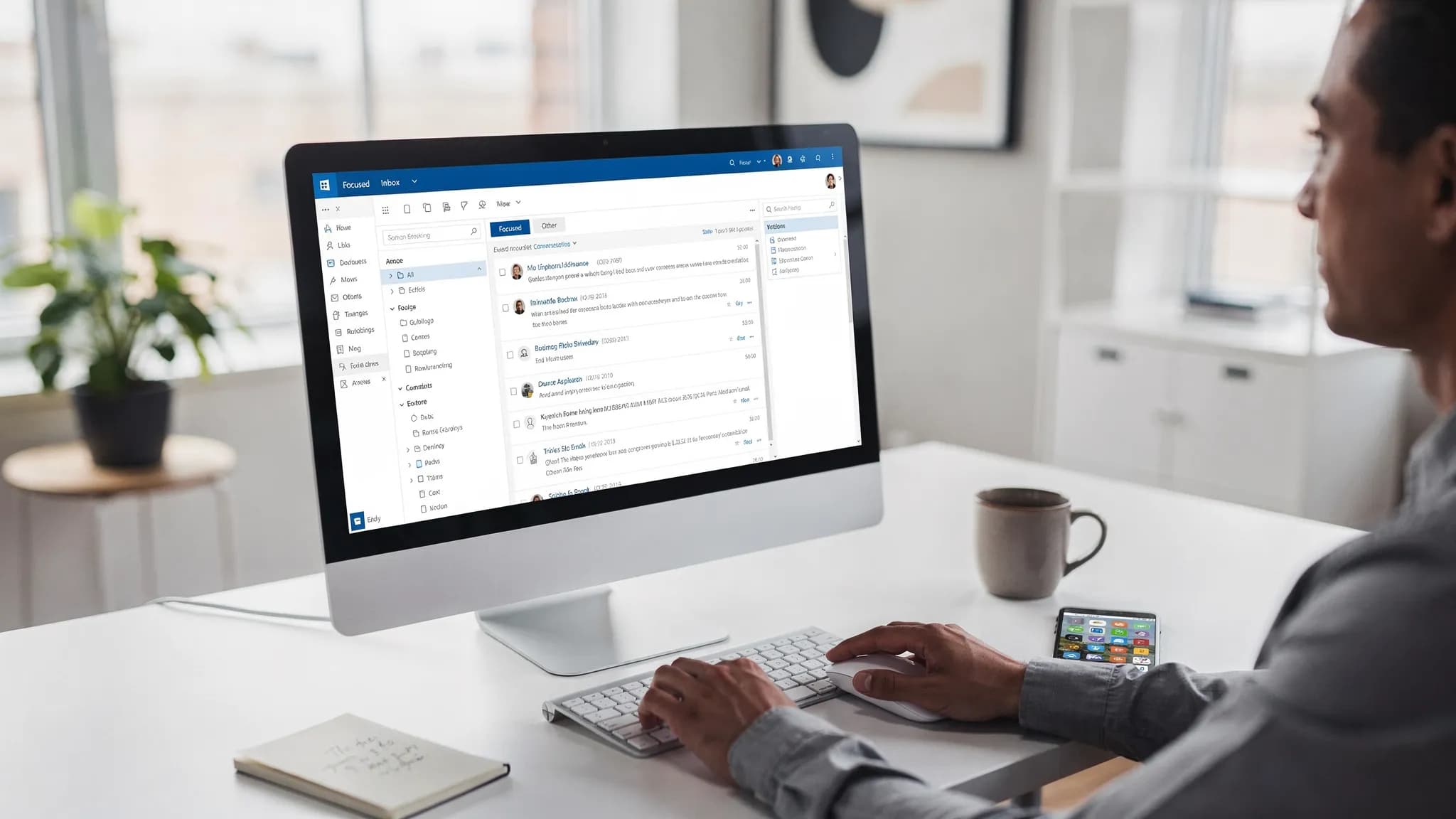
Turn on Focused Inbox (for most people)
Focused Inbox separates “Focused” from “Other” so you can process important mail first. It is not perfect, but it is often a net win for speed once you train it.
Microsoft overview: Focused Inbox for Outlook.
Recommended approach: enable it, then spend 2 to 3 days correcting misfiled emails. After that, your daily triage is usually faster.
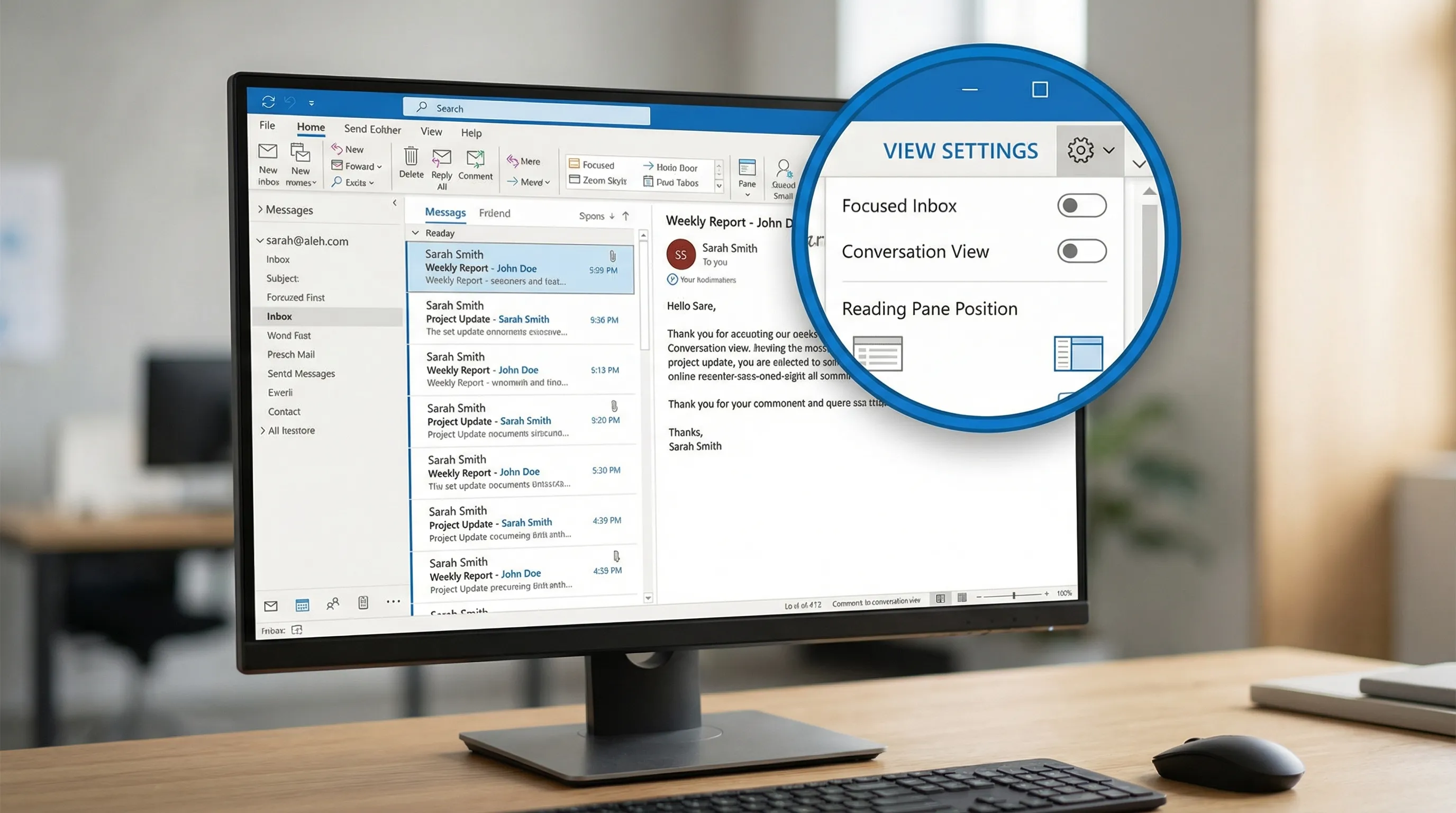
Use Conversation view (and clean it up)
Conversation view groups email threads so you stop re-reading history and can archive whole chains confidently.
Two small toggles make it faster:
- Show messages from other folders (so you see the full thread even after filing)
- Newest messages on top (so your eyes go to what changed)
If you are in a high-volume role (sales, support, recruiting), this is one of the highest leverage “basic” changes.
Put the Reading Pane on the right
For widescreen monitors, the right-side reading pane reduces vertical scrolling and makes it easier to arrow-key through messages.
Why it helps: your inbox list stays tall, your preview stays stable, and you can scan subject lines quickly.
2) Stop doing repeat work: Quick Steps, Rules, and Sweep
Create 3 to 5 Quick Steps you will actually use
Quick Steps are “one-click workflows” like Move + Mark Read, or Reply + Move, or Forward to a team alias.
A practical set that fits most knowledge workers:
- Archive + Mark Read (for newsletters and FYI threads)
- Move to Project Folder (for your most active project)
- Reply + Move (keeps your inbox clean without losing sent context)
- To-Do / Flag + Category (for messages that become tasks)
Quick Steps are built into classic Outlook for Windows. If you do not see them, check you are not in a simplified layout mode.
Use Rules for predictable senders
Rules shine when the condition is stable: automated notifications, system alerts, invoices, HR announcements, calendar-related noise.
Keep rules simple. The fastest rule is usually “from X, move to folder Y, mark as read” (or categorize).
Microsoft help: Manage email messages by using rules.
Use Sweep (best for recurring clutter)
If you use Outlook on the web, Sweep is ideal for senders that message often (status updates, mailing lists). Sweep can automatically keep only the latest message or move older messages out of your inbox.
Microsoft help: Use Sweep in Outlook on the web.
A quick “what to use when” table
| Need | Best feature | Why it speeds you up |
|---|---|---|
| One-click filing + follow-up | Quick Steps | Eliminates repetitive multi-click actions |
| Automatically route predictable mail | Rules | Prevents inbox buildup before you see it |
| Reduce repeated newsletter clutter | Sweep (web) | Auto-cleans recurring senders with low effort |
| Make priority mail pop visually | Conditional formatting | Your eyes find important senders faster |
3) Make important emails visually obvious
Turn on Conditional Formatting for VIPs and time-critical mail
Conditional formatting changes how messages appear (color, font style) based on criteria. Use it sparingly.
Two reliable rules:
- Make messages from your manager or key customers bold
- Color-code messages sent directly to you (not CC) so you see “action needed” mail first
Microsoft help: Use conditional formatting to customize message list.
Use Categories as your “at a glance” system
Categories work best when they represent states, not topics.
Examples of state categories:
- Waiting on someone
- Needs reply today
- Finance
- Review
This prevents you from creating dozens of folders, and makes it faster to batch similar work.
4) Reduce interruptions without missing what matters
Notifications can destroy focus. Most people benefit from fewer alerts, not more.
Recommended settings to review:
- Disable email sounds
- Disable desktop alerts for everything except high-priority mail (if your org supports it)
- Keep badge count on (useful), but stop popups (disruptive)
If you are using Teams heavily, consider routing urgent internal communication to Teams and treating email as asynchronous by default.
5) Speed up search and overall Outlook performance
If Outlook feels “slow,” search and sync are often the culprits, especially with large mailboxes.
Make sure Windows Search indexing is working (classic Outlook on Windows)
Outlook search relies on Windows Search indexing in many configurations. If indexing is paused or broken, search becomes painful.
Microsoft guidance: Fix Outlook search issues.
Use Cached Exchange Mode (most Exchange users)
Cached mode stores a local copy of your mailbox and usually improves responsiveness and search speed. It can also reduce lag when switching folders.
Microsoft overview: Turn on Cached Exchange Mode.
Tip: If you have an extremely large mailbox, consider caching a shorter window (for example, 6 to 12 months) and relying on server search for older mail.
Audit add-ins (they can quietly slow everything)
Third-party add-ins can affect startup time, send latency, and stability.
A practical approach:
- Disable add-ins you do not use weekly
- Re-test Outlook speed for a day
- Re-enable only what you truly need
If your organization manages add-ins centrally, ask IT which ones are required.
Keep your mailbox lean enough to navigate
Even with good search, giant folders slow humans down. Use your archive practices intentionally:
- Archive closed threads weekly
- Avoid deep folder trees
- Use Search Folders (where available) for “virtual views” like unread mail or flagged messages
6) Write and reply faster (without sacrificing quality)
Standardize your signatures (and keep them short)
A good signature reduces manual typing and avoids reformatting issues when replying.
Keep it to essentials. Long signatures add scrolling and clutter in threads.
Save reusable blocks as templates
If you send the same explanations repeatedly (pricing steps, onboarding notes, meeting prep, support instructions), templates are one of the biggest speed boosts.
Options depend on your Outlook version, but many users rely on built-in “My Templates” in Outlook on the web, or simple copy blocks stored in OneNote.
Learn a few keyboard shortcuts that save real time
You do not need to become a shortcut power user. Pick the ones that reduce mouse travel:
- Reply, Reply All, Forward
- Search
- Archive
- Move to folder
Even two shortcuts used 50 times a day can save minutes, and more importantly reduce fatigue.
7) Add “agentic” help for repetitive email work (optional)
Settings get you speed. The next level is reducing the amount of writing, summarizing, and extracting you do manually.
If your team wants AI inside Outlook, CoreGPT Apps brings GPT-powered assistance directly into Microsoft 365, including GPT in Outlook, with support for models like ChatGPT, Gemini, and Claude. Because it runs where work happens, it can be useful for:
- Drafting replies in your tone from a few bullet points
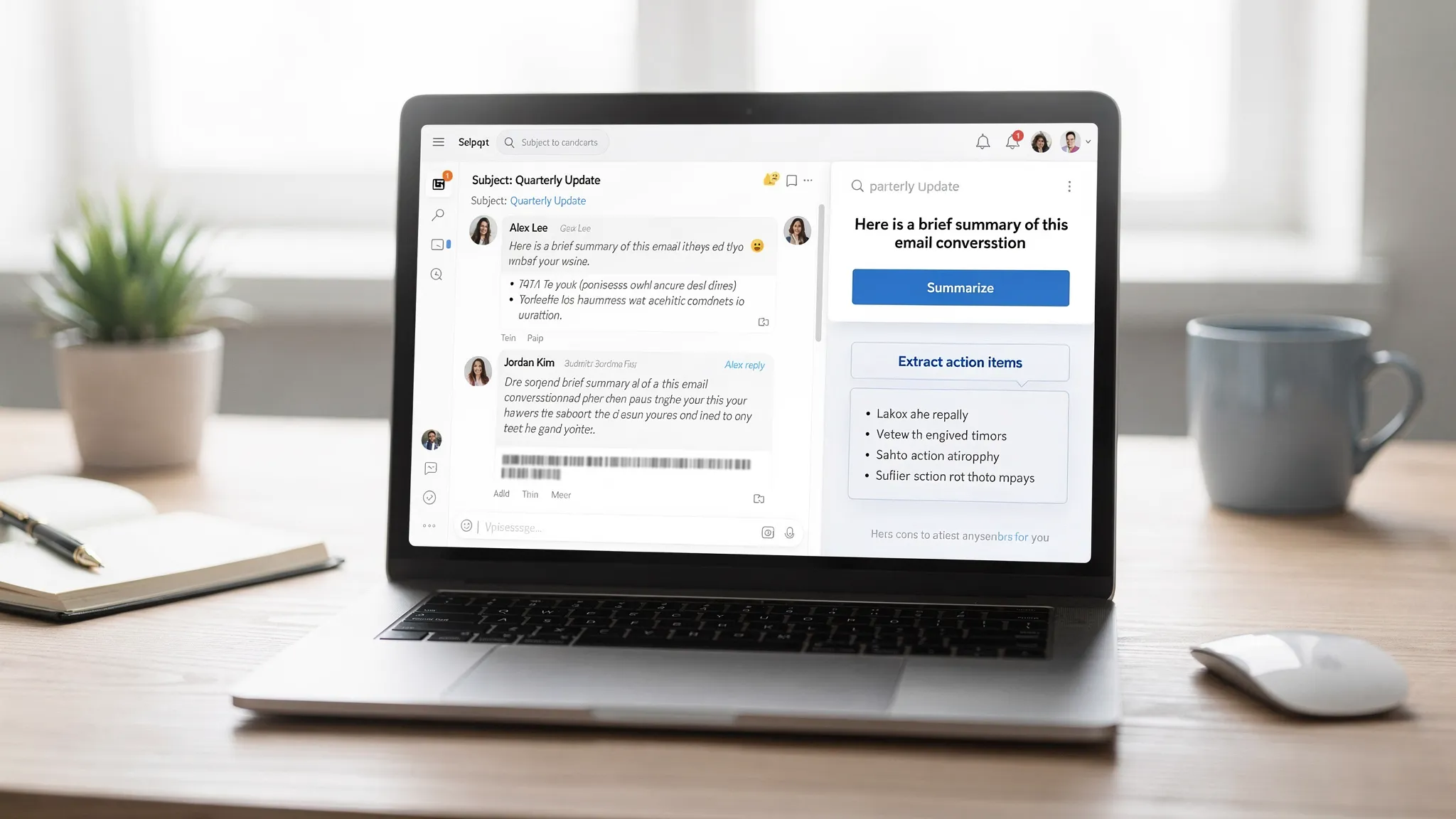
- Summarizing long threads before you respond
- Turning emails into clear action items you can paste into tasks or notes
You can learn more at CoreGPT Apps. (If you evaluate any AI tool for email, confirm your organization’s privacy and data handling requirements first.)
A “best settings” checklist you can apply in 15 minutes
If you want a quick implementation order, start here:
- Enable and train Focused Inbox
- Turn on Conversation view and set newest on top
- Move Reading Pane to the right
- Create 3 to 5 Quick Steps
- Add 2 to 4 Rules for predictable mail streams
- Set 1 to 2 Conditional Formatting rules for VIP visibility
- Reduce notifications to only what you truly need
- Verify search indexing and cached mode (Windows classic Outlook)
- Remove unused add-ins
Once these are in place, Outlook typically feels “lighter” within a day because you are making fewer micro-decisions per message.