

Most teams don’t struggle with “using AI.” They struggle with getting consistent, reusable outputs inside the tools where work actually happens.
When “Google GPT” lives outside your documents, spreadsheets, and decks, you get a familiar mess: copy-paste fatigue, missing context, mismatched numbers, and slides that do not match the latest spreadsheet. The fix is not more prompting. It’s workflows: repeatable steps that take you from raw inputs to a defined deliverable.
This guide gives you practical Google GPT workflows for Docs, Sheets, and Slides, plus prompt templates you can reuse. The emphasis is on outcomes that busy teams ship every week: status updates, executive summaries, KPI narratives, and presentation-ready storylines.
What “Google GPT workflows” really means (and why it beats ad hoc prompting)
In practice, “Google GPT” usually means one of two things:
- Using GPT-class models (and similar assistants) alongside Google Workspace.
- Using an in-context assistant that works inside Docs, Sheets, and Slides, so the model can operate on the content without constant copy-paste.
A workflow is simply a repeatable recipe with:
- Inputs (what you provide, and where it lives)
- Transformations (what the AI does)
- Outputs (a defined artifact someone can approve or present)
- Checks (how you prevent made-up facts, wrong totals, or off-brand copy)
If you want higher accuracy and less rework, workflows win because they reduce ambiguity. You are not asking the AI to “help.” You are asking it to produce a specific deliverable in a specific format.
The 3 building blocks of reliable in-app workflows
Before we jump into Docs, Sheets, and Slides, use this lightweight framework to make your prompts more dependable.
1) Context: give the model the minimum it needs to be right
The model should not guess what your company does, who the audience is, or what the time period is.
Good context includes:
- Audience (exec, customer, internal team)
- Time window (this week, Q1, last 30 days)
- Source of truth (which table/range, which section of the doc)
2) Constraints: define the format so outputs are easy to review
You are trying to reduce editing time. Constrain structure:
- “Return exactly 6 bullets”
- “Use 1 sentence per bullet, max 18 words”
- “Create a slide outline with titles only, no body text”
3) Verification: force “show your work” behaviors
For business docs, the most important instruction is often:
- “If a value is not present in the provided content, write ‘Unknown from provided data.’ Do not invent.”
That single line prevents a lot of confident nonsense.
Google GPT workflows for Google Docs
Docs is where messy inputs become decisions. These workflows focus on turning raw text into something reviewable.
Workflow 1: Meeting notes to action memo (with owners and dates)
Best for: project syncs, customer calls, incident reviews.
Inputs: raw notes (even unstructured), attendee list if available.
Output: a one-page action memo: decisions, action items, risks.
Paste this prompt into your in-doc assistant:
You are turning meeting notes into an action memo.

Rules:
- Use only the content in this document.
- If an owner or date is missing, write “TBD”. Do not invent.

Output format:
1) Summary (3 bullets)
2) Decisions (bullets)
3) Action items (table: Action | Owner | Due date)
4) Risks / open questions (bullets)

Notes to process:
[Use the notes above in the doc]
Quality check: Scan the action table for “TBD.” Those become your follow-up questions.
Workflow 2: Draft to executive summary that stays grounded
Best for: long internal docs, strategy docs, policies, quarterly narratives.
The trap: summaries that sound great but introduce claims not in the text.
Use this prompt:
Summarize this document for an executive reader.

Constraints:
- 120 to 160 words.
- Include: goal, current status, top 3 risks, and the next decision needed.
- Do not add facts not present in the document. If a detail is missing, say it’s not specified.

Return:
- Executive summary (single paragraph)
- “Missing info to confirm” (3 bullets)
Why it works: It produces a summary and also a “what to verify” list.
Workflow 3: Rewrite for audience and tone (without changing meaning)
Best for: customer-facing updates, sensitive comms, leadership announcements.
Rewrite the selected text for [AUDIENCE].

Rules:
- Preserve meaning and all factual claims.
- Remove filler and hedging.
- Keep it to the same length or shorter.

Tone: [calm, direct, confident]
Reading level: [8th grade / professional]
Return 2 versions:
- Version A: concise
- Version B: slightly warmer
Google GPT workflows for Google Sheets (without breaking your “source of truth”)
Sheets workflows should protect two things:
- Reproducibility (someone else can follow what happened)
- Numerical integrity (no invented totals, no mismatched time windows)
If you want deep formula generation and cleanup patterns, see CoreGPT’s dedicated guide on Google Sheets AI: formulas, cleanup, and analysis workflows. Here, we’ll focus on workflows that connect Sheets to narrative and slides.
Workflow 1: KPI commentary from a defined range
Best for: weekly business reviews, dashboards, customer success updates.
Setup: Create a small “KPI” table with clear headers (Metric, Current, Previous, Target, Notes).
Then run:
Write KPI commentary using only the data in range [A1:E20].

Output:
- 6 bullets total
- Each bullet: Metric name + what changed + one likely driver (only if Notes support it)

Rules:
- If you cannot infer a driver from Notes, say “Driver not specified.”
- Do not compute new metrics beyond simple comparisons already possible from the table.
Quality check: If you see “Driver not specified” often, improve the Notes column instead of fighting the model.
Workflow 2: Data dictionary for messy columns
Best for: inherited sheets, CSV imports, form exports.
Create a data dictionary for this sheet.

Output a table with columns:
- Column name
- What it appears to represent
- Example valid values (from the sheet)
- Known issues (blanks, inconsistent formats)

Rules:
- Use only what is visible in the sheet.
- If uncertain, label as “Unclear from data.”
This is high leverage because it makes every downstream workflow faster.
Workflow 3: Exception report you can actually act on
Best for: QA checks, finance ops, CRM hygiene.
Define your exception logic first (even in plain English), then prompt:
Build an exception report using this sheet.

Exception definitions:
- Missing required fields: [list fields]
- Out-of-range values: [describe]
- Duplicates: [key fields]

Return:
- A list of exception types
- For each type: count + the top 10 row identifiers
- Suggested fix steps (no more than 5 bullets)

Rules:
- If a definition cannot be computed from the current columns, say what is missing.
Google GPT workflows for Google Slides (from outline to presentation)
Slides is where clarity matters more than creativity. The best workflow is usually: structure first, visuals second.
Workflow 1: Turn a Doc into a slide storyline
Best for: proposals, QBRs, exec readouts.
Create a slide deck outline from this document.

Constraints:
- 8 slides maximum.
- Return slide titles and 3 bullets per slide.
- Include 1 “So what / decision” slide.
- Use only information present in the document.

Also return:
- Recommended chart/table opportunities (up to 3) and what data is needed.
Pro tip: If the assistant suggests charts but cannot name the needed data, it means your narrative is not anchored to metrics yet.
Workflow 2: Speaker notes that match what the slide claims
Write speaker notes for the selected slide.

Rules:
- Do not introduce new claims not on the slide.
- Expand abbreviations once.
- Include a 1-sentence transition to the next slide.

Length:
- 90 to 130 words
Workflow 3: Consistency check across the whole deck
Best for: last-mile review before sending to leadership or customers.
Review this deck for consistency.

Check:
- Terminology (same concept named multiple ways)
- Timeline/date mismatches
- Numbers that appear in multiple slides but differ
- Missing “ask” or next step

Return:
- Issues found (bullets)
- Recommended edits (bullets)
When you need creative assets at scale
Slides often need supporting visuals (campaign concepts, moodboards, product renders). If your team is operating creative AI across image, video, and 3D with compliance and consistency requirements, a dedicated creative operations layer like Virtuall’s creative AI OS can be a better fit than ad hoc generation.
Two end-to-end workflows that connect Docs, Sheets, and Slides
The real power comes from chaining outputs. Here are two patterns you can reuse.
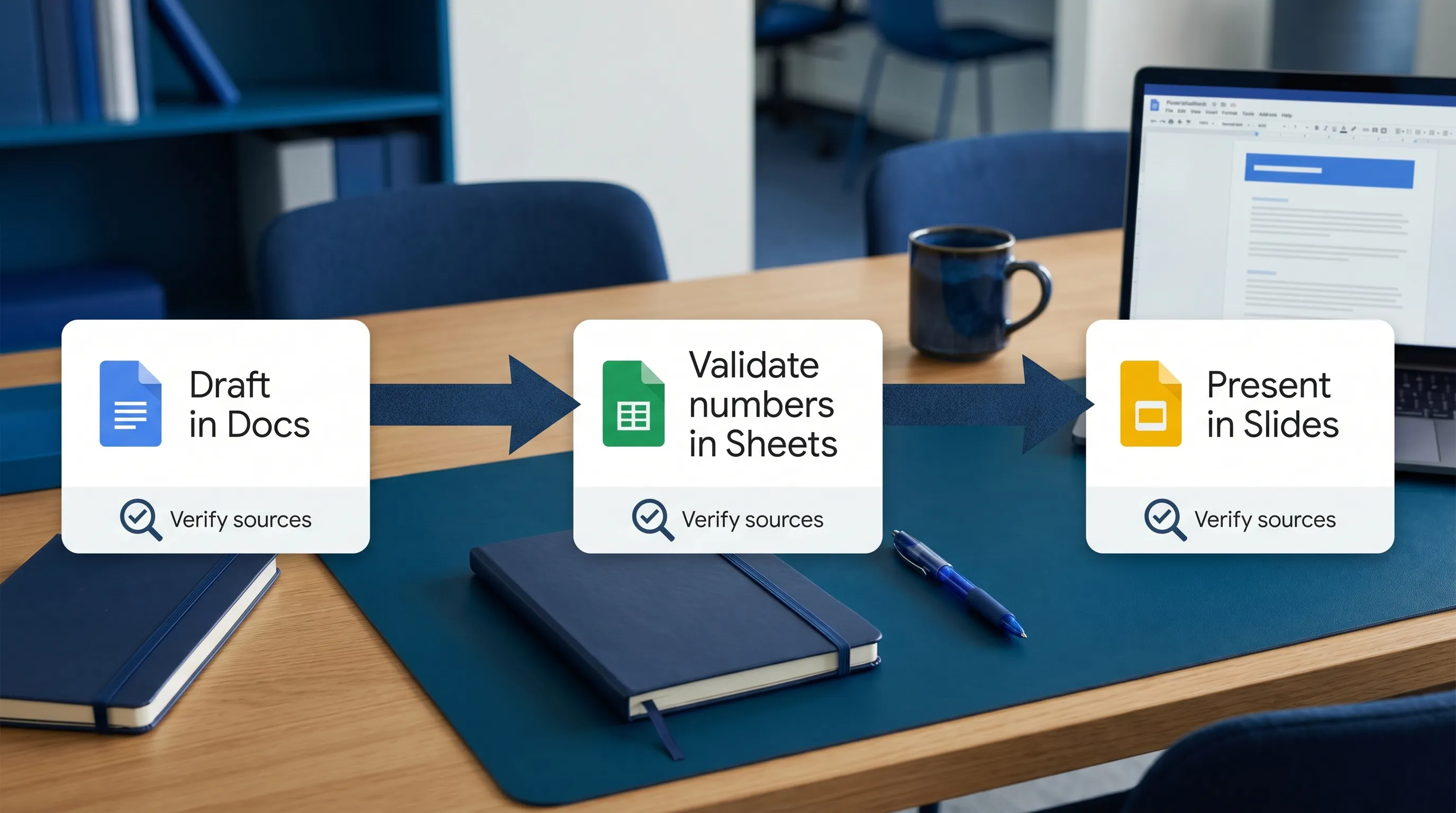
End-to-end workflow A: Weekly exec update (Sheet to Slides with a Doc narrative)
Outcome: a weekly update that is consistent across numbers, narrative, and slides.
| Step | Where | Input | Output | Verification check |
|---|---|---|---|---|
| 1 | Sheets | KPI table | KPI commentary bullets | No drivers invented (use Notes or mark unknown) |
| 2 | Docs | KPI bullets + key context | 1-page weekly narrative | “Missing info to confirm” list is not empty |
| 3 | Slides | Doc narrative | 6 to 8 slide outline + speaker notes | Slide claims match Doc, numbers match Sheet |
This workflow works because Sheets stays the source of truth, Docs becomes the review artifact, and Slides becomes the communication layer.
End-to-end workflow B: Form responses to a polished readout
Outcome: convert noisy inputs into a clean summary and a stakeholder-ready deck.
- Google Forms: collect inputs with consistent fields.
- Google Sheets: validate and categorize responses.
- Google Docs: produce findings and recommendations.
- Google Slides: present the results with a clear “ask.”
If you want this to stay accurate, add one rule: the assistant must always reference the sheet range used for summaries.
Governance and privacy guardrails (simple, practical, and worth it)
If you are using Google GPT workflows in real business docs, you need lightweight guardrails.
- Redact or minimize sensitive data when possible. Use placeholders for secrets, credentials, or regulated identifiers.
- Force uncertainty: instruct the assistant to say “Unknown from provided data” instead of guessing.
- Keep a human in the loop for commitments: dates, pricing, legal language, and customer promises.
- Make sources obvious: ranges in Sheets, headings in Docs, slide numbers in Slides.
Google Workspace also gives you strong built-in collaboration controls (comments, suggestion mode, version history). If you need a refresher on how to recover prior drafts, Google’s help center documentation on version history in Docs is a useful reference.
How CoreGPT Apps fits these workflows
If your goal is to run these workflows without bouncing between tabs and chat windows, CoreGPT Apps is designed for that.
CoreGPT brings GPT-powered assistance directly into Google Workspace apps, including:
- GPT for Google Docs
- GPT for Google Sheets
- GPT for Google Slides
- GPT for Google Forms
It also supports multiple model families (ChatGPT, Gemini, Claude), includes AI-powered workflows, and is built with a privacy-focused design. CoreGPT also notes that no registration is required, which can simplify trying it in a team.
If you want more app-specific playbooks, these CoreGPT guides pair well with the workflows above:
- Google Workspace AI: real-world workflows for busy teams
- Google Docs summarize workflows for notes and reports
Frequently Asked Questions
What is “Google GPT”? It’s a shorthand for using GPT-class models (and similar assistants) with Google Workspace, ideally in workflows that produce repeatable outputs in Docs, Sheets, and Slides.
How do I prevent AI from making up numbers in Google Sheets? Constrain the assistant to a specific range, require it to label missing info as unknown, and keep Sheets as the source of truth for metrics.
What is the best way to go from a Doc to a slide deck using AI? Start with a slide outline (titles plus 3 bullets), add speaker notes second, and run a consistency check at the end to catch mismatched claims.
Are these workflows useful if my team already uses templates? Yes. AI workflows work best when paired with templates because the format constraints reduce variability and speed review.
Can I run the same workflow across different AI models? Usually yes, if your prompts specify inputs, constraints, and verification rules. The same workflow can be reused with different models as long as the rules are explicit.
Try in-app Google GPT workflows with CoreGPT Apps
If you want these workflows to run where your work already lives (Docs, Sheets, Slides, and Forms), explore CoreGPT Apps at coregptapps.com. You can turn the prompt templates in this guide into repeatable, in-context workflows for drafting, analysis, and presentation building, without the constant copy-paste loop.