
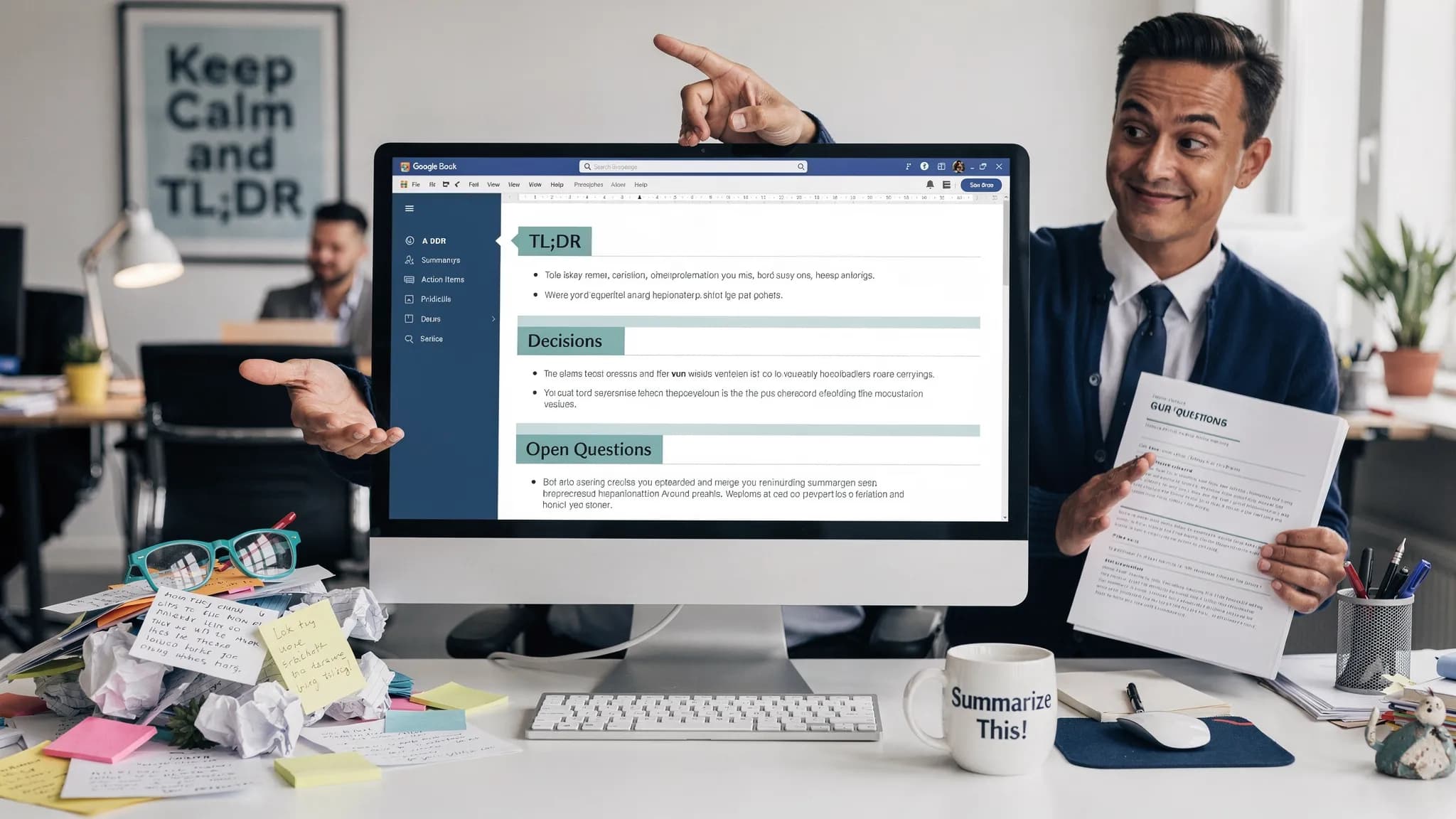
If you have ever tried to turn messy meeting notes or a long draft into a crisp report, you already know the bottleneck is not writing, it is synthesis. “Summarize” sounds simple, but in practice you need the right output shape (decisions, risks, owners, citations) and a workflow that stays accurate.
This guide gives you repeatable Google Docs summarize workflows for two common deliverables:
- Notes that become action-ready updates
- Long documents that become decision-ready reports
You will also find prompt templates you can reuse, plus quality checks that keep summaries trustworthy.
What “summarize” should produce in Google Docs (not just shorter text)
A useful summary is not a shorter version of the document, it is a decision artifact. Before you summarize, decide which of these outcomes you need:
- Brief: 5 to 10 bullets for someone who will not read the full doc
- Action memo: decisions, action items, owners, deadlines
- Executive summary: context, options, recommendation, risks
- Report-ready narrative: a coherent story with headings that can be pasted into a report
That choice drives the prompt and the format.
A simple rule: pick the reader and the time budget
A good starting constraint is: “Write for a reader who has 60 seconds / 3 minutes / 10 minutes.” It forces prioritization and prevents the common failure mode where AI restates everything.
The 4-step Google Docs summarize workflow (works for notes and reports)
Use this workflow regardless of whether you are summarizing raw notes, an interview transcript, or a 20-page draft.
Step 1: Prepare the input so the summary has structure
Most “bad summaries” are caused by bad input structure. Spend two minutes doing one of the following:
- Add quick headings like Background, Discussion, Decisions, Next steps
- Insert a short “What this doc is” line at the top
- If the doc is long, add section headers and ensure each section is about one topic
This makes it far easier for an AI assistant to stay aligned.
Step 2: Constrain the output (format first, then content)
Instead of asking “summarize this,” specify the schema. Here are reliable schemas:
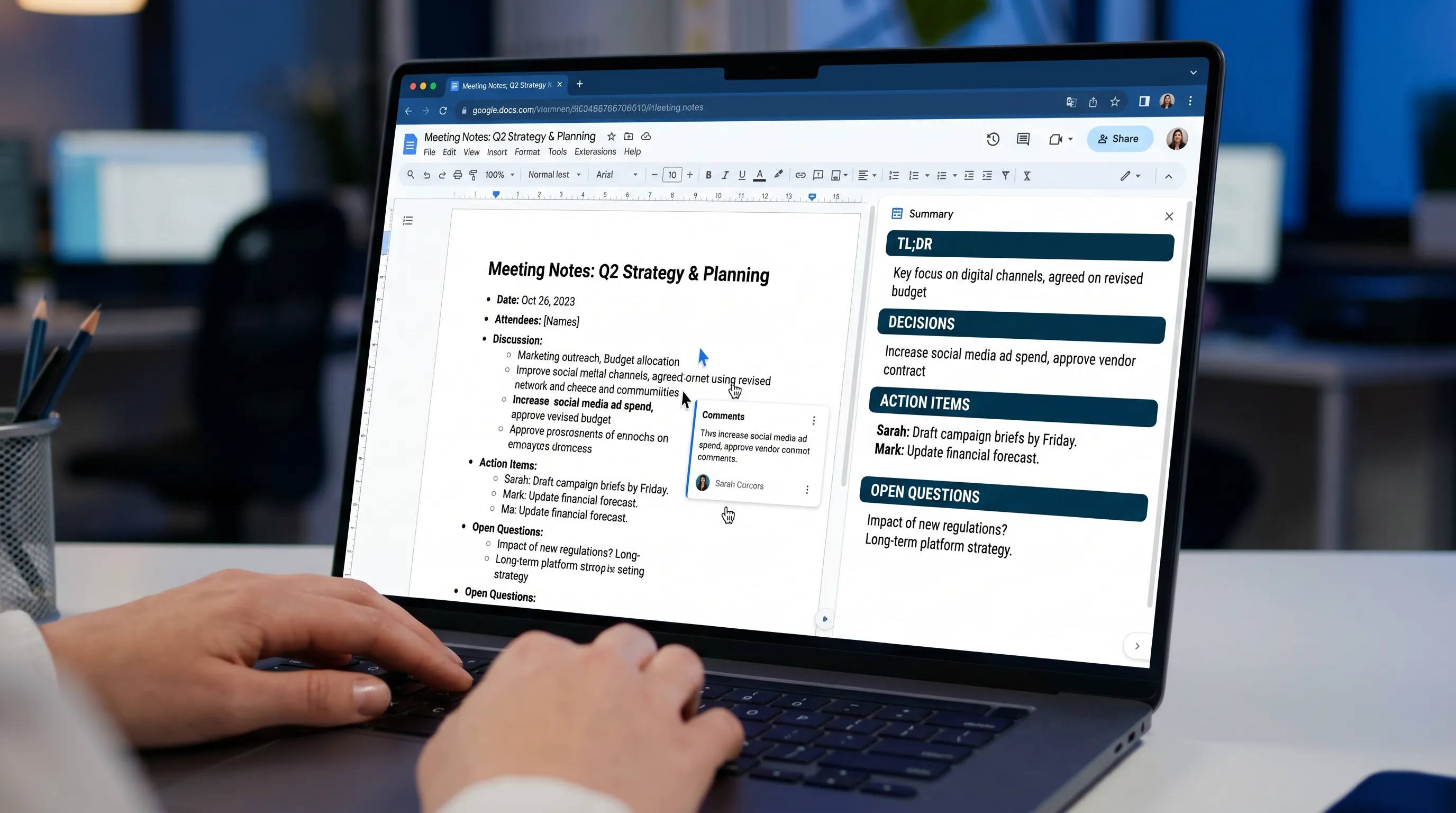
- TL;DR (2 sentences)
- Key points (max 7 bullets)
- Decisions (if any)
- Open questions
- Action items (owner, due date, dependency)
The more your summary will be used operationally, the more you should prefer structured sections.
Step 3: Generate in-doc, then refine with one follow-up
Summarization is usually a two-pass job:
- Pass 1: Create the structured summary
- Pass 2: Tighten, remove repeats, and align tone (executive, neutral, client-facing)
If you use an in-document assistant (for example, CoreGPT Apps brings ChatGPT, Gemini, and Claude directly into Google Docs), you can iterate without copy-pasting content into separate tools. If you want the broader cross-app pattern, see this related guide on Google Workspace AI workflows.
Step 4: Verify and “anchor” the summary to the source
For summaries that will be shared externally or used for decisions, add a verification step:
- Ask the assistant to quote the exact line(s) that support each key point (or reference the section header)
- Spot-check any numbers, dates, and commitments
- Confirm what is missing: “List important details not included in this summary”
This final step is the difference between “sounds right” and “is right.”
Prompt templates you can paste into Google Docs
Use these as starting points, then customize for your audience.
Template A: Notes to action memo
Paste this after your notes:
Prompt: Create an action memo from these notes. Use these sections: TL;DR (2 sentences), Decisions, Action items (Owner, Due date, Next step), Risks, Open questions. Do not invent details. If something is unclear, write “Unknown” and list a clarifying question.
Template B: Long doc to executive summary
Prompt: Summarize this document for an executive who has 3 minutes. Output: Context (2 to 3 bullets), What changed (if any), Options considered, Recommendation, Risks and mitigations. Keep it specific, and include numbers only if stated in the document.
Template C: Report-ready narrative outline
Prompt: Convert this content into a report-ready outline with H2 headings and short paragraphs. Preserve the original meaning. Where evidence is mentioned, add a placeholder like (Source: Section X) so I can verify quickly.
Workflow 1: Meeting notes to a shareable weekly update
This workflow is for recurring meetings, project syncs, standups, and stakeholder check-ins.
How it works
First, standardize the notes while the meeting is fresh. At the top of the doc, add:
- Meeting name, date, attendees
- Goal of the meeting in one line
Then run a structured summary.
The summary format that teams actually reuse
A weekly update is usually read quickly and forwarded. This format performs well:
| Section | What to include | Why it helps |
|---|---|---|
| TL;DR | 2 sentences max | Makes forwarding easy |
| Progress | 3 to 6 bullets | Shows momentum without fluff |
| Blockers | 1 to 3 bullets | Prompts fast decisions |
| Decisions needed | Clear asks | Avoids “FYI only” updates |
| Next 7 days | Concrete plan | Enables coordination |
Quality check for meeting summaries
Before you post it in a chat or email:
- Confirm owners are real people (not roles like “Engineering”)
- Confirm dates match the calendar or timeline
- Remove any sensitive details that should stay internal
Workflow 2: Research notes to a clean report section
This is the “I have a pile of links, bullets, and quotes” workflow.
Step A: Build a source-aware notes page
In Google Docs, create a mini structure before summarizing:
- One subsection per source (link, title, 3 bullets)
- Put direct quotes in quotation marks
- Put your own commentary under “My take”
This prevents the summary from blending sources or smoothing over uncertainty.
Step B: Summarize into a report section with citations placeholders
Use a prompt like:
“Write a report section with headings: Findings, Implications, Recommendations. For each finding, include (Source: [name]) based on the notes. Do not add new claims.”
Step C: Final pass for voice and originality
If you are publishing the summary (for example, a blog, proposal, or client report), you may want it to read naturally while staying accurate. If you are concerned about whether AI-assisted text will be flagged by detectors, review guidance and tools on AI text detection resources and make sure your final version reflects your real analysis, not just paraphrased source text.
Practical best practice: keep the facts, rewrite the connective tissue in your own words, and add your point of view.
Workflow 3: Summarize a long draft into an executive one-pager
When your document is already long, “summarize everything” often produces mush. Instead, summarize by decision pressure.
The method: extract what a decision-maker needs
Ask for:
- What is changing
- Why now
- What happens if we do nothing
- What you recommend
- What could go wrong
Then enforce length.
A high-signal one-pager structure
| One-pager block | Target length | Notes |
|---|---|---|
| Situation | 2 to 3 bullets | What we are dealing with |
| Proposal | 2 to 4 bullets | What we will do |
| Impact | 3 bullets | Metrics, timeline, scope (only if in doc) |
| Risks | 3 bullets | Include mitigations |
| Decision | 1 line | The explicit ask |
Verification prompt (use after the draft summary)
“List any statements in this summary that are not explicitly supported by the document. For each one, explain what would need to be confirmed.”
This is a fast way to reduce accidental hallucinations.
Workflow 4: Summarize multiple notes into a single report (monthly, QBR, incident)
Google Docs often becomes the hub that collects multiple meeting notes, status updates, and inputs from different owners. The trick is to summarize in layers.
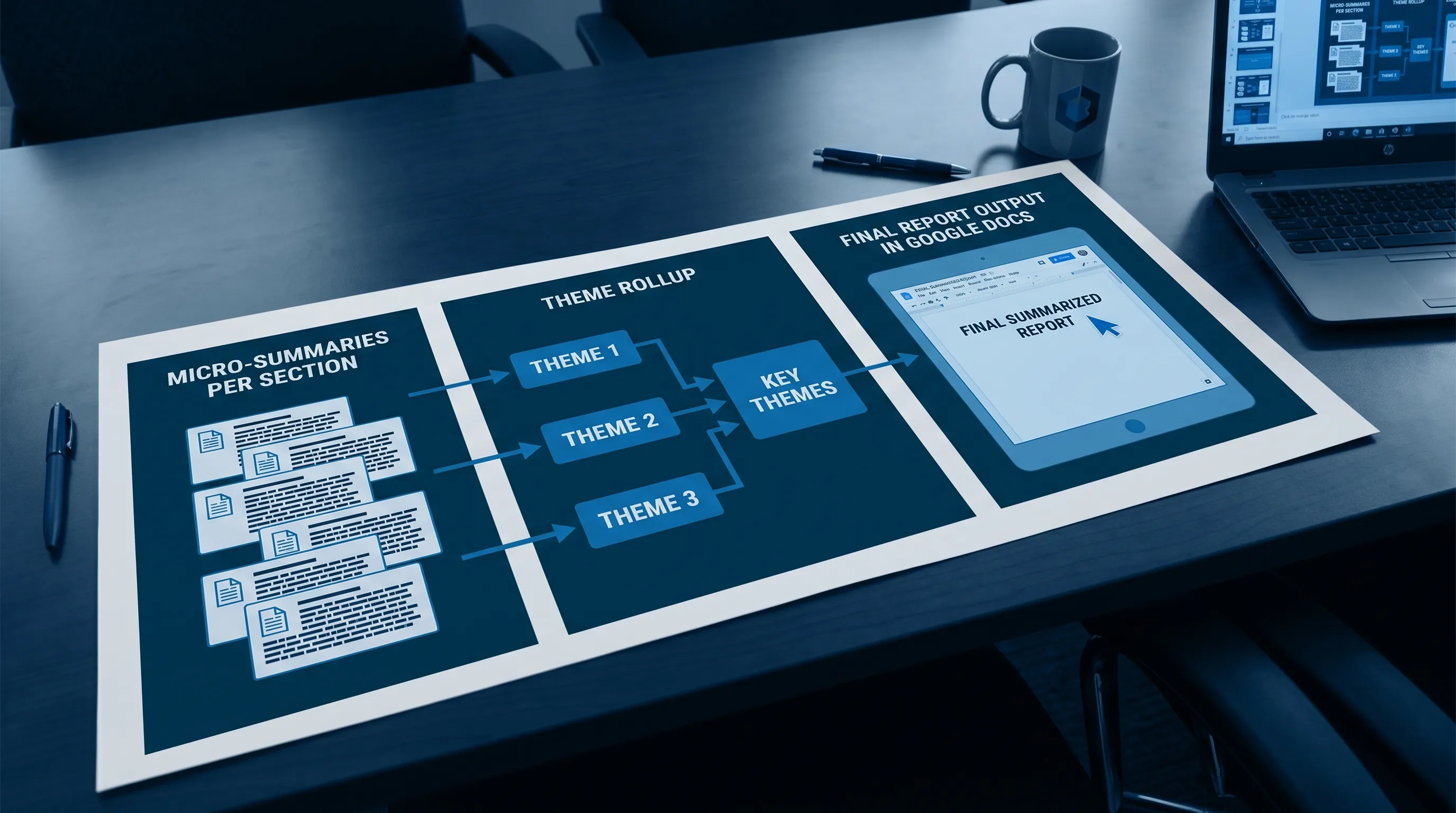
Layer 1: Per-section micro-summaries
For each section (or pasted note), create a 3-bullet micro-summary:
- Outcome
- Evidence
- Next step
Layer 2: Roll up into themes
Then ask the assistant:
“Group the micro-summaries into 4 to 6 themes. For each theme, summarize what happened, what it means, and what decisions are needed.”
Layer 3: Produce the final report format
Finally, generate the report-specific format (QBR, incident, stakeholder update).
Accuracy, privacy, and collaboration guardrails (especially for shared Docs)
Summaries become dangerous when they become authoritative without being verified. Use these guardrails in shared environments.
Accuracy guardrails
- Tell the assistant: “Do not invent details, use Unknown when missing.”
- Require evidence: quotes, section references, or “where in the doc this comes from.”
- Treat numbers as high-risk: spot-check every metric, date, and commitment.
Privacy guardrails
- Remove or generalize sensitive identifiers before summarizing (names, customer details, financial account data)
- If you need to share externally, create a redacted copy of the doc first
Collaboration guardrails
- Put the summary at the top under a clear heading like “Summary (draft)”
- Ask reviewers to comment directly on summary bullets, not only in the body
- Keep a short “Changes since last version” section so stakeholders can scan
Using CoreGPT Apps to summarize inside Google Docs (without copy-paste)
If your current process is “copy doc into a chat, get a summary, paste it back,” you lose context and collaboration history, and you increase the chance of pasting sensitive content into the wrong place.
CoreGPT Apps is designed to keep the workflow inside your productivity tools. It brings GPT-powered assistance into Google Docs (and other apps across Google Workspace and Microsoft 365) so you can summarize, rewrite, and draft where the work already lives.
If you want an overview of the in-app approach across Docs, Sheets, Slides, Word, Excel, and Outlook, start here: Free AI Copilot for Outlook, Word, Excel, and Google Docs.
Frequently Asked Questions
How do I summarize in Google Docs without losing key decisions and action items? Use a structured schema (Decisions, Action items with owner and due date, Open questions) and follow with a verification prompt that flags unsupported statements.
What is the best prompt for summarizing meeting notes in Google Docs? Ask for an action memo format with strict constraints: TL;DR, Decisions, Action items (Owner, Due date, Next step), Risks, and Open questions, and add “Do not invent details.”
How can I keep Google Docs summaries accurate when the doc is long? Summarize in layers: section micro-summaries first, then theme rollups, then the final executive summary. Always spot-check numbers and dates.
Can I summarize Google Docs content while keeping data private? Yes, but use guardrails: redact sensitive details, summarize within controlled tools and accounts, and avoid pasting confidential content into unmanaged third-party chats.
Try a faster summarize workflow inside Google Docs
If you want to turn notes into reports without bouncing between tabs, try summarizing directly inside your document. CoreGPT Apps brings GPT-powered AI into Google Docs (and Microsoft 365 apps) so you can generate structured summaries, refine tone, and collaborate in place.
Explore CoreGPT Apps at coregptapps.com.