
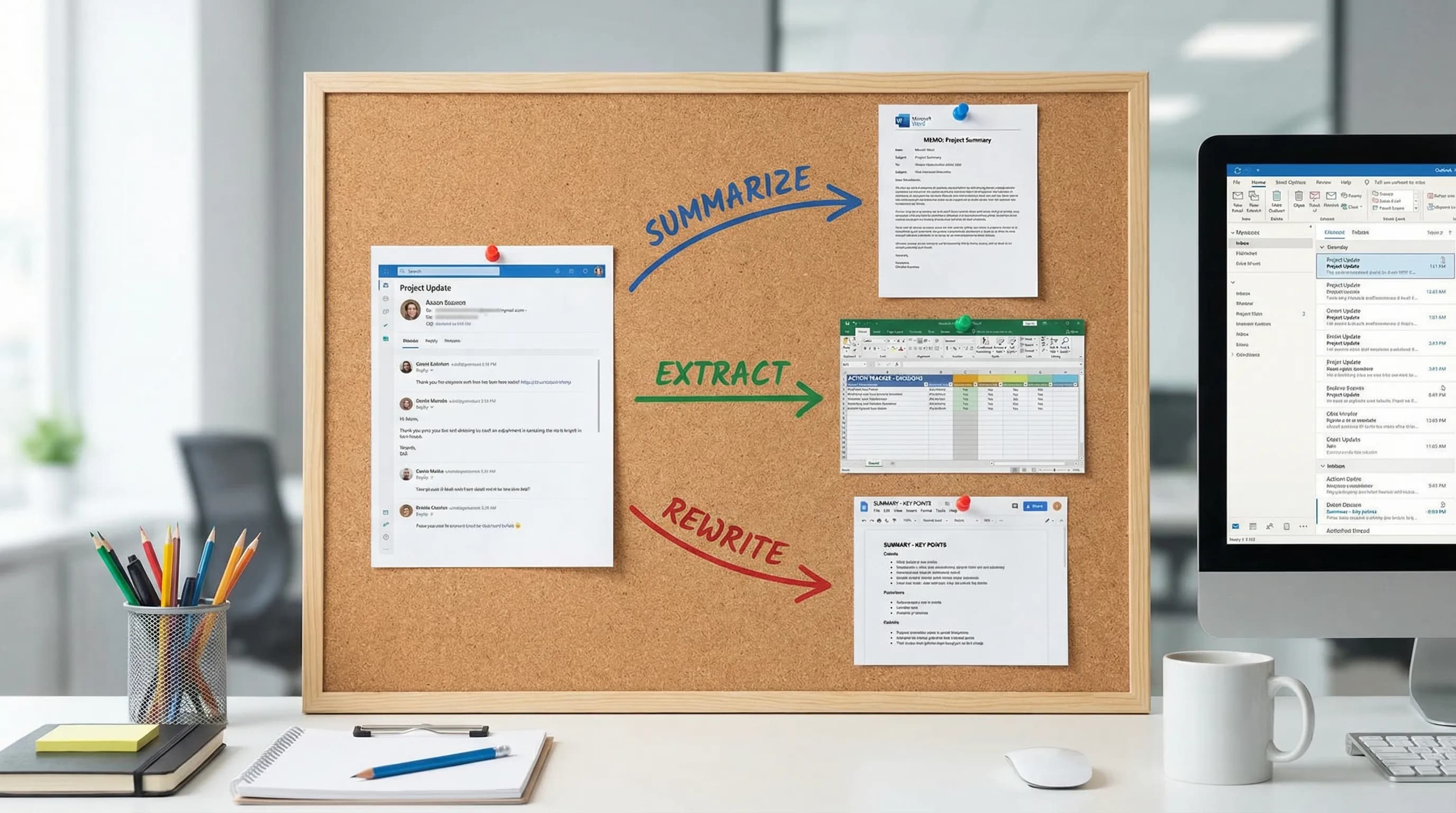
Yes, ChatGPT can summarize Outlook emails — but the default method (copy the thread, paste it into ChatGPT, read the summary, switch back to Outlook) is slow. If you are doing this constantly throughout the day, it adds up. This guide covers all the practical ways to use AI to summarize Outlook emails in 2026, from quick copy-paste prompts to methods that work directly inside Outlook without switching apps.
Method 1: copy-paste into ChatGPT (fastest to start, slow at scale)
This works with any version of Outlook and any ChatGPT plan.
Steps:
- Open the email thread you want to summarize.
- Select all the text (Ctrl+A inside the email, or manually select the thread).
- Copy it (Ctrl+C).
- Open chatgpt.com in your browser.
- Paste the text and add your prompt.
Prompts that work well:
For a long email thread:
Summarize this email thread in 3–5 bullet points. Focus on decisions made, action items, and open questions. Here is the thread: [paste]
For a single long email:
Give me a 2-sentence summary of this email and tell me if there is anything I need to reply to or do. Here is the email: [paste]
For extracting action items only:
Read this email thread and list only the action items — who needs to do what, and by when if mentioned. Here is the thread: [paste]
The limitation: this requires switching to a browser, pasting, reading the response, and switching back. On a high-email day, that context switching compounds significantly.
Method 2: use Outlook on the web with Microsoft Copilot (if you have a Copilot license)
If your Microsoft 365 plan includes Copilot (part of Microsoft 365 Copilot, the paid upgrade), you get AI summarization built directly into Outlook on the web and new Outlook.
When Copilot is available, you will see a Copilot button or "Summarize" option at the top of long email threads. Click it and Copilot produces a summary without you leaving Outlook.
The limitation: Microsoft 365 Copilot is a paid add-on ($30/user/month as of 2026) on top of your existing Microsoft 365 subscription. Many individual users and small teams do not have access to it.
If you have it, use it — it is the most integrated option. If you do not, the methods below are practical free alternatives.
Method 3: use AI inside Outlook directly — no copy-paste, no license upgrade
CoreGPT for Outlook adds a GPT-powered AI panel directly inside classic Outlook and new Outlook as an Office add-in. You do not need a Copilot license, and you do not leave Outlook.
What it can do inside Outlook:
- Summarize the selected email or thread in one click
- Generate a draft reply based on the thread context
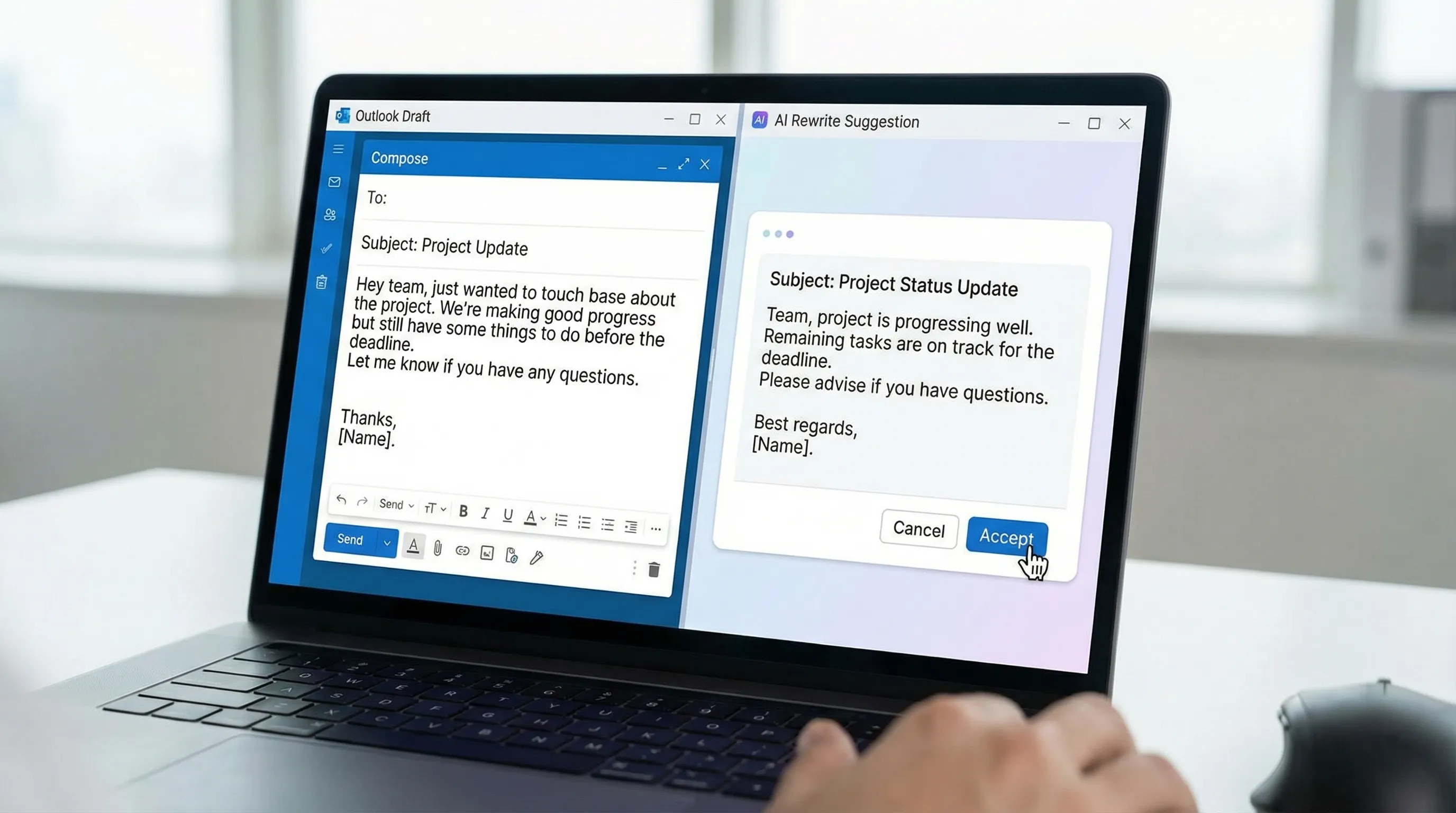
- Rewrite your draft in a different tone (formal, concise, friendly)
- Suggest follow-up questions or highlight missing information
- Summarize multiple emails in batch during inbox triage
How to install:
- In Outlook, go to Home → Get Add-ins (or Store in some versions).
- Search for CoreGPT.
- Click Add — it installs in seconds.
- The CoreGPT panel appears in your Outlook ribbon. Open an email and click it to start.
It is free to use and requires no registration. Try it here: CoreGPT for Outlook
Method 4: use prompts to handle the most common Outlook email types
If you are using copy-paste (Method 1), these prompts cover the emails that take the longest to read and process:
Summarize a long back-and-forth thread
This is a long email thread between several people. Summarize it in this format: - What this is about: one sentence - Key decisions or agreements: bullet list - Open issues or disagreements: bullet list - What I need to do: bullet list Here is the thread: [paste]
Turn a meeting recap email into a short brief
This is a meeting recap email. Extract: the meeting purpose, key decisions, and any action items with owners. Present it in under 150 words. Here is the email: [paste]
Understand a complex email you need to reply to
Read this email and tell me: what is being asked of me, what do I need to decide, and what information might I need before replying? Here is the email: [paste]
Summarize multiple separate emails on the same topic
If you have several separate emails from different senders about the same project:
I have pasted multiple emails below about [topic]. Summarize the overall situation, note any conflicting information, and list any open questions or action items. Emails: [paste all of them]
Which method should you use?
| Your situation | Best method |
|---|---|
| Just need to try it, occasional use | Copy-paste into ChatGPT with a prompt |
| You have Microsoft 365 Copilot | Built-in Copilot in Outlook (most seamless) |
| High email volume, daily summarization need | CoreGPT add-in (no copy-paste, works inside Outlook) |
| You want to summarize for someone else (for a report or document) | Copy-paste into ChatGPT, then refine the output in Word |
Can ChatGPT access my Outlook emails automatically?
Not directly, without a connector or add-in. ChatGPT itself does not connect to your Outlook mailbox — it can only work with text you paste into it. There is no official ChatGPT plugin that syncs with your Outlook inbox as of 2026.
What can connect to Outlook automatically:
- Microsoft Copilot (requires Copilot license) — this reads your mailbox natively
- Office add-ins like CoreGPT — work inside Outlook while you browse emails; you select the email to act on
- Power Automate flows — can pull email content and send it to an AI API, but requires setup
For most users, an Office add-in is the most practical balance of convenience and privacy — the AI only sees what you actively select, not your entire inbox.
Privacy: what happens to your email content?
If you paste email content into ChatGPT.com:
- OpenAI's standard privacy policy applies — conversations may be used for training unless you opt out in settings (Settings → Data Controls → Improve the model for everyone → toggle off).
- For sensitive business email, check your organization's AI/data policy before pasting into external tools.
If you use an Office add-in like CoreGPT:
- The add-in sends only the content you actively select to the AI API.
- CoreGPT is designed to be privacy-focused — it does not store your email content.
- Your IT department can deploy and manage approved add-ins through Microsoft Admin Center.
Frequently Asked Questions
Can ChatGPT read my Outlook inbox automatically? No, not without a third-party connector or add-in. ChatGPT.com only works with text you paste into it. To get AI summarization without copy-pasting, use an Office add-in (like CoreGPT) or Microsoft Copilot if you have that license.
Is Microsoft Copilot the same as ChatGPT? No. Microsoft Copilot in Microsoft 365 is powered by OpenAI models but is a separate product integrated into Microsoft's apps. It requires a Microsoft 365 Copilot license. ChatGPT is OpenAI's standalone product.
Can I use AI to summarize Outlook emails for free? Yes. Copy-pasting into ChatGPT (free plan) works. Office add-ins like CoreGPT are also free. Microsoft 365 Copilot is the only option that costs extra.
Will AI summarization miss important details? It can, especially in very long threads with nuance or jargon. Always review the summary before acting on it — use it to speed up reading, not to replace it entirely.
Can I summarize a whole week of emails at once? In terms of volume, yes — but very long pastes can exceed ChatGPT's context window on the free plan. For large volumes, summarize thread by thread, or use an add-in that handles context management for you.
Is it safe to paste work emails into ChatGPT? That depends on your organization's policy. Many organizations restrict pasting confidential content into external AI tools. Check with your IT or legal team. For sensitive material, an on-premise or admin-managed AI tool is safer.
Get AI email summarization without leaving Outlook
The fastest way to summarize Outlook emails is to not leave Outlook at all. CoreGPT adds a GPT-powered panel directly inside Outlook — select an email, click Summarize, and get a structured summary without switching apps or copying anything. It also drafts replies, rewrites tone, and extracts action items. Free, no registration required.
Install it from the Outlook add-in store: CoreGPT for Outlook
Related reading: