
An inbox gets messy for the same reason desks do: it becomes the default place to put anything you have not decided what to do with yet.
So when people ask about my Outlook setup, what they are really asking is: “How do you make Outlook require fewer decisions, surface what matters, and get out of the way?”
This setup is built for speed and clarity. It uses:
- A message list layout that makes scanning effortless
- A small set of “status” categories (not a hundred project folders)
- Just enough automation to remove noise without hiding important mail
- A daily rhythm that keeps the inbox clean without living in Outlook
The goal: fewer clicks, fewer choices, fewer missed threads
A fast inbox is not about being perfect at organization. It is about making the next action obvious.
Here are the principles behind the setup:
- Inbox = decision queue, not storage. If something is “done” it should leave the inbox.
- Organize by status first. “Needs reply” is more actionable than “Project X.”
- Automation should reduce noise, not bury work. If rules can hide something important, they will.
- Your calendar protects focus. Email expands to fill the time you give it.
Step 1: Build a one-screen triage view
Your inbox view should answer three questions at a glance:
- Who is this from?
- What is it about?
- Is it part of an ongoing thread?
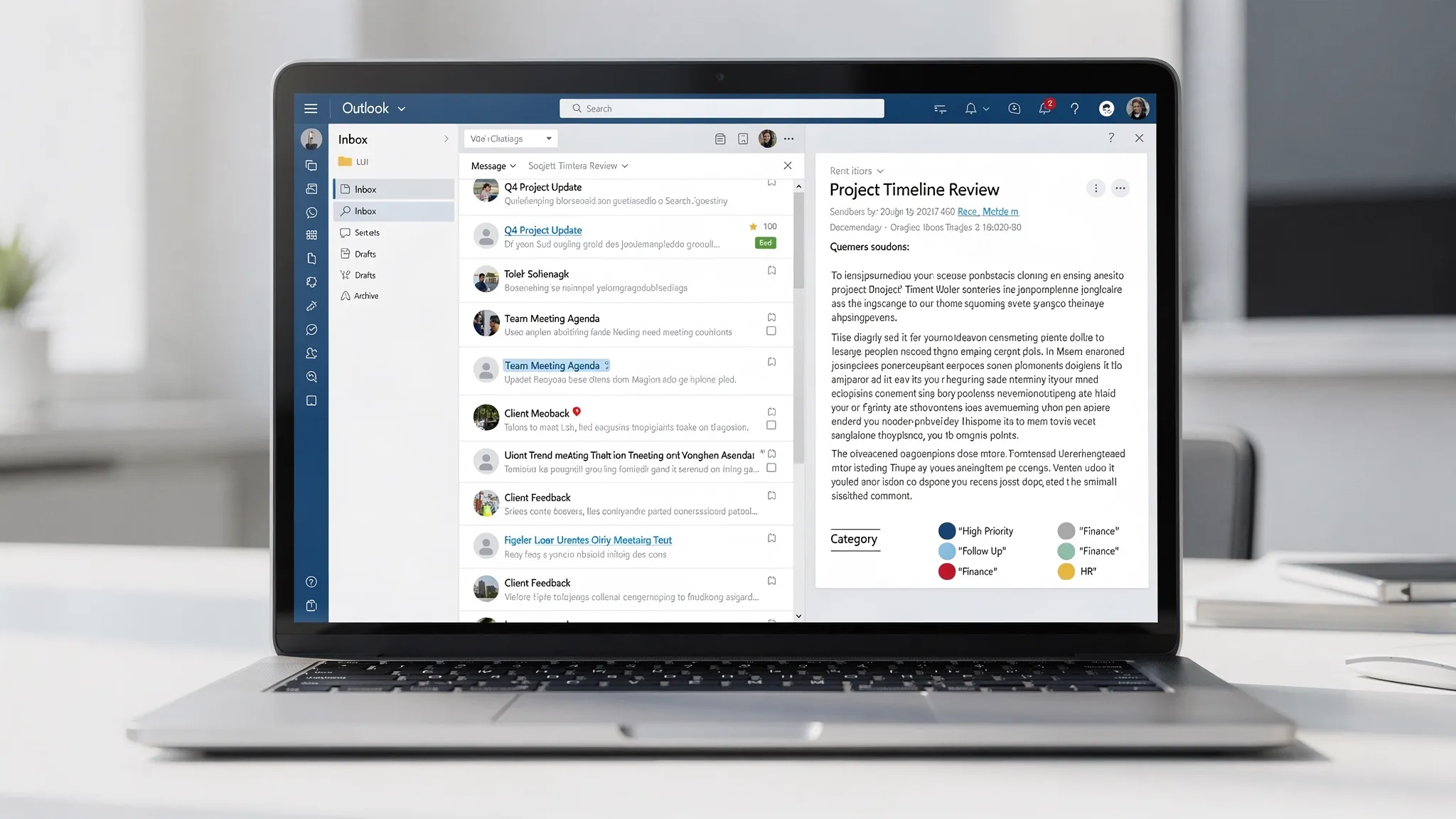
A reliable layout (in both classic and new Outlook) is:
- Conversation view: On (keeps threads together)
- Reading pane: Right (gives more vertical scanning space)
- Message preview: 1 line (enough context, not clutter)
- Sort: Date descending (with conversations grouped)
If you work from a laptop screen, right-side reading pane usually beats bottom pane because it preserves the “email list” column for fast scanning.
Make scanning easier with two small tweaks
- Increase message list density (compact view). More items on screen means fewer scroll breaks.
- Turn off unnecessary columns. If you do not use “Size” or “Flag status” as a scanning cue, remove it.
The goal is to make the inbox feel like a queue, not a dashboard.
Step 2: Use categories as “status labels” (my core system)
Most people use categories as project tags. That can work, but it tends to explode into dozens of labels.
Instead, set up 4 to 6 categories that represent status. This keeps your system stable even as projects change.
Here is a practical set that covers most knowledge work:
| Category name | What it means | What you do next | When it disappears |
|---|---|---|---|
| Reply | Someone is waiting on me | Reply now or schedule a reply block | After you send |
| Waiting | I am waiting on someone else | Add a note in the thread if needed | When they respond |
| Review | Needs thinking or reading | Put it in a review block | After decision/action |
| Delegate | Assigned to someone else | Forward + set expectation | After confirmation |
| FYI | Useful but not actionable | Archive (do not keep in inbox) | Immediately |
How this changes your behavior
Instead of “Should I file this into a folder?” the decision becomes:
- Do I need to reply? Mark Reply.
- Am I waiting? Mark Waiting.
- Do I need focus time? Mark Review.
- Is this just information? Mark FYI and archive.
That is the whole win: fewer micro-decisions.
Step 3: Keep folders boring (and minimal)
Folders are great for long-term reference, but they are a trap for daily workflow. If you rely on folders for action, you end up re-reading the same messages in multiple places.
A minimal, durable folder setup looks like this:
| Folder | Purpose | What belongs there |
|---|---|---|
| Archive (or just archive everything) | Default “done” destination | Anything completed or FYI |
| Admin / Receipts | Things you might need later | Invoices, confirmations, receipts |
| People | HR and personal admin | Benefits, policies, performance docs |
| Customers / Candidates | External relationship history | Sales threads, support escalations, recruiting |
If you work in a high-email role (sales, recruiting, client services), the difference is not “more folders.” It is stronger status labeling plus a small number of reference folders.
For recruiting specifically, you can borrow process ideas from teams that do it at scale, for example an international recruitment agency that runs structured search and selection. Their email volume demands clear stages, clean handoffs, and consistent follow-ups, which maps nicely to status categories like Reply, Waiting, and Review.
Step 4: Add three Quick Steps that eliminate repetitive work
Quick Steps are most effective when you keep them few and muscle-memory friendly.
A simple trio:
- Reply + Archive: send the reply, then immediately remove the thread from the inbox
- Waiting + Archive: categorize as Waiting (you have done your part), then archive
- To Review (tomorrow) + Archive: categorize Review, then archive
Why archive immediately? Because it forces you to use Search + Categories to retrieve items, instead of letting the inbox become a storage unit.
If you prefer not to archive until the task is complete, keep “Reply” items in inbox, but still use categories. The categories are the system, not the folder.
Step 5: Automate noise carefully (rules that do not hide risk)
Rules are useful, but only when they are predictable. The most common failure mode is a rule that quietly moves something important.
I treat rules as a noise filter, not a work sorter.
Good rule candidates:
- Vendor newsletters and product announcements (move out of inbox)
- System notifications you never act on (route to a Log folder)
- Mailing lists where you only occasionally participate (keep accessible, not in inbox)
Risky rule candidates:
- Anything involving customers, candidates, leadership, or invoices
- Anything where the sender or subject line might vary
A safe compromise is to categorize but not move. For example, label newsletters as FYI so they are visually distinct, but still visible if you need them.
Step 6: Make your inbox “one touch” with a triage decision tree
The fastest inbox workflows behave like a production line.
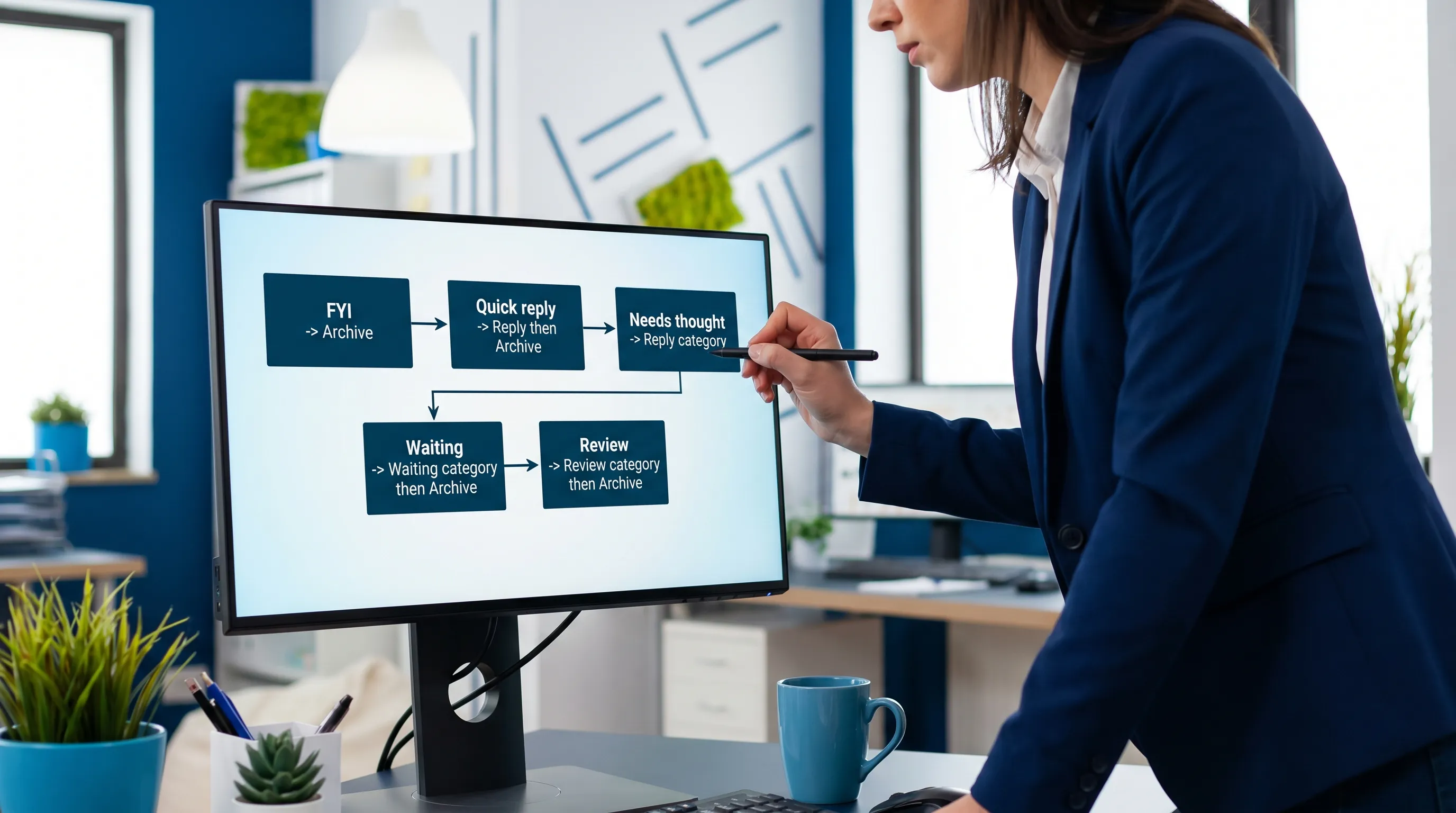
Here is the decision tree I follow when I open an email:
| If the email is… | Then… | Where it ends up |
|---|---|---|
| Purely informational | FYI, then archive | Archive |
| Requires a quick reply (under 2 minutes) | Reply now, then archive | Archive |
| Requires a thoughtful response | Mark Reply, schedule a reply block | Inbox or Archive (your preference) |
| Waiting on someone else | Mark Waiting, then archive | Archive |
| Not sure yet | Mark Review, then archive | Archive |
Notice what is missing: “Put it in a folder for later.”
That is intentional.
Step 7: Stop letting notifications run your day
Inbox speed is mostly attention management.
A practical notification stance:
- Desktop notifications: Off (or only for priority people)
- Sound: Off
- Badge count: Optional (useful if you process in batches)
If you must stay responsive, create “VIP visibility” without enabling everything:
- Add key people to a VIP category
- Use a rule that flags or categorizes their messages (without moving them)
This way you are not interrupted by noise, but important mail still pops visually.
Step 8: Protect two daily email blocks (and a shutdown sweep)
This is the part people skip, but it is what keeps the setup clean.
A light cadence that works for most roles:
- Morning triage (10 to 15 minutes): process the queue, label Reply/Waiting/Review, archive aggressively
- Midday reply block (20 to 30 minutes): write the thoughtful replies you flagged earlier
- End-of-day sweep (5 minutes): clear anything that can be cleared, and ensure no “Reply” items are forgotten
The win is that you are not constantly switching contexts.
Step 9: When AI is worth using (and how to do it safely)
AI helps most with the two slowest email tasks:
- Summarizing long threads so you can respond with confidence
- Drafting a first-pass reply that you then verify and edit
If you want AI directly inside Outlook (instead of copying threads into a separate tool), CoreGPT Apps is designed for that: it brings GPT-powered assistance into Microsoft 365 and Google Workspace, with a privacy-focused design and no registration required.
Two “safe by default” ways to use AI for email:
- Thread summary with action items: ask for decisions, open questions, and next steps, then cross-check against the original thread before sending anything
- Draft reply with constraints: specify tone, length, and what you are not agreeing to, then verify facts and dates
If you want a deeper workflow for summarizing and drafting in Outlook, you can also reference CoreGPT’s guide on writing, rewriting, and summarizing Outlook email faster.
A quick checklist to copy your setup in 15 minutes
- Conversation view on
- Reading pane on the right
- Preview lines set to 1
- 4 to 6 status categories created
- 3 Quick Steps created
- Rules limited to newsletters and non-critical noise
- Notifications reduced to near-zero
- Two daily email blocks added to your calendar
Frequently Asked Questions
What is the best Outlook setup for a cleaner inbox? A clean inbox usually comes from a tight triage view (conversation view + right reading pane), status categories (Reply, Waiting, Review), and aggressive archiving with light automation.
Should I use folders or categories in Outlook? Use categories for day-to-day workflow (status), and folders for long-term reference. Categories scale better because they do not multiply with every new project.
How do I make sure rules do not hide important emails? Prefer rules that categorize (visual label) instead of moving messages. If you move mail automatically, only do it for low-risk senders like newsletters.
How do I stop Outlook from distracting me all day? Turn off most notifications and process email in scheduled blocks. Add a VIP category or rule if you need visibility for a few key people.
Does this work in new Outlook and classic Outlook? Yes, the principles work in both: optimize the reading layout, use status categories, minimize folders for action, and keep rules conservative.
Try an in-app copilot for faster email without context switching
If your inbox is clean but replies still take too long, the next bottleneck is usually writing and summarizing.
CoreGPT Apps brings GPT-powered help directly into Outlook (and Word, Excel, PowerPoint, Teams, OneNote, plus Google Docs and Sheets), so you can summarize threads, extract action items, and draft replies without leaving the app. You can learn more or get started at CoreGPT Apps.