

If you’ve ever opened a Google Doc and wondered, “Who changed this sentence, when, and why?”, you’re already thinking like a pro. The good news is Google Docs has a complete change-tracking toolkit, but it’s spread across Suggesting mode, comments, and version history. Once you know which tool to use for which kind of edit, you can review faster, avoid messy rewrites, and keep a clean audit trail.
Track changes in Google Docs: use the right tool for the job
Google Docs doesn’t label everything as “Track Changes” the way Microsoft Word does, but you can achieve the same (and often better) outcomes with three features:
| Need | Best feature | What it’s best at |
|---|---|---|
| Line-by-line review with accept/reject | Suggesting mode | Editorial passes, approvals, controlled revisions |
| Discussion, decisions, and accountability | Comments | Clarifications, open questions, team feedback loops |
| Audit trail, rollback, and “what changed when” | Version history | Legal-ish traceability, recovery, milestone snapshots |
Pros build workflows that combine all three.
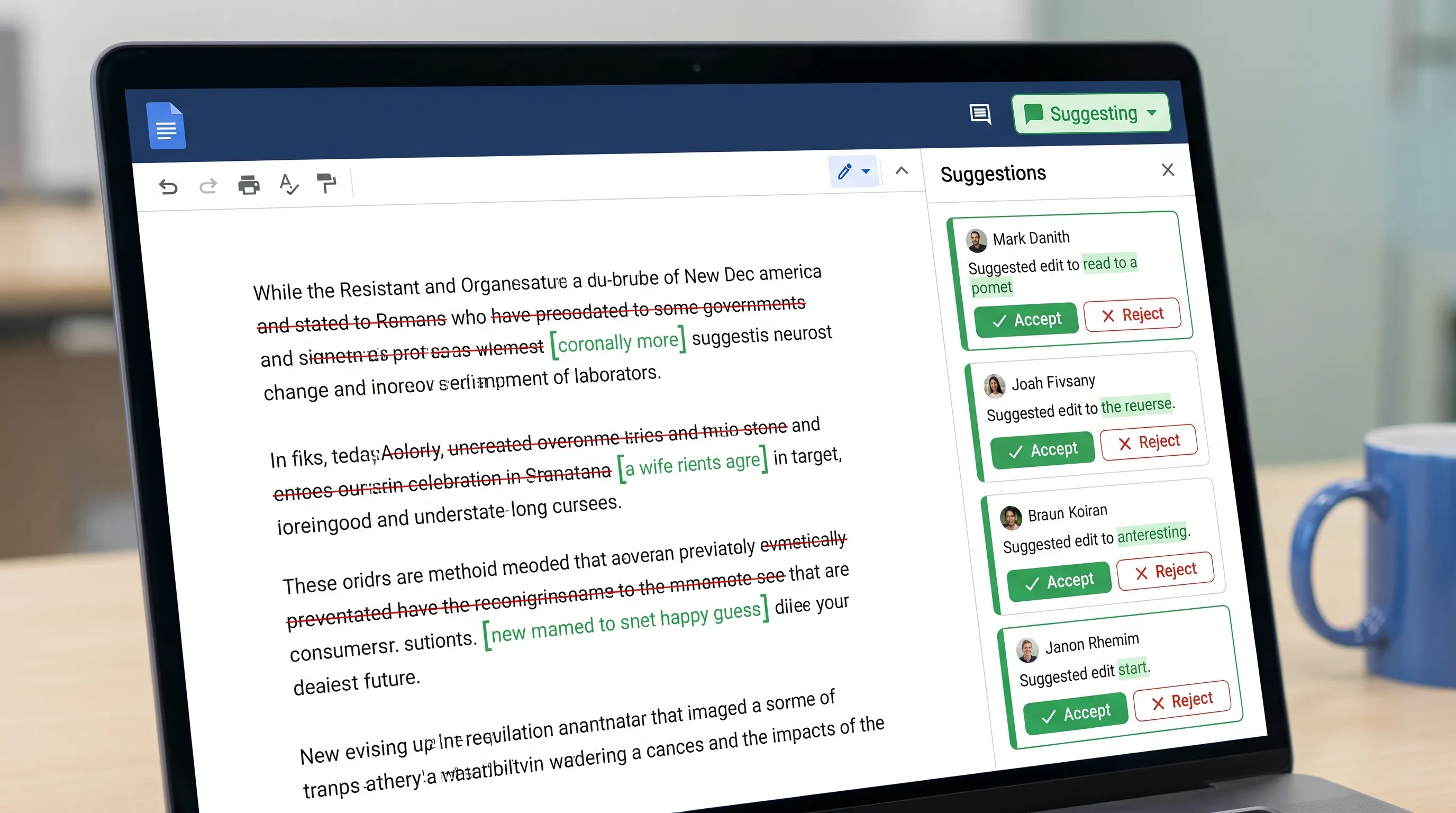
Step 1: Turn on Suggesting mode (the closest thing to “Track Changes”)
Suggesting mode is the core “track changes in Google Docs” feature. Instead of directly editing text, your edits appear as suggestions that someone can accept or reject.
How to enable Suggesting mode
In the top-right of the Doc, open the mode dropdown (usually says Editing) and choose Suggesting.
Google’s help page walks through the basics here: Use suggestions in Google Docs.
What Suggesting mode captures (and what it doesn’t)
Suggesting mode is excellent for:
- Rewrites, insertions, deletions
- Controlled editing during reviews
- Seeing who proposed each change
It’s less ideal for:
- Big restructure discussions (comments are better)
- Tracking non-text changes outside Docs (links to external assets, decisions in meetings)
Step 2: Review suggestions efficiently (accept, reject, or resolve strategically)
When you’re reviewing, speed comes from consistency.
Where to review suggestions
You can review suggestions:
- Inline (click a highlighted suggestion)
- In the right sidebar suggestion cards
Pro review habits
A simple professional pattern is to separate “approval” from “discussion”:
- Accept or reject suggestions that are straightforward.
- Convert uncertainty into a comment (ask a question, request a source, or propose two options).
This prevents the common failure mode where suggestions pile up because reviewers are using edits to ask questions.
Keyboard shortcuts that matter
Shortcuts vary a bit by OS, but the highest leverage tip is: learn the shortcut for inserting a comment and for opening version history. If your team does reviews daily, those seconds add up quickly.
Step 3: Use comments like a project system, not a chat thread
Comments are where professional teams capture intent: what the change is supposed to accomplish, what constraints apply, and what must be verified.
Commenting best practices (so they do not spiral)
Keep comment threads actionable:
- Ask for a specific decision (“Approve option A or B by Thursday?”)
- Request evidence (“Can you link the source for this claim?”)
- Record constraints (“Keep this under 120 words for the executive summary.”)
If you’re collaborating with external partners, comments are also how you document requirements. For example, if you’re drafting a spec sheet or tech pack with an apparel vendor, keeping decisions in-document reduces confusion later. If you need an end-to-end manufacturing partner to sanity-check product details, you might work with an apparel development and manufacturing partner and keep all revisions and sign-offs traceable in the same Doc.
Assign comments (when accountability matters)
In Google Docs, you can assign a comment to someone by mentioning them with @ and assigning (availability depends on account and sharing setup). This turns feedback into a lightweight task queue.
Step 4: Use Version history as your audit trail (and name important milestones)
Version history is the “who changed what and when” ledger. It’s also your safety net.
To open it: File > Version history > See version history. Google’s reference: See changes to your document with version history.
Name versions like a pro
Most teams never name versions, which makes the timeline harder to use. Naming versions creates instant clarity:
- “Client review submitted”
- “Legal approved”
- “V3 final, ready to publish”
When to restore a version (and when not to)
Restoring is perfect for:
- Undoing a large accidental rewrite
- Returning to a previously approved state
Instead of restoring when you only need a snippet, copy the relevant section from the old version into the current doc, then add a short comment explaining what you restored and why.
Step 5: Compare two documents (useful for mergers, rewrites, and vendor edits)
If someone edited a separate copy or you have “v1” and “v2” as different files, Google Docs includes a compare feature.
Path: Tools > Compare documents. Google’s help page: Compare documents in Google Docs.
What “Compare documents” does
It produces a new document that shows differences as suggestions, which you can then accept or reject. This is extremely useful when:
- A stakeholder edited an offline export and sent it back
- Multiple copies exist and you need a clean consolidation path
- You’re merging a contractor’s rewrite into the canonical version
Step 6: Lock down permissions so tracking stays meaningful
Change tracking is only useful if the right people have the right level of access.
| Role | Can do | Best for |
|---|---|---|
| Viewer | Read only | Broad visibility, no risk |
| Commenter | Add comments, no edits | Stakeholder feedback without rewrites |
| Editor | Make direct edits or suggestions | Trusted collaborators |
A practical permission rule
If you want “tracked changes,” avoid giving casual reviewers full Editor access. Make them Commenters so:
- They can request changes
- Your editorial owner can implement changes in Suggesting mode
Step 7: Control notifications so you never miss important edits
Tracking changes is not just about capturing edits, it’s about noticing them in time.
In Google Docs, reviewers can use notification settings (comment notifications are the most common). Teams often fail here by either turning on too many notifications (and ignoring all) or none (and missing deadlines).
A simple approach:
- Editors: notifications on for comments during active review windows
- Stakeholders: notifications on only when they are assigned or @mentioned
Common pitfalls (and how pros avoid them)
Pitfall 1: People edit in “Editing” mode and overwrite each other
Fix: During review windows, explicitly ask everyone to use Suggesting mode. Put it at the top of the doc:
“Review note: Please use Suggesting mode for edits and comments for questions.”
Pitfall 2: Comments become long debates with no outcome
Fix: Turn debates into decisions. Ask for a clear approver and a deadline in the thread.
Pitfall 3: Version history is messy and unusable
Fix: Name versions at milestones. It takes 10 seconds and can save hours later.
Pitfall 4: You cannot tell what changed between two separate files
Fix: Use Tools > Compare documents to generate a suggestion-based diff.
A professional “review workflow” you can reuse
If you want a repeatable system, use this sequence:
- Draft owner prepares the doc and names a baseline version (“Draft sent for review”).
- Reviewers use Suggesting mode for edits, comments for questions.
- Draft owner processes suggestions daily, resolves comments with decisions.
- Draft owner names a milestone version (“Approved for publish”).
- If external edits arrive as separate files, run Compare documents and merge as suggestions.
This keeps the doc clean, reduces duplicate work, and preserves accountability.
Optional: speed up reviews with AI inside Google Docs (without copy-paste)
Once your change-tracking process is solid, AI can help you review faster, especially when you’re dealing with lots of suggestions and comment threads.
CoreGPT Apps is designed to bring GPT-powered assistance directly into Google Workspace, including Google Docs, so you can work in-context rather than bouncing between tabs. If you want ideas for team workflows across Docs, Sheets, Slides, and Forms, see Google Workspace AI: Real-World Workflows for Busy Teams.
A few safe, practical ways to use AI during tracked-change reviews:
- Summarize what changed since the last named version (for your own review notes)
- Turn a messy comment thread into a short decision summary and next steps
- Rewrite a paragraph to incorporate accepted suggestions while keeping the original intent
Tip: When using any AI for review support, ask it to quote the exact sentences it is referring to and avoid inventing sources or facts.
Frequently Asked Questions
Does Google Docs have Track Changes? Yes, the equivalent is Suggesting mode, plus version history for a full audit trail.
How do I see who made changes in Google Docs? Use File > Version history > See version history to see edits by person and time, and use Suggesting mode to attribute proposed edits.
How do I accept all suggestions in Google Docs? You can accept suggestions from the suggestion cards in the sidebar. For large batches, reviewers often go through systematically section by section to avoid accepting unintended edits.
What’s the difference between comments and suggestions? Suggestions propose text edits you can accept or reject. Comments are for discussion, questions, and decisions.
How do I compare two Google Docs? Use Tools > Compare documents to generate a new doc that shows differences as suggestions you can review.
Make Google Docs reviews faster with CoreGPT Apps
If your team spends too much time reconciling edits, resolving comment threads, or rewriting sections after review, CoreGPT Apps can help you move faster by bringing GPT-powered assistance directly into Google Docs (and the rest of Google Workspace).
Explore CoreGPT here: CoreGPT Apps.